Share a project with a customer
On this page
A project can be kept inside the team, opened to every employee, or shared with the customer's people through the portal, the part of the site where contacts sign in to see what concerns them. Three settings decide it: the project's customer, its visibility and its collaborators. This page uses the demo project Home Construction, whose customer is Acme Corporation.
Before you start
- Changing a project's settings and sharing it need the Administrator access right on Project.
- The people you invite are contacts: Contacts.
Name the customer
Open the project from . The Customer field shows on the project once Billable is ticked in its Settings tab, because a customer is the one who pays for the project; invoicing itself is explained with Quotations and Customer invoices.
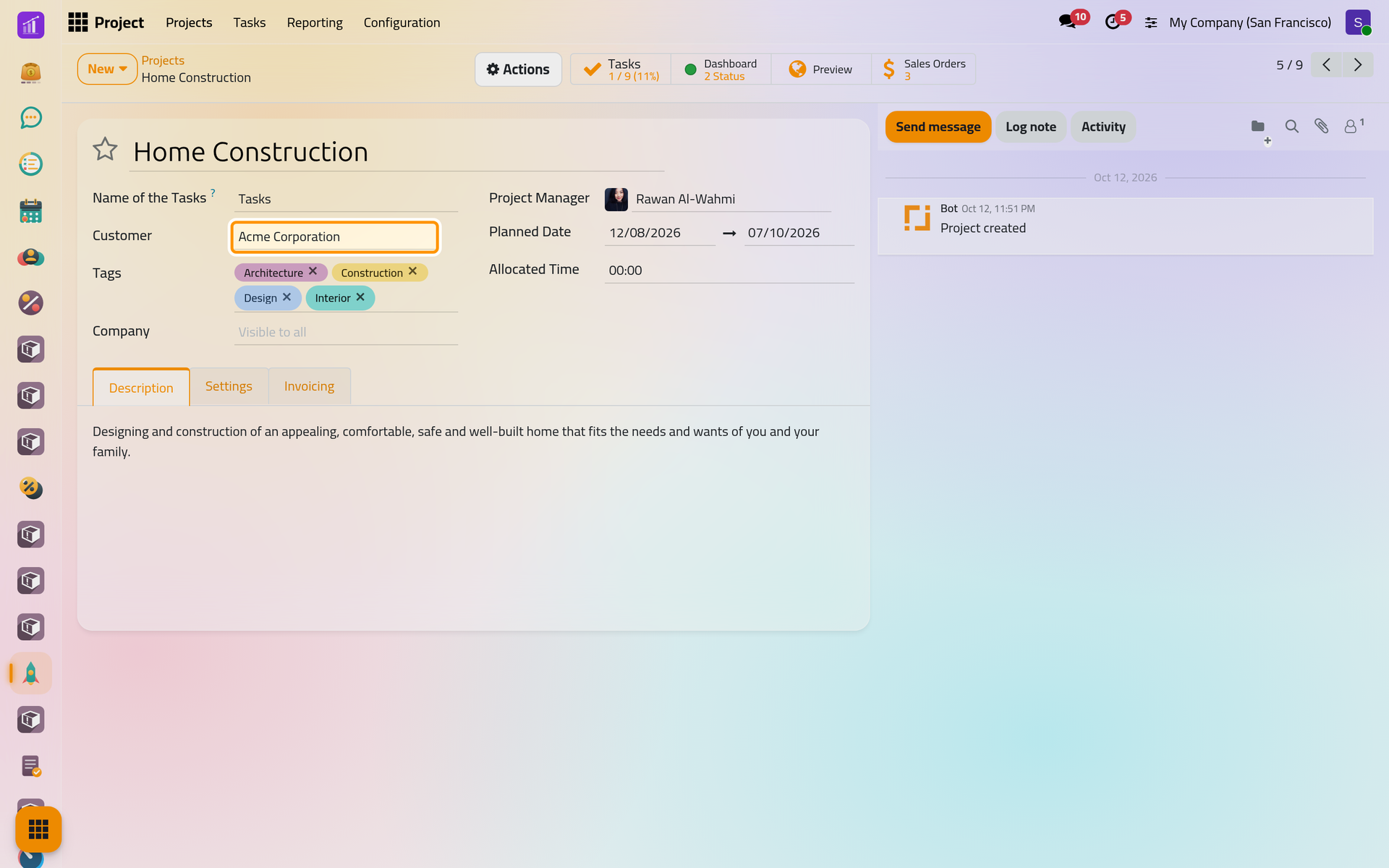
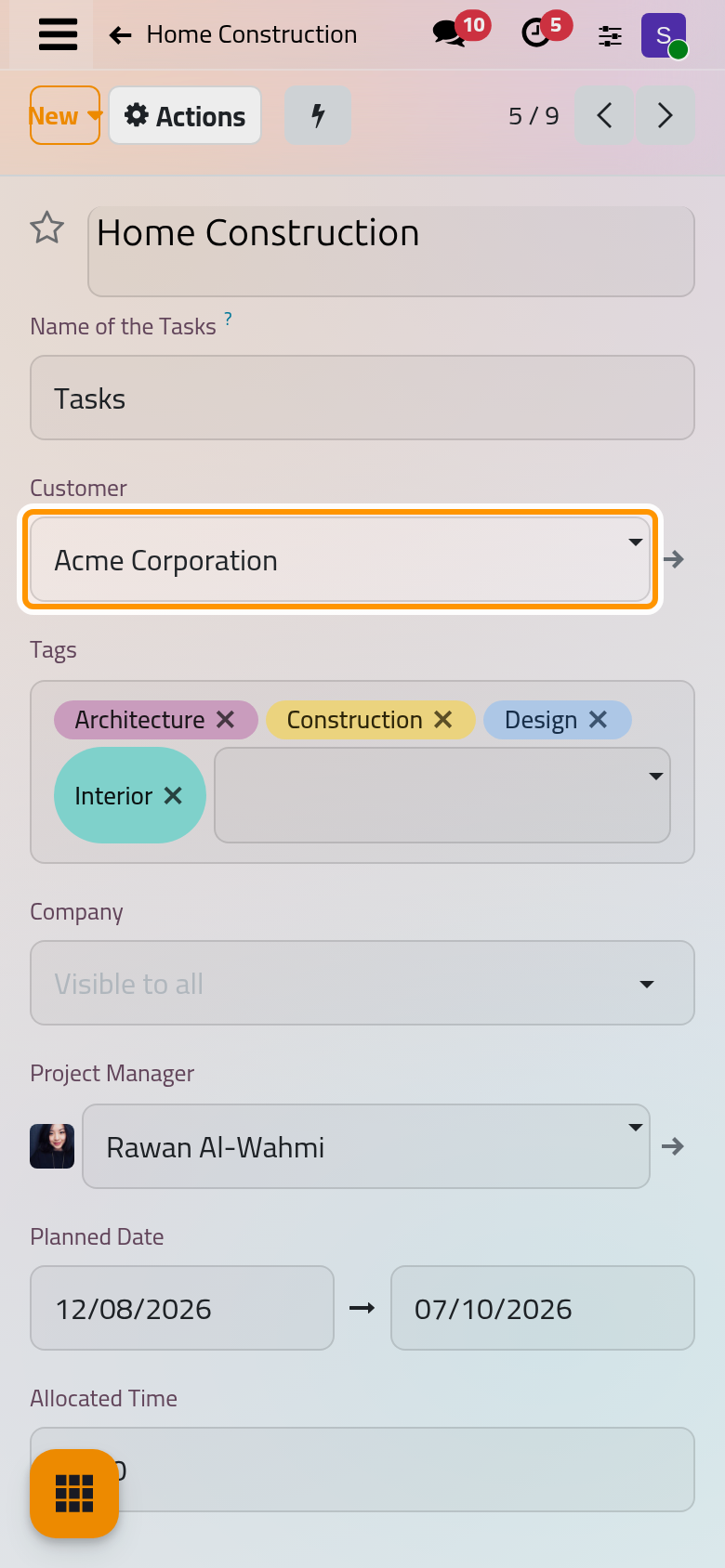
The tasks of the project take its customer by default, in their own Customer field. That customer receives the e-mails set on the stages, such as the request acknowledgment and the rating request: Projects automations.
Choose the visibility
Open the Settings tab. Visibility offers four choices:
| Visibility | Who sees the project |
|---|---|
| Invited internal users | Only the employees who follow the project, or a task of it; assignees follow their tasks |
| Invited internal and portal users | The same, and the portal users who follow it |
| All internal users | Every employee, with all its tasks |
| All internal users and invited portal users | Every employee, and the portal users who follow the project or a task |
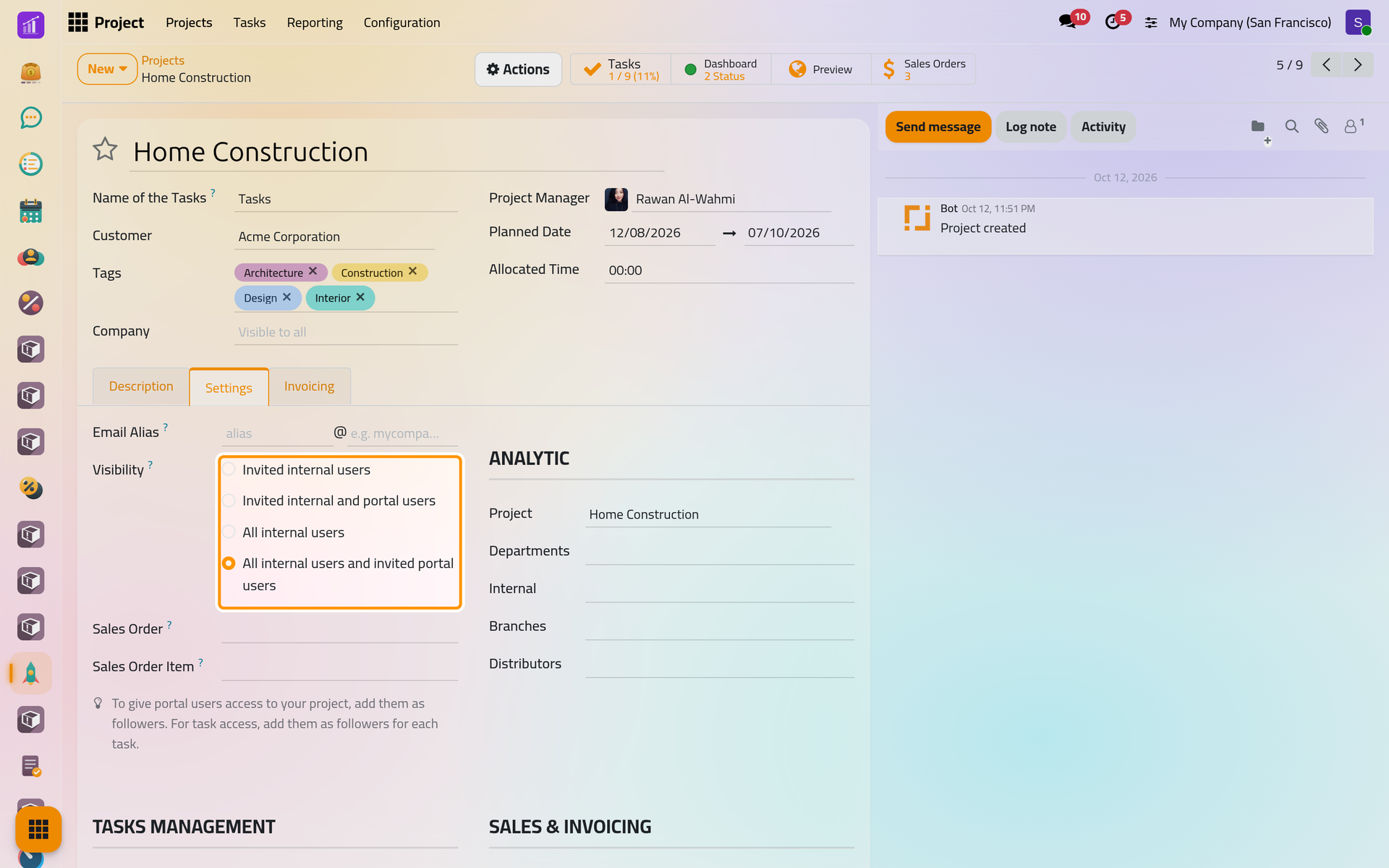
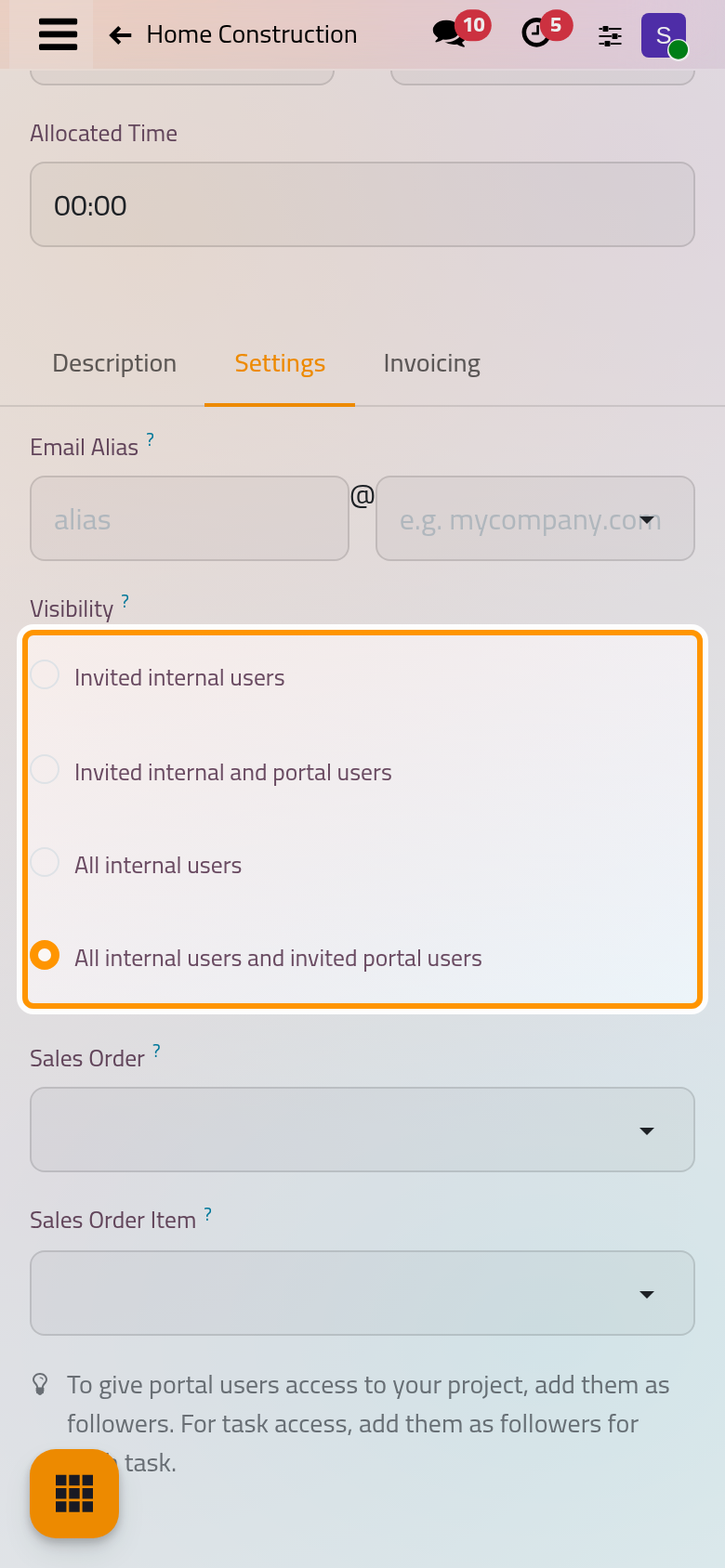
A line under the choices recalls what the chosen visibility means. An employee who follows a task, or is assigned to it, can open it even without access to its project.
Invite collaborators
With one of the two visibilities that let portal users in, choose Actions, Share Project on the project's form (or Share Project in the menu of its card).
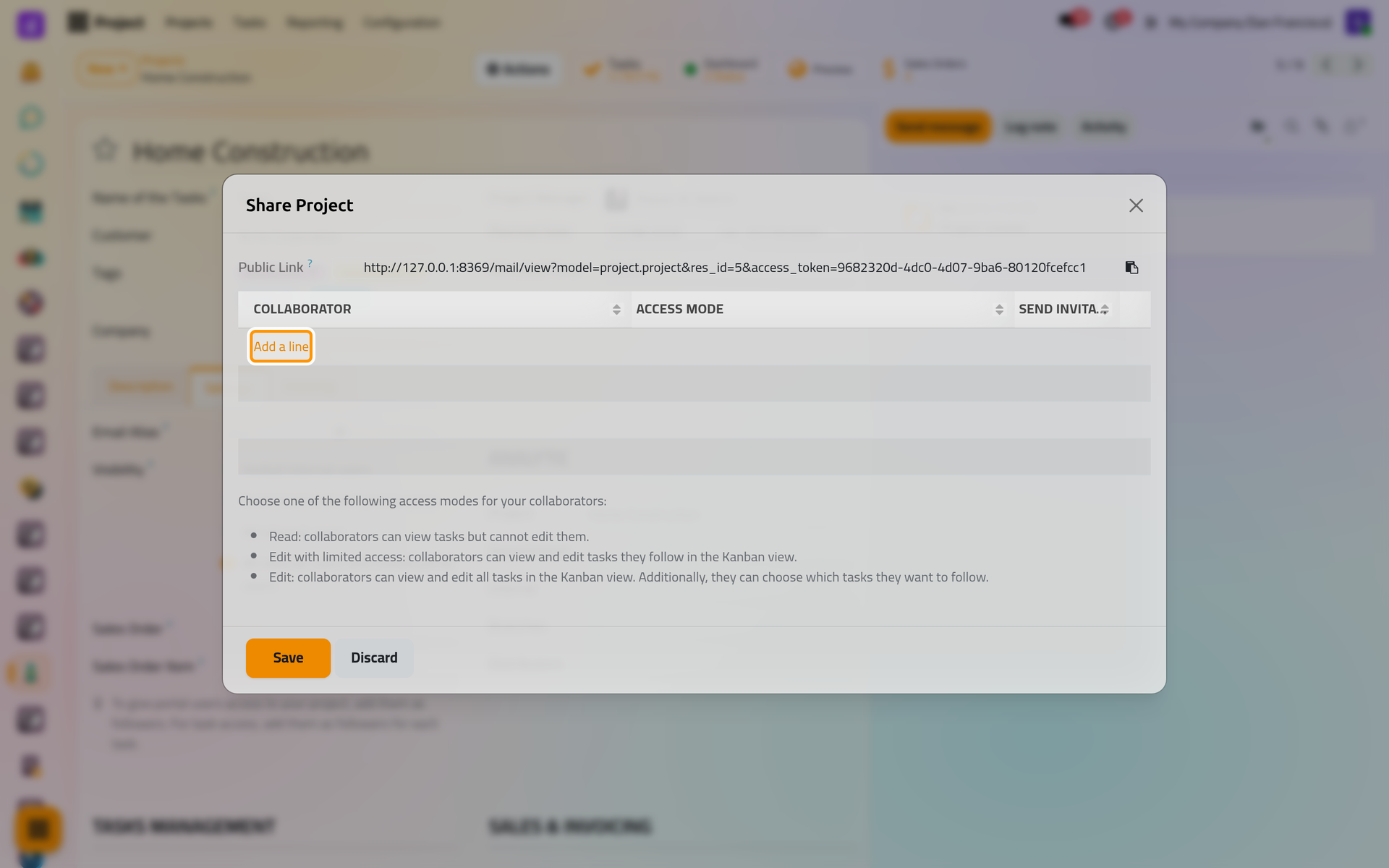
The window shows the Public Link, a read-only page of the project for anyone who has the address. Below it, click Add a line for each person, choose the contact and an Access Mode:
- Read: they see the tasks in the portal, without changing them.
- Edit with limited access: they see and edit the tasks they follow, in a board of the portal.
- Edit: they see and edit all the tasks, and choose which ones to follow.
Tick Send Invitation to e-mail each of them a link; a contact who has no portal account yet receives a link to create one. Then click Share Project. The people become followers of the project and, in an edit mode, its collaborators.
On a phone, Actions stays at the top of the form, next to New.
FAQ
I do not see Share Project.
The visibility of the project keeps portal users out. Choose Invited internal and portal users or All internal users and invited portal users first.
How do I stop sharing with someone?
Open Share Project again, delete the person's line and confirm with Share Project, or with Save when no line is left.
Where is the Customer field on my project?
It appears once Billable is ticked in the Settings tab.
What does the customer see with Read?
The project and its tasks in the portal, as they are, without any way to change them.
Was this page helpful?
Thank you for your feedback.