Sub-tasks, dependencies and recurring tasks
On this page
- Before you start
- Switch the options on for a project
- Split a task into sub-tasks
- Say which tasks block another
- Make a task come back
- FAQ
- I see no Blocked By tab on my task.
- The next occurrence of my recurring task did not appear.
- Does closing a parent task close its sub-tasks?
- Can a sub-task belong to another project?
Large tasks are easier to follow in pieces, some tasks cannot start before others end, and some come back every week. Each of these is a field of the task; dependencies and recurrence are first switched on for the project.
Before you start
- Changing a project's options needs the Administrator access right on Project.
- Sub-tasks need nothing more: every project has them.
Switch the options on for a project
- Open and click the project, here Research & Development.
- Open the Settings tab. Under Tasks Management, tick Recurring Tasks, Task Dependencies or Milestones (Milestones and project updates).
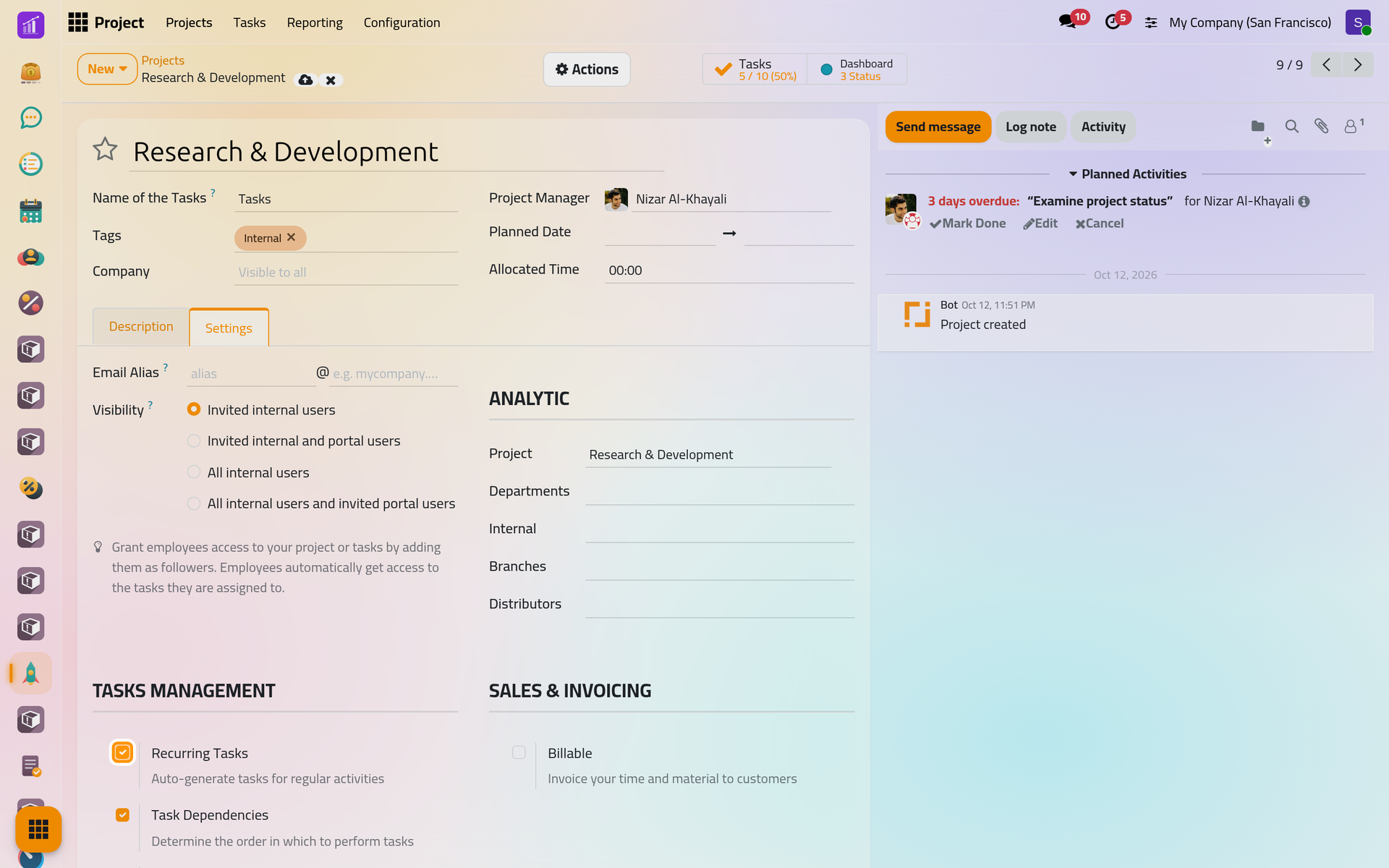
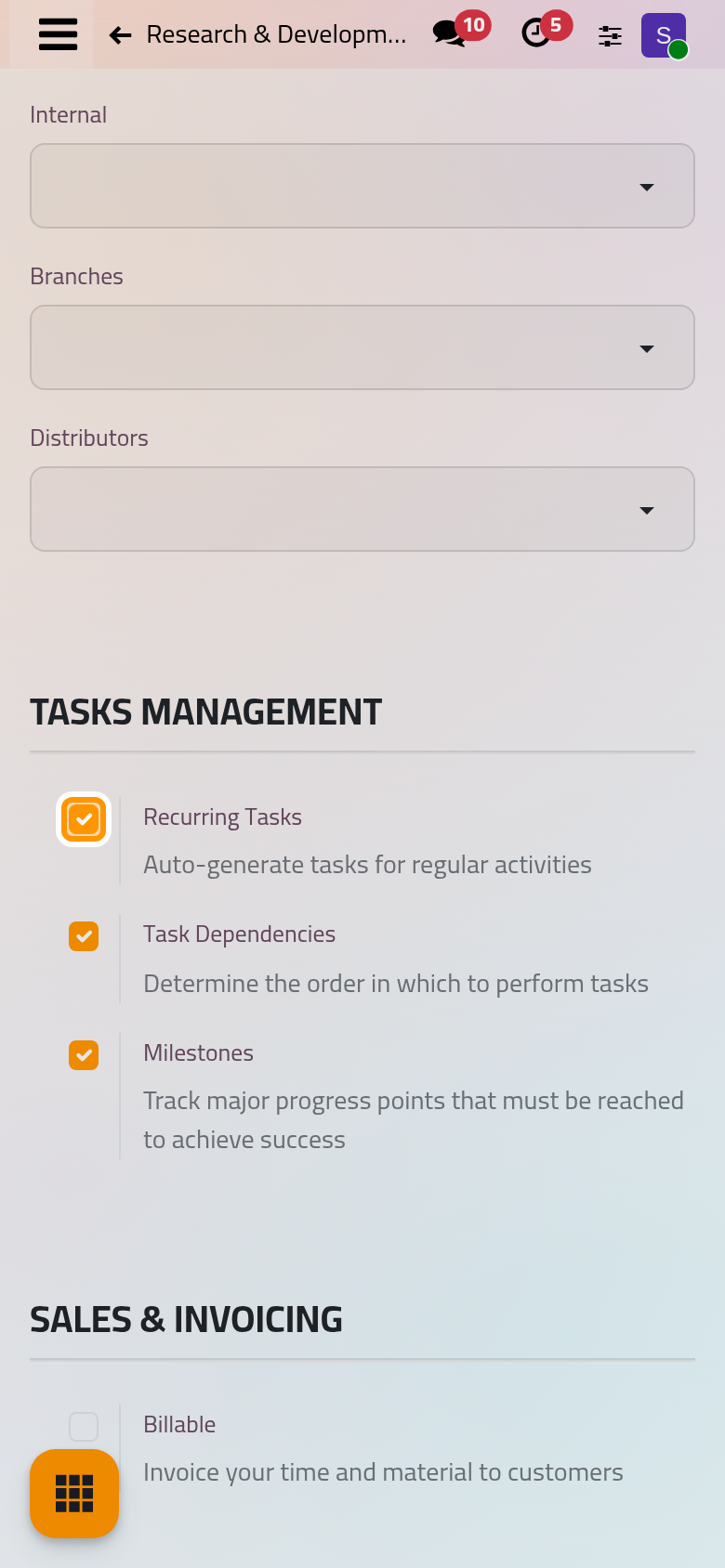
- Save. The options apply to this project only; another project keeps its own.
Split a task into sub-tasks
- Open the task and its Sub-tasks tab, then click Add a line.
- Type the title of the sub-task and save the task.
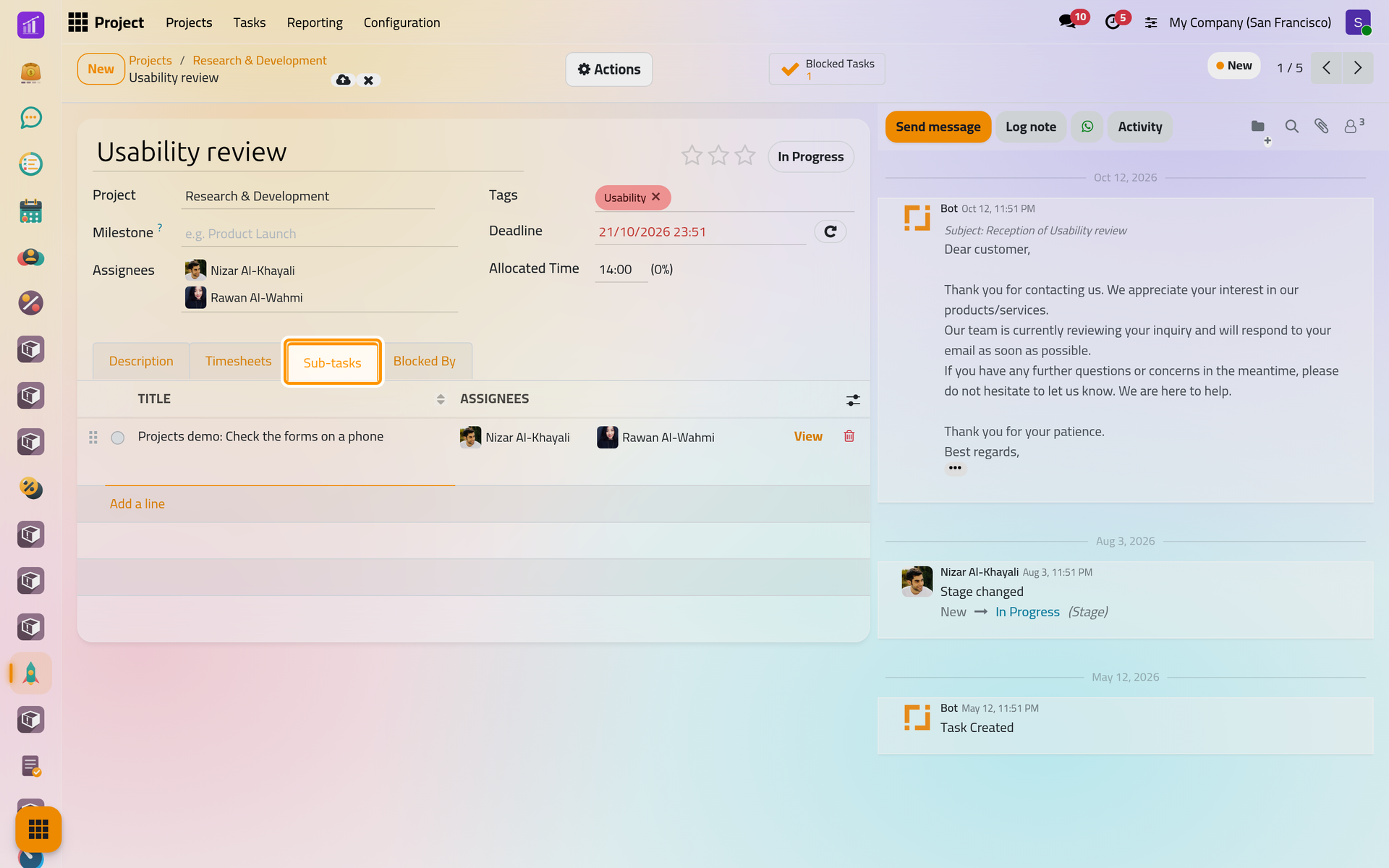
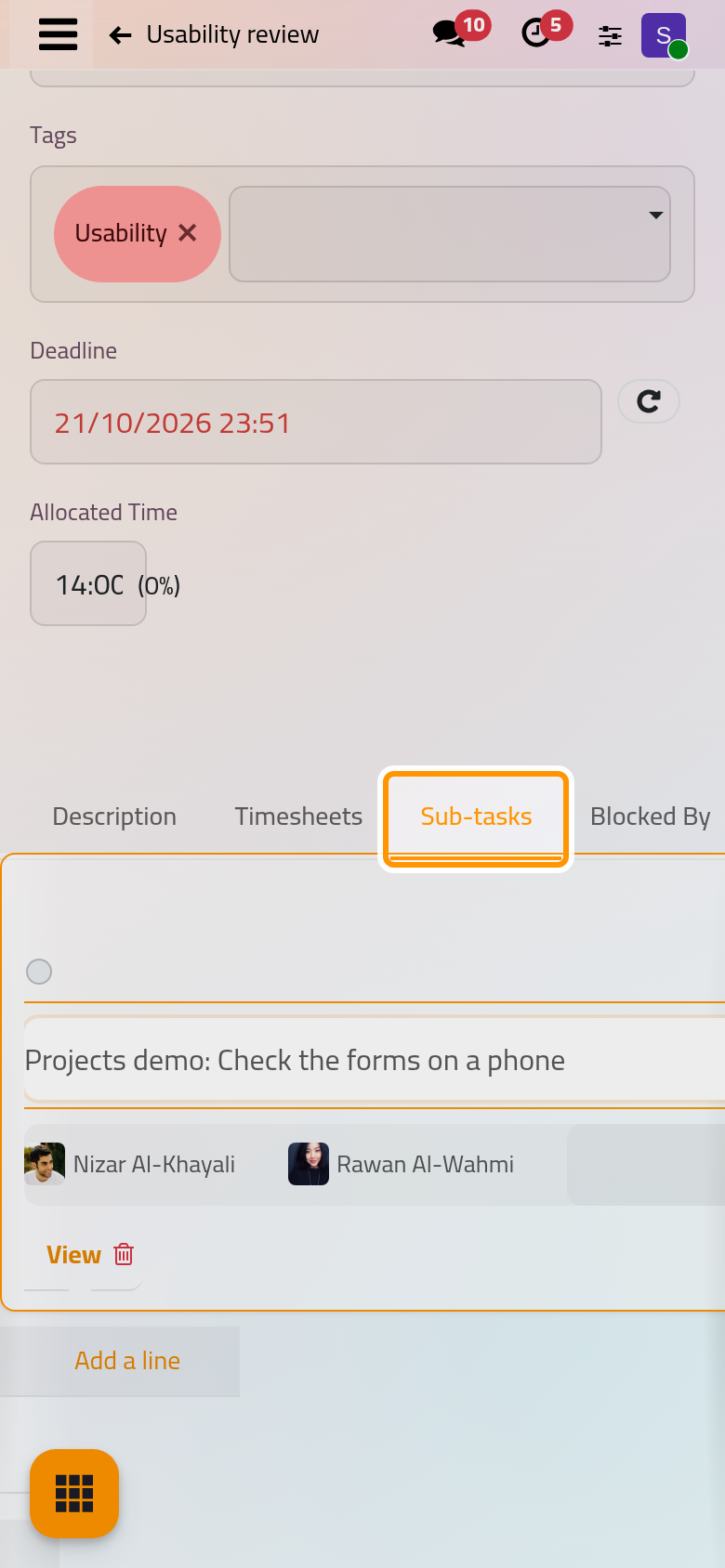
The sub-task takes the project, the assignees, the tags and the milestone of its parent, and you can change each of them on its own form, opened with View. The parent shows a Sub-tasks button with how many are done, and the time logged on sub-tasks counts in the parent's progress. On the board, the sub-tasks of the same project are hidden unless you choose Show Sub-Tasks in the menu next to the search bar.
To turn an existing task into a sub-task, or a sub-task back into a task, open it and choose Actions, Convert to Task/Sub-Task: pick the parent task, or leave it empty, and click Convert Task.
Say which tasks block another
Once Task Dependencies is on, the task form has a Blocked By tab. Click Add a line there and pick the tasks that must be finished first.
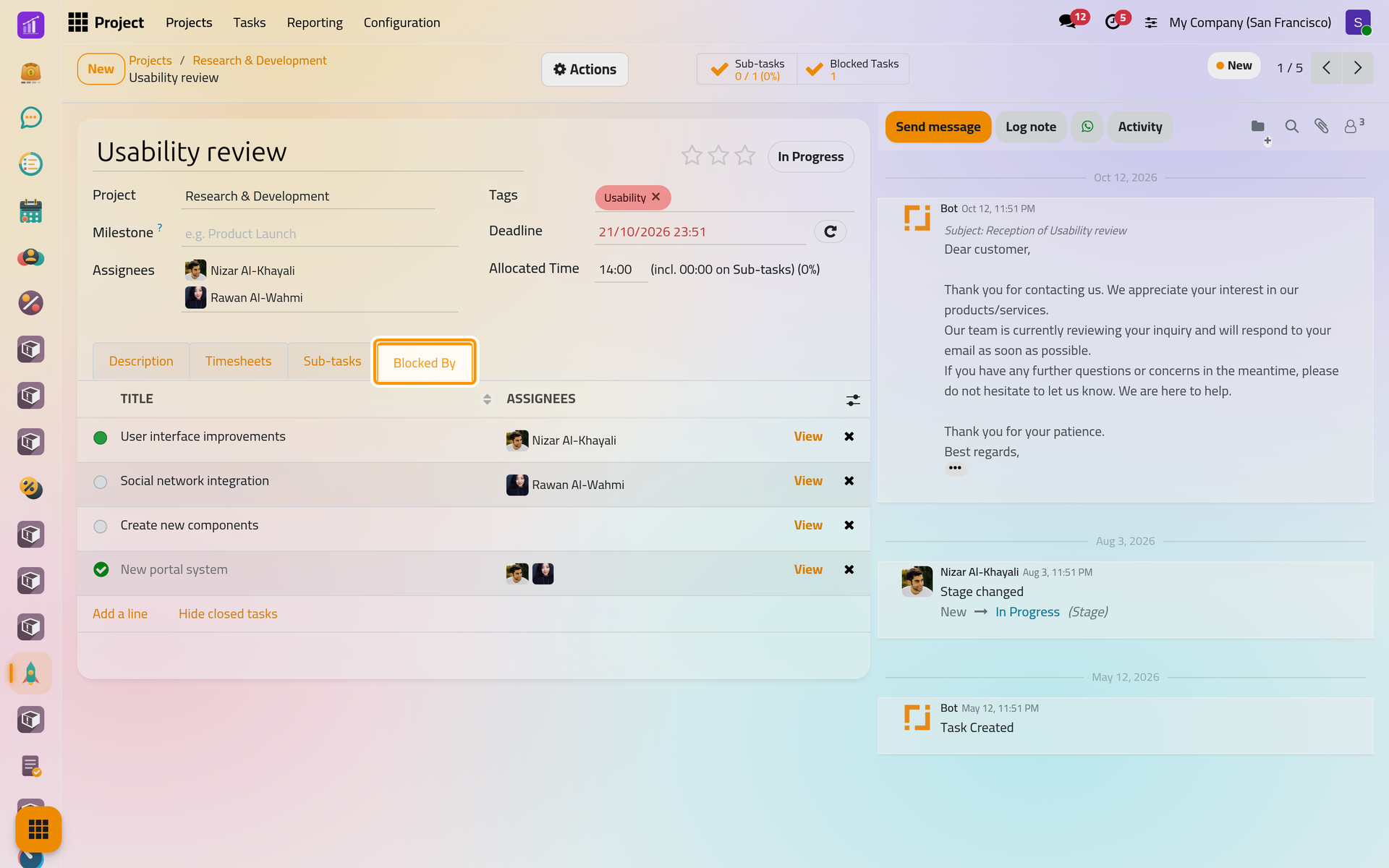
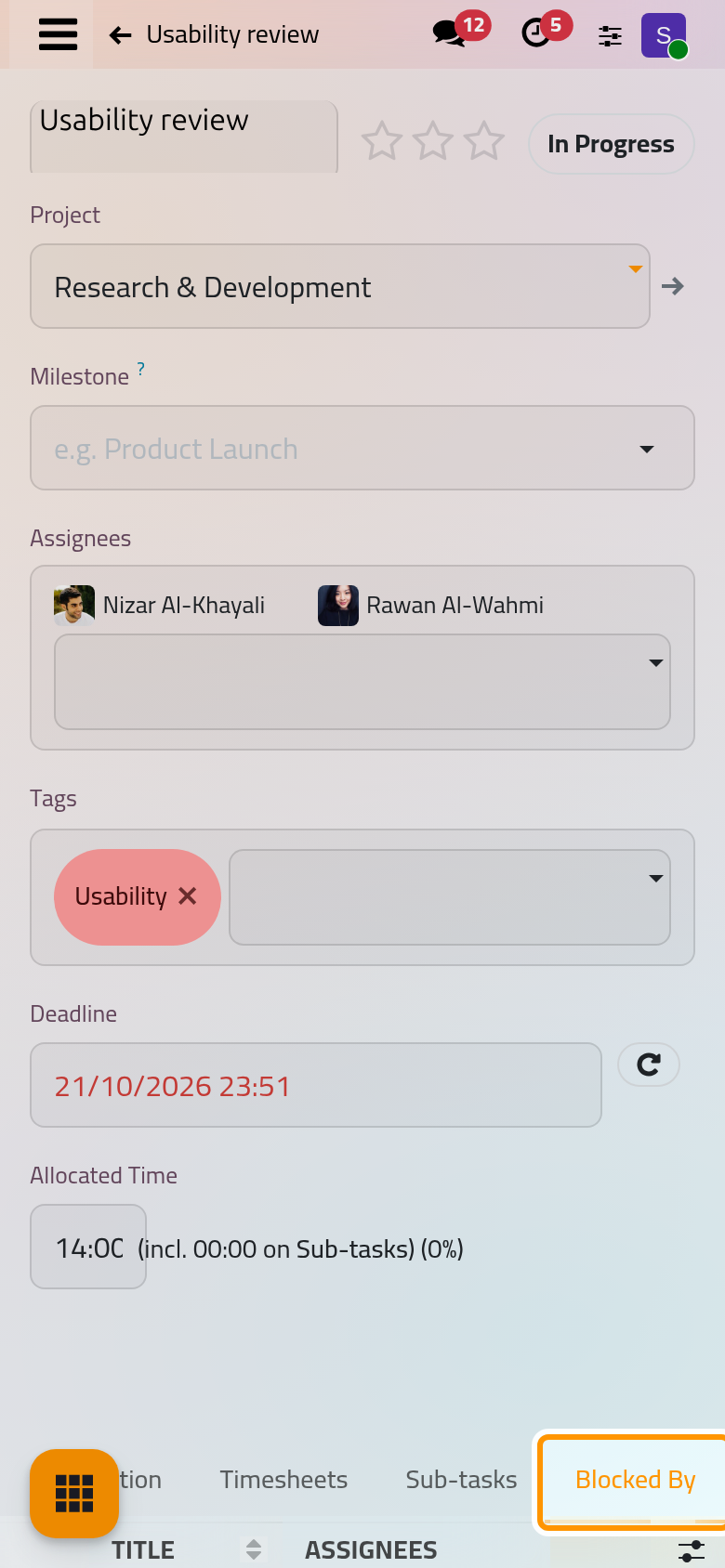
While one of them is still open, the blocked task takes the state Waiting; it goes back to In Progress by itself once they are all Done or Cancelled. The task that blocks others shows a Blocked Tasks button.
Make a task come back
Once Recurring Tasks is on, a repeat button stands next to the Deadline of each task.
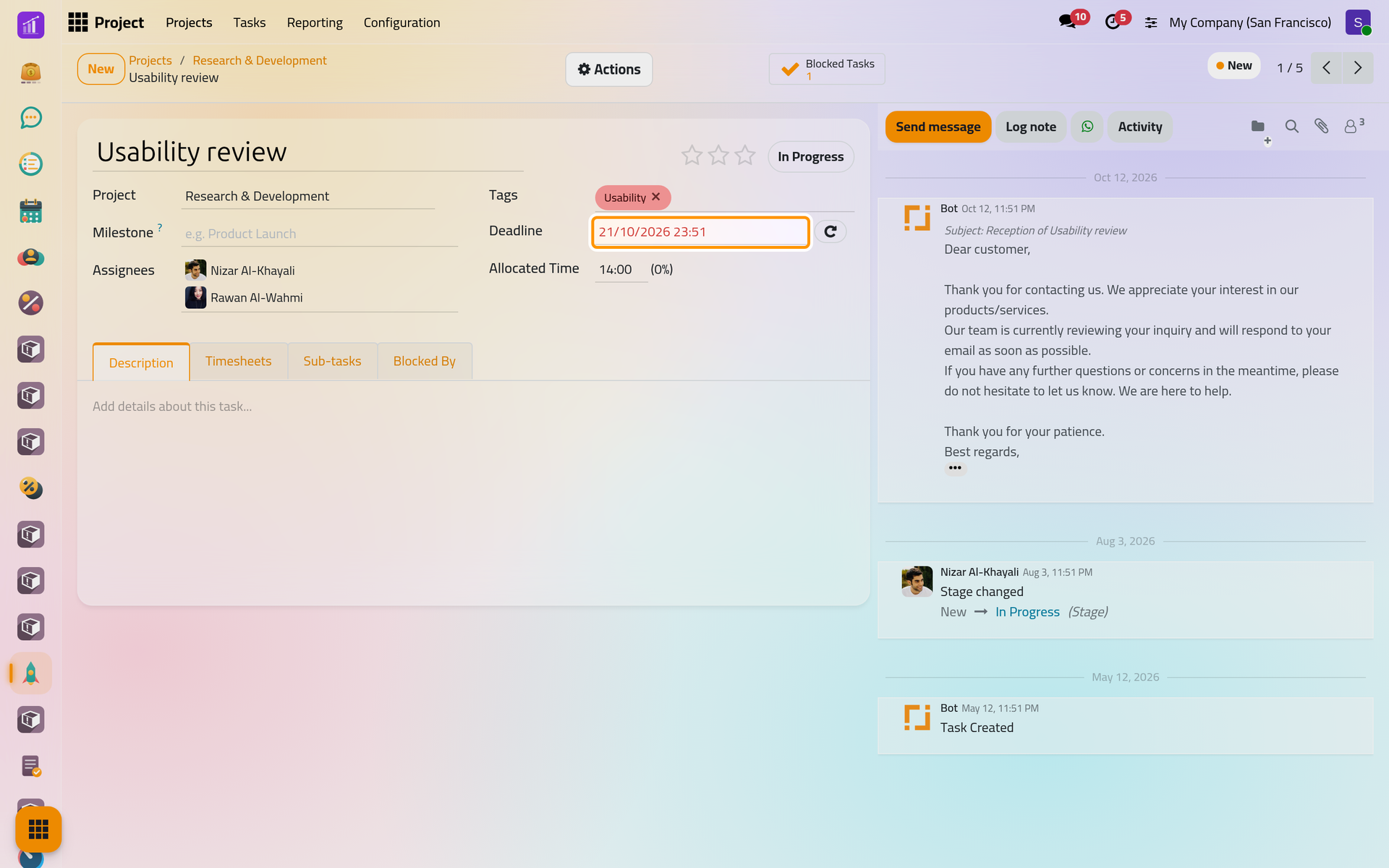
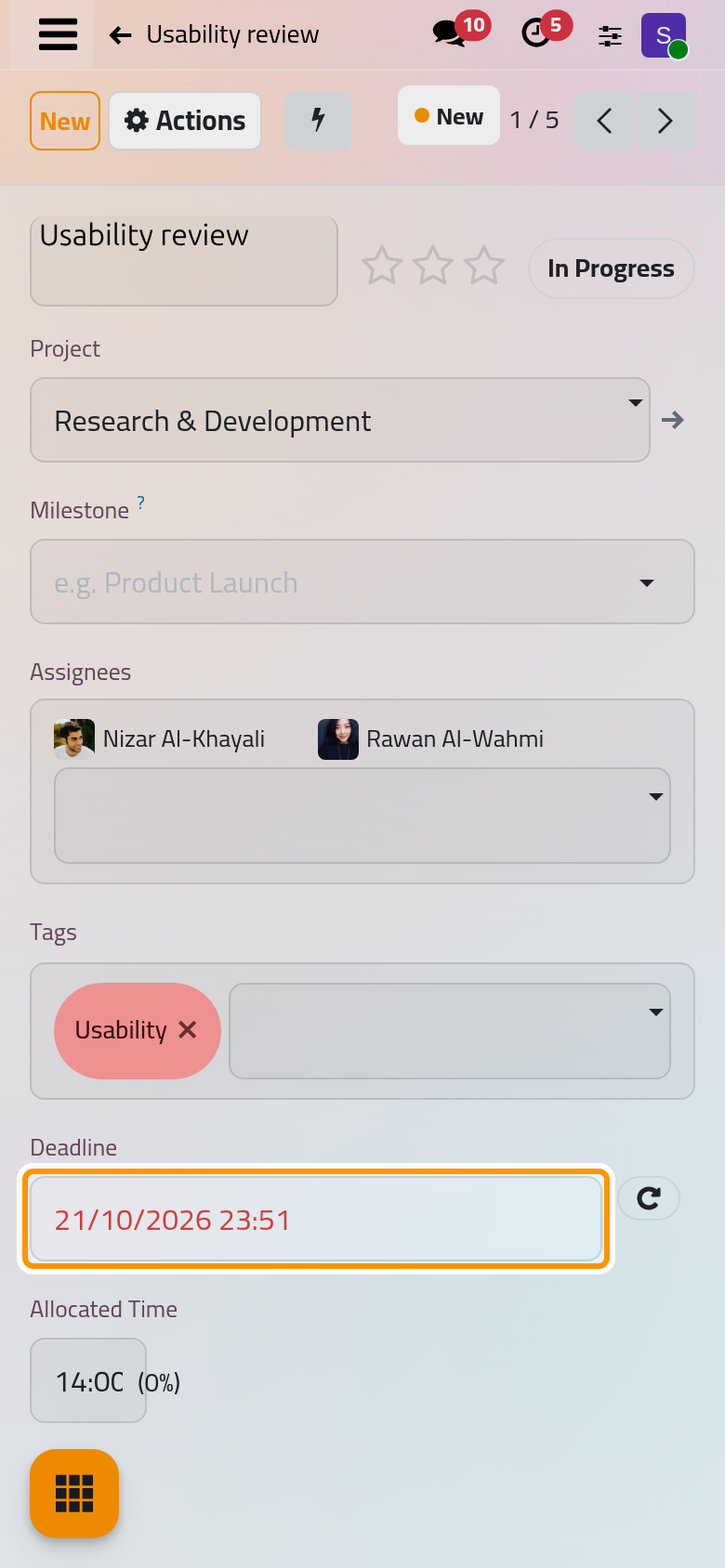
- Click it. Repeat Every appears with three fields: a number, a unit (Days, Weeks, Months or Years) and Forever or Until with an End Date.
- Save the task.
When the task is marked Done or Cancelled, a copy of it is created at once with its deadline moved by the interval. With Until, no copy is created past the end date. A Recurring Tasks button on the form lists all the occurrences.
FAQ
I see no Blocked By tab on my task.
Task Dependencies is off for its project. Tick it in the project's Settings tab.
The next occurrence of my recurring task did not appear.
The copy is created only when the latest occurrence is closed, Done or Cancelled; nothing is created on a date. With Until, check the end date.
Does closing a parent task close its sub-tasks?
No. Each sub-task keeps its own state; close them one by one, or from the list of the Sub-tasks button.
Can a sub-task belong to another project?
Yes. Change Project on the sub-task's form: it stays linked to its parent and shows on the board of its own project.
Was this page helpful?
Thank you for your feedback.