Your first project
On this page
Project keeps the work of your team in projects. Each project holds tasks that move across the stages of its board, from the first idea to the finished work. With Timesheets on, everyone logs the time spent on the tasks, and the project shows how much planned time is left. This walk-through creates a small website project, gives it stages, adds a task, logs time on it and moves it forward.
Before you start
- Creating a project needs the Administrator access right on Project. A User works on the tasks of the projects open to them. Access rights are set on the user's form: Create a user and set access rights.
- Logging time needs an access right on Timesheets and an employee linked to your user in the current company: Employees.
Step 1: create the project
- Open . Each card is a project.
- Click New. The list offers New Project, a blank project, then the project templates of the database, such as Product Launch Campaign.
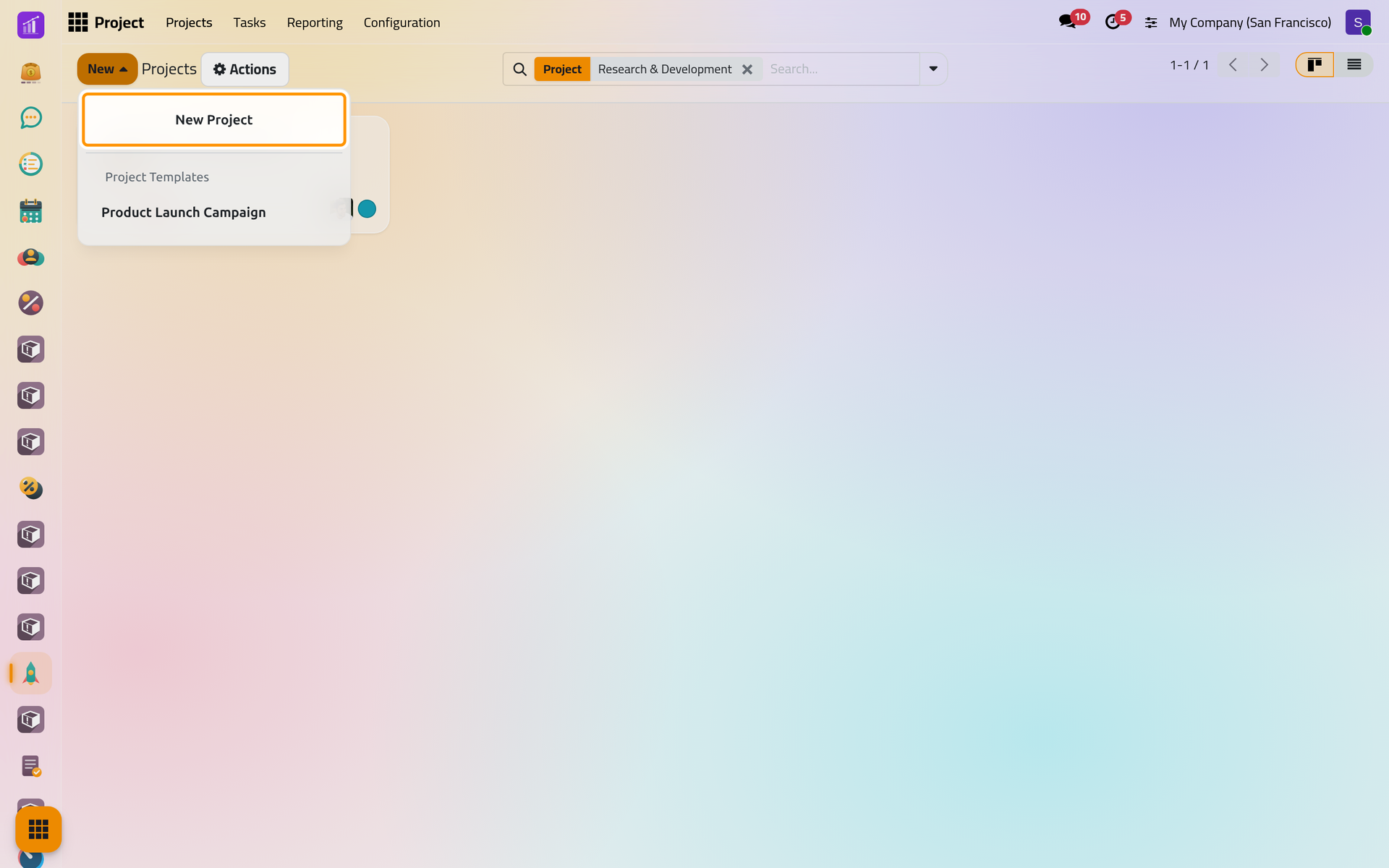
On a phone, New sits at the top left of the screen and opens the same list.
- Choose New Project, then type the name
Projects demo: Website refresh. Timesheets is already ticked: keep it, it lets the team log time on the tasks. Billable invoices that time to a customer and belongs to the sales side (Quotations); Create tasks by email gives the project an address that turns incoming e-mails into tasks. Leave both empty.
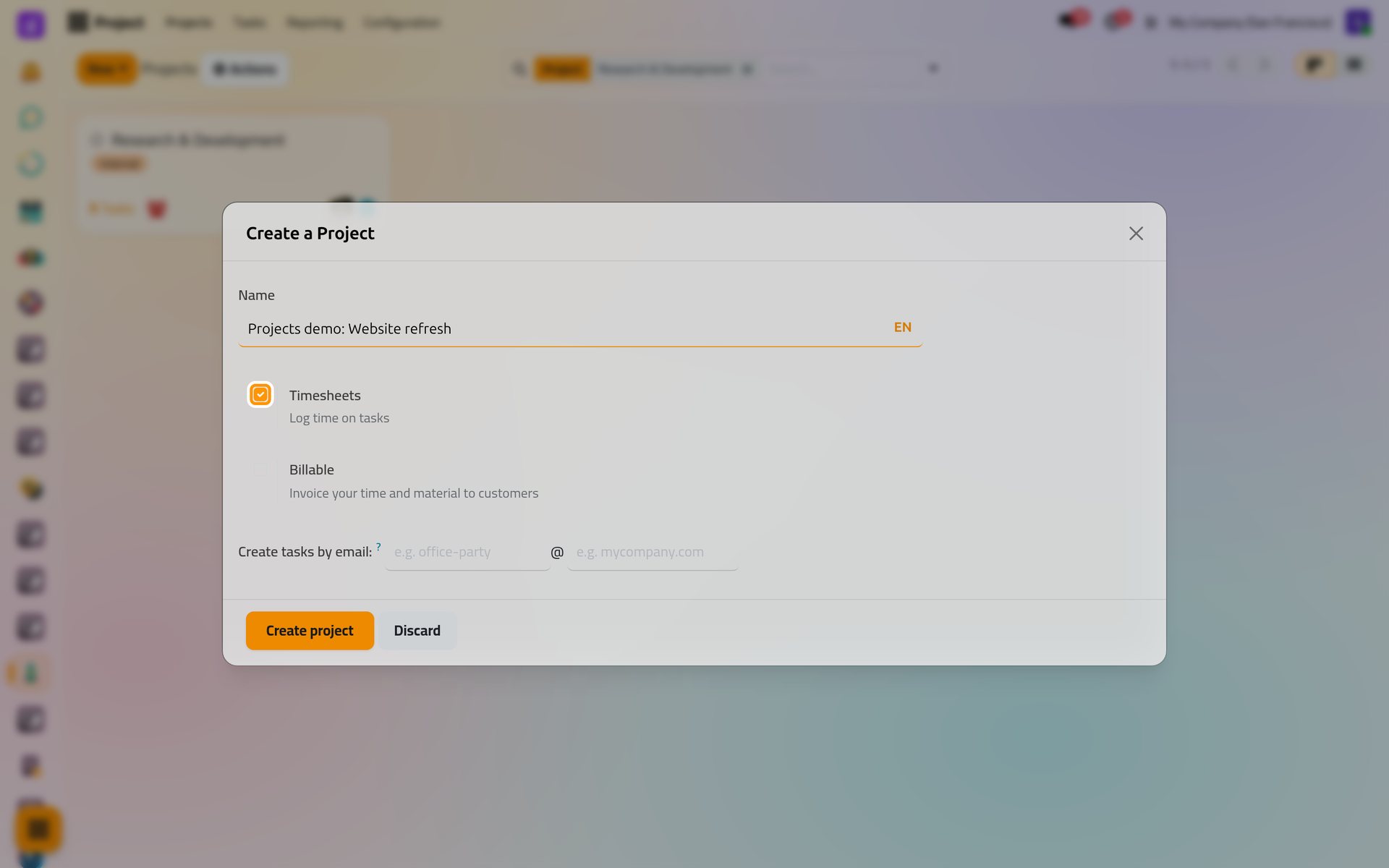
- Click Create project. The project opens on its board, still empty: "No stages yet, let's create some!".
Step 2: give it stages
A stage is a column of the board, a step the tasks go through. Type a name in the Stage... box and confirm it to add one, or start from a ready set:
- Click See examples. The Kanban Examples window lists sets of stages for common kinds of work.
- Choose Website Redesign: Page Ideas, Copywriting, Design and Live, the last one folded because finished tasks rarely need to be seen.
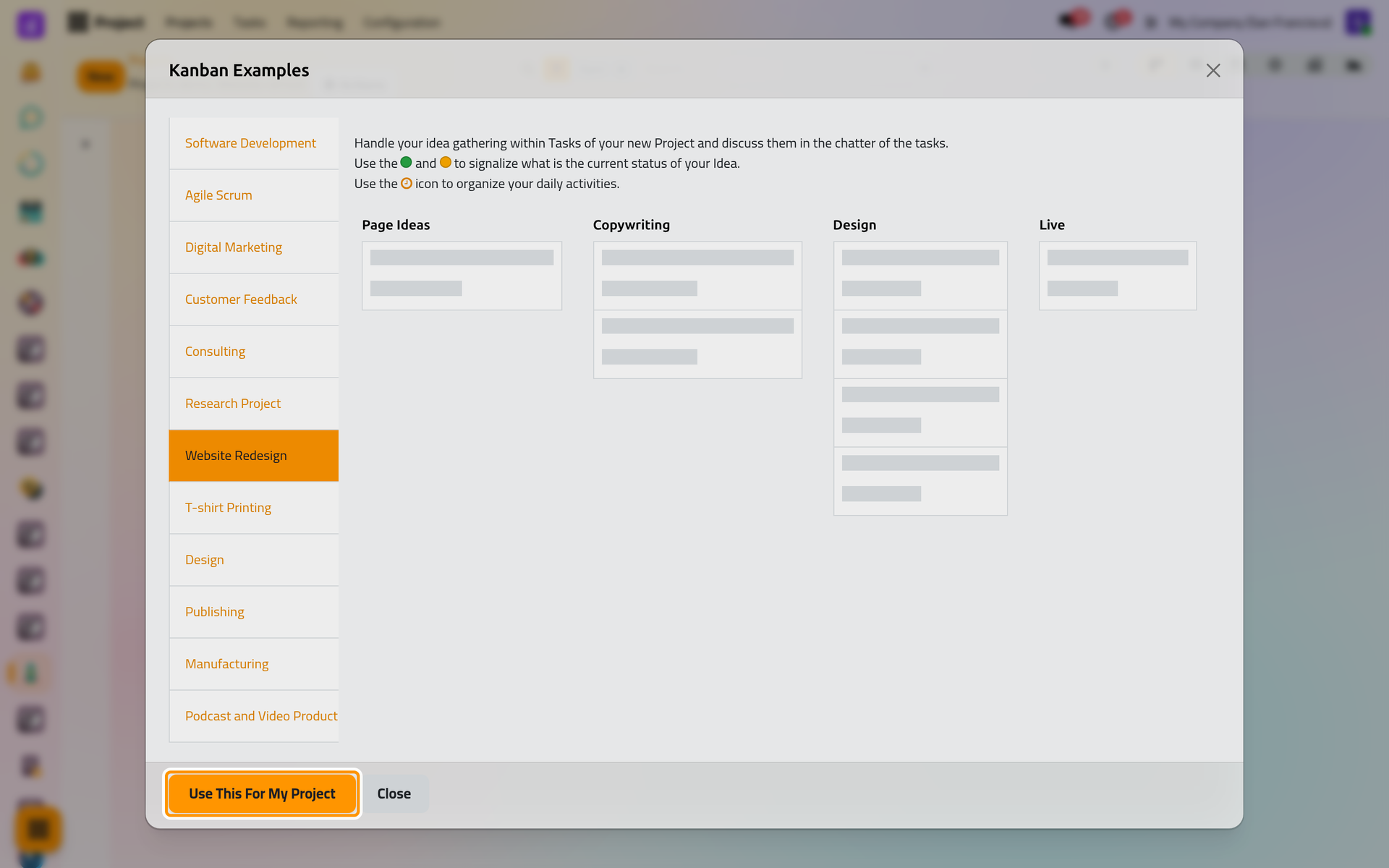
- Click Use This For My Project. The four columns appear on the board. You can change them at any time: Organize tasks on the board.
Step 3: add a task
- Click New above the board. A small card opens at the top of the first stage, Page Ideas.
- Type the title
Projects demo: Write the home page text.
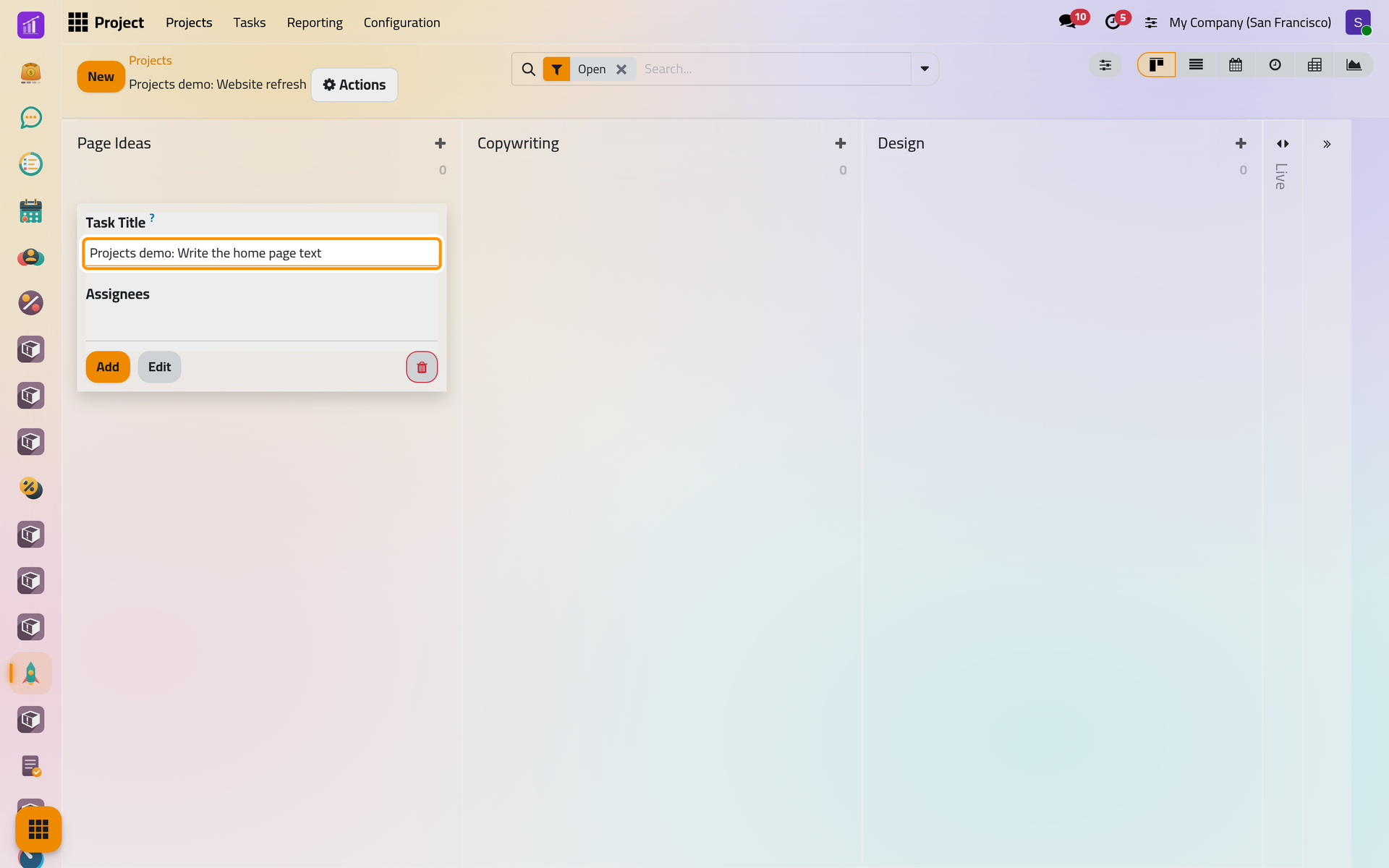
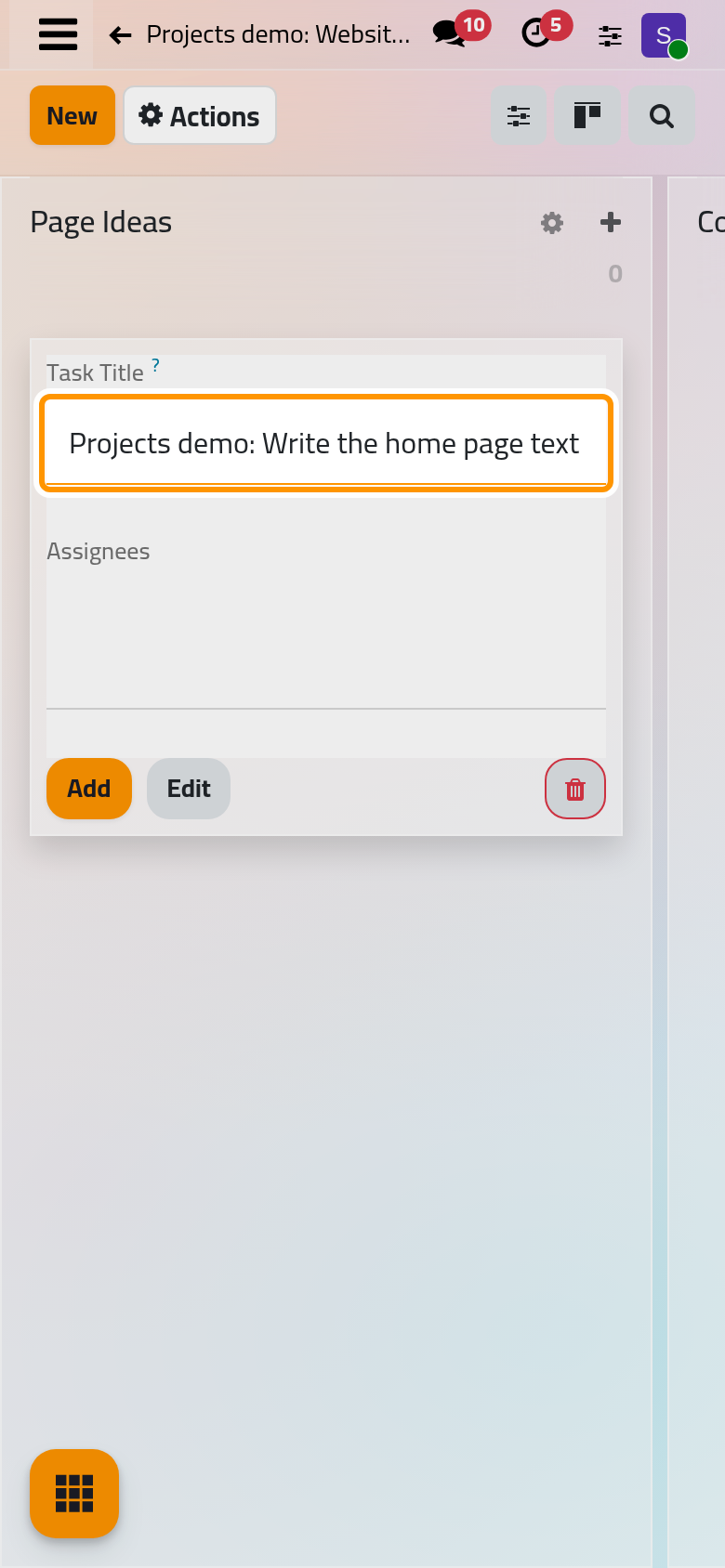
Add saves the card and opens a new one for the next task; Edit saves it and opens its full form.
- Click Edit. Type
08:00in Allocated Time, the time you plan for the task;20/11/2026 17:00in Deadline; and choose Rawan Al-Wahmi in Assignees.
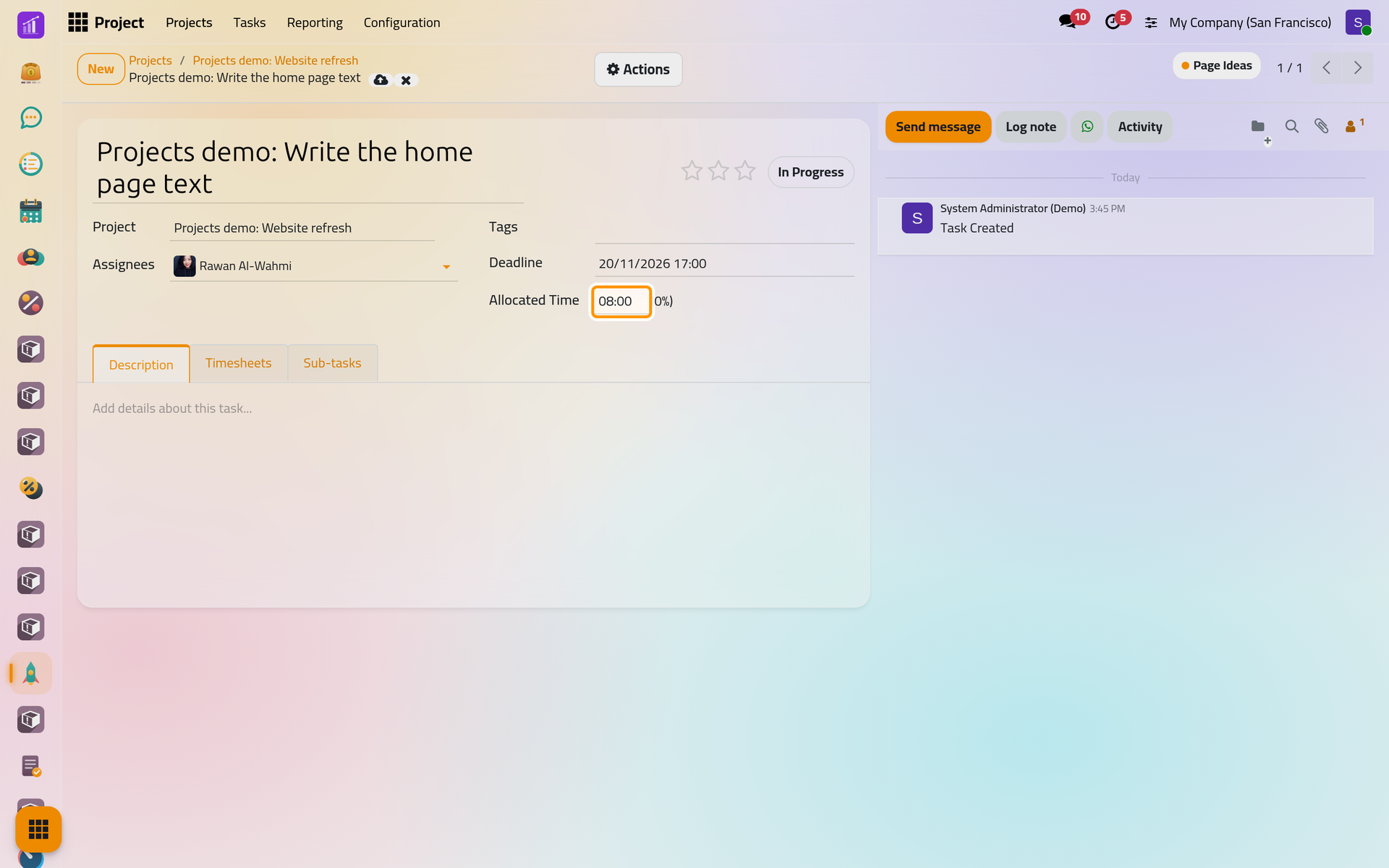
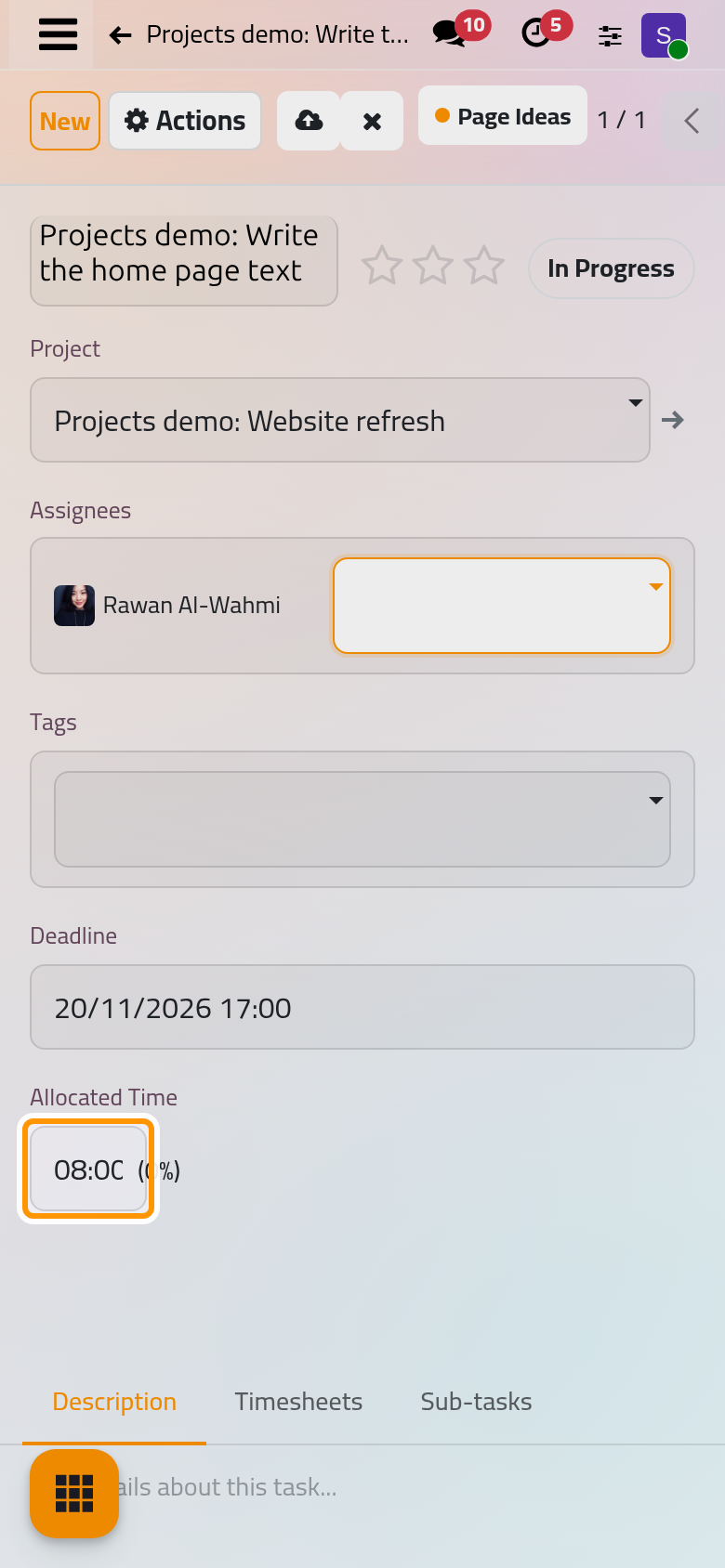
Rawan Al-Wahmi becomes a follower of the task and receives a notification that it has been assigned to her. The percentage next to Allocated Time is the share of that time already spent; it is still 0%.
Step 4: log time on the task
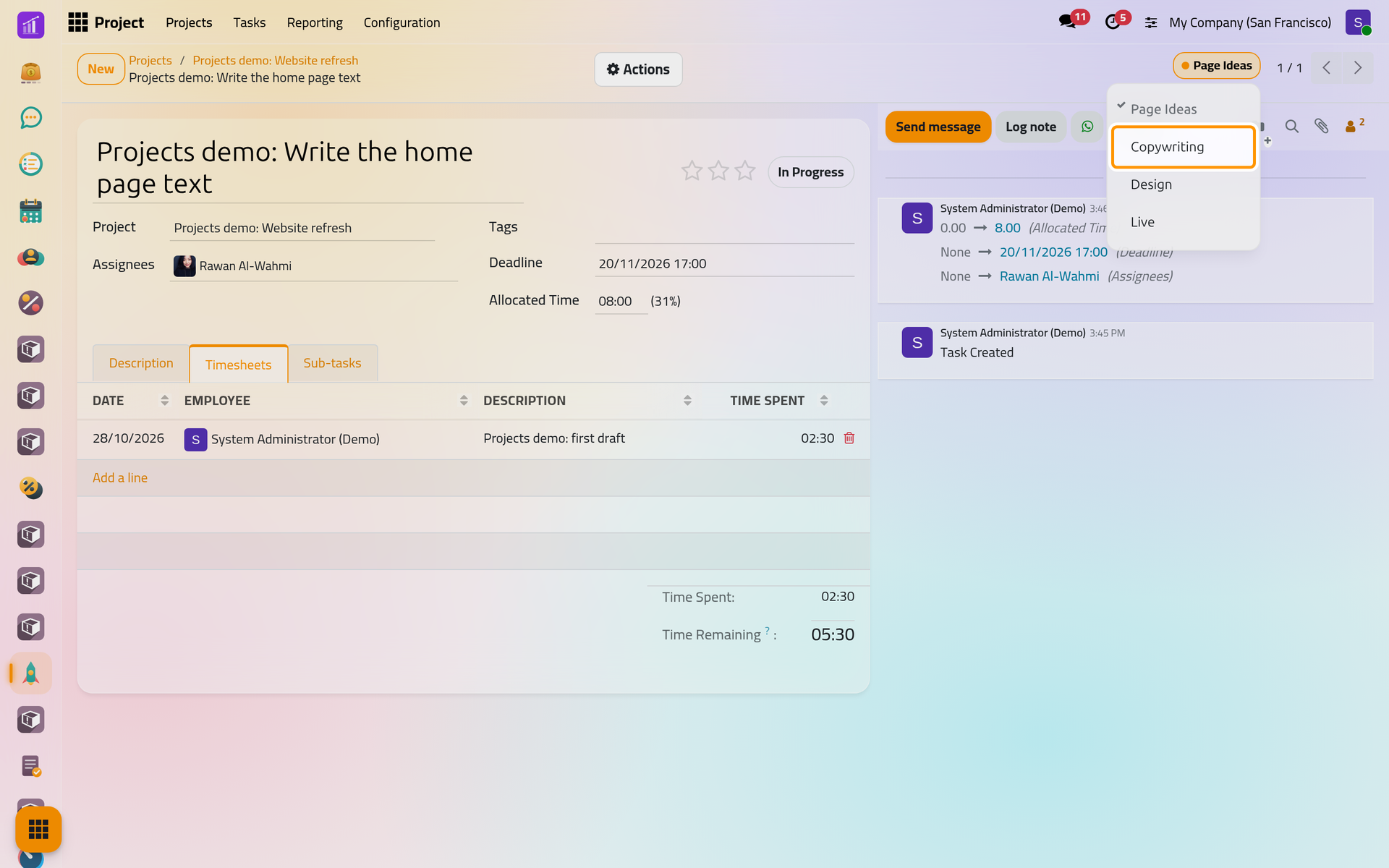
- Open the Timesheets tab and click Add a line. The date is today's and the employee is you.
- Type
Projects demo: first draftin Description and02:30in Time Spent. - Click the save button at the top of the form.
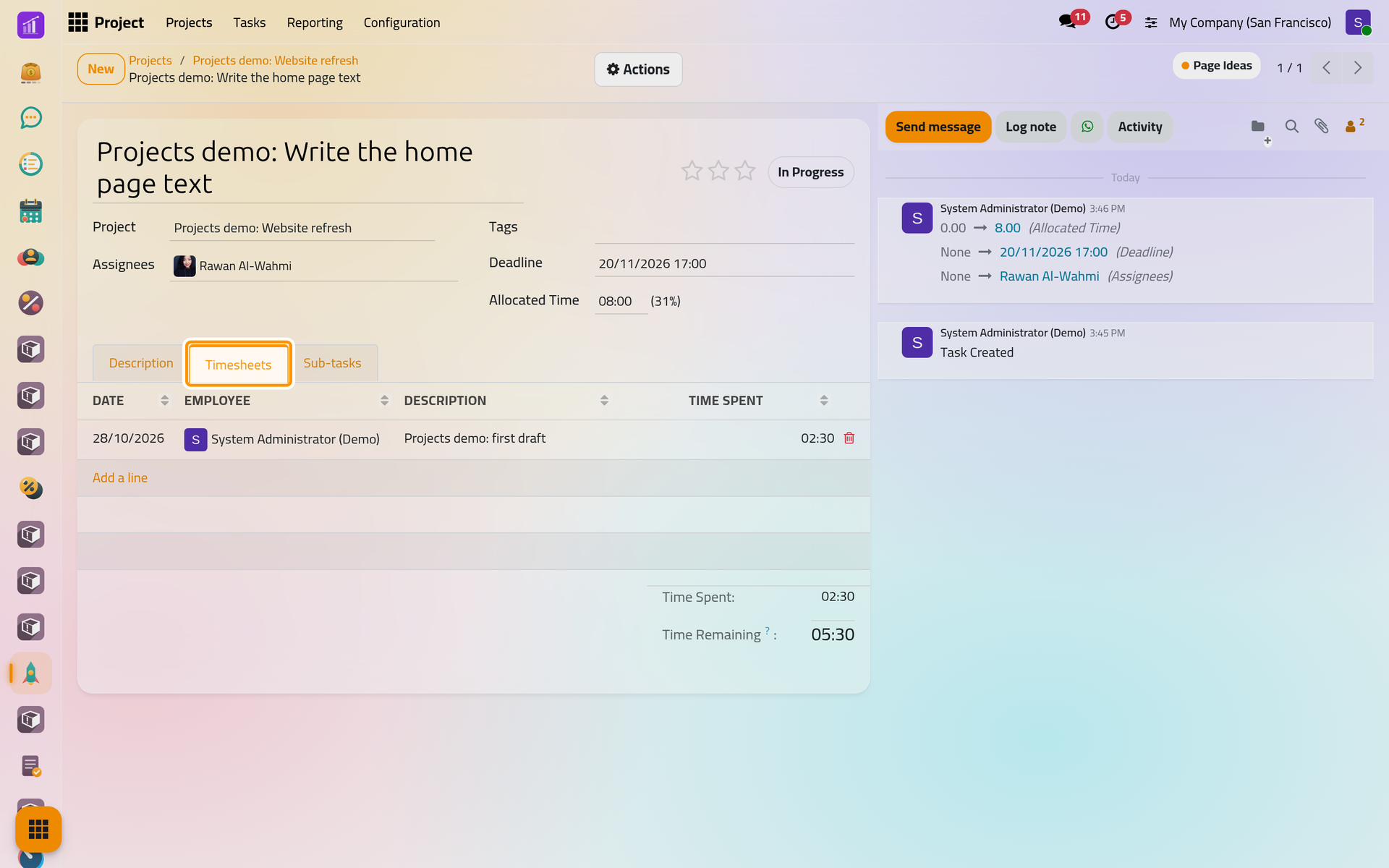
Under the lines, Time Spent shows 02:30 and Time Remaining 05:30, and the percentage next to Allocated Time reads 31%. The same line is listed in the Timesheets app, under My Timesheets: Log time on tasks.
Step 5: move the task forward
- Click the stage shown at the top right of the task, Page Ideas. The stages of the project open in a list.
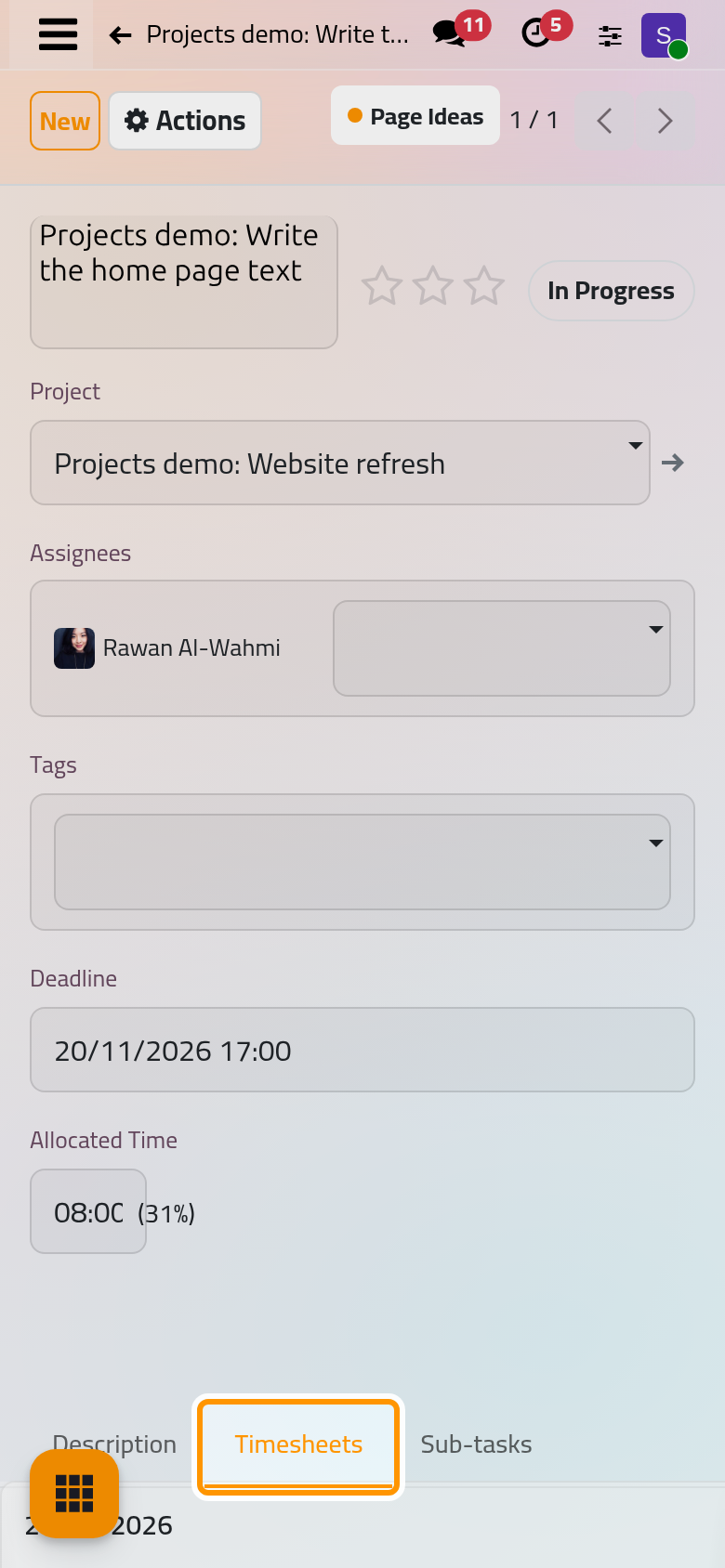
On a phone, the stage stands at the top of the task too, next to the arrows that go to the previous and next task.
- Choose Copywriting. The change is saved at once and noted in the task's history.
- Click
Projects demo: Website refreshin the breadcrumbs to come back to the board.
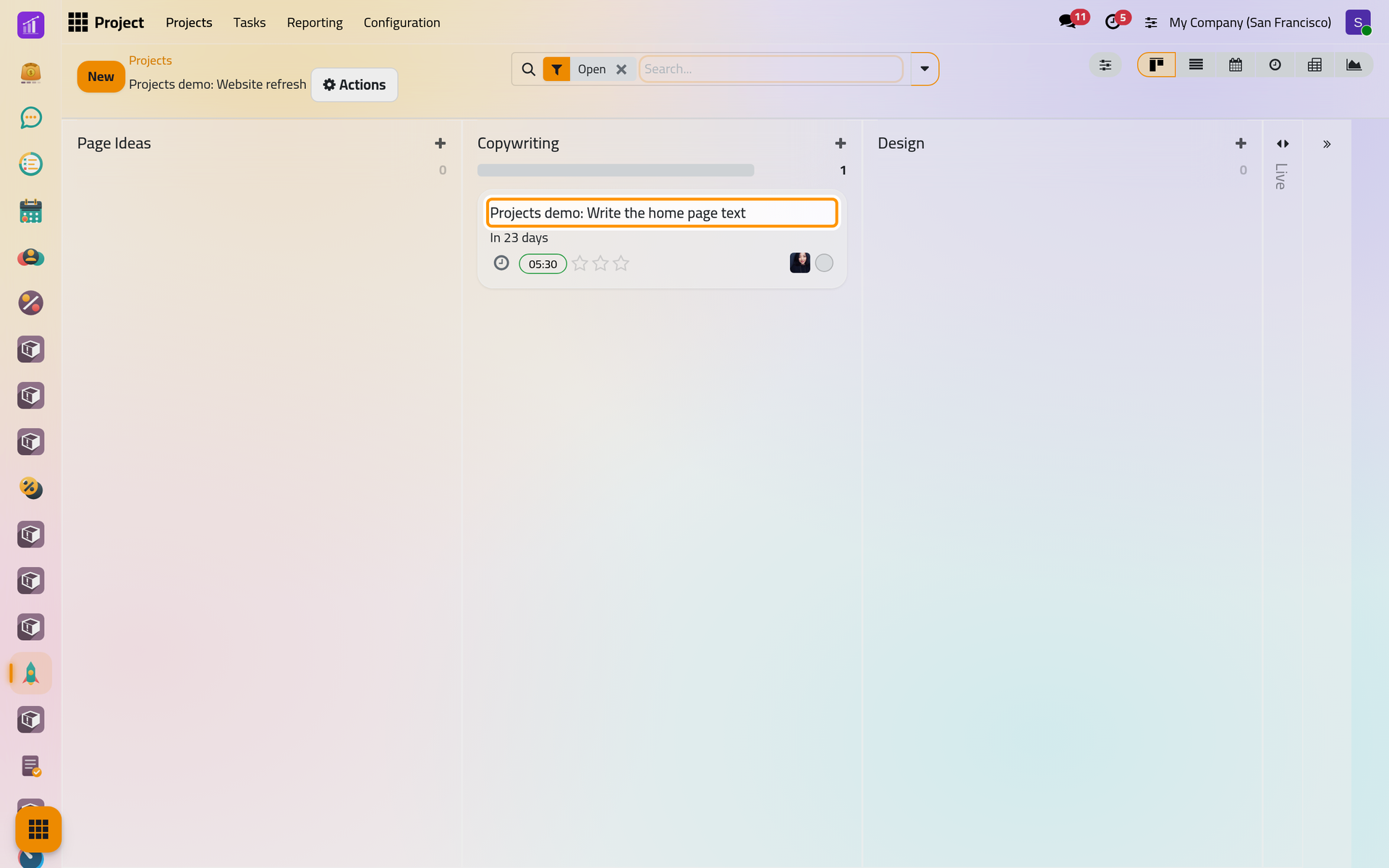
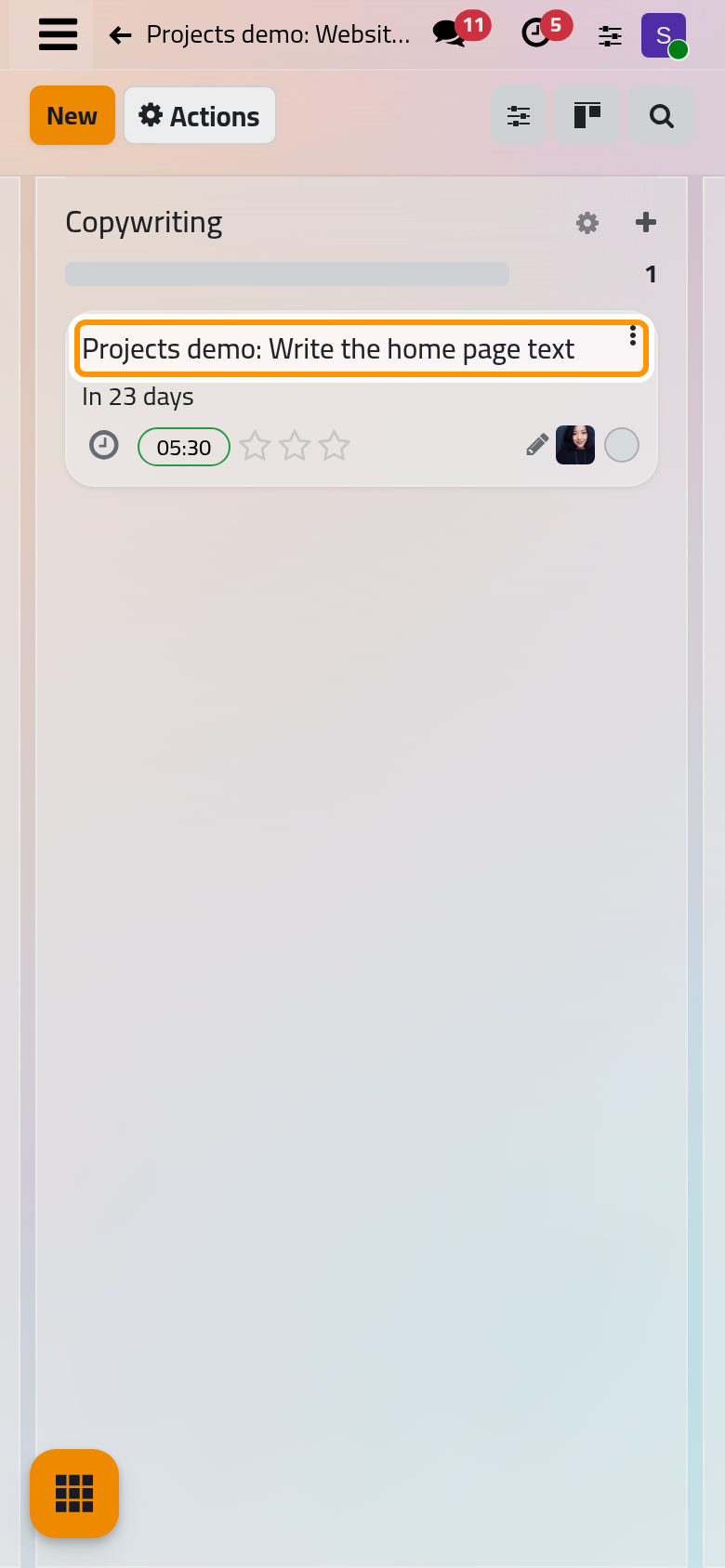
The card now sits in Copywriting, with its deadline counted from today, the time remaining, the priority stars, the assignee and the round state button. On the board, you can also drag a card to another column.
When the copy is written, click the state button of the task, In Progress, and choose Done: the task is closed and leaves the board's default view, whatever its stage.
What you have done
You created a project with timesheets, gave it a set of stages, added a task with an assignee, a deadline and eight hours of allocated time, logged two and a half hours on it and moved it to the next stage. Organize tasks on the board goes further with stages, priorities and your own task list, Milestones and project updates shows how to report on a project, and How projects and timesheets work explains what each record holds.
Was this page helpful?
Thank you for your feedback.