Organize tasks on the board
On this page
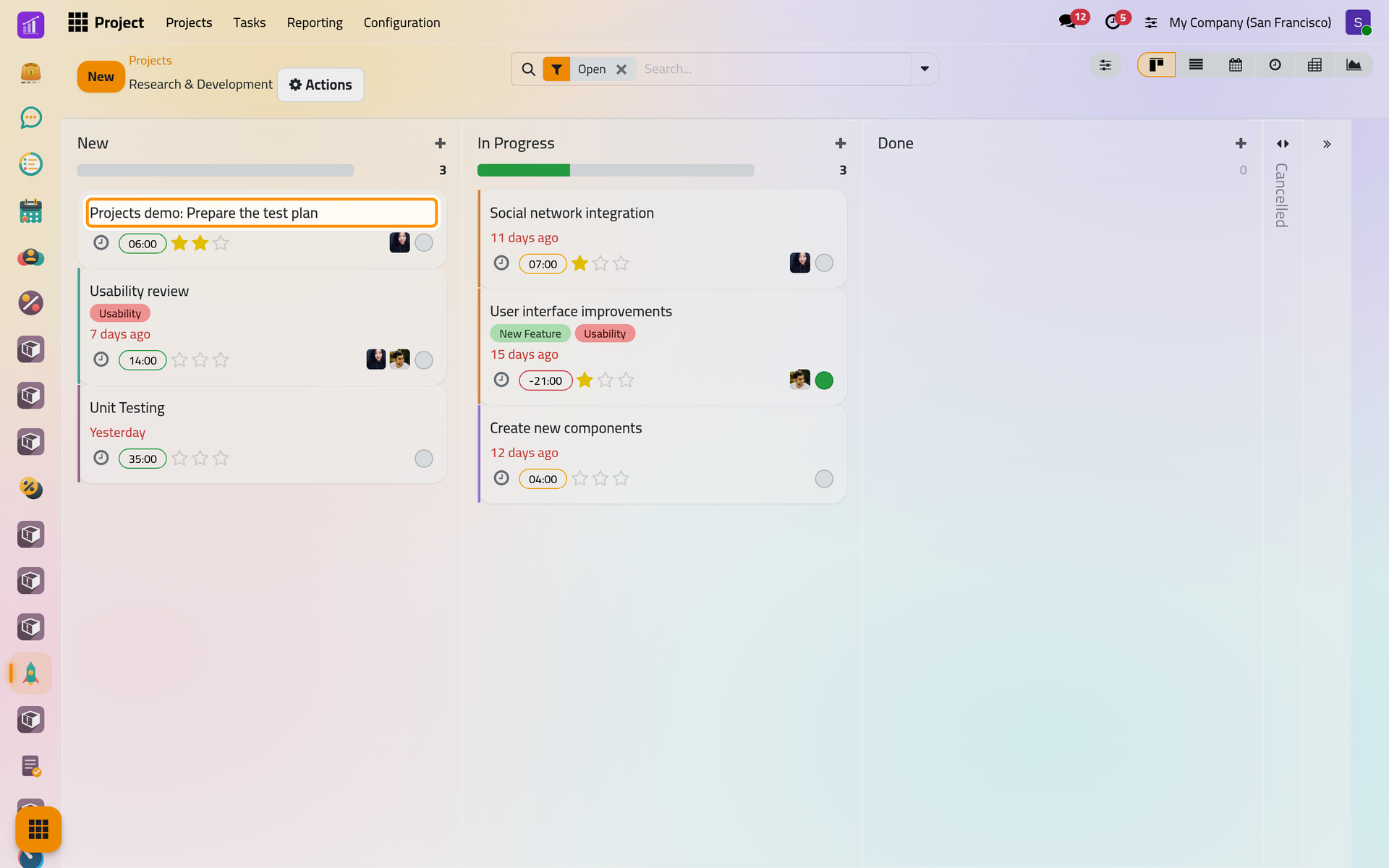
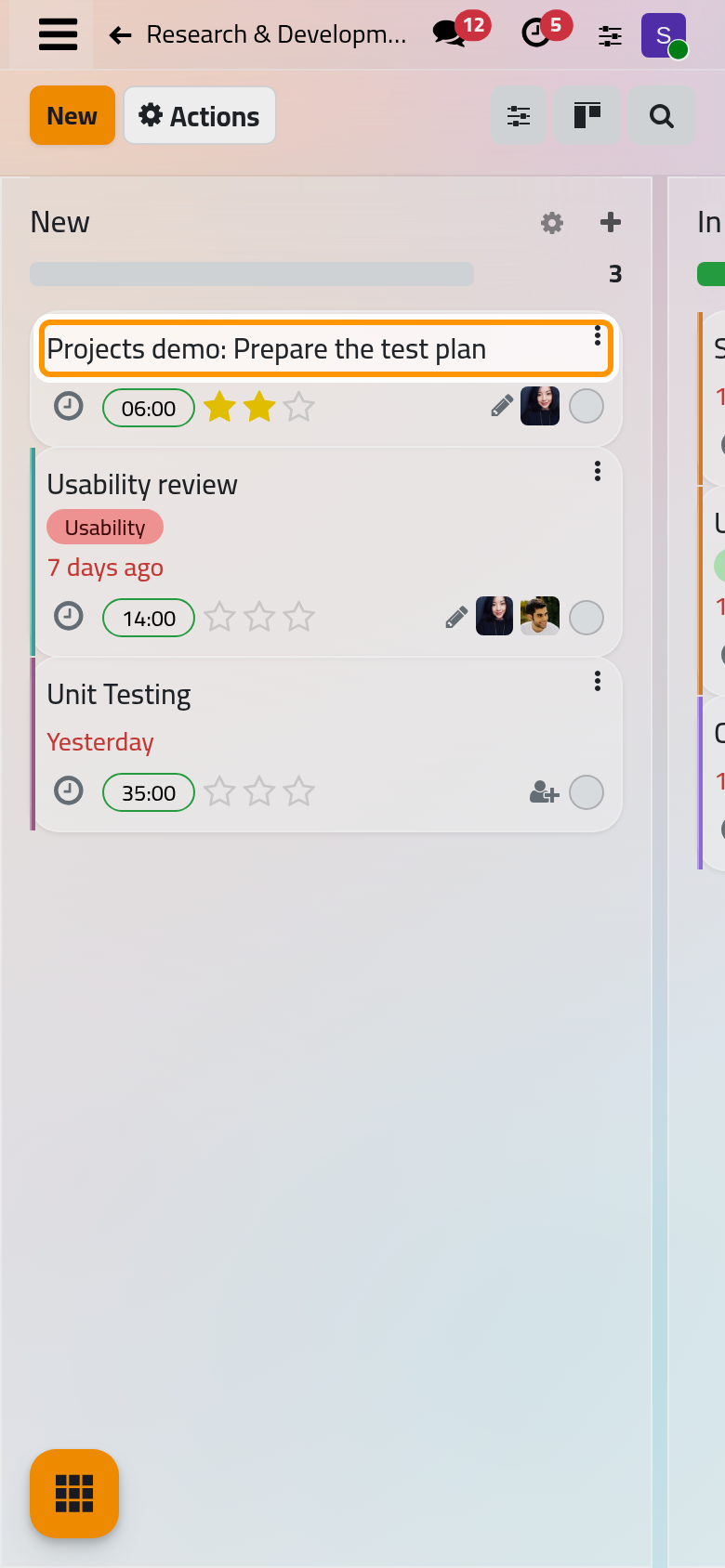
Click a project's card in to open its board: one column per stage, one card per task. This page uses the demo project Research & Development.
Read the board
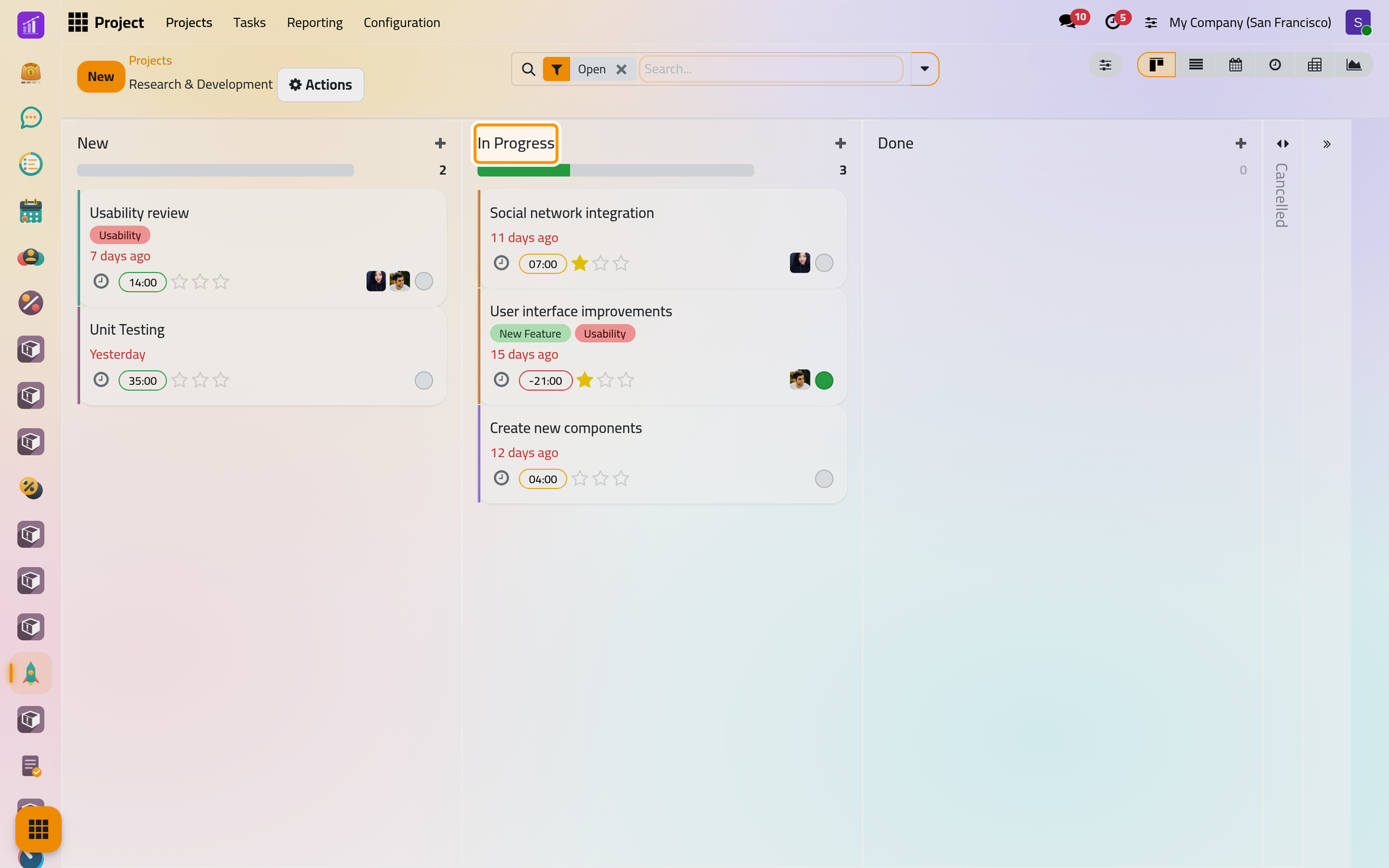
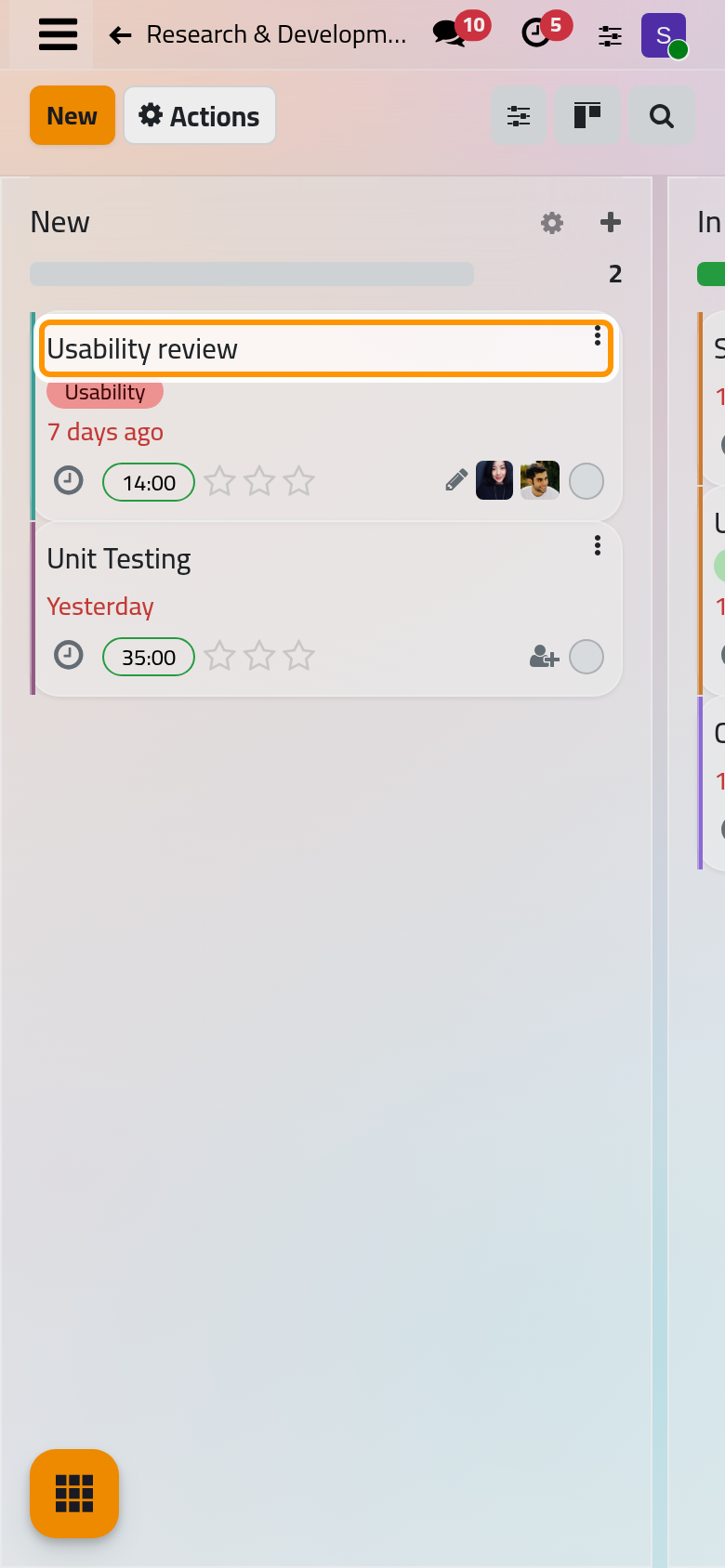
- A card shows the task's title, its tags, its deadline counted from today (in red once passed), the time remaining when time is allocated, three stars for the priority, the assignees' pictures and a round button for the state.
- The bar above a column splits its tasks by state; click a colour to show only those tasks.
- A folded stage stands as a narrow column on the right; click it to unfold it.
- The board opens with the Open filter: tasks marked Done or Cancelled are hidden, whatever their stage. Remove the filter to see them.
- Drag a card to another column to change its stage, or up and down to change its order.
Add tasks quickly
Click the + at the top of a column, type the title and click Add. The title accepts keywords at its end, in this order:
| Keyword | Effect |
|---|---|
6h |
Six hours of Allocated Time, when the project has Timesheets |
#Usability |
The tag Usability, created if it does not exist yet |
@Rawan |
Assigns the one user whose name matches |
!, !!, !!! |
Medium, high or urgent priority |
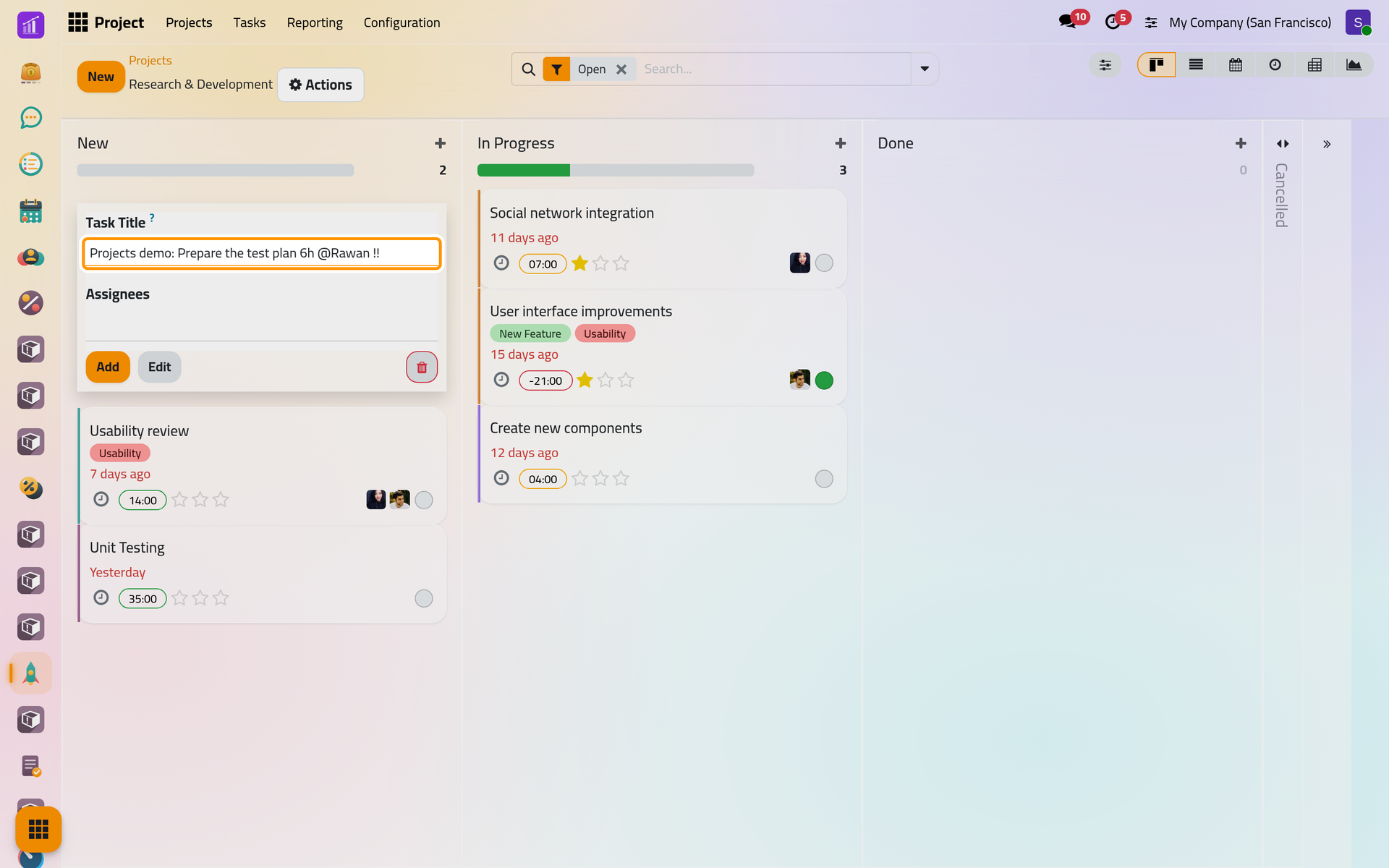
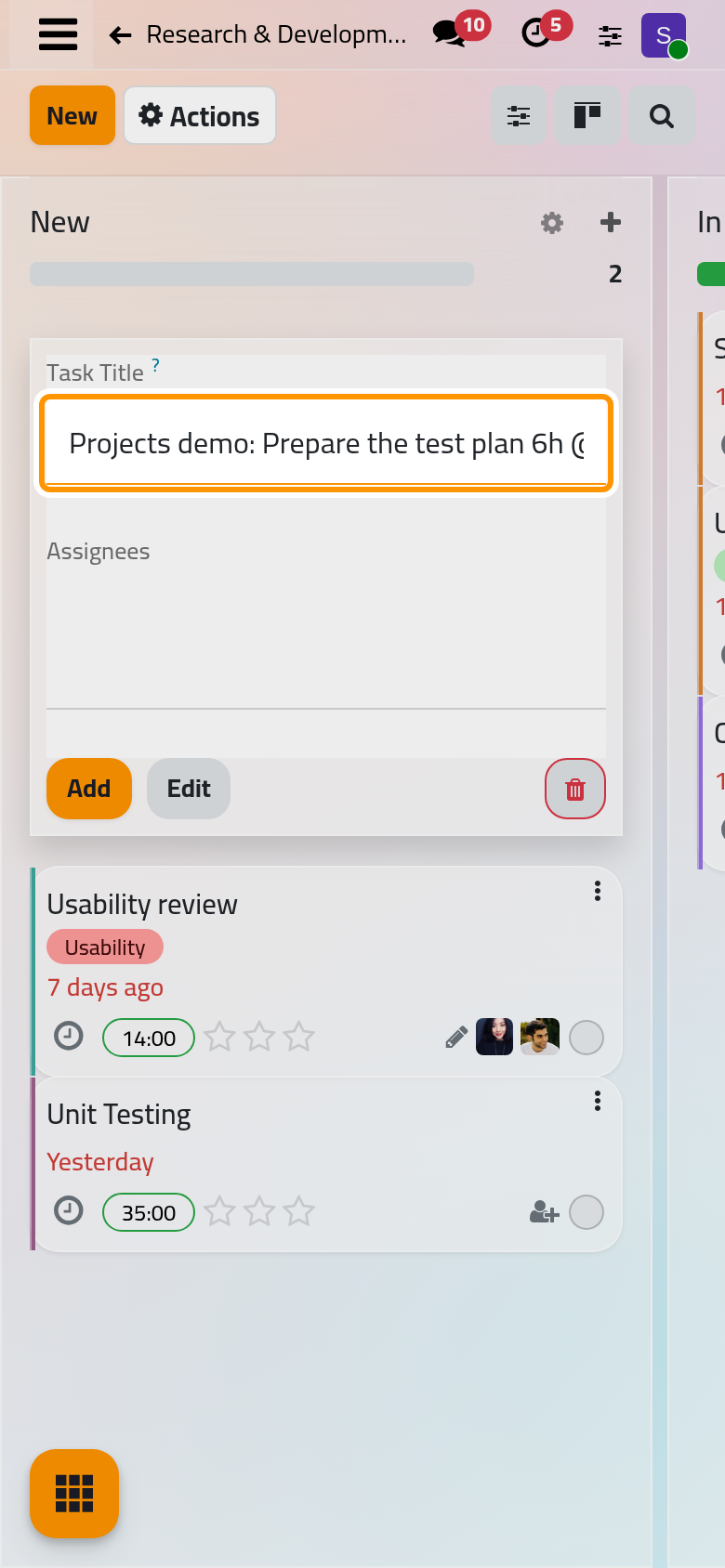
The keywords disappear from the title once the task is added:
Set the state and the priority
The round button of a card or a form gives the state of the task: In Progress, Changes Requested, Approved, Cancelled or Done. The last two close the task. Waiting is set by itself while the task is blocked by unfinished tasks: Sub-tasks, dependencies and recurring tasks. Click the stars to raise the priority; the board shows the highest priorities first.
Change the stages
Point at a column title and click its gear:
- Fold collapses the column on your screen while the board stays open.
- Edit opens the stage: its Name, Folded (folded by default for everybody), the Projects that share it, Days to rot (after how many days without change a task in this stage is shown as stale; 0 turns it off), an Email Template sent to the task's customer when a task reaches the stage, and the customer rating request (Projects automations).
- Delete removes an empty stage. A stage that still holds tasks can only be archived, with its tasks, or emptied first.
To add a stage, click + at the end of the board, name it and confirm.
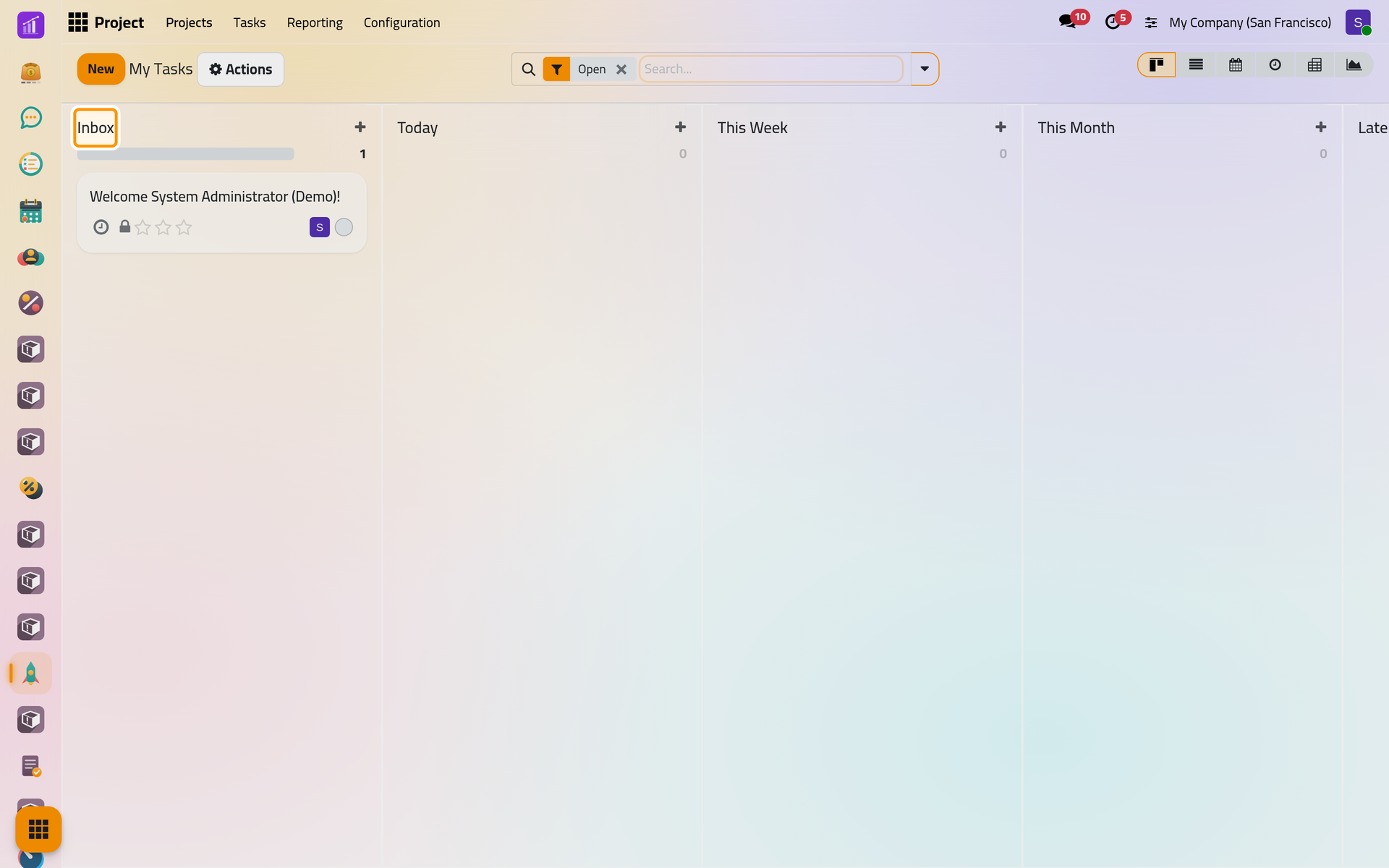
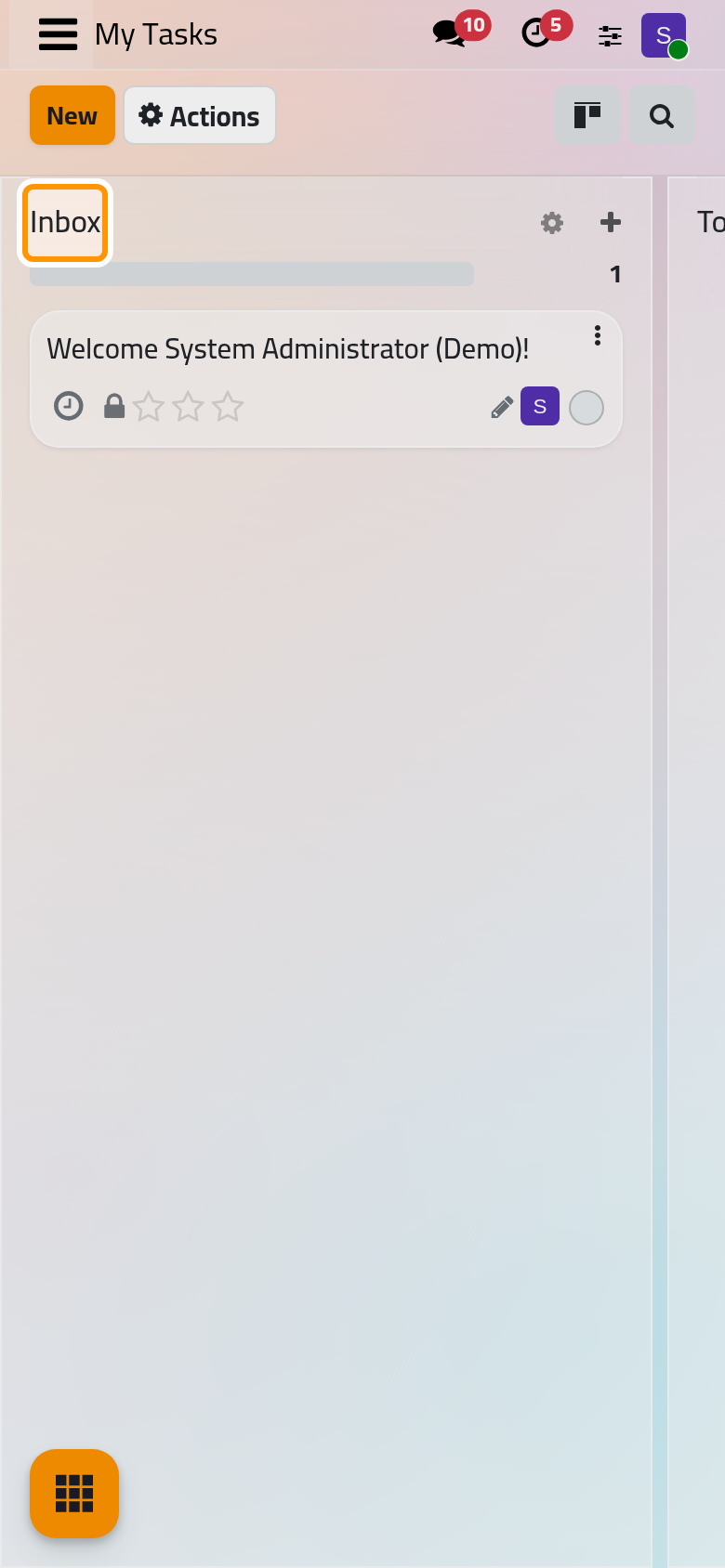
Your own list: My Tasks
gathers the open tasks assigned to you in every project, in personal stages that only you see: Inbox, Today, This Week, This Month, Later, and the folded Done and Cancelled. Moving a card there changes nothing for the rest of the team. lists the open tasks of every project you can see.
FAQ
A task I finished has gone from the board.
Its state is Done or Cancelled, and the board shows open tasks only. Remove the Open filter in the search bar to see it.
Can two projects use the same stages?
Yes. Open the stage with Edit and add the other project in Projects. The stage then shows on both boards, each with its own tasks.
Why are my personal stages in English in the Arabic interface?
Personal stages are created once for each user and keep the names they were created with. Rename them with Edit on the column.
The @ keyword did not assign anybody.
It assigns only when exactly one user matches the word typed after @. Type more of the name, or choose the person in Assignees on the form.
Was this page helpful?
Thank you for your feedback.