Review time and progress
On this page
- Before you start
- Time by project, task or employee
- Tasks by project and stage
- One project over time: the burndown chart
- Customer ratings
- Ready-made dashboard
- FAQ
- I do not see the Reporting menu of Timesheets.
- Why does Tasks Analysis count fewer tasks for me than for my manager?
- The burndown chart is empty.
The reports of Projects and Timesheets are views over the tasks and the timesheet lines themselves: they change as soon as a line is saved or a task moves. Each one opens with a pivot table or a chart; Measures chooses the figures, and a click on a header opens it further, by month, by employee, by stage. Searching, filtering and grouping work as in any list (Search, filter and group records).
Before you start
- The Reporting menu of Timesheets needs User: all timesheets on Timesheets; an Administrator of Project has it.
- Reporting in Project is open to every project user; each person counts only the tasks they may see.
Time by project, task or employee
Open : one row per project, one column per month, the time spent in each cell and the totals.
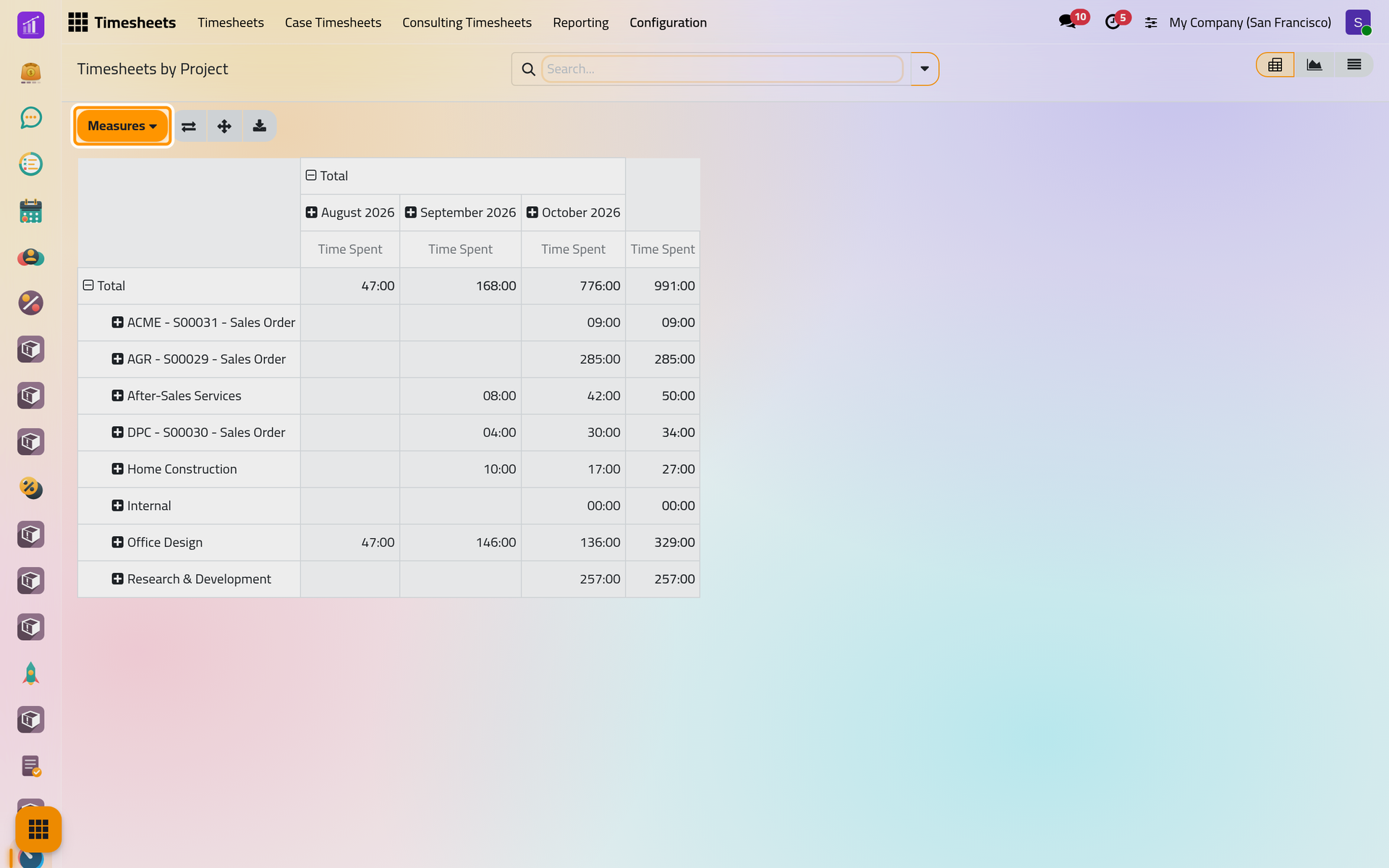
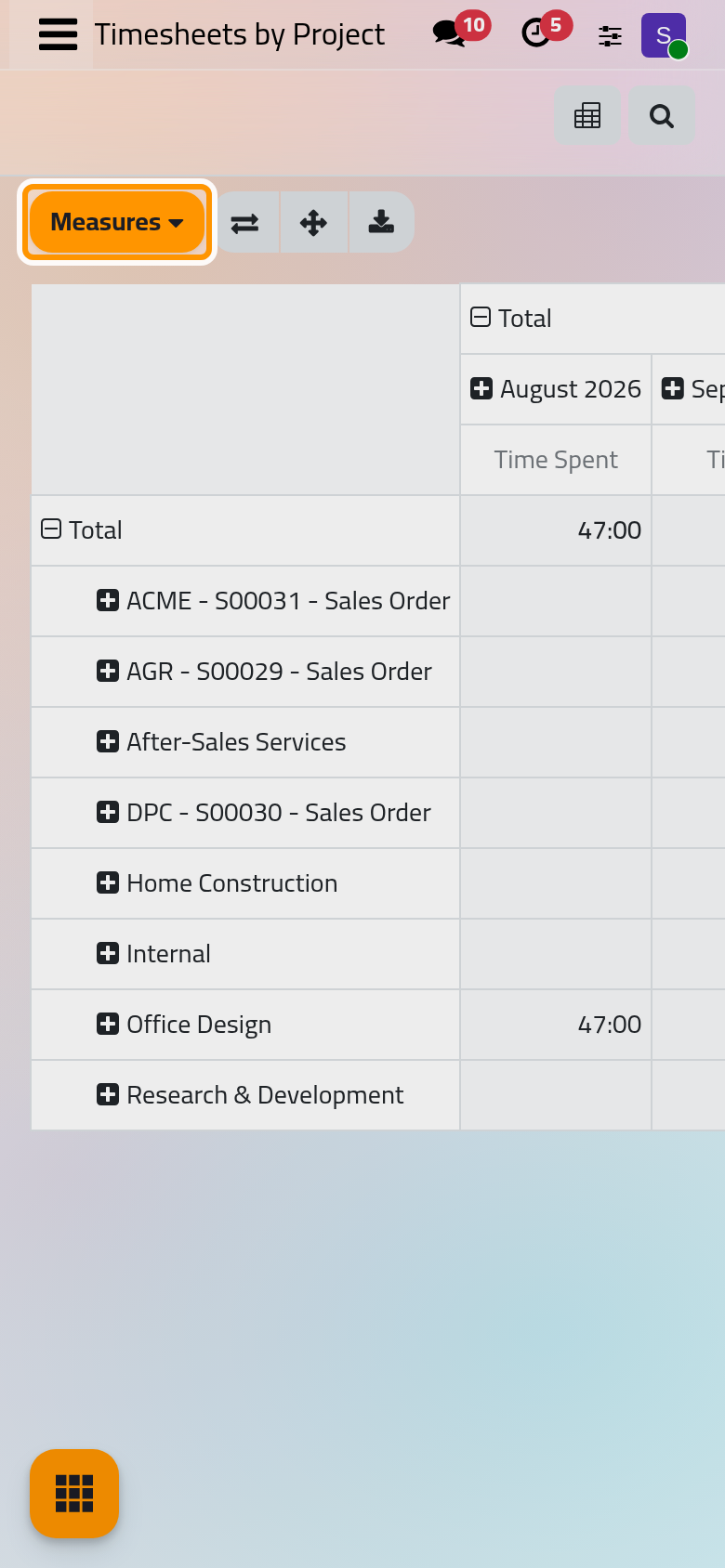
The same menu holds By Employee and By Task, and By Billing Type splits the time of billable projects by the way it is invoiced. The buttons beside Measures flip the axes, open every level at once and download the table as a spreadsheet. Timesheets / Attendance Analysis sets the time logged beside the time employees were present (Attendances).
Tasks by project and stage
Open . The chart counts the tasks of each project, split by stage.
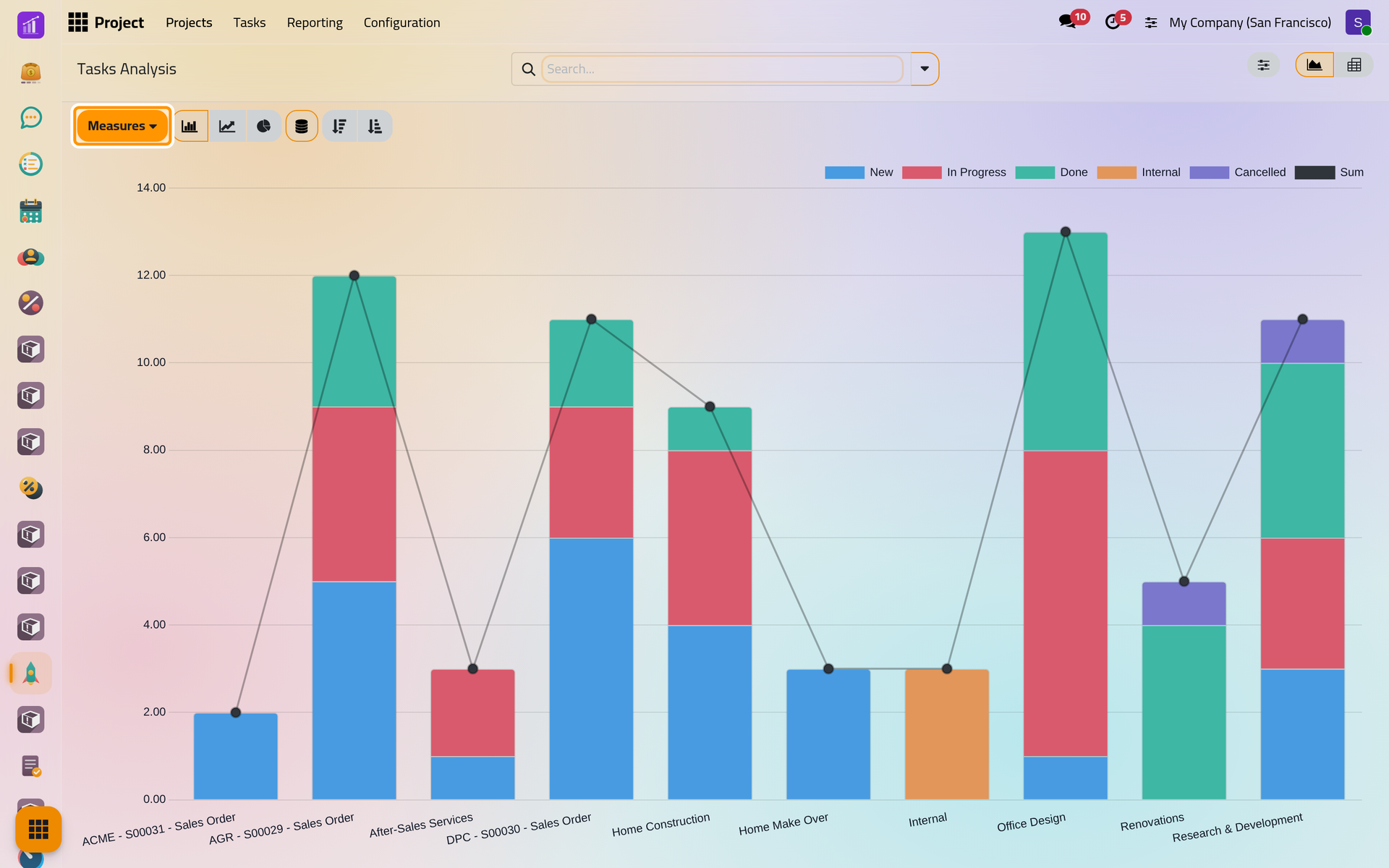
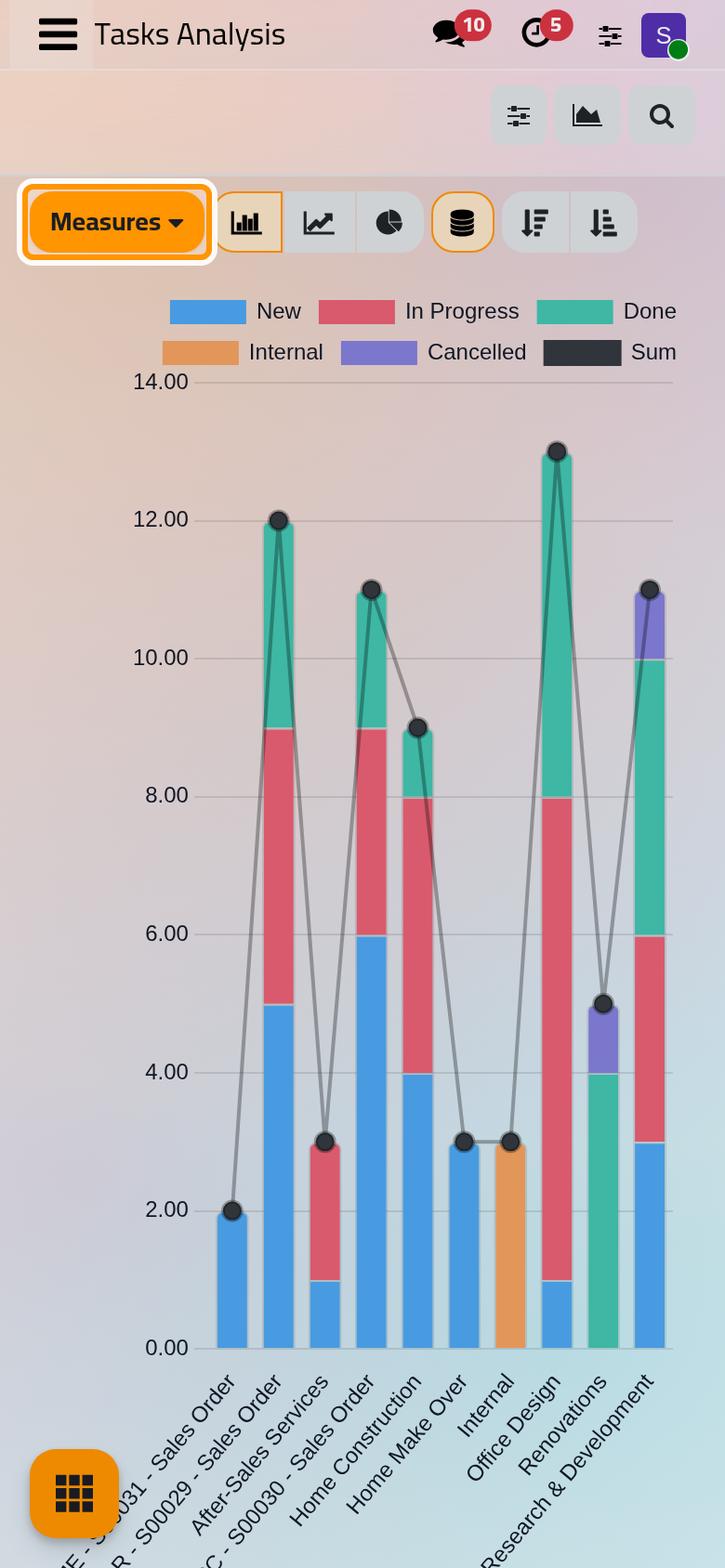
Measures turns the count into the allocated time, the time spent, the time remaining, the progress, the working days it took to assign and to close the tasks, or their average rating. Switch to the pivot table to read the exact figures.
One project over time: the burndown chart
In , open the menu of a project's card and choose Burndown Chart (the same button stands on the project's dashboard). The chart shows, week after week, how many tasks of the project were in each stage.
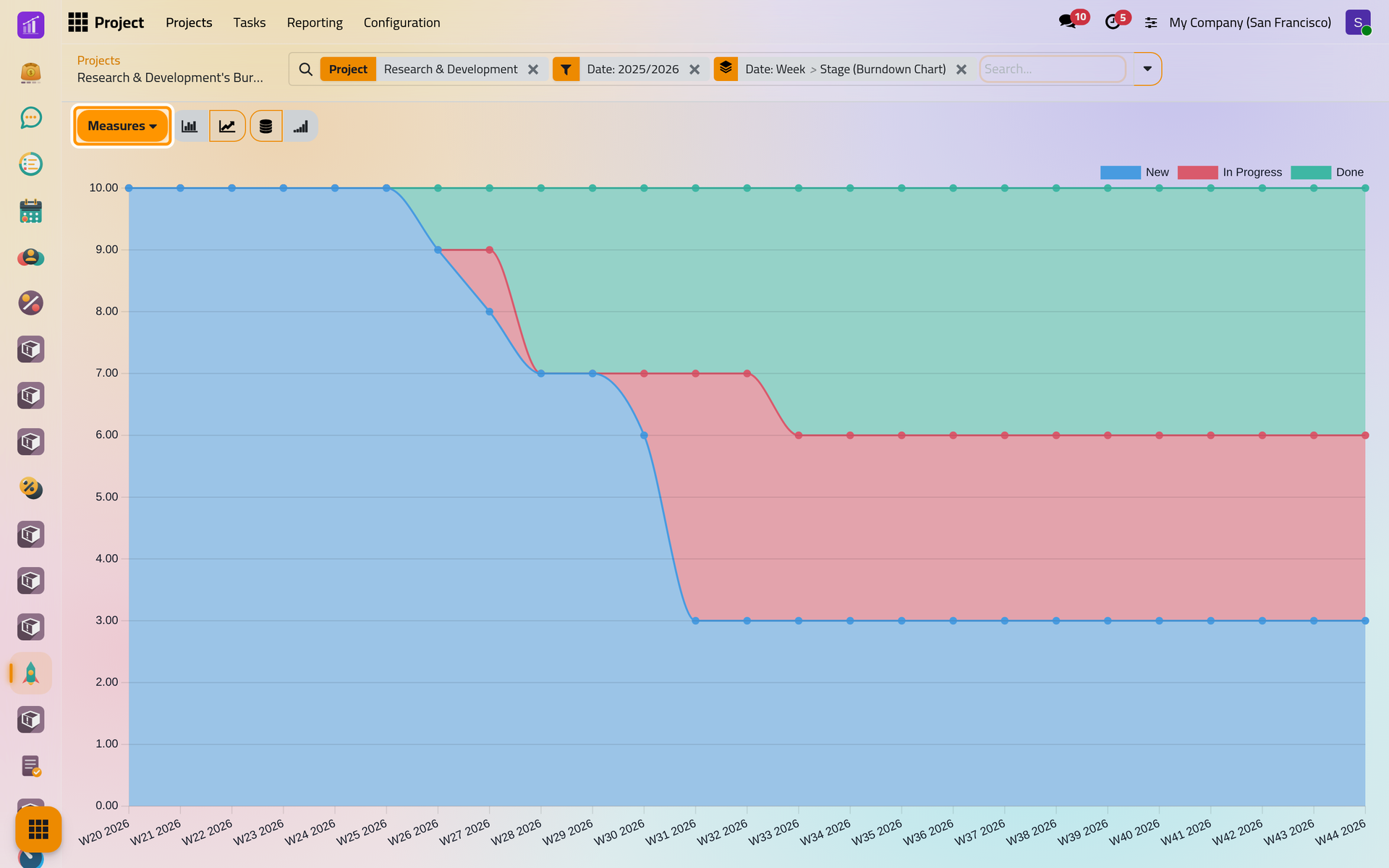
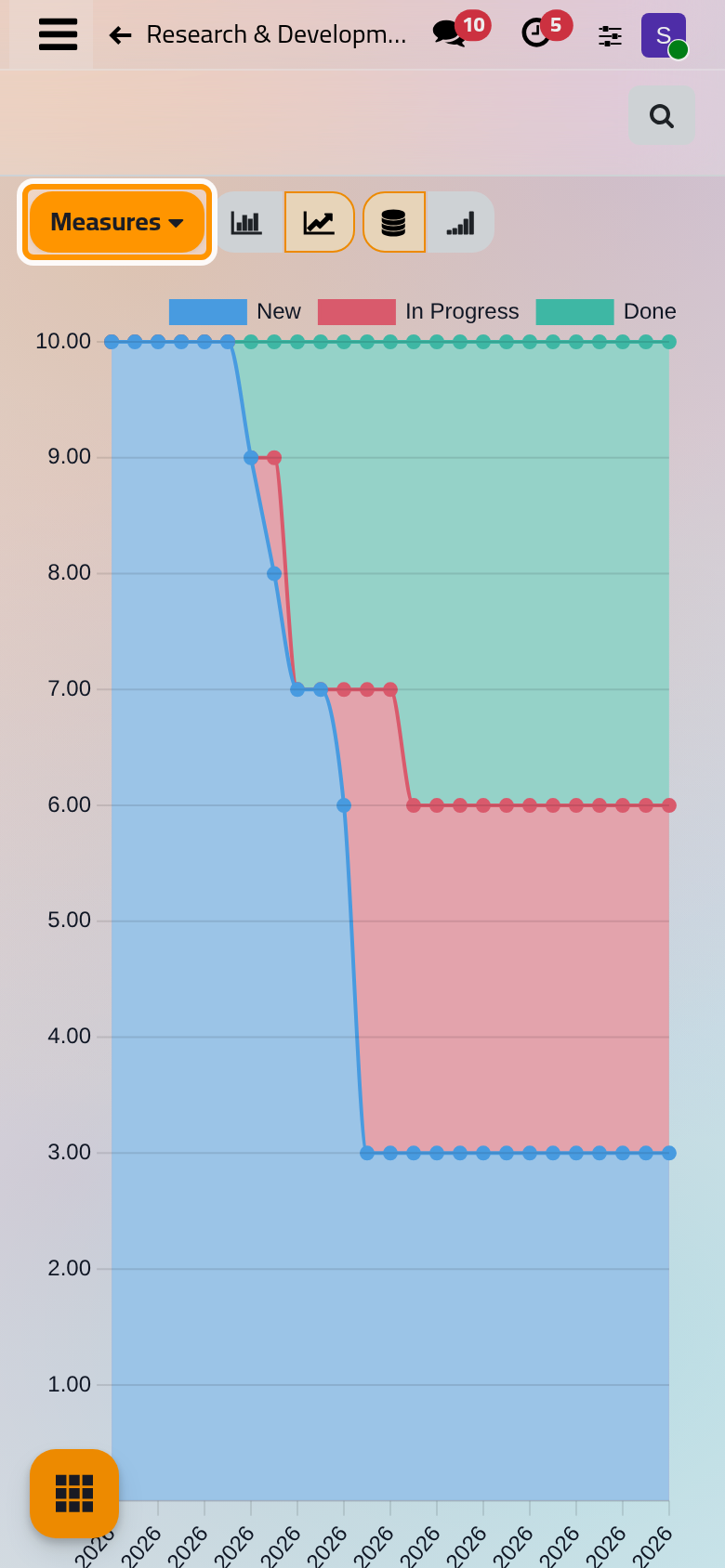
When the band of the last stage grows while the first ones shrink, the work is getting done. The filter at the top keeps the dates of this year and last year; remove it to see the whole life of the project.
Customer ratings
lists the ratings customers gave to tasks, from the requests sent by the stages (Projects automations), with their smiley, their comment, the task and the date. It opens on the last 30 days.
Ready-made dashboard
The Analysis app has a ready-made Project Analysis dashboard, whose figures also appear as tiles above lists of the Project app: Ready-made dashboards.
FAQ
I do not see the Reporting menu of Timesheets.
You have User: own timesheets only. Ask for User: all timesheets; your own time stays in My Timesheets, whose buttons also offer a pivot table and a chart.
Why does Tasks Analysis count fewer tasks for me than for my manager?
Each person counts only the tasks of the projects they may see, as set by each project's visibility.
The burndown chart is empty.
Its filter keeps this year and last year. A project with no task moved in that period shows nothing until you remove the filter.
Was this page helpful?
Thank you for your feedback.