Connect a WhatsApp line
On this page
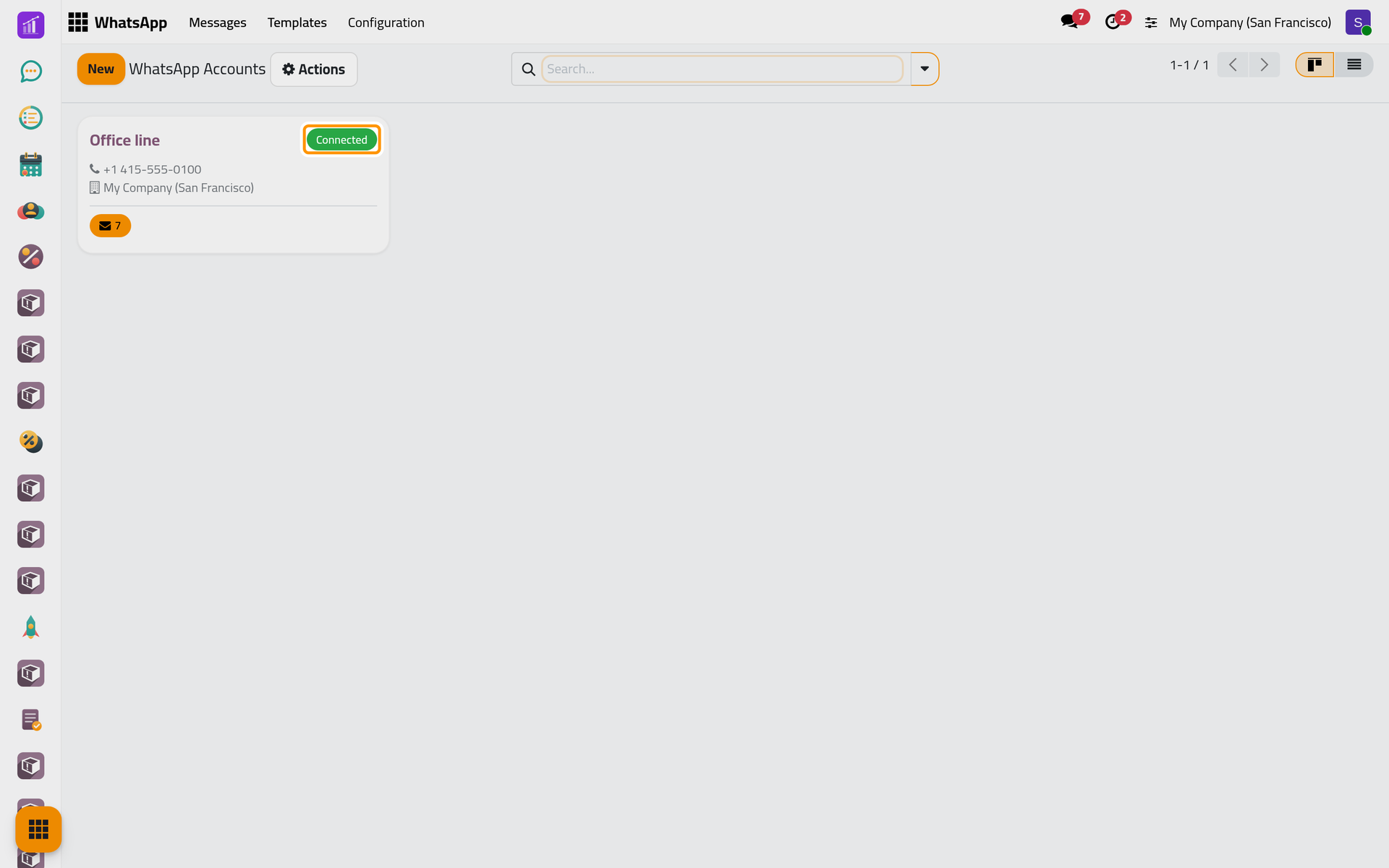
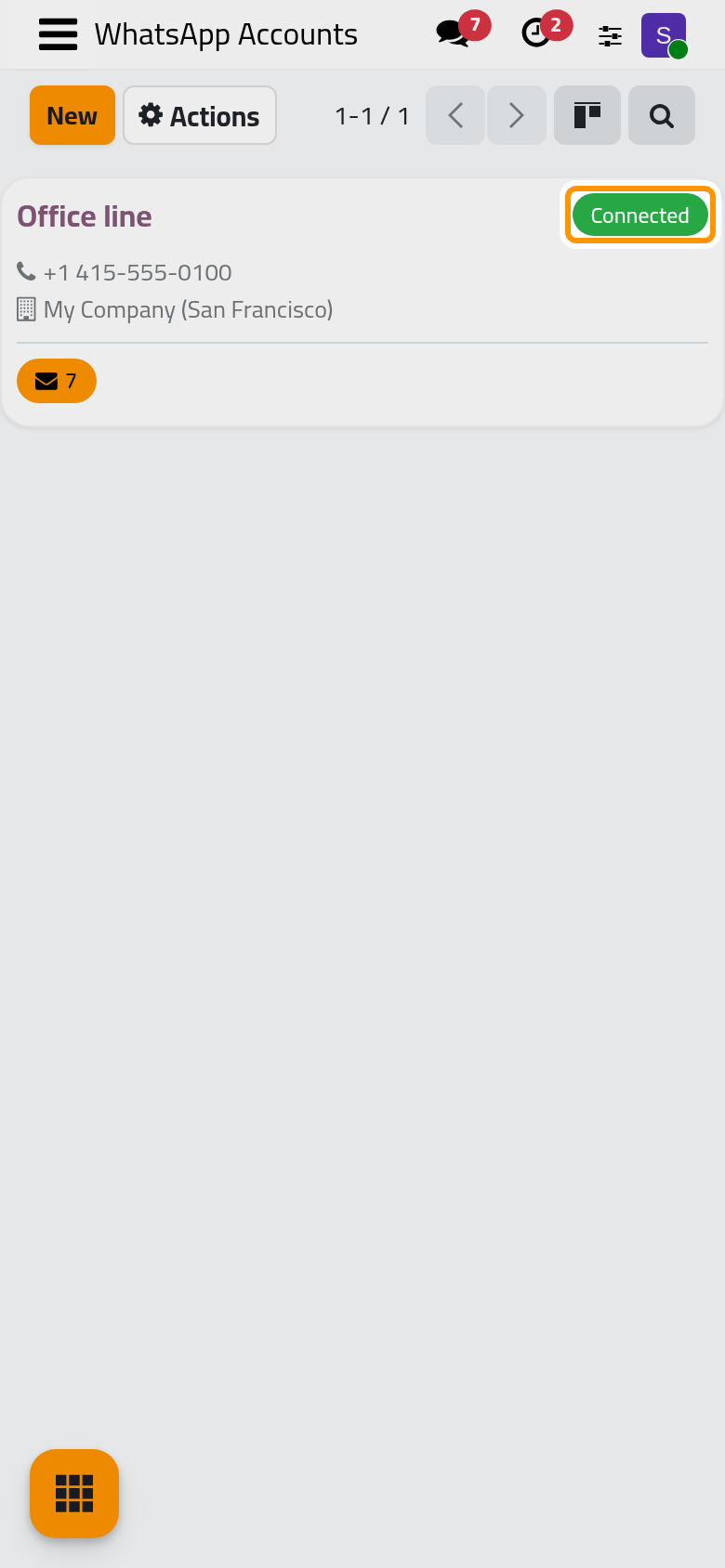
A line is one WhatsApp number linked to the database; the app calls it an account. Every message leaves through a line, and nothing leaves while no line is connected. The demo has one: Office line, +1 415-555-0100, Connected, the default line of My Company (San Francisco).
Jaah offers several ways to connect WhatsApp, which you can see by searching the Apps for "API"; these gateways are third parties independent of Jaah, which bears no legal responsibility for them, and your choice of provider is governed by a separate agreement between you and that provider.
Before you start
- You need the Administrator access right on WhatsApp, which opens the Configuration menu.
- Install your connection app first (Install, upgrade and uninstall apps). Without one, a line can be created but never connected.
See your lines
Open . Each card is a line, with its number, its company, its state and its message count. A new line reads Draft, then Connected, Disconnected or Error.
Read a connected line
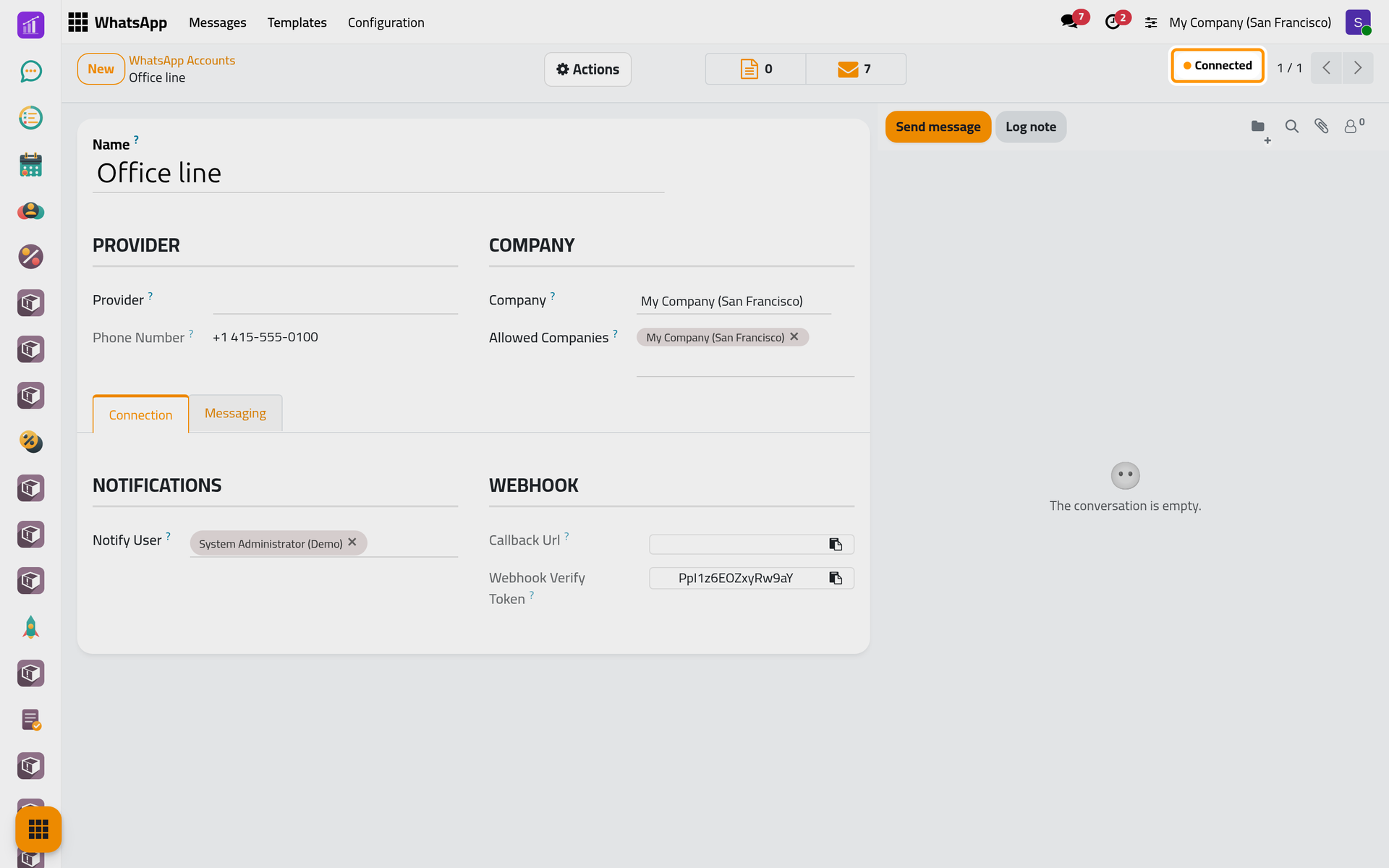
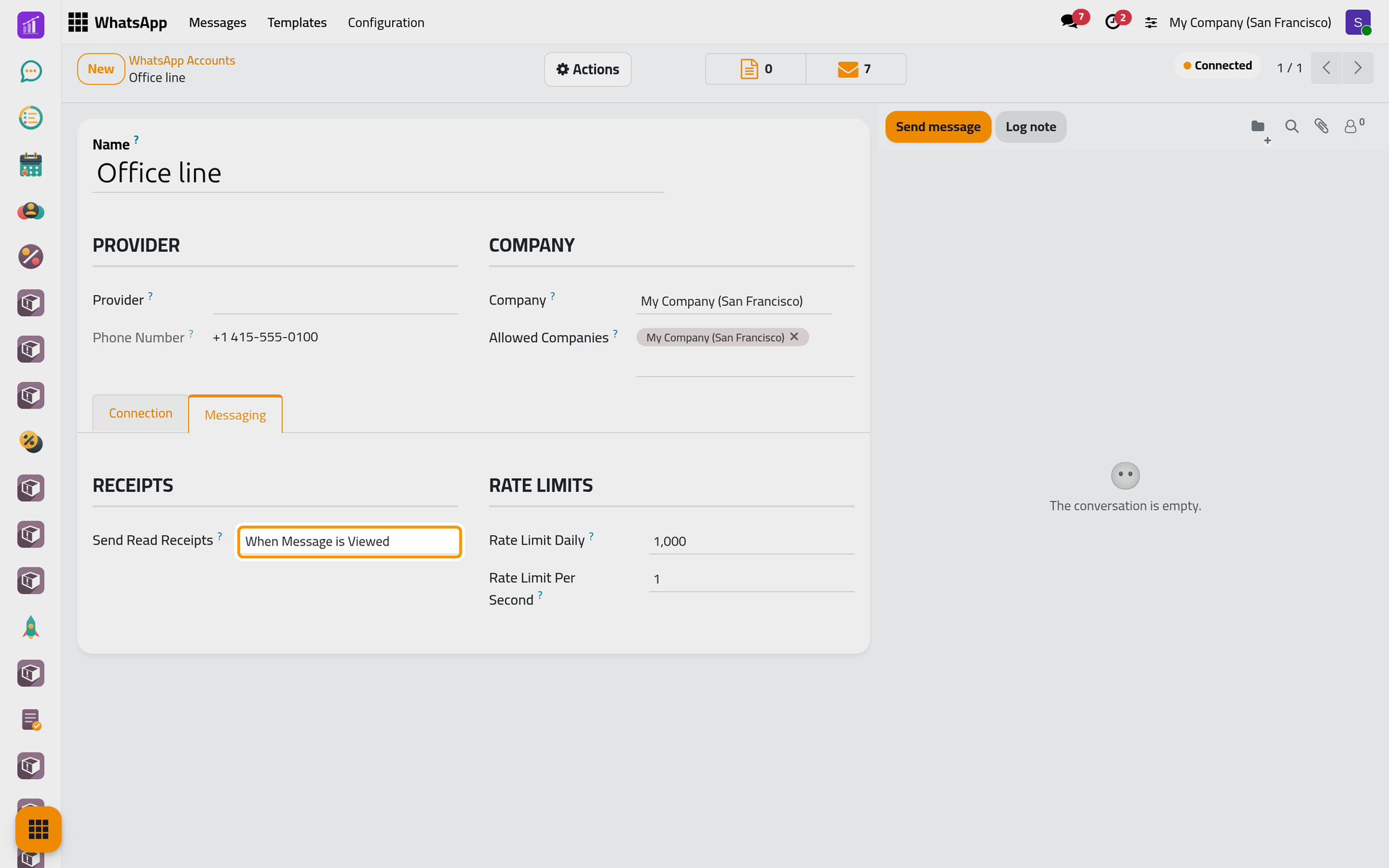
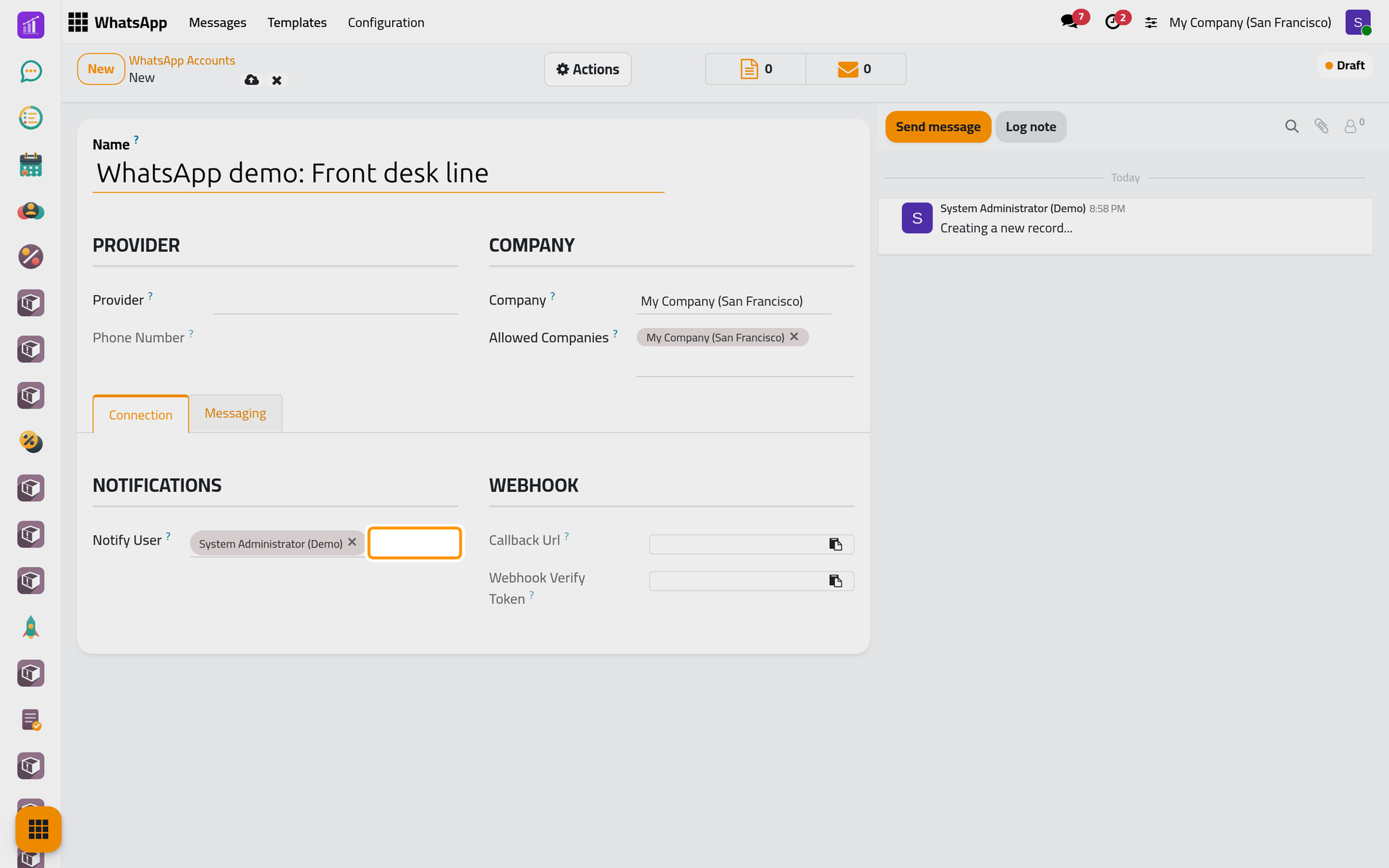
Click a card. The state sits at the top. Provider names the connection app that carries the line, empty in the demo; Phone Number fills in once the line is linked. The counters at the top open its messages and the templates tied to it. Company and Allowed Companies, shown when the database has several companies, say which companies may send through it.
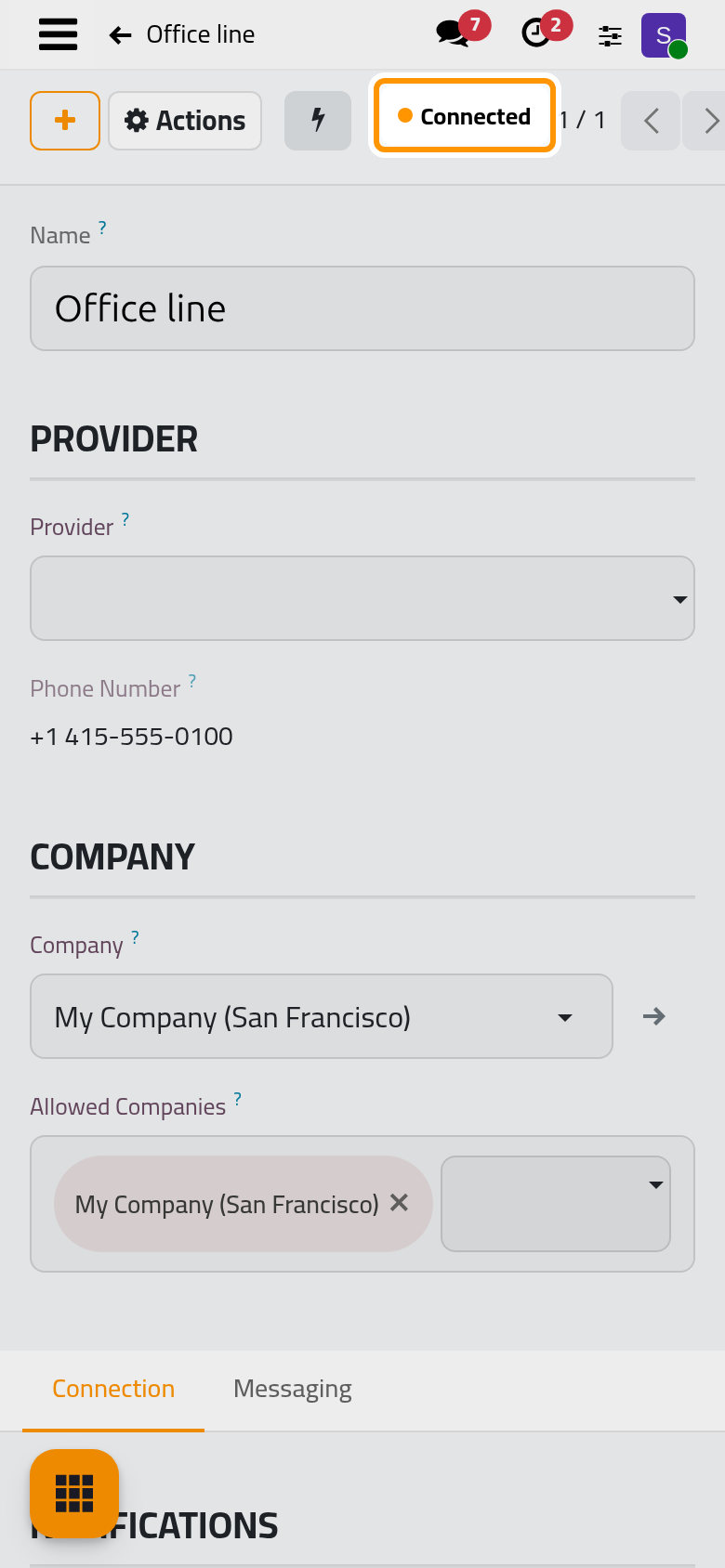
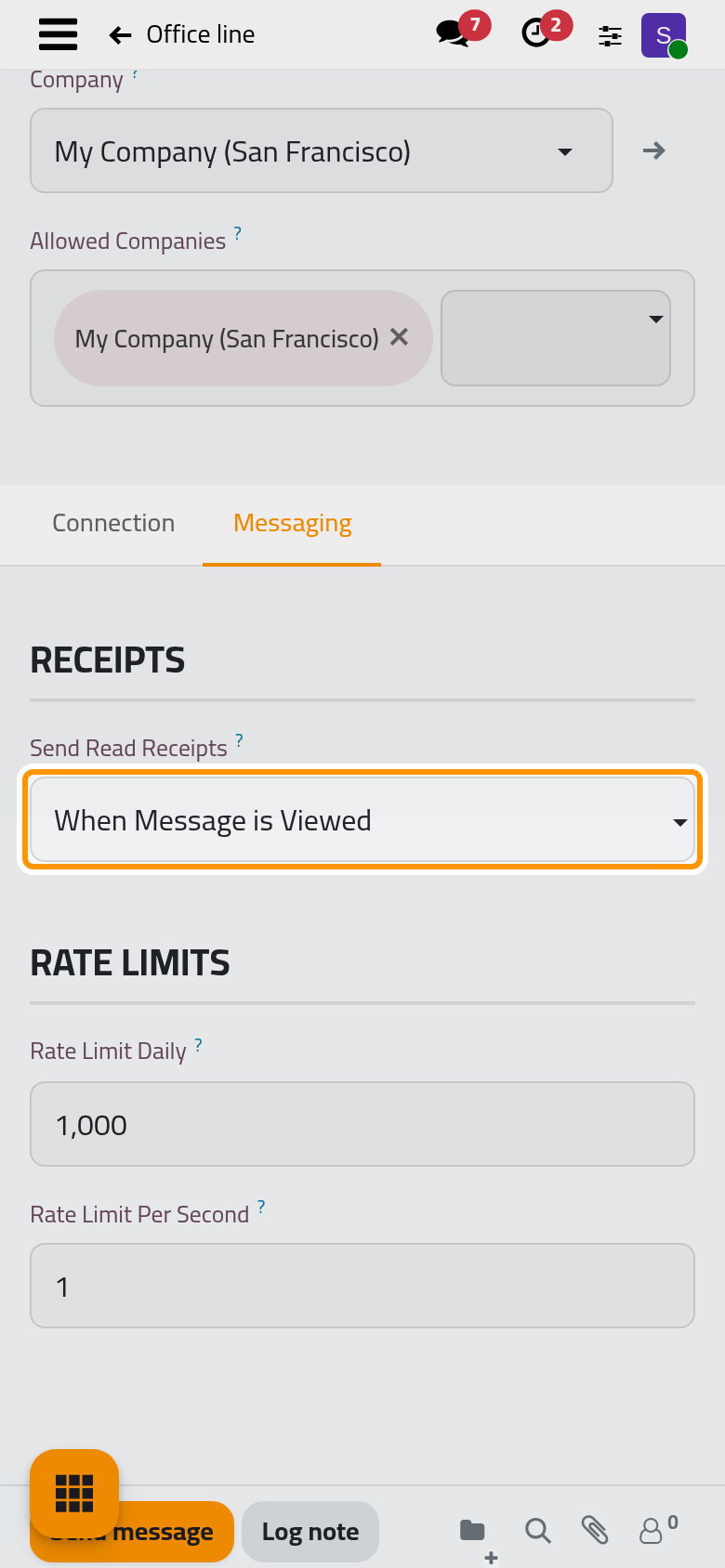
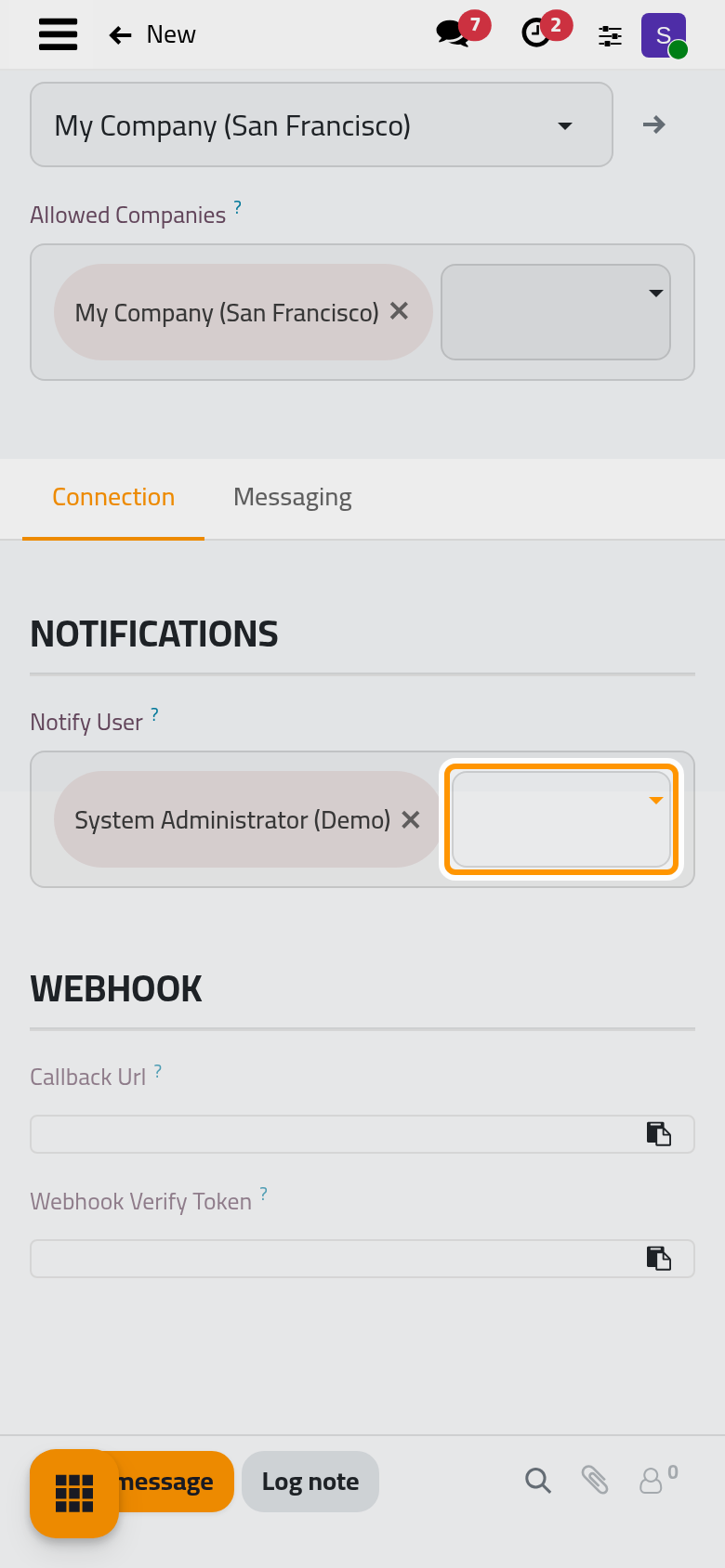
On a phone, the state sits in the top bar.
The Messaging tab holds two settings:
- Send Read Receipts: when the line marks a contact's messages as read, the blue ticks the contact sees. When Message is Viewed does it as soon as a user opens the conversation in Discuss, When Replying only when someone answers.
- Rate Limit Daily: the most automatic and bulk messages the line sends in a day, 1,000 by default; a new line starts lower while it warms up (How WhatsApp sending works). Rate Limit Per Second is not used by sending.
Add a line
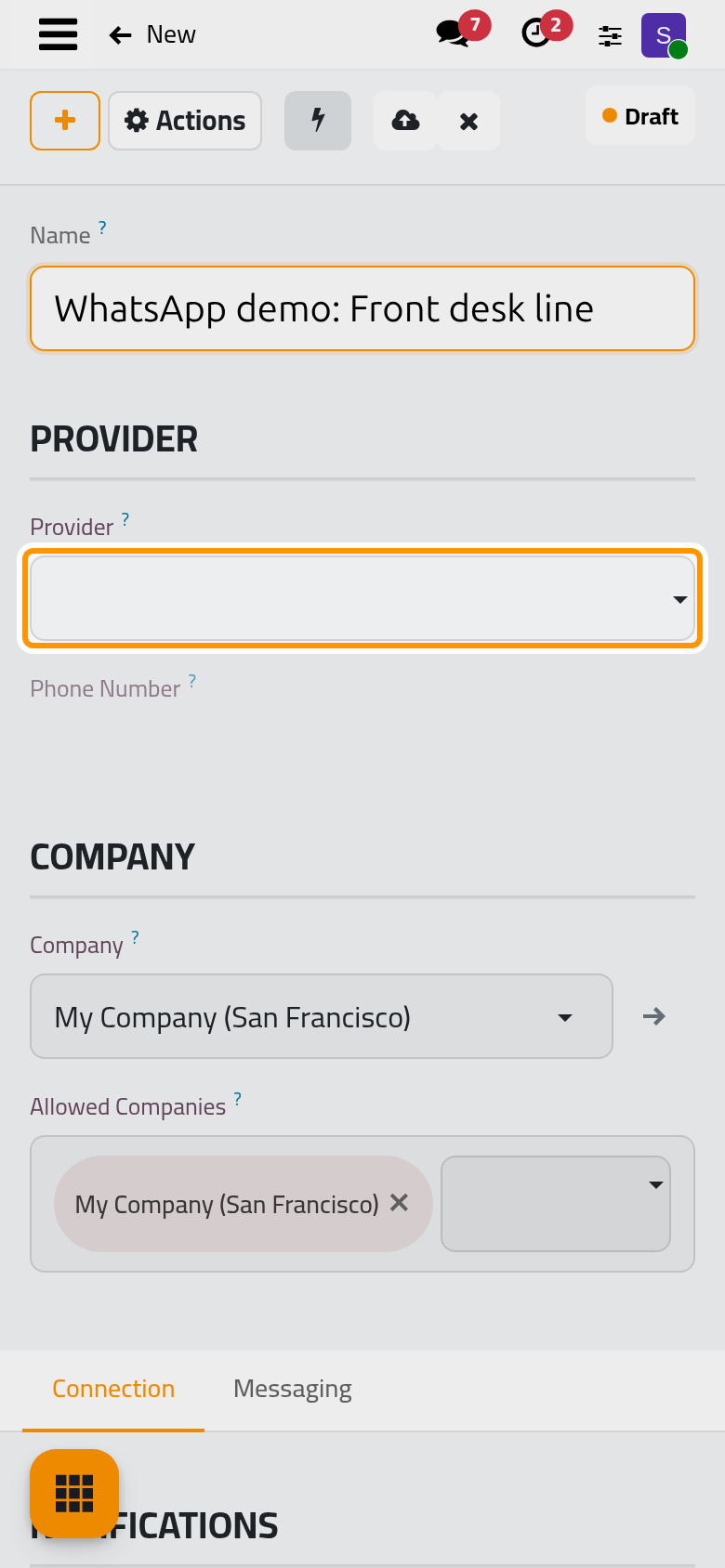
- In Accounts, click New. The line starts in Draft.
- Name it, here
WhatsApp demo: Front desk line. - Choose the Provider, among the connection apps installed; the list is empty in the demo.
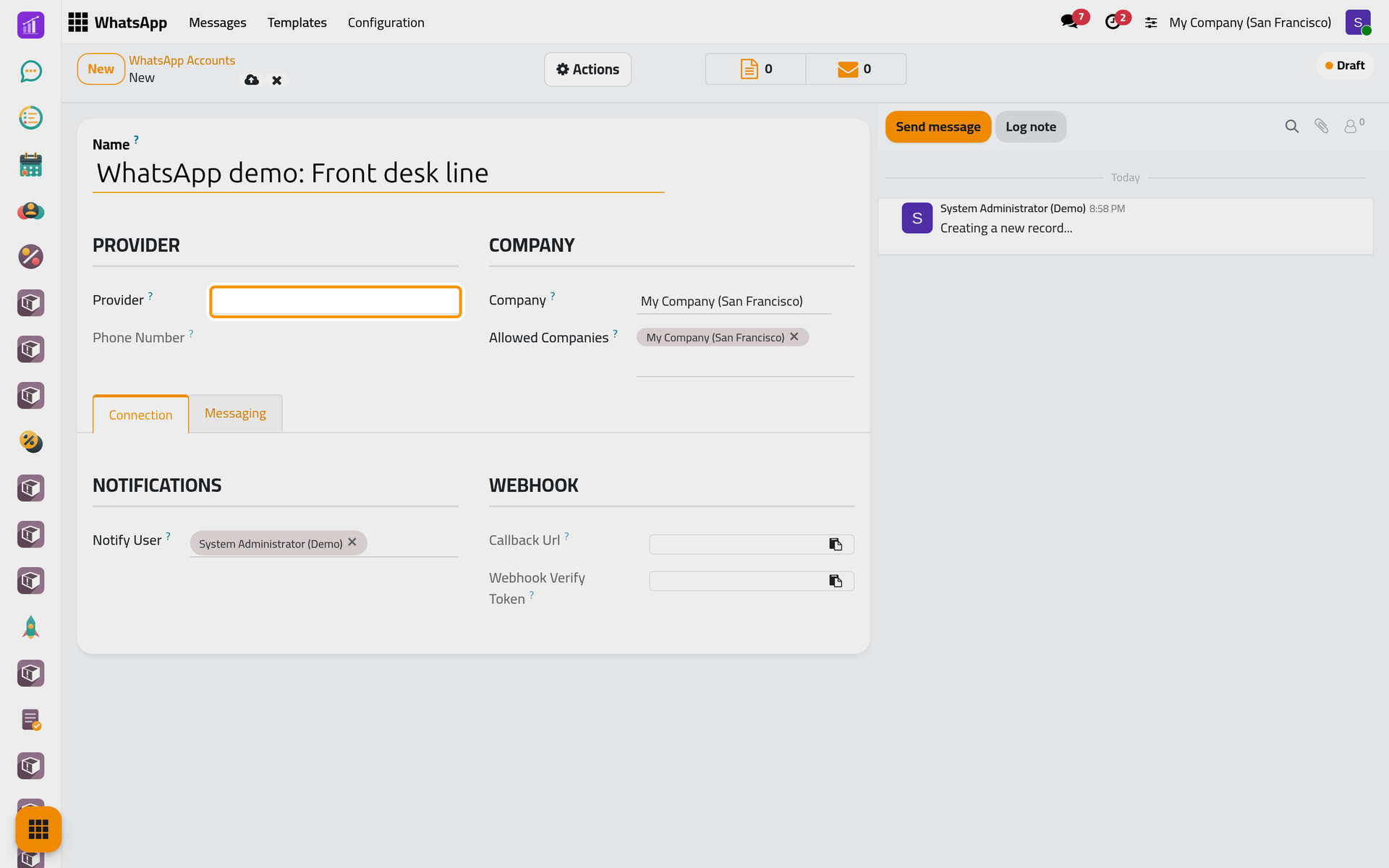
- Save. The connection app adds its own fields to the form and leads the linking. When it needs the phone, the form shows a QR code under Scan QR Code with WhatsApp: on the phone, open WhatsApp, then Settings, Linked Devices, Link a Device, and scan it. The state turns Connected and Phone Number shows the number.
Test Connection, at the top of a line that has a provider, asks whether the line answers: the state turns Connected, or a message gives the reason and the state stays as it was. A job runs the same check every hour (WhatsApp automations). Callback Url and Webhook Verify Token, in the Webhook group, are the address and the secret through which replies and delivery reports come in; copy them only when the connection app asks for them.
Choose who is alerted
Notify User, on the Connection tab, lists the users who hear about the line: you by default, and at least one. When the line is held because it looks blocked, its chatter records an alert and each of them gets a warning activity (How WhatsApp sending works). They also join the conversations of contacts nobody else is in charge of (Follow your messages).
Make it the default line
Messages leave from the company's default line while it is connected, otherwise from its first connected line. Choose it in WhatsApp Account, in (WhatsApp settings). An administrator can also pick another line in the composer.
FAQ
The Provider list is empty.
No connection app is installed yet. Search the Apps for "API", install one, then open the line again.
The line shows Disconnected or Error. What happens to my messages?
They wait as Queued and leave once the line is Connected again: link the phone again through the connection app, then click Test Connection.
Can a company have several lines?
Yes, one for each number. Messages leave from the default line; a template sent on a schedule uses the line chosen on it (WhatsApp templates).
Was this page helpful?
Thank you for your feedback.