WhatsApp in HR
On this page
Fourteen ready-made templates keep employees and approvers informed on WhatsApp: four for Expenses, nine for Time Off, and one that sends an HR letter. Each block of settings appears once its app is installed, and every option is on from the start.
Ready-made templates
| Template | When it is sent | To whom | Switched by |
|---|---|---|---|
| Expense: Submitted | An expense's status becomes Submitted | The expense's Manager | Expense Submitted |
| Expense: Approved | The status becomes Approved | The employee | Expense Approved |
| Expense: Refused | The status becomes Refused | The employee | Expense Refused |
| Expense: Paid | The status becomes Paid | The employee | Expense Paid |
| Time Off: Pending Manager Approval | A time off request is created, or returns to To Approve | The employee's Time Off Approver | Leave: Pending Manager |
| Time Off: Pending HR Approval | A request reaches Second Approval | The first person in Notify HR on the time off type | Leave: Pending HR |
| Time Off: Approved | A request becomes Approved | The employee | Leave: Approved |
| Time Off: Refused | A request becomes Refused | The employee | Leave: Refused |
| Time Off: Cancelled | A request becomes Cancelled | The employee | Leave: Cancelled |
| Time Off: Starts Tomorrow | About a day before an approved leave begins | The employee | Leave: Starts Tomorrow |
| Allocation: Pending Approval | An allocation request is created, or returns to To Approve | The employee's Time Off Approver | Allocation: Pending Approval |
| Allocation: Approved | An allocation becomes Approved | The employee | Allocation: Approved |
| Allocation: Refused | An allocation becomes Refused | The employee | Allocation: Refused |
| HR Letter: Broadcast | A manager clicks Send by WhatsApp on a letter | Every employee the letter is for | No option: only the button sends it |
"The employee" means the phone of the employee's work contact, which is their Work Phone; an approver is reached on the phone of their own contact. Anyone without a number is skipped, and a number on the blacklist never receives anything. To change a wording, click the template's name in the settings and edit it as WhatsApp templates shows.
Before you start
The blocks sit in and need the Administrator right on WhatsApp. Unticking an option archives its template, so it leaves the template list; ticking it again brings it back. Click Save after a change.
Expenses
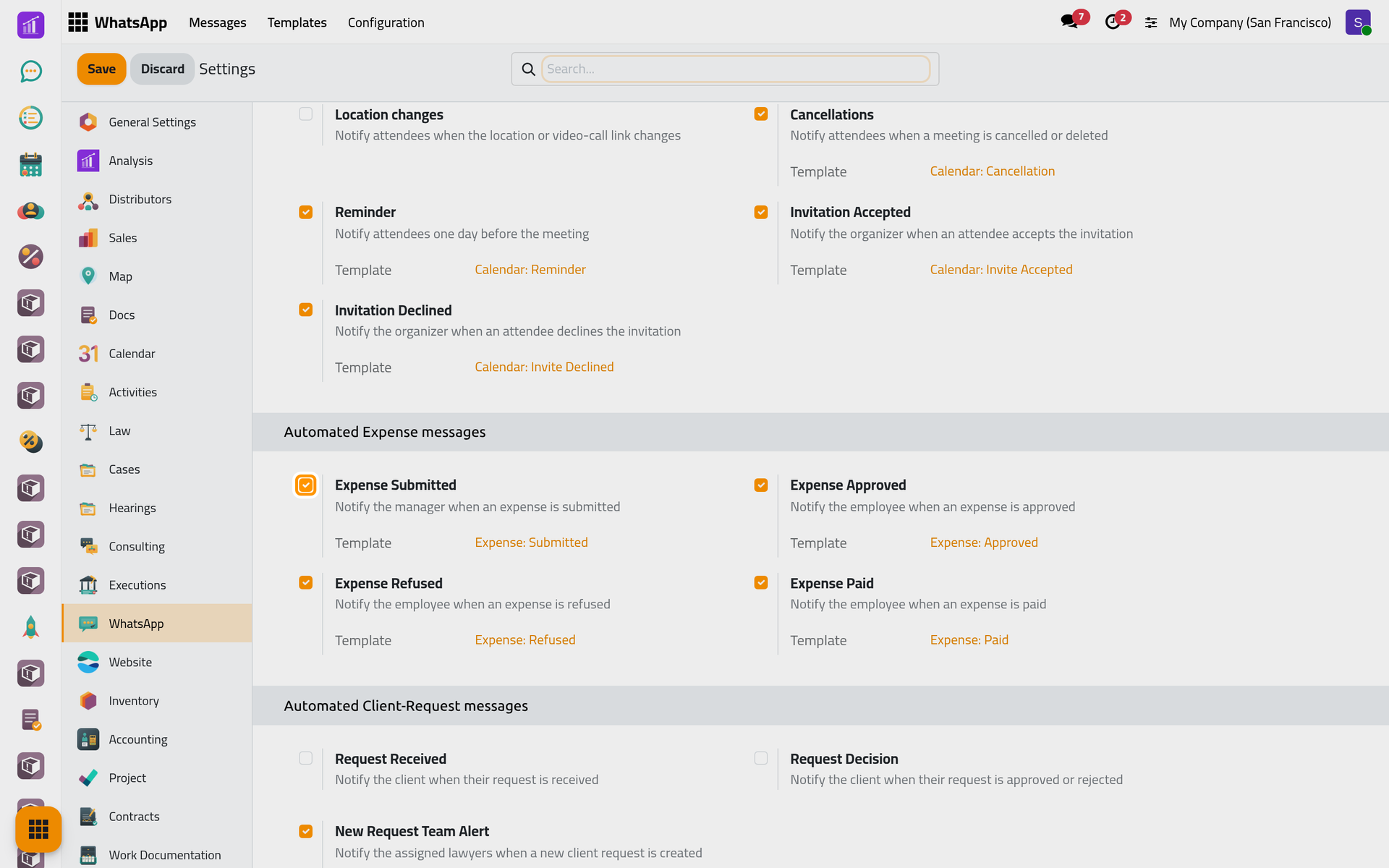
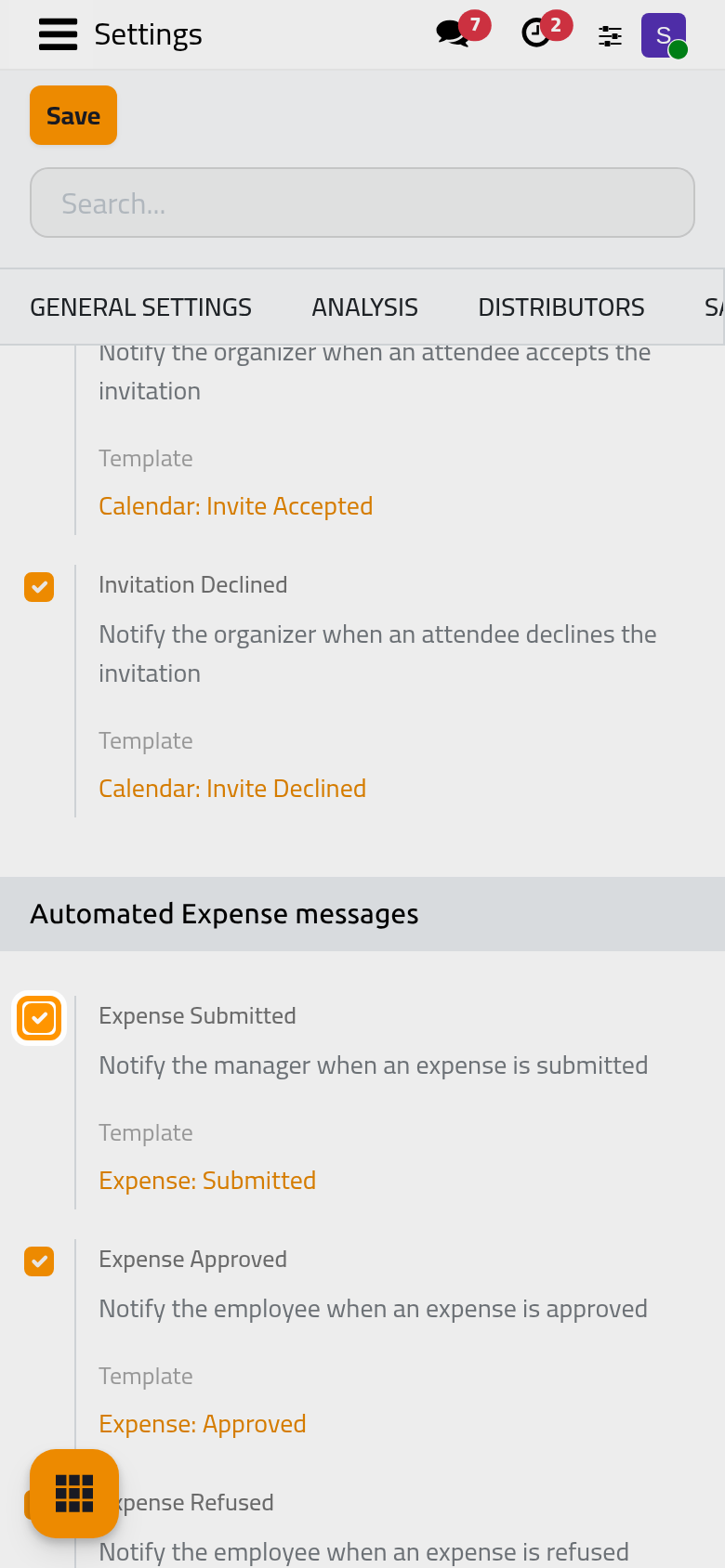
Automated Expense messages follows the approval described in Approve and reimburse expenses. Each message names the expense and its amount and links to it. An expense paid by the company becomes Paid as soon as it is posted, so Expense: Paid leaves then too.
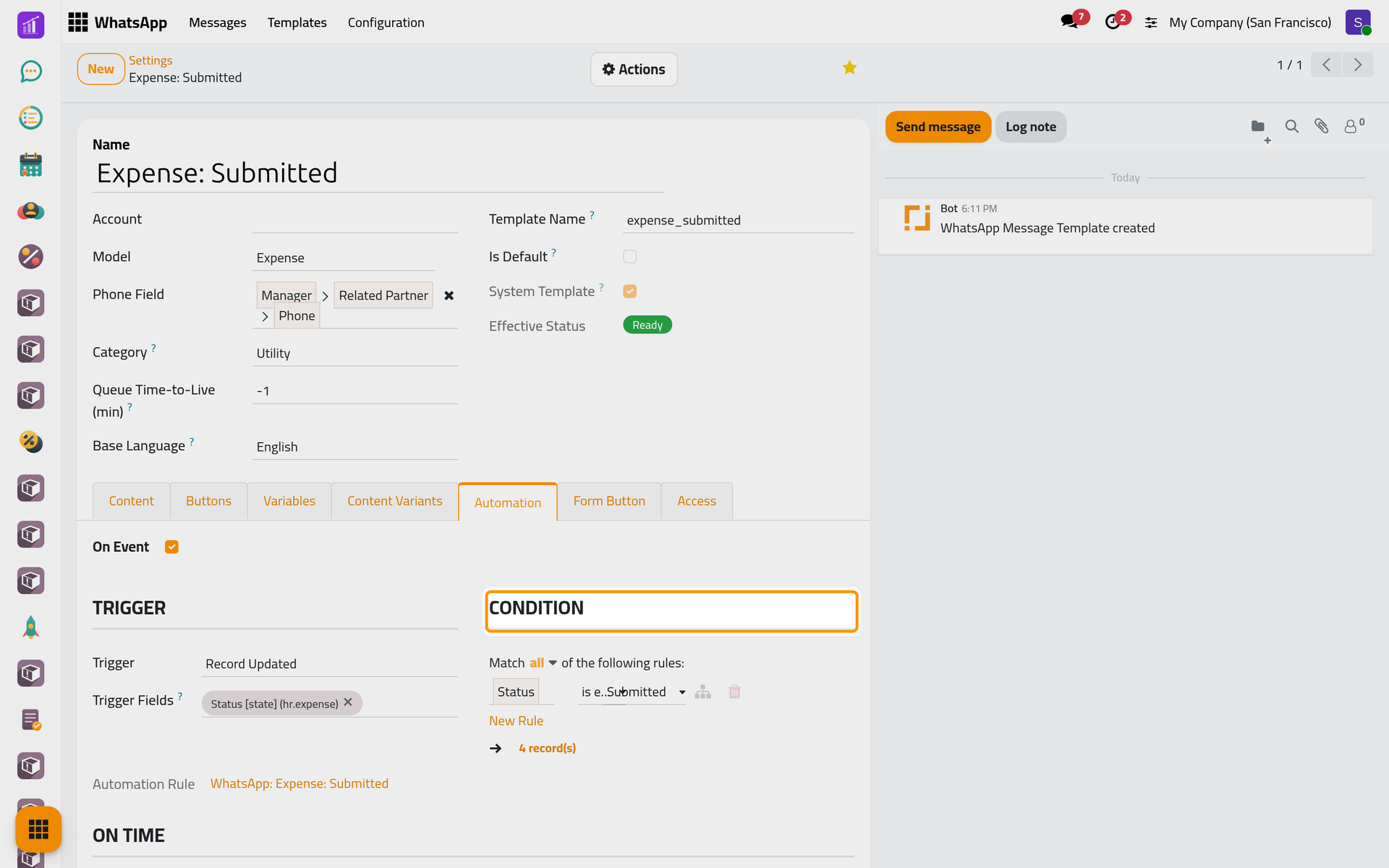
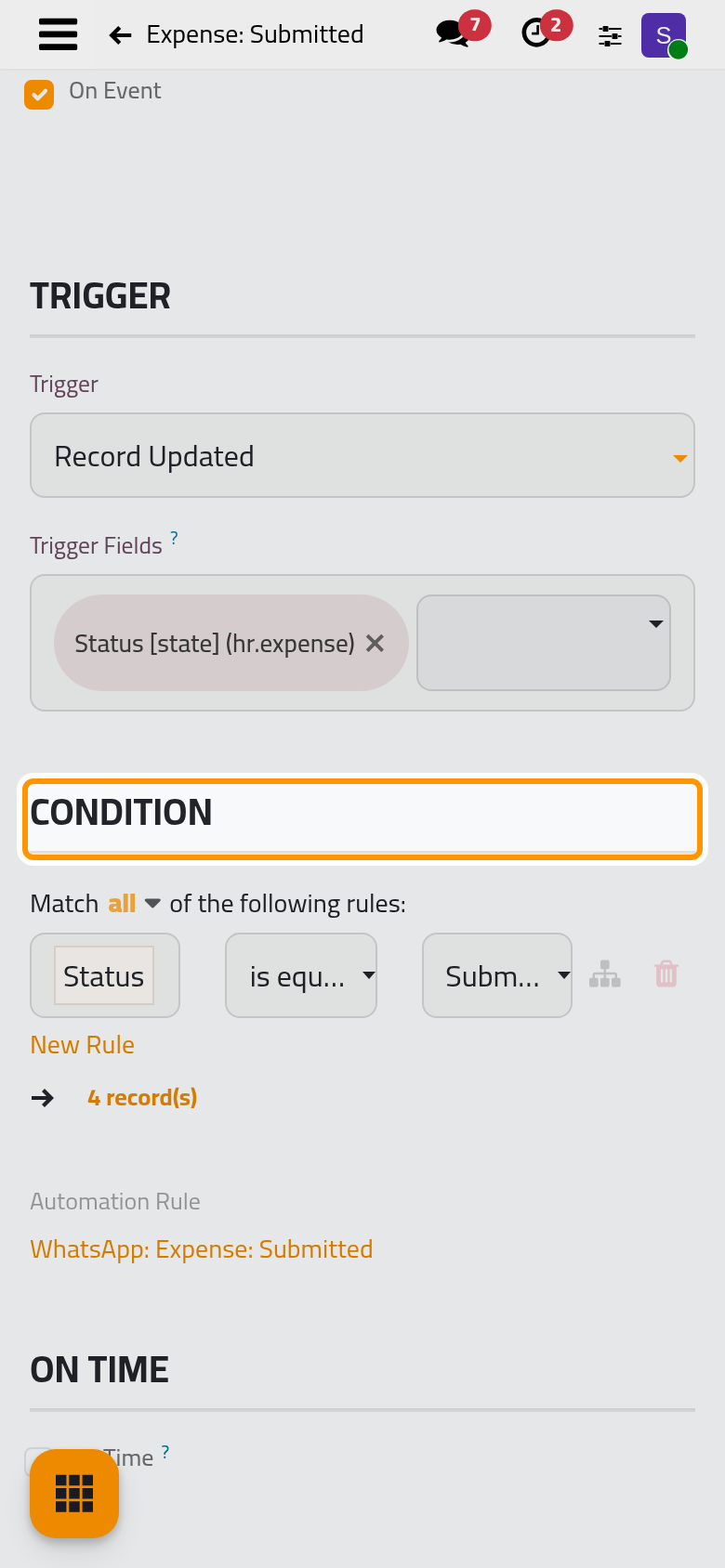
Each template says on its form who receives it and when:
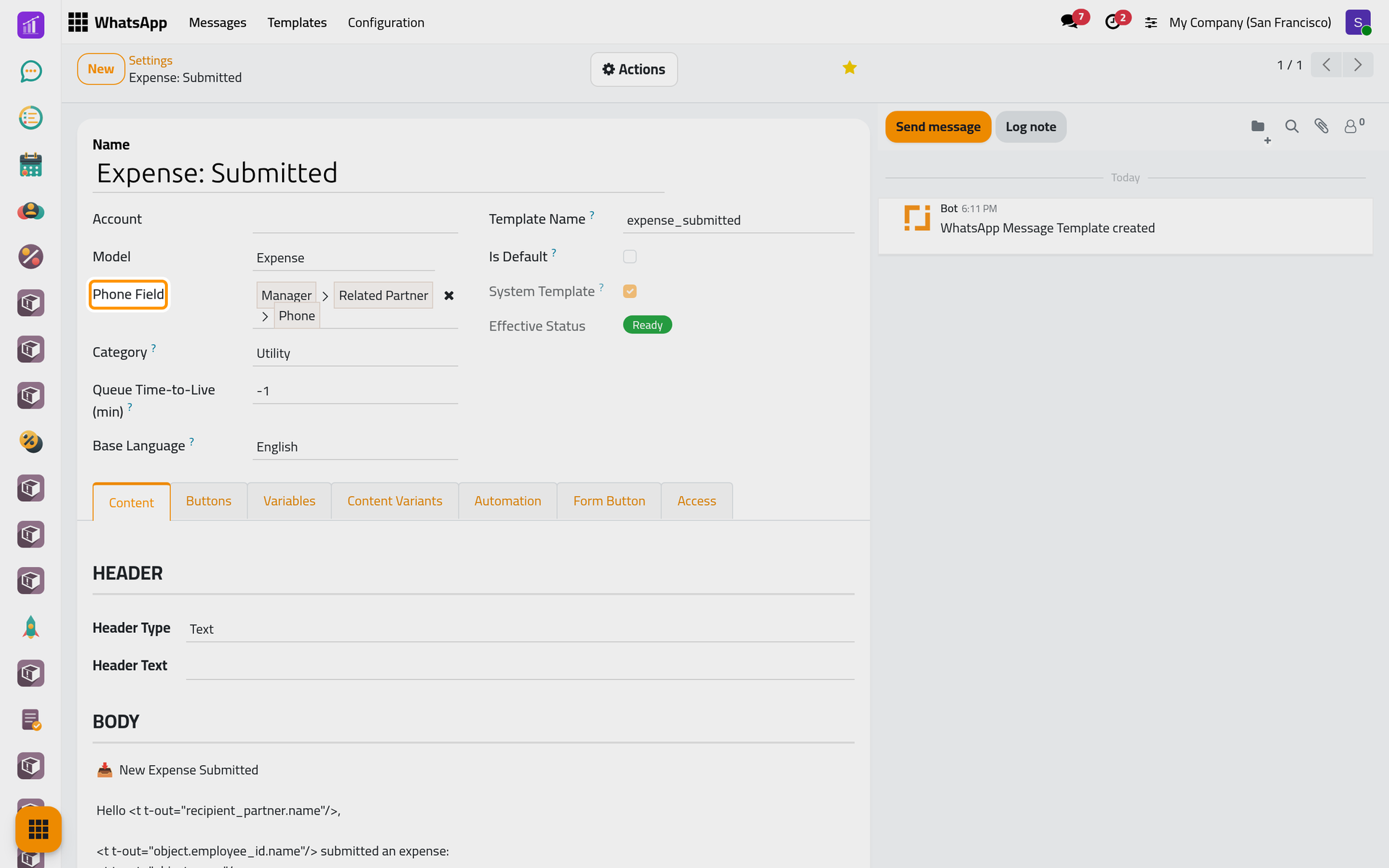
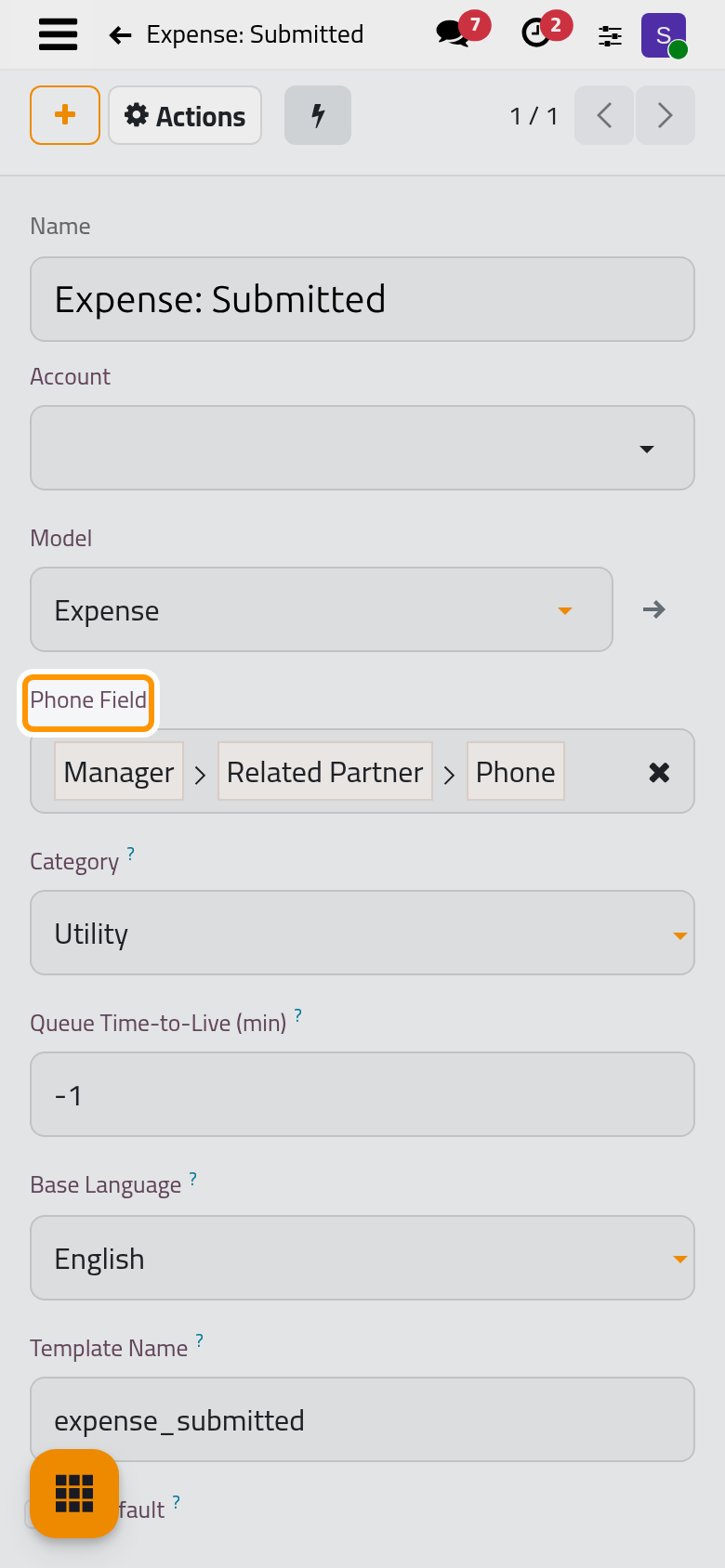
Phone Field follows the expense's Manager to the phone of their contact. The Automation tab holds the moment it leaves: the status set to Submitted.
Time off
The Automated Time Off messages block holds nine options, one per template of the table. Requests and allocations waiting for a decision reach the approver with a link to the record; the employee hears of each decision. Time Off: Starts Tomorrow is checked several times a day, and dropped if it cannot leave within twelve hours.
HR letters
On an approved letter in , a user with the Manager right on Letters sees Send by WhatsApp beside Send by Email and Send by Discuss. It sends HR Letter: Broadcast with the letter's PDF attached to every employee when Send to all is ticked, otherwise to those in Employees, on their Work Mobile or else their Work Phone. All messages use the language of the letter's user. A notice counts the employees reached and those skipped for lack of a number, and a note in the chatter records the send.
FAQ
Why did the manager receive nothing when an expense was submitted?
The manager's contact has no phone number, or no approver was found: submitting then approves the expense at once, and the employee receives Expense: Approved instead.
Can I send a letter twice?
Yes. Each click sends to every recipient again.
Where do I see what was sent?
In the WhatsApp messages, as Follow your messages shows.
Was this page helpful?
Thank you for your feedback.