WhatsApp in cases
On this page
- Ready-made templates
- Switch the automatic messages
- The daily lists
- Send a report from the record
- FAQ
- Why did the client not receive the status update?
- In which time zone are hearing times written?
- What happens if no line is connected when a reminder is due?
- Can each lawyer choose which lists they receive?
With WhatsApp and the cases app both installed, the cases app comes with eleven ready-made templates, written and ready to use: they tell the client about each step of the case, remind the lawyers of their hearings, send them their daily lists, and add WhatsApp buttons to cases, hearings and judgments. This page tells which message leaves when, to whom, and which switch controls it. The line, the queue and the statuses are explained in How WhatsApp sending works.
Ready-made templates
| Template | When it is sent | To whom | Switched by |
|---|---|---|---|
| Cases: Case Status Update | The case becomes In Progress, Appeals, Won, Lost or Canceled, with the reason of a loss or a cancellation | The case's client | Case Status Update, off at installation |
| Cases: Hearing Lifecycle Notice | A hearing is created, or closed with its summary; it gives the date, the court and the judge | The case's client | Hearing Notice, off |
| Cases: Hearing Reminder (1 hour before) | One hour before a hearing that is still In Progress | The hearing's lawyers | Hearing Reminder, on |
| Cases: Judgment Issued | A judgment is recorded: outcome, number, type and date | The case's client | Judgment Issued, off |
| Cases: Tomorrow's Hearings Digest (per Lawyer) | Every day at 05:00 UTC, with a PDF of the lawyer's hearings of the next day | Each lawyer who has one | Tomorrow's Hearings Digest, on |
| Cases: Neglected Cases Digest (Lawyer) | Every day at 09:00 UTC, with a PDF of the lawyer's cases left unchanged too long | Each lawyer of such a case | Neglected Cases Digest (Lawyer), on |
| Cases: Neglected Cases Digest (Supervisor) | The same run, with a PDF of all such cases of the company | The Supervisor chosen under the switch | Neglected Cases Digest (Supervisor), on |
| Cases: Send Report | A user clicks the WhatsApp Send Report of a case; Case Report attached | The case's client | The template's Show on Form |
| Cases: Hearing Send Details | Send Details on a hearing; Hearing Details attached | The case's client | Show on Form |
| Cases: Hearing Send Summary | Send Summary on a hearing; Hearing Summary attached | The case's client | Show on Form |
| Cases: Judgment Send Report | The WhatsApp Send Report of a judgment; Judgment Report attached | The case's client | Show on Form |
Each message goes to the phone number of the person's contact (for a lawyer, the contact of the lawyer's user), in that contact's language: every ready-made template is written in English and Arabic. To change a text, click the template's name under its switch, or see WhatsApp templates. The case and hearing statuses are those of How cases work.
Switch the automatic messages
- Open and scroll to Automated Cases messages.
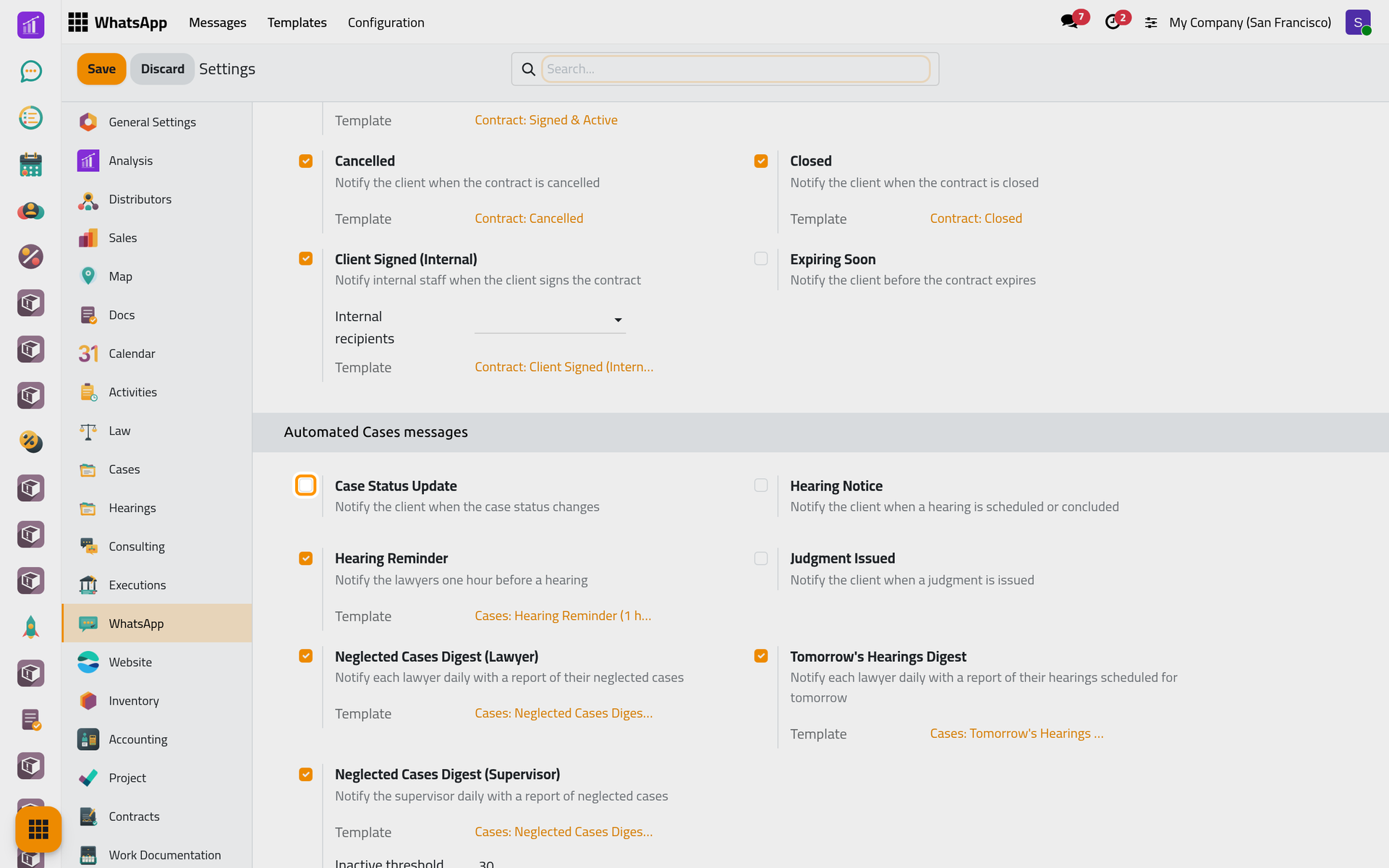
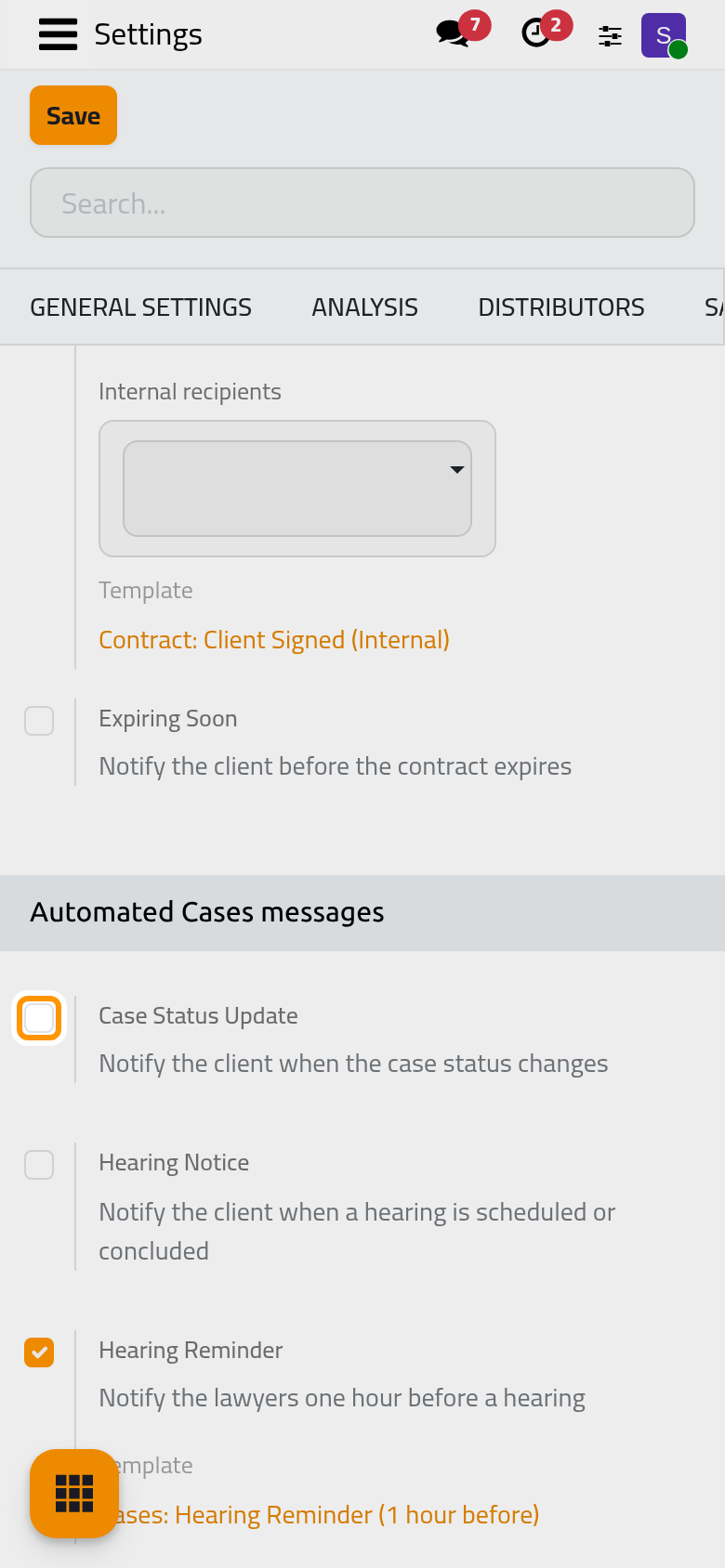
- Tick a switch, for example Case Status Update. Its template appears under it.
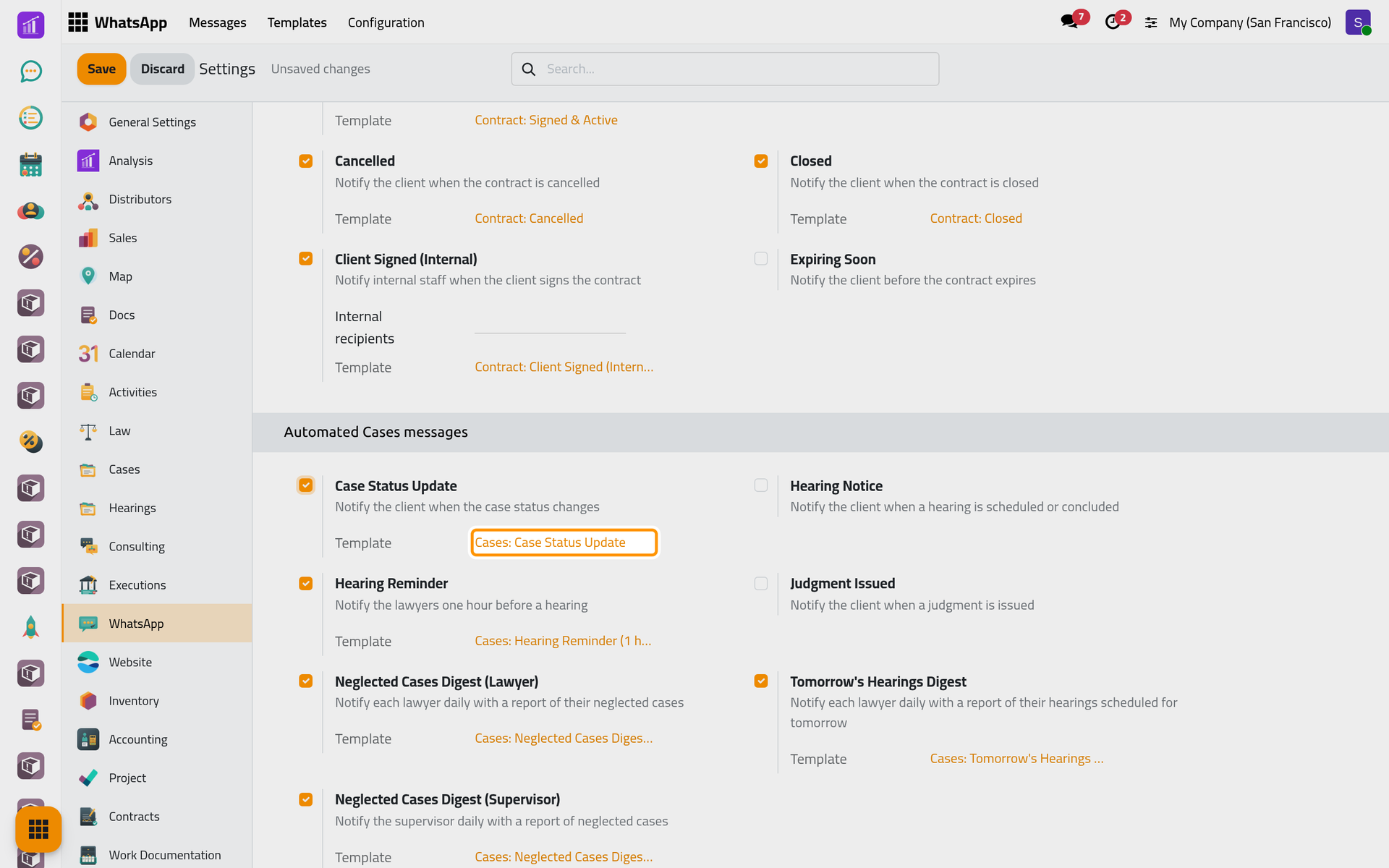
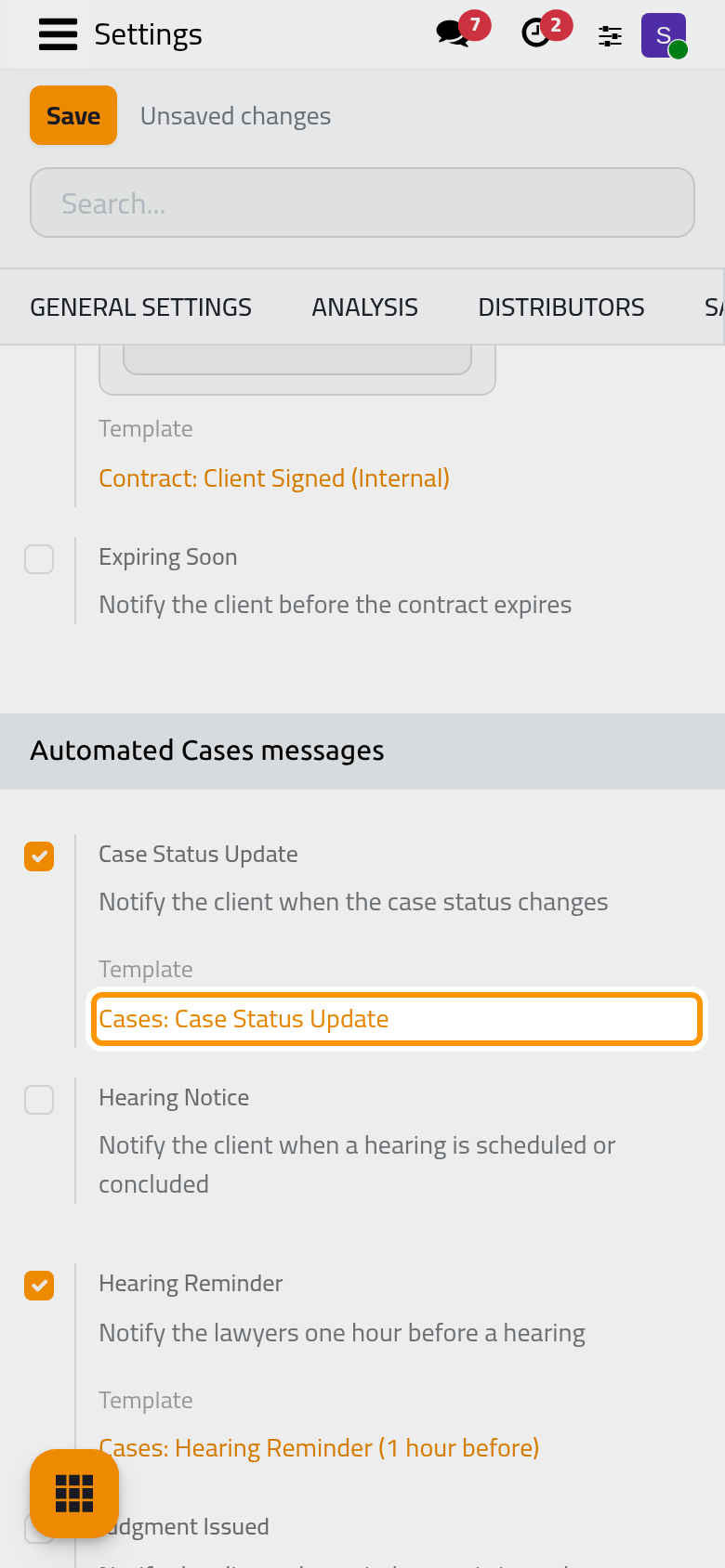
- Click Save. To stop a message, untick its switch and save.
A switch is the template itself: unticking archives the template and stops its automatic sending, ticking restores both. Archiving the template from Templates turns the switch off just the same. The switches serve every company of the database.
The daily lists
Two scheduled jobs send the three lists: Law Cases: WA Tomorrow's Hearings Digest (daily 5:00) and Law Cases: WA Inactive Case Followup (daily 9:00). Their hours are UTC, 08:00 and 12:00 in Riyadh. Switching off every list of a job also stops the job.
- Tomorrow's Hearings Digest: it lists the hearings still In Progress, and tomorrow is the lawyer's own day, in the lawyer's time zone. A lawyer without a hearing tomorrow receives nothing.
- Neglected cases: a case counts when nobody has changed it for the days of Inactive threshold (days), 30 by default. State filter keeps only some case states; left empty, every state counts. Each lawyer receives only their own cases, the Supervisor the full list. No supervisor is chosen at installation, so that list leaves only once you pick one. Someone who is both receives one message per run.
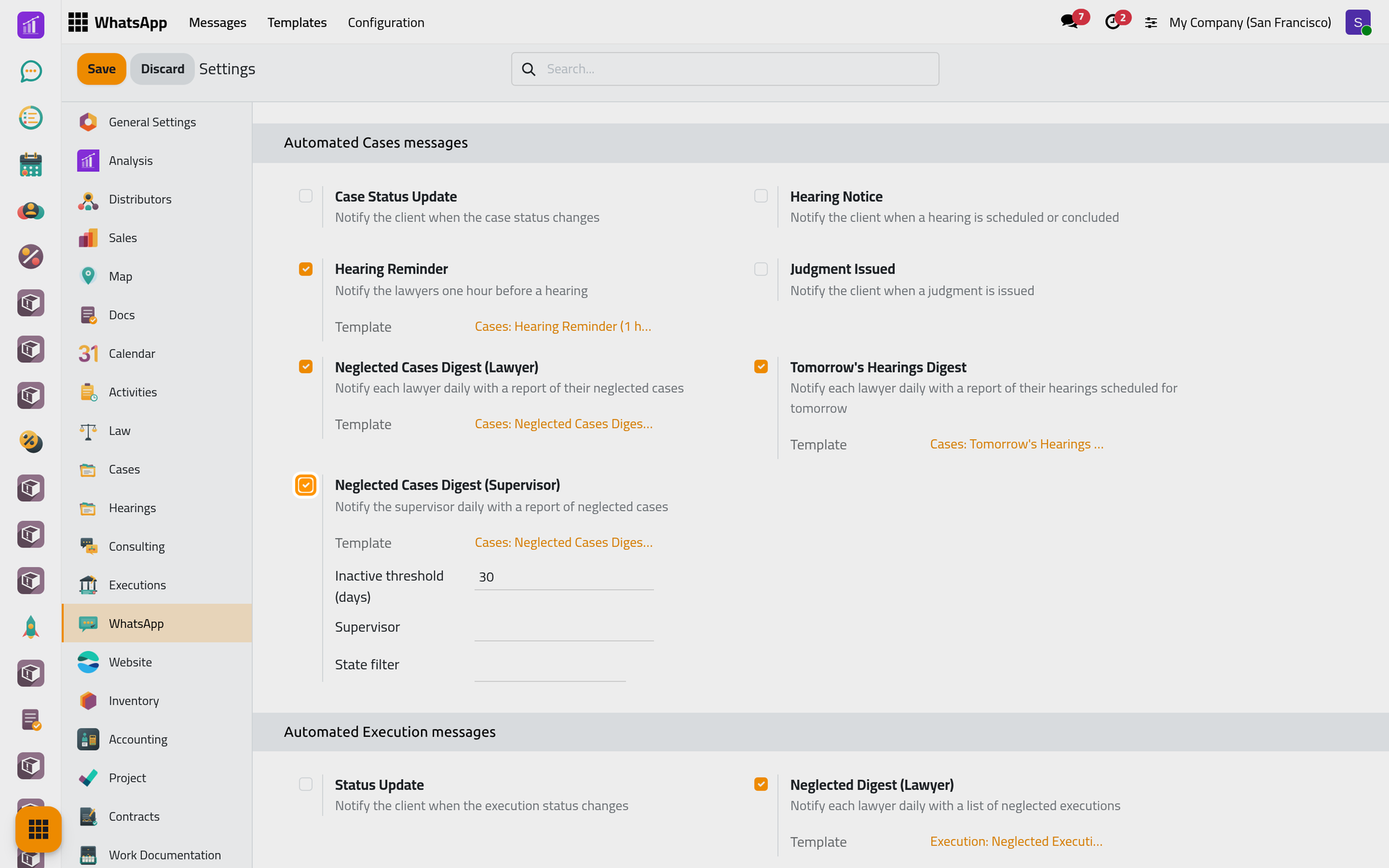
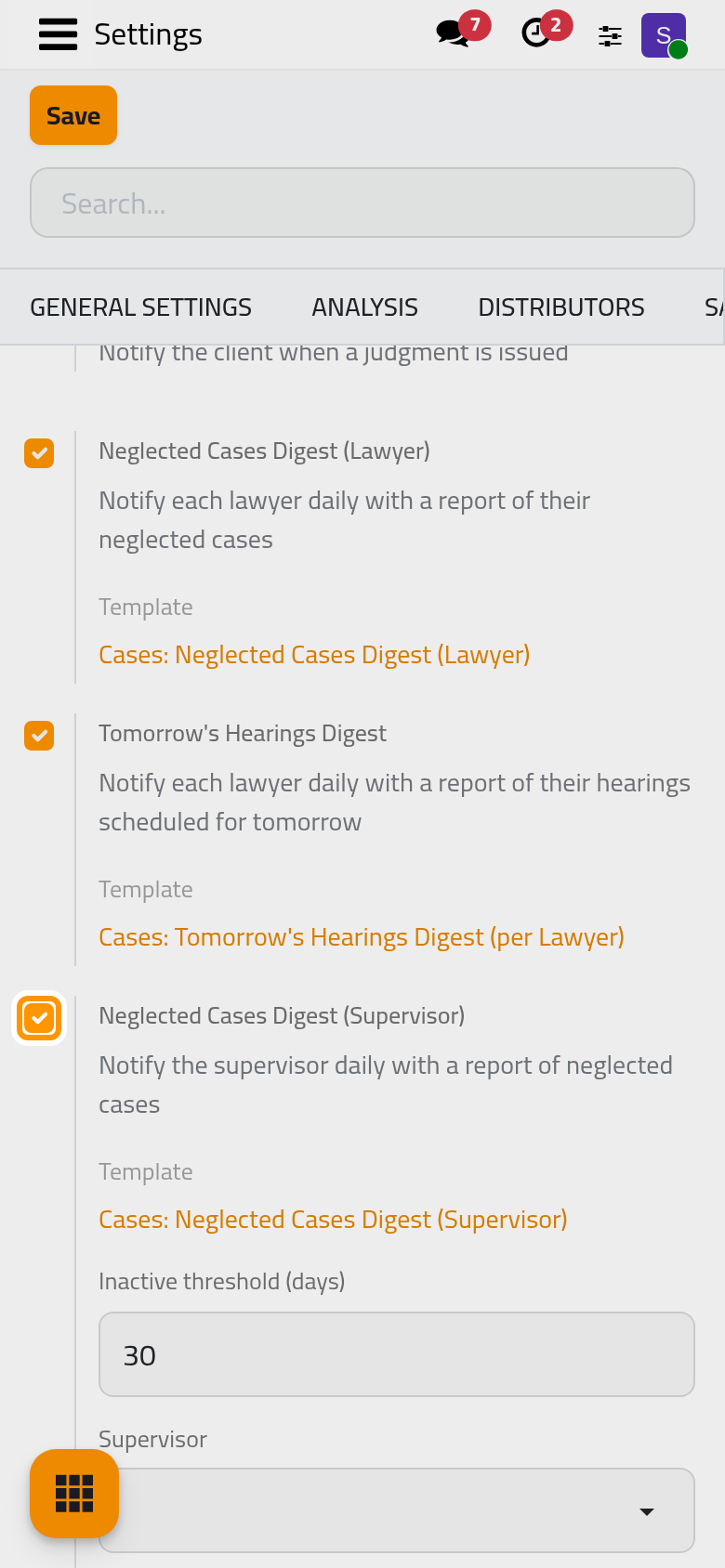
The threshold, the supervisor and the filter belong to the current company.
Send a report from the record
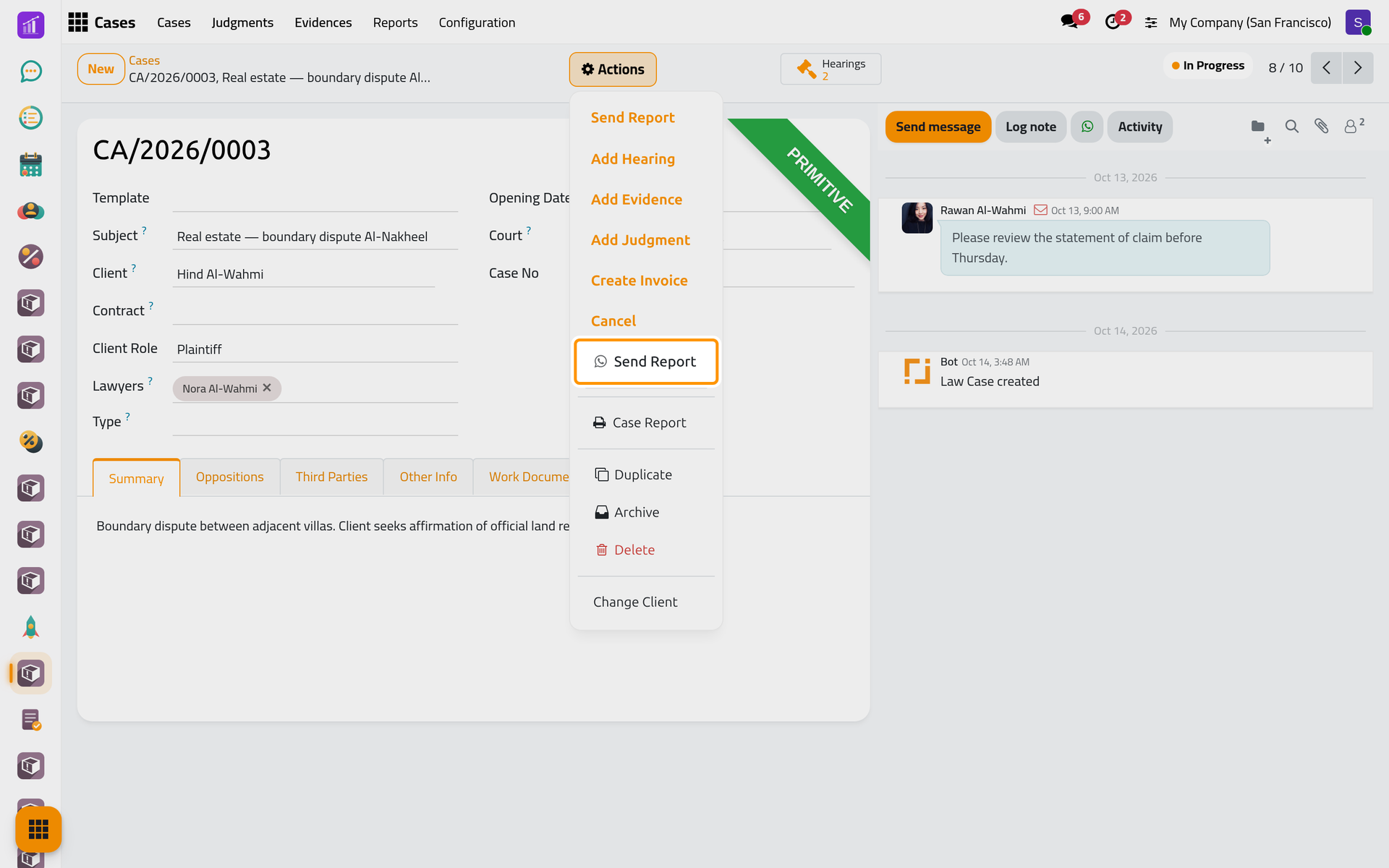
Four templates add a button instead of sending by themselves. On a case, the Actions menu holds two Send Report entries: the one with the WhatsApp icon opens the WhatsApp composer with the client, the text and the Case Report PDF ready; the other one is the email.
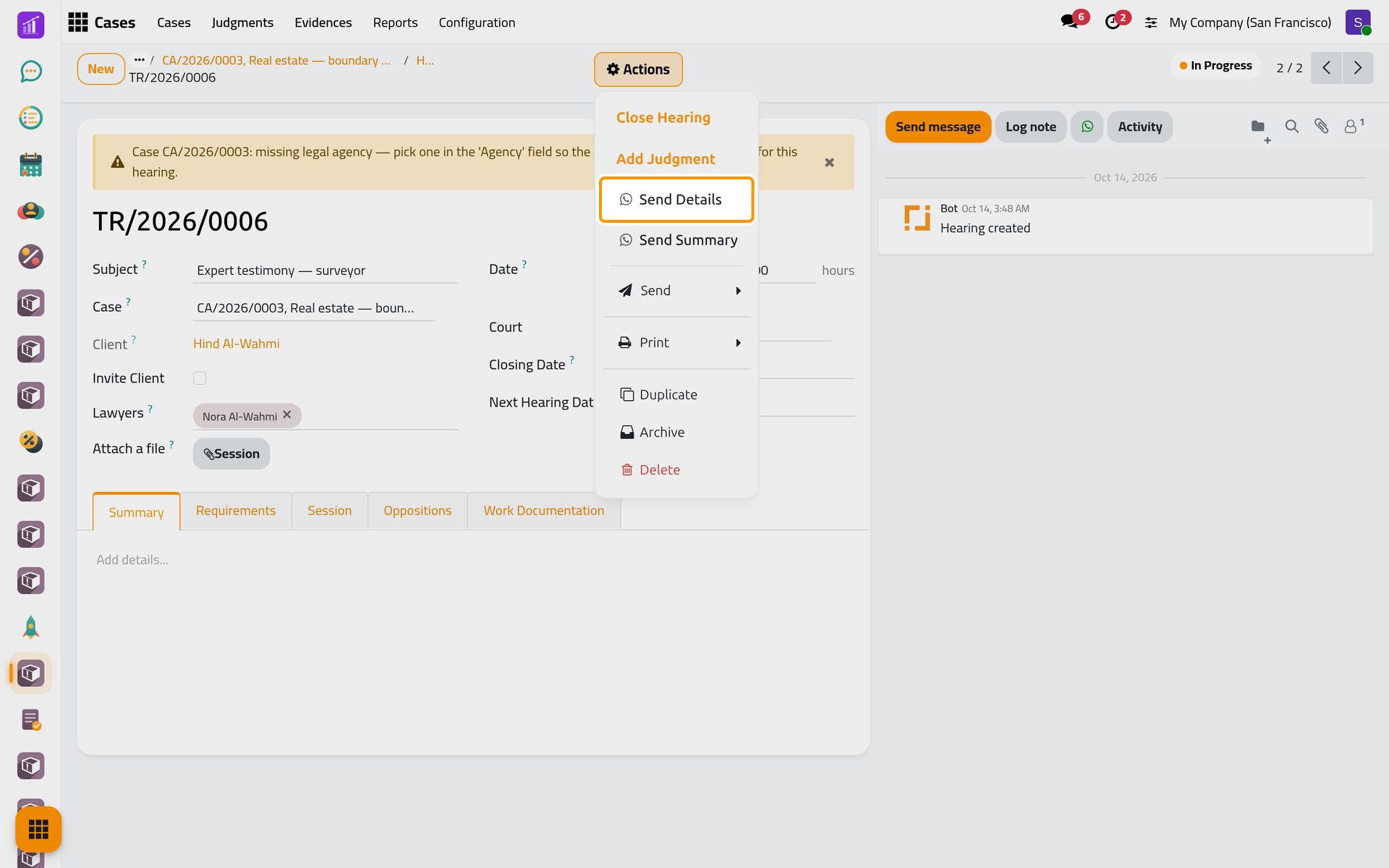
A hearing offers Send Details and Send Summary the same way, and a judgment its own WhatsApp Send Report. Check the message, then click Send; the composer is explained in Send from any record. On a phone, Actions sits at the top of the form as well.
FAQ
Why did the client not receive the status update?
At installation the three automatic client messages are off: tick their switches first. The client's contact also needs a phone number, and a client on the blacklist receives nothing; see Consent and the blacklist. Each message and its status are listed as Follow your messages explains.
In which time zone are hearing times written?
In the recipient's own time zone, else in that of the hearing's lawyers, else the sender's, else UTC; the message names the zone after the time, and the attached PDF uses the same one.
What happens if no line is connected when a reminder is due?
The message waits in the queue. A hearing reminder still waiting after 90 minutes, or a daily list after 12 hours, turns Expired and is never sent late.
Can each lawyer choose which lists they receive?
No. The switches apply to everyone; a lawyer whose user's contact has no phone number receives no list.
Was this page helpful?
Thank you for your feedback.