Send from any record
On this page
The composer, the Send WhatsApp Message window, is the same in every app: it addresses the people its template names, fills the text with the details of the record and queues the message. This page uses quotation S00001 of Acme Corporation; the case of Your first WhatsApp message works the same way.
Before you start
- You need the User access right on WhatsApp; the WhatsApp buttons stay hidden from Viewer.
- A line must be connected (Connect a WhatsApp line).
- The composer offers only the active templates of the kind of record you are on (WhatsApp templates).
Open the composer
Three buttons open it, all on the record:
- WhatsApp in the chatter, the green icon between Log note and Activity. It shows on every record whose kind has an active template, while WhatsApp in Chatter is on (WhatsApp settings).
- A template's own entry in the Actions menu, marked with the WhatsApp icon, such as Send Report on a case. It opens the composer on that template; the template's Show on Form option adds it (WhatsApp templates).
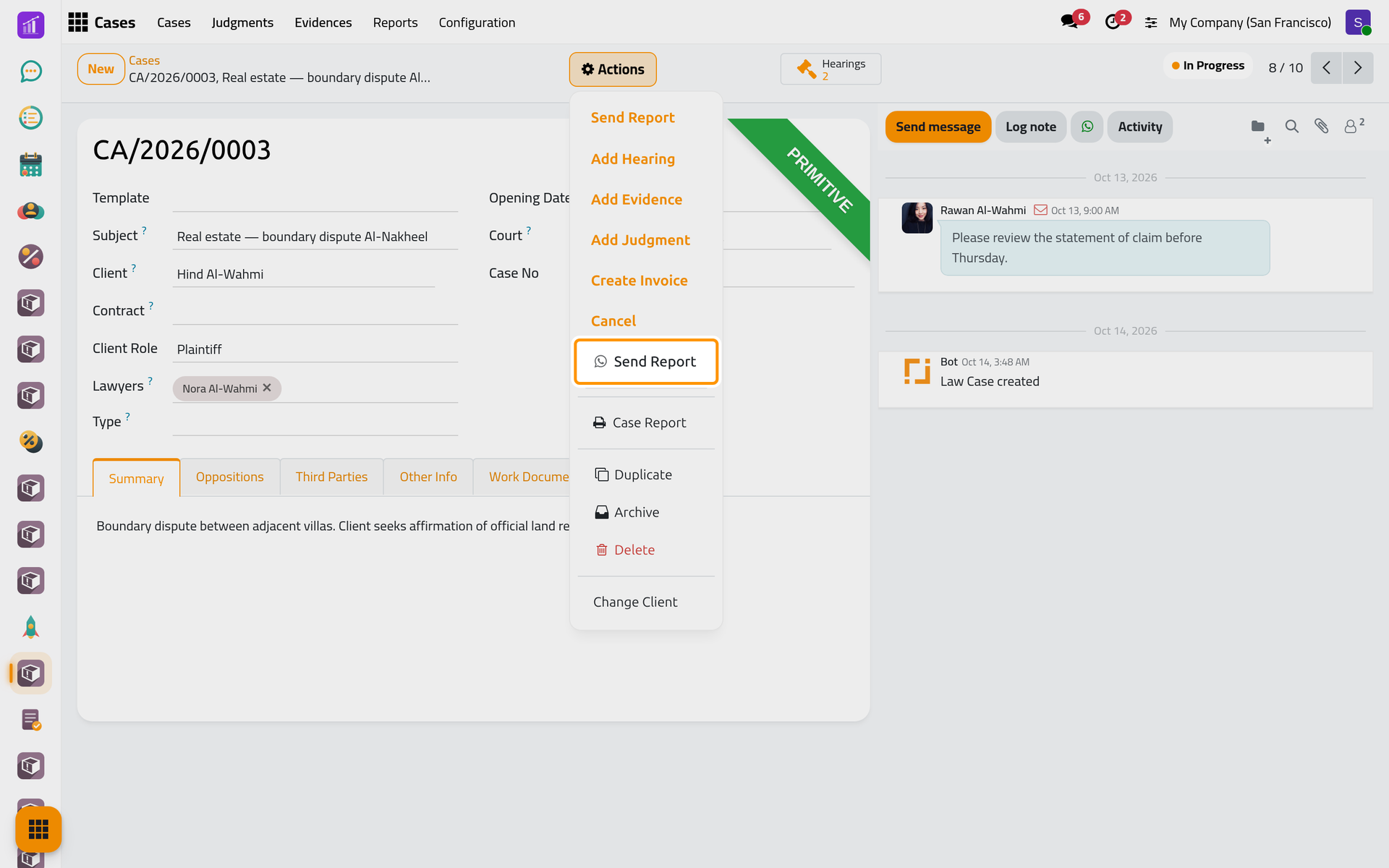
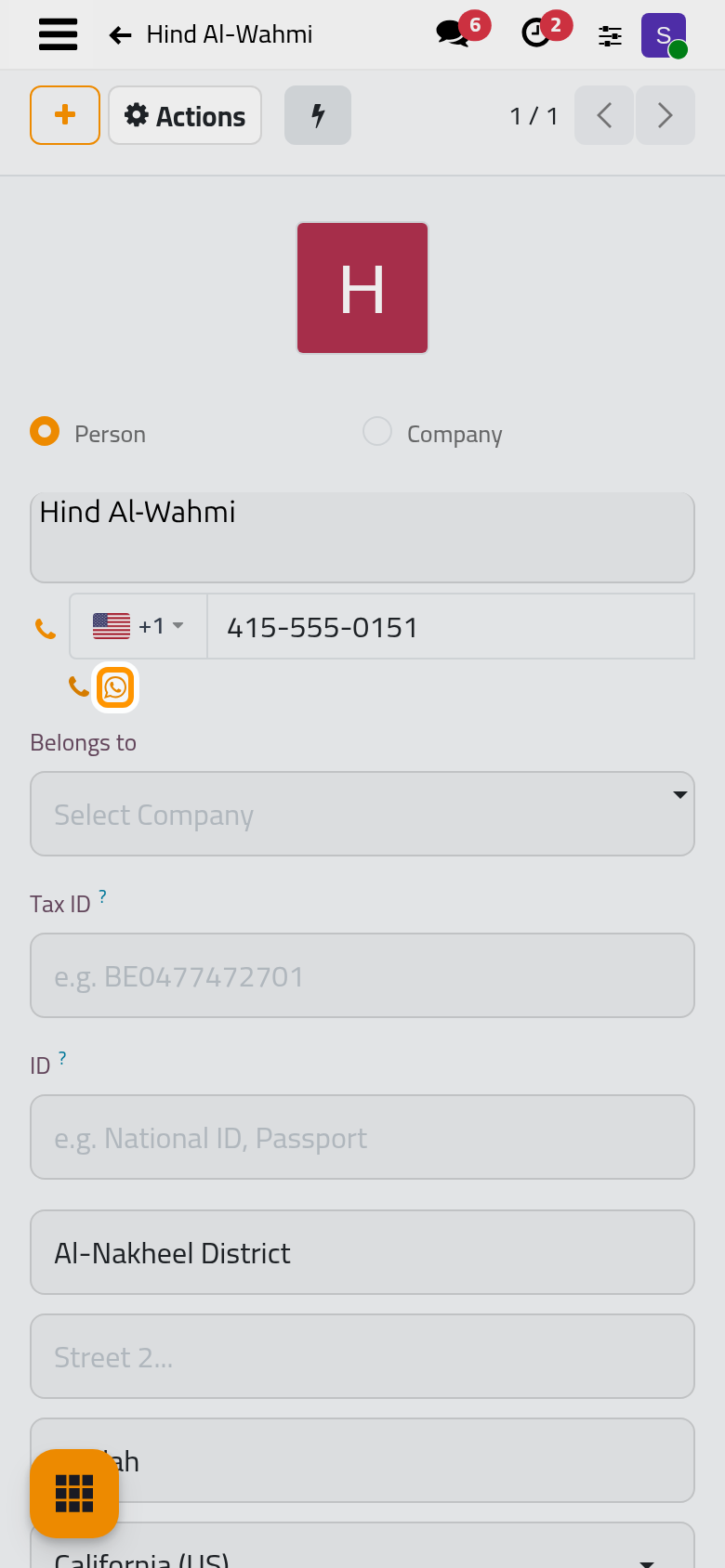
On a phone, the Actions menu at the top holds the same entries.
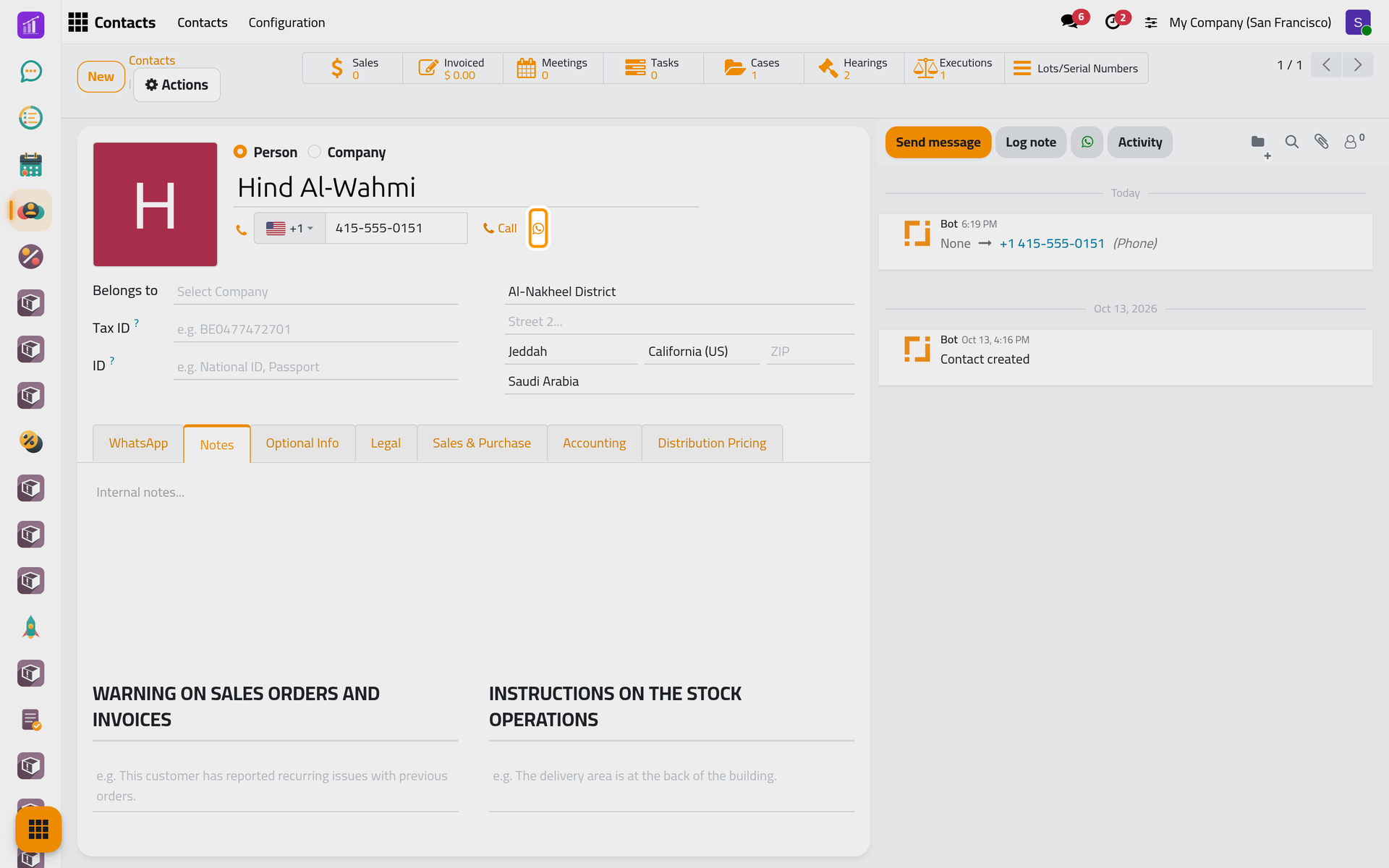
- The WhatsApp icon beside a phone number, on a contact for example. It opens the composer for that record: on a contact, addressed to the contact.
Check the recipients
- Open , remove the My Quotations filter, open S00001 and click WhatsApp in its chatter.
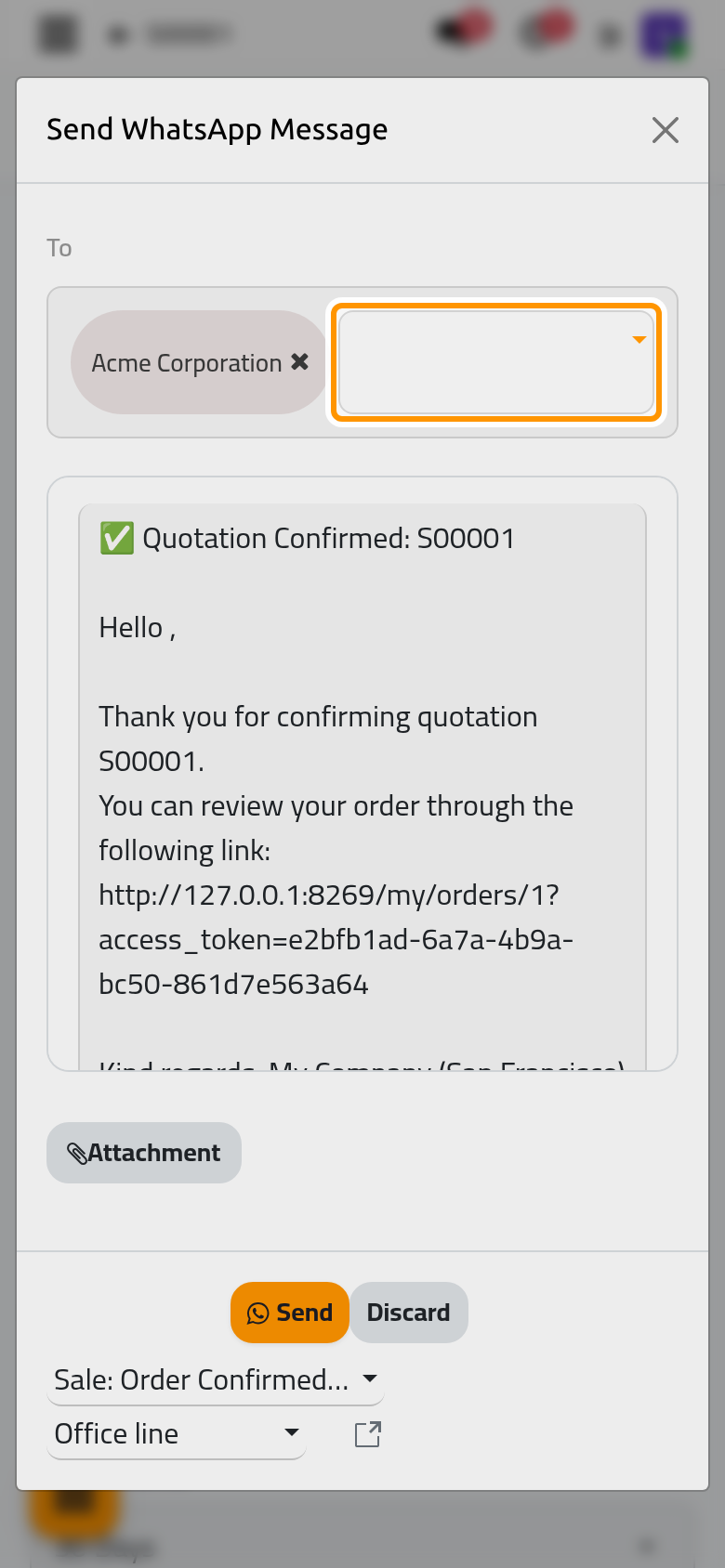
- To holds the customer, Acme Corporation: the template names who receives the message. Point at a name to see its number. Type a name to add someone; the cross beside a name takes it off.
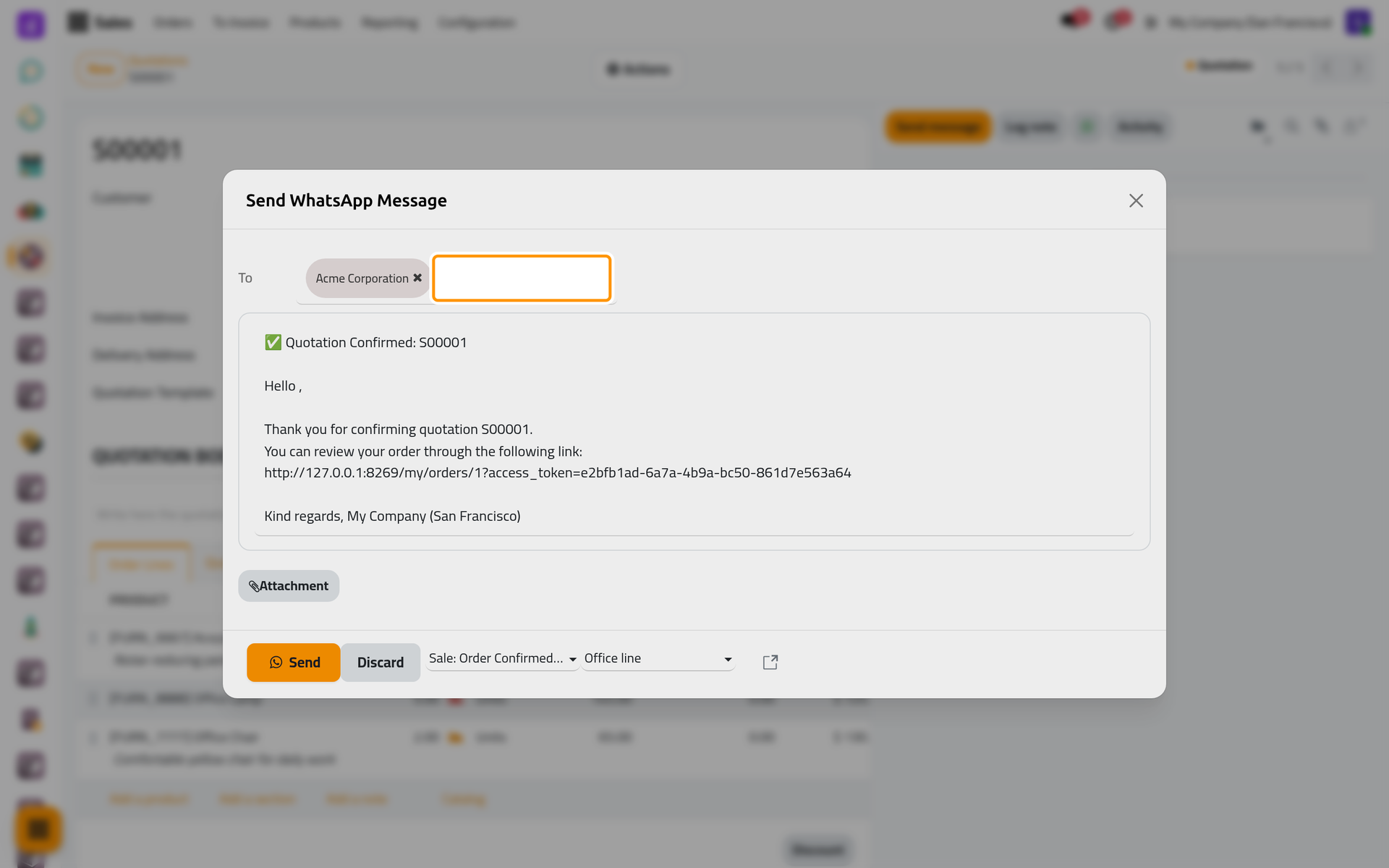
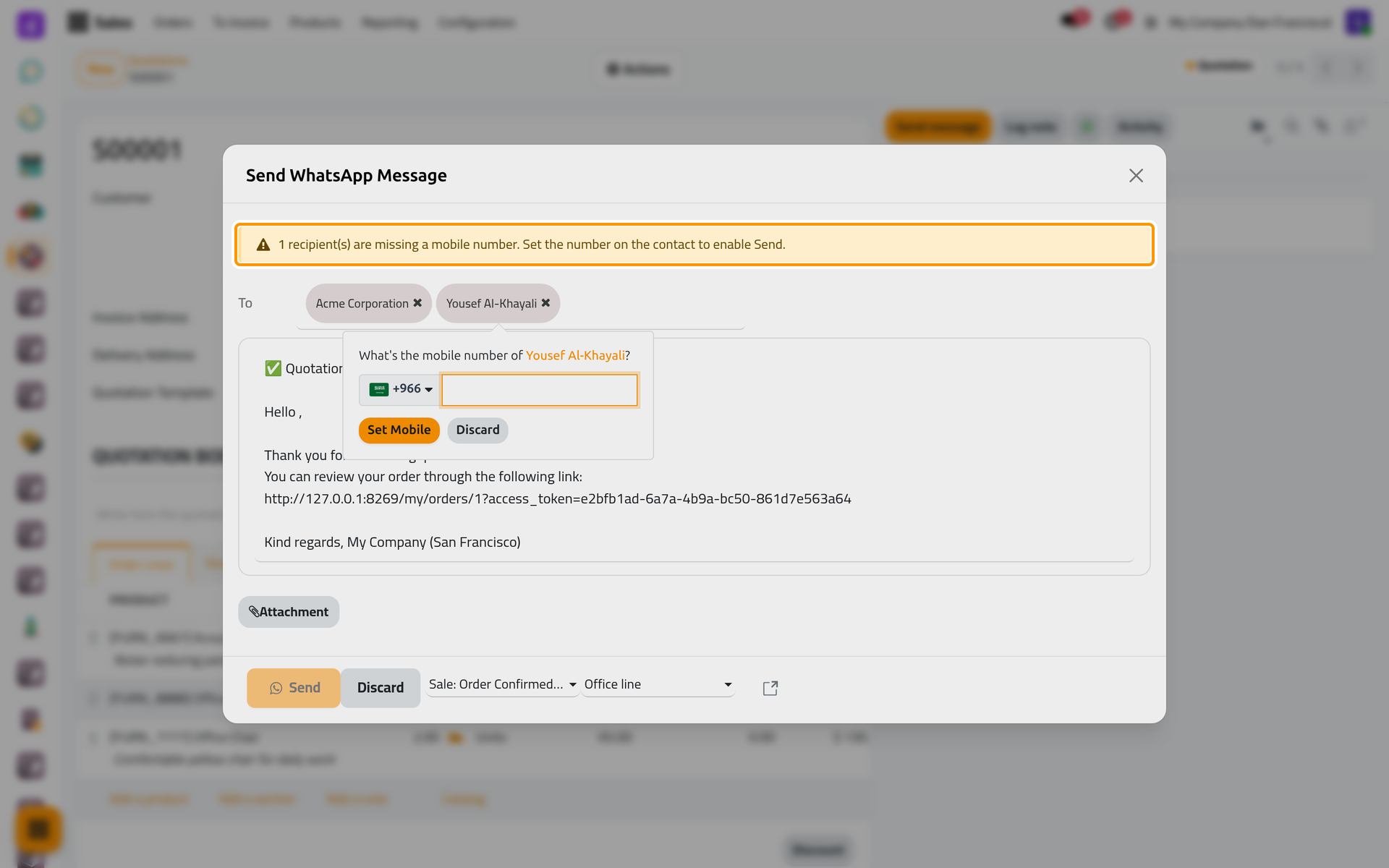
- A person without a phone number turns red, and a box asks for the number: Set Mobile saves it on the contact, Discard takes the person off the list. As long as someone has no number, a warning says how many are missing one and Send stays greyed out.
On a phone, the box opens under the name in the same way.
Each recipient gets a message of their own. With several recipients and a template, each person receives the template in their own language, filled for them, and changes typed in the text are not kept; with one recipient, the text leaves exactly as you leave it.
Choose the template
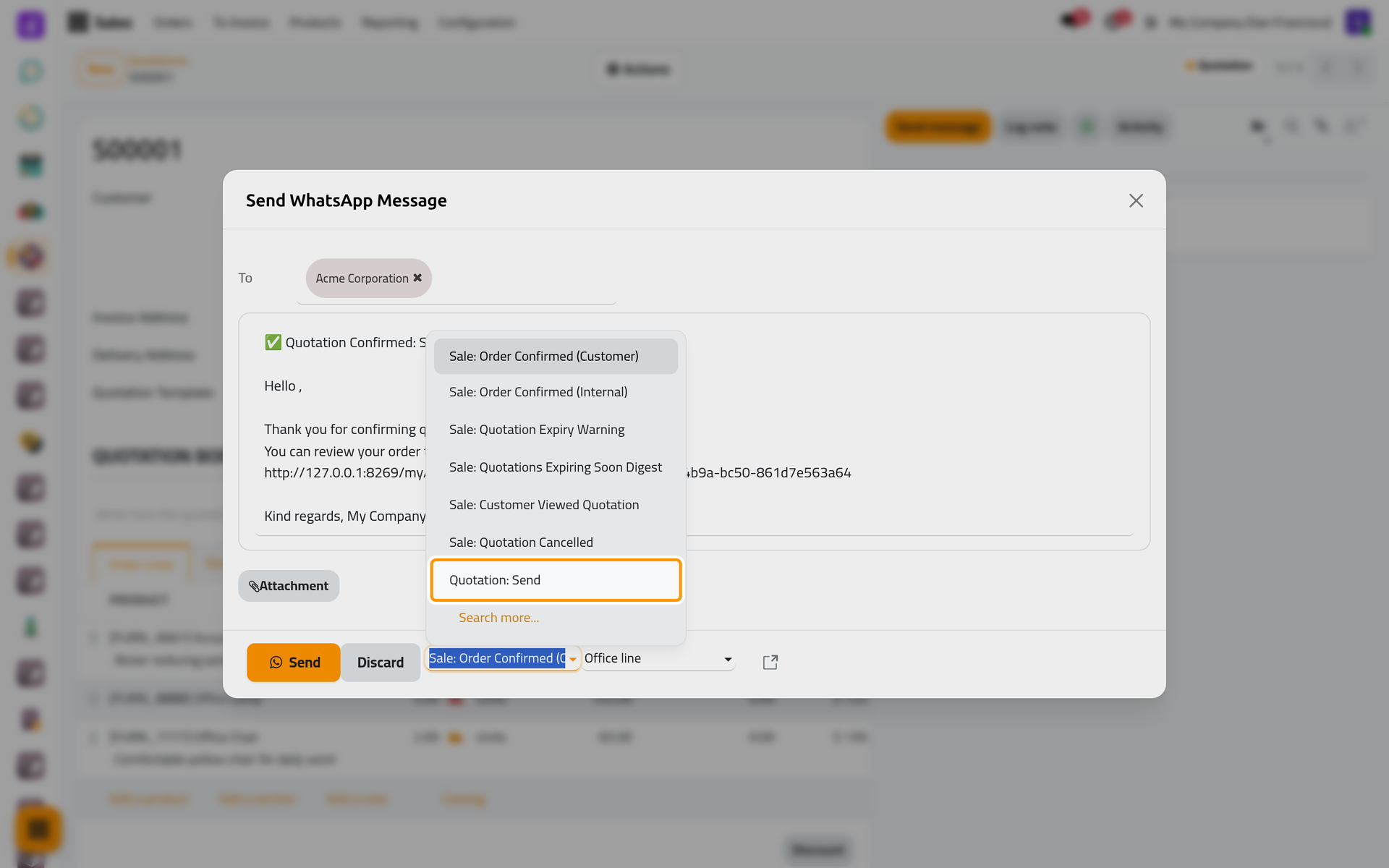
- The template field sits at the bottom, beside Send. The composer starts on the default template of the kind of record, or else on the first active one: for a quotation, Sale: Order Confirmed (Customer), which thanks the customer for a confirmed order. Open the list and choose Quotation: Send.
On a phone, the template field sits under Send.
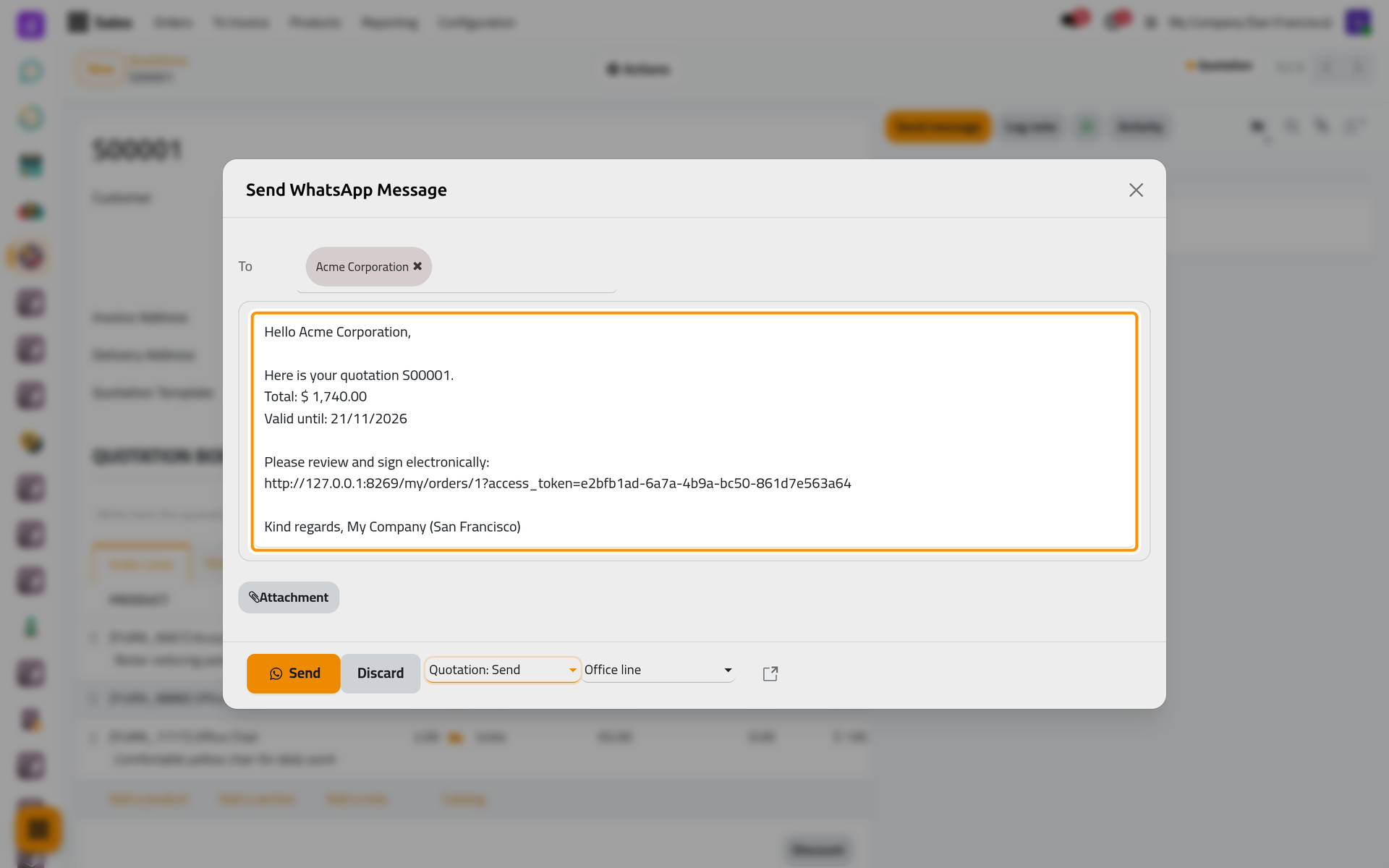
- The text changes: the template fills it with the number of the quotation, its total, its validity date and the link where the customer reviews and signs it. A template that needs a value only you know shows a Variables group above the text, to fill before sending. A template with a report attaches its PDF only when the window opens on it, as the case report does; choosing it from the list adds no file. To send the quotation with its PDF, open the window from the Send entry with the WhatsApp icon in the Actions menu. Attachment adds a file of your own.
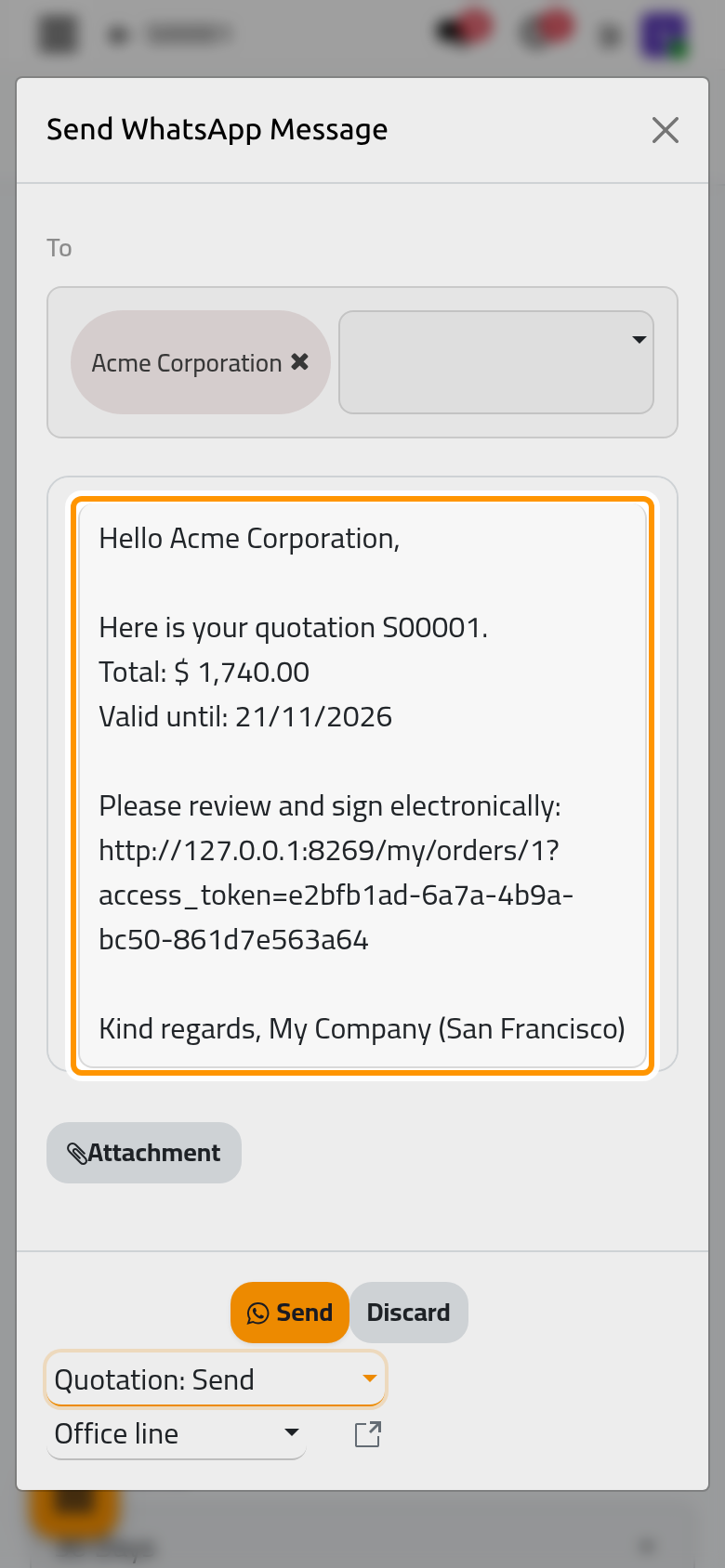
- To write your own text instead, empty the template field, then replace the text in the box. Administrators also see the line next to the template and can pick another one.
Send
- Click Send. The window closes and one message per recipient joins the queue; Discard closes it without sending. Once a message has left, the chatter of the record shows a note, "WhatsApp sent to" the recipient, with the start of the text. Follow your messages takes it from there.
FAQ
The WhatsApp button is missing from the chatter.
WhatsApp in Chatter is off for your company, the kind of record has no active template, or you have only the Viewer access right.
Why does the message go to the client and not to the contact I expected?
The template names its recipient: the templates of a case address its client, those of a quotation its customer. You can still change To before sending.
Is a report sent as a file?
Yes by default, as its own message after the text. Attachment Mode in WhatsApp settings can send a link instead.
Was this page helpful?
Thank you for your feedback.