Your first WhatsApp message
On this page
WhatsApp sends WhatsApp messages from the records you already work on: a case, a hearing, a quotation, an invoice, a meeting. You rarely write them yourself. Every app that works with WhatsApp brings its ready-made templates, written in English and Arabic and filled with the details of the record: the demo database holds 71 of them, from the case status update to the invoice sent to a customer, and Ready-made WhatsApp templates lists them all. This walk-through sends one of them by hand: the report of case CA/2026/0003 to its client, Hind Al-Wahmi, with the template Cases: Send Report. Then it finds the message in Messages.
Before you start
- You need at least the User access right on WhatsApp. Viewer only reads the messages; Administrator also manages the lines, the templates and the settings. Create a user and set access rights shows where it is set.
- A line must be connected. The demo has one, Office line, the default line of the company, shown Connected. Connect a WhatsApp line adds yours.
- The client needs a phone number on her contact. Hind Al-Wahmi has one.
- The WhatsApp button shows in the chatter while the WhatsApp in Chatter setting is on, as it is by default, and the kind of record has at least one active template (WhatsApp settings).
Step 1: open the case
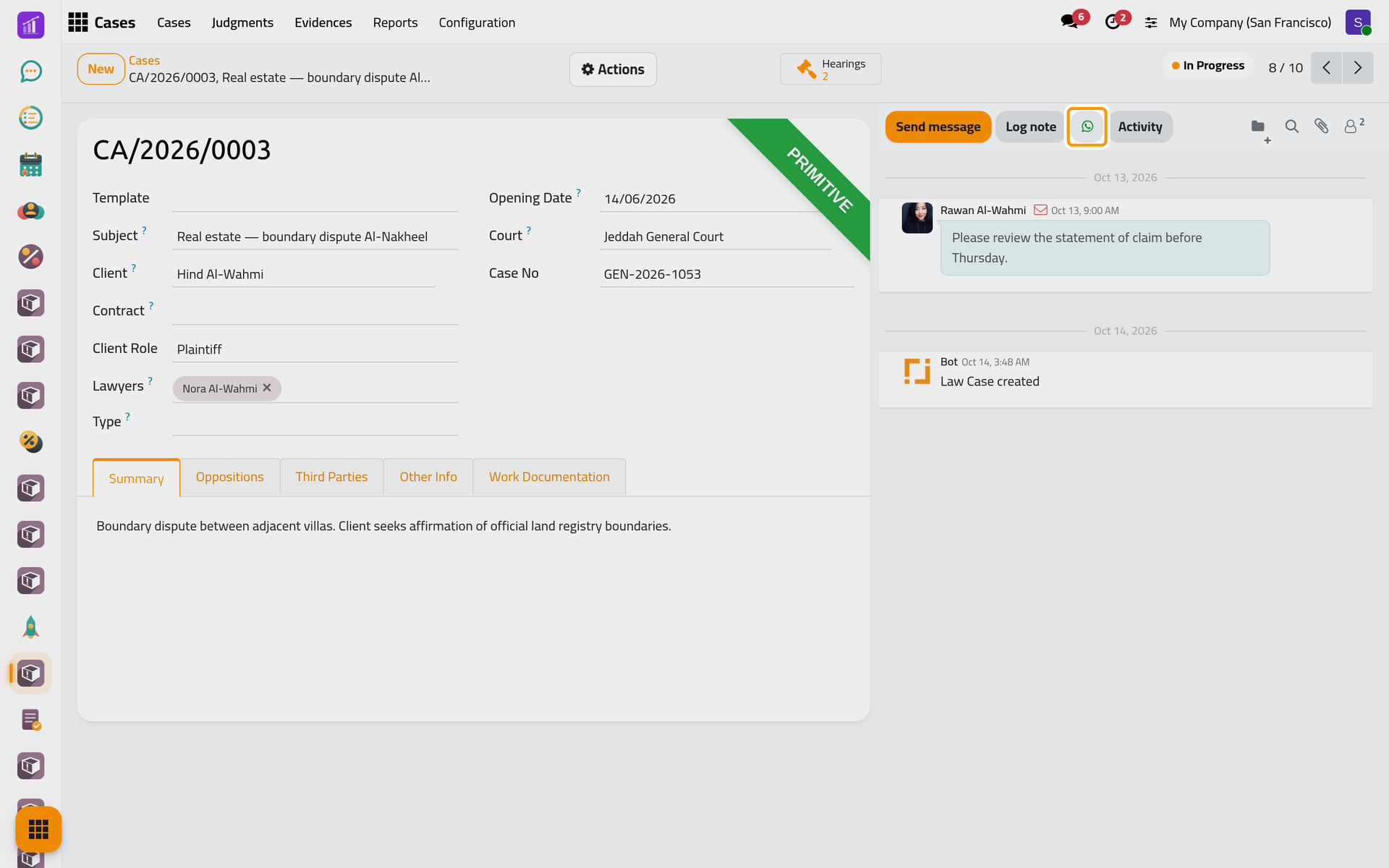
Open and click CA/2026/0003. The top bar of the chatter, beside the form, holds the WhatsApp button: the green icon between Log note and Activity.
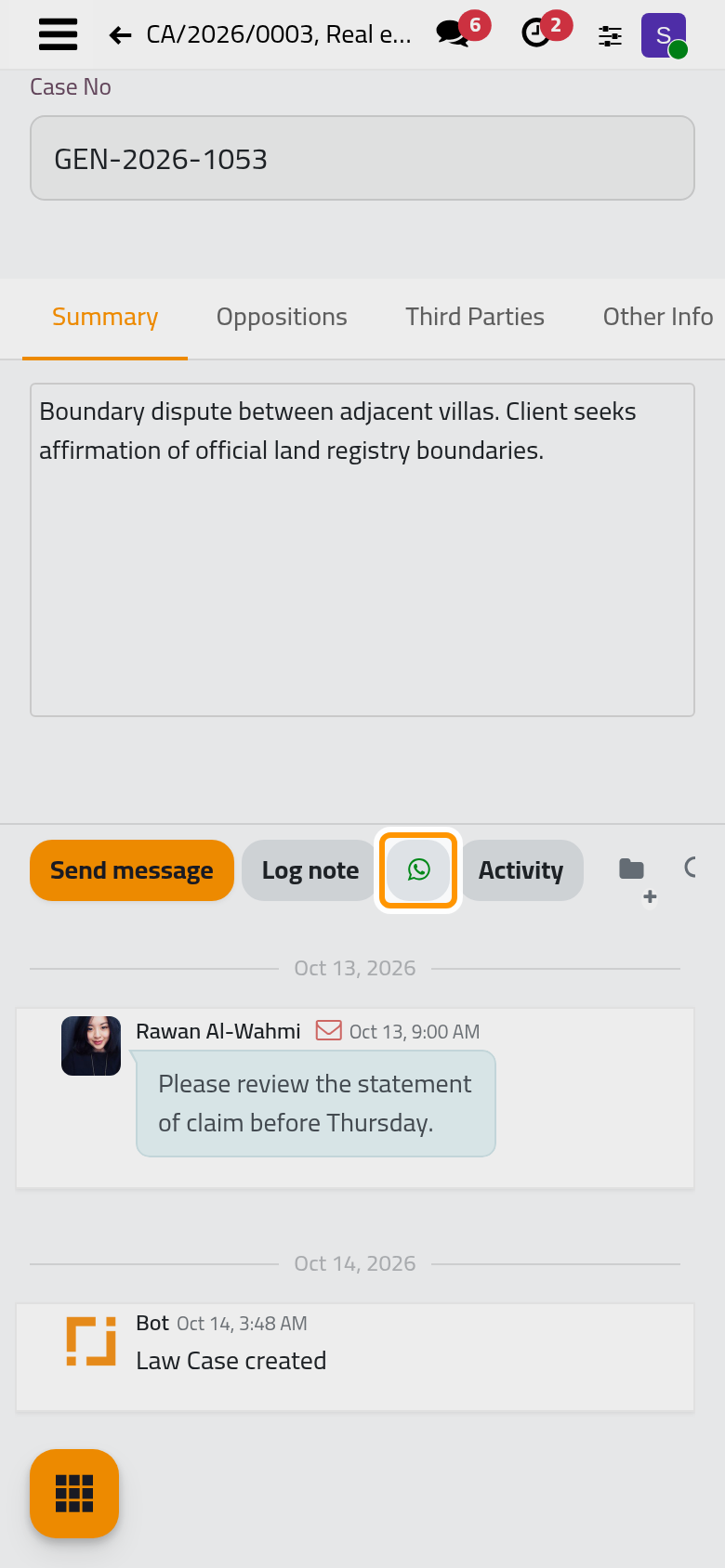
On a phone, the chatter sits below the form.
Step 2: read what the composer prepared
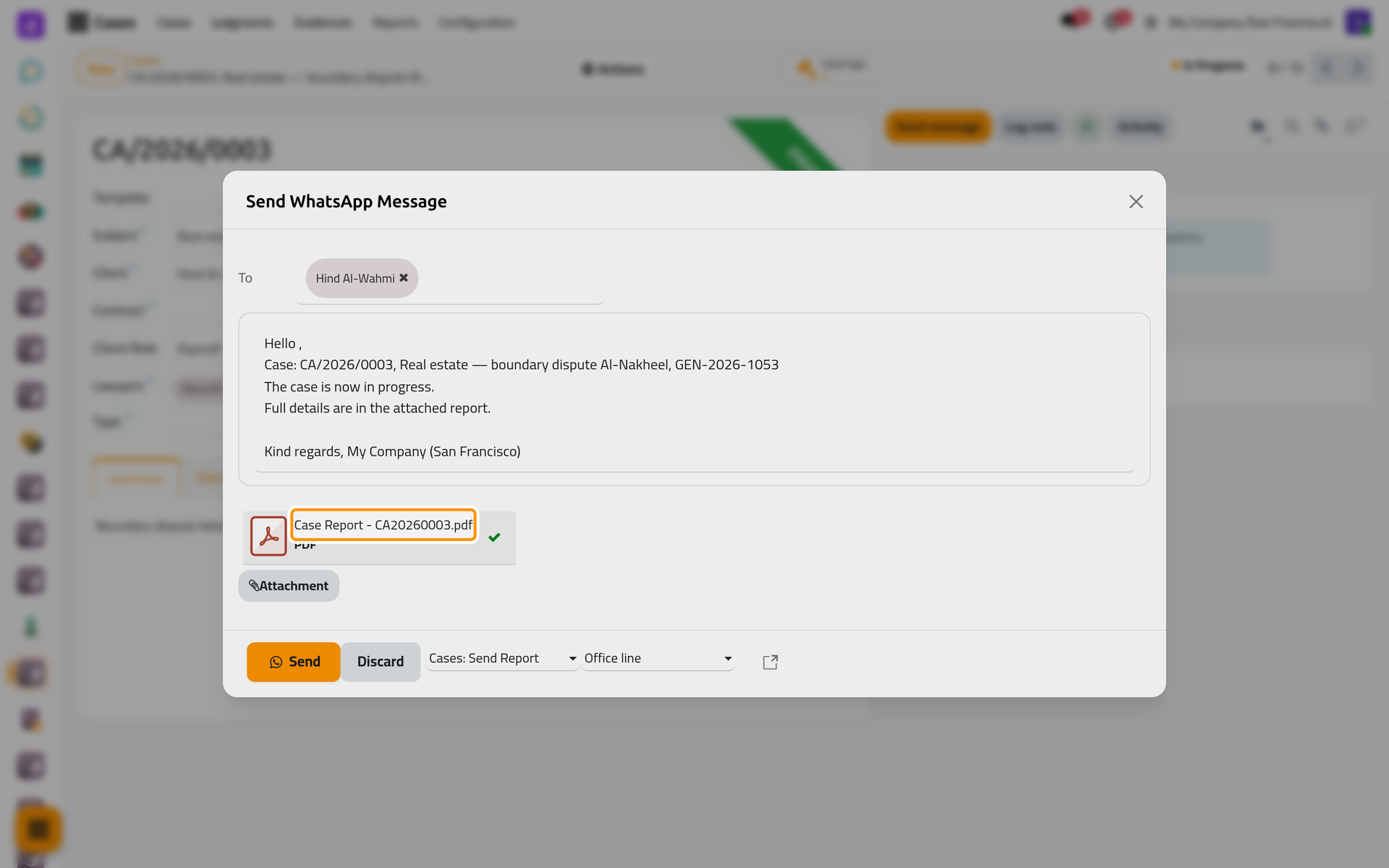
- Click WhatsApp. The Send WhatsApp Message window opens, already filled.
- To holds Hind Al-Wahmi. The template decides who receives the message: for a case, its client. Point at her name to see her number.
- At the bottom, the template Cases: Send Report is chosen. The composer starts on the default template of the kind of record, or else on the first active one; for a case in the demo, that is this one. Beside it, Office line is the line the message leaves from; only administrators see that field.
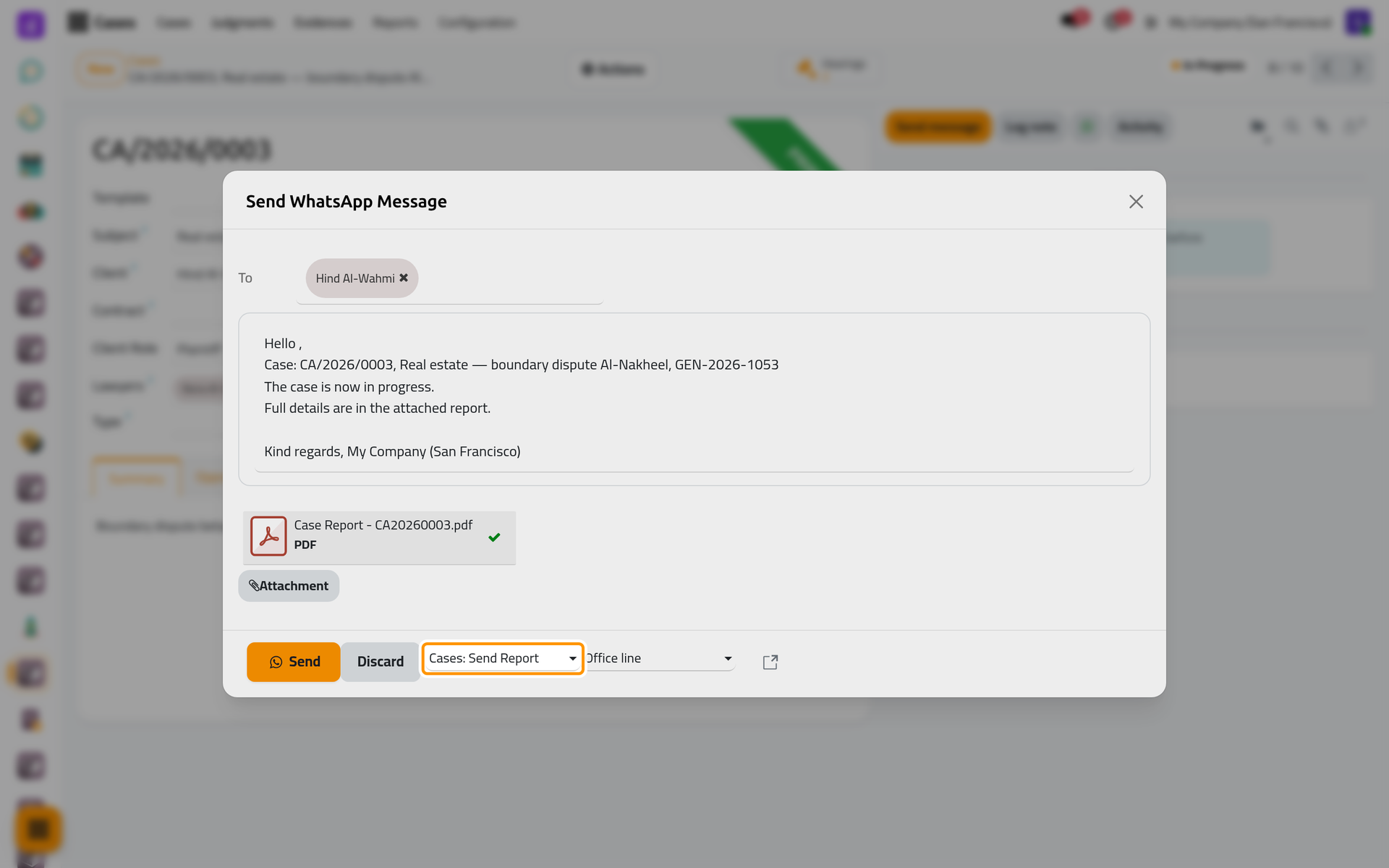
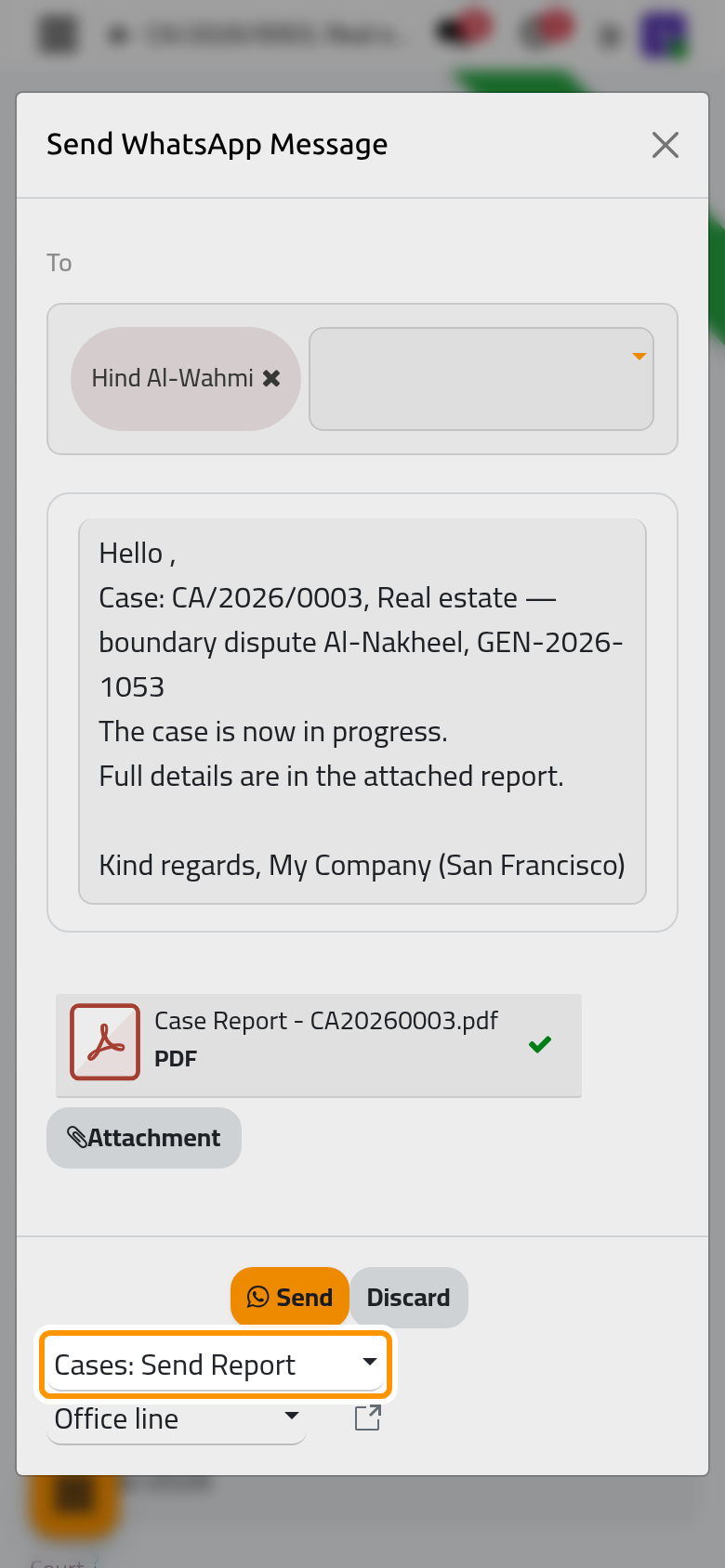
- The text comes from the template, filled with the details of the case: its number and subject, its state in plain words ("The case is now in progress."), a line about the report and the name of your company. Read it before you send it. You can change it, and what you see is what is sent. The greeting shows no name in this window: add the client's name to it before you send.
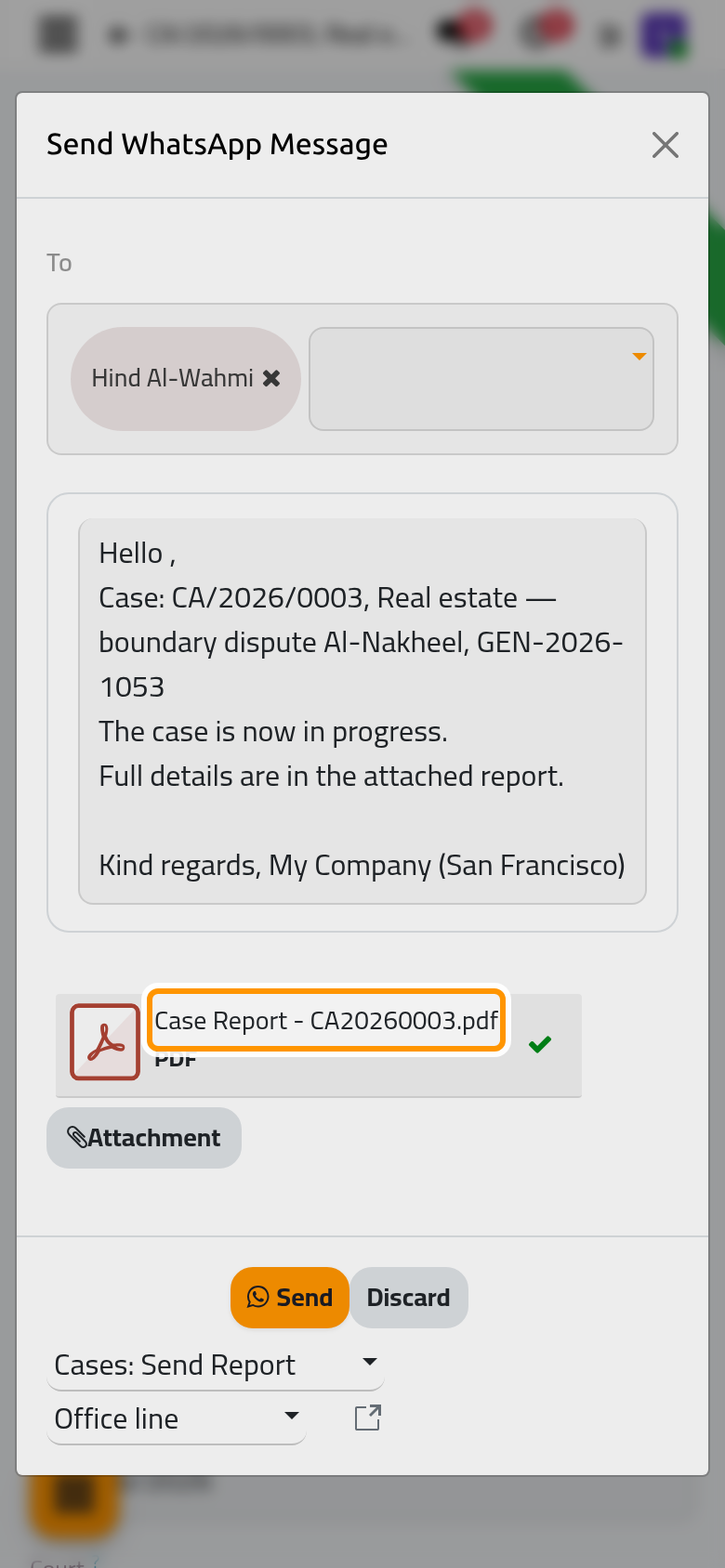
On a phone, the window fills the screen, and the template and the line sit under Send.
Step 3: check the attachment
The template also attaches the case report, Case Report - CA20260003.pdf, printed from the case when the window opened. Click it to download it and read it before it goes. Attachment adds a file of your own.
Step 4: send it
Click Send. The window closes and the message joins the queue of the line. The demo database never sends anything, so the message stays in the queue there; on a connected line, it leaves within moments. Once it has left, the chatter of the case shows a note, "WhatsApp sent to Hind Al-Wahmi", followed by the start of the text.
Step 5: find it in Messages
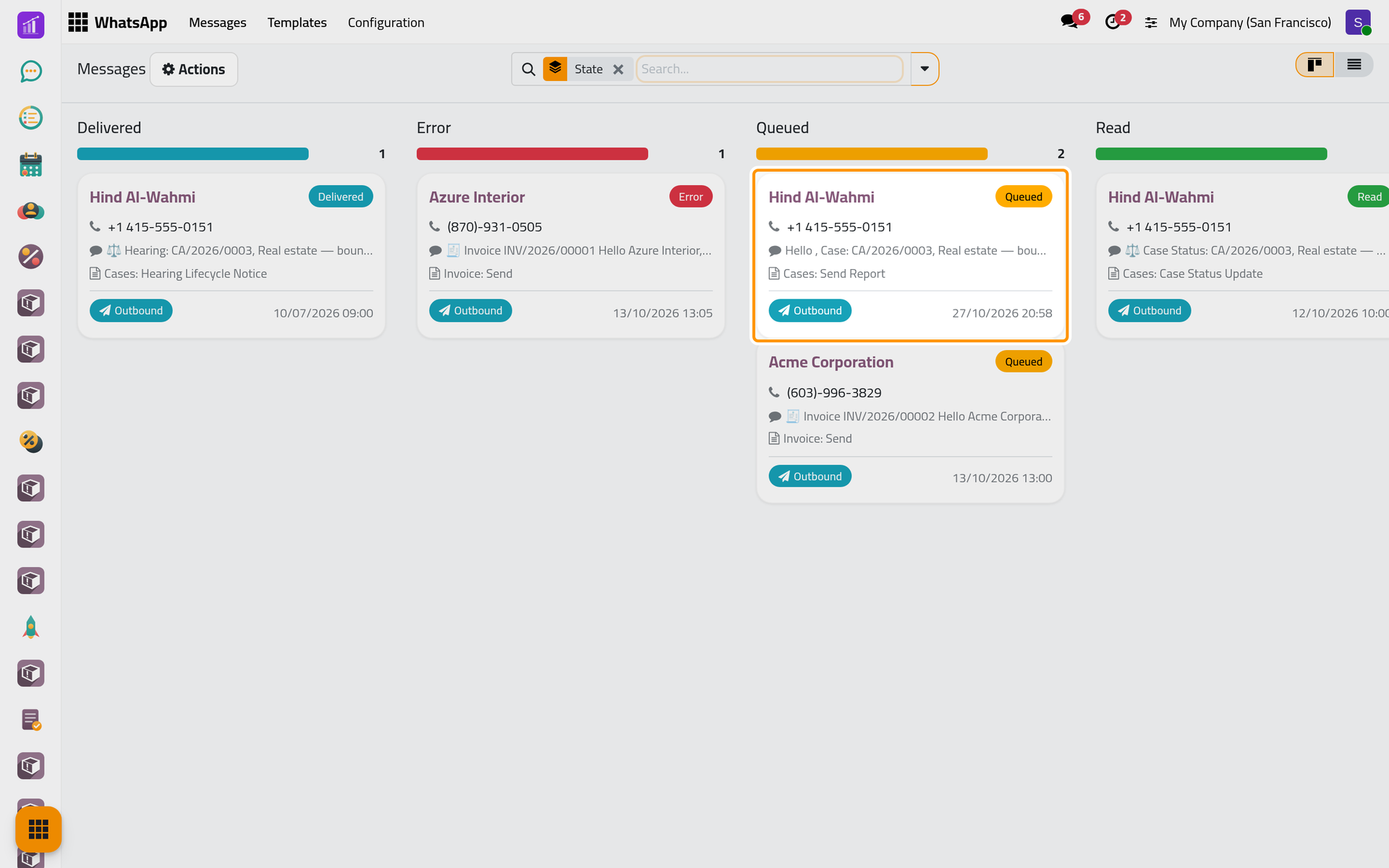
- Open . The messages are grouped by status, one column for each. Yours is in Queued: the client, her number, the start of the text, the template, Outbound and the time you sent it.
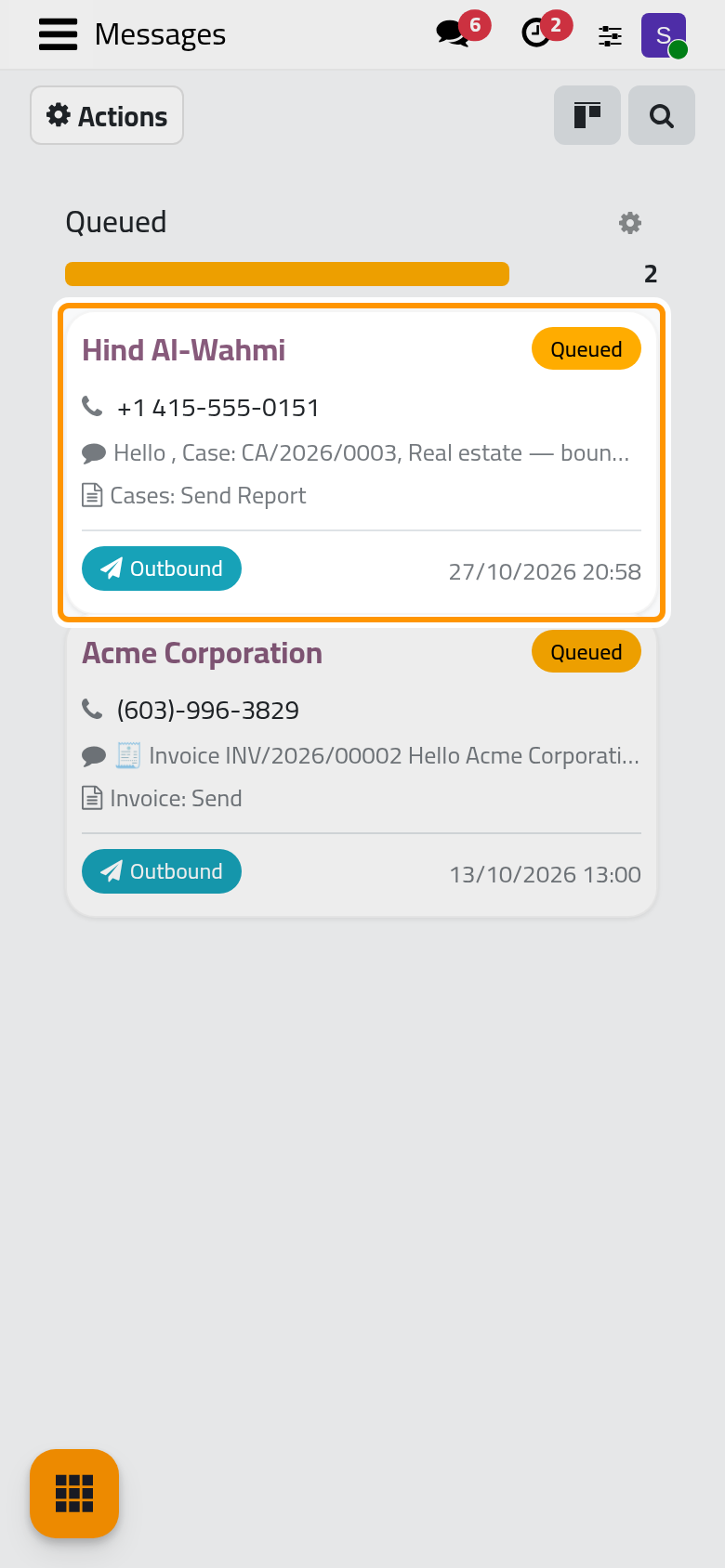
On a phone, the board shows one column at a time.
- Click the card. The status sits at the top, Queued. The form gives the client, her Mobile Number and the Account, which is the line. The Content tab holds the text and the report.
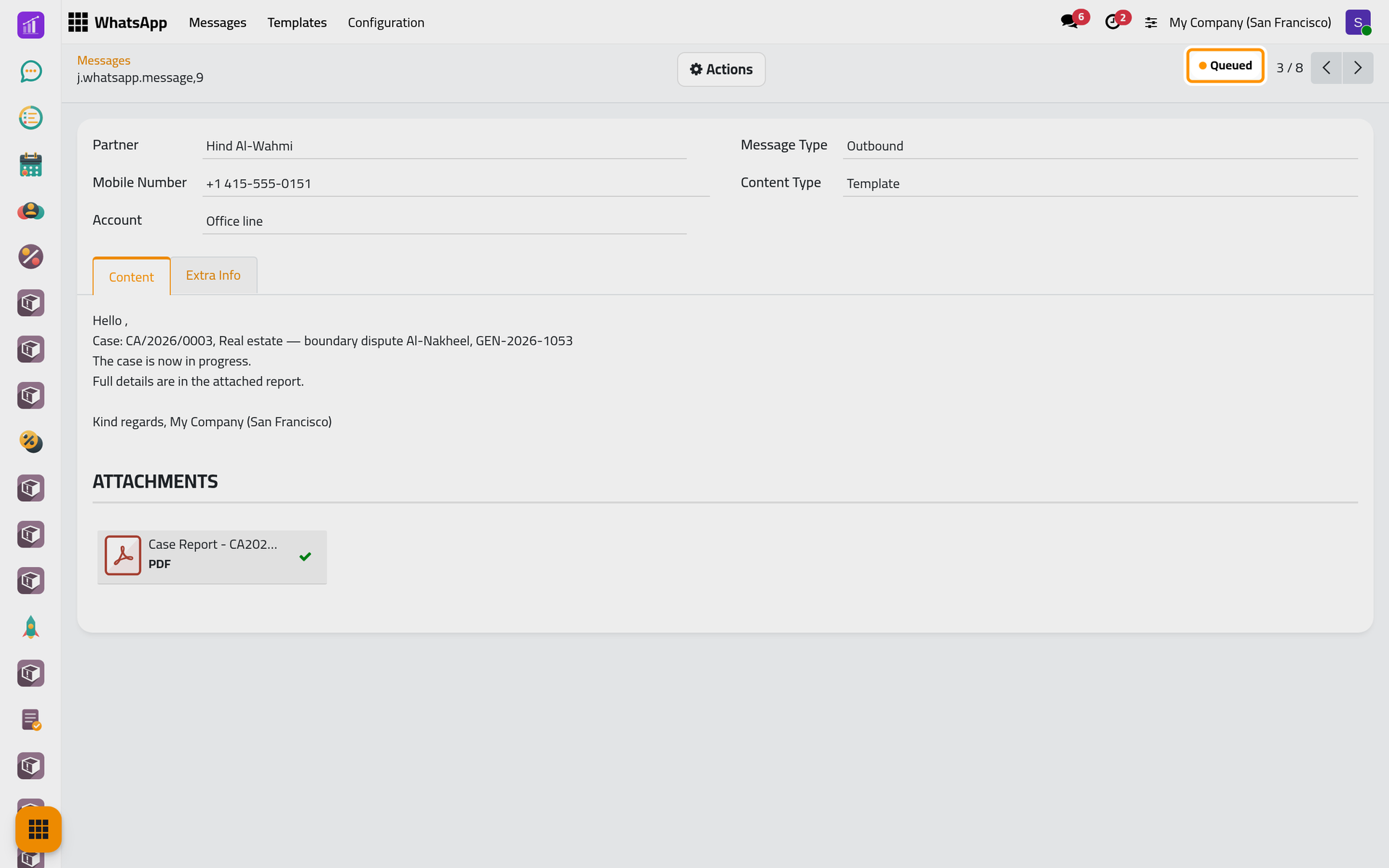
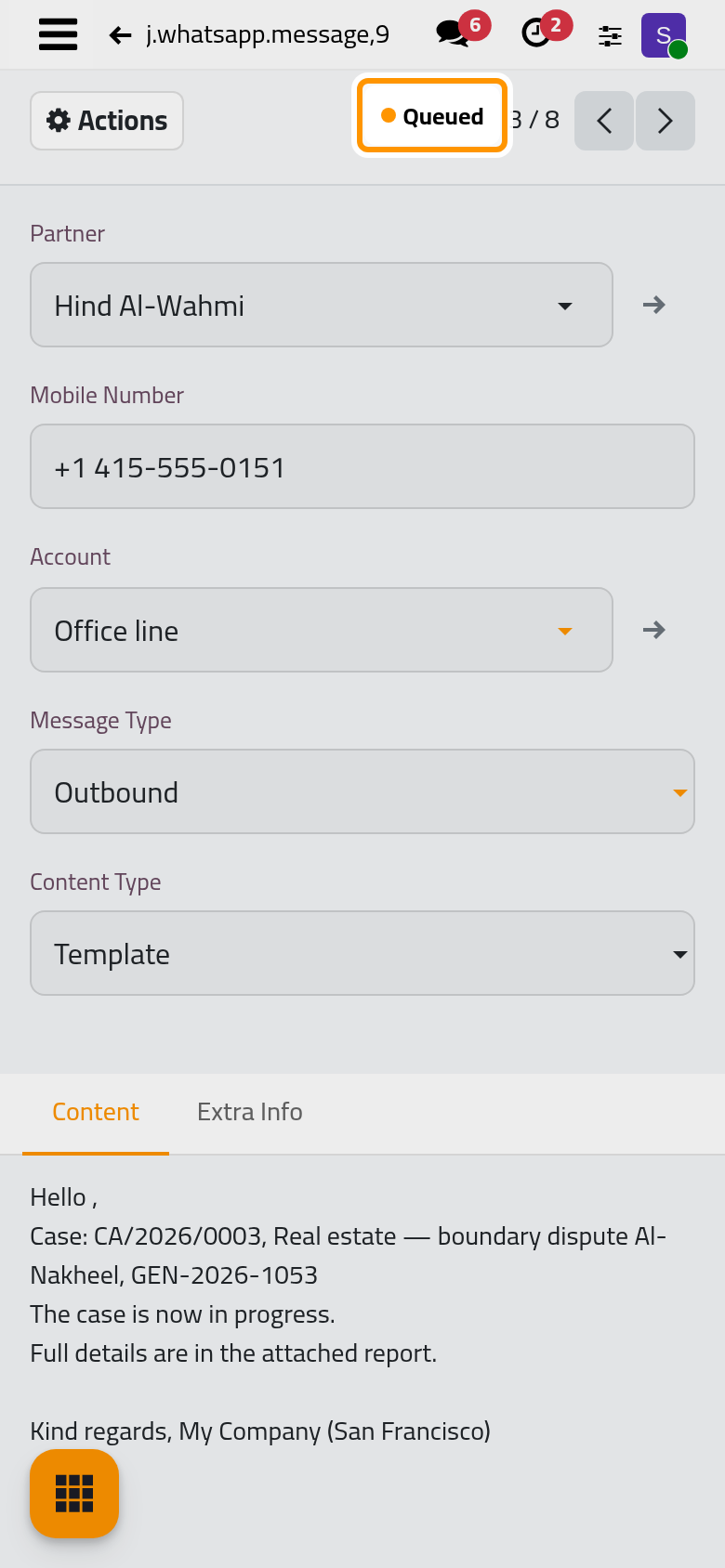
On a connected line, the status moves on by itself: Sent when the line has sent the message, Delivered when it reaches her phone, Read when she opens it. The older demo messages to the same client show that path: the case status update of 12 October 2026 is Read, and her answer, "Thank you. I will be at the court on time.", is Received.
What you have done
You sent a ready-made template from a record: the composer took the client of the case, the text of the template and its report, and the message went into the queue of the company's line. Every WhatsApp message follows this path, whether a user clicks Send or an app sends it on its own. Send from any record shows the other ways to open the composer and how to change the recipients or the template, Follow your messages explains every status and what to do when a message fails, and How WhatsApp sending works explains the queue. The messages each app sends on its own are on its page, starting with WhatsApp in cases.
Was this page helpful?
Thank you for your feedback.