Create a collection contract
On this page
A collection contract records one debt: who owes it, who it is owed to, how much, and how it is paid back. This page goes through the form field by field, then through the schedule of installments.
Before you start
- You need the User access right on Collection, or a higher one.
- The debtor and the owner must exist in Contacts, and the payment methods in Payment methods.
Fill in the contract
Open and click New.
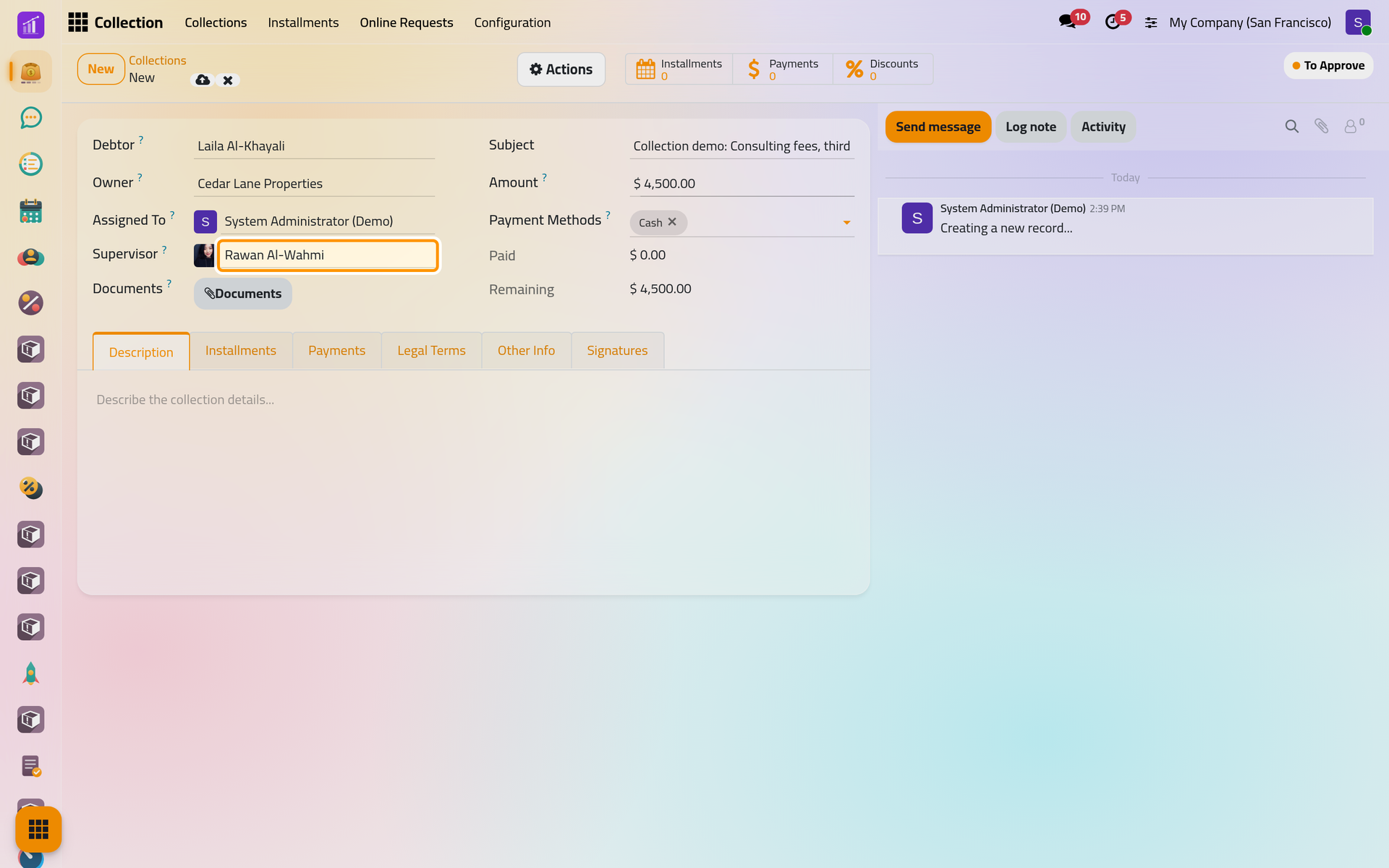
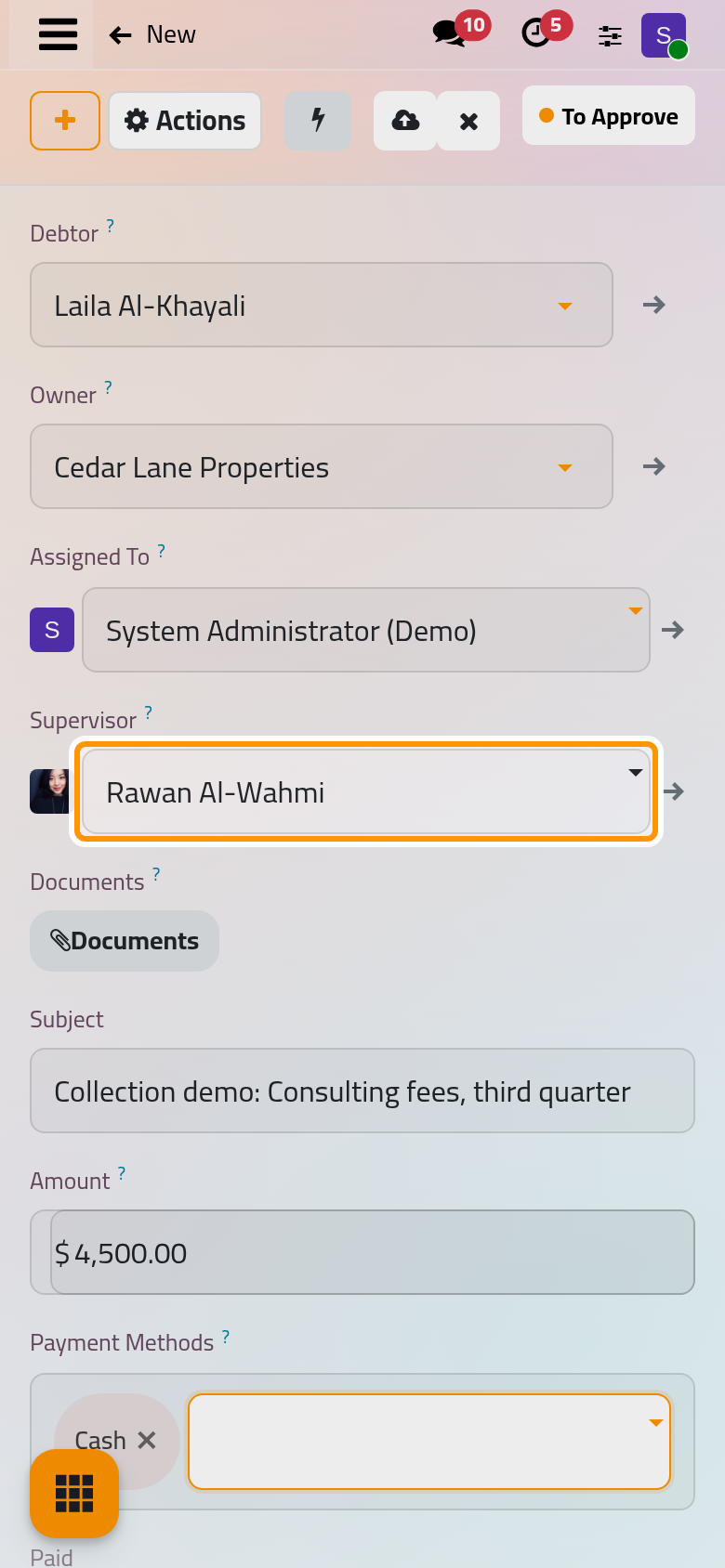
- Debtor: the person or company who owes the debt. Owner: the creditor you collect for. They cannot be the same contact.
- Assigned To (required): the user who follows the contract. On saving, that user gets a to-do activity due the same day. A user who holds only the User right sees only the contracts assigned to them.
- Supervisor: optional, and never the same user as Assigned To.
- Documents: the proof of the debt, as attached files.
- Subject, Amount (required) and Payment Methods, the ways the debtor may pay. Changing the methods later changes them on every installment of the contract, paid ones included.
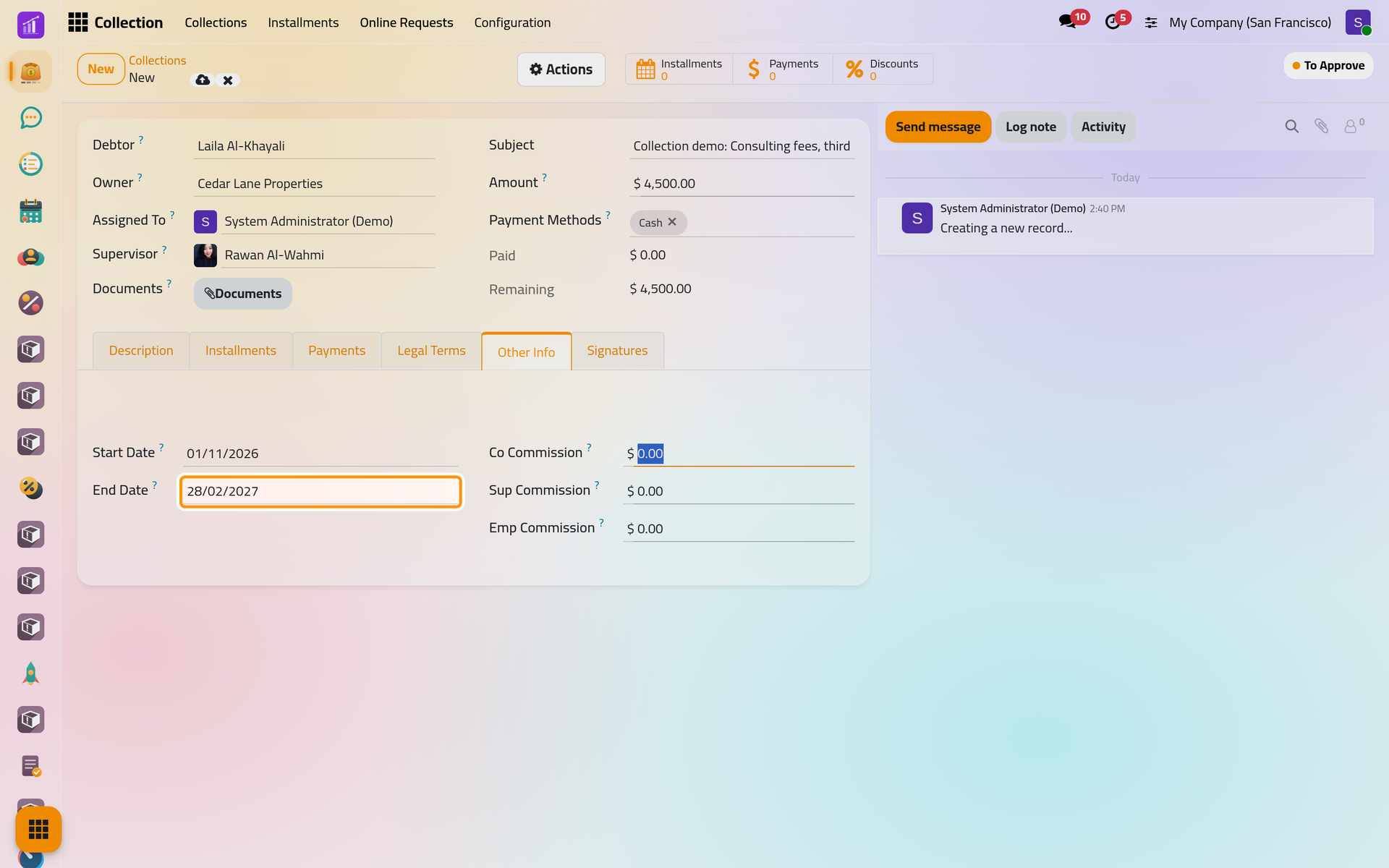
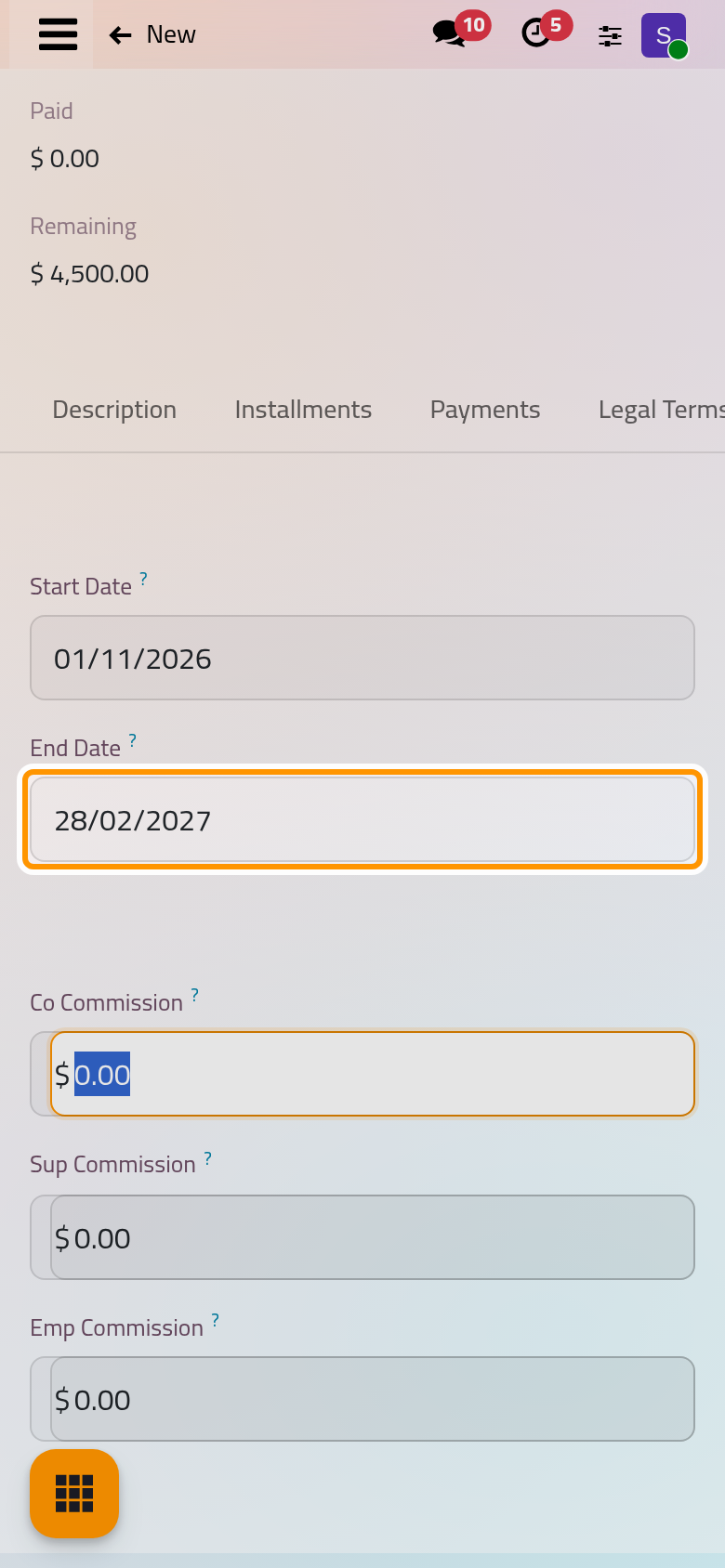
The Description tab holds free notes. The Other Info tab holds the Start Date and End Date of the contract and three commissions: Co Commission, Sup Commission and Emp Commission. The commissions are kept on the contract; nothing is computed from them. Once the End Date has passed, the form shows a red Finished ribbon and the Finished filter finds the contract.
Save: the contract takes the next reference, DCC followed by five digits, and the status To Approve.
Create the schedule
- Open Actions and choose Create Installments. Total Amount shows what remains to be paid, and Payment Methods come from the contract.
- Set First Installment, the Installments count, between 1 and 600, and the interval: Every a number of Week, Month or Year. Every starts at 0: leave it so and every installment falls on the first date.
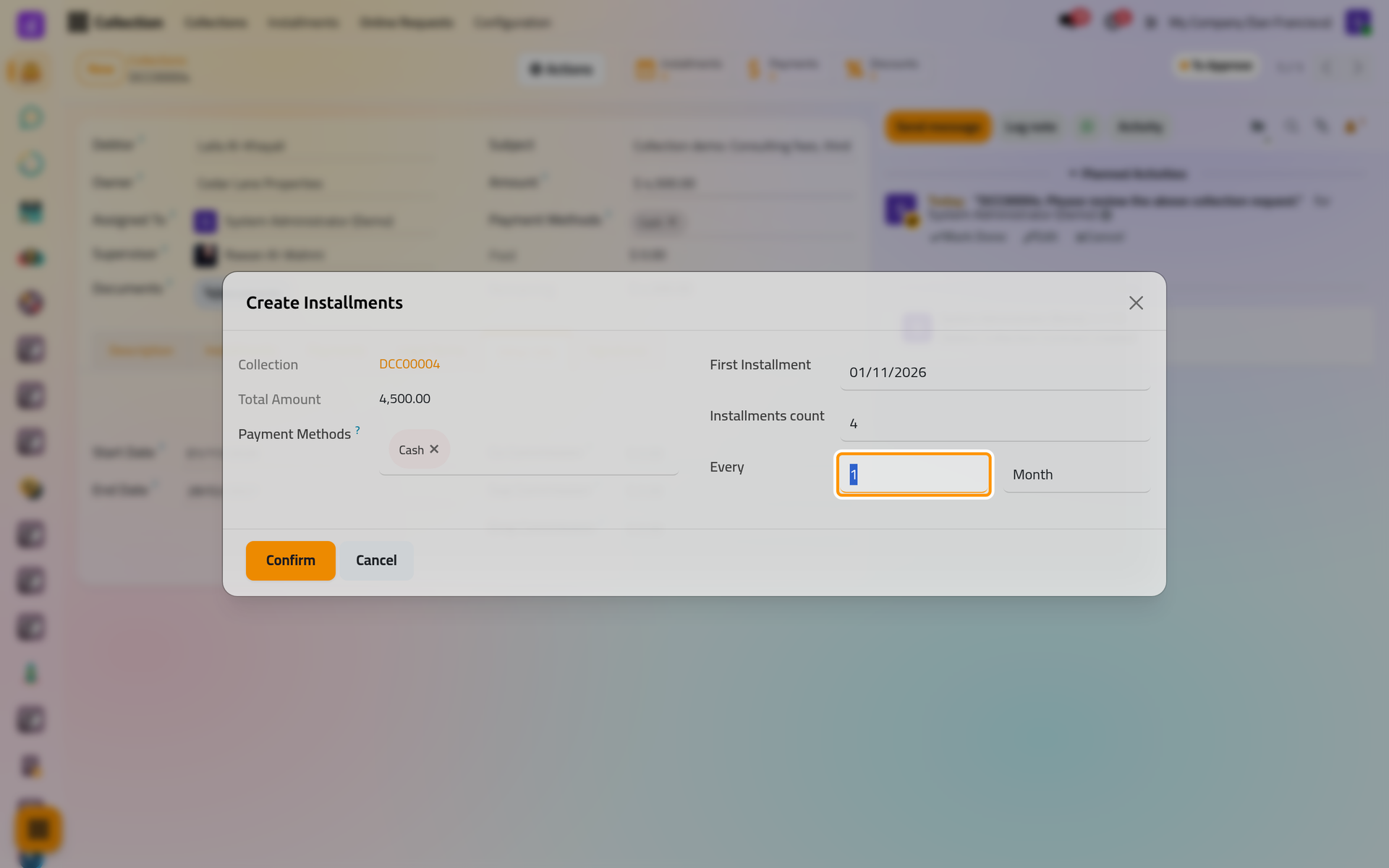
- Click Confirm. The amount is divided into equal installments, numbered after the contract (DCC00004/SP1, SP2…), each Scheduled.
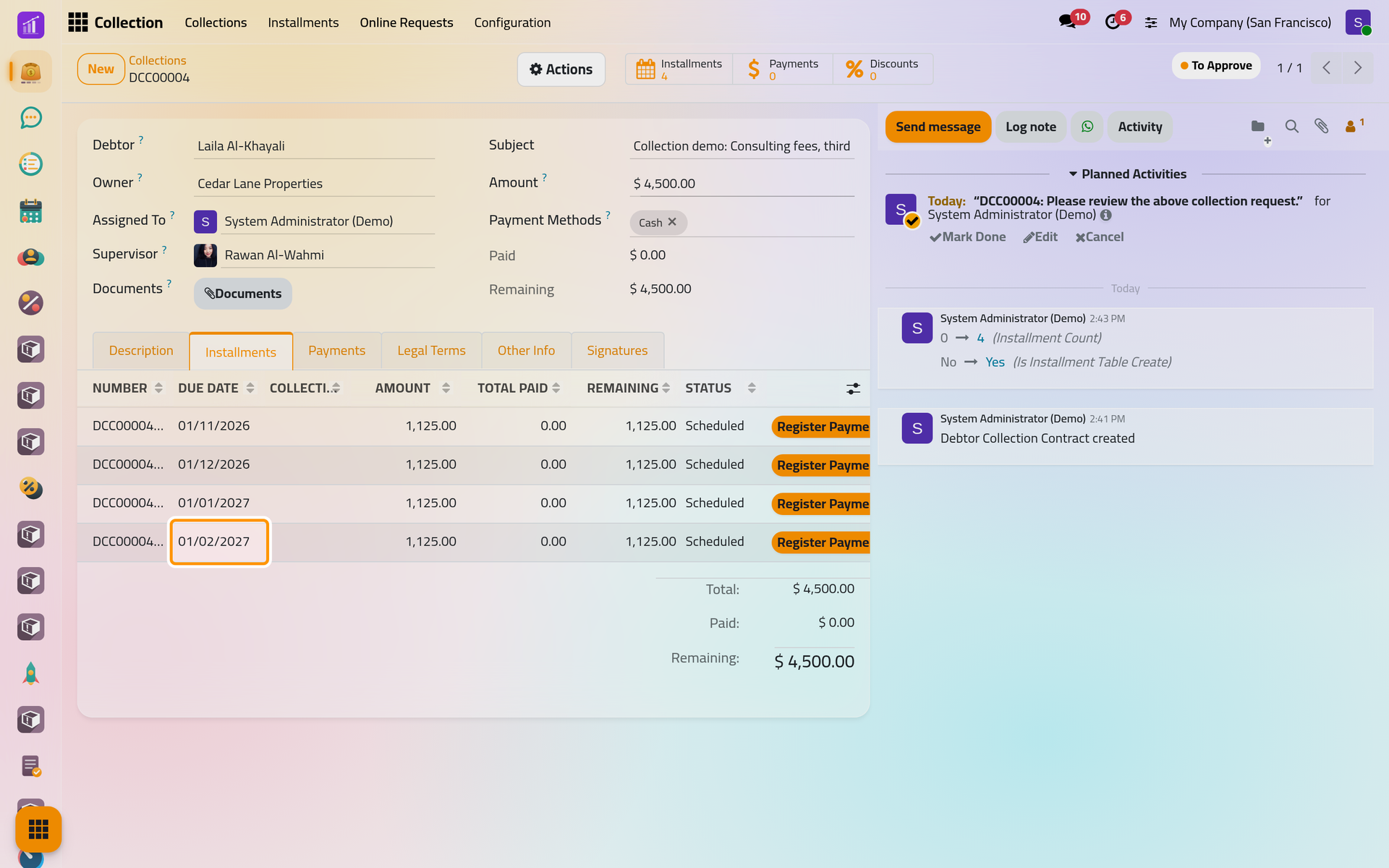
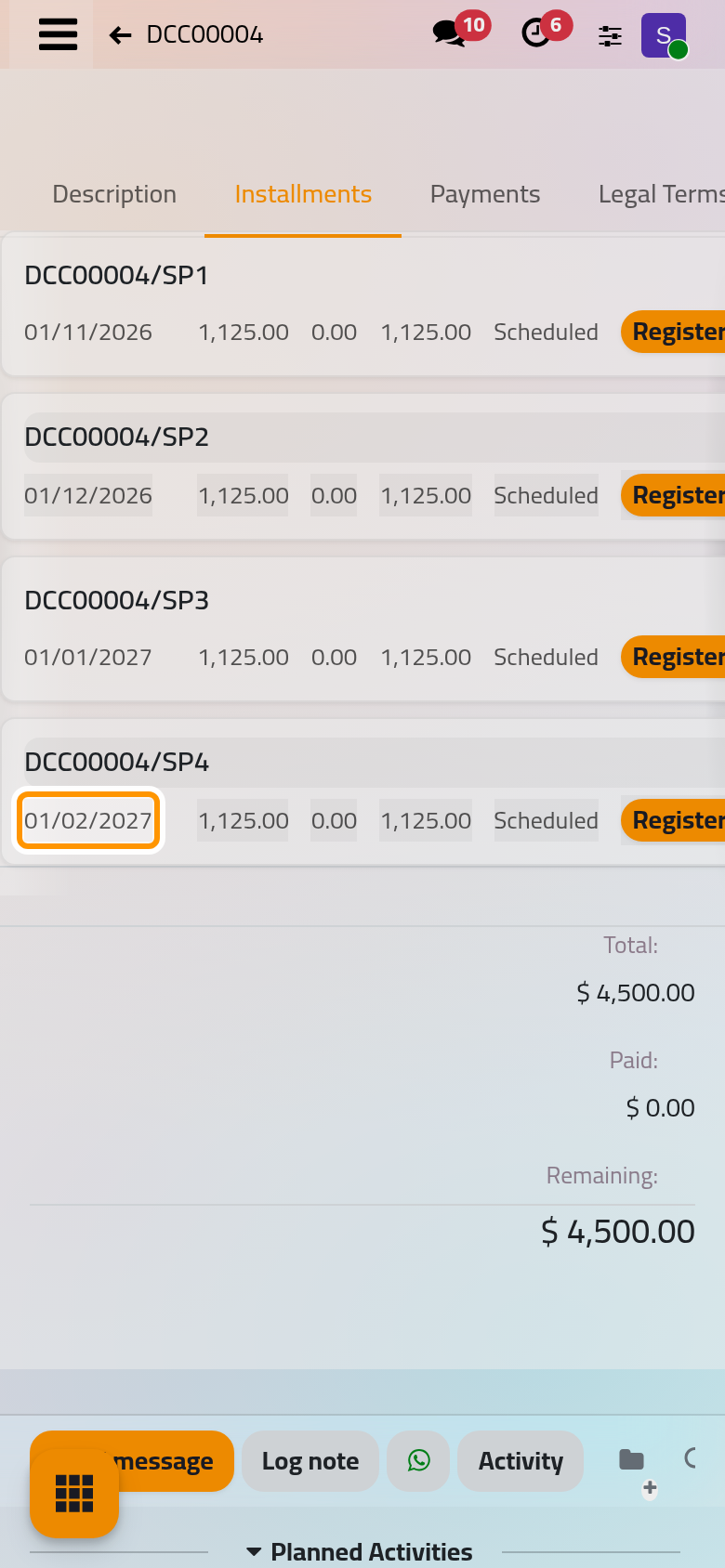
Each unpaid line carries Register Payment, Split and Add Discount: Register a payment, Installments and reminders and Offer a discount explain them.
Reschedule
Once a schedule exists, Actions offers Reschedule Installments instead, after a confirmation. The same dialog opens: fully paid installments stay, the others are deleted, partly paid ones included, and what remains to be paid is spread over the new ones. Rescheduling also puts the contract back to To Approve and erases both signatures and the cancel reason.
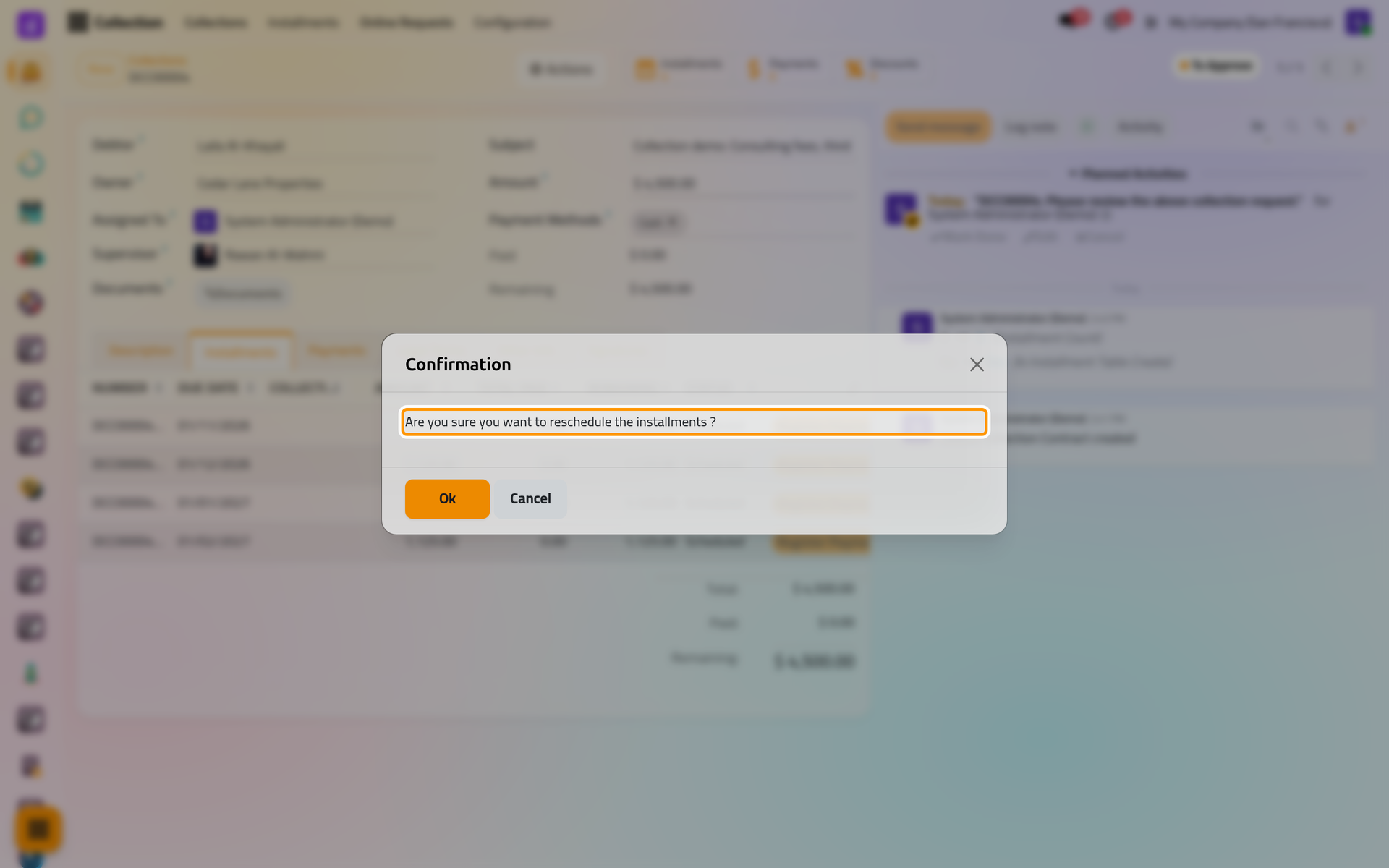
On a phone, the confirmation opens from the bottom of the screen.
From an online request
An owner who has an account on your website can send a collection request from it. Requests arrive in , grouped by Pending, Approved and Rejected. Set Debtor links the request to a contact with the same phone and e-mail, or creates one, and Approved & Create Contract creates a contract Under Collection with the request's debtor, owner and amount, and the request's number as its reference. That contract has no installments yet. Creating them as above puts it back to To Approve: choose Under Collection in Actions again afterwards.
FAQ
Can the debtor and the owner be the same contact?
No. Saving shows "The Debtor and Debt Owner cannot be the same person."
Why does a colleague not see my contract?
With the User right, a colleague sees only the contracts assigned to them. Collection settings lists the rights.
Can I copy a contract?
Actions then Duplicate copies the parties, people, subject and methods, without the schedule, payments, discounts or signatures. The copy's Amount takes the original's Original Amount: 0 when no discount was ever offered on the original, otherwise the amount before its first discount. Check it and type the right amount.
What changes when I edit the amount after creating the schedule?
The installments keep their amounts. Reschedule to spread the new remaining amount. If a discount was once offered on the contract and none is approved, rescheduling first puts Amount back to Original Amount.
Was this page helpful?
Thank you for your feedback.