Collection settings
On this page
Open . The Collection section holds three groups: Discount Limits, AUTO Notifications and Weekly Digest.
Before you start
- The Settings entry is for administrators, and the Collection section shows to a Manager of Collection.
- Click Save to apply a limit or the digest. The alert rules are saved in their own dialogs.
Discount limits
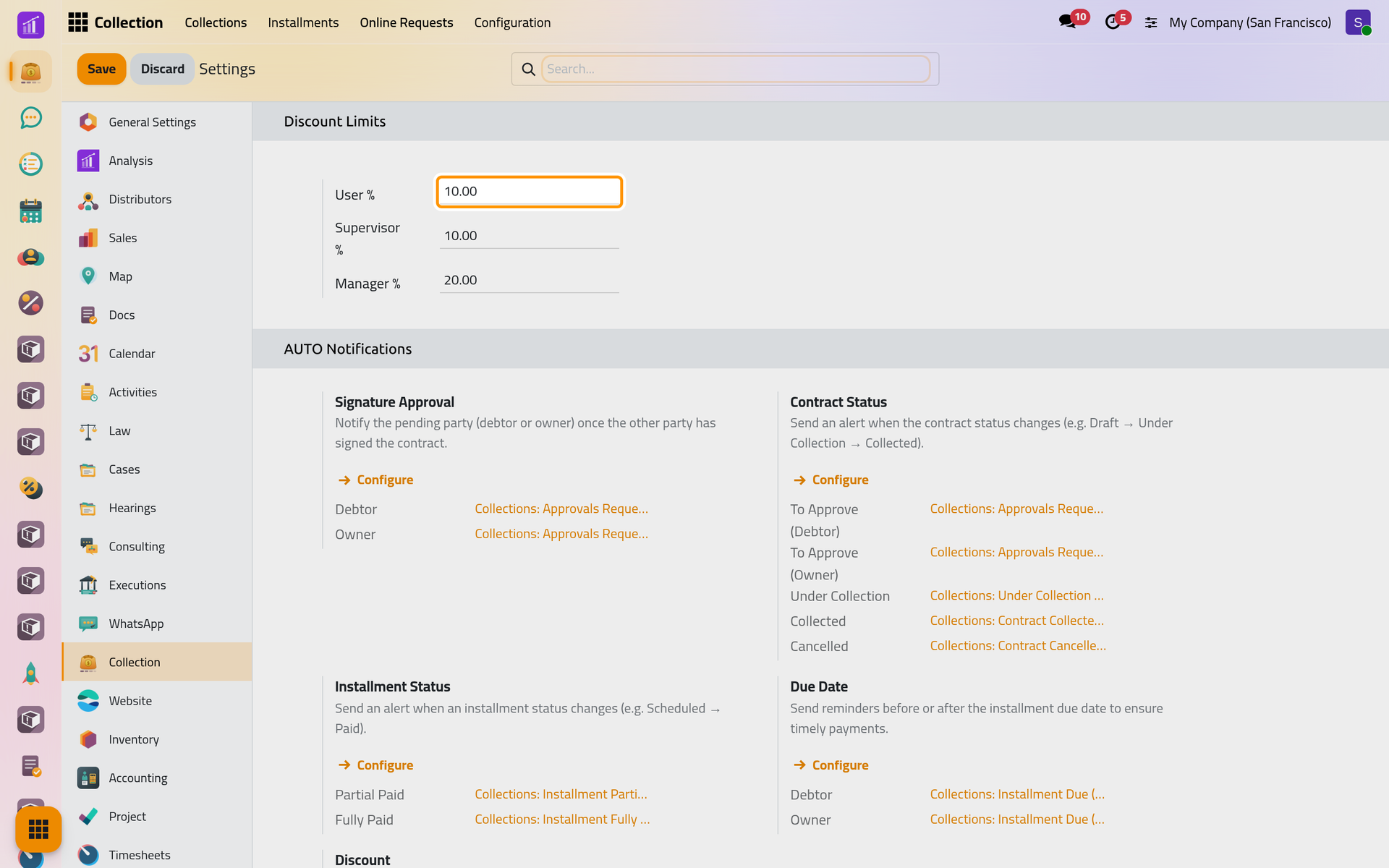
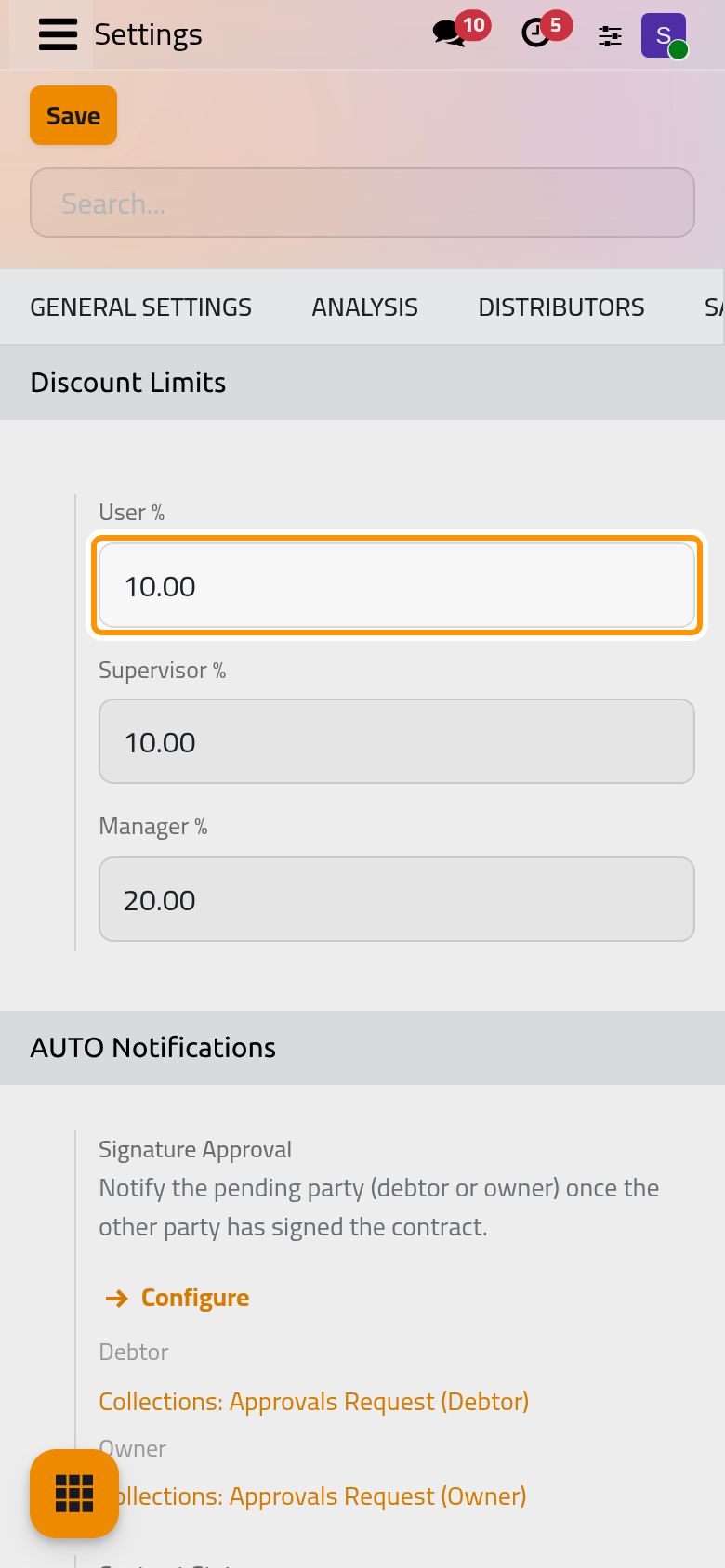
User %, Supervisor % and Manager % cap the discount each access right may offer on one contract: 10, 10 and 20 percent unless changed. Whoever creates or changes a discount is held to the limit of their highest right, with every discount of the contract added up, drafts included. A fixed amount counts as its share of the contract's Remaining. How a discount is offered is explained in Offer a discount.
Alert rules
Under AUTO Notifications, four alerts have a Configure link that opens their rules. Each row is one alert; without a row, nothing is sent. Each setting also lists, read only, the e-mail templates it uses.
| Setting | A row is | Sent to | Installed with the app |
|---|---|---|---|
| Signature Approval | an Event: one party signed, the other has not | Debtor, Owner, each with their own signing link | two rows by e-mail, each to the party still to sign |
| Contract Status | a Status: To Approve, Under Collection, Collected or Cancelled | the roles ticked: Debtor, Owner, Assigned To | none |
| Installment Status | Partial Paid or Paid | the roles ticked | none |
| Due Date | a timing in days before or after the due date | Debtor, Owner | none |
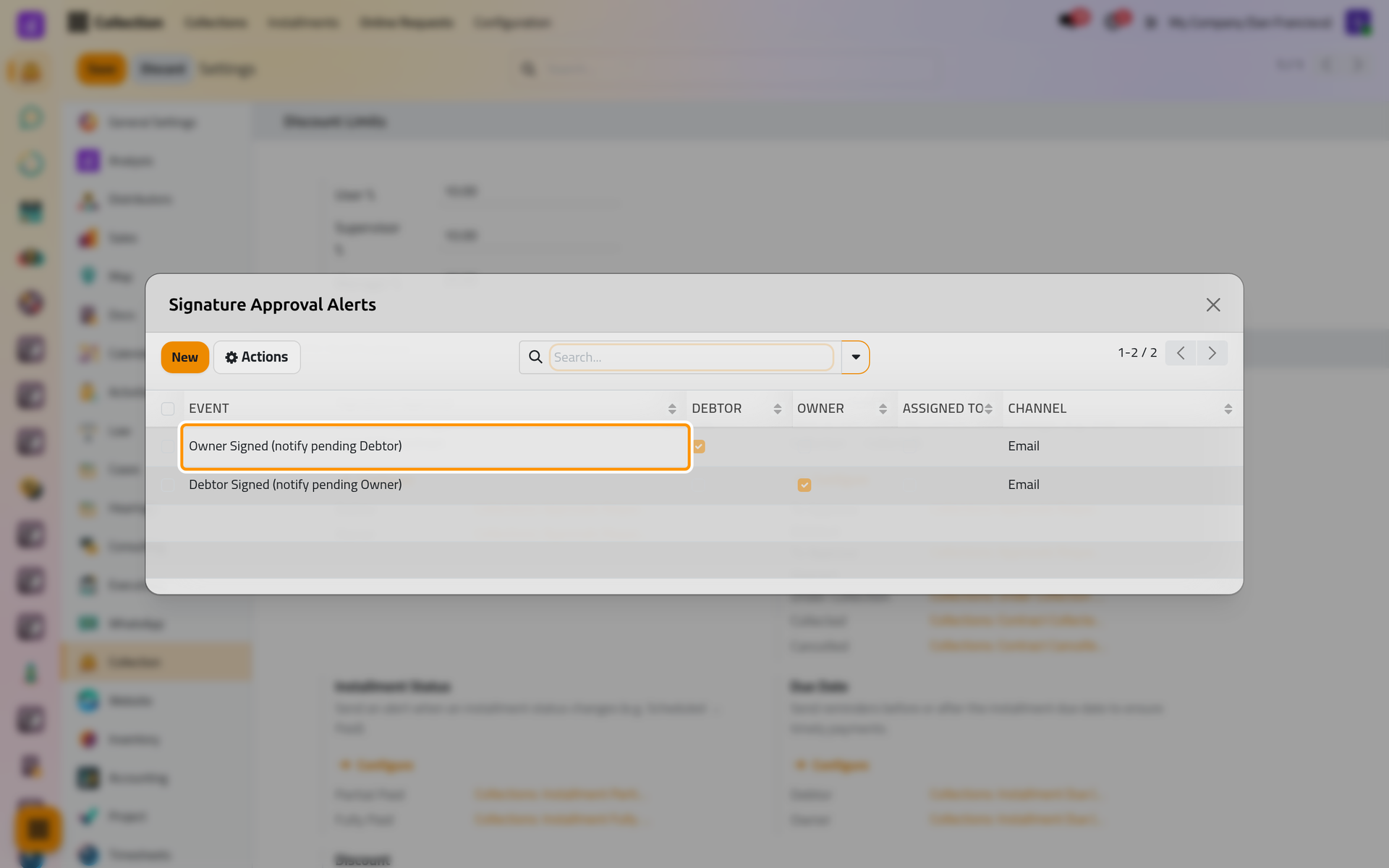
On a phone, the rules open full screen.
- In a dialog, New adds a row and Save keeps it; to remove rows, tick them, then Delete and Ok. One row per status, event or timing.
- Channel chooses e-mail, WhatsApp or both: WhatsApp in collection.
- A To Approve row and the Signature Approval rows reach only the two parties who sign; Assigned To is ignored there.
- Installment alerts stop once the contract is cancelled.
- Due Date rows are the reminders described in Installments and reminders.
The Discount setting has nothing to configure: it lists the templates that Send to Debtor and Send to Owner use on a discount.
Weekly digest
Tick Weekly Due Digest, choose the colleagues in Send To, and save. Each Sunday, every one of them with an e-mail address receives one summary of the unpaid installments of every contract Under Collection: the total, then one line per debtor and contract, largest first. Nothing is sent when nothing is unpaid. The template is shown under the option.
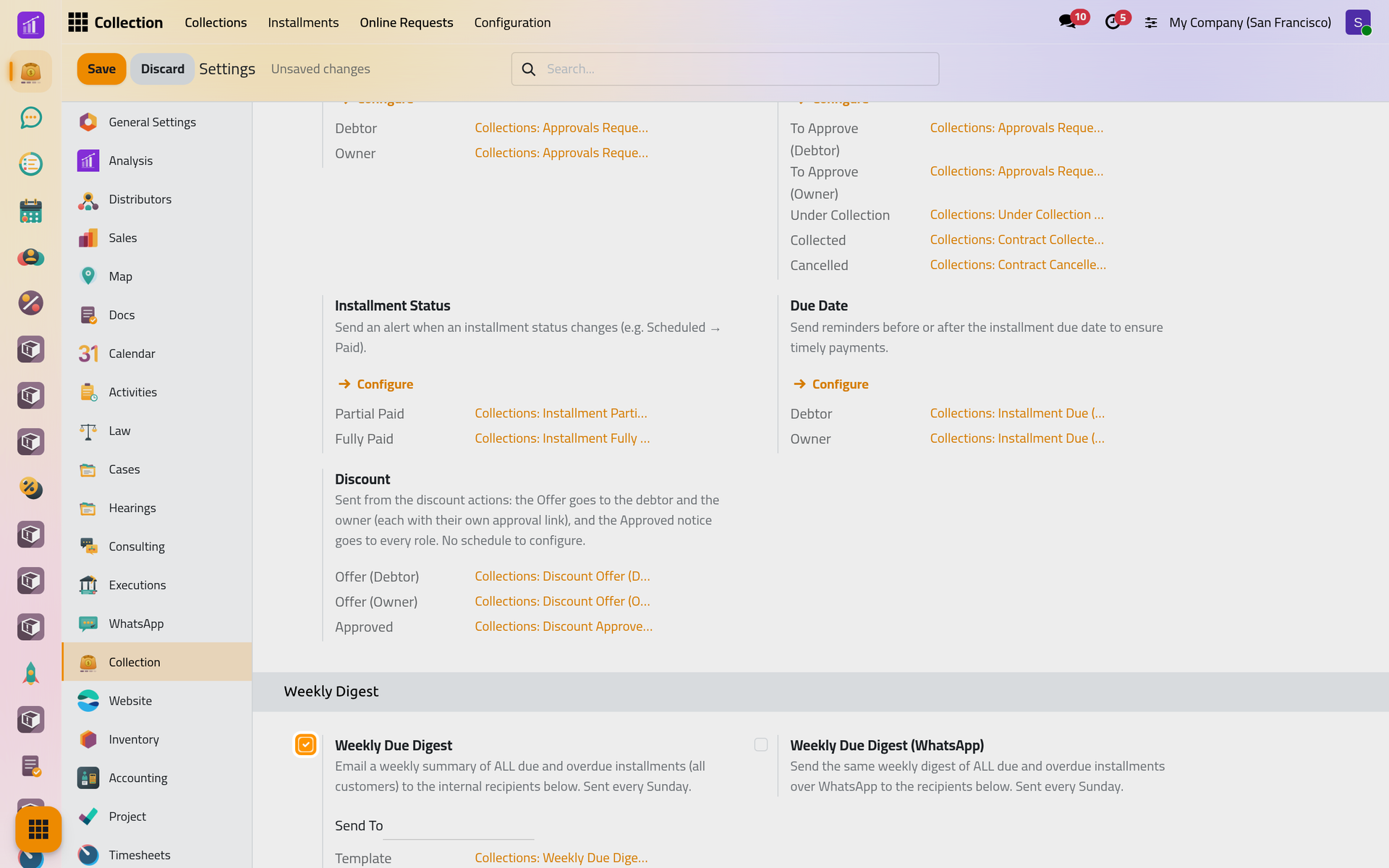
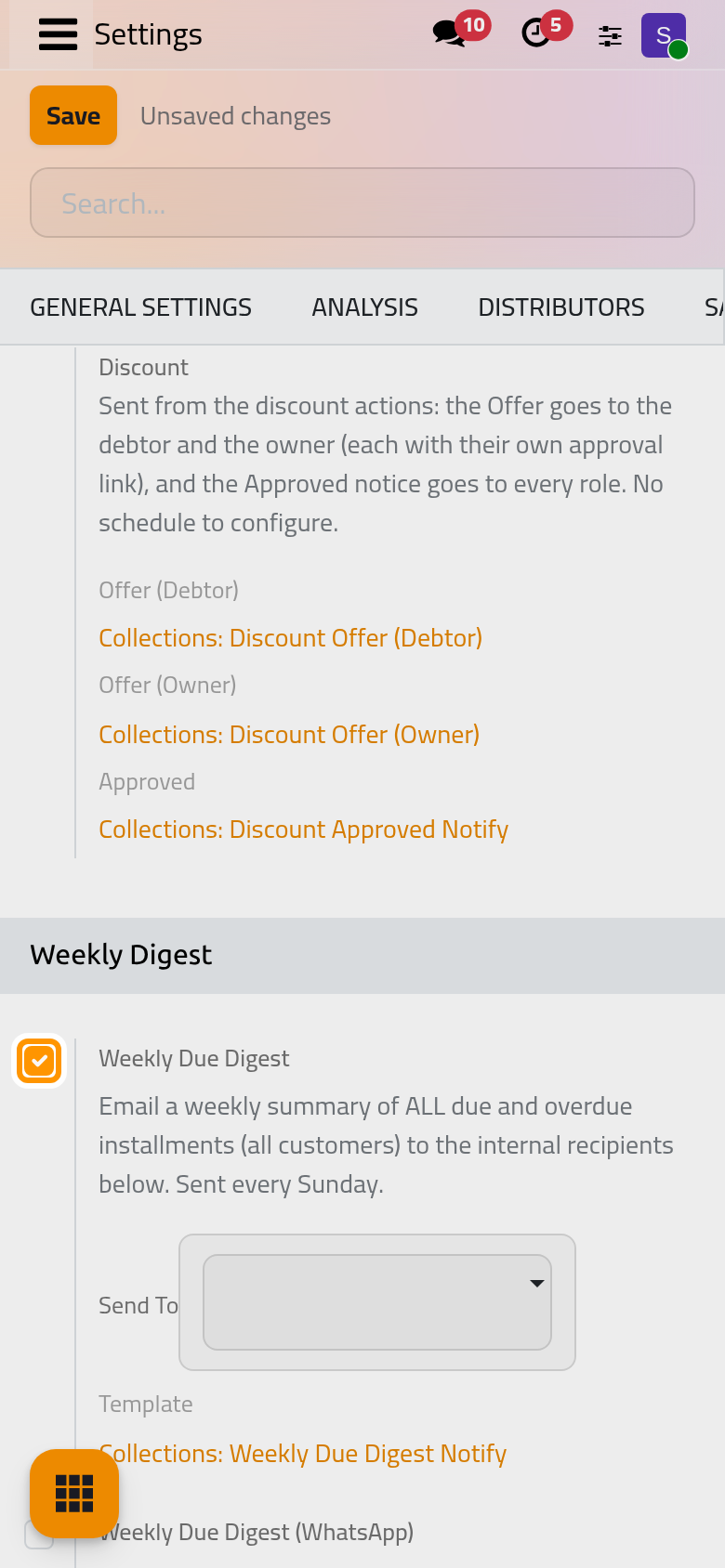
Weekly Due Digest (WhatsApp), beside it, sends the same summary by WhatsApp to its own list: WhatsApp in collection. The schedule of both is in Collection automations.
Access rights
Each user gets one access right on Collection, set on the user's form: Create a user and set access rights. Each right adds the actions of the one before it, but User and Supervisor see only their own contracts and those assigned to no one, while Readonly reads them all.
| Access right | Can |
|---|---|
| Readonly | Read every contract with its installments, payments and discounts; change nothing |
| User | Create and change the contracts assigned to them or to nobody, with their installments, payments and discounts; the payment methods and cancellation reasons |
| Supervisor | Also the contracts they supervise or that have no supervisor |
| Manager | Every contract; the Collection section of the settings; the legal terms templates |
FAQ
Nobody received the contract status e-mails.
The app installs no Contract Status row. Add one per status you want announced, and tick its recipients.
Can the collector get the due-date reminders?
No: reminders go to the debtor and the owner only. Colleagues follow the unpaid installments through the weekly digest.
Does a limit change existing discounts?
No. It is checked when a discount is created or changed.
Was this page helpful?
Thank you for your feedback.