Offer a discount
On this page
A discount lowers what is left to collect. It is prepared as a draft, sent to the debtor and the owner, and changes nothing until it is approved. This page offers 10 percent on the unpaid installments of the demo contract DCC00001.
Before you start
- Each access right of Collection has a ceiling, set in Collection settings: 10 percent for User and Supervisor, 20 for Manager, unless changed.
- The contract must still have something left to pay.
Prepare the discount
- Open the contract from , then Actions and Add Discount.
- Choose what it applies to in Apply On:
- Unpaid: the installments nothing has been paid on (Scheduled);
- Unpaid & Partial Paid: those, and the ones paid in part. Total Amount shows what is left on them, here 8,000 on SP3 to SP6.
- In Discount, choose Percent or Fixed and type the value; 10 percent is suggested.
- Click Apply Discount.
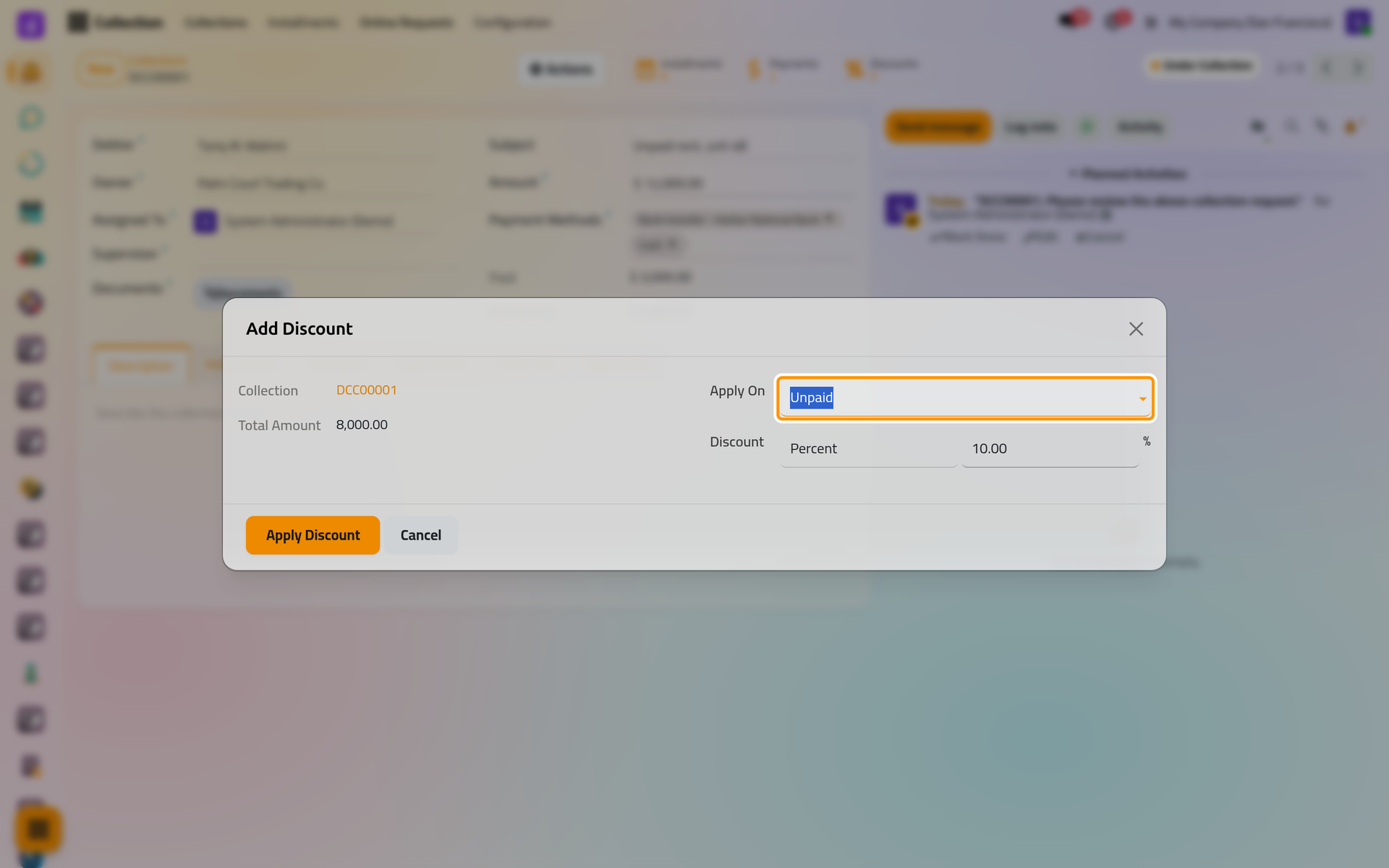
On a phone, the dialog fills the screen. A percentage is taken from what is left on each installment; a fixed amount is shared equally between them. Above your ceiling, the discount is refused: "The total discount applied to this contract exceeds the allowed maximum", with what is already applied.
To discount a single installment, use the Add Discount button of its line in the Installments tab: the dialog names the Installment instead of Apply On.
Review it
The discount gets a number, CD00001 for the first, and the status Draft. Open it from the contract's Discounts button or from .
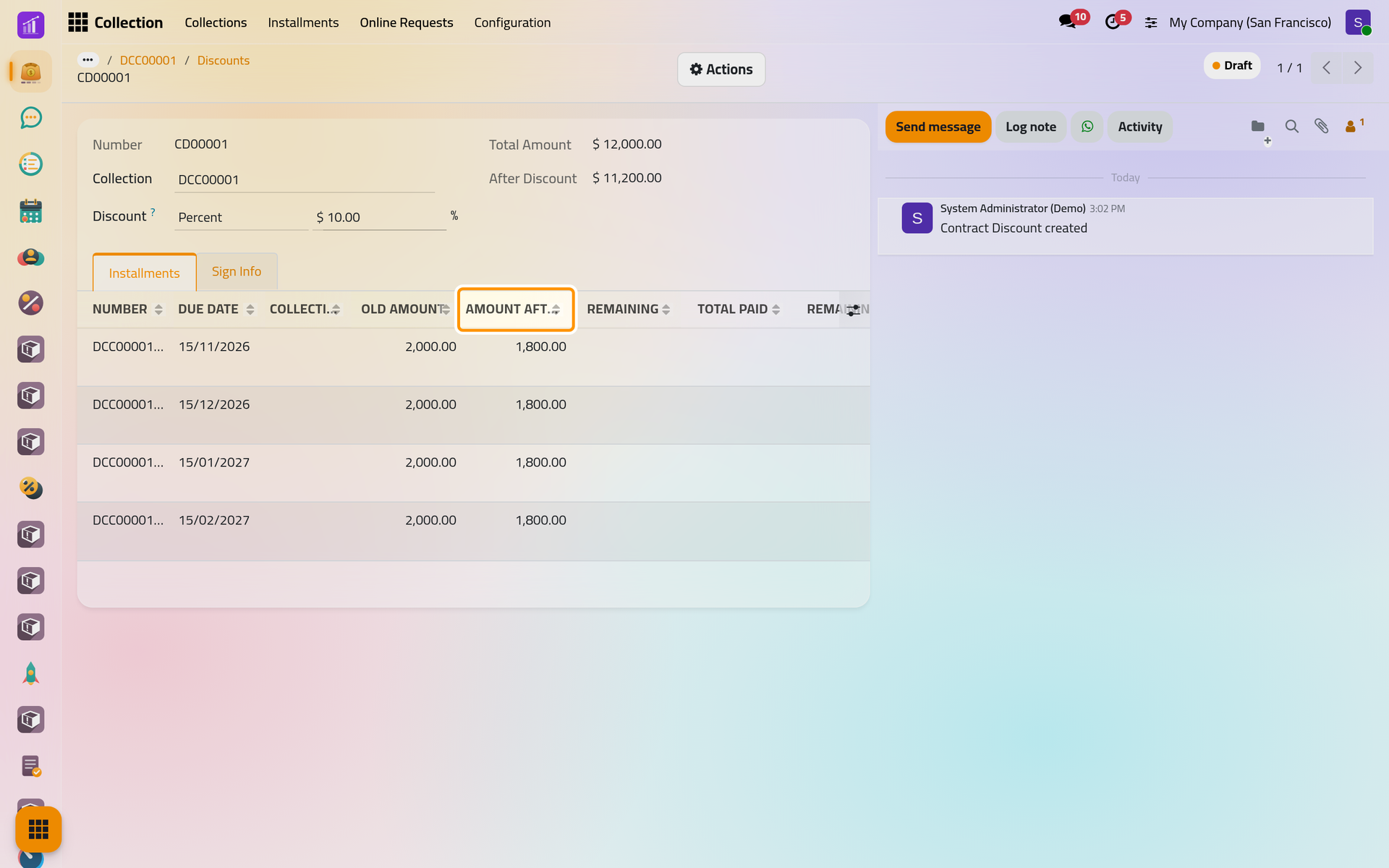
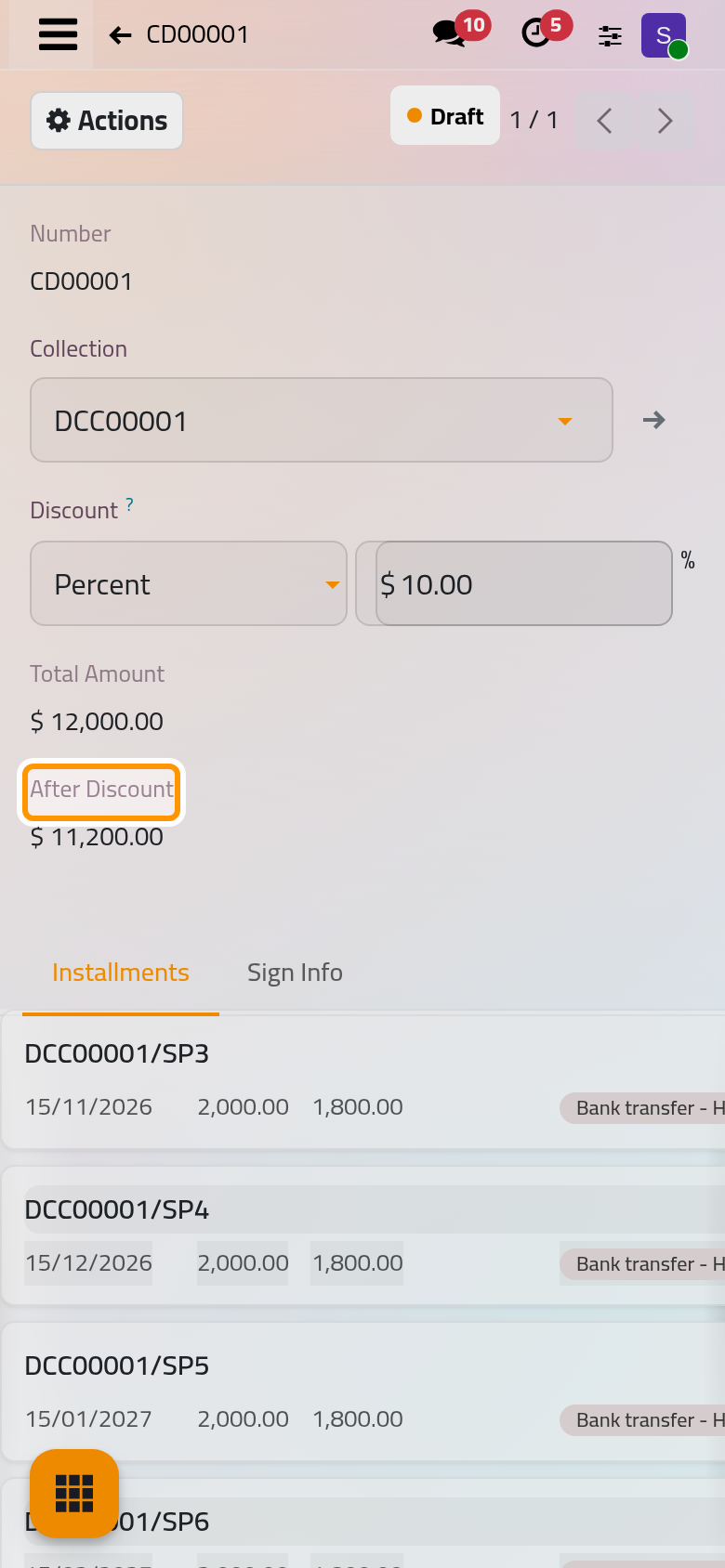
- Total Amount is the contract's amount today, and After Discount what it will be: 11,200 here.
- The Installments tab lists each installment the discount covers, with its Old Amount and Amount After Discount: 2,000 becomes 1,800.
- The Sign Info tab holds both parties' signatures.
Send it to the parties
- Actions, then Send: the status becomes Sent and the portal link of the offer is prepared. Nothing leaves yet.
- Actions, then Send to Debtor and Send to Owner: each opens an e-mail in the reader's language with the template Collections: Discount Offer (Debtor) or (Owner), the discount, the signature status of both parties, an "Approve it here" button for whoever has not signed, and the contract's statement attached as a PDF.
The WhatsApp to Debtor and WhatsApp to Owner actions do the same by WhatsApp: WhatsApp in collection. Signed in to the portal, the debtor or the owner opens the link and clicks Accept & Sign. The signing pages are described in Get the contract signed.
Approve it
A discount is approved in one of two ways:
- Actions, then Approve, from Draft or Sent;
- the owner's signature, on the portal or in the Sign Info tab. The debtor's signature is recorded with its date, but does not approve the discount.
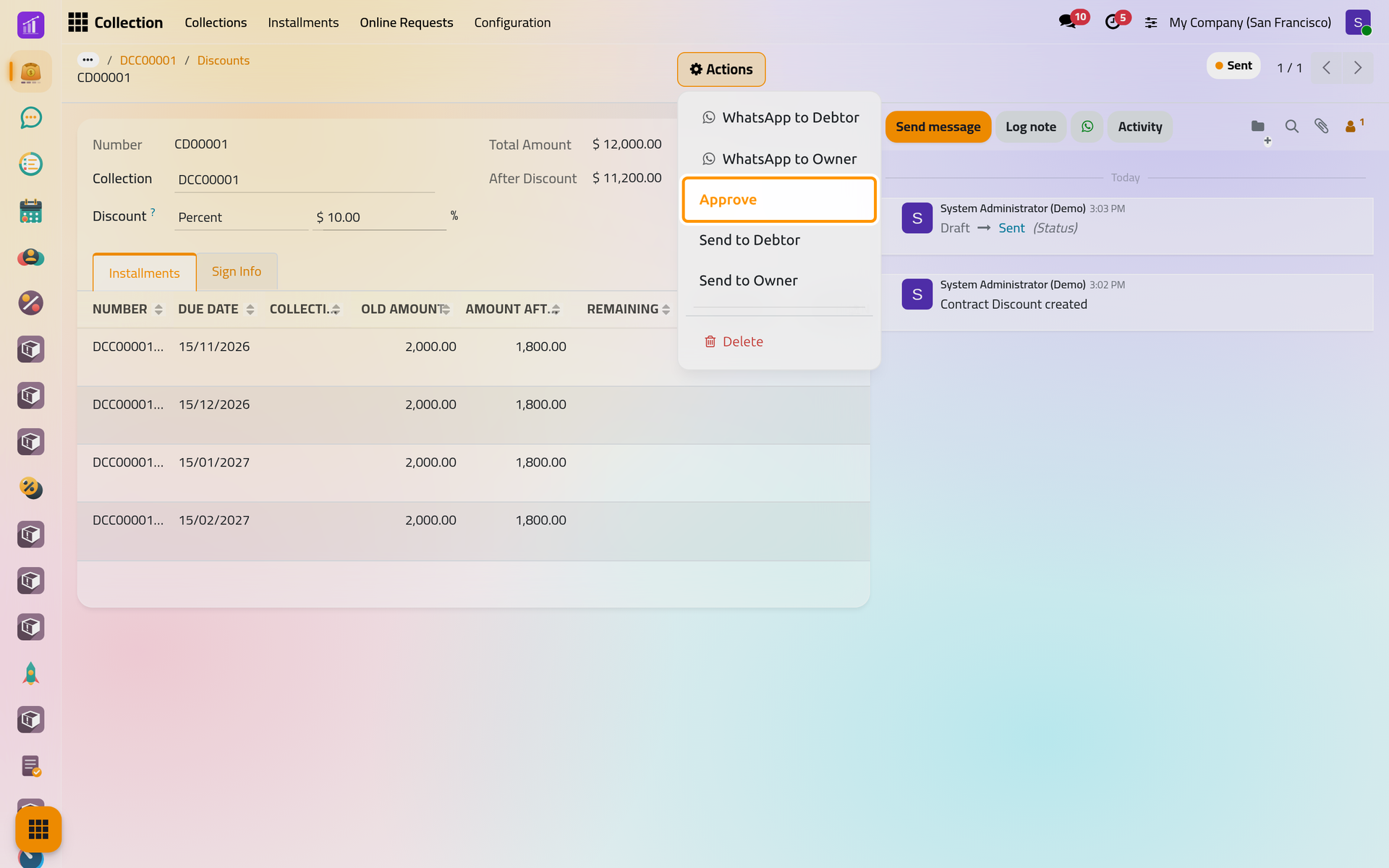
On a phone, Actions is at the top of the form too. On approval, the covered installments take their Amount After Discount, the contract's Amount becomes After Discount, and Original Amount keeps the amount the contract had before its first discount. Remaining drops by the discount, and the discount can no longer be changed. From then on, Send to Debtor and Send to Owner send Collections: Discount Approved Notify.
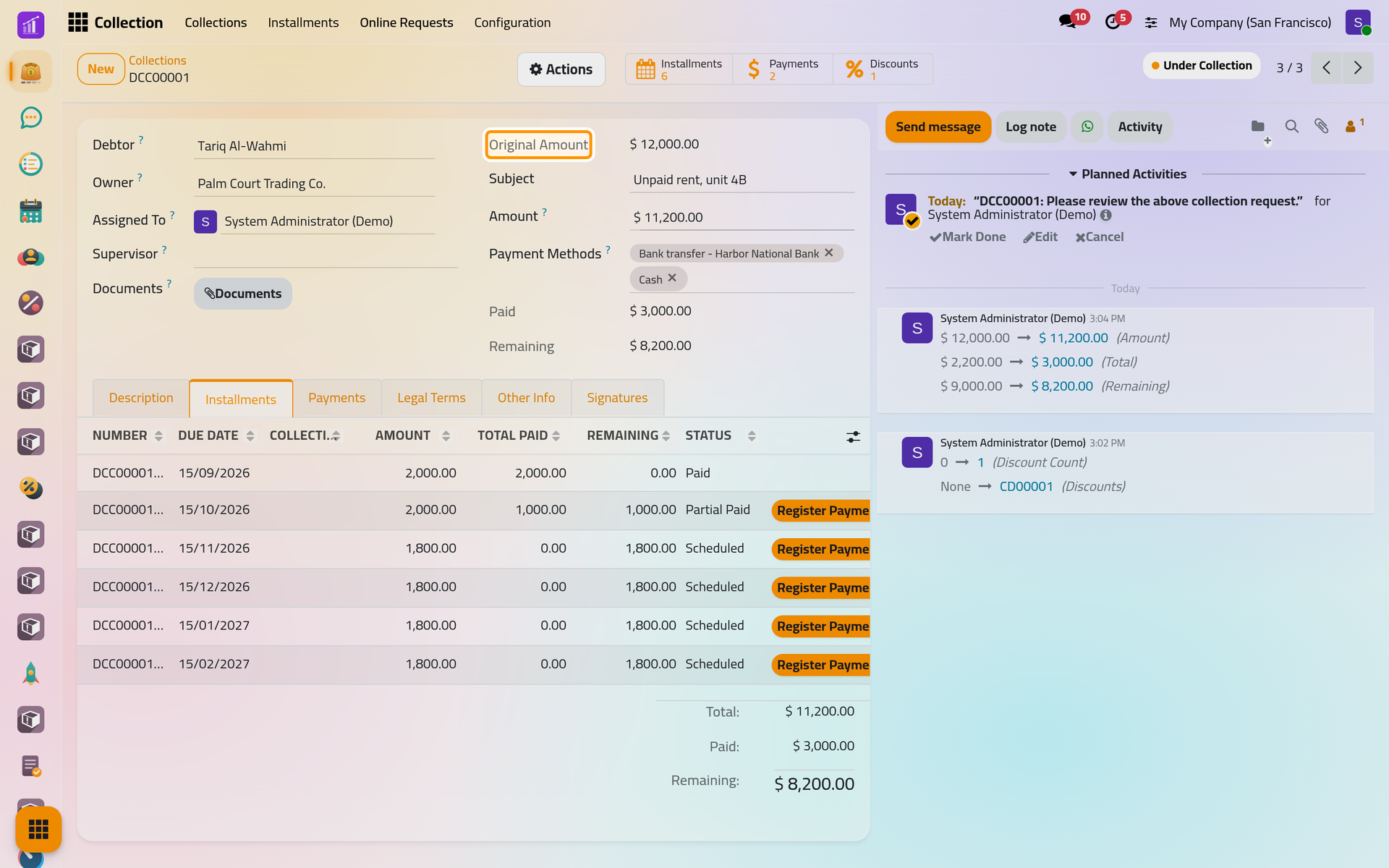
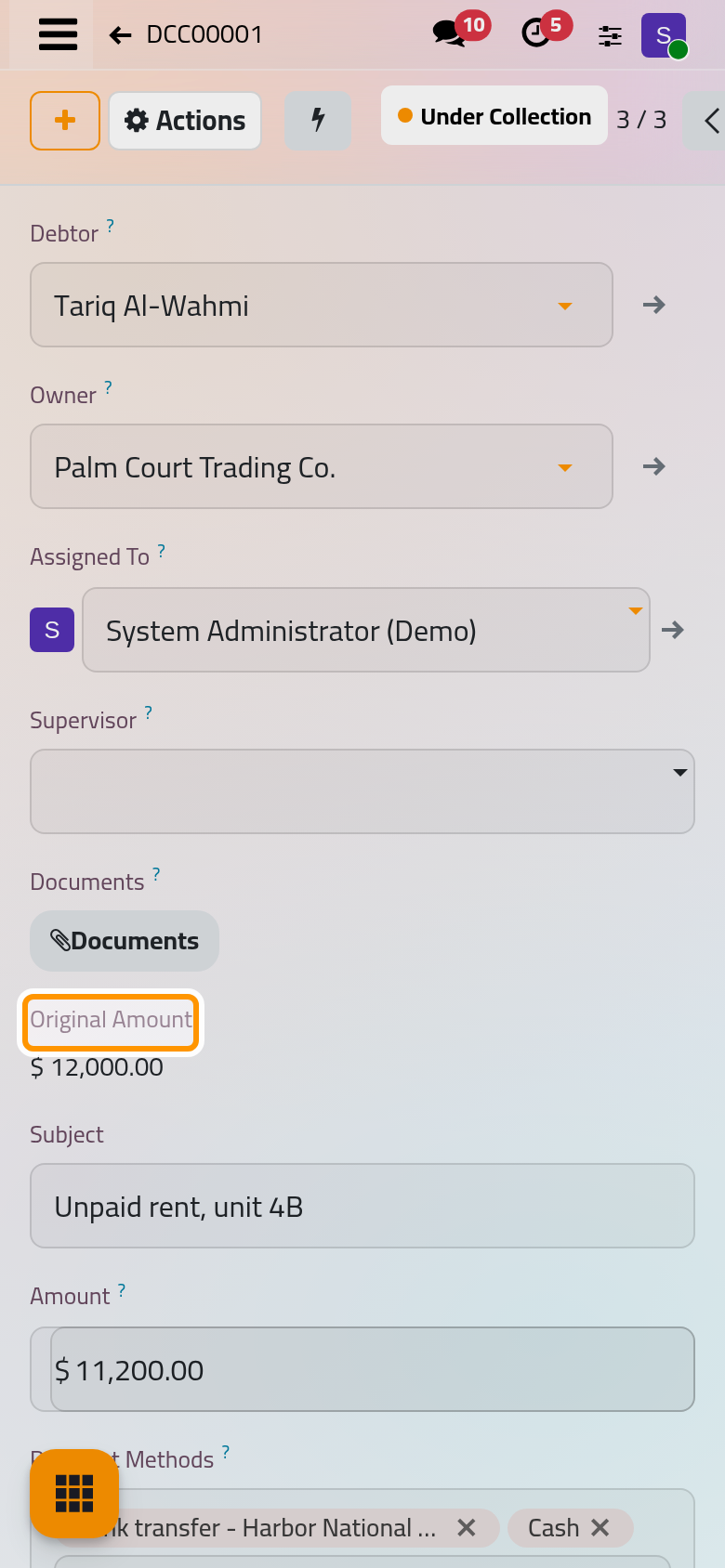
Paid installments never change.
FAQ
The discount is refused although it is small.
Every discount of the contract counts towards your ceiling, drafts included. Delete the offers the parties turned down, or ask someone with a higher ceiling.
Why does the offer e-mail have no "Approve it here" button?
The link is prepared by Send. Send the discount first, then use Send to Debtor or Send to Owner.
Can I undo an approved discount?
No action does it: the installments keep their new amounts.
What is the status Rejected?
It appears in the status bar, but no action of the discount sets it. A refused offer stays Draft or Sent; delete it.
Was this page helpful?
Thank you for your feedback.