Get the contract signed
On this page
The debtor and the owner each sign the contract on a page of their own, opened from a link. The second signature moves the contract to Under Collection. The demo contract DCC00002, Supply invoice balance, waits for both signatures; the steps below collect them.
Before you start
- The contract needs its installments (Create a collection contract) and the status To Approve or Under Collection.
- The parties need no account: the link is enough. Sending it by e-mail needs their e-mail address on the contact.
Take a party's link
Open the contract, then Actions and Share. Choose Debtor or Owner in Share To: Recipient shows the contact, and Share Link a short link with a copy button. On a phone, the dialog opens from the bottom of the screen.
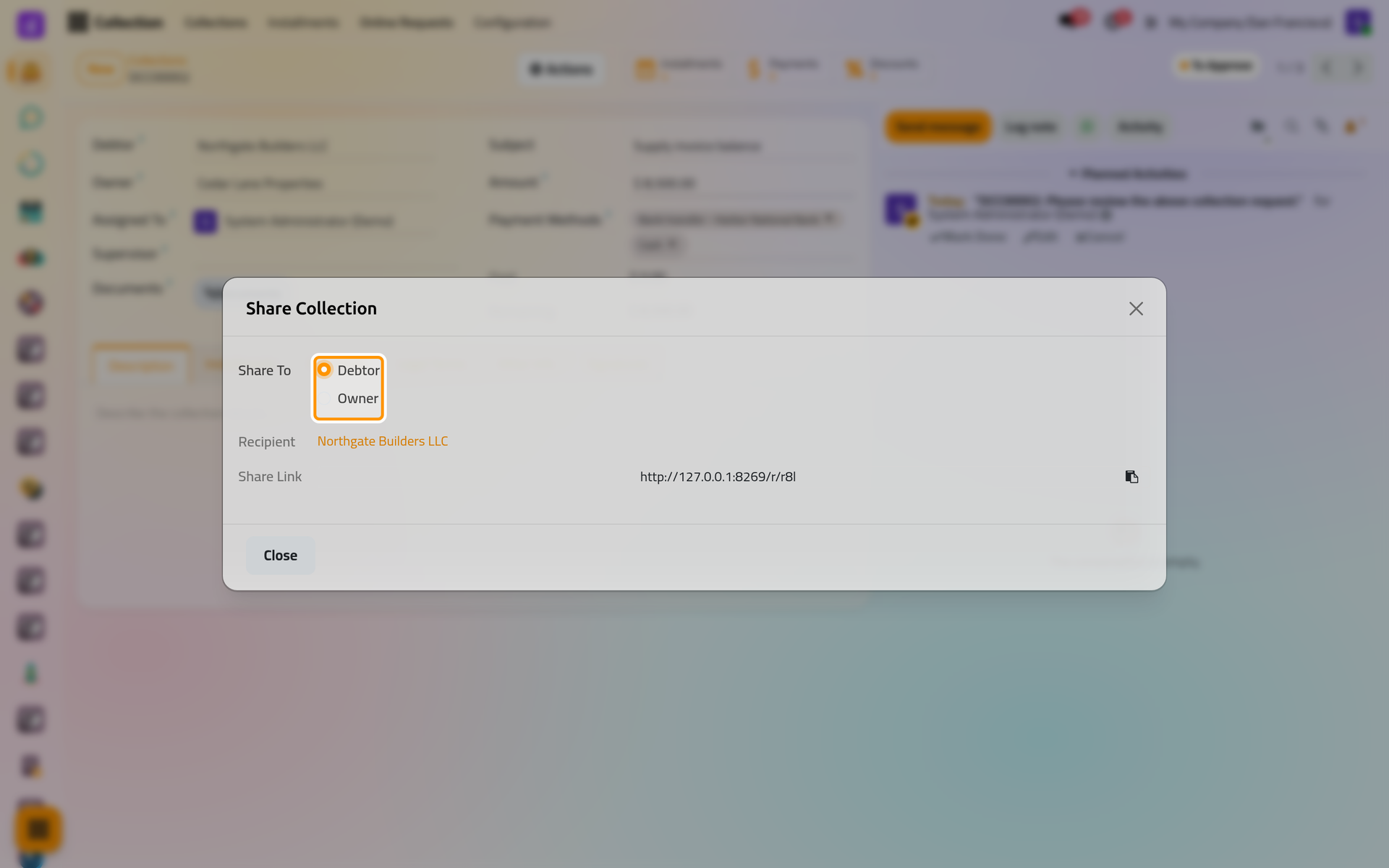
Each party has a link of their own, and whoever opens it signs as that party, even when signed in as someone else. Send it to that party only, and never open it to sign in their place.
Send the request by e-mail
Actions then Send to Debtor or Send to Owner opens a message to that party, written from the template Collections: Approvals Request (Debtor) or (Owner) (subject "Contract Approval"): the status of each signature and, while that party has not signed, an Approve it here button carrying their link. The contract's PDF, Collection Report, is attached. Check it, then click Send.
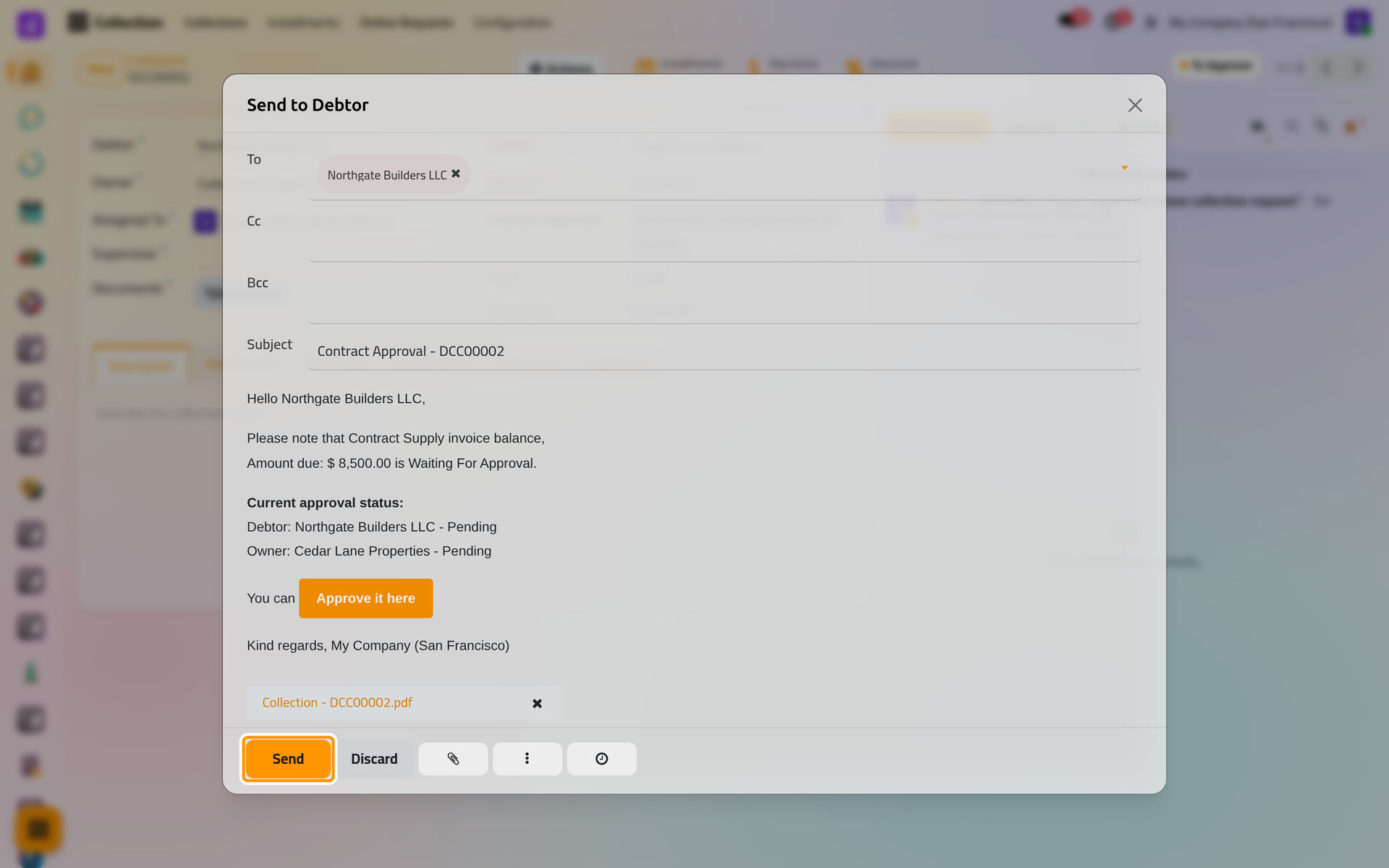
Once the contract is Under Collection, Collected or Canceled, the same two actions write the message of that status instead. WhatsApp to Debtor and WhatsApp to Owner send through WhatsApp: WhatsApp in collection.
What the party sees
The page shows the amount, Accept & Sign, the contract's details and its installments, each unpaid one with a Pay button. A party signed in to your website enters there an amount, a date and a proof file; the payment is recorded as Paid at once and settles the oldest unpaid installments, as Register a payment explains. Without an account, the button leads to the sign-in page. Below come the signatures already given, the Terms & Conditions when the contract has legal terms, and Communication, the messages about the contract.
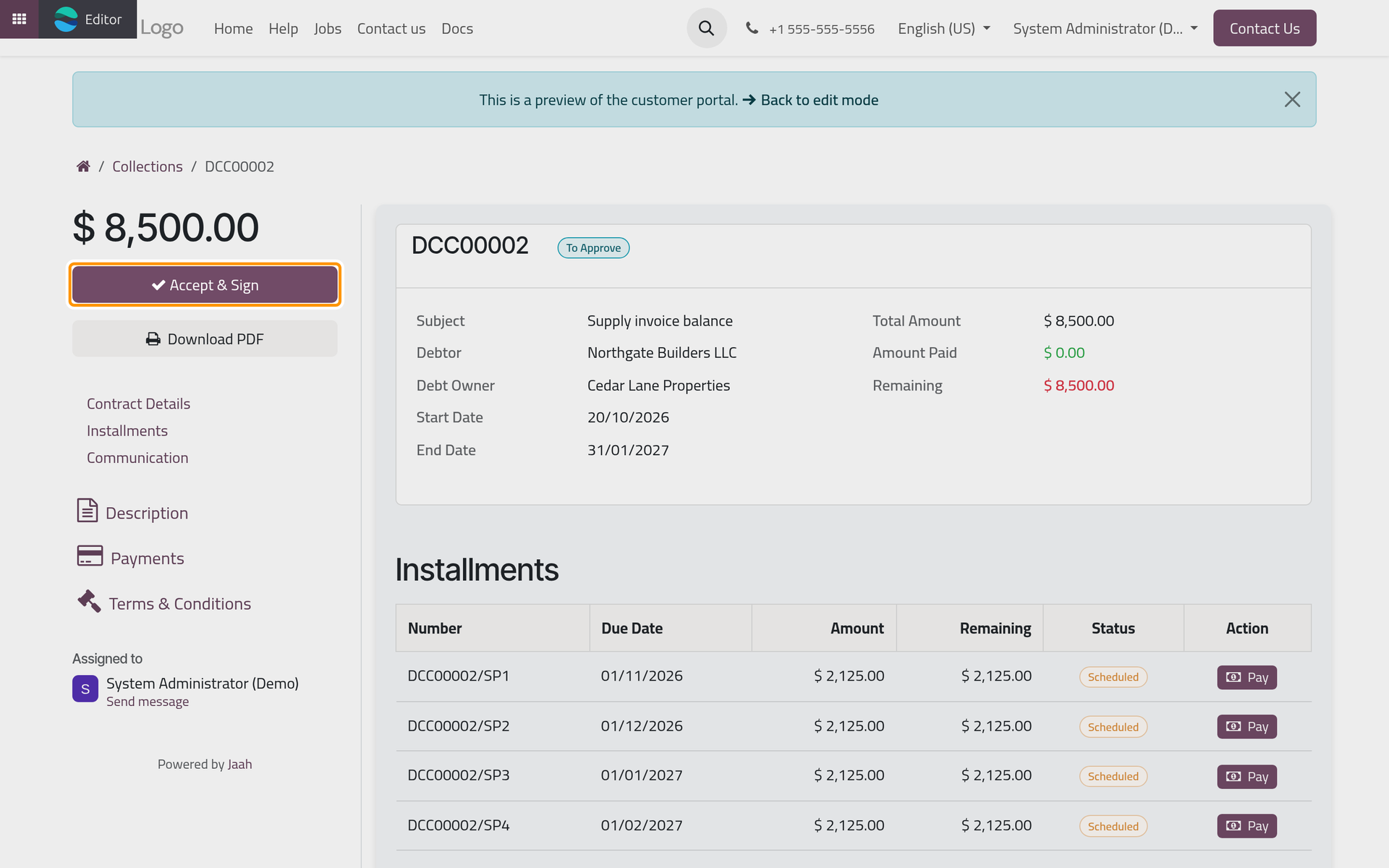
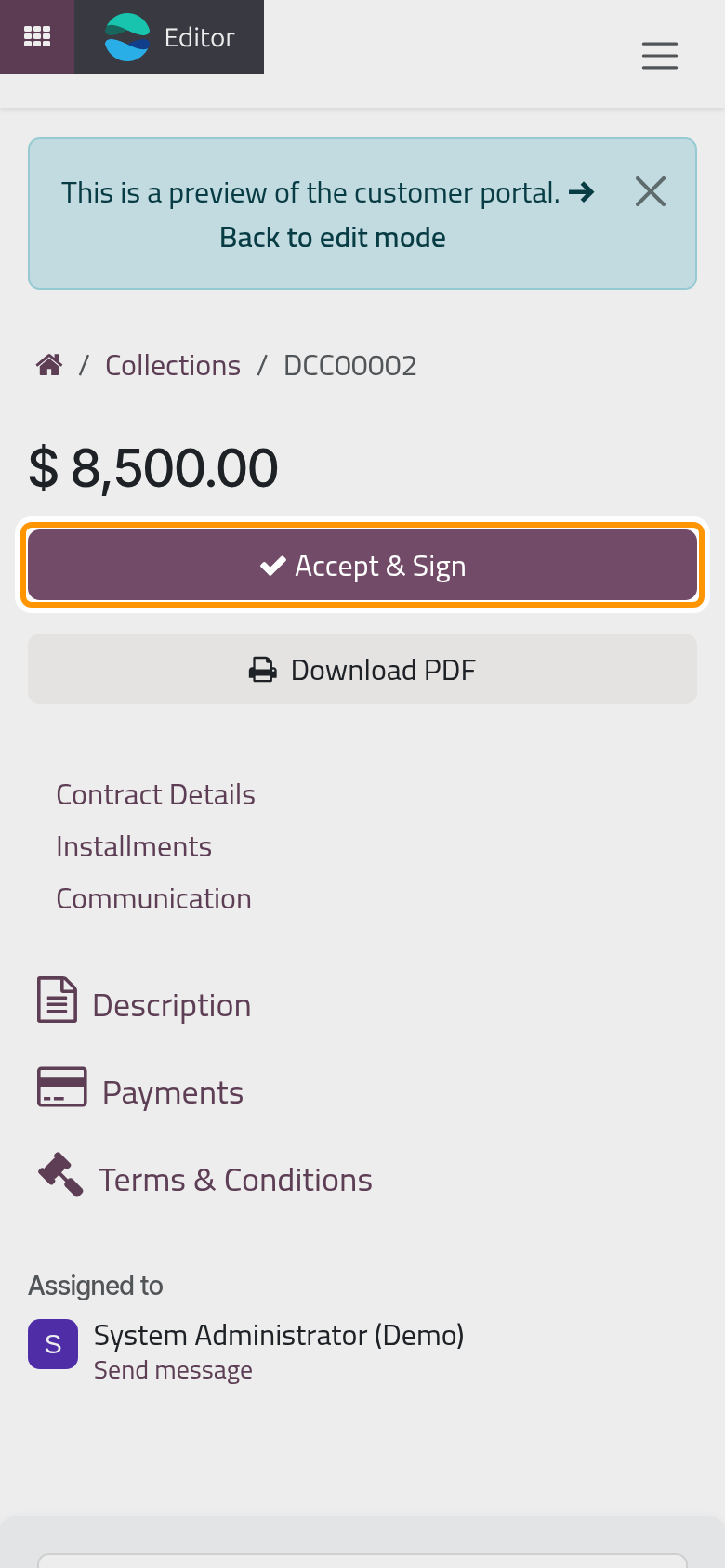
The Download PDF button of this page answers with an error: send the PDF from the contract instead, from Actions or attached to the e-mail. A debtor or owner who has an account on your website also finds their contracts under Your Collections on their account page.
Sign
- The party clicks Accept & Sign. Validate & Sign opens, with Full Name filled in and the signature drawn from it (Auto); Draw and Load replace it with a drawn or an uploaded one.
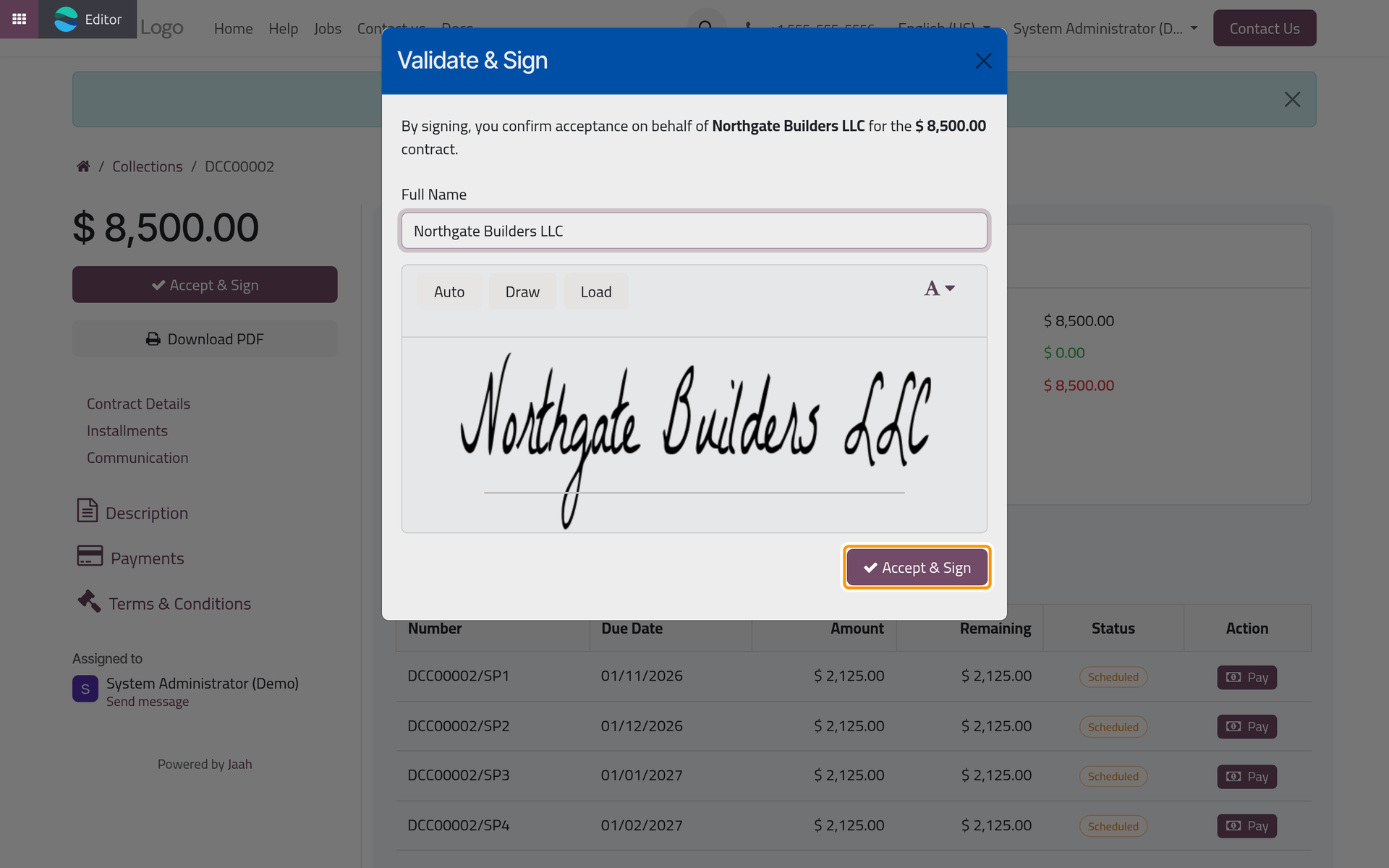
On a phone, the dialog opens at the top of the screen with the same buttons.
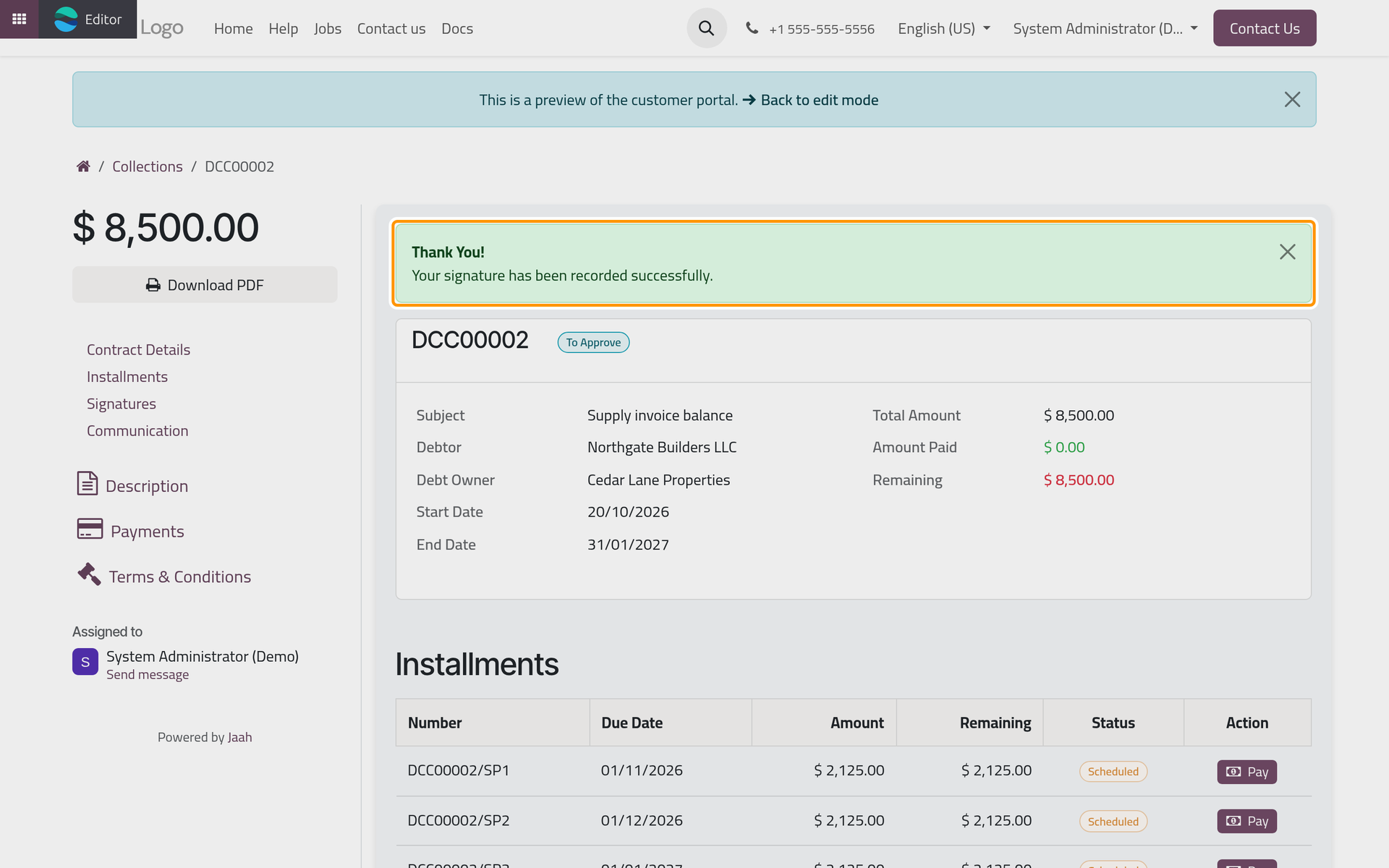
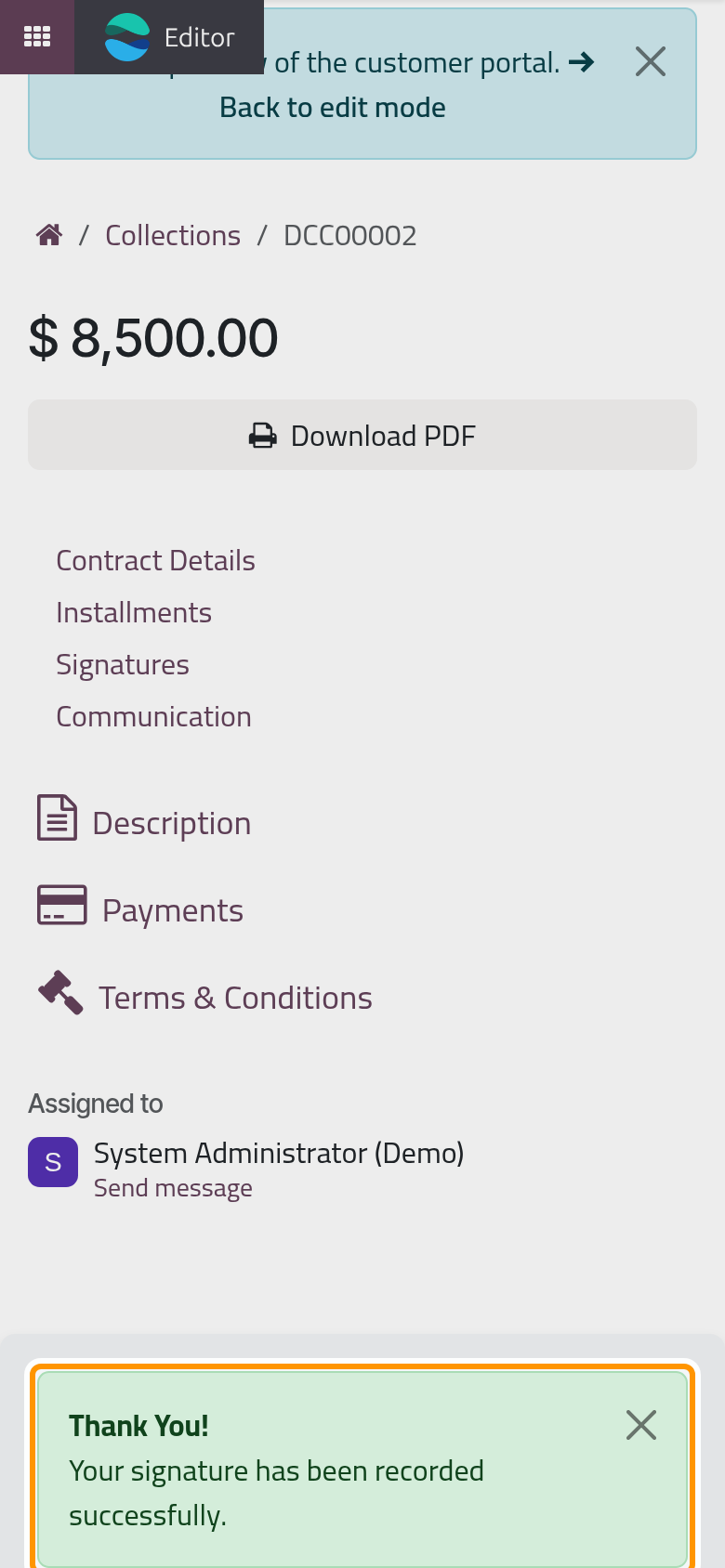
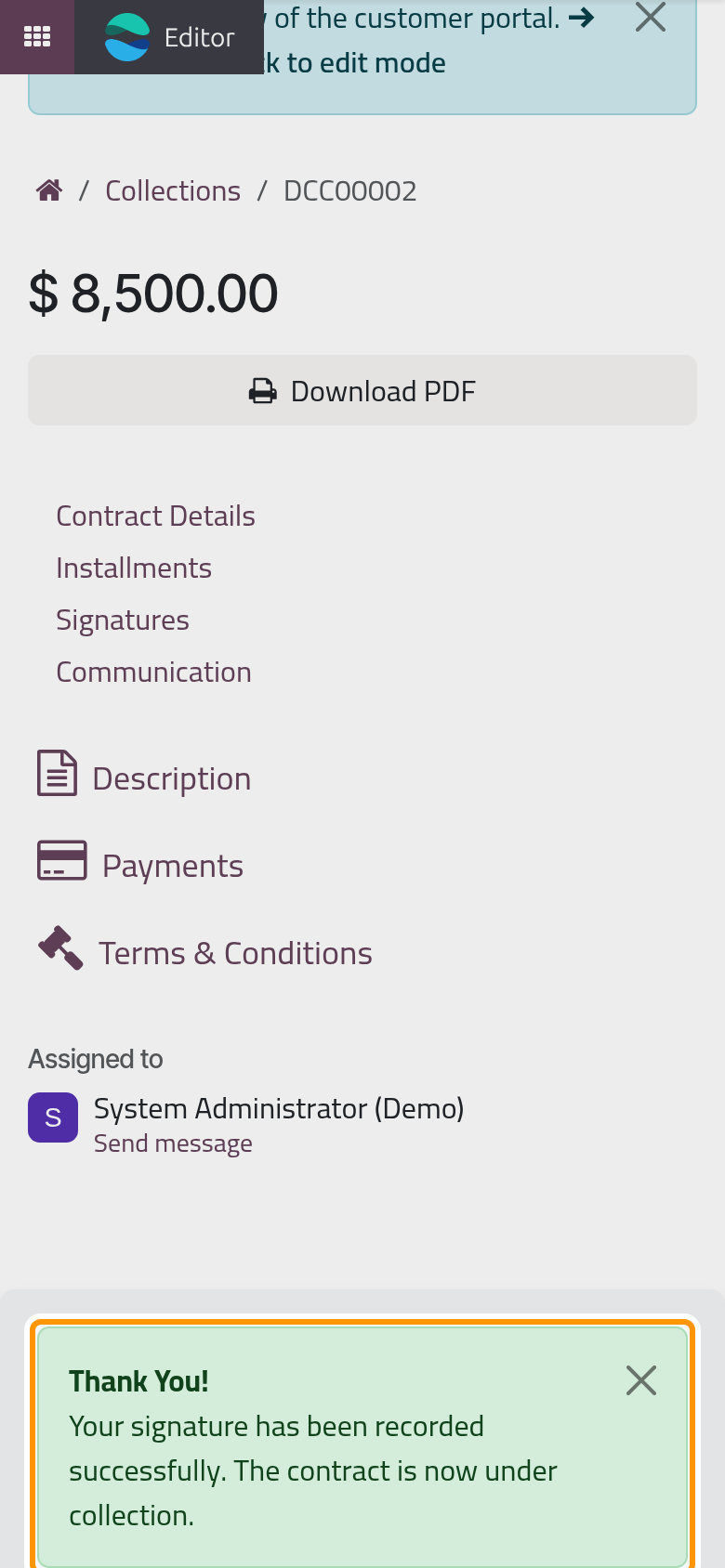
- Accept & Sign records the signature and its time. The page thanks the party, and the contract's chatter notes "Contract signed by" followed by the name.
After each signature
After the first signature, the other party is alerted according to the Signature Approval rules; the demo alerts the owner when the debtor signs and the debtor when the owner signs, by e-mail. Collection settings changes these rules.
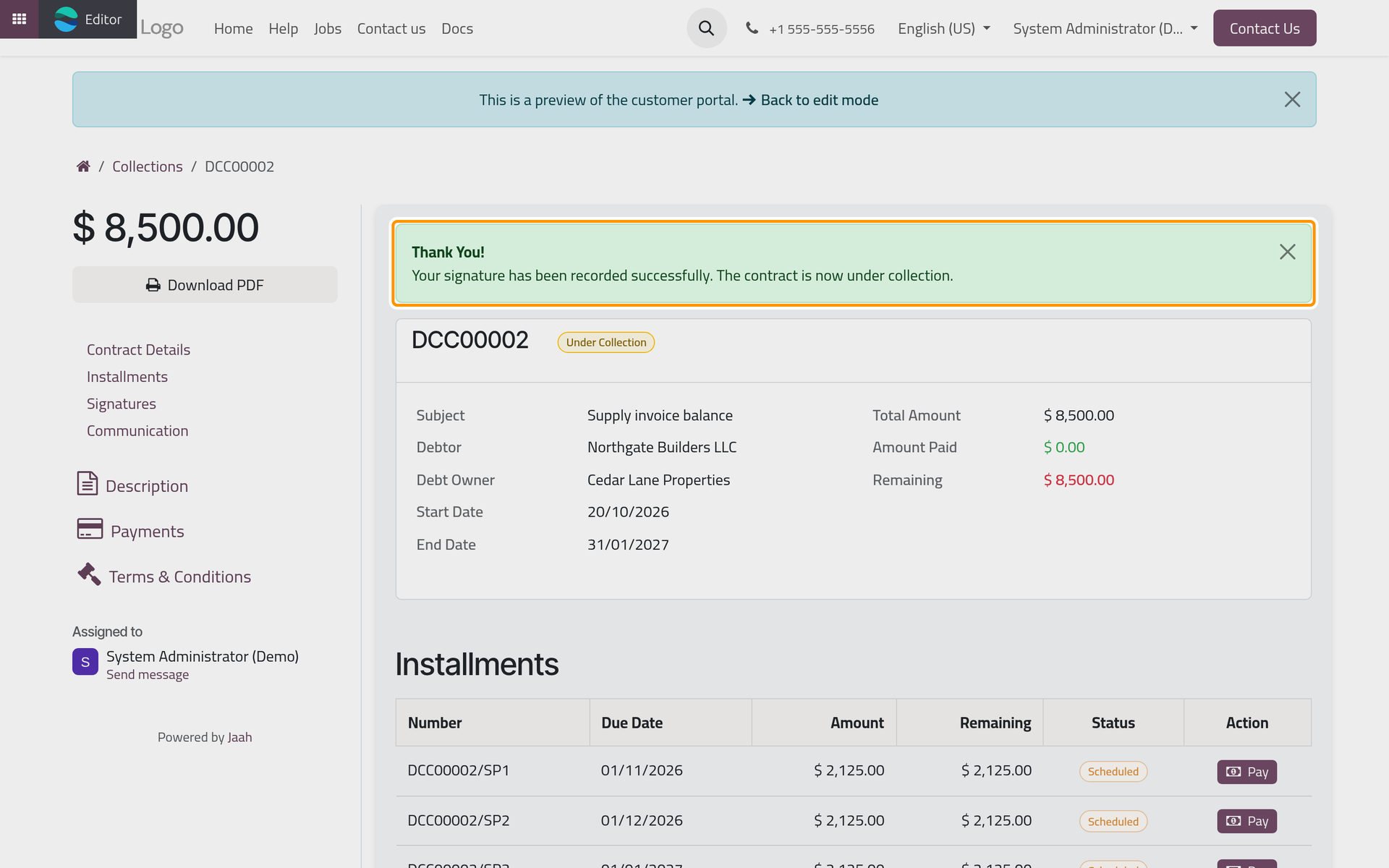
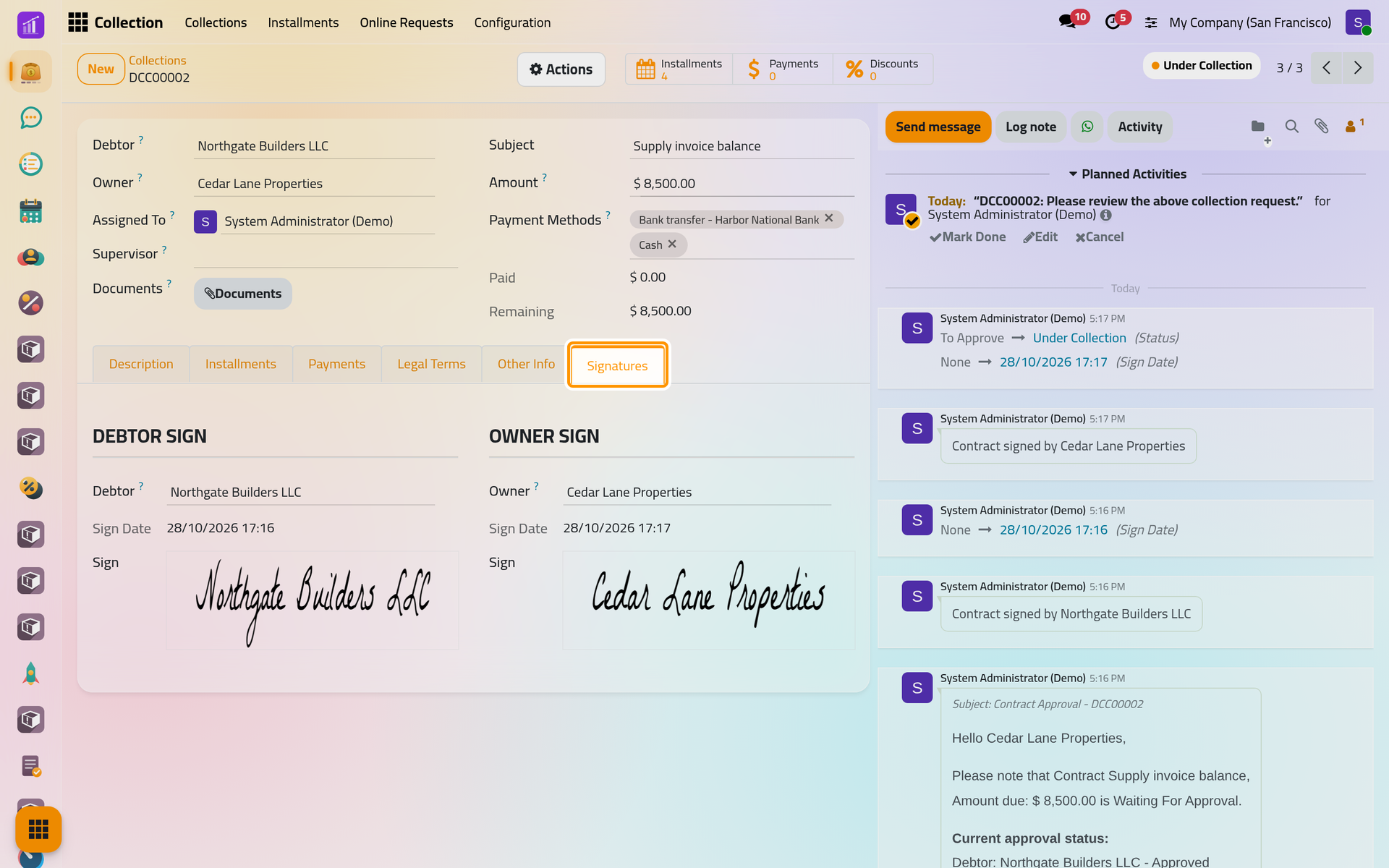
After the second signature, the contract moves to Under Collection by itself, and the page says so.
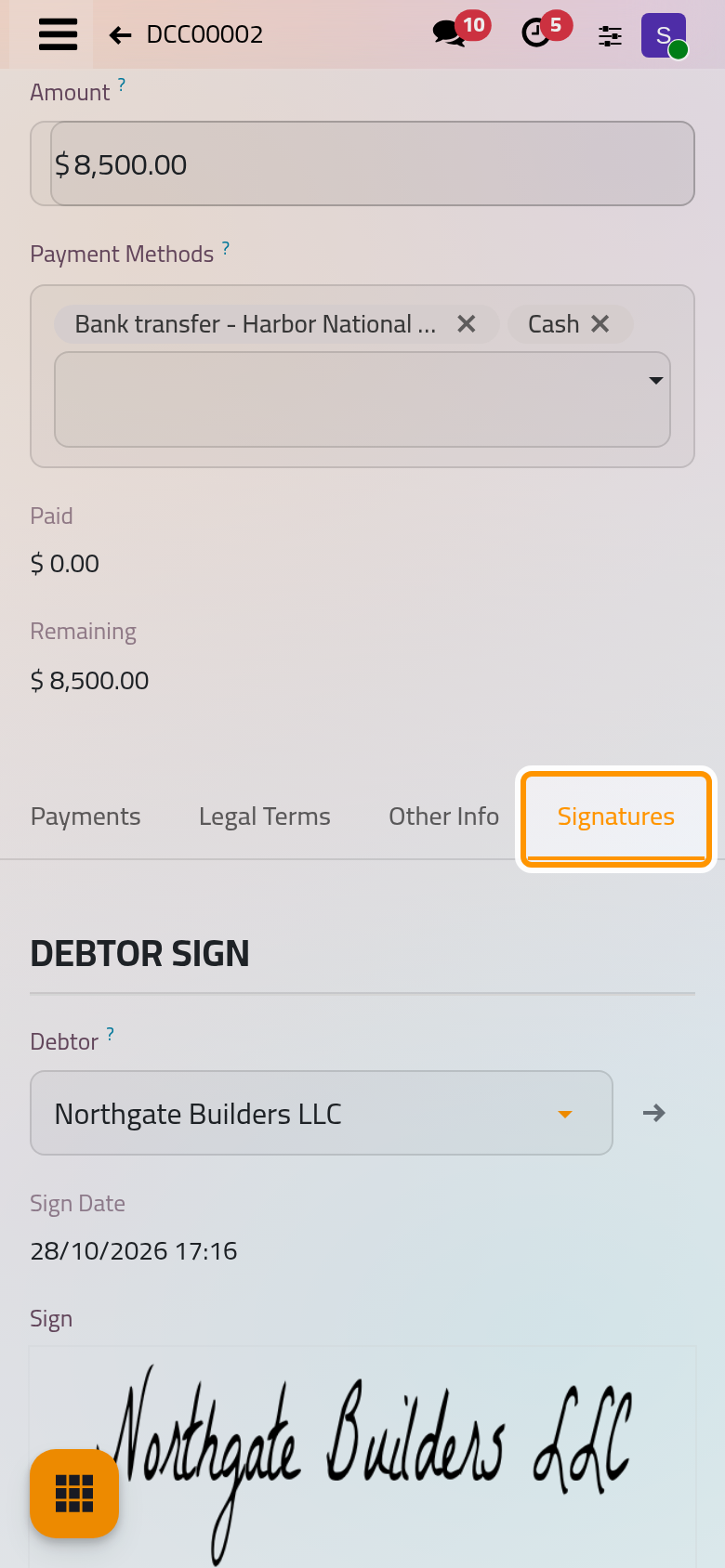
The Signatures tab of the contract shows both signatures with their Sign Date.
Sign in the office
When a party signs in front of you, open the Signatures tab and click the empty SIGNATURE box under Debtor Sign or Owner Sign. Adopt Your Signature offers Draw and Load; click Adopt & Sign, then save. When both boxes hold a signature, saving moves the contract to Under Collection.
FAQ
Can a party still sign once the contract is Under Collection?
Yes, as long as their signature is missing. A Collected or Canceled contract no longer offers Accept & Sign.
What erases the signatures?
Create Installments and Reschedule Installments: both put the contract back to To Approve without signatures.
Nobody was alerted after the first signature on a rescheduled contract. Why?
That alert is sent once per contract and party. After a reschedule, send the links again yourself.
Was this page helpful?
Thank you for your feedback.