Legal terms templates
On this page
Most contracts share the same terms and conditions. A legal terms template holds that text once; choosing it on a contract copies the text into the contract, where it can still be adapted.
Before you start
- Creating and changing templates needs the Manager access right on Collection. With User or Supervisor, you choose templates on contracts but cannot change them.
Write a template
- Open and click New.
- Type the name, here
Collection demo: Standard terms. - Write the text on the Terms & Conditions tab. The editor keeps headings, lists and bold text.
- Company, shown when you work with several companies, holds your company: the template is offered on its contracts only. Empty it to offer the template to every company.
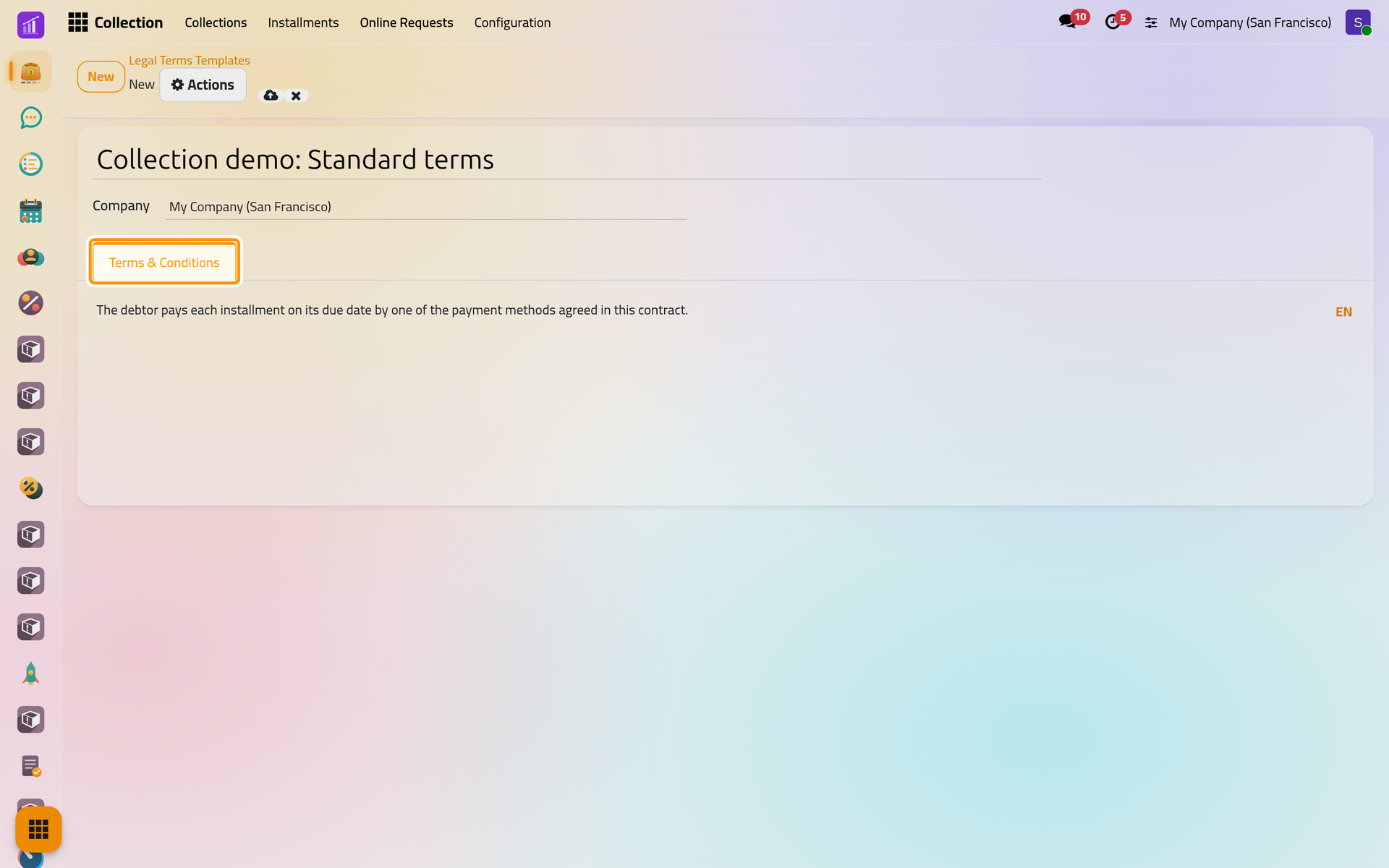
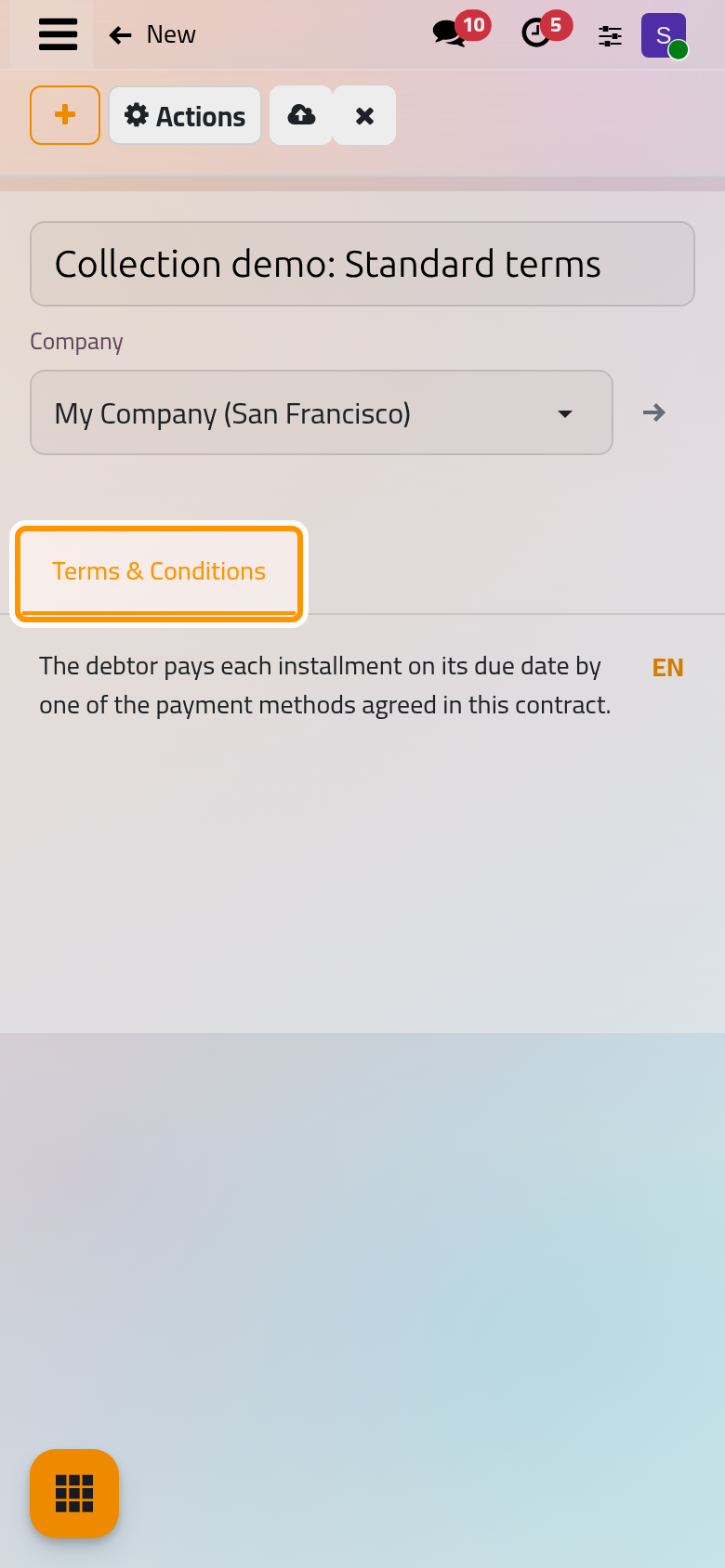
- Save.
The list orders the templates by the handle at the start of each line; drag a line to move it. Actions then Archive hides a template from the contracts without deleting it.
Translate it
The name and the text are translated per language, like other texts of the platform: the language button beside each field opens its translations. A contract takes the text in its debtor's language, so write a translation for each language your debtors use. A language without a translation receives the English text.
Use it on a contract
- Open the contract, here DCC00002, and its Legal Terms tab.
- Choose the template in Template. Its text appears below at once, in the debtor's language.
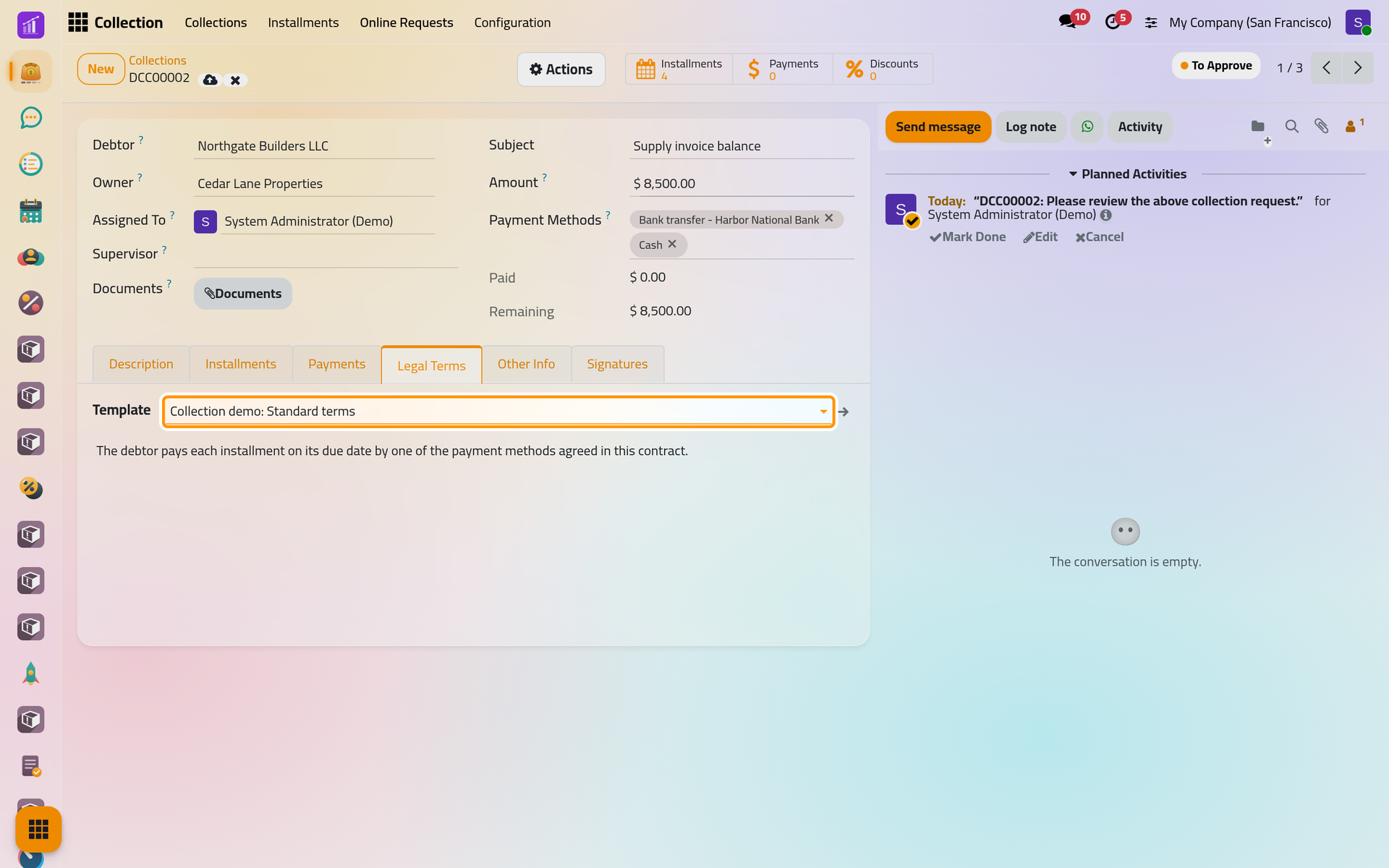
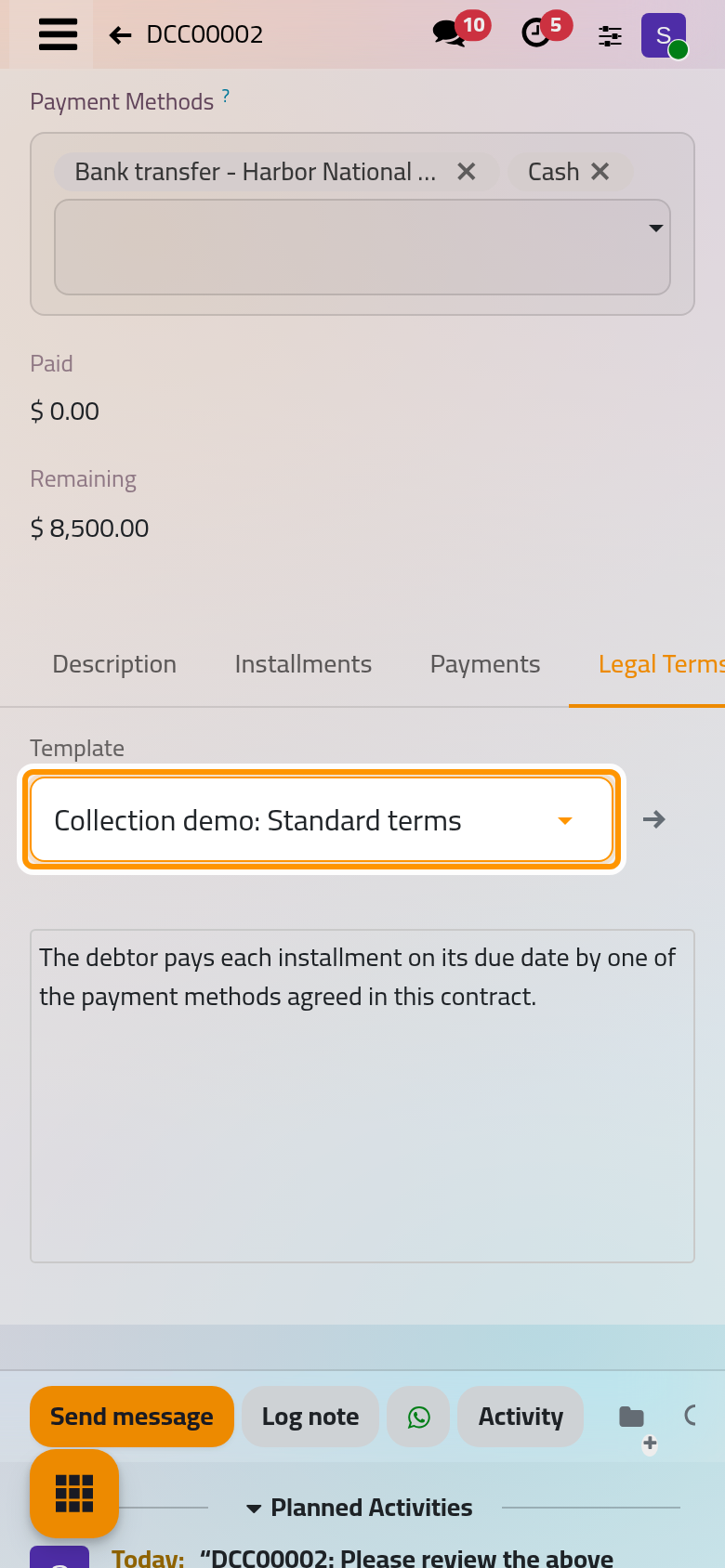
- Adapt the text if this contract needs it, then save.
The contract keeps its own copy: changing the template later changes no contract, and choosing another template replaces the text of the tab.
Where the terms appear
- On the signing page of each party, in a Terms & Conditions section before they sign: Get the contract signed.
- In the contract's PDF, Collection Report in Actions, after the signatures. The same PDF is attached to the approval e-mails and to those sent when the contract is Under Collection or Collected.
FAQ
Does editing a template update the contracts that use it?
No. Each contract keeps the text copied when the template was chosen. To give a contract the new text, empty its Template field and choose the template again; the text of the tab is replaced, so note first any change made on that contract.
Why can I not create a template?
Only the Manager right on Collection may create or change templates. Collection settings lists the rights.
Is a template required?
No. You may type the terms straight into the Legal Terms tab of a contract, or leave it empty: the signing page then shows no terms section.
Was this page helpful?
Thank you for your feedback.