Register a payment
On this page
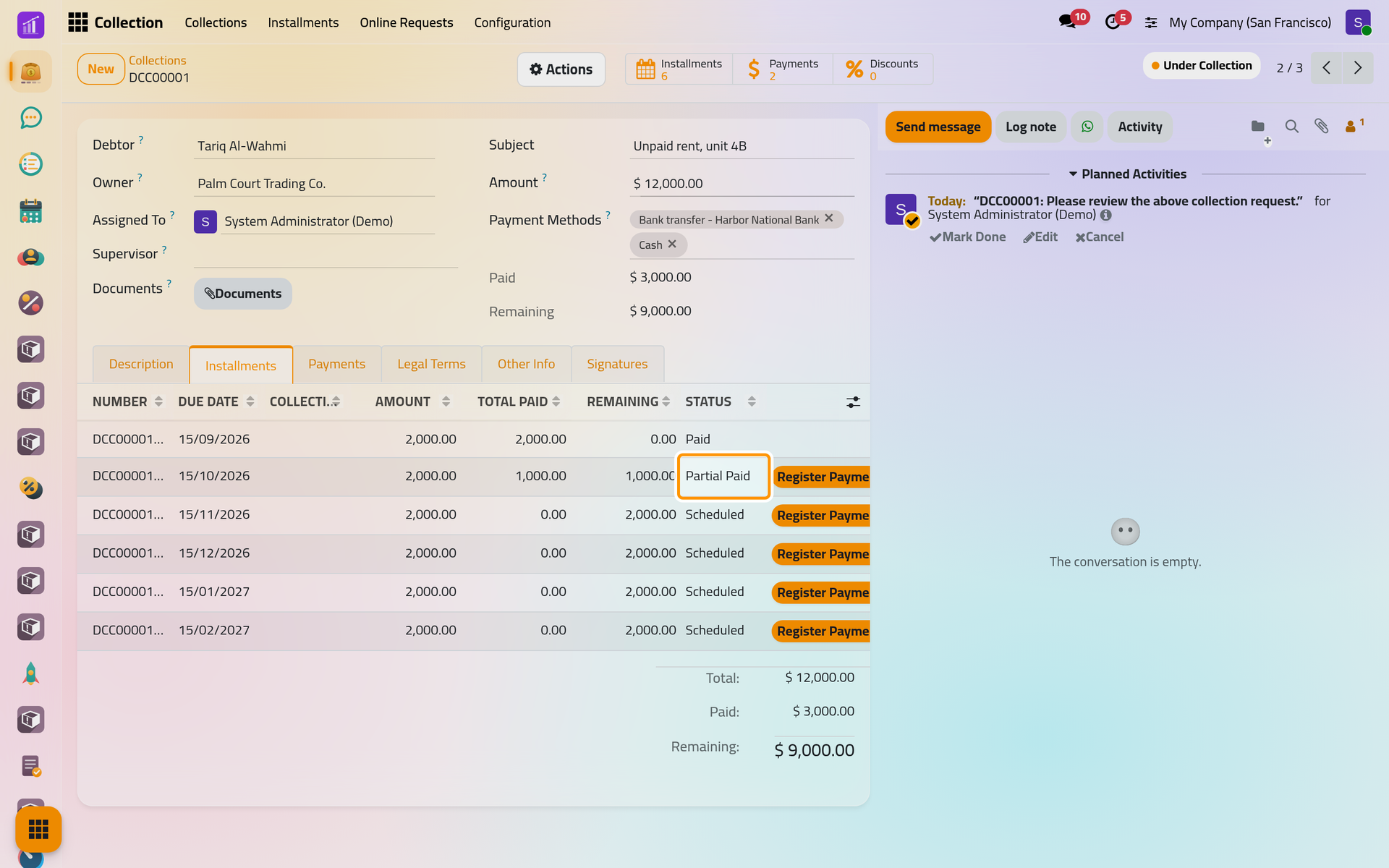
A payment records money the debtor handed over, with the proof of it, and settles the contract's installments with it. This page uses the demo contract DCC00001 "Unpaid rent, unit 4B": 12,000 in six monthly installments of 2,000, the first paid by P00001 and the second partly paid by P00002.
Before you start
- The contract needs its installments: Register Payment appears once they are created, as Create a collection contract shows.
- Have the proof ready, such as a transfer slip or a signed cash voucher, as a file. Receipt is required: a payment without a file cannot be saved.
- You need at least the User access right on Collection, on a contract you can open.
Register the payment
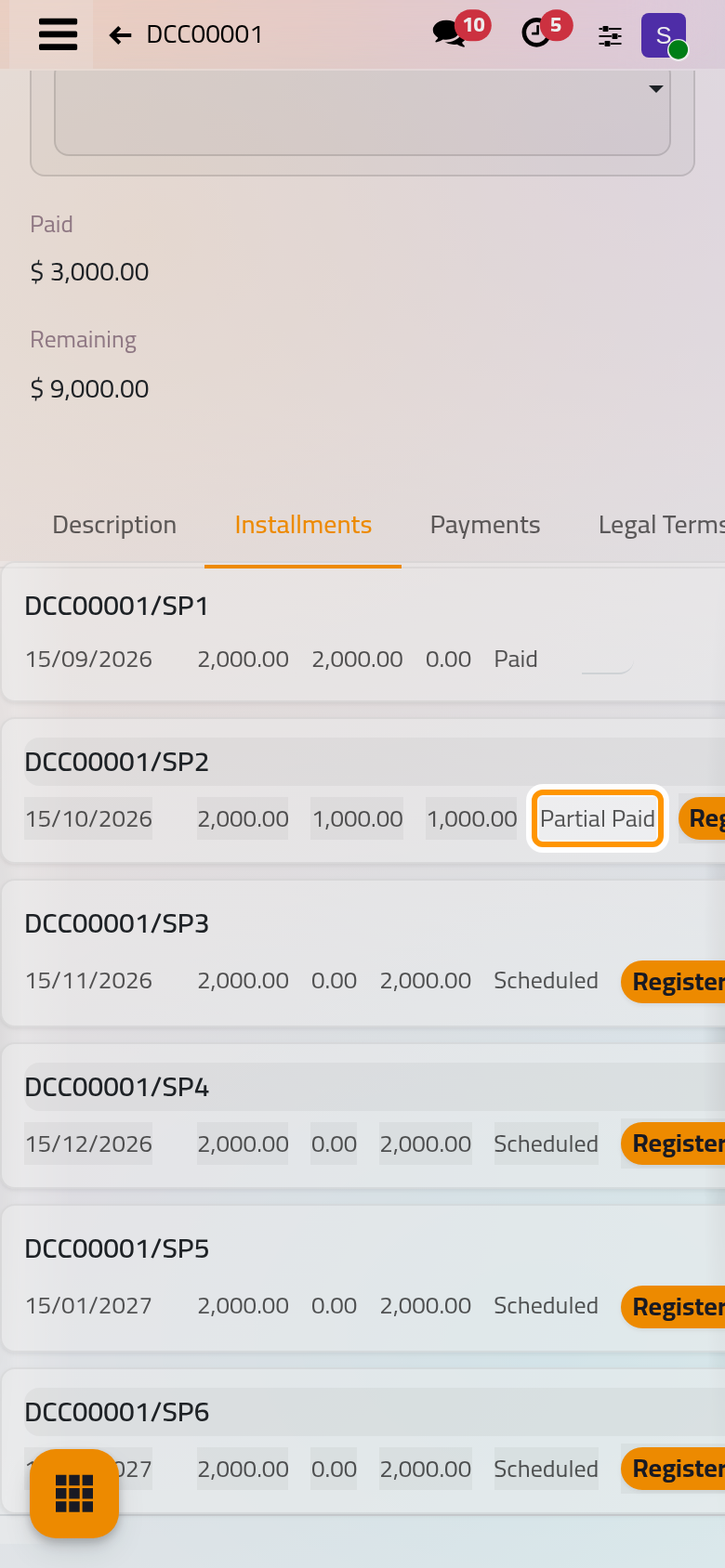
- Open and the contract. The Installments tab shows what is due, paid and left on each installment.
- Open Actions and choose Register Payment.
- Fill Amount and choose the Payment Method: the list offers the methods agreed on the contract, or every method of the company when the contract names none (Payment methods).
- Under Receipt, attach the proof. Payment Date is now; change it to the day the money arrived.
- Click Save.
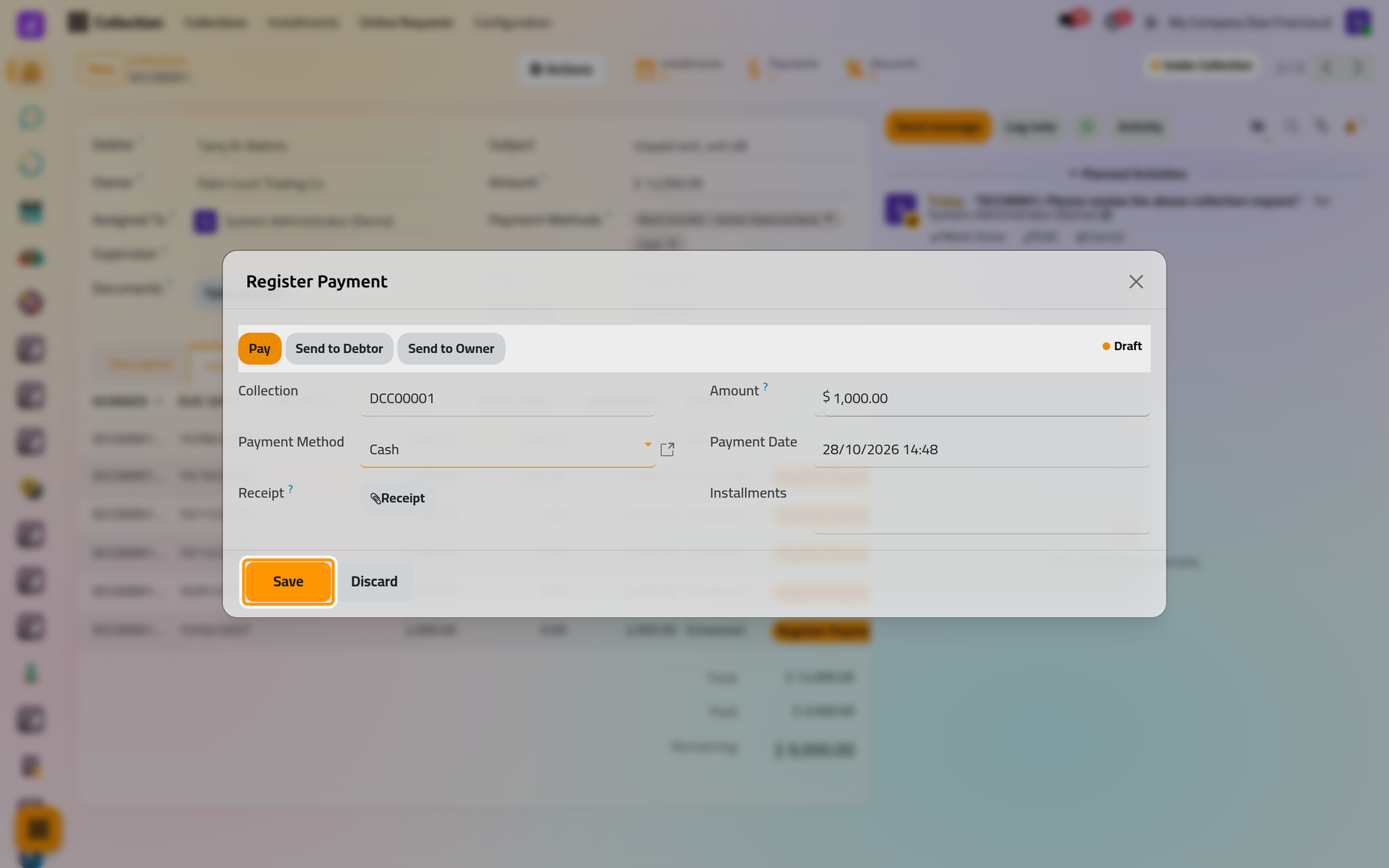
The dialog shows its own Pay button and the status Draft: leave them. Save records the payment, spreads it over the installments and sets its status to Paid in one go. On a phone the dialog fills the screen, with the same buttons.
How the amount is spread
The payment settles the unpaid installments in order of due date. Each takes up to what it has left; the last one reached may be settled in part. The Register Payment button of a line in the Installments tab fills the dialog with that installment, and its method when it has only one, but the money still goes to the oldest first.
- An installment with nothing left becomes Paid.
- An installment settled in part becomes Partial Paid, like DCC00001/SP2: 1,000 paid of 2,000. The next payment completes it first.
- Total Paid and Remaining of each line, and Paid and Remaining of the contract, follow at once.
Register at most the contract's Remaining: an amount above it is not attached to any installment.
A payment a signed-in party enters with the Pay button on their contract page is recorded the same way and arrives Paid; its chatter says it was created from the portal. Check its proof, and use Reset Draft if it is wrong.
Send or print the receipt
Open the payment from the contract's Payments button, or from , grouped by contract.
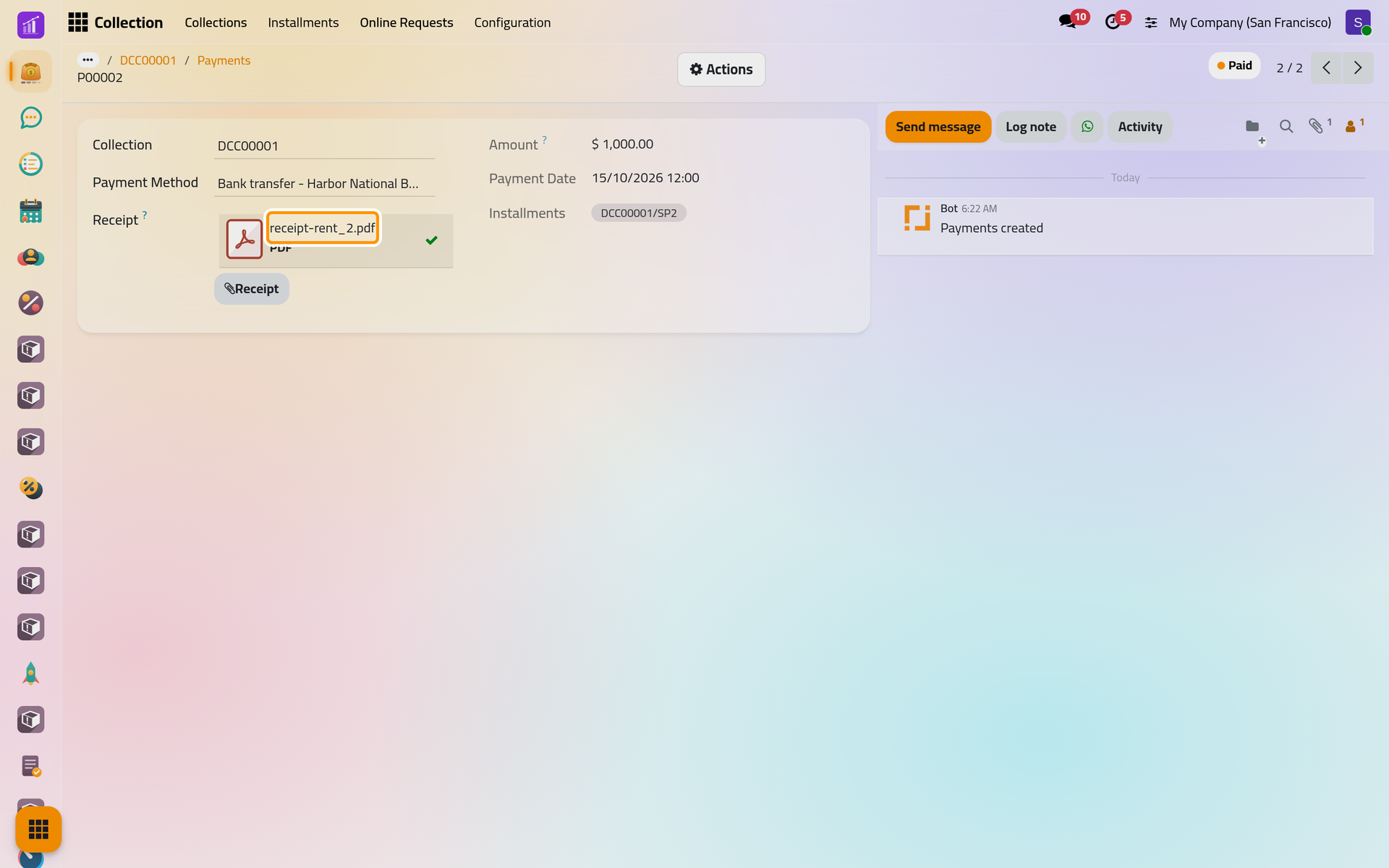
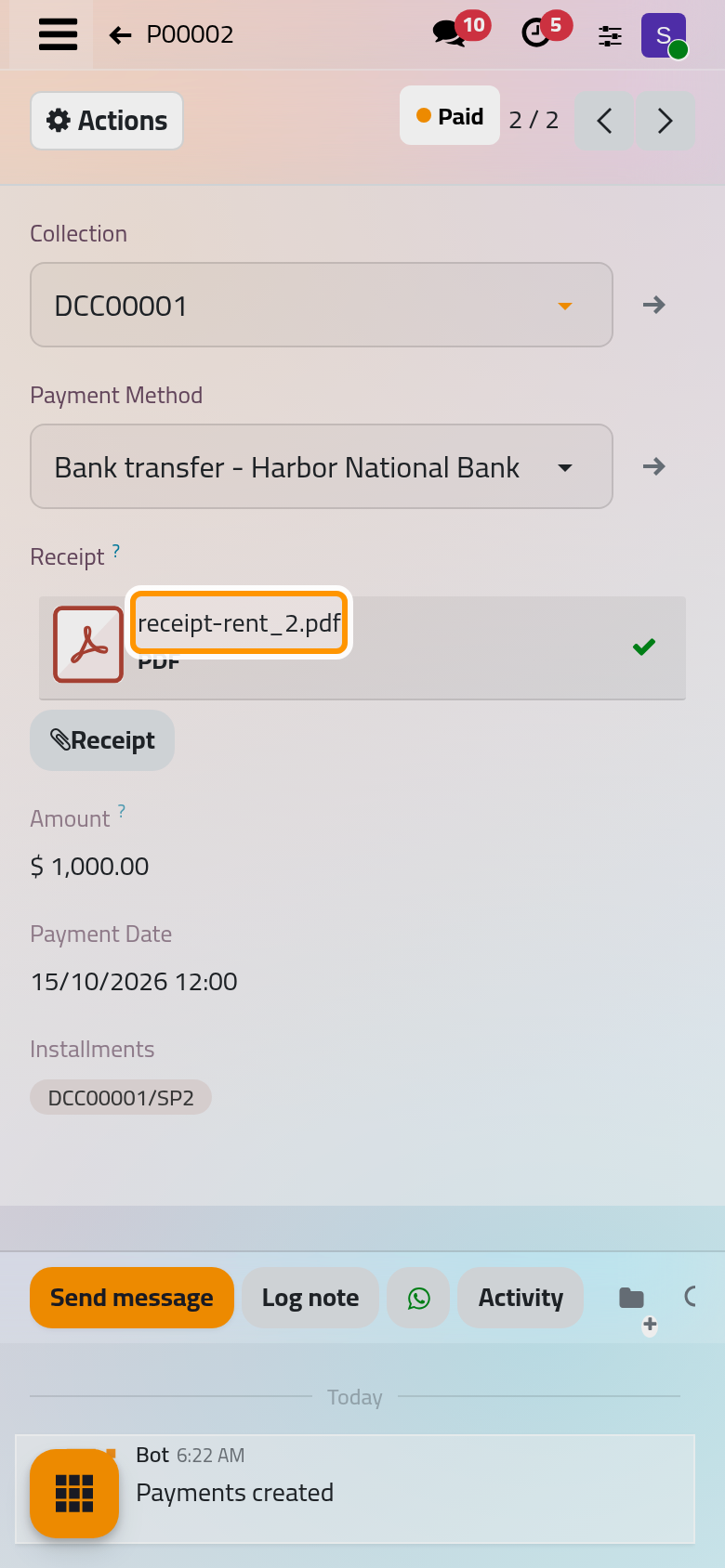
- Actions, then Send to Debtor or Send to Owner: an e-mail in the reader's language with the template Collections: Payment Receipt Notify and the PDF receipt attached. Change the text if needed, then Send.
- Actions, then Payment Receipt: the same PDF, with the amount received, the debtor, the contract, the date and method, the installments it was allocated to, the names of the proof files and a signature line.
- WhatsApp to Debtor and WhatsApp to Owner send it by WhatsApp: WhatsApp in collection.
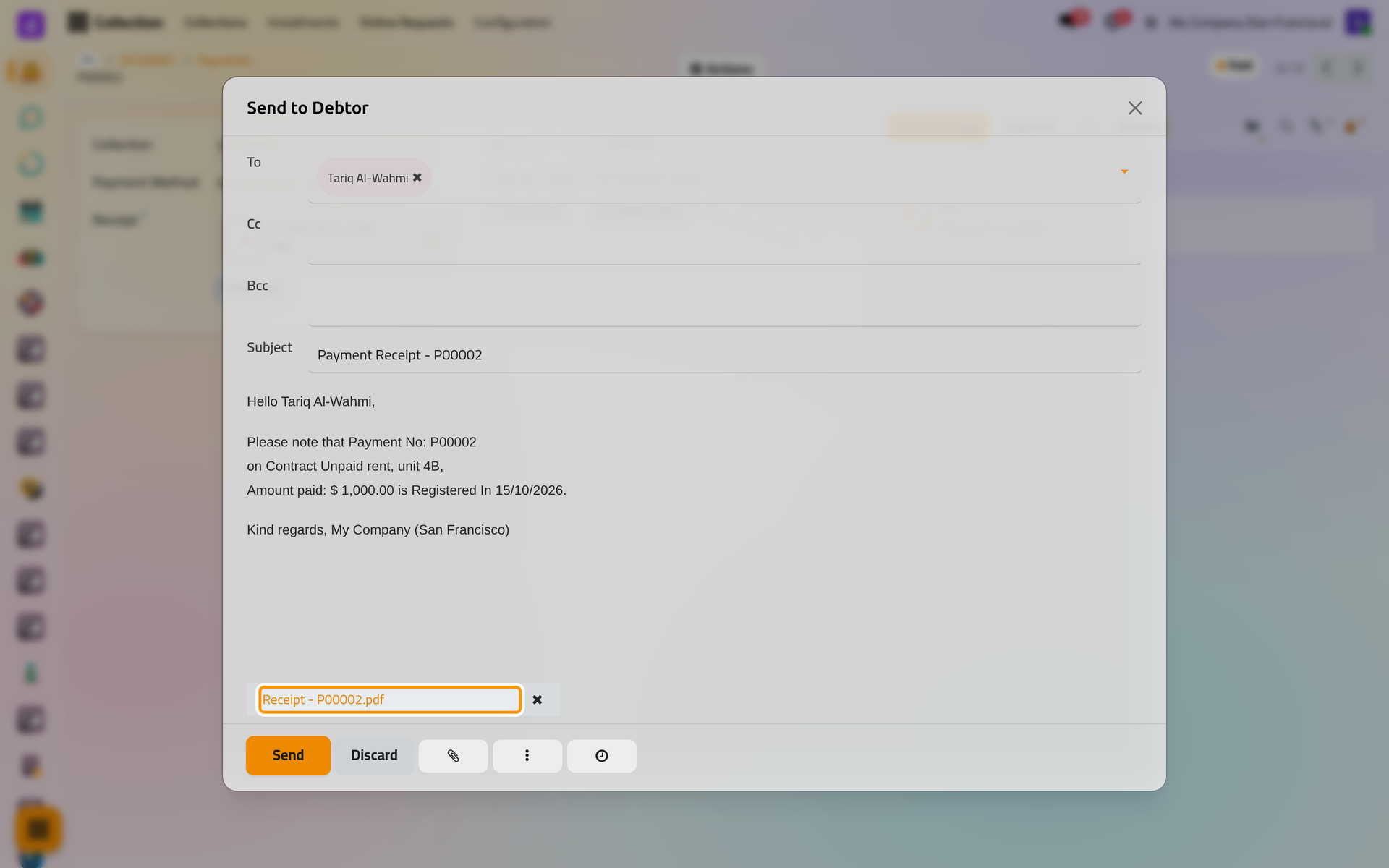
On a phone, the e-mail fills the screen, the attachment at its foot. A payment in Draft cannot be sent ("Confirm the payment before sending its receipt."), and its PDF carries a DRAFT stamp.
Correct a payment
Actions, then Reset Draft takes the amount back off the installments and sets the payment to Draft. Change the amount, date or installments, then Pay spreads it again. To remove a payment, reset it first, then Delete it from Actions.
FAQ
Why can't I save the payment?
Receipt is empty: the field is outlined in red and the message "Missing required fields" appears. Attach the proof of payment and save again.
Can the debtor pay with a method not on the contract?
Not on this payment: add the method to the contract's Payment Methods first (Payment methods).
Does a payment notify the debtor by itself?
Only when an Installment Status rule exists for Partial Paid or Paid: Collection settings. The receipt itself is always sent by hand.
Was this page helpful?
Thank you for your feedback.