Your first collection contract
On this page
Collection keeps the contracts under which you collect a debt on behalf of its owner: who owes, to whom, how much, in which installments, and the signatures of both sides. This walk-through takes one contract from its creation to the start of the collection, then shows where a contract ends. The demo contract you create here is Collection demo: Office rent, unit 7A: Tariq Al-Wahmi owes 6,000 to Palm Court Trading Co.
Before you start
- Creating contracts needs the User access right on Collection, or a higher one. Create a user and set access rights shows where it is given.
- The debtor and the owner are contacts: create them first in Contacts when they do not exist yet.
- The contract offers the payment methods of the company. The demo has Bank transfer and Cash; Payment methods adds others.
Step 1: open the contracts
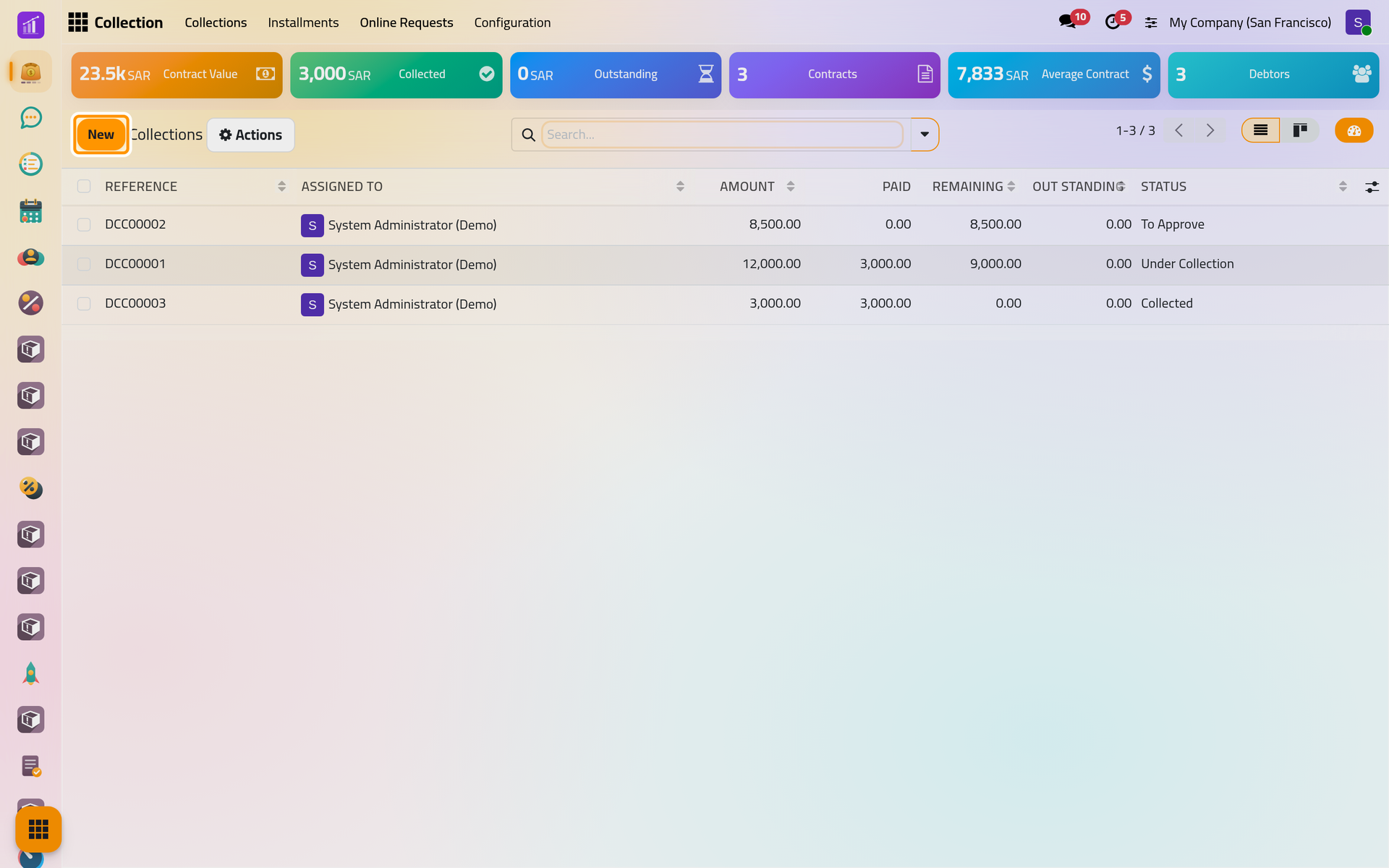
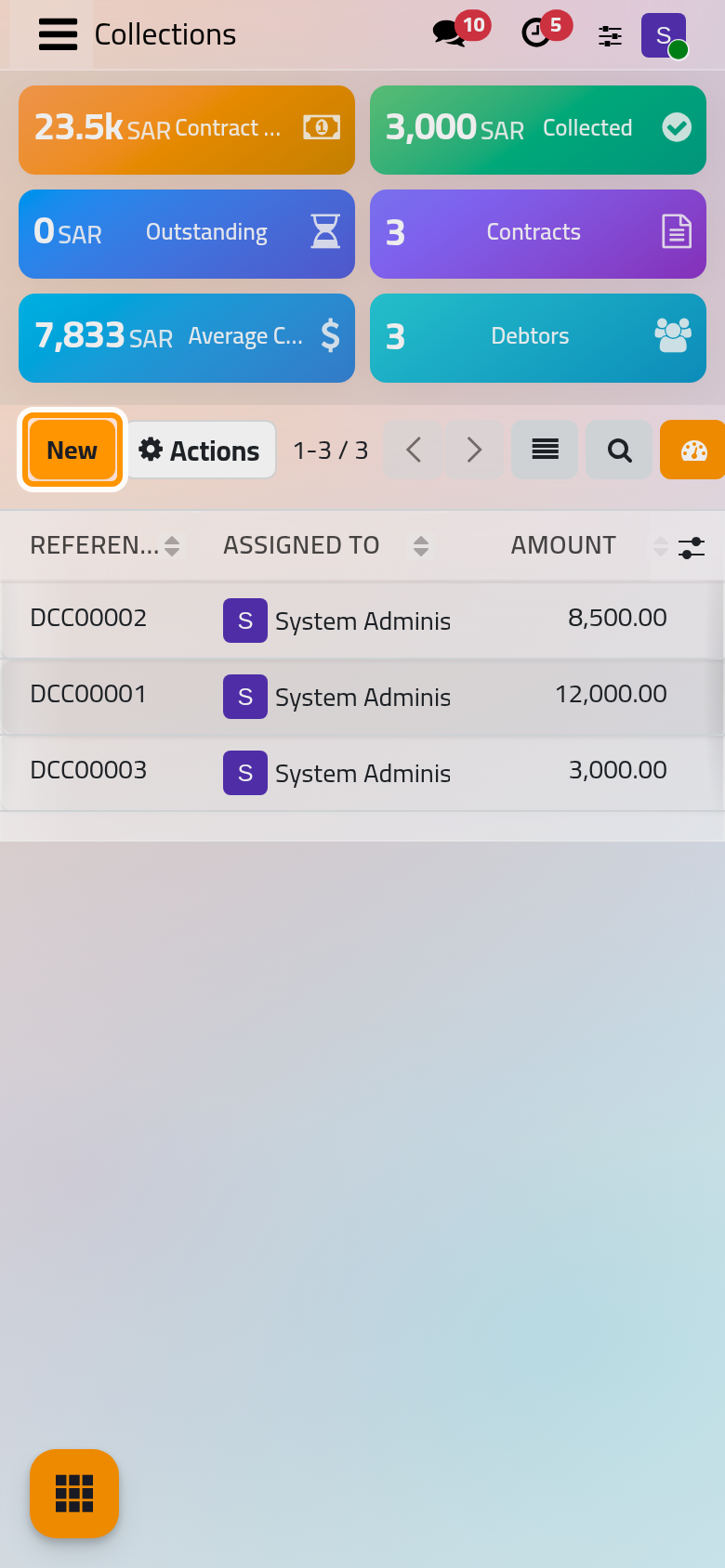
Open . The list shows each contract with its reference, the user it is assigned to, its amount, what is paid, what remains and its status. The figures above the list come from the app's ready-made dashboard, described in Ready-made dashboards.
Step 2: create the contract
- Click New.
- Choose
Tariq Al-Wahmiin Debtor, the person who owes the money, andPalm Court Trading Co.in Owner, the creditor you collect for. - Choose yourself in Assigned To: the user who follows the contract.
- Type the Subject
Collection demo: Office rent, unit 7A, the Amount6000, and choose Bank transfer in Payment Methods.
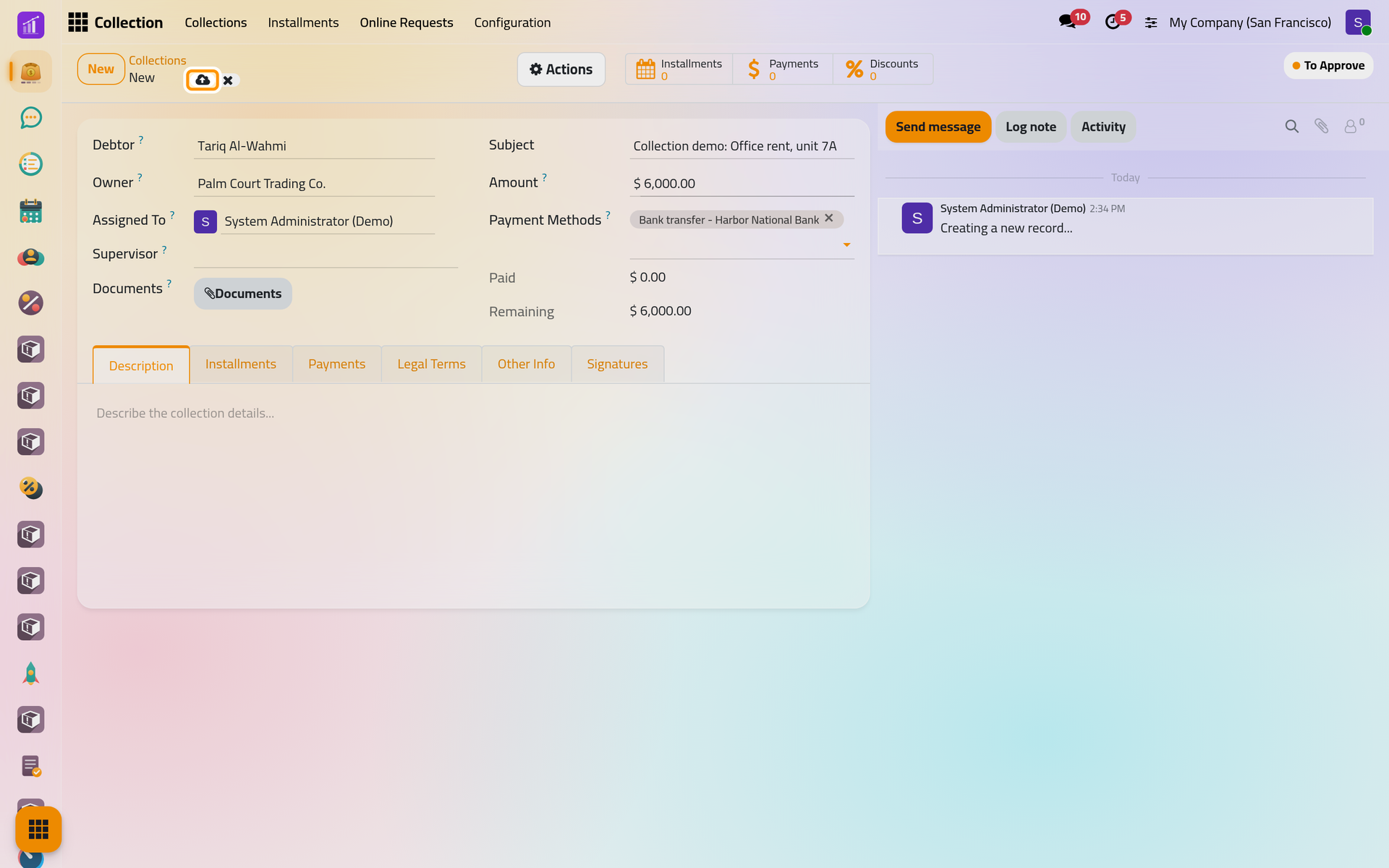
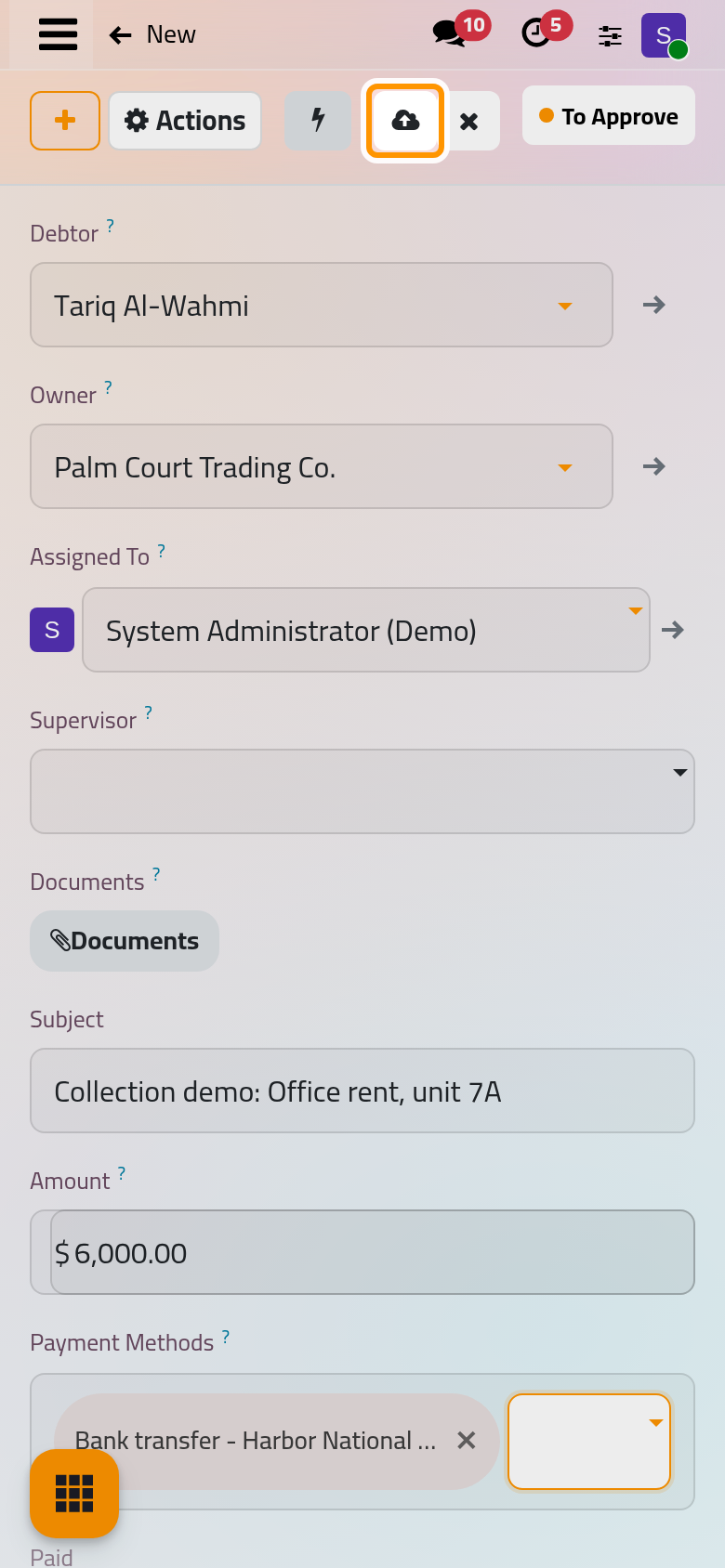
- Save. The contract takes its reference, such as DCC00004, and the status To Approve. A to-do activity, "Please review the above collection request.", appears for the assigned user.
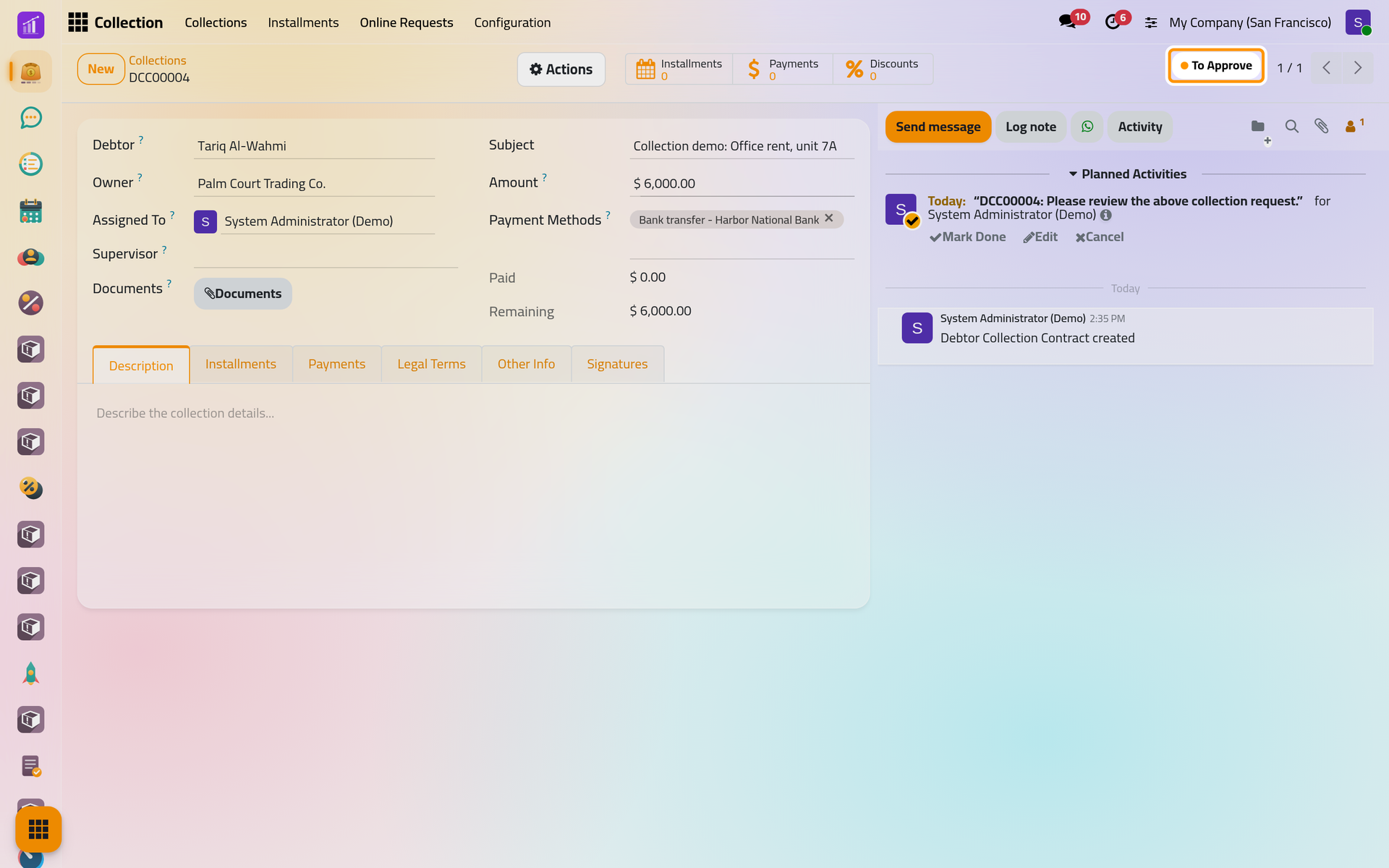
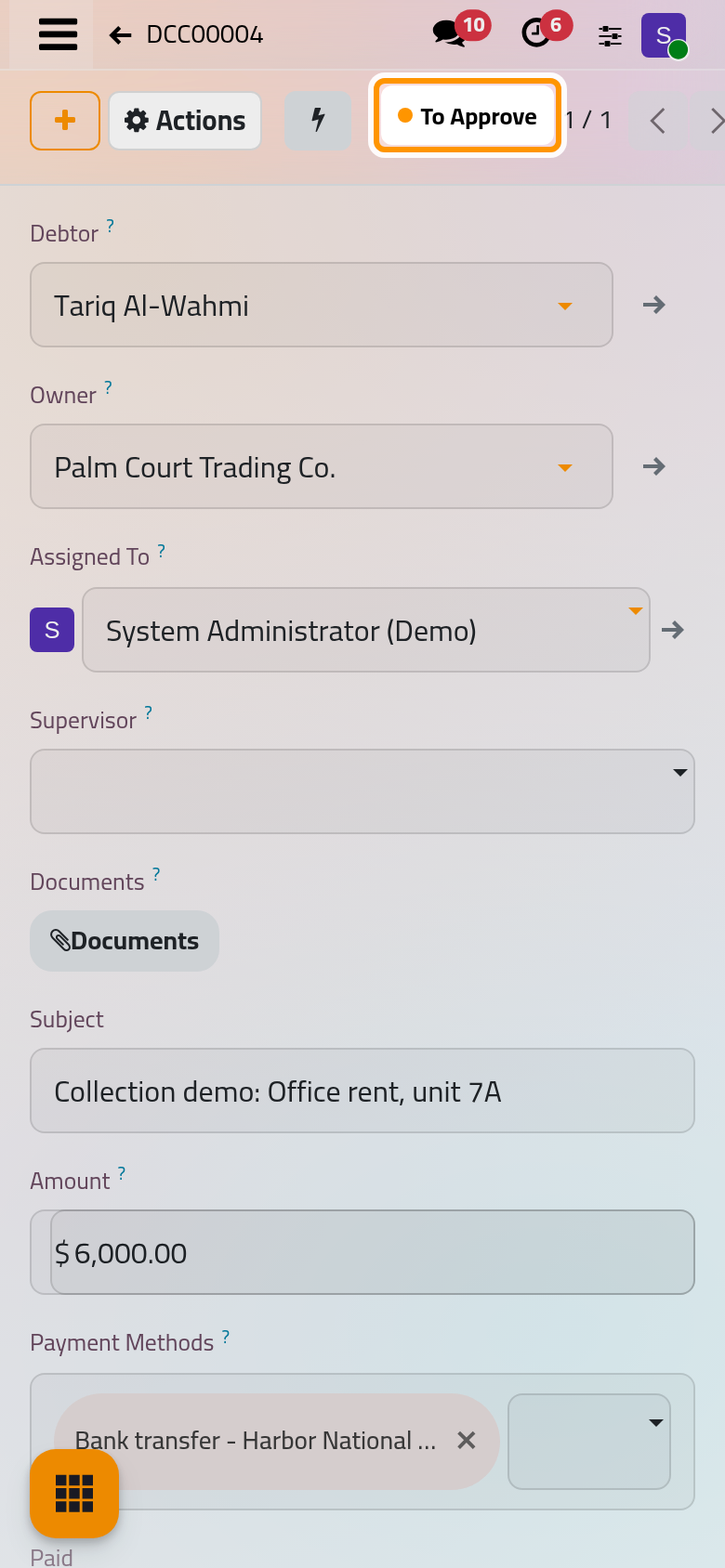
Create a collection contract explains every field, the documents and the other tabs.
Step 3: spread the amount over installments
- Open Actions and choose Create Installments.
- Type
3in Installments count,1in Every and keep Month, then set First Installment to 01/12/2026.
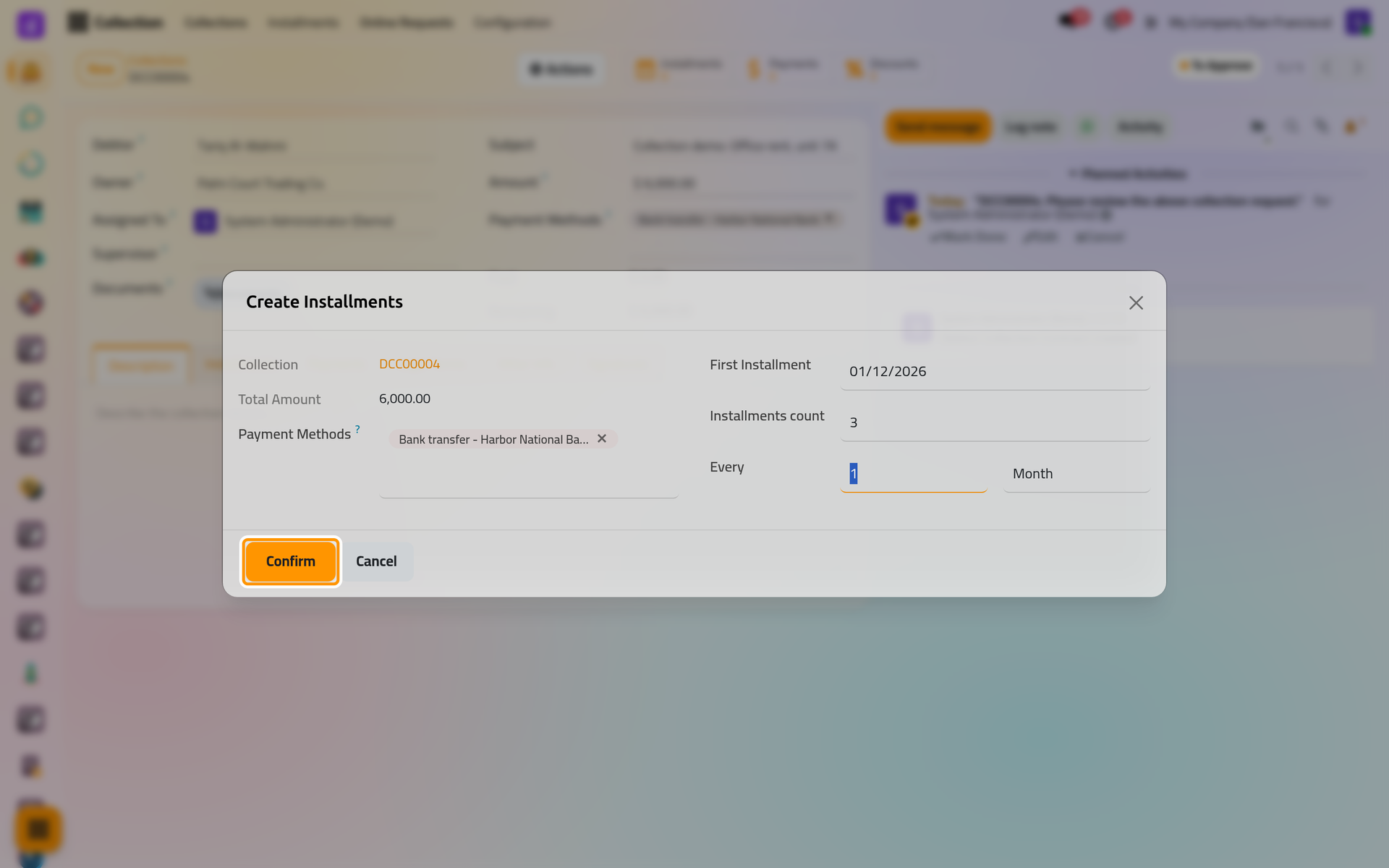
On a phone, this dialog and the next one open from the bottom of the screen, with the same fields.
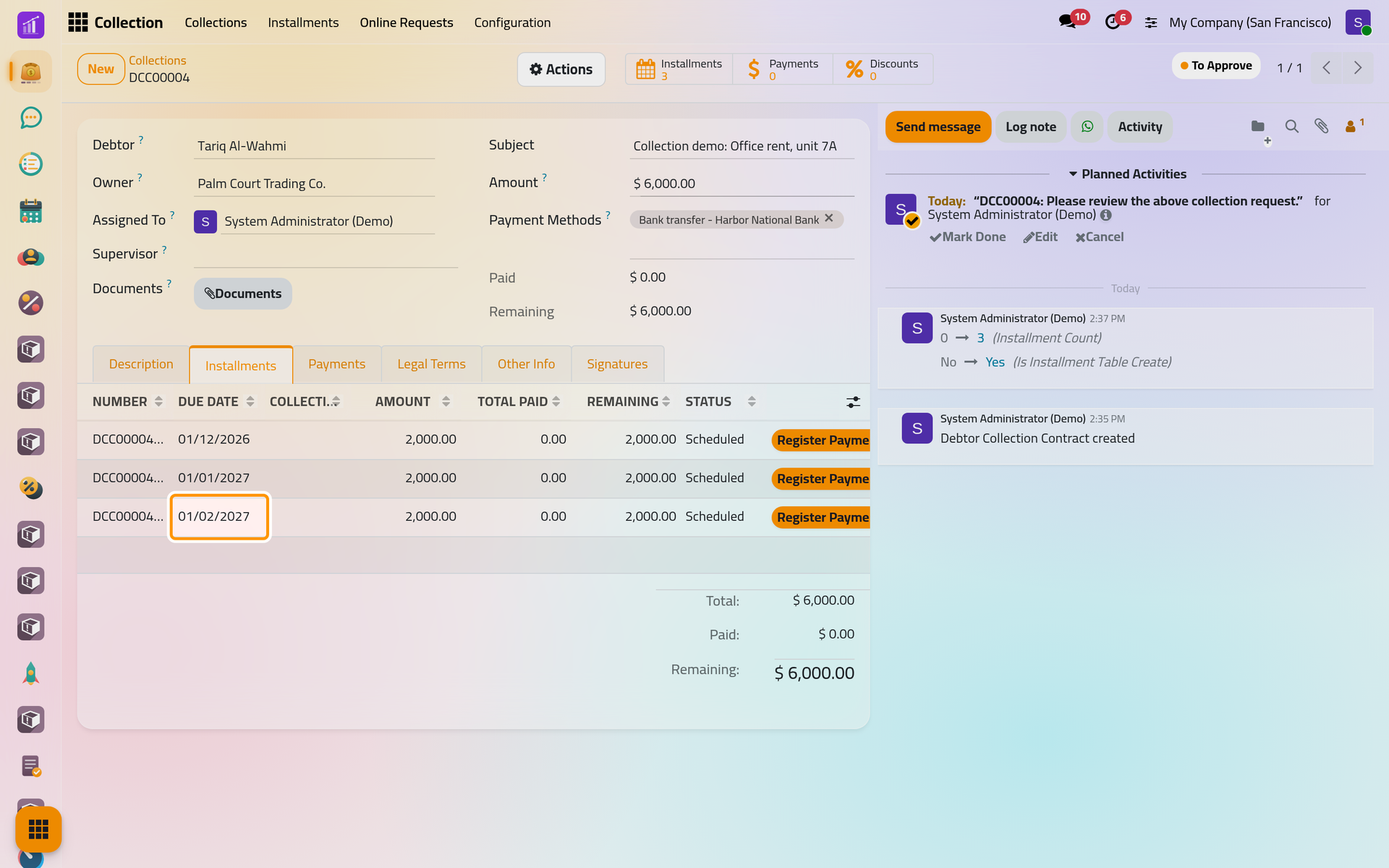
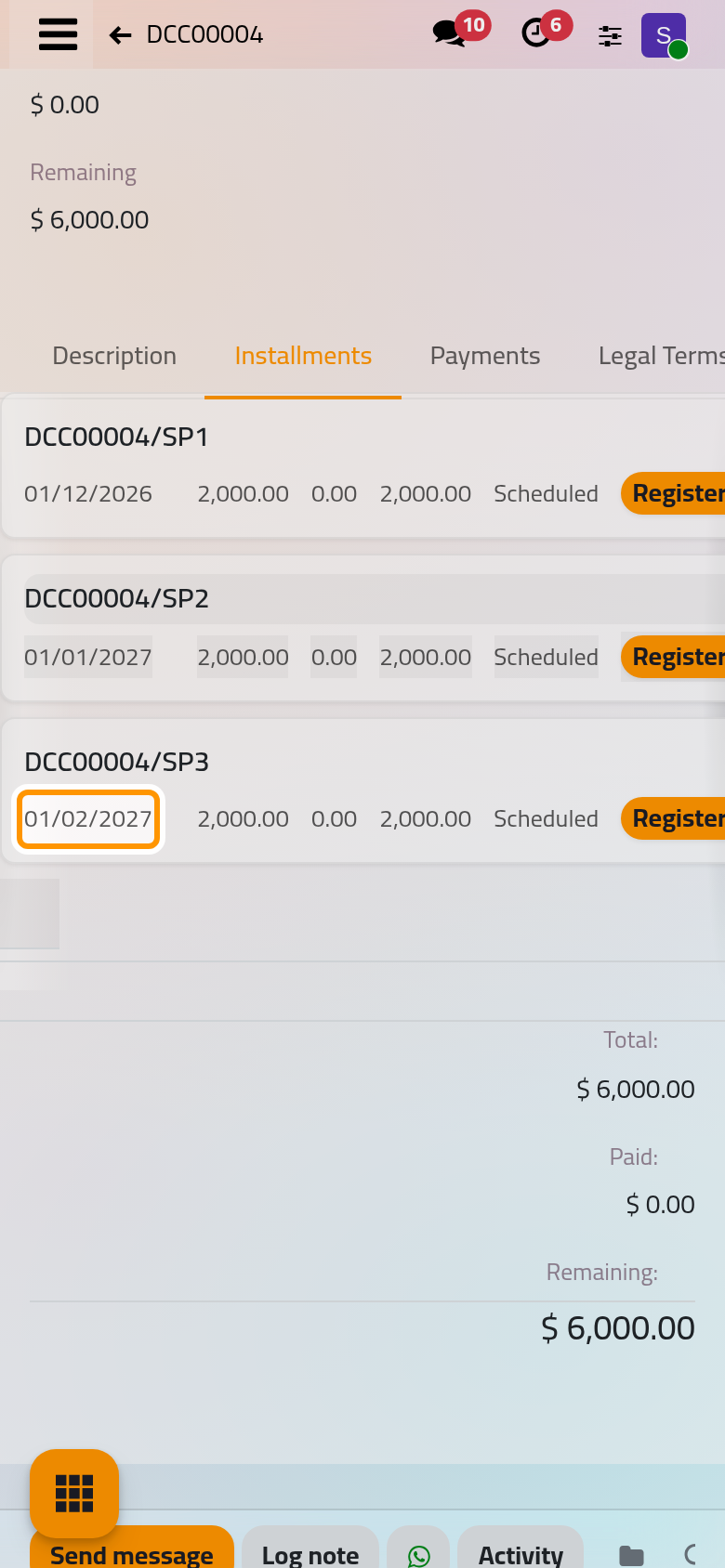
- Click Confirm. The Installments tab now lists three installments of 2,000, due on the first day of December, January and February, each Scheduled.
Step 4: send the contract for signature
Both sides sign the contract on a page of their own, opened from a link.
- Open Actions and choose Share. The dialog shows the debtor's link, ready to copy; choose Owner to get the owner's link.
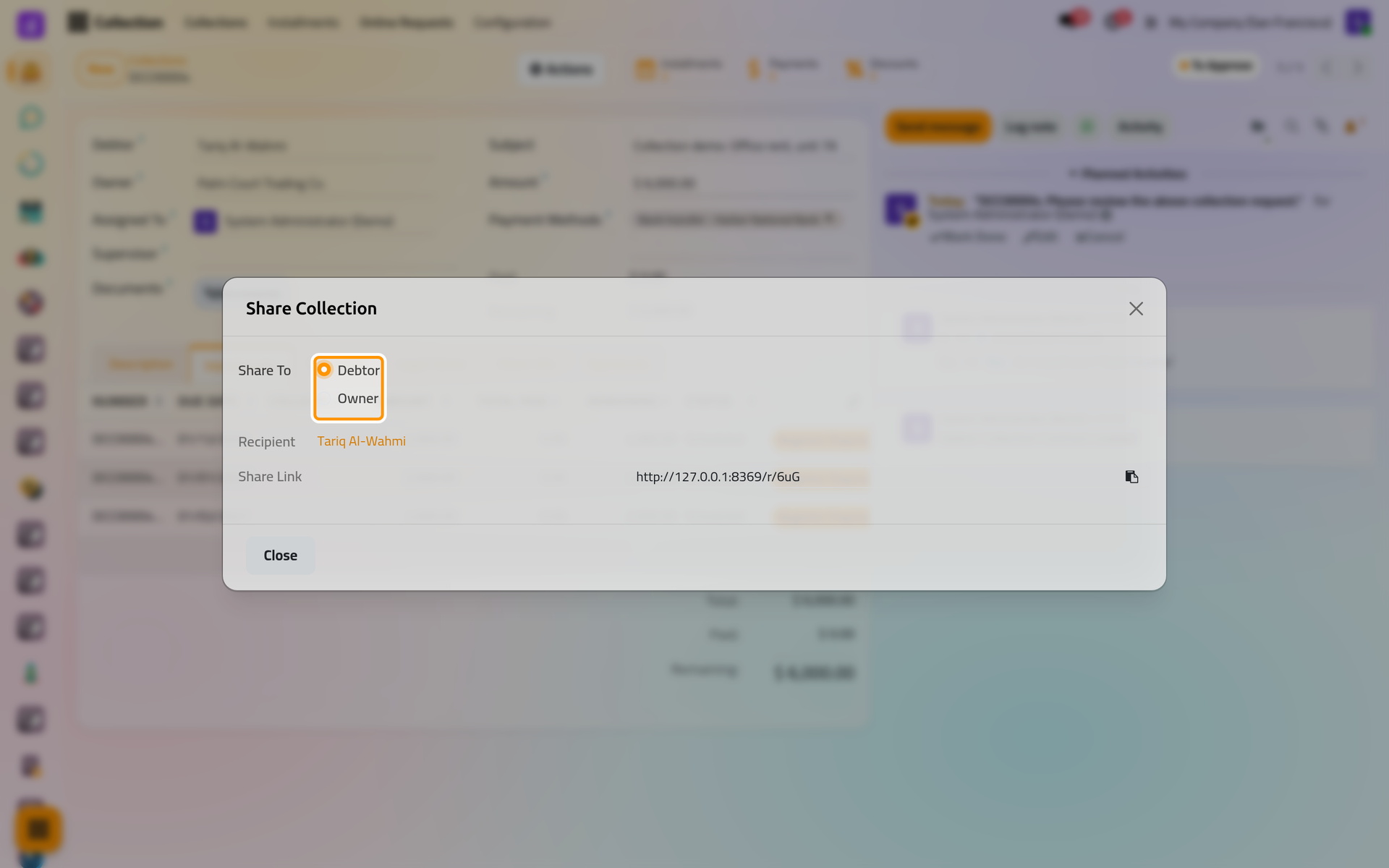
- Send each link to its party. Each one reads the contract on that page and signs with Accept & Sign. When the second signature arrives, the contract moves to Under Collection by itself.
Get the contract signed shows the signing page, the e-mail that carries the link, and the signature pads of the form.
Step 5: start the collection
When the agreement was signed on paper, you start the collection yourself. For this walk-through, open Actions and choose Under Collection. This works once the contract has installments; without them, a message asks you to create them first.
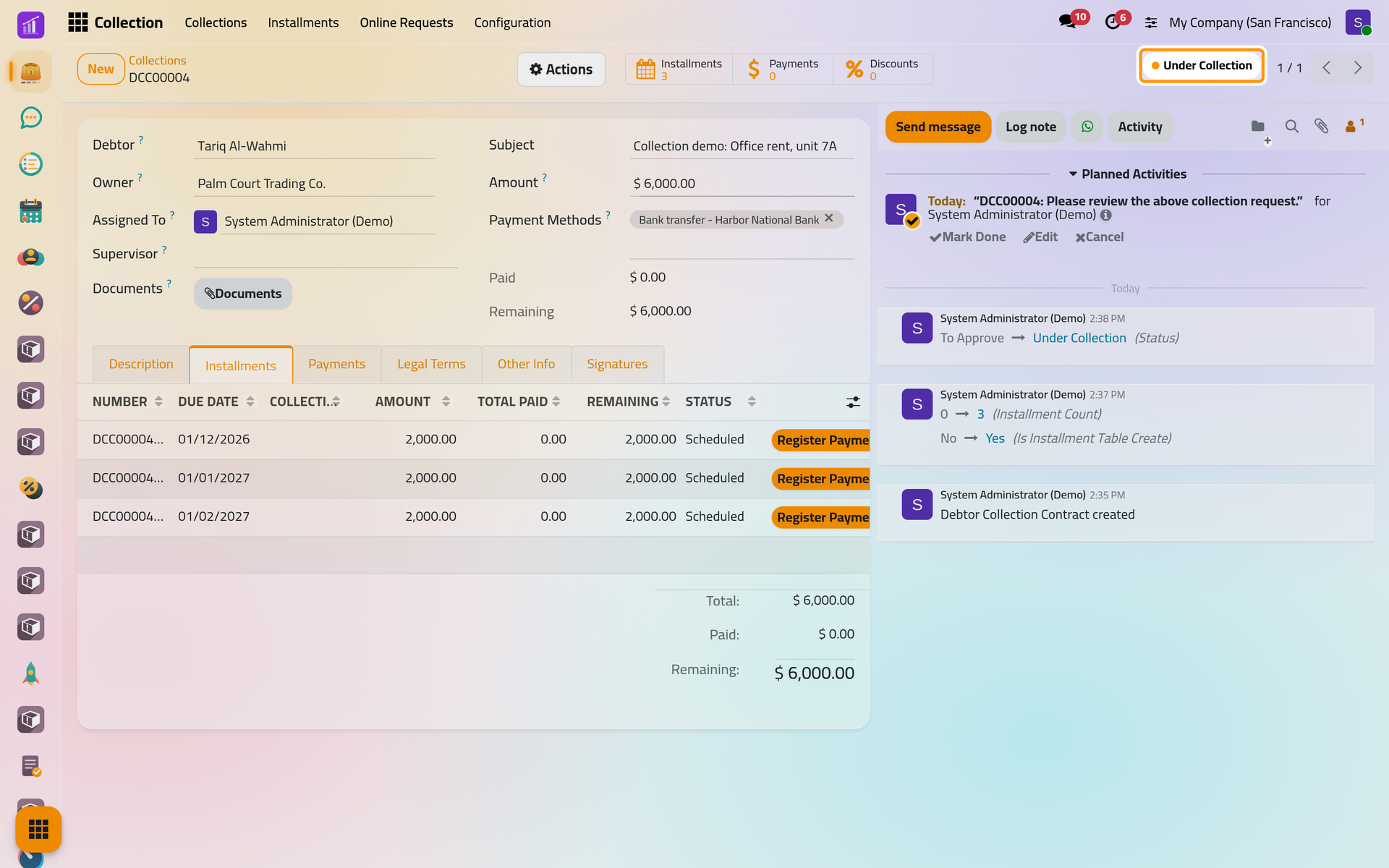
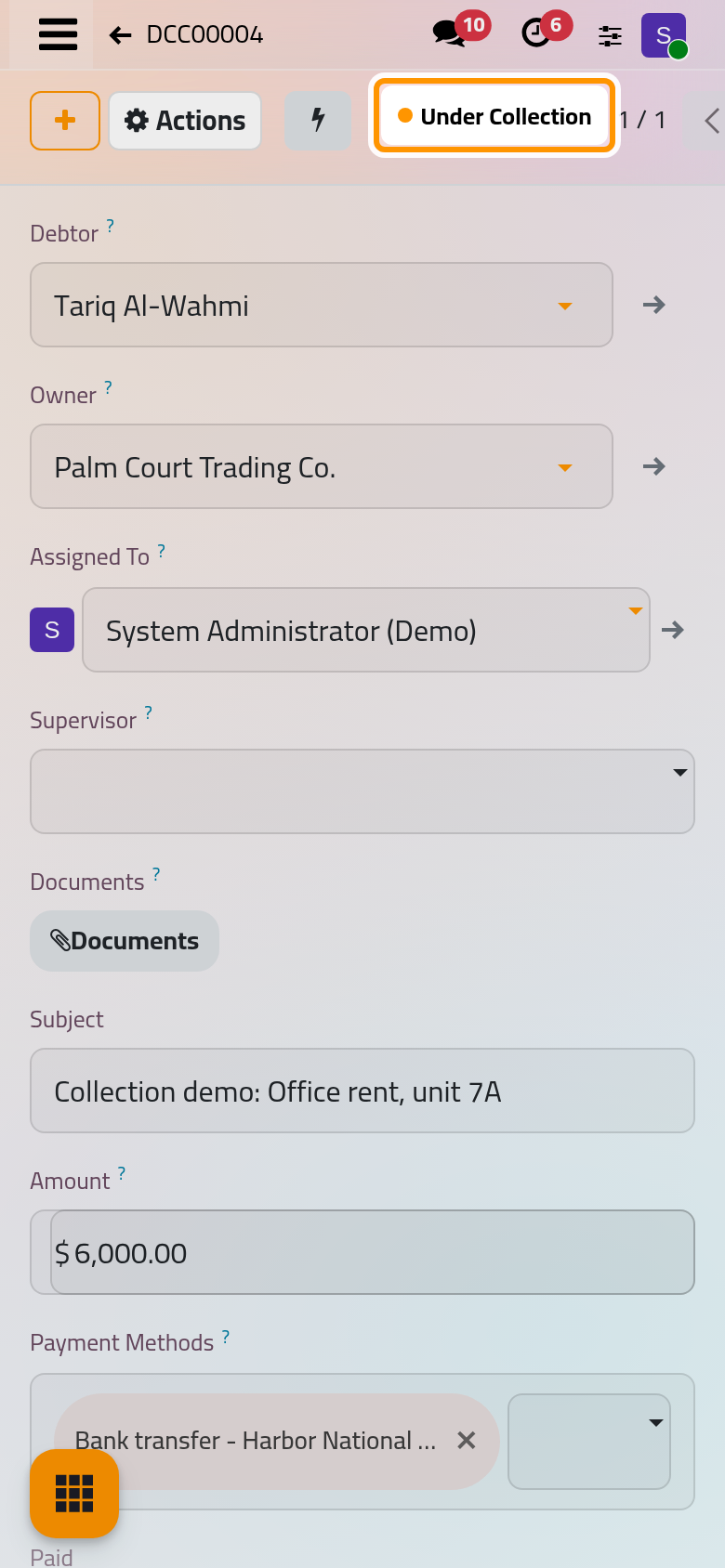
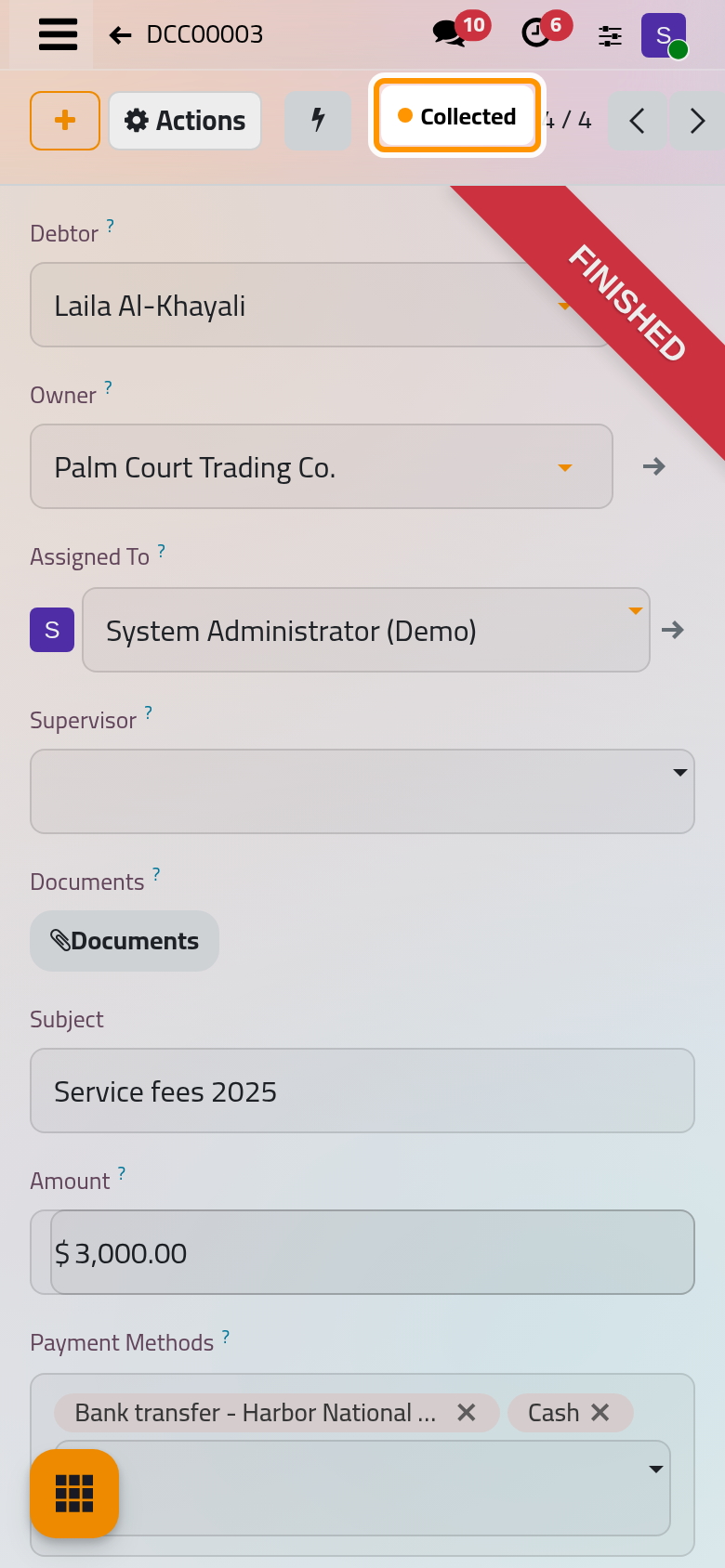
On a phone, the status sits at the top of the form, next to Actions.
Step 6: collect, then close
Each payment the debtor makes is registered against the installments, with its receipt: Register a payment. A reduction agreed with the owner goes through Offer a discount. Remaining falls with every payment.
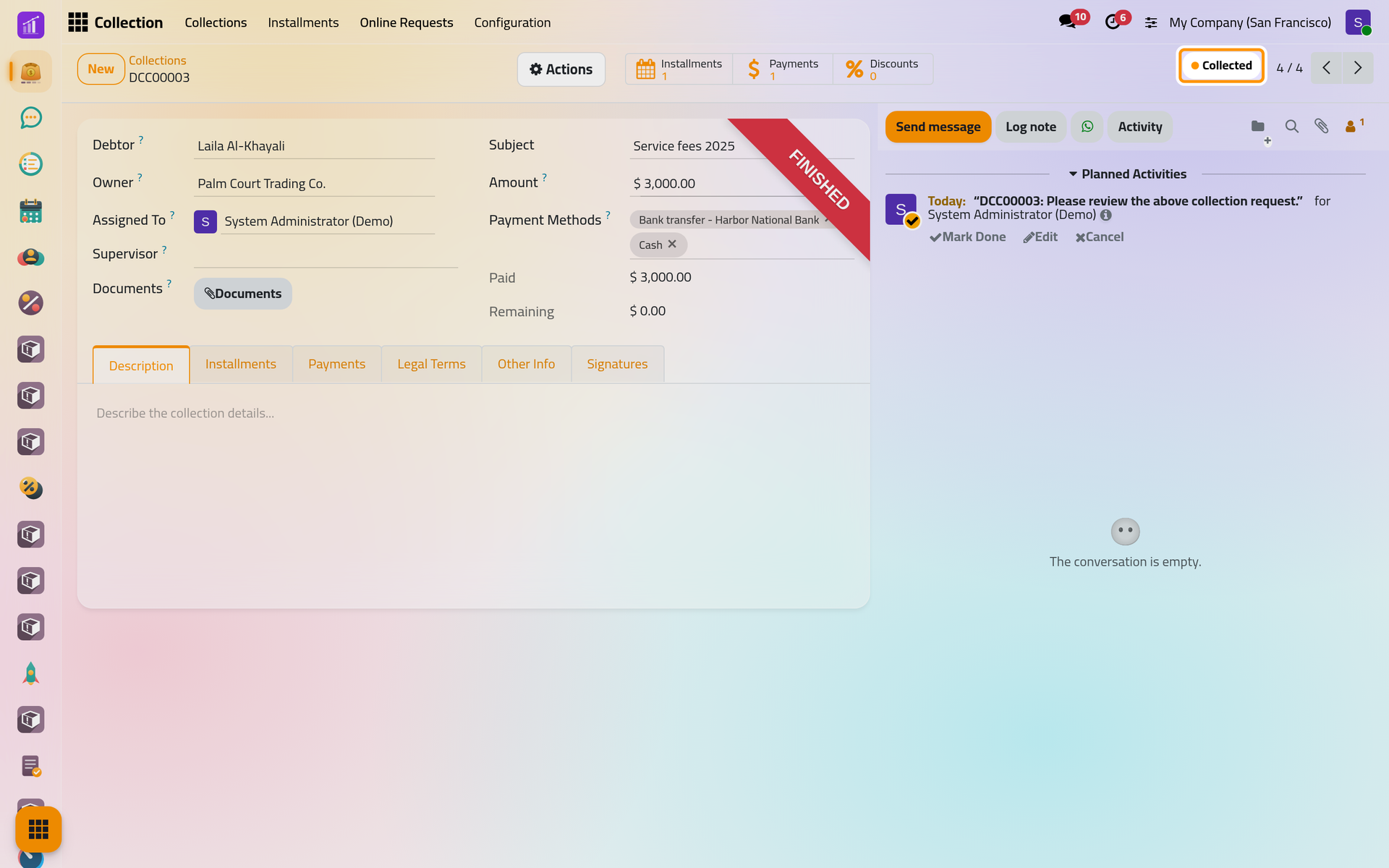
When nothing remains, open Actions and choose Collected. The demo contract DCC00003, Service fees 2025, shows the end of the road: paid in full and closed.
What you have done
You created a contract between a debtor and an owner, spread its amount over three monthly installments, took the signing link of each party and started the collection. Move a contract through its states covers cancelling with a reason and the way back, and How collection works explains how contracts, installments, payments and signatures fit together.
Was this page helpful?
Thank you for your feedback.