Customize stages and refuse reasons
On this page
- Before you start
- Edit a stage
- The e-mail of a stage
- Folded, hired and limited stages
- The labels of the states
- Fold, add and delete
- Refuse reasons
- The other lists
- FAQ
- How do I stop the acknowledgement e-mail?
- Can one position have its own interview stage?
- Why is Edit missing or the stage read-only?
- How do I remove a refuse reason I no longer use?
The stages, the refuse reasons and a few lists are shared by every job position. The stages are changed from the pipeline itself; the other lists sit in the Configuration menu of Recruitment.
Before you start
- Changing a stage needs the Administrator access right on Recruitment; officers see the stages without changing them. Refuse reasons, tags and degrees need Officer: Manage all applicants.
- The Stages entry of the Configuration menu shows only in developer mode: Developer mode and the technical menus. The pipeline gives the same access without it.
Edit a stage
- Open and click a position, here Trainee.
- Point at the title of a column: a gear appears next to it. Click it. The menu offers Fold, Edit, Automations and Delete.
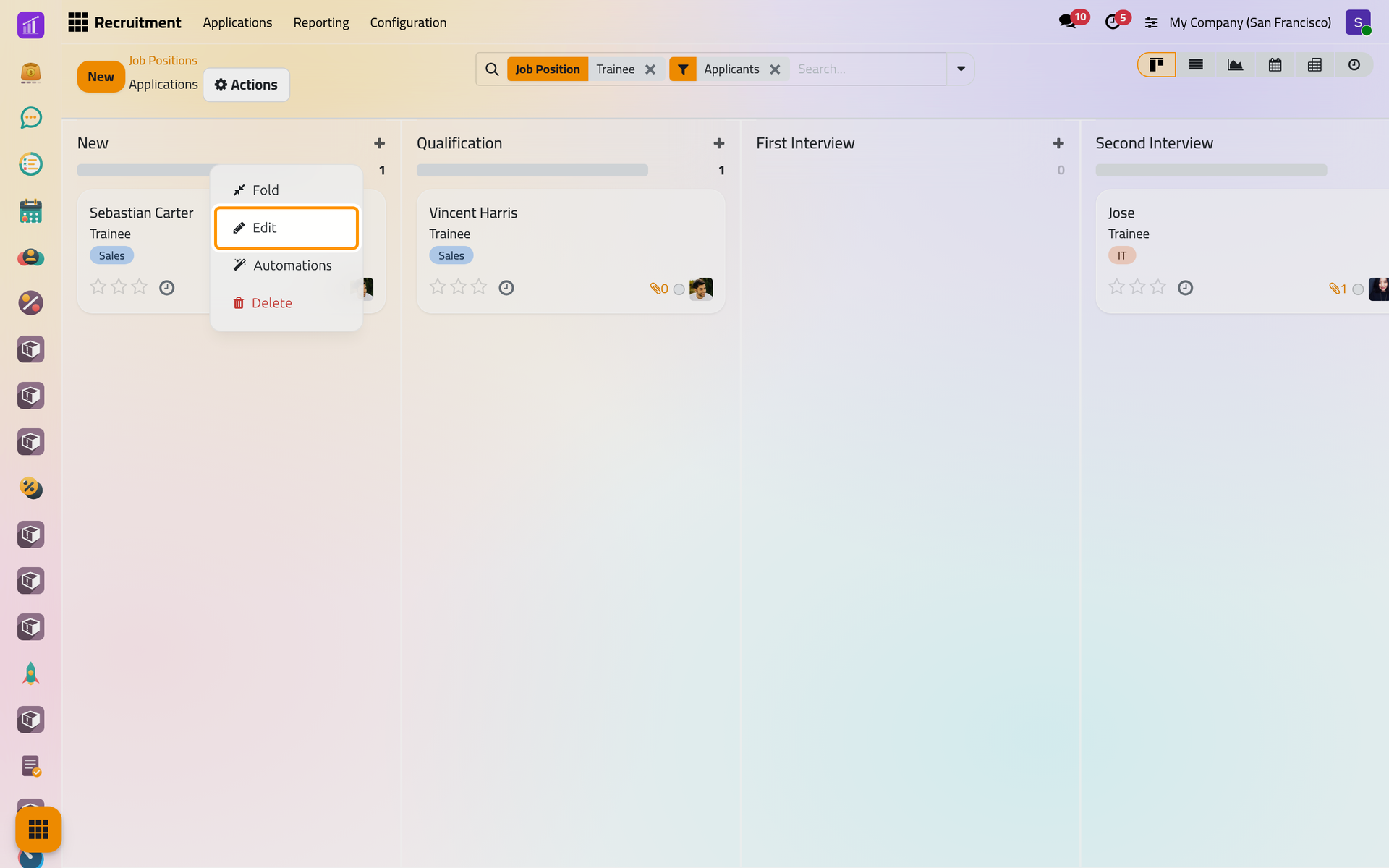
On a phone, the gear is always shown next to the column title.
- Choose Edit.
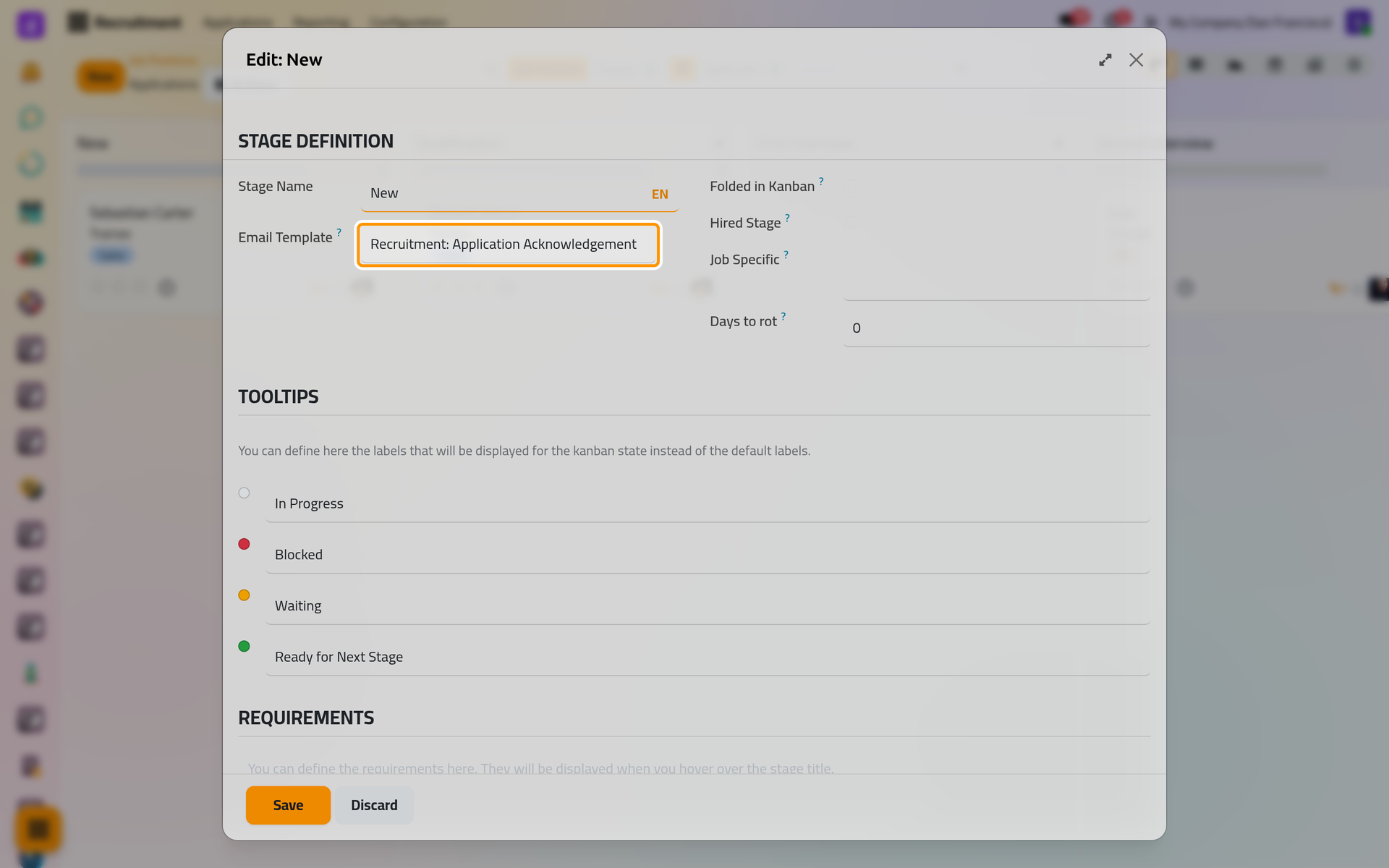
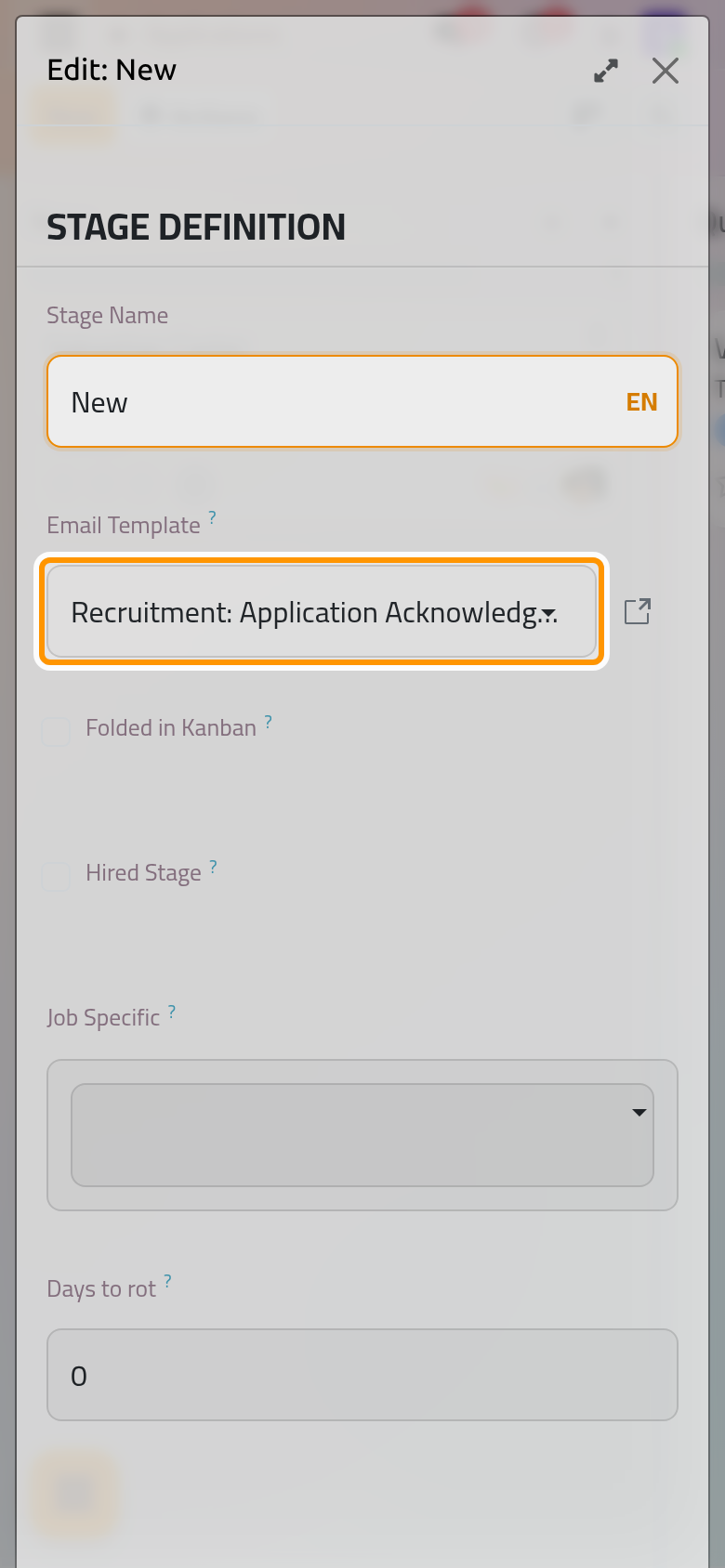
- Change what you need, then click Save, or Discard to leave the stage as it was.
The e-mail of a stage
Email Template is sent to the applicant when an application enters the stage. New carries Recruitment: Application Acknowledgement, and Recruitment: Interest is ready to put on another stage. Clear the field to stop the e-mail.
Folded, hired and limited stages
- Folded in Kanban: the column is folded in every pipeline, as Contract Signed is.
- Hired Stage: entering this stage marks the applicant as hired, with a Hire Date, and lowers the Target of the position by one. Turning it off on a stage that holds applicants warns that all of them will lose their hired date and status.
- Job Specific: limits the stage to the positions you list; left empty, every position uses it.
- Days to rot: after that many days in the stage, an applicant shows as rotting; 0 turns it off.
- Requirements: a text shown when the pointer rests on the column title.
The labels of the states
Under Tooltips, give the four states of an applicant in this stage their own words, in place of In Progress, Blocked, Waiting and Ready for Next Stage.
Fold, add and delete
Fold in the column menu only folds the column on your screen. The Add column button at the end of a pipeline creates a new stage, shared by every position until you fill its Job Specific. A stage that still holds applications cannot be deleted.
Refuse reasons
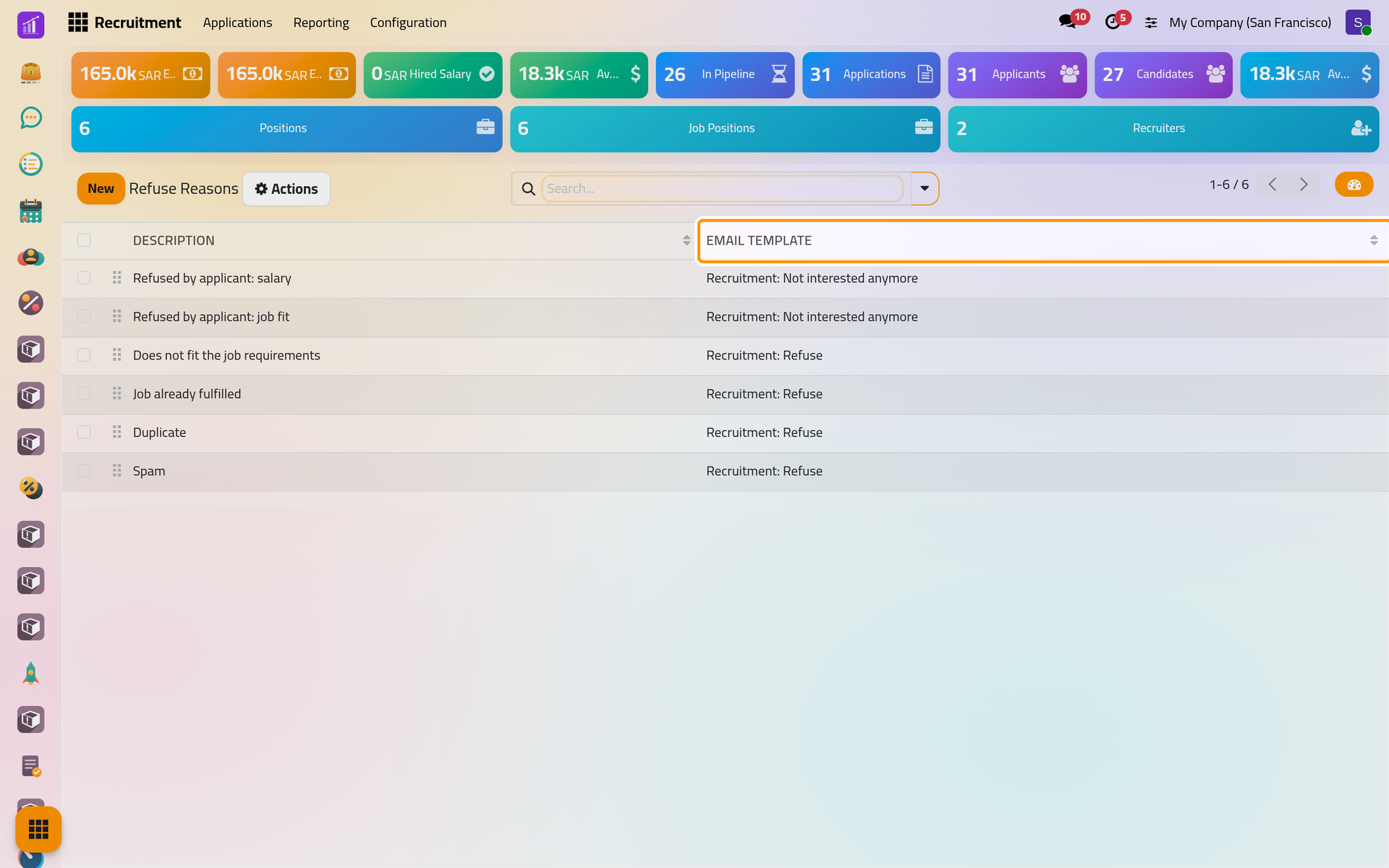
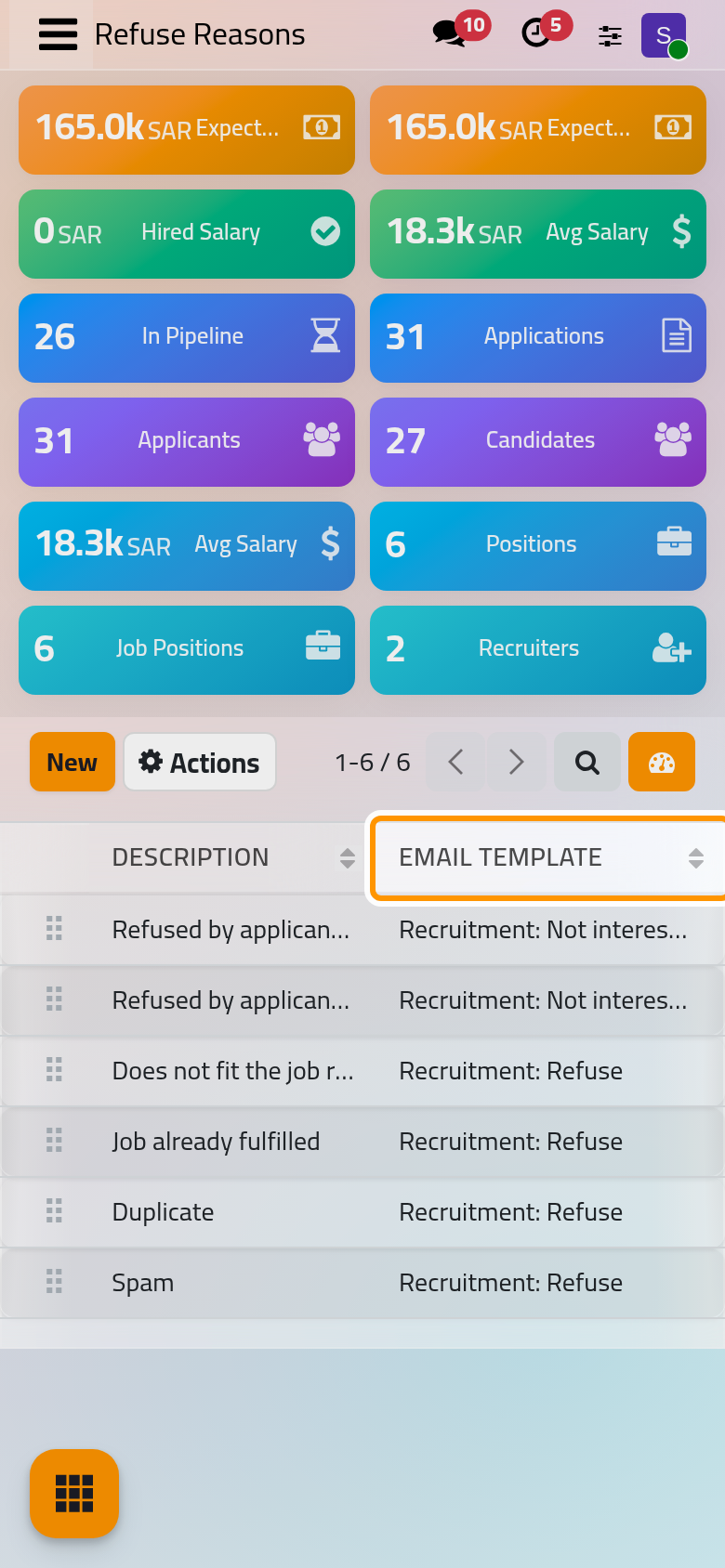
Open . Each reason has a Description and the Email Template that the refusal proposes; a reason without a template refuses without an e-mail. Click a line to change it in place, or New to add one. The order of the list is the order of the refuse dialog, and its first reason is the one chosen by default.
The other lists
- : the tags put on applications and talents.
- : the degrees offered on an applicant and as the Expected Degree of a position.
- : the employment types of the positions, the same list as in Employees.
- : the addresses from which job sites forward applications, for administrators. For each address, a pattern reads the applicant's name from the subject or the text of the e-mail, and the application gets no e-mail address or contact.
- and : the activities of applicants, explained in Activities.
FAQ
How do I stop the acknowledgement e-mail?
Edit the New stage and clear its Email Template.
Can one position have its own interview stage?
Yes. Add the stage with Add column in that position's pipeline, then set Job Specific to that position.
Why is Edit missing or the stage read-only?
Your access right is Officer: Manage all applicants. Changing stages needs Administrator.
How do I remove a refuse reason I no longer use?
Tick it in the list, then choose Archive in Actions. Applications already refused with it keep their reason.
Was this page helpful?
Thank you for your feedback.