Move applicants through the pipeline
On this page
- Before you start
- Open the pipeline of a position
- Mark where an applicant stands
- Move the applicant to the next stage
- Find applications across positions
- FAQ
- Why did the green circle turn grey?
- Where are the refused applicants?
- The same person applied twice. What do I see?
- Can I plan the next step from the card?
Each job position has its own pipeline: one column per stage, one card per application. An applicant moves from column to column as the interviews go on, and inside a column a coloured circle says whether the application is ready to move, waiting or blocked. The steps below follow Kelly Wallant, an applicant of the demo for Experienced Developer.
Before you start
- The Officer: Manage all applicants access right shows every application. An interviewer sees only the applications of the positions and applicants he is named on, and moves them the same way.
Open the pipeline of a position
- Open and click the card of Experienced Developer.
- Each card shows the applicant, the position, the tags, the evaluation stars, the next activity, the number of attached files, the state circle and the recruiter. The bar under each column title counts its cards by state.
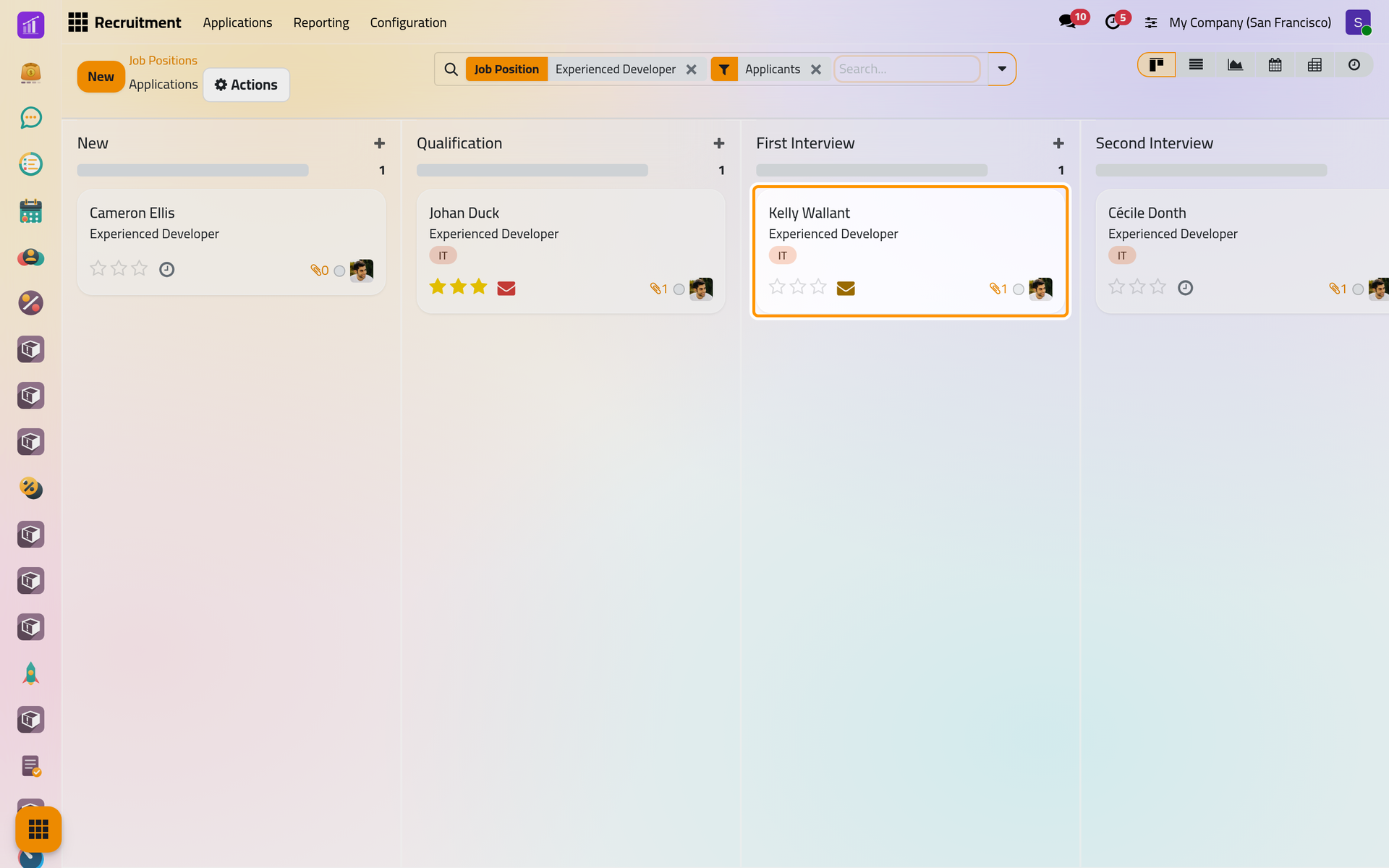
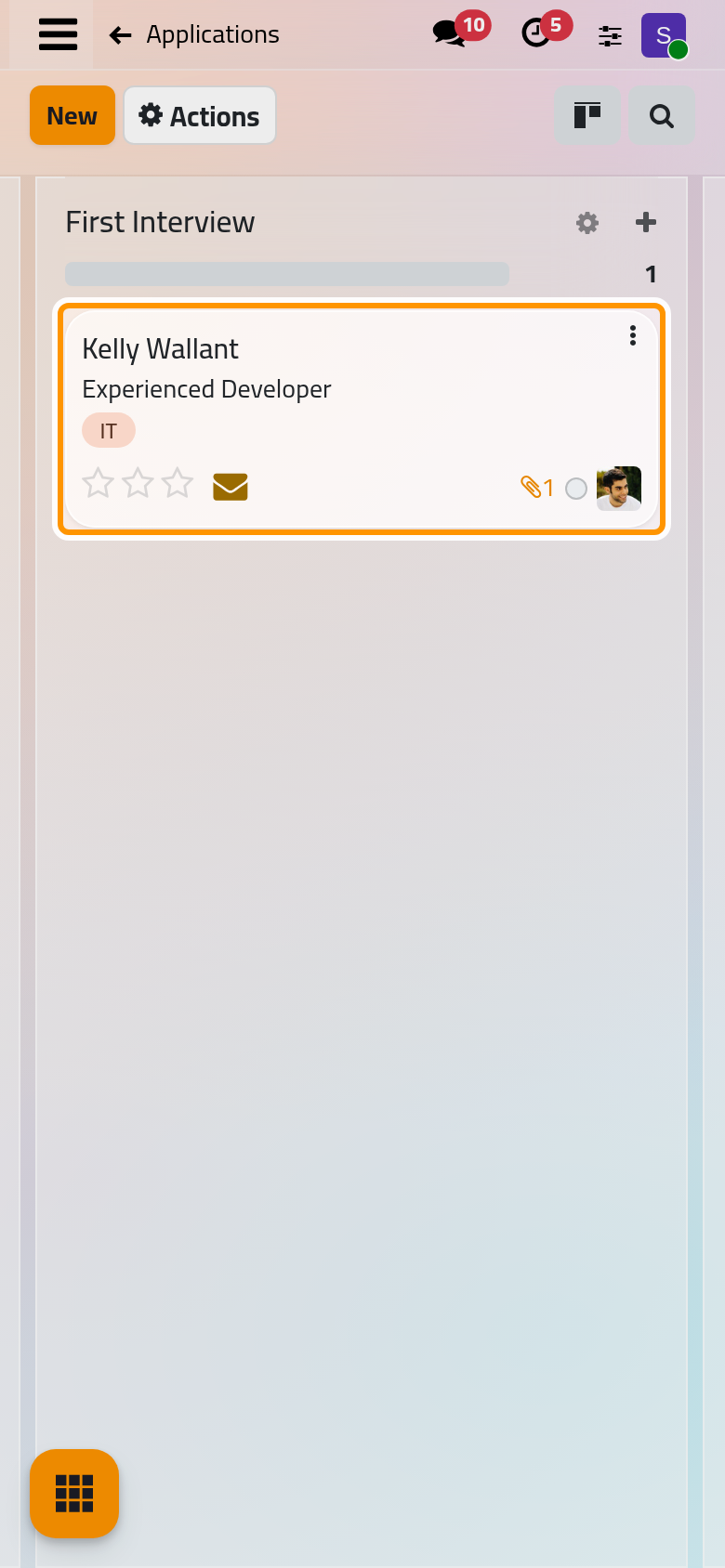
On a computer, drag a card to another column to change its stage. The last column, Contract Signed, is folded: it holds the hired applicants.
Mark where an applicant stands
- Click the card of Kelly Wallant. The form opens, with the résumé beside it when one is attached.
- Click the circle at the top right of the form. It offers four states: In Progress (grey), Ready for Next Stage (green), Waiting (orange) and Blocked (red).
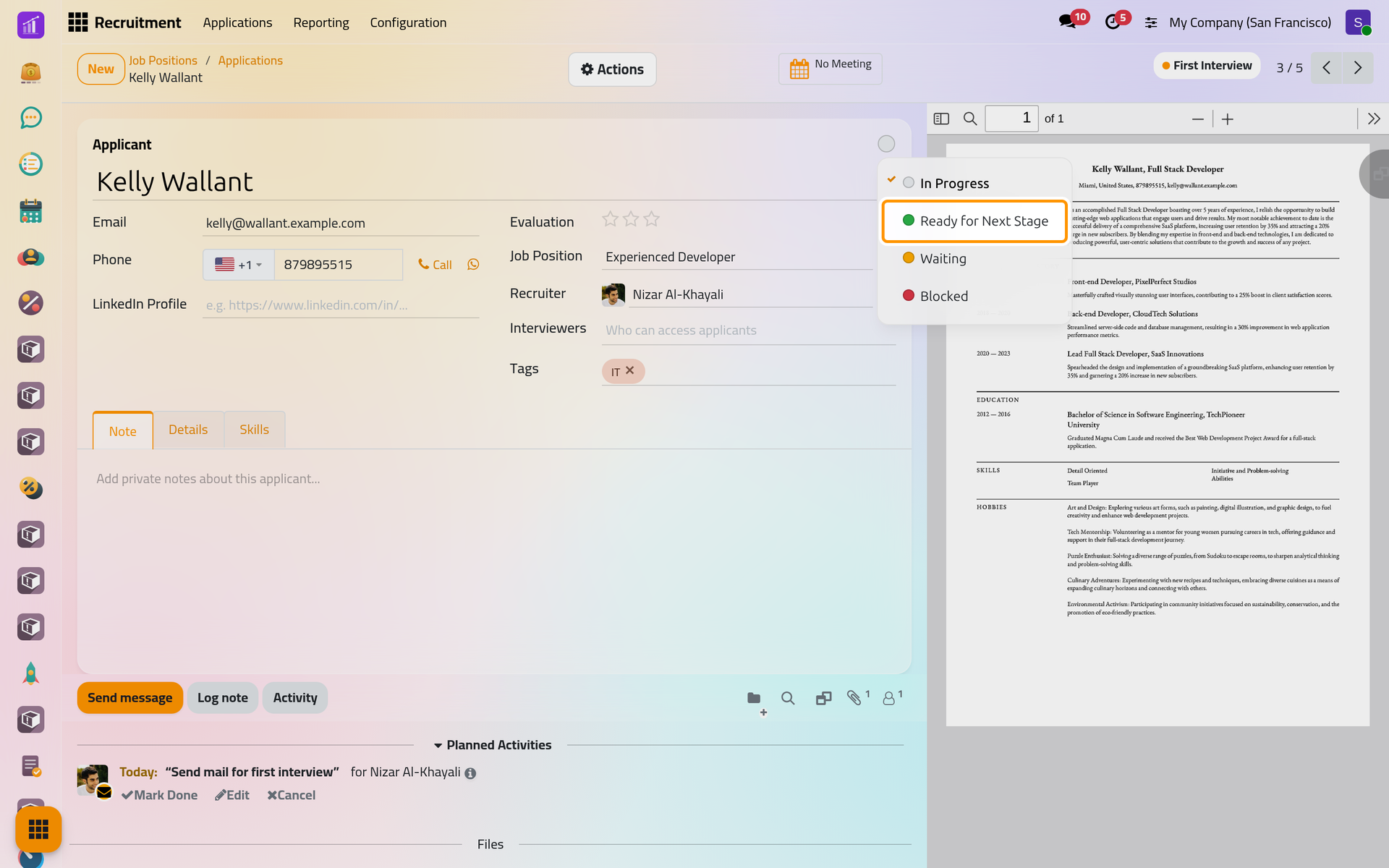
On a phone, the circle sits at the top right of the applicant's name.
- Choose Ready for Next Stage. The circle turns green on the form and on the card. Each stage may give these four states its own words: Customize stages and refuse reasons.
Move the applicant to the next stage
- Click the stage at the top right of the form and choose Second Interview.
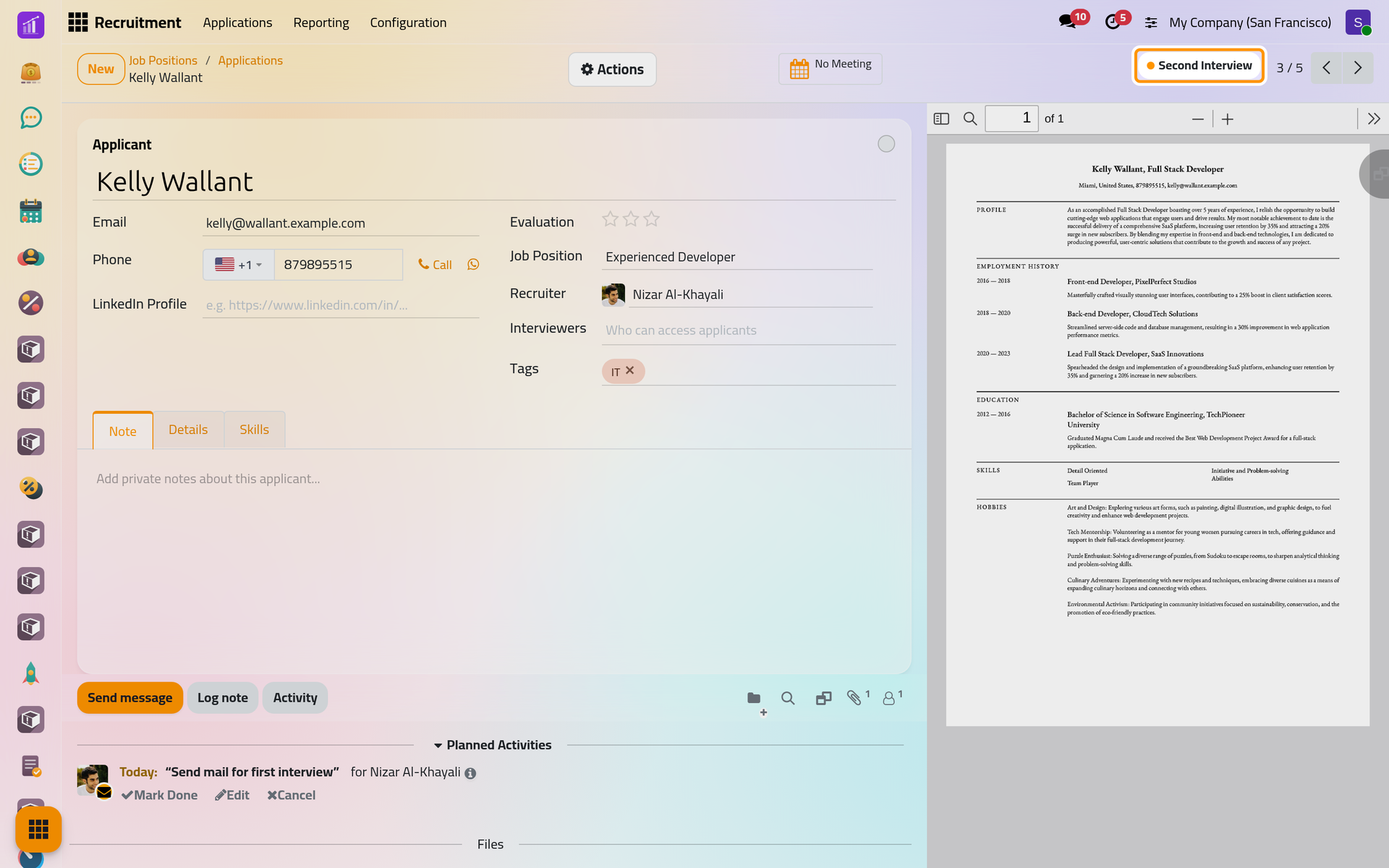
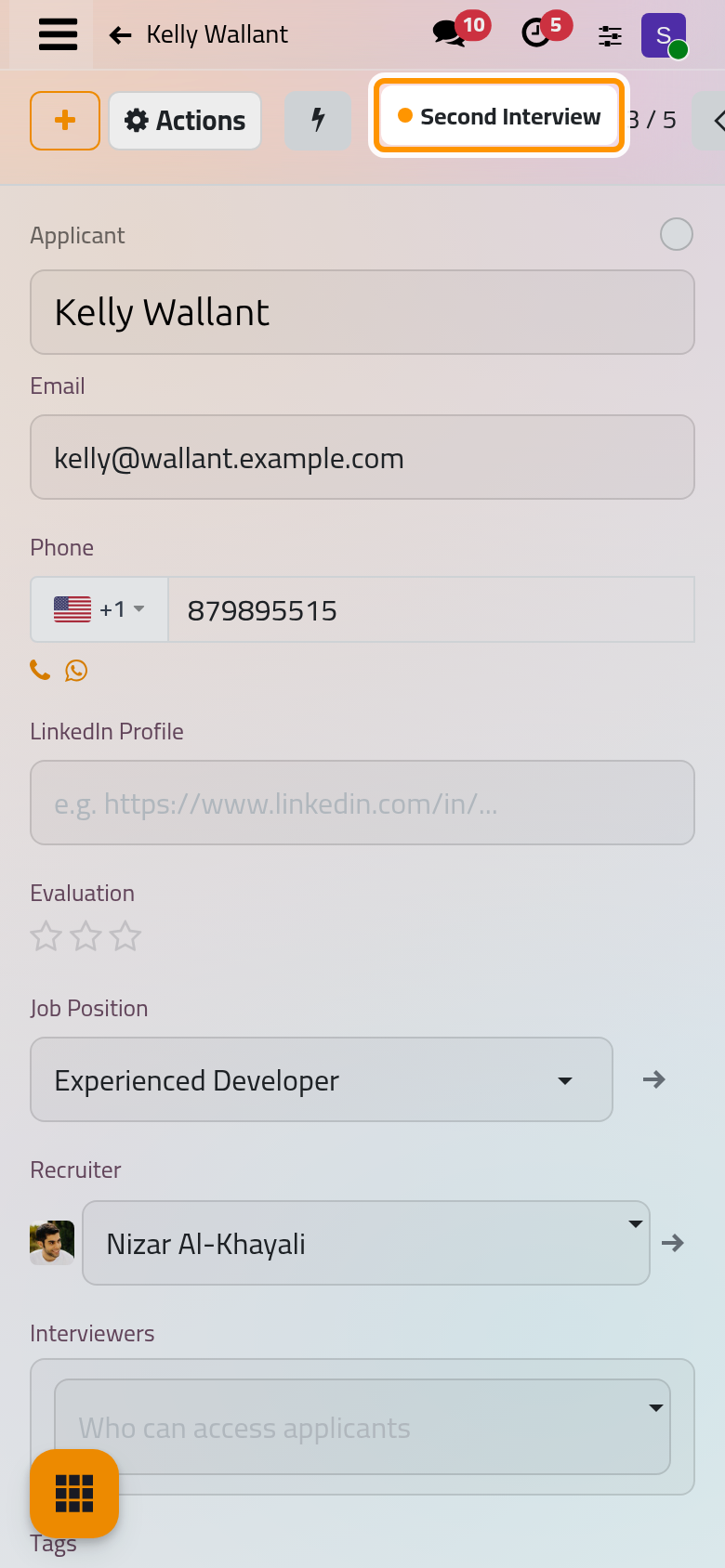
The state goes back to In Progress, and the chatter logs the move. When the new stage carries an e-mail template, the applicant receives that e-mail. Reaching Contract Signed marks the applicant as hired, as Your first hire shows.
When a stage sets Days to rot, an applicant who stays there longer than that gets a counter of days on the card, and the Rotting filter lists such applicants.
Find applications across positions
- Open . The list holds the applications of every position, with their stage, evaluation, tags and recruiter.
- Click the arrow at the end of the search bar to open the filters.
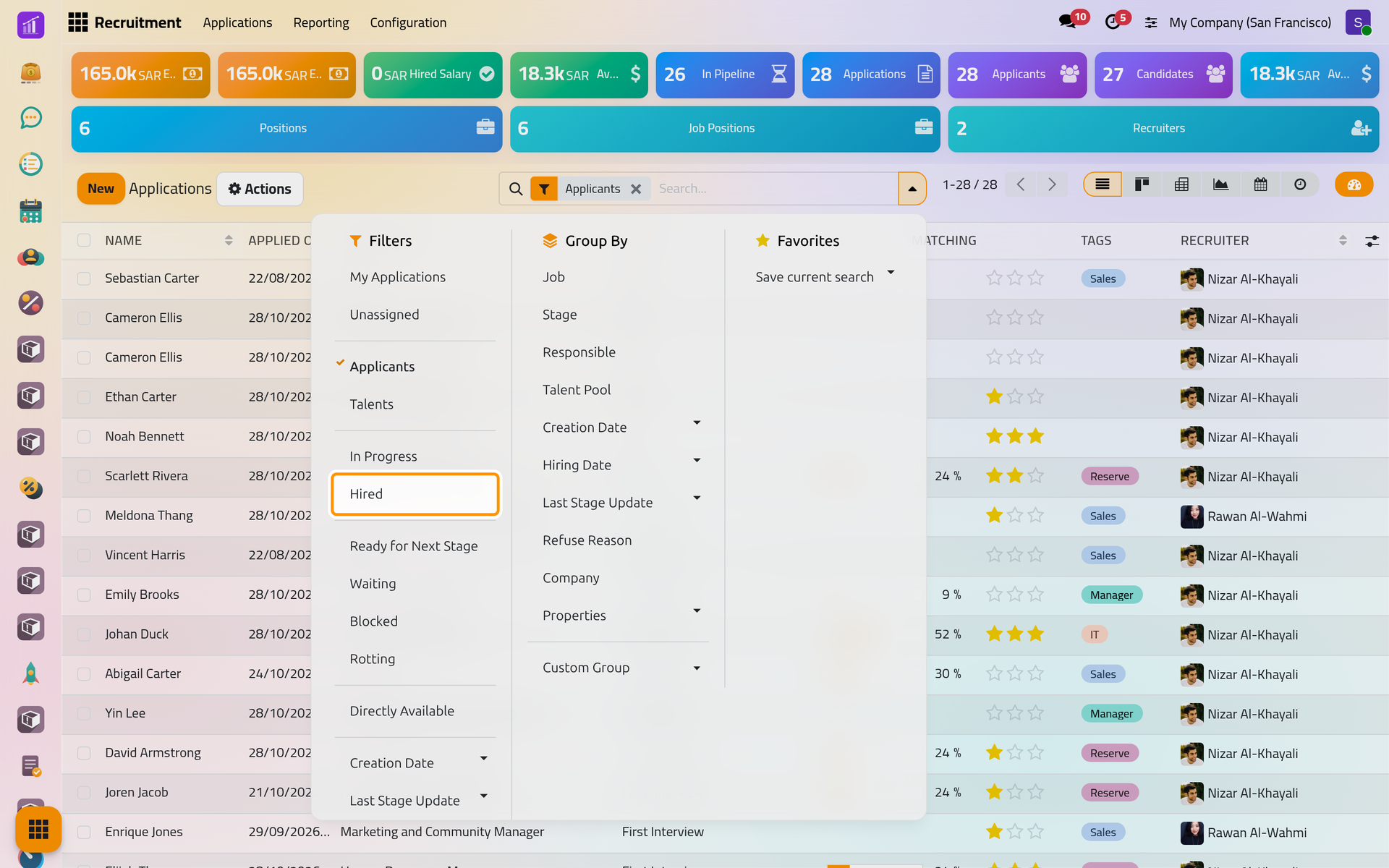
On a phone, tap the magnifier at the top of the list first: the search bar opens with the same arrow at its end.
Besides My Applications and Unassigned, the filters separate In Progress, Hired, Refused and Archived applications, the states of the circle, Rotting applicants and those Directly Available. Typing words in the search bar also offers to search the Resume's content, the text of the attached résumés.
Tick several applications to act on them together: Refuse refuses them in one go, and Actions, Send Email writes the same e-mail to each of them.
FAQ
Why did the green circle turn grey?
Moving an applicant to another stage puts the state back to In Progress: the state describes the current stage only.
Where are the refused applicants?
Refused applications leave the pipeline. Open and choose the Refused filter.
The same person applied twice. What do I see?
Two applications, one per position. Applications that share an e-mail, a phone number or a profile link are linked: an Applications button on the form lists them all.
Can I plan the next step from the card?
Yes: the clock of a card schedules an activity, as Schedule and finish an activity explains.
Was this page helpful?
Thank you for your feedback.