Your first hire
On this page
Recruitment follows each opening from the job position to the person who takes it. A job position gathers its applications, each application moves through the same stages (New, Qualification, First Interview, Second Interview, Contract Proposal and Contract Signed) until it is hired or refused, and a hired applicant becomes an employee in one click. This walk-through opens a position, adds one applicant, carries the applicant to the hired stage and creates the employee.
Before you start
- You need the Officer: Manage all applicants or Administrator access right on Recruitment. The last step also needs Officer: Manage all employees on Employees. Recruitment settings explains each right, and Create a user and set access rights shows where they are given.
- Nothing has to be set beforehand: the stages and the e-mail templates come with the app.
Step 1: open a job position
- Open . Each card is one job position, with the number of people it still has to recruit, its new applications, those in progress and the activities waiting for you. The tiles above the cards come from the ready-made dashboards of Recruitment: Ready-made dashboards.
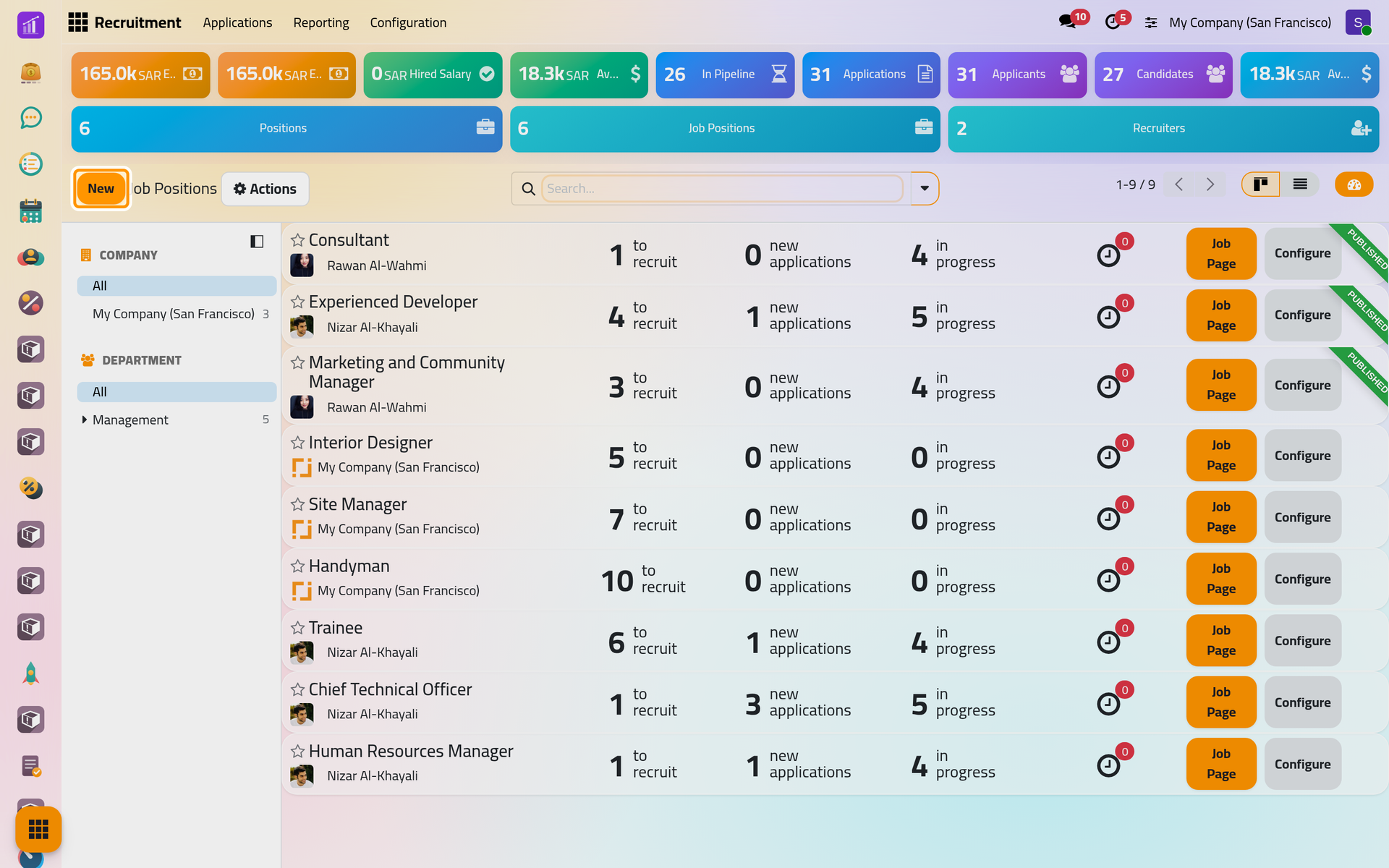
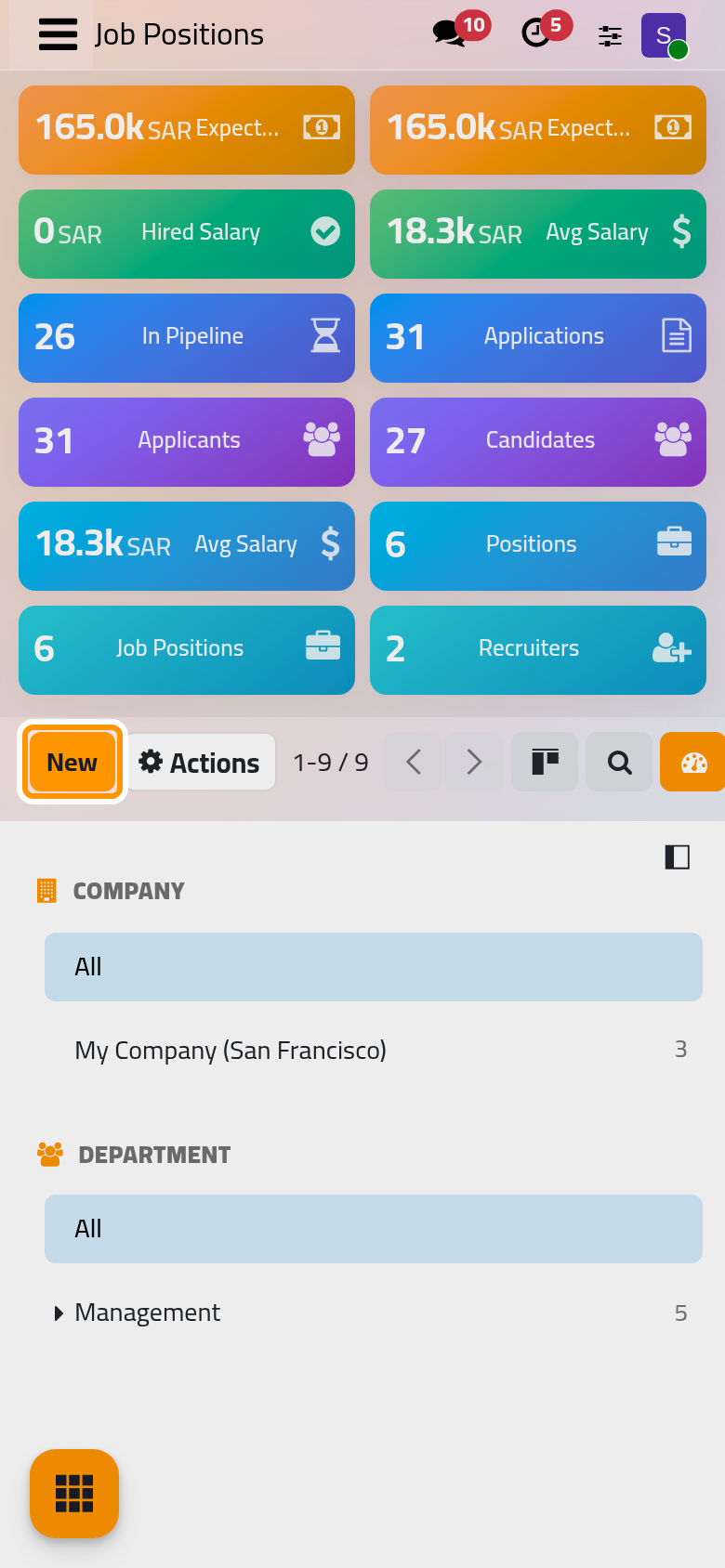
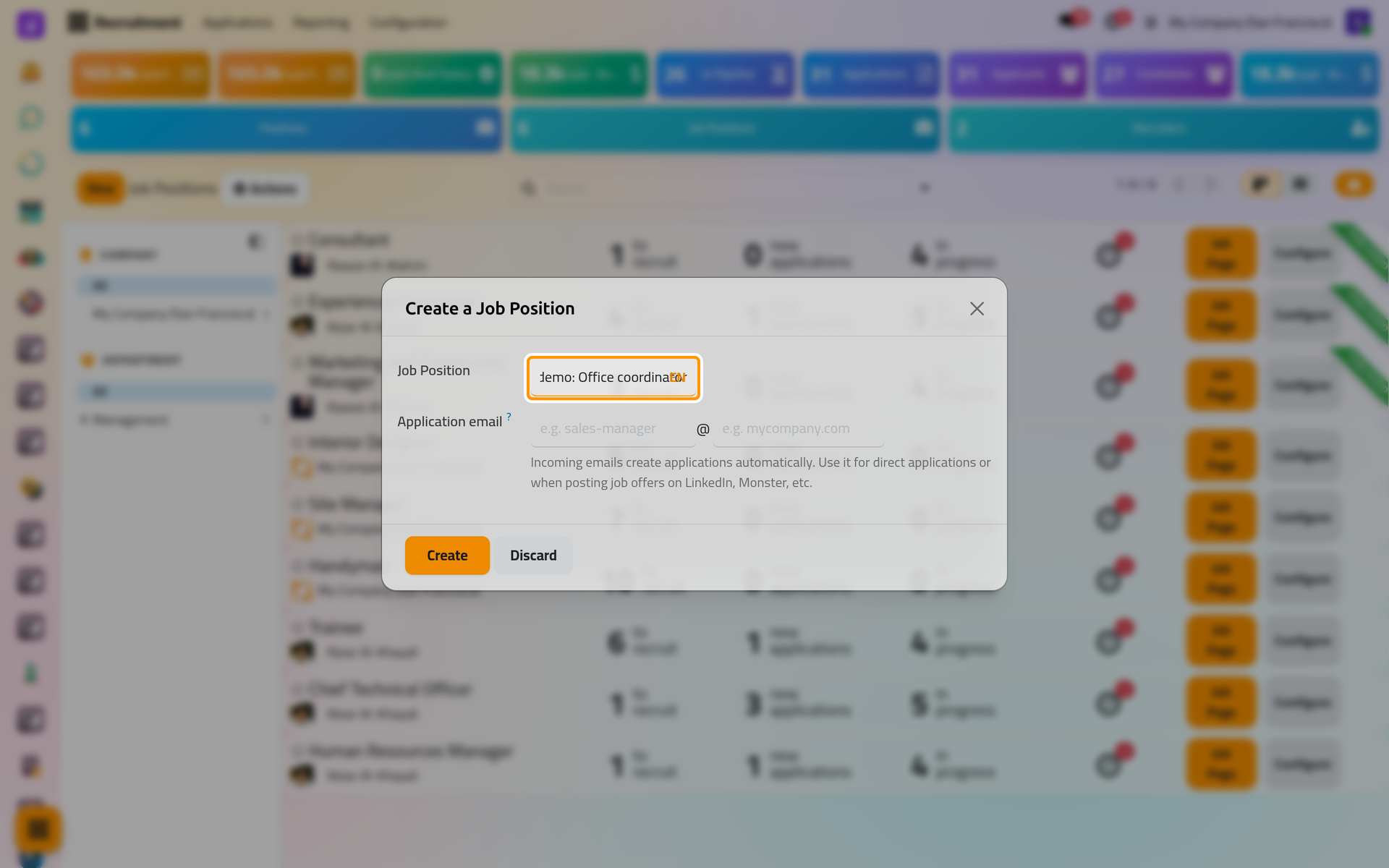
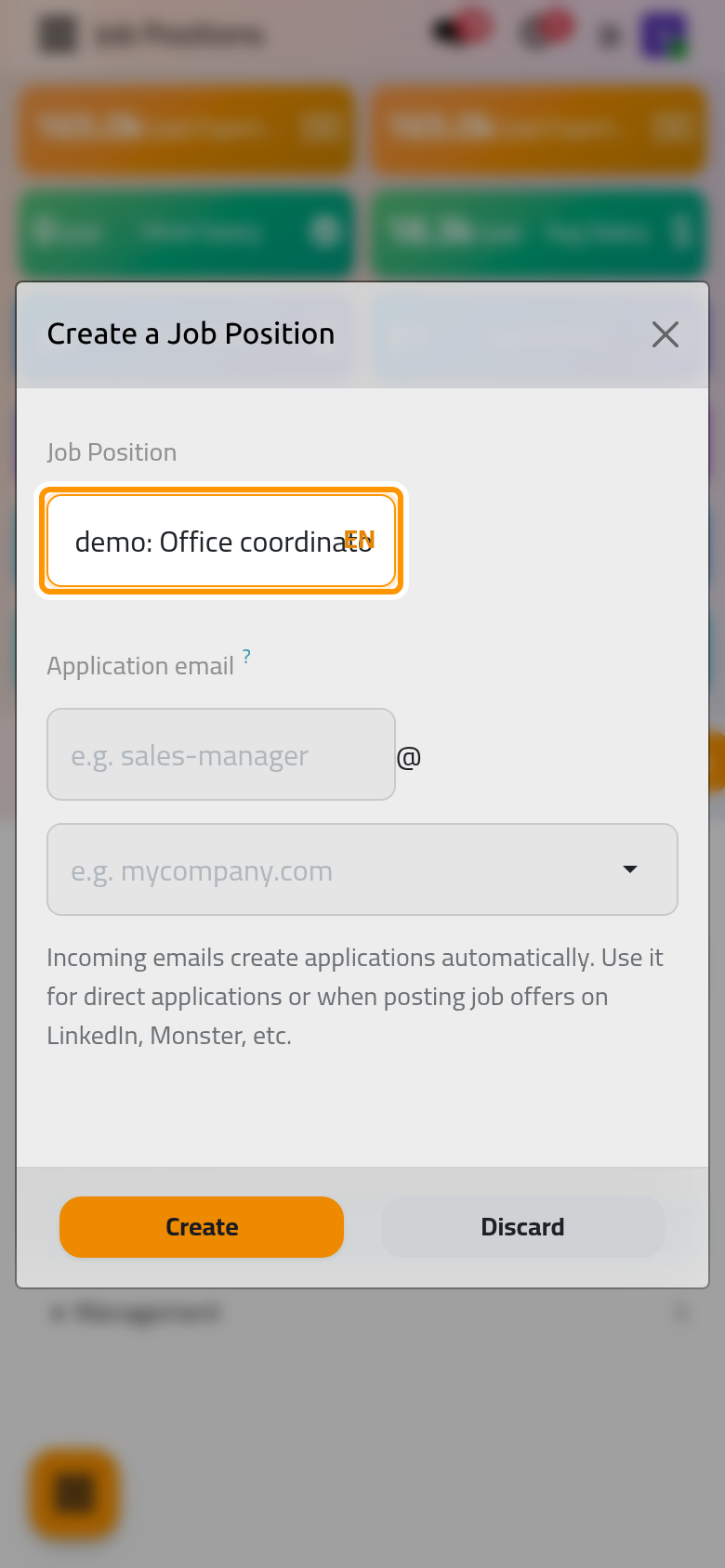
- Click New, type
Recruitment demo: Office coordinatorin Job Position and click Create. The Application email is optional; Set up a job position explains it.
The new position opens on its pipeline: one column per stage, empty for now. A new position has a Target of one person and you as its recruiter.
Step 2: add the applicant
- Click New. The form of an applicant opens with the job position already filled and the recruiter of the position in Recruiter.
- Type
Recruitment demo: Dana Al-Fakhriin Applicant andrecruitment.demo.dana@example.comin Email. - In Interviewers, choose Nizar Al-Khayali. An interviewer sees the applications he is named on, even without any other right on Recruitment, and receives a notification that he has been assigned.
- Click Save, then click the second star of Evaluation. A star is saved as soon as you click it.
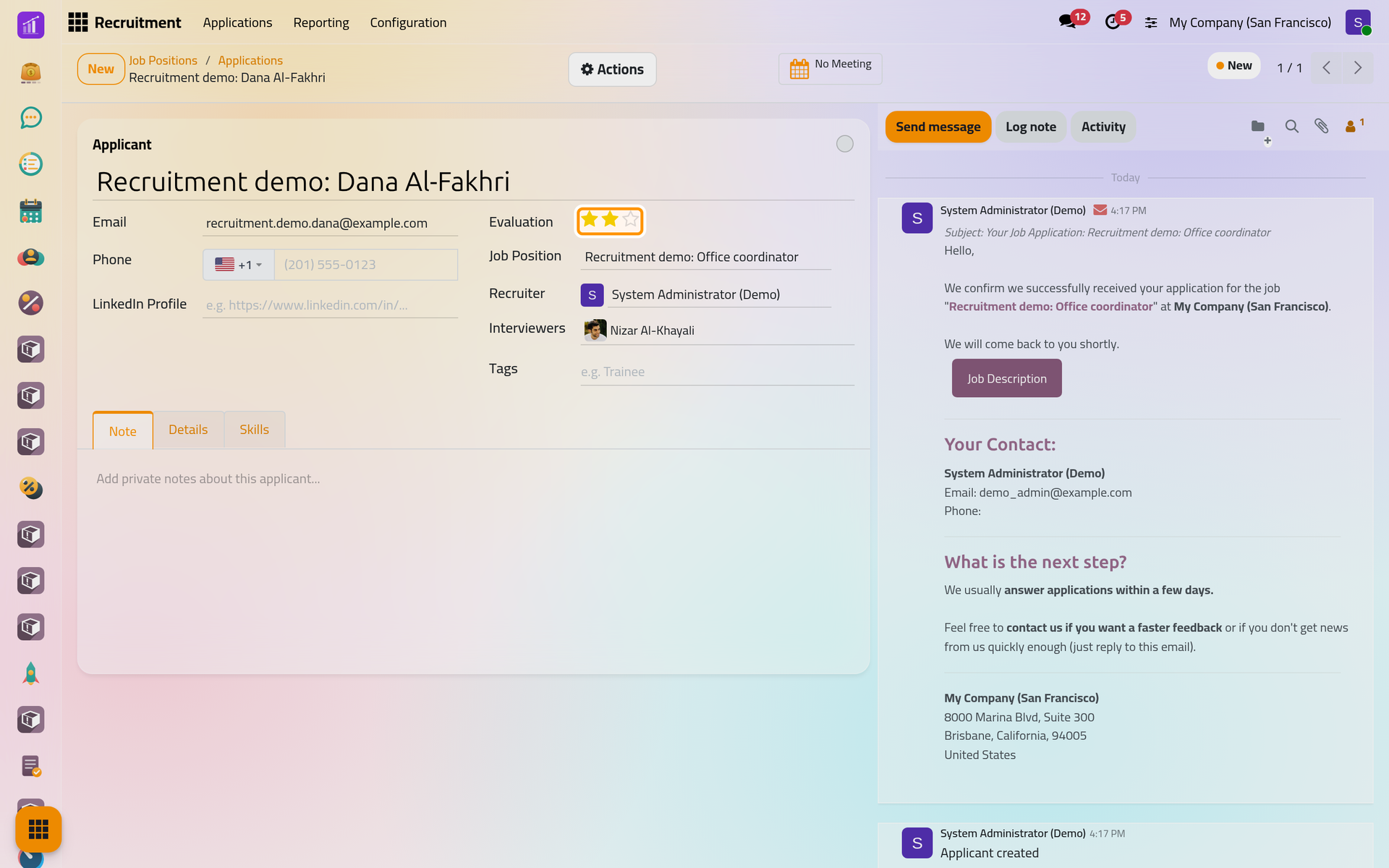
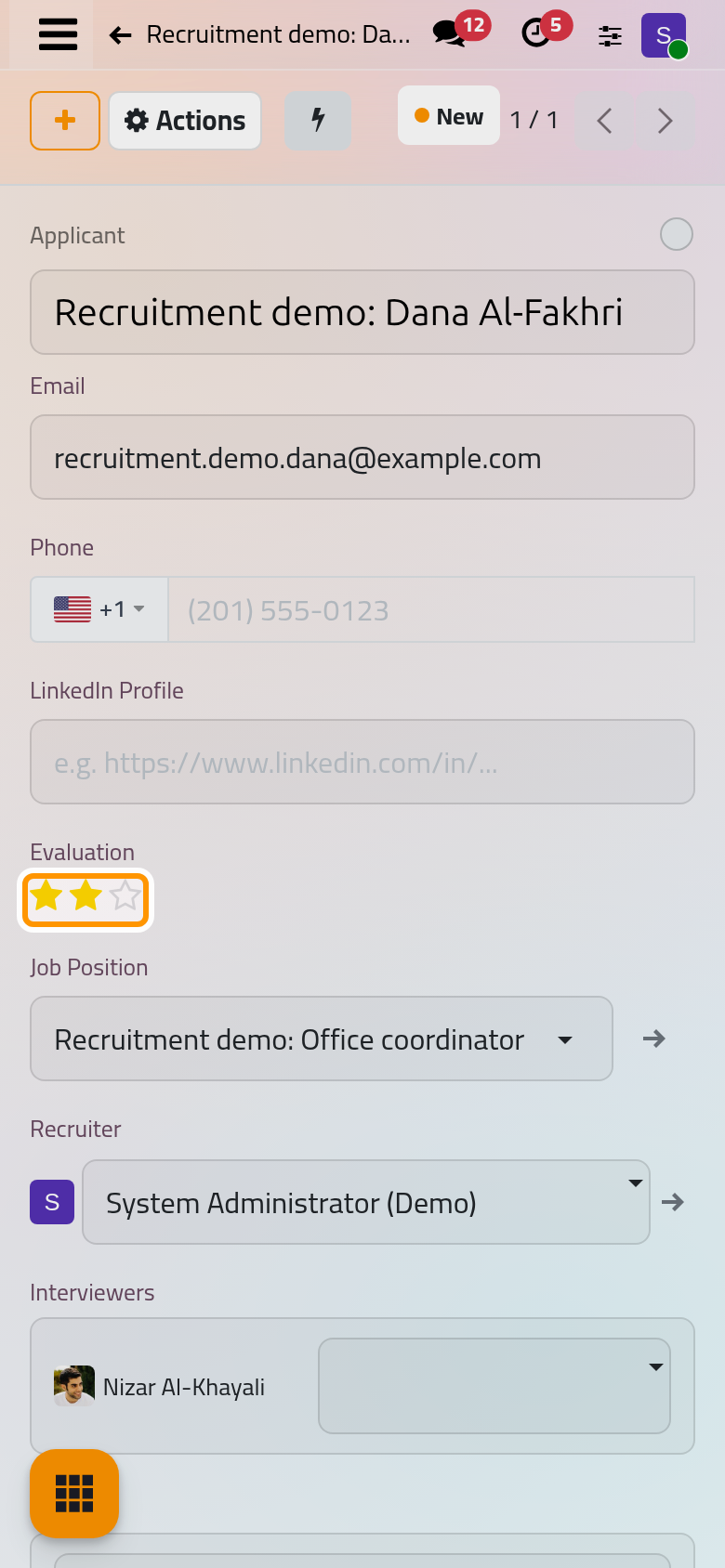
The moment the applicant is saved in New, the e-mail Recruitment: Application Acknowledgement is sent to the address you typed, and a copy appears in the chatter. It comes from the New stage, which carries that template: Customize stages and refuse reasons.
Step 3: move the applicant through the stages
- Click the stage shown at the top right of the form, here New. The list of the stages opens.
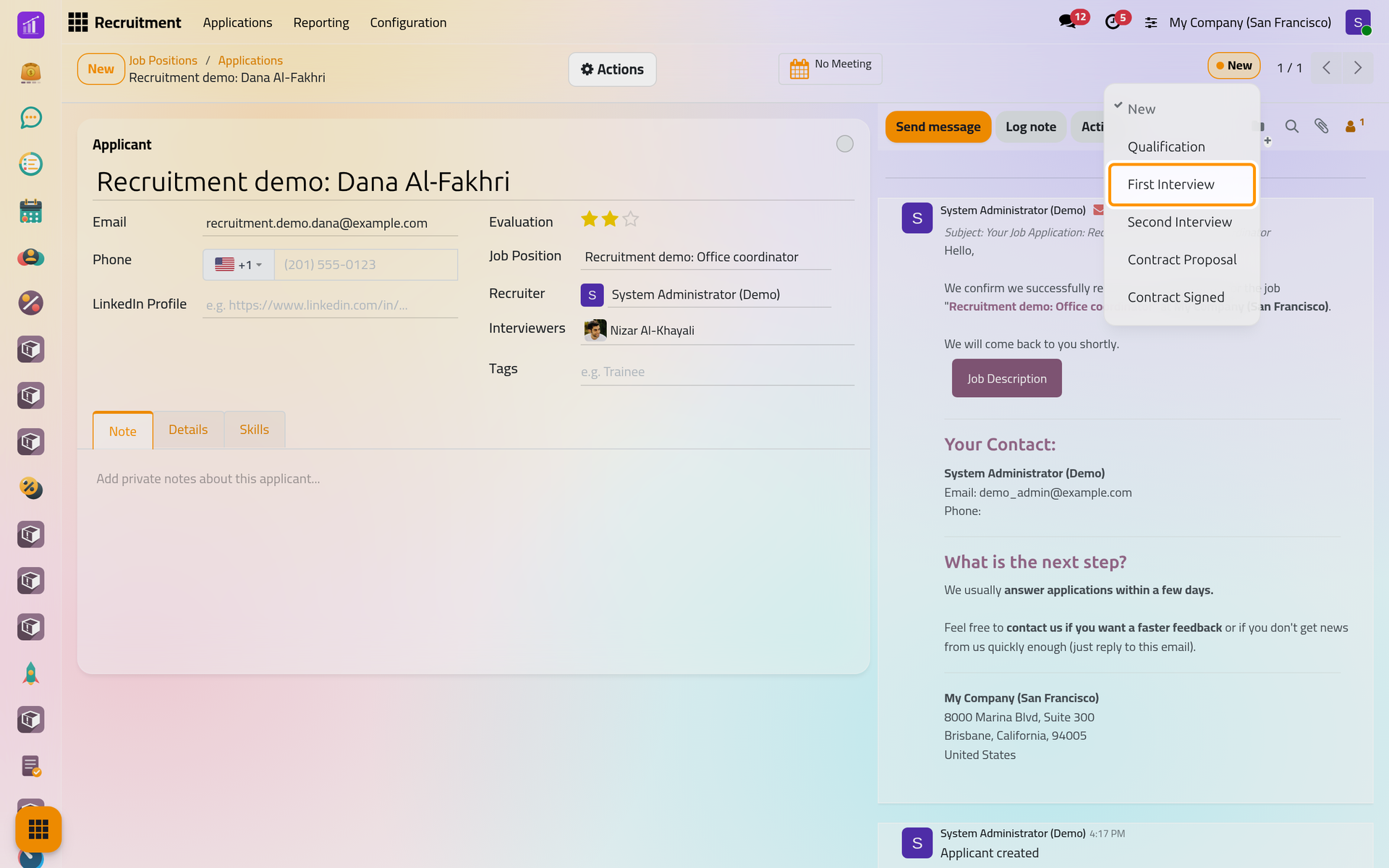
On a phone, the stage sits in the top bar, next to the record counter.
- Choose First Interview. The change is logged in the chatter. This is when you plan the interview itself: Schedule an interview.
- Once the interviews are over, open the list again and choose Contract Signed, the stage that marks an applicant as hired.
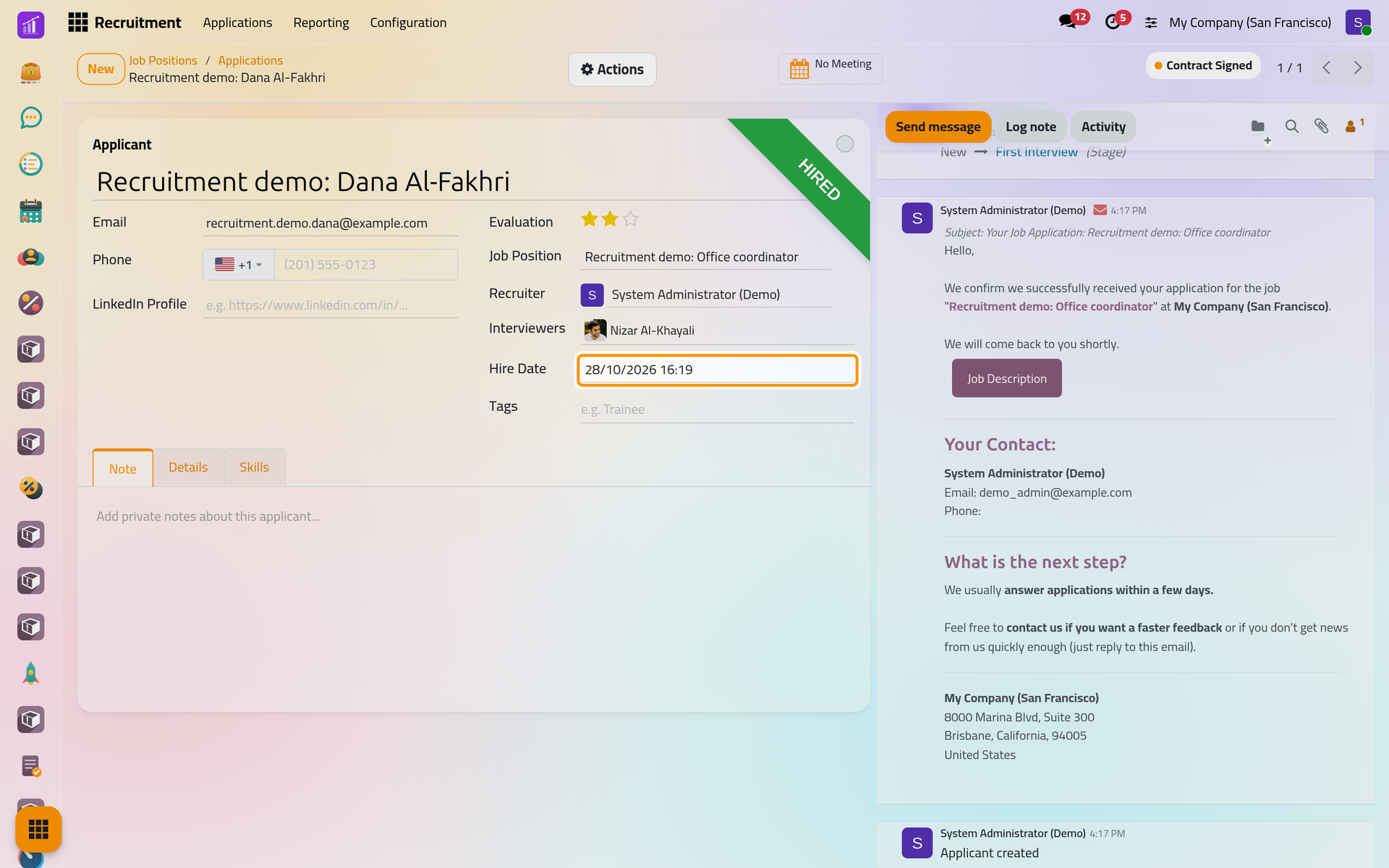
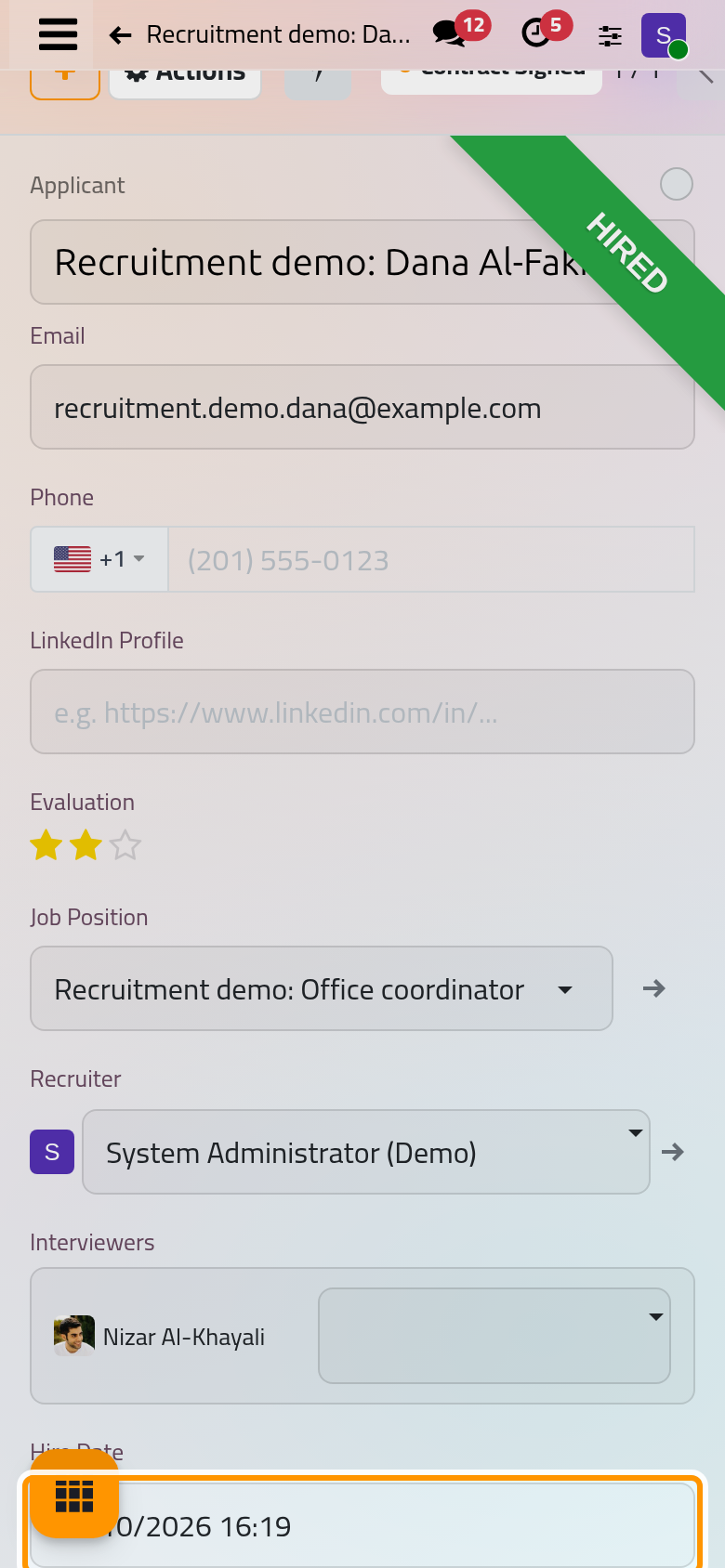
The form now carries the Hired ribbon and a Hire Date, and the position has one person less to recruit: its card goes from 1 to 0.
Step 4: create the employee
- Open Actions and choose Create Employee. The entry appears only once the applicant is hired.
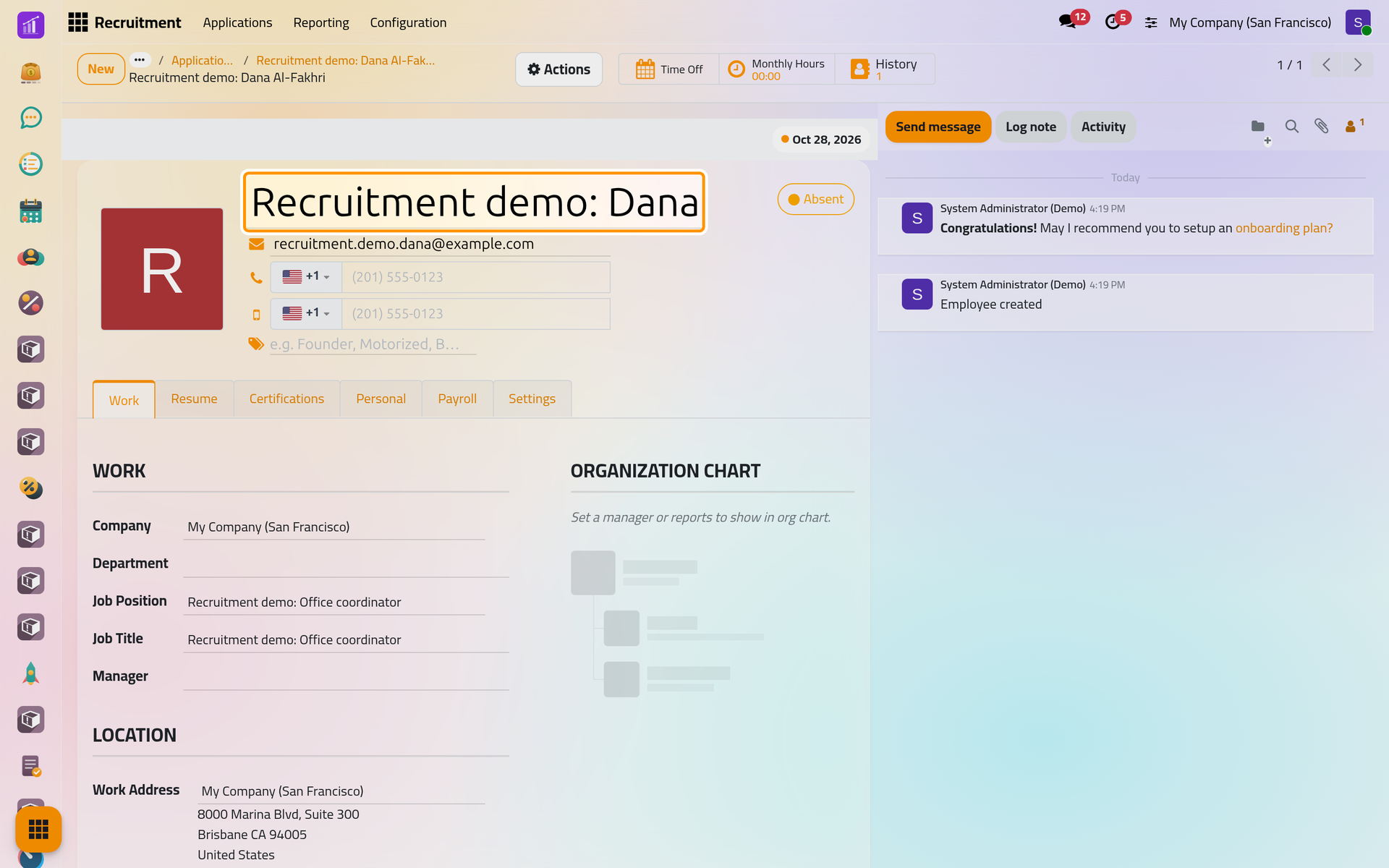
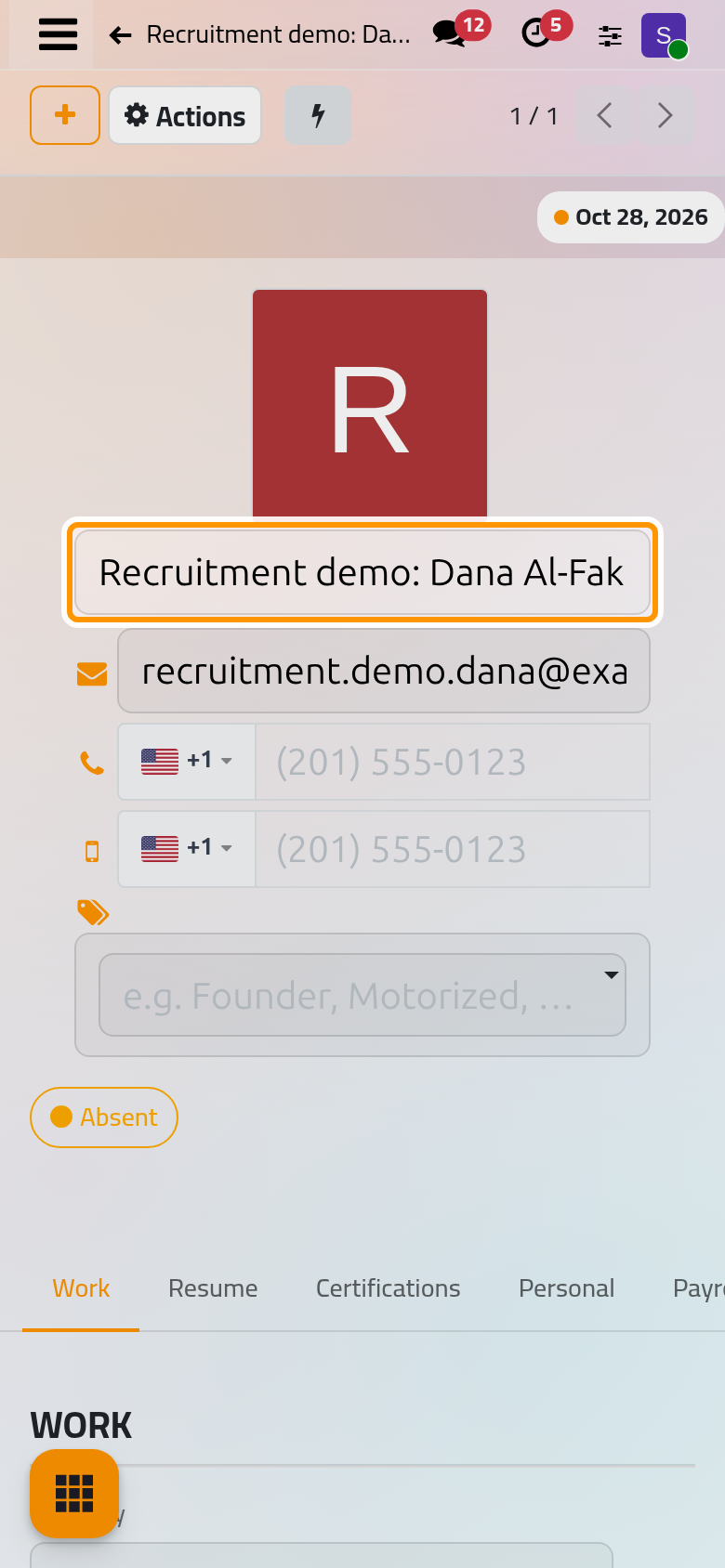
- The employee opens, already saved, with the applicant's name, the job position and job title, the company and a work e-mail: the e-mail of the department's company when it has one, otherwise the applicant's. The files attached to the applicant, such as the résumé, are copied to the employee.
Back on the applicant, an Employee button opens the new employee, and the chatter notes "Employee created". The rest of the employee's record, from the department to the manager, is completed in Employees: First steps with employees.
What you have done
You opened a job position, received an applicant with an automatic acknowledgement, moved the applicant through the stages to the hired stage and created the employee from the application. Most applicants do not go that far: Refuse or restore an applicant closes an application with a reason, and Use talent pools keeps good profiles for later. How recruitment works explains the stages, the statuses and who sees what.
Was this page helpful?
Thank you for your feedback.