Recruitment settings
On this page
Open . The Recruitment section of the settings holds three groups: Job Posting, Process and In-App Purchases. Each option adds a part to the app or removes it, for the whole database. The rest of what shapes Recruitment is in its access rights, below, and in its Configuration menu.
Before you start
- The Settings entry needs the right to manage the settings of the database, and the Recruitment section shows only to an Administrator of Recruitment.
- Saving a change to these options installs or removes a part of the application: decide it with the administrator of the database, as Install, upgrade and uninstall apps explains.
Online Posting
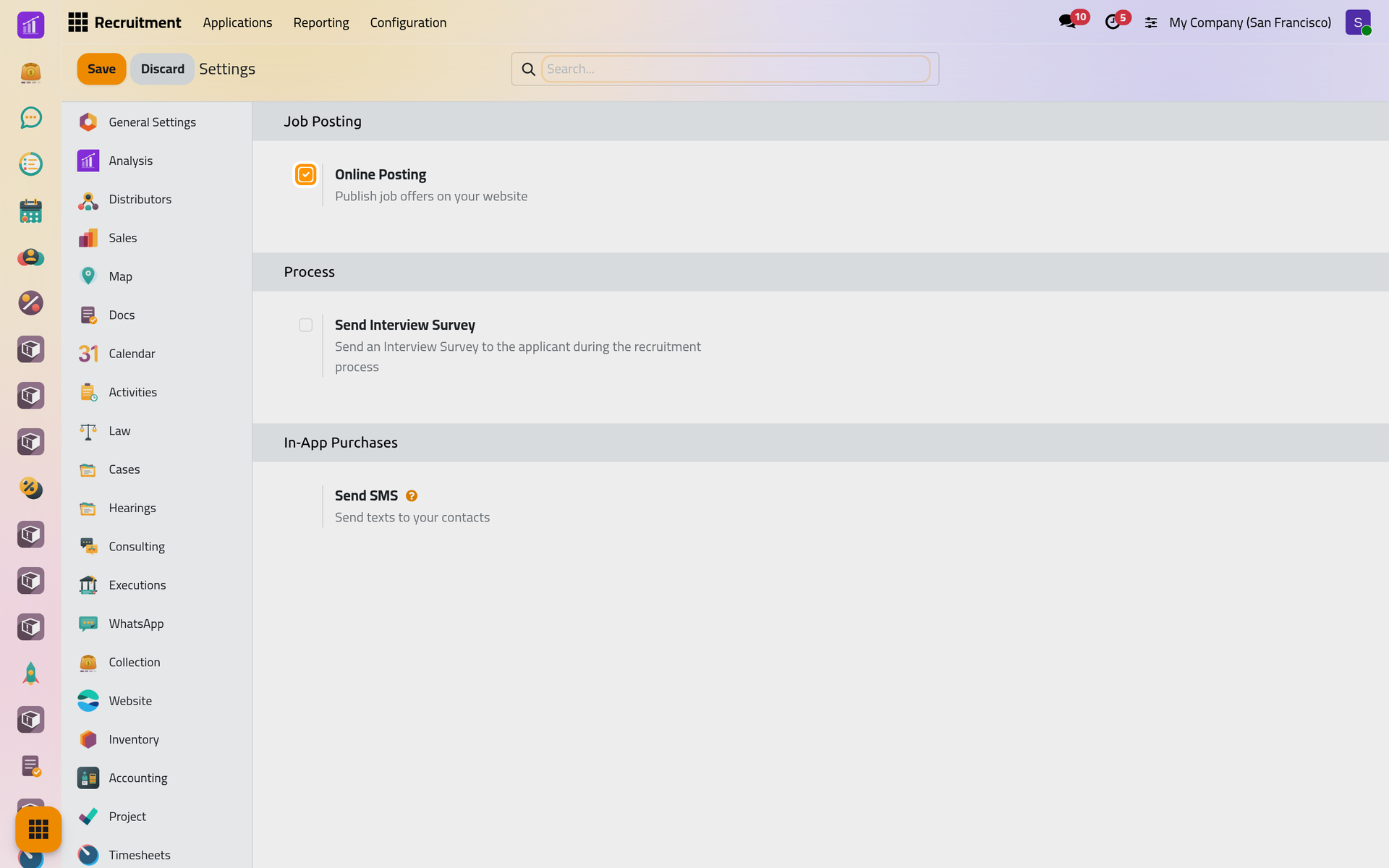
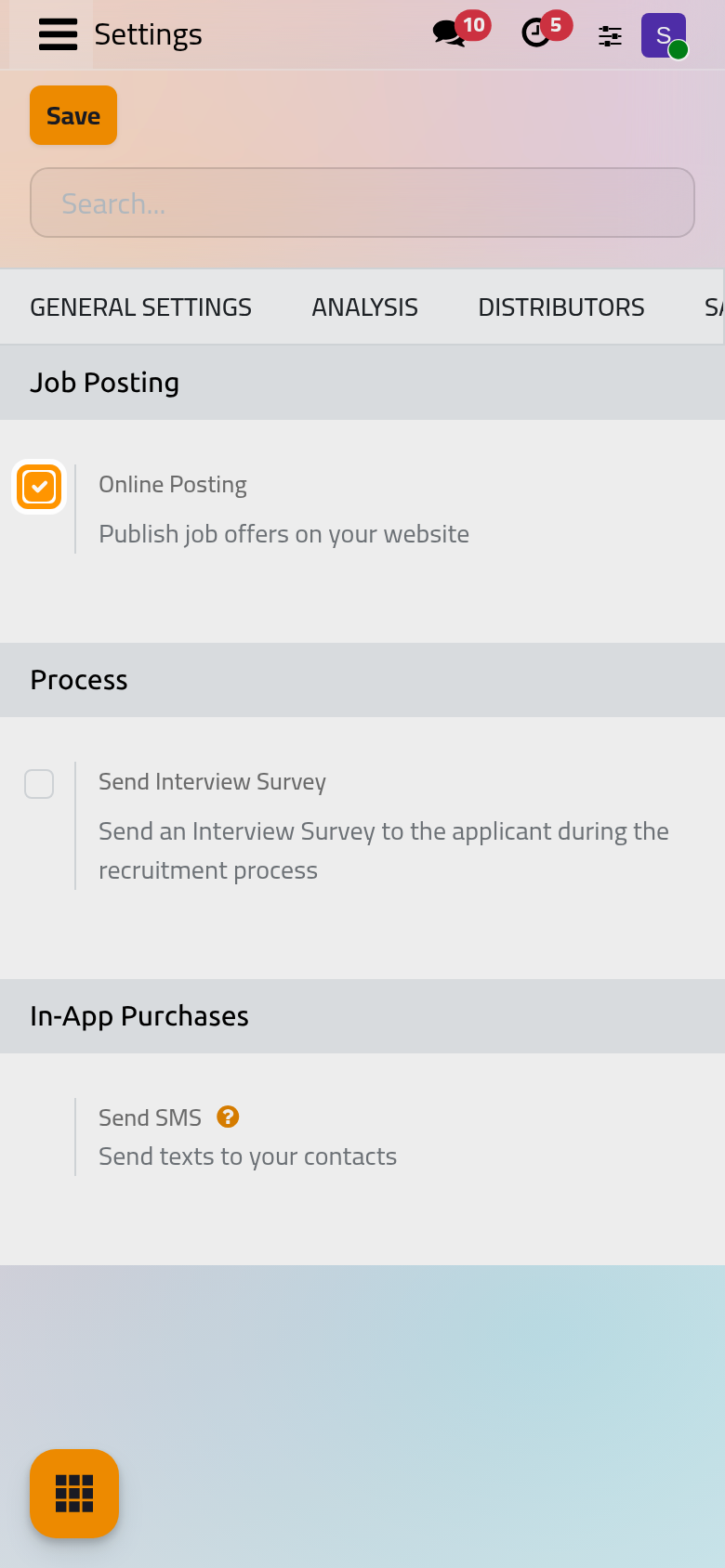
Online Posting publishes job offers on your website. It is ticked here: the positions have a Published switch, a Website field, an Application Info tab and a Job Page button, and visitors apply from the job pages of the website, which are documented with the website. Clearing it and saving removes those pages.
Send Interview Survey
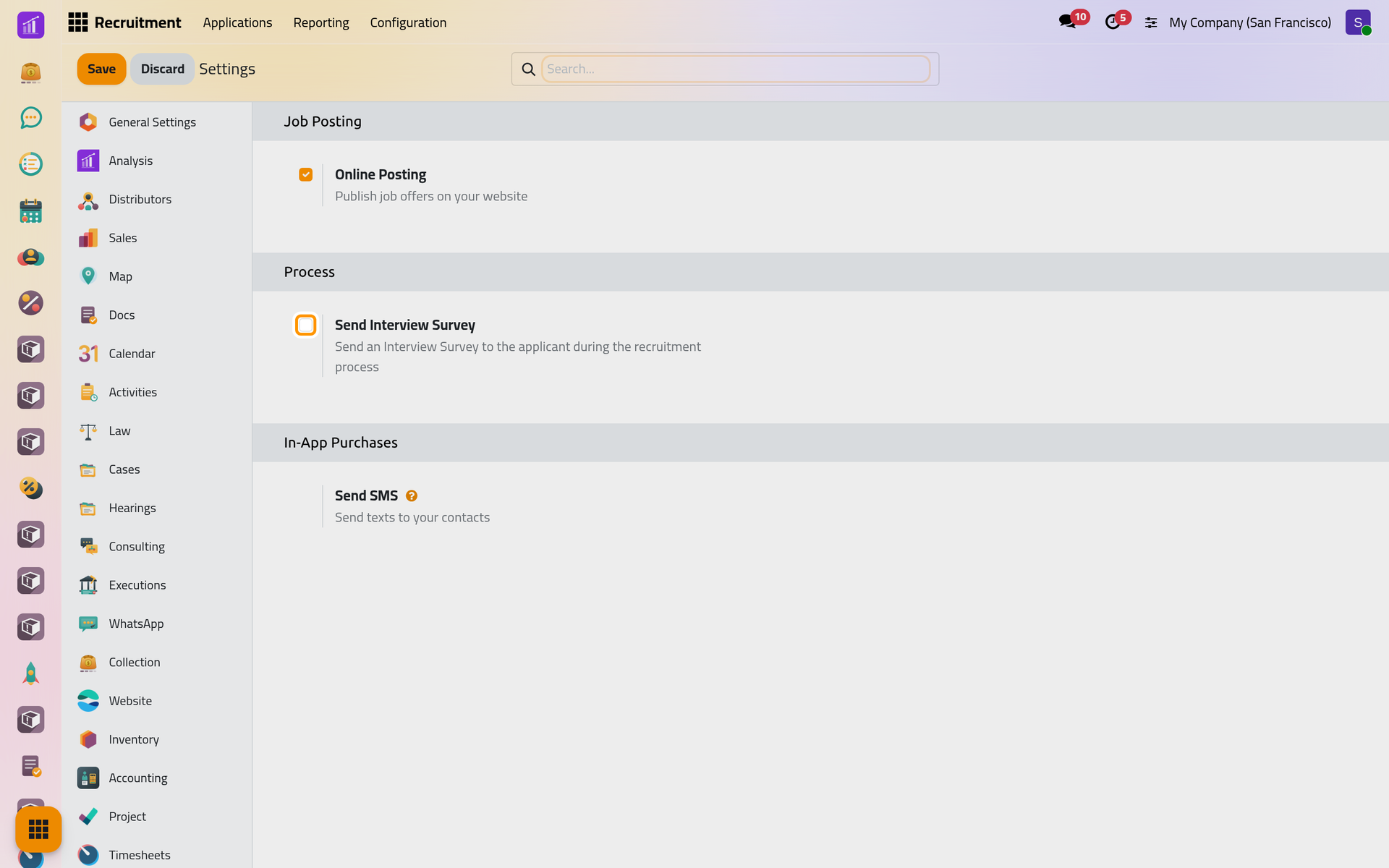
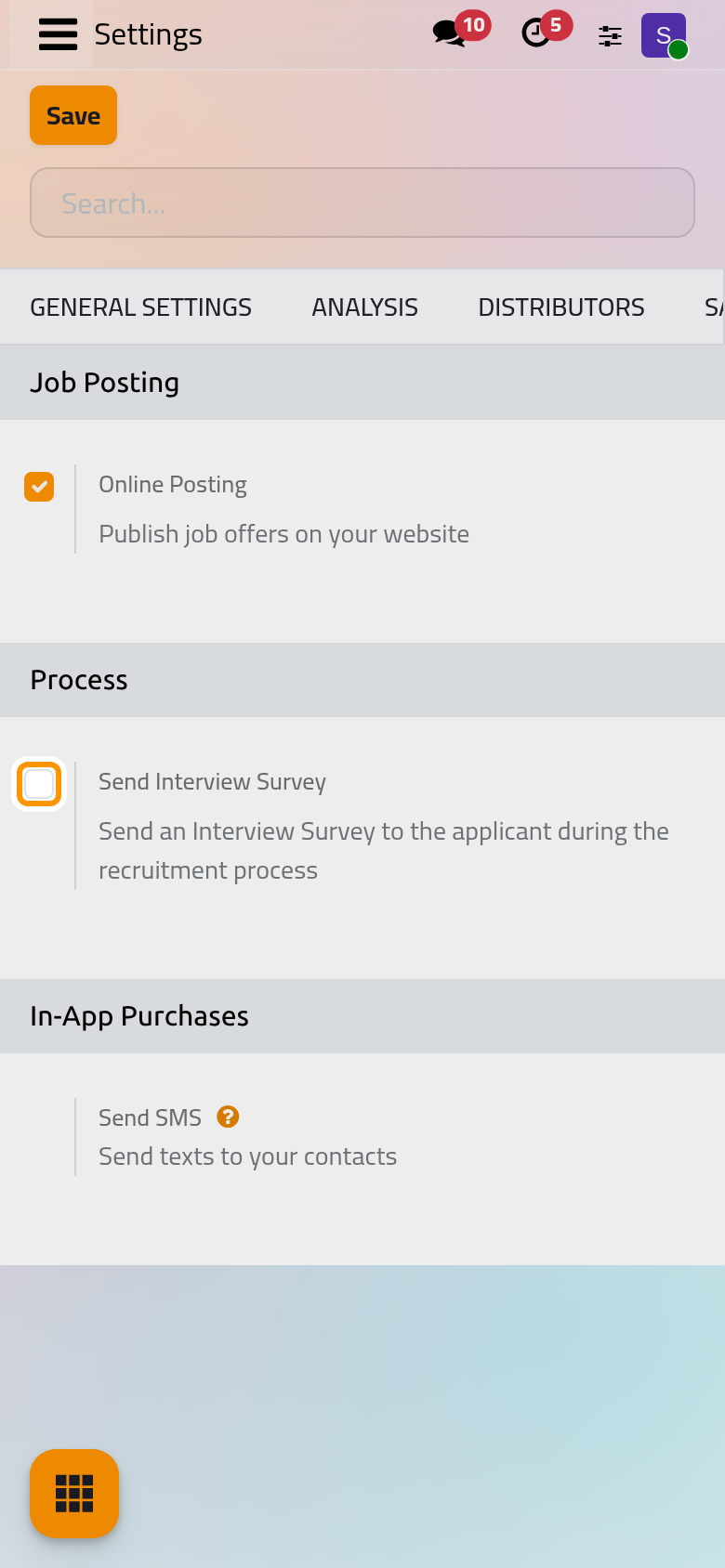
Send Interview Survey sends an interview survey to the applicant during the process: a form chosen on each job position, which relies on the survey app. It is not ticked here, so no interview form exists on the positions or the applicants. Ticking it and saving adds that part to the app.
Résumé reading
The app also carries an option to read résumés automatically and fill the name and e-mail of the application from them. It is not offered on this platform and does not show on the screen: applications are typed in, created from e-mails, or come from the website.
The line Send SMS under In-App Purchases is information only: it has no switch.
Access rights
Each user gets at most one of three access rights on Recruitment, each including the one before. They are set on the user's form: Create a user and set access rights.
| Access right | Can |
|---|---|
| Interviewer | See and update the applicants of the positions and applications he is named on, plan their meetings and refuse them; the form hides the Salary Package, and Reporting and Configuration stay hidden |
| Officer: Manage all applicants | Every application, position and talent pool; create applicants and employees from them (the latter with Officer: Manage all employees on Employees); refuse reasons, tags and degrees; Reporting |
| Administrator | Also the stages, the activity plans of applicants, the job board e-mails and this settings section |
Nobody has to give the Interviewer right by hand: a user named in Interviewers on a position or an applicant receives it on save, and loses it once he is named nowhere, unless he holds a higher right.
FAQ
Why don't I see the Recruitment section?
It shows only to an Administrator of Recruitment who may also manage the settings.
Can I stop publishing jobs on the website without removing the pages?
Yes: switch off Published on each position instead of clearing Online Posting.
Why can an interviewer open an applicant but not the pipeline of other positions?
The Interviewer right shows only the positions and applications where the user is named. Name him on the position to open all of its applicants.
Was this page helpful?
Thank you for your feedback.