Schedule an interview
On this page
An interview is a meeting of the Calendar linked to the applicant. Recruitment prepares it for you: the meeting starts with the applicant's name, the right people invited and a link back to the application, and the interviewers get access to the applicant. The steps below plan a first interview with Kelly Wallant, an applicant of the demo.
Before you start
- You need the Officer: Manage all applicants access right, or the Interviewer right on an applicant you are named on: interviewers plan meetings too.
- Times, reminders, video links and the answers of the guests work as for any meeting: Schedule a meeting.
Name the interviewers
- Open , click Experienced Developer, then the card of Kelly Wallant.
- In Interviewers, choose Nizar Al-Khayali, then save.
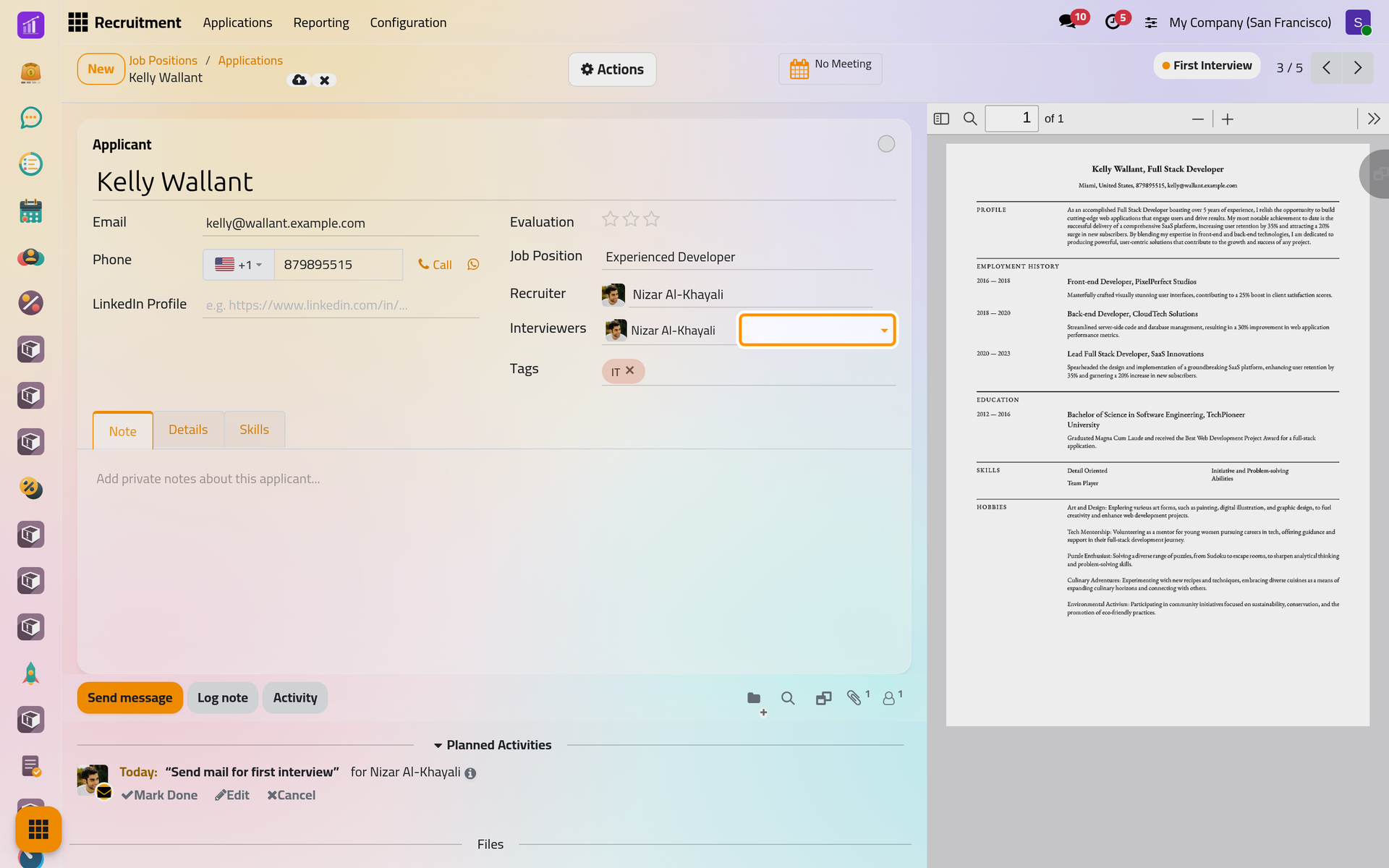
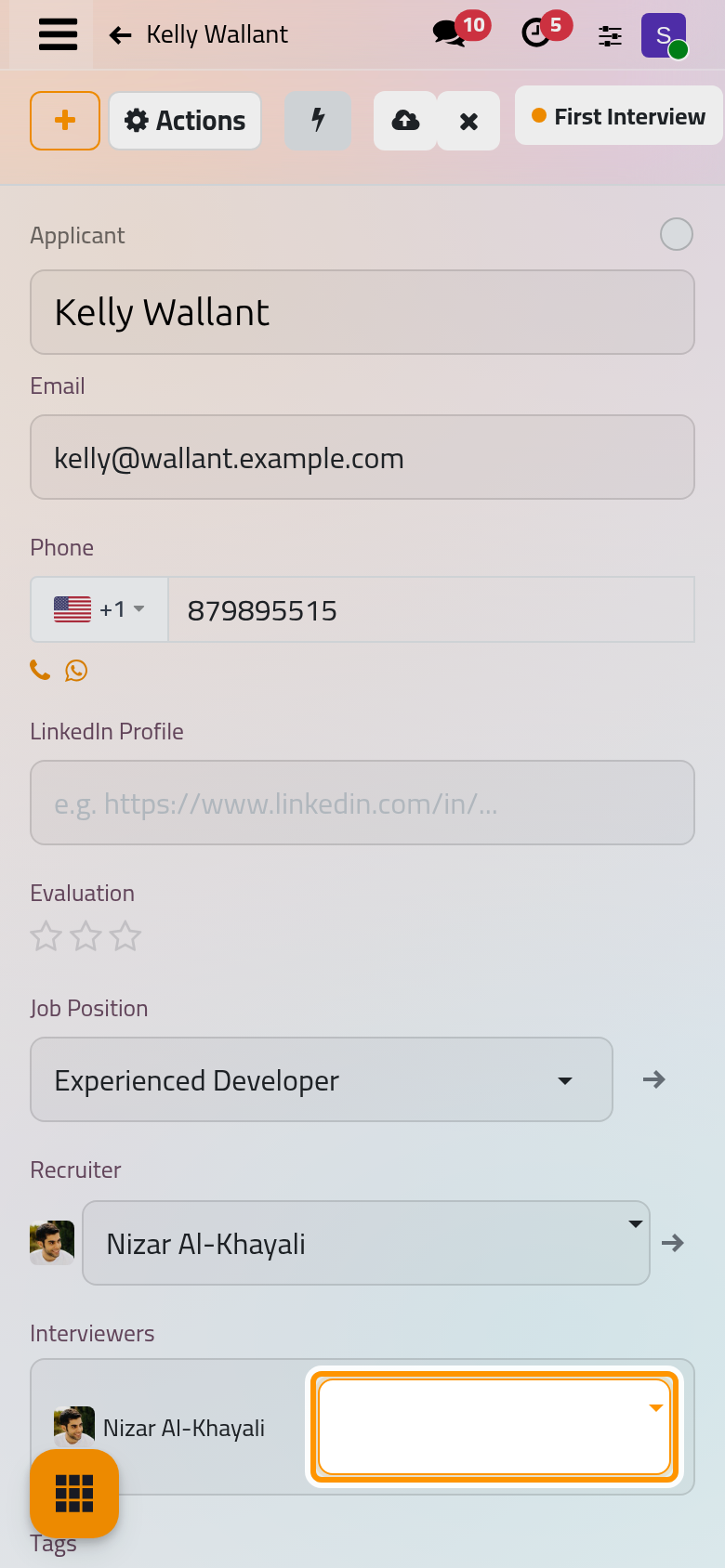
Each new interviewer receives a notification and can open the applicant, even without any other right on Recruitment. The interviewers named on the job position itself see all of its applicants.
Plan the meeting
- Click No Meeting at the top of the form. The calendar of meetings opens on the current week. On a phone, the button sits behind the lightning button at the top of the form.
- Click New. The meeting comes filled: its subject is the applicant's name, its guests are the applicant, the recruiter and the manager of the position's department, and Linked to points to the application. When the applicant has no contact yet, one is created from the name and the e-mail.
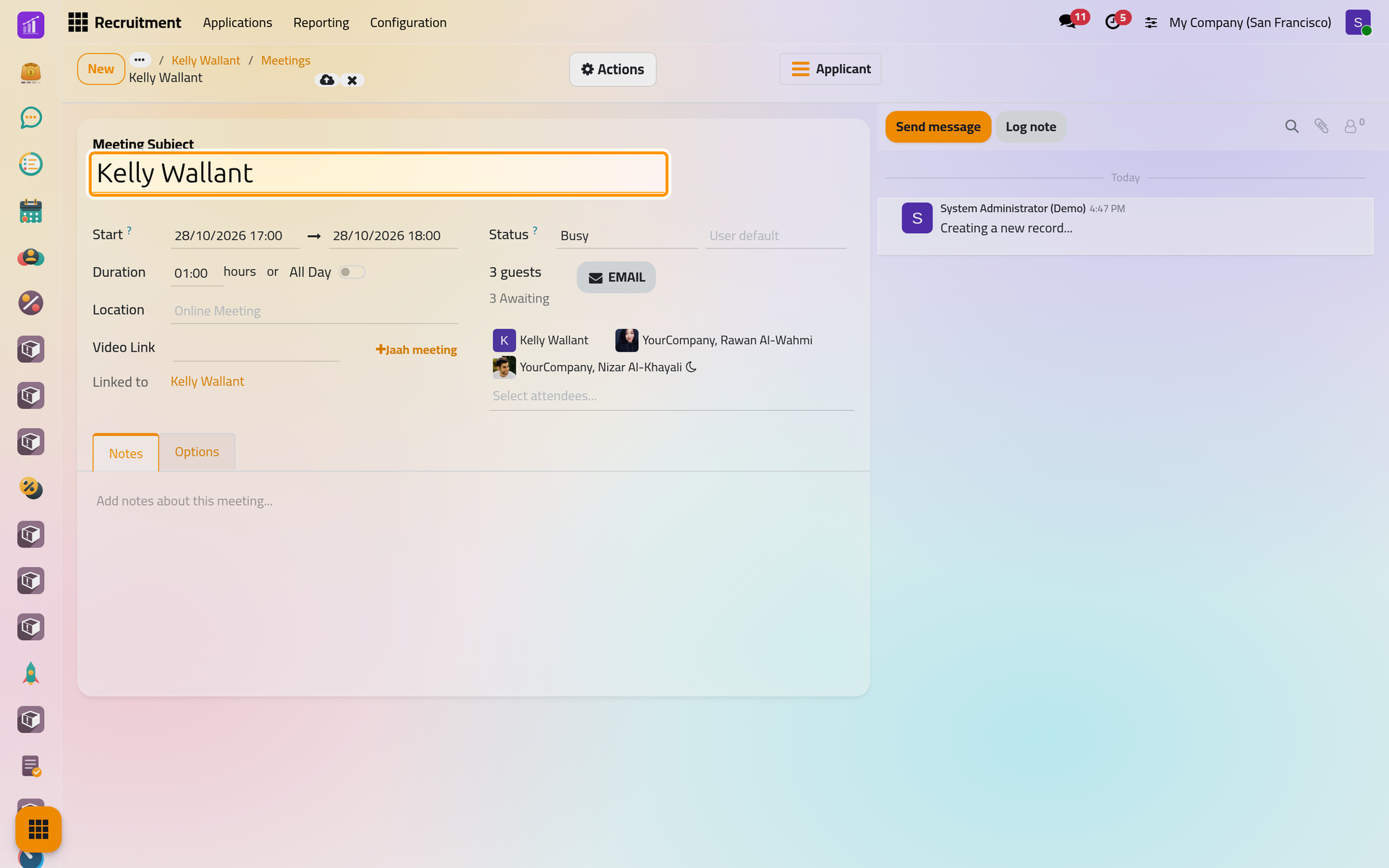
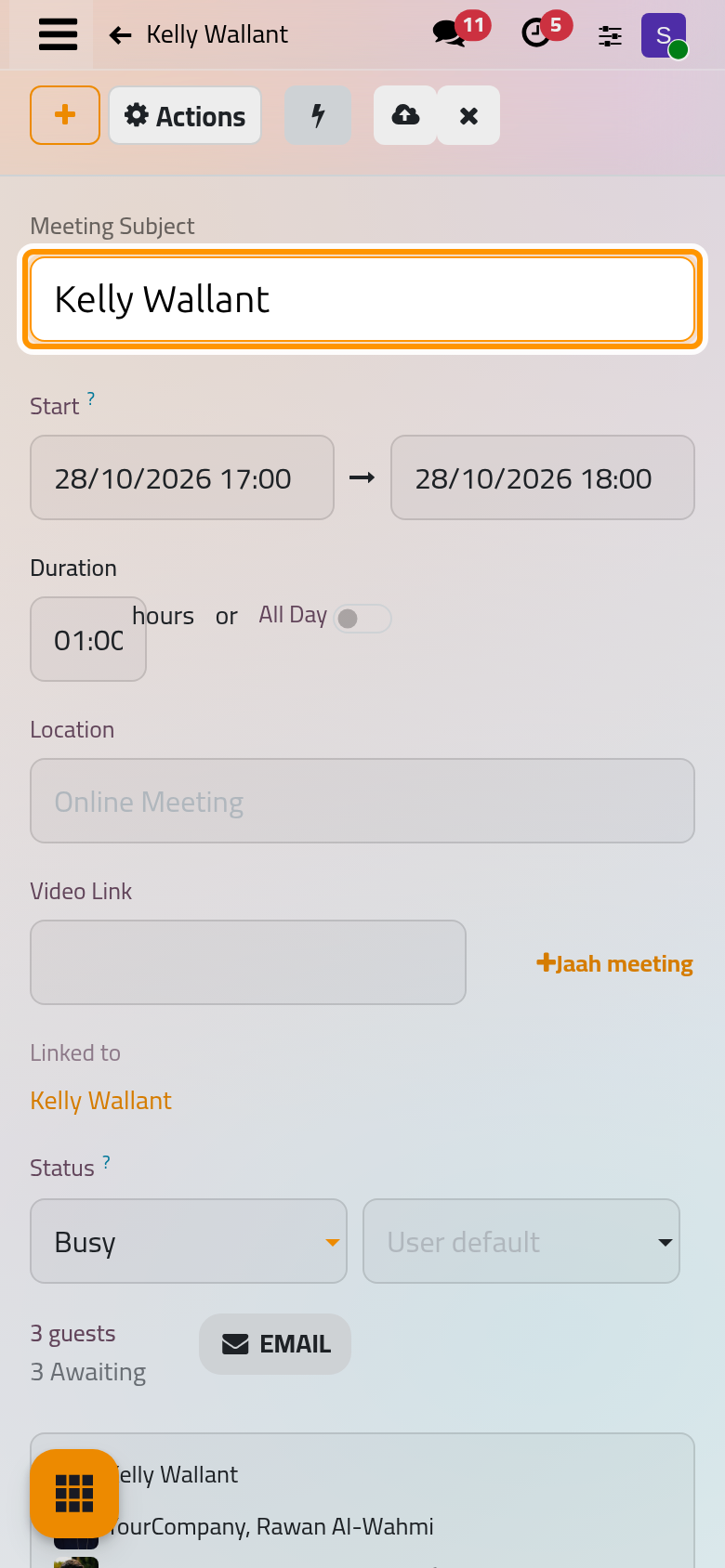
- Set the start, the duration and the place, add other guests if needed, then save. The files attached to the applicant, such as the résumé, are copied to the meeting, and the guests receive their invitations as Schedule a meeting explains. When the WhatsApp invitations of the calendar are on, they go out too: WhatsApp in calendar and activities.
The menu of a card in the pipeline offers the same path with Schedule Interview.
Follow the meeting from the applicant
Click the applicant's name in the breadcrumbs. The button now reads 1 Meeting with its date; with several meetings it reads Next Meeting or Last Meeting, with a date. The meeting is also listed among the planned activities of the applicant, in the chatter.
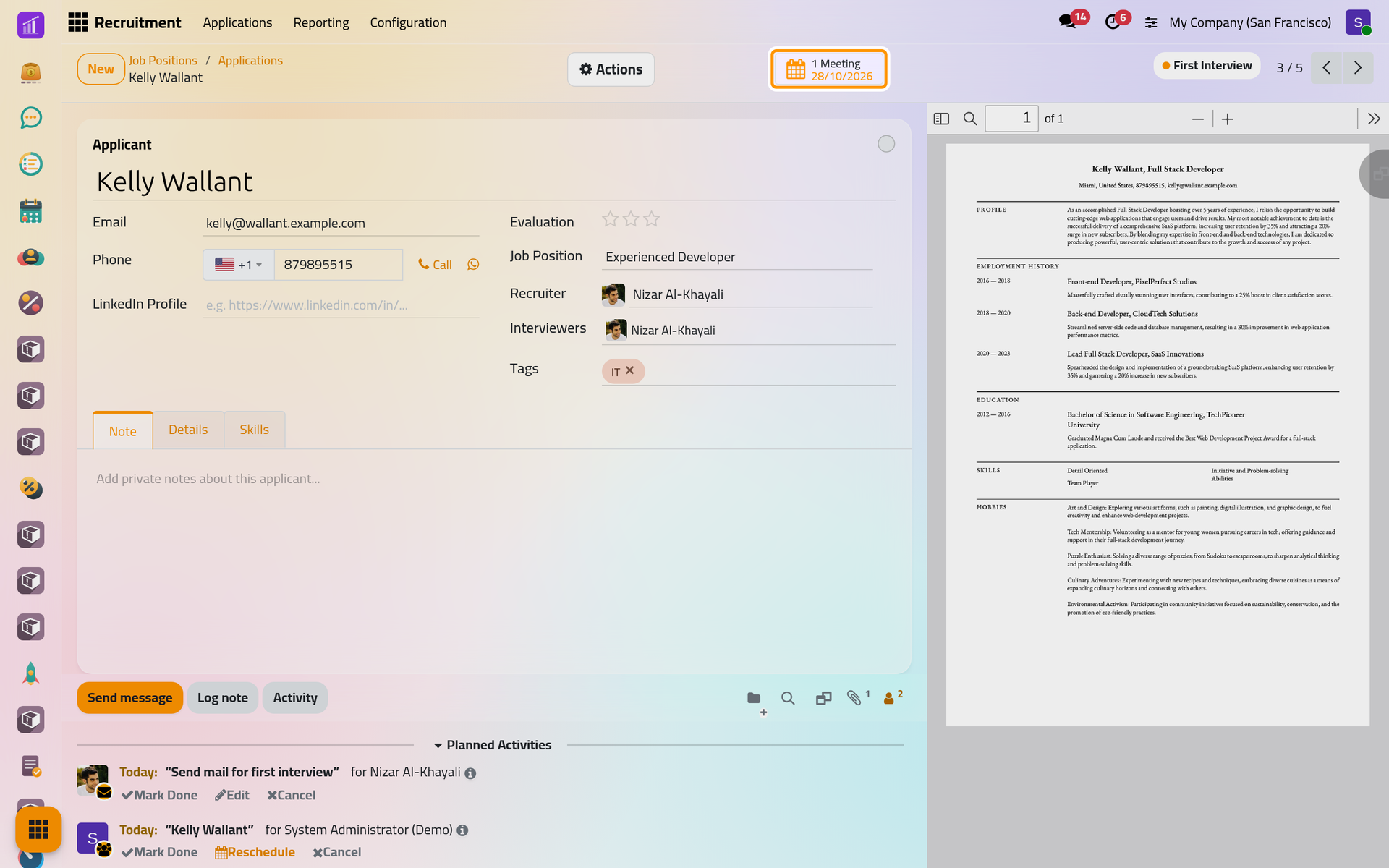
On a phone, open the lightning button at the top of the form to see it.
FAQ
Who is invited by default?
The applicant, the recruiter of the application and the manager of the department of the job position. When an interviewer without the officer right plans the meeting, he is invited instead of the recruiter.
Can the interviewers see the salary?
No. An interviewer who has only the Interviewer right sees the applicant's form without the Salary Package.
Why does the button still say No Meeting?
Only the meetings planned from the applicant count: a meeting created directly in the Calendar app is not linked to the application. Plan interviews from the applicant's button.
Is the interview moved when the applicant changes stage?
No. Stages and meetings are independent: move the applicant when the interview is done, as Move applicants through the pipeline shows.
Was this page helpful?
Thank you for your feedback.