Configure a request type
On this page
A request type describes one kind of request: what the requester fills in, how its requests are numbered and the steps they go through. Five shared types ship ready (Purchase Request, Expense Pre-Approval, Travel Authorization, Asset Handover and Document Sign-off), each with one step, Supervisor Review, decided by the approval supervisors within two days. Adapt them or create your own.
Before you start
- You need the Administrator access right on Approval.
- The approvers taken from the employee record (manager, department head, coach) need the Employees app: Employees.
Create the type
- Open and click New.
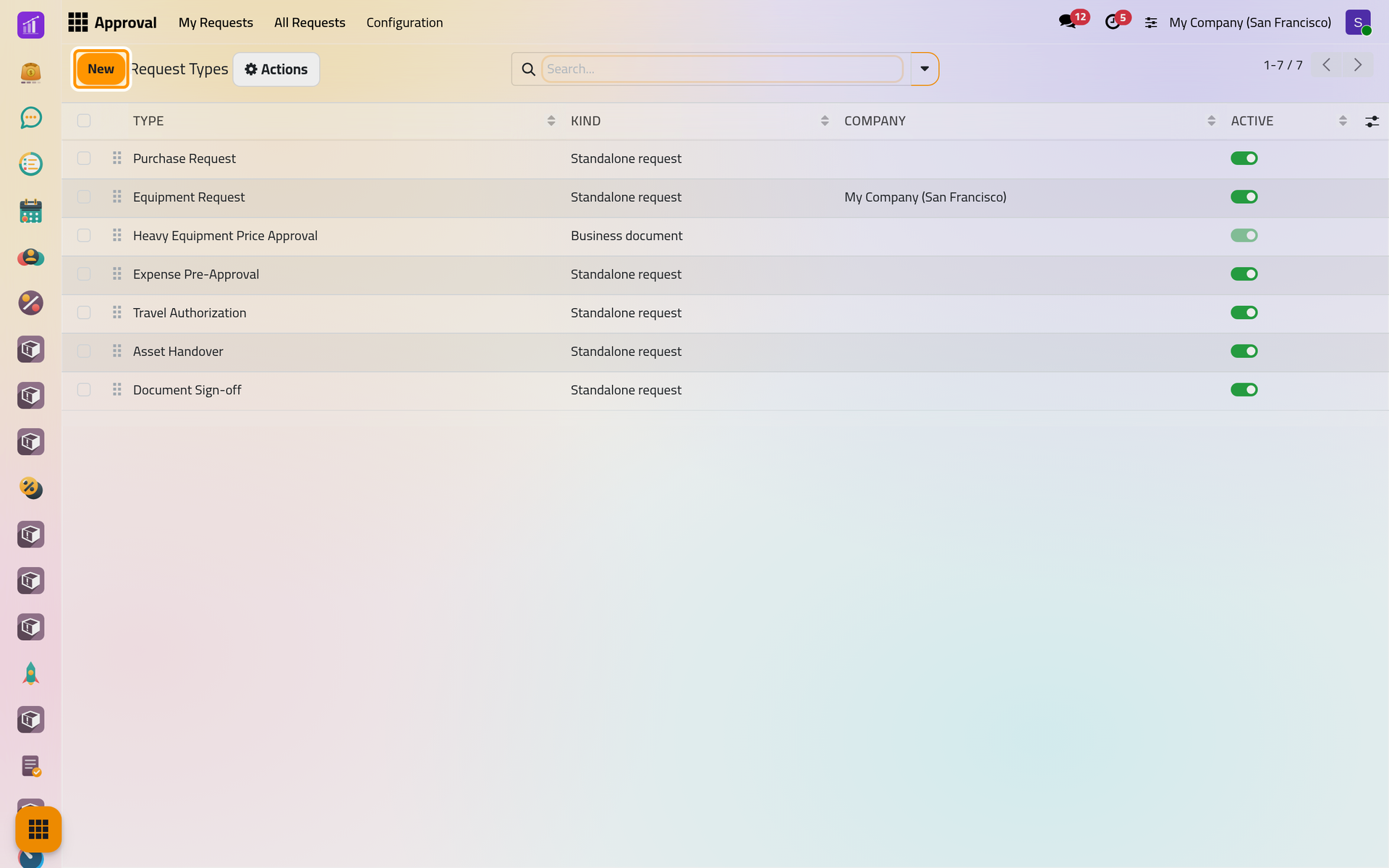
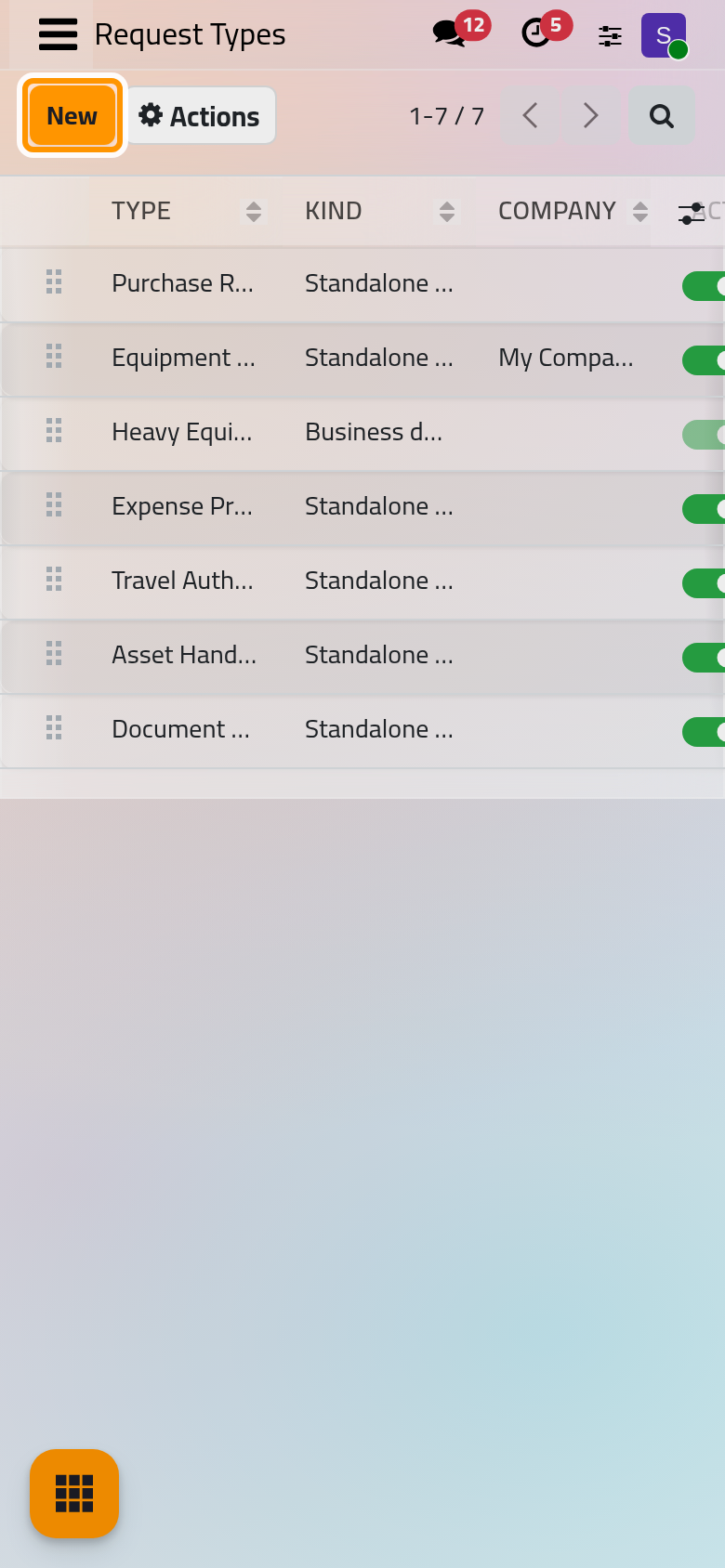
The request types of the demo; New starts another one. - Give the Type a name and a one-sentence Summary. The Company is yours by default; empty it to share the type. Keep the Kind Standalone request; a Business document guards other records: Guard a business record with an approval.
- Keep Shared numbering, one series for every type (APR/2026/00001), or choose Own numbering and a Number Prefix, such as
LAP/%(year)s/. A prefix that could repeat another series is refused.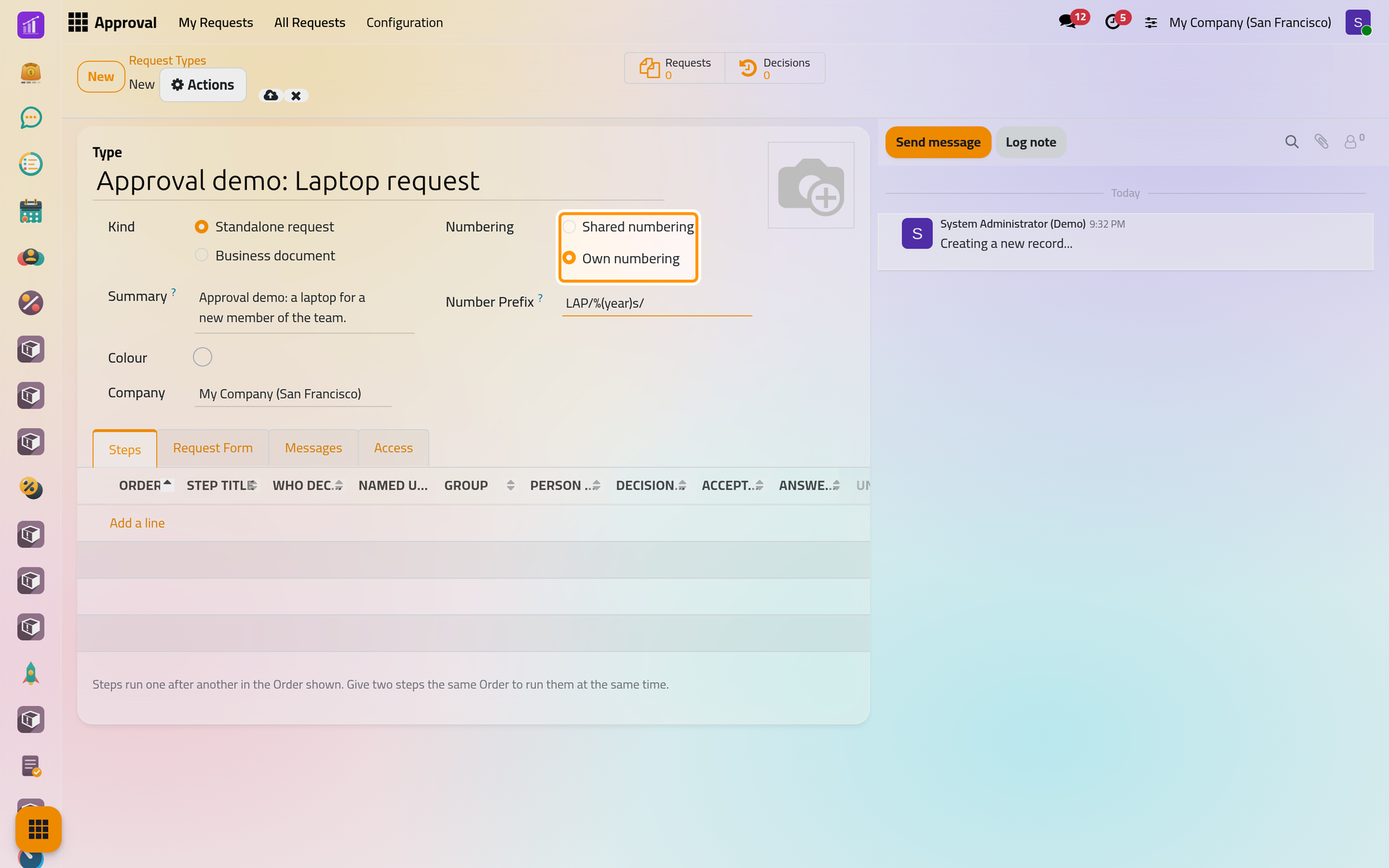
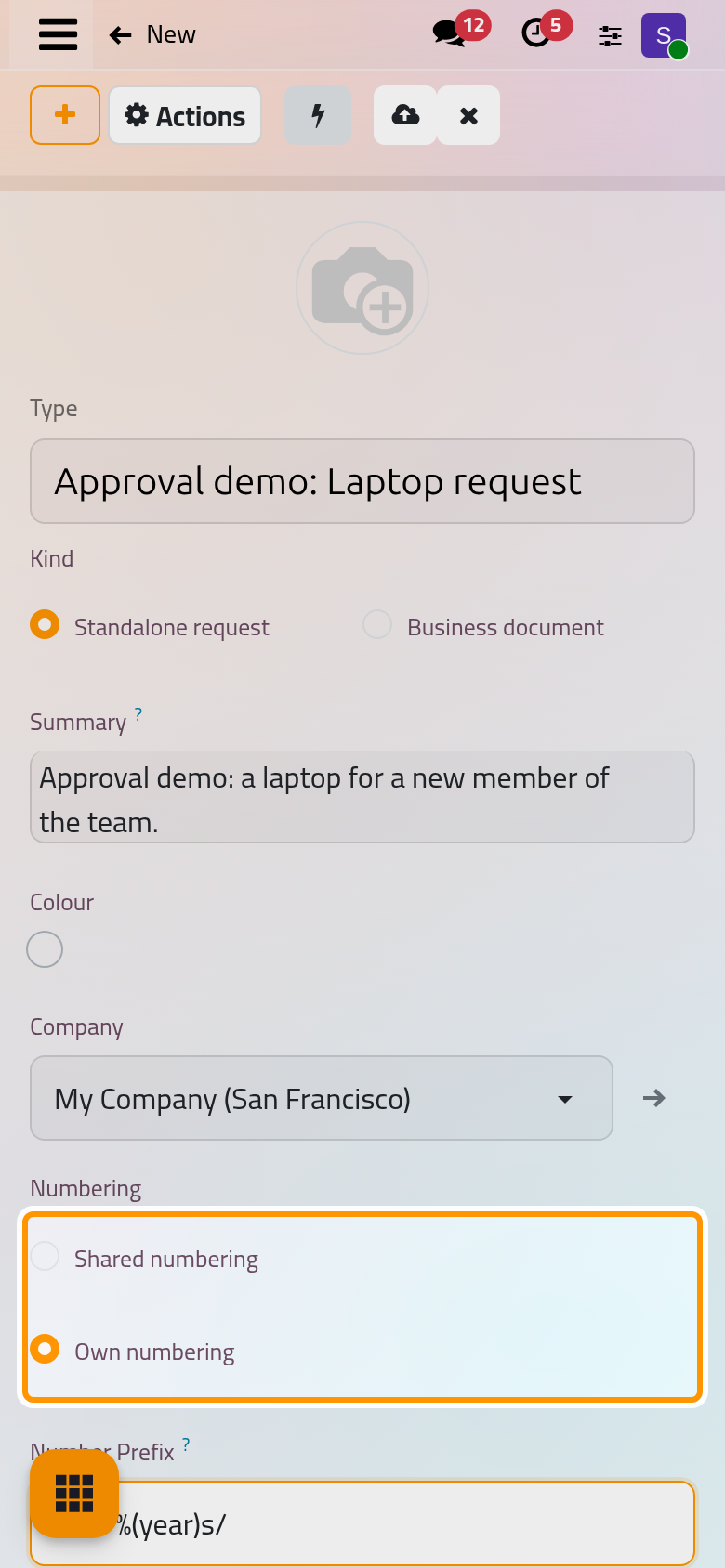
A new standalone request type with its own numbering, LAP/ followed by the year.
Add the steps
In the Steps tab, click Add a line for each step and fill the row: Order, Step Title, Who Decides and what it needs (Named Users, Group or Person Field), the Decision Rule (First answer decides, Everyone must accept or A minimum number of acceptances) and Answer Within with its Unit, 0 for no deadline. Click Save.
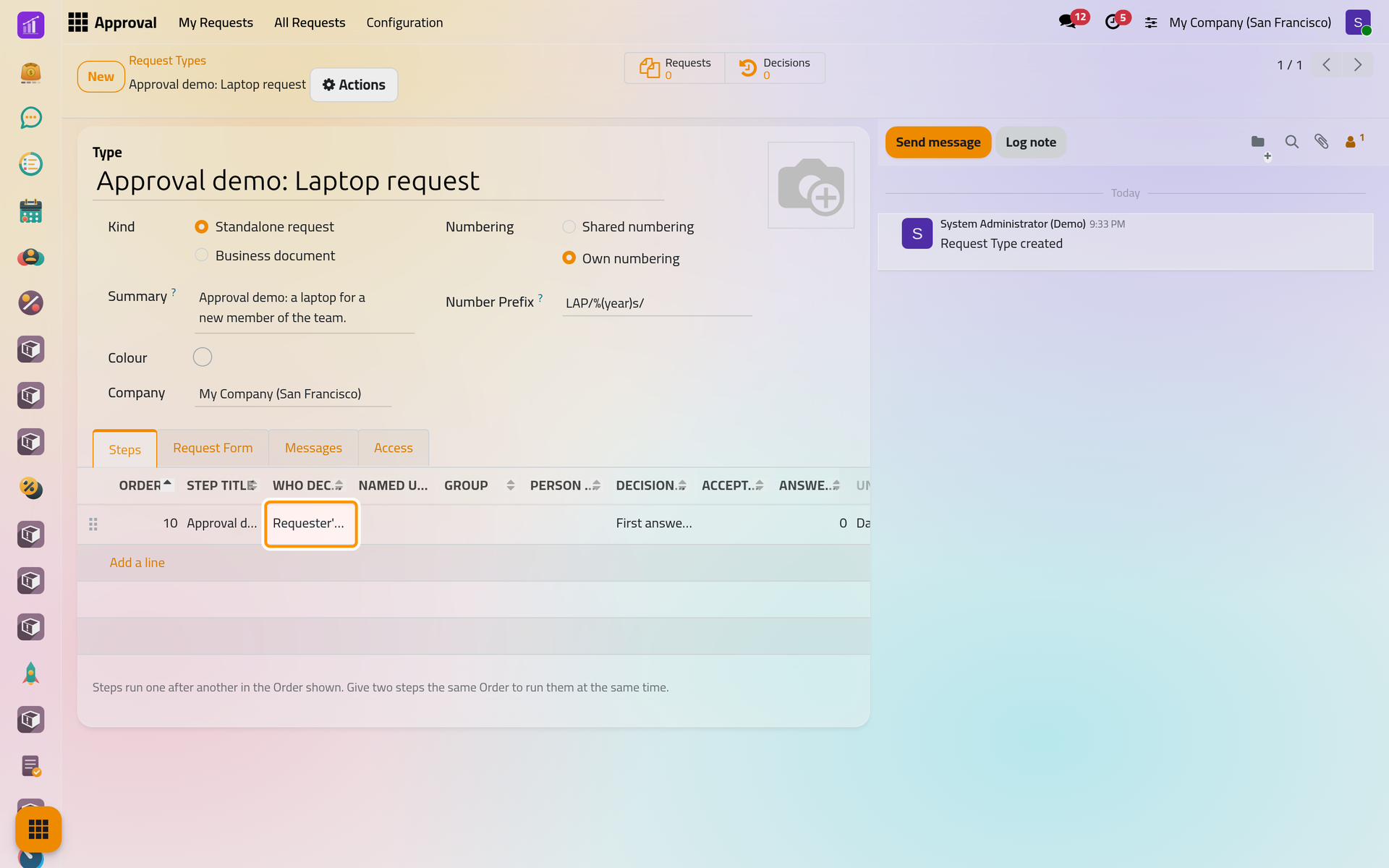
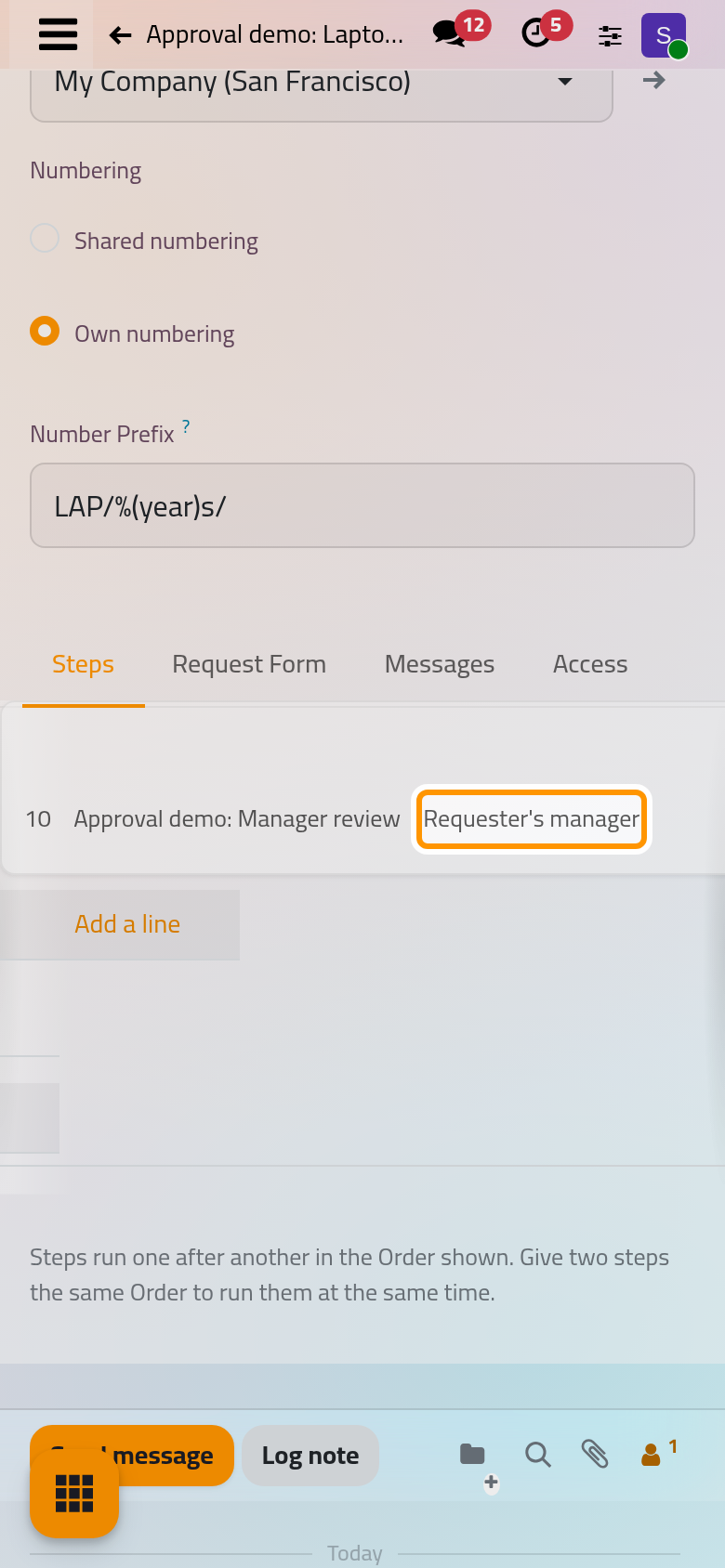
Who Decides also offers a person named on the request or, for business documents, on the record, and the requester's manager, a manager several levels up, the head of their department or their coach.
Steps run one after another by Order; two steps with the same order open together.
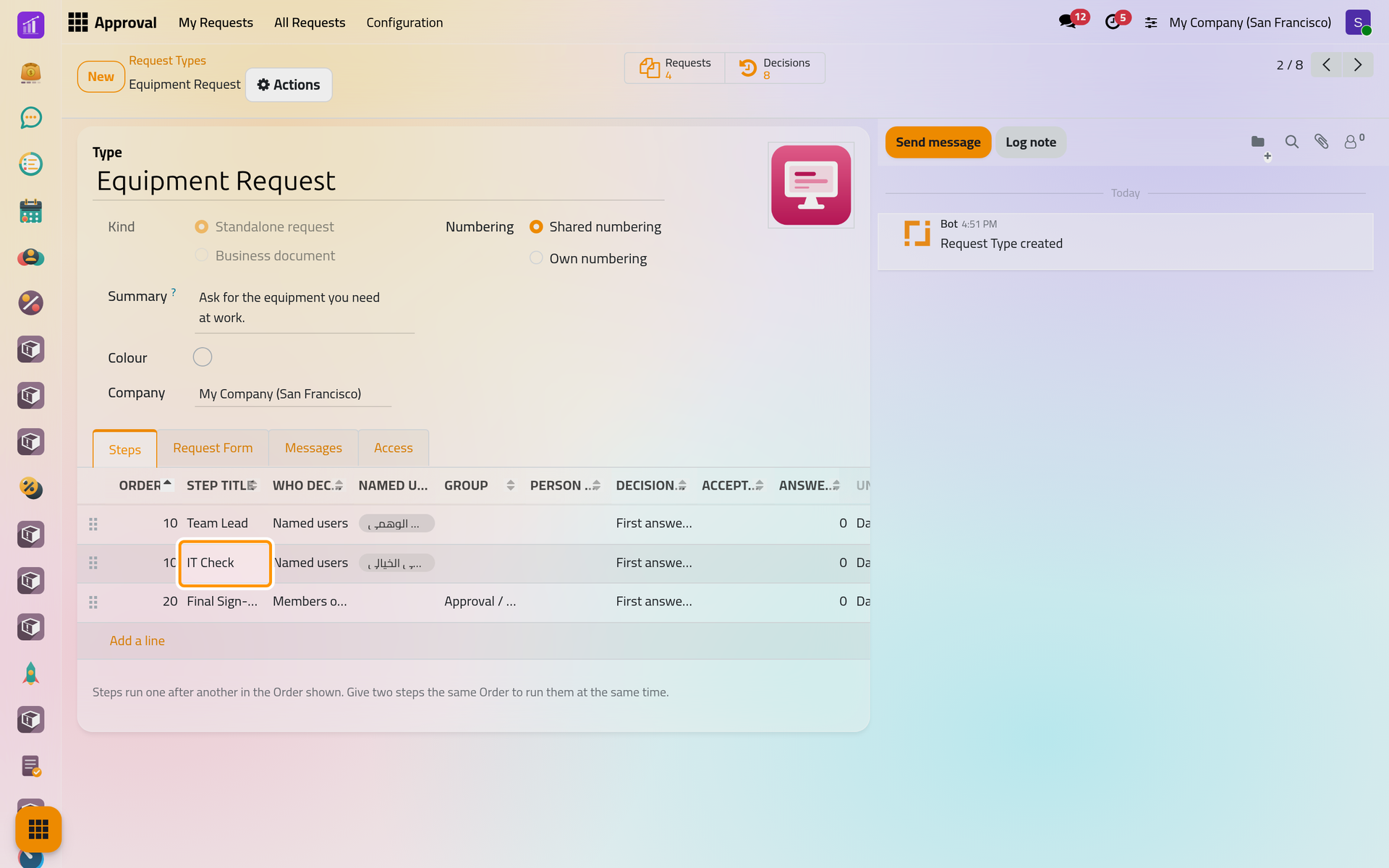
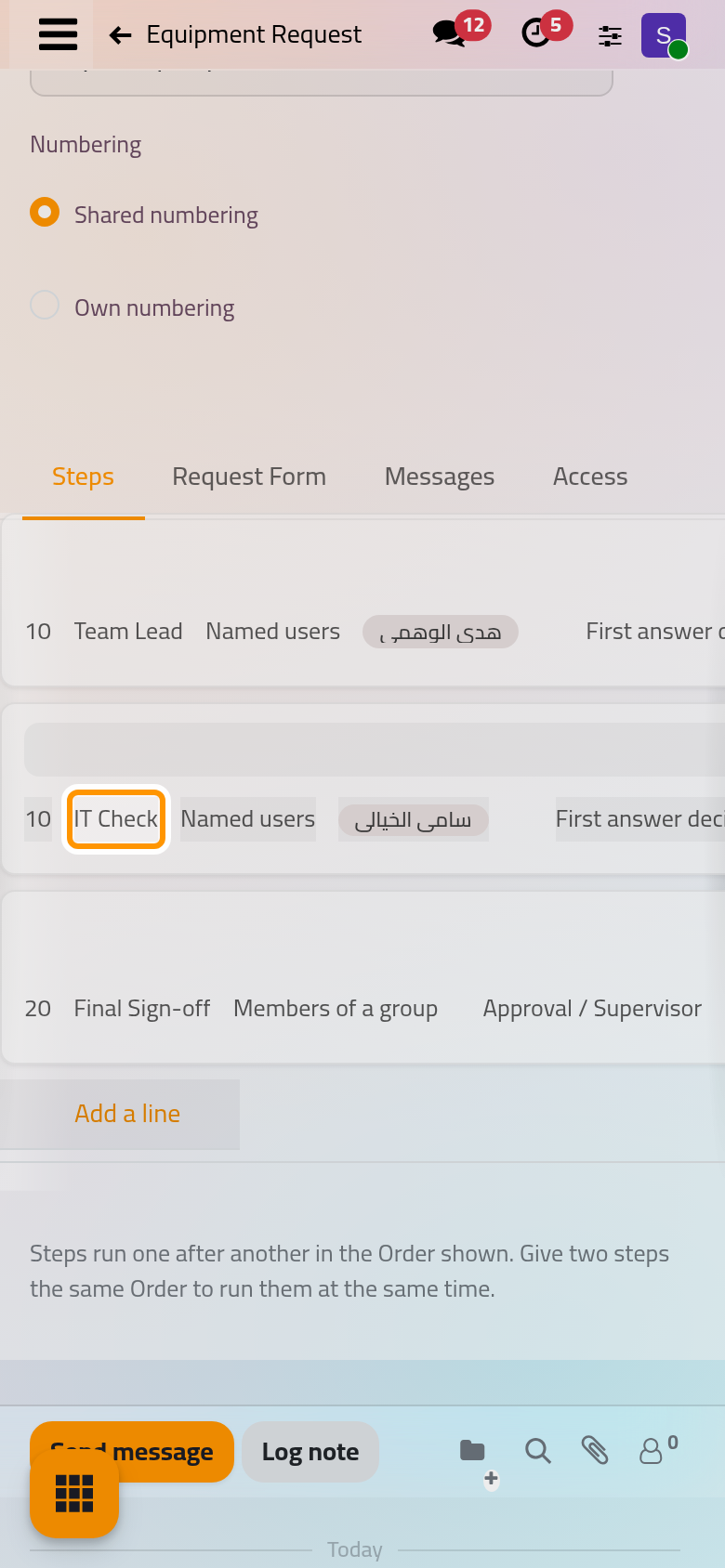
View at the end of a row saves the type and opens the step's form. Untick Blocking there for an advisory step whose refusal does not reject the request.
- Deadline: When Late does nothing, alerts someone, adds an approver or hands the decision over, to the person named in Escalate To.
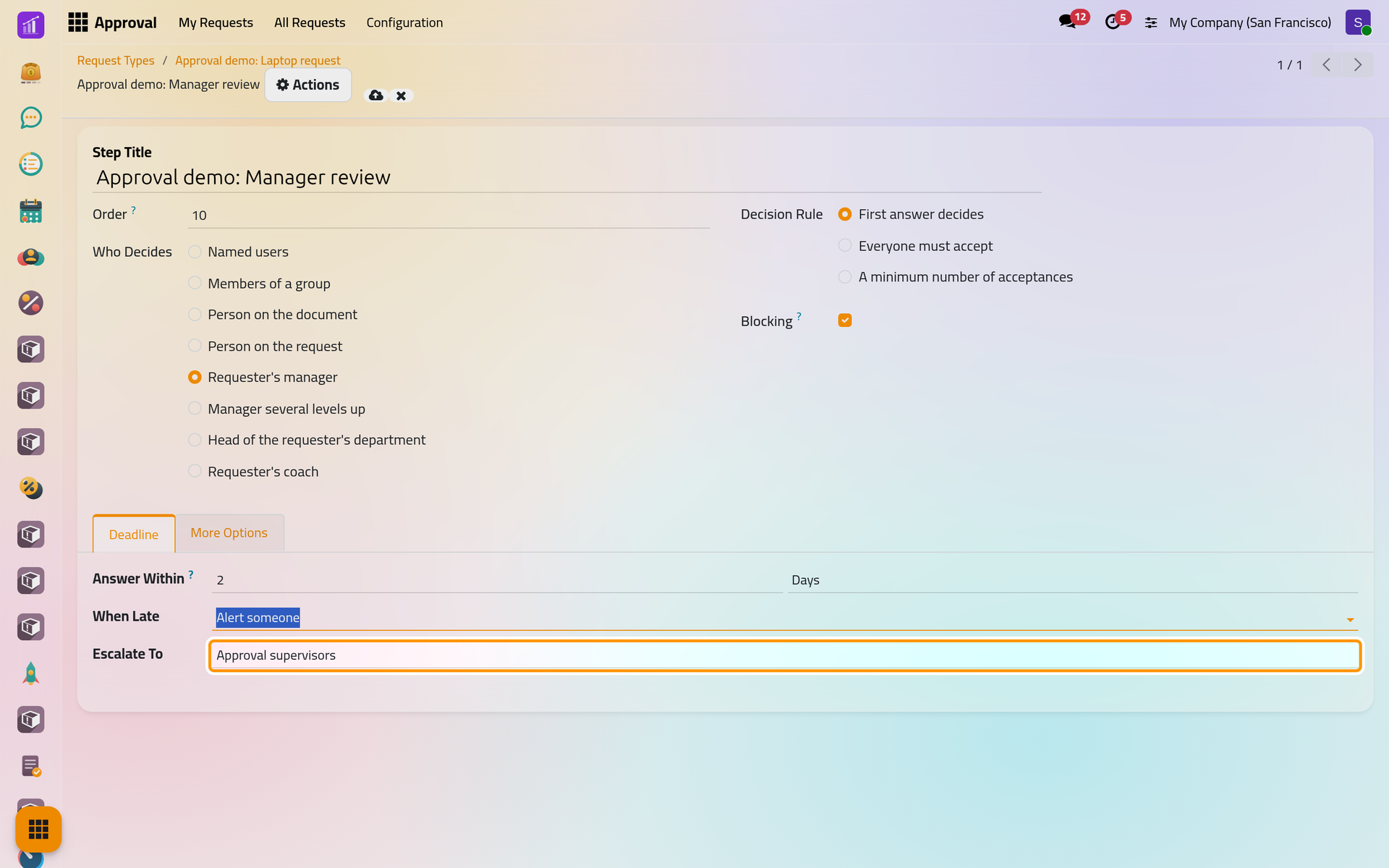
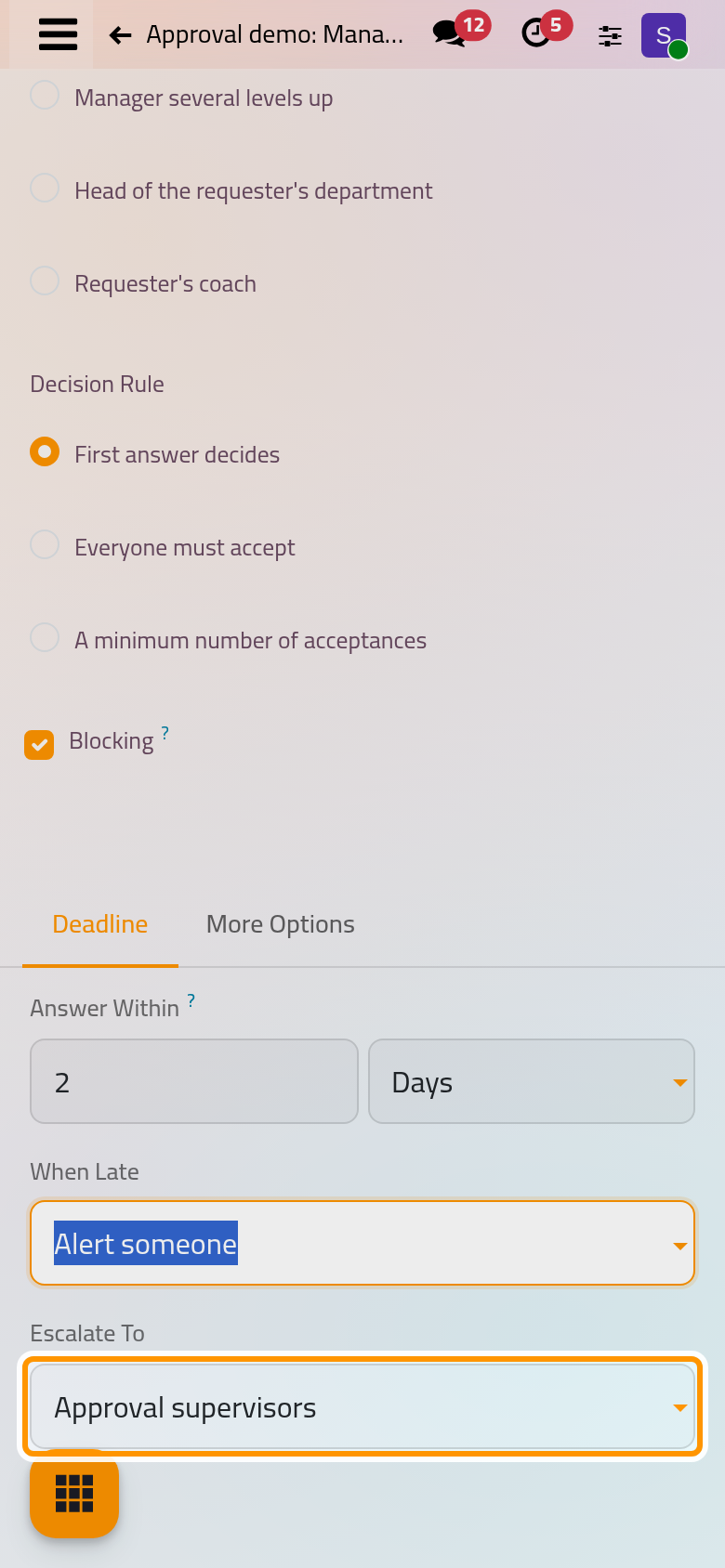
Two days to answer; when they pass, the approval supervisors are alerted. - More Options: Applies When, a condition that skips the step when not met; When Nobody Is Found; Note on Acceptance, Decision Signature and Keep Informed, people who follow the step without deciding.
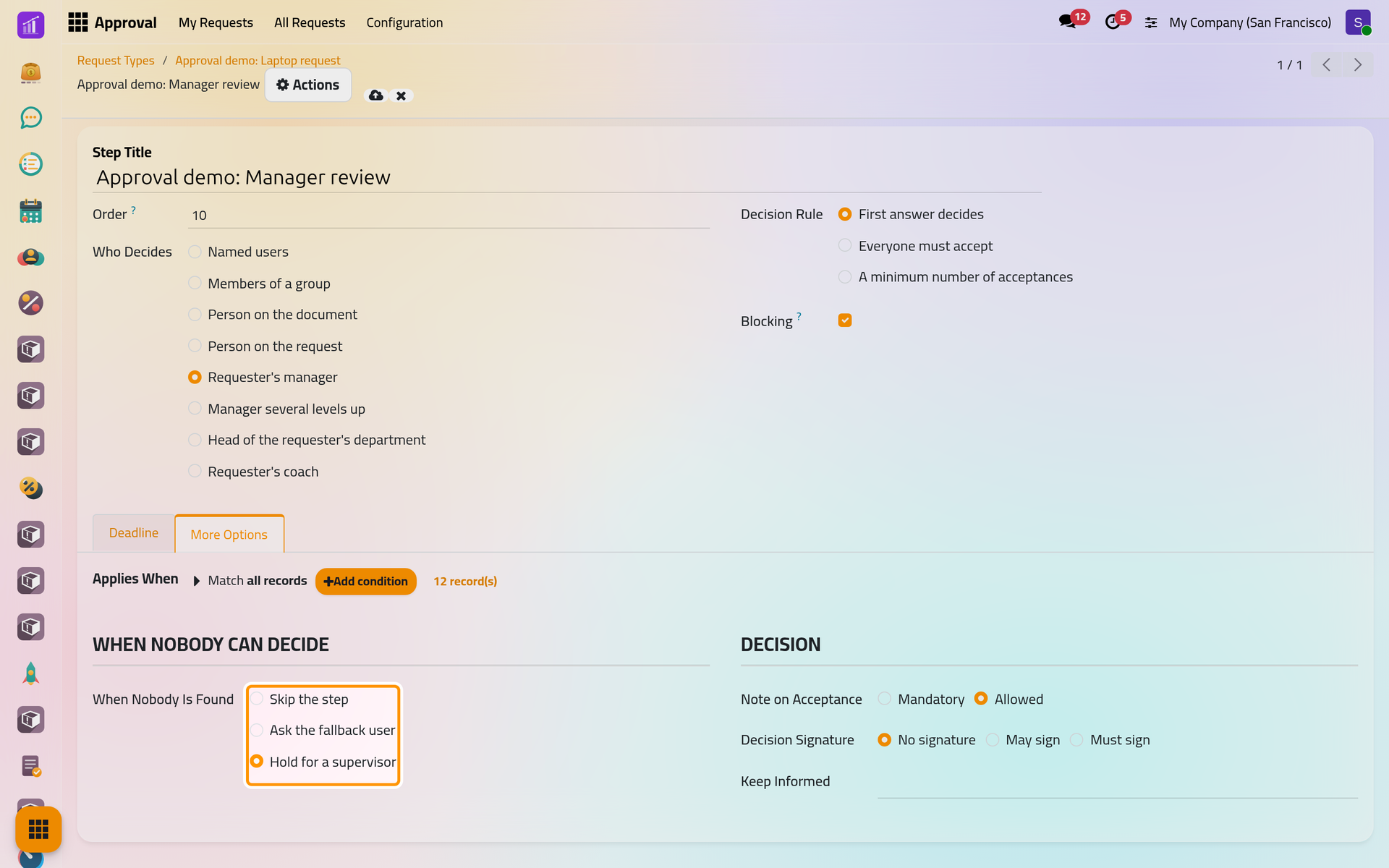
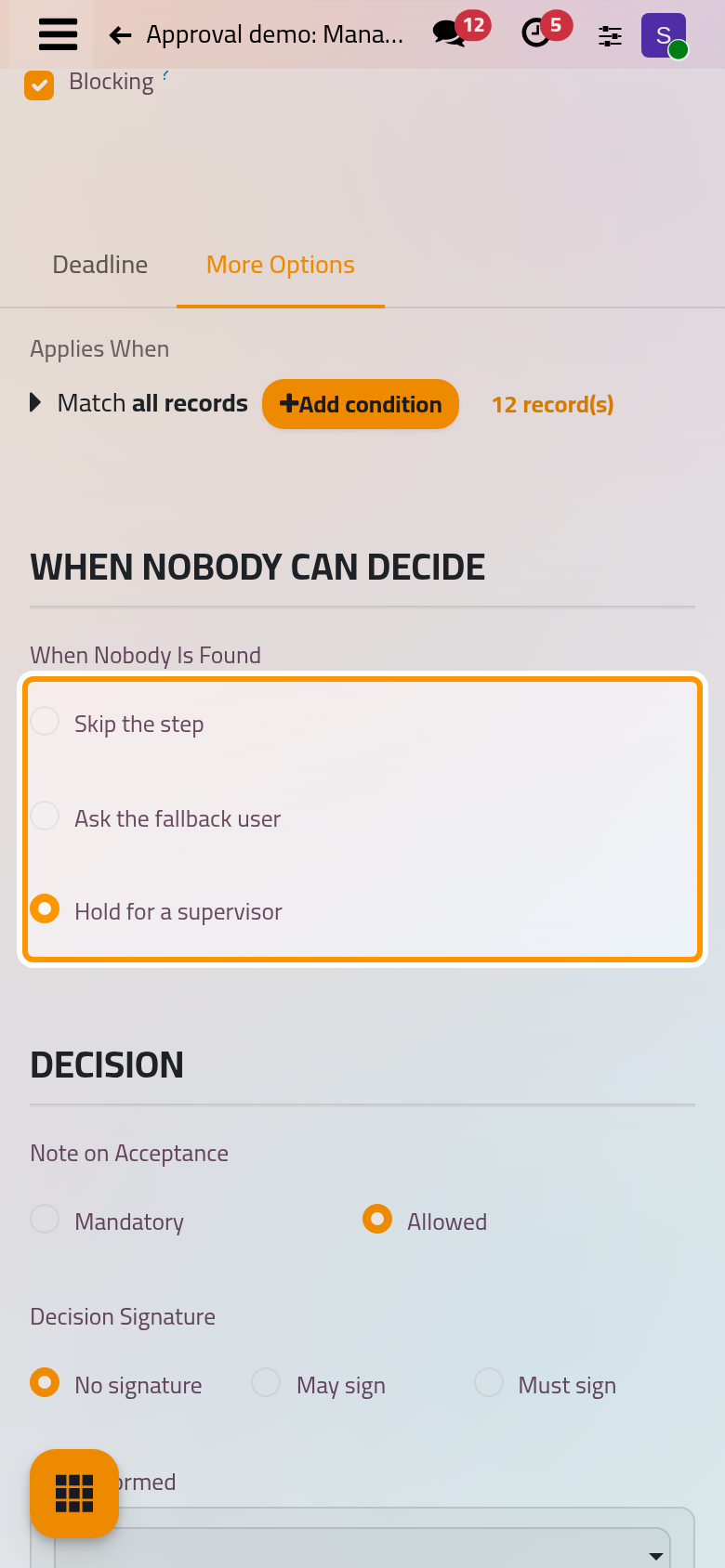
The condition of the step, what happens when nobody can decide, and what a decision asks for.
Form, messages and access
- Request Form: one row per field the request shows (Contact, Date, Amount, Items, Attachments and others), each Can be filled or Must be filled. A field without a row is hidden.
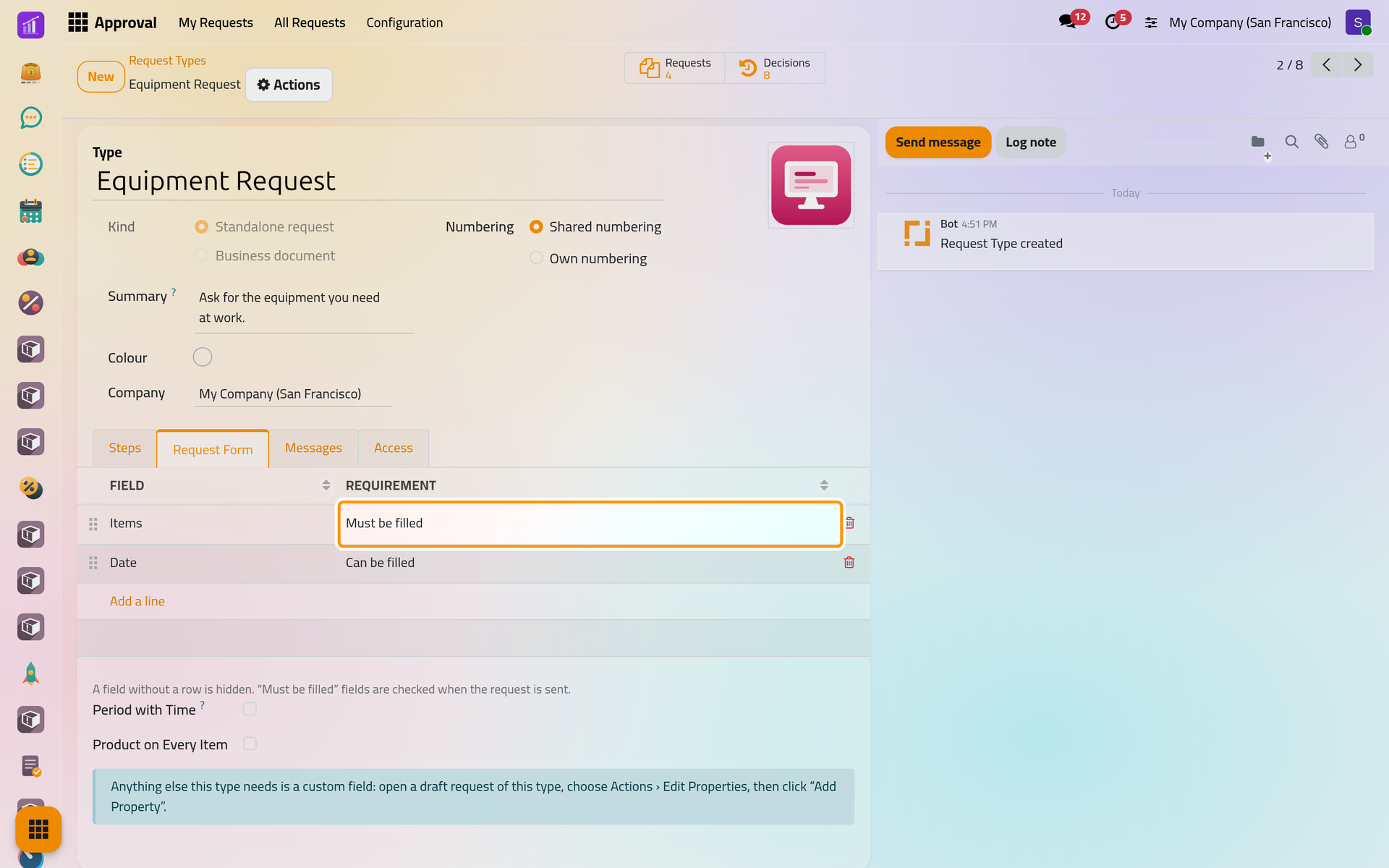
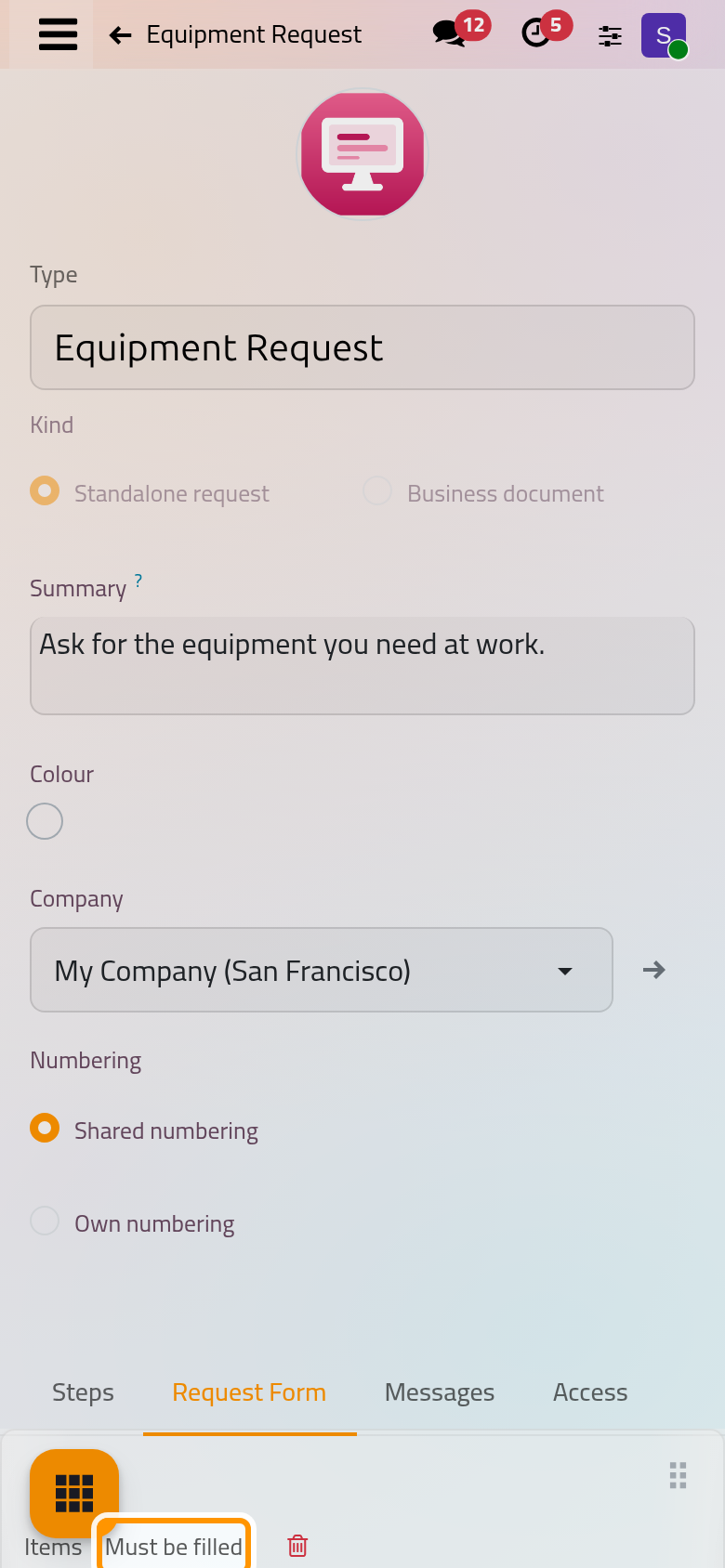
Equipment requests must list their items and may give a date; every other field stays hidden. - Messages: the Intro Text starts the description of each new request. Untick Send Emails to send no e-mail about this type; activities and the chatter stay.
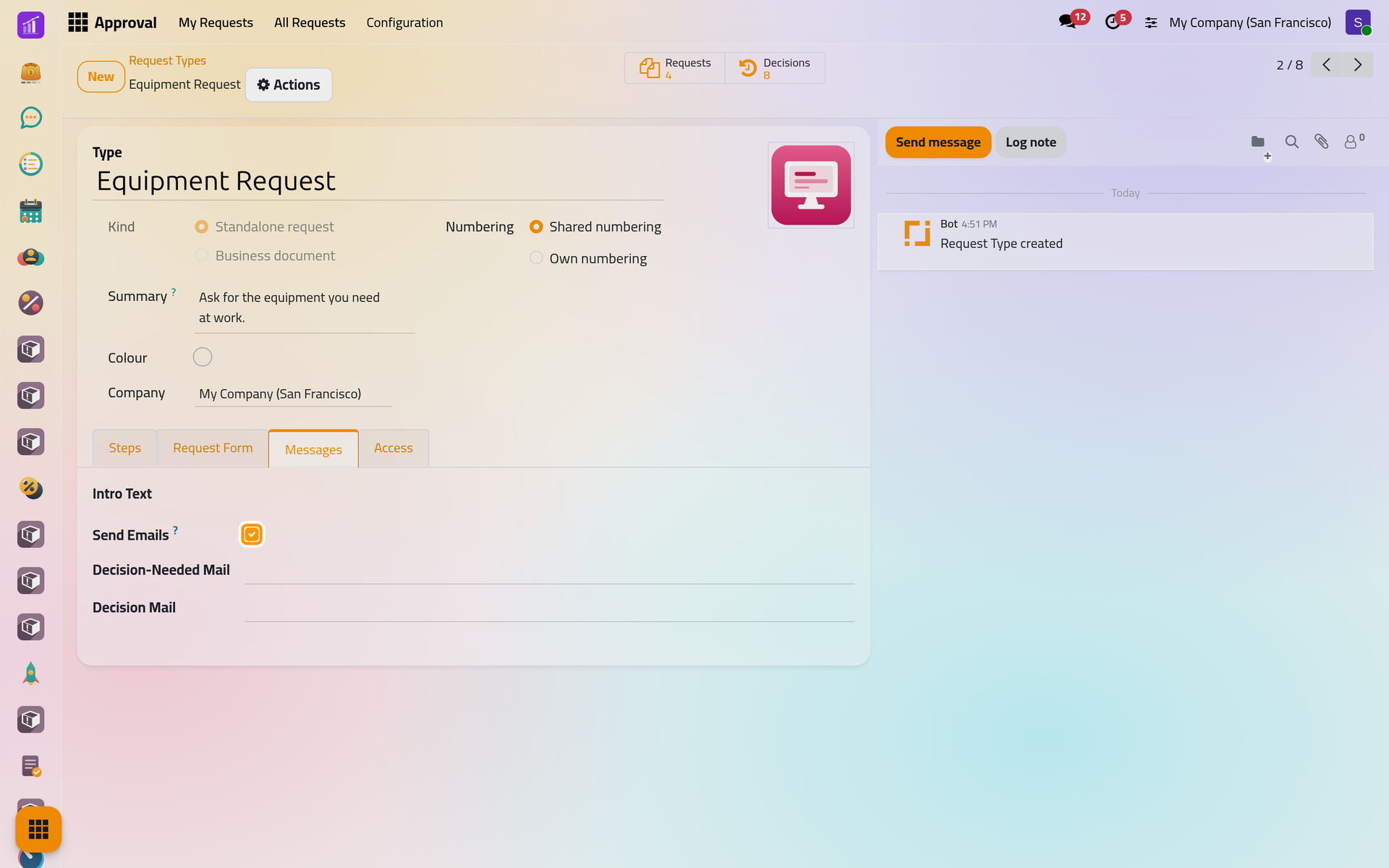
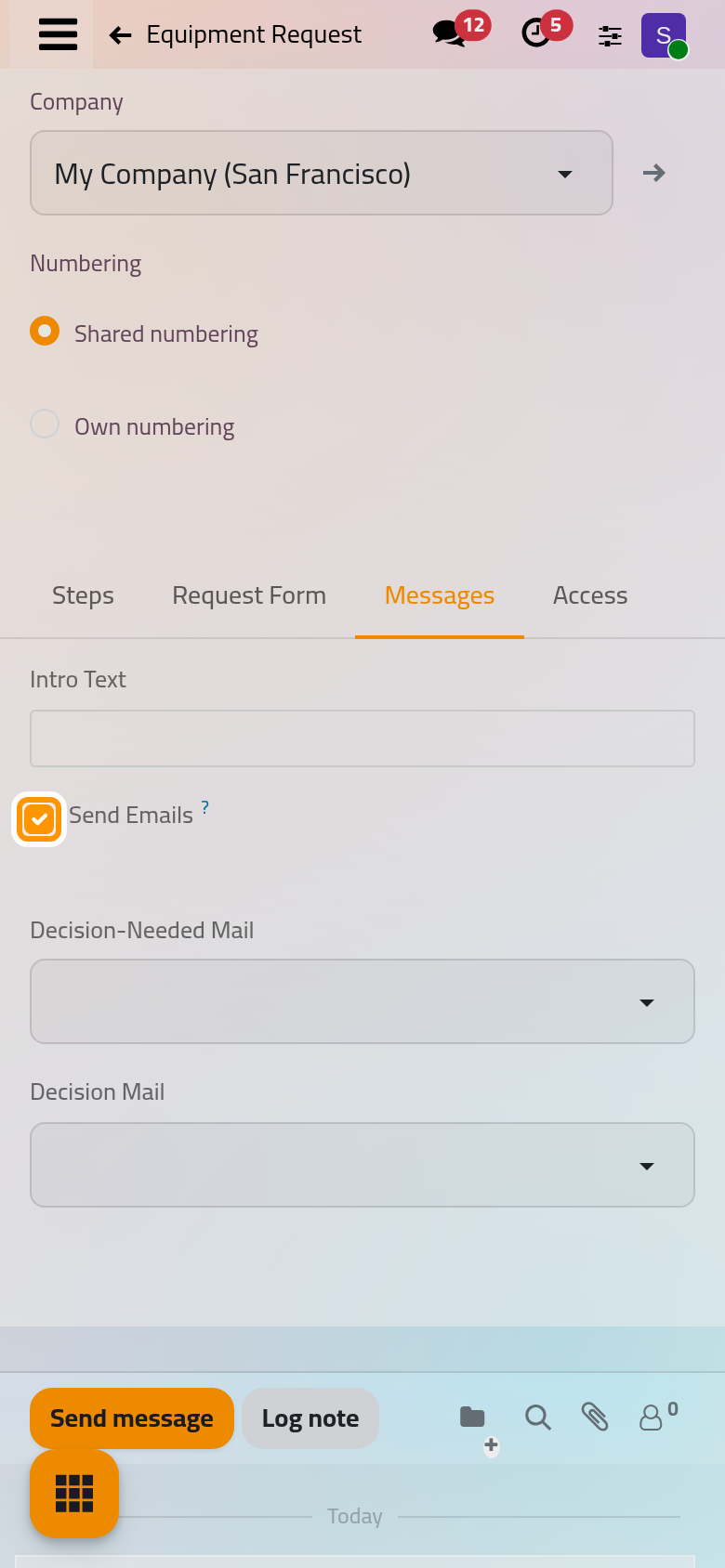
The intro text, the e-mail switch and the type's own mail templates. - Access: Who May Submit, empty for every internal user, and One Step per Person, so nobody decides two steps of one request.
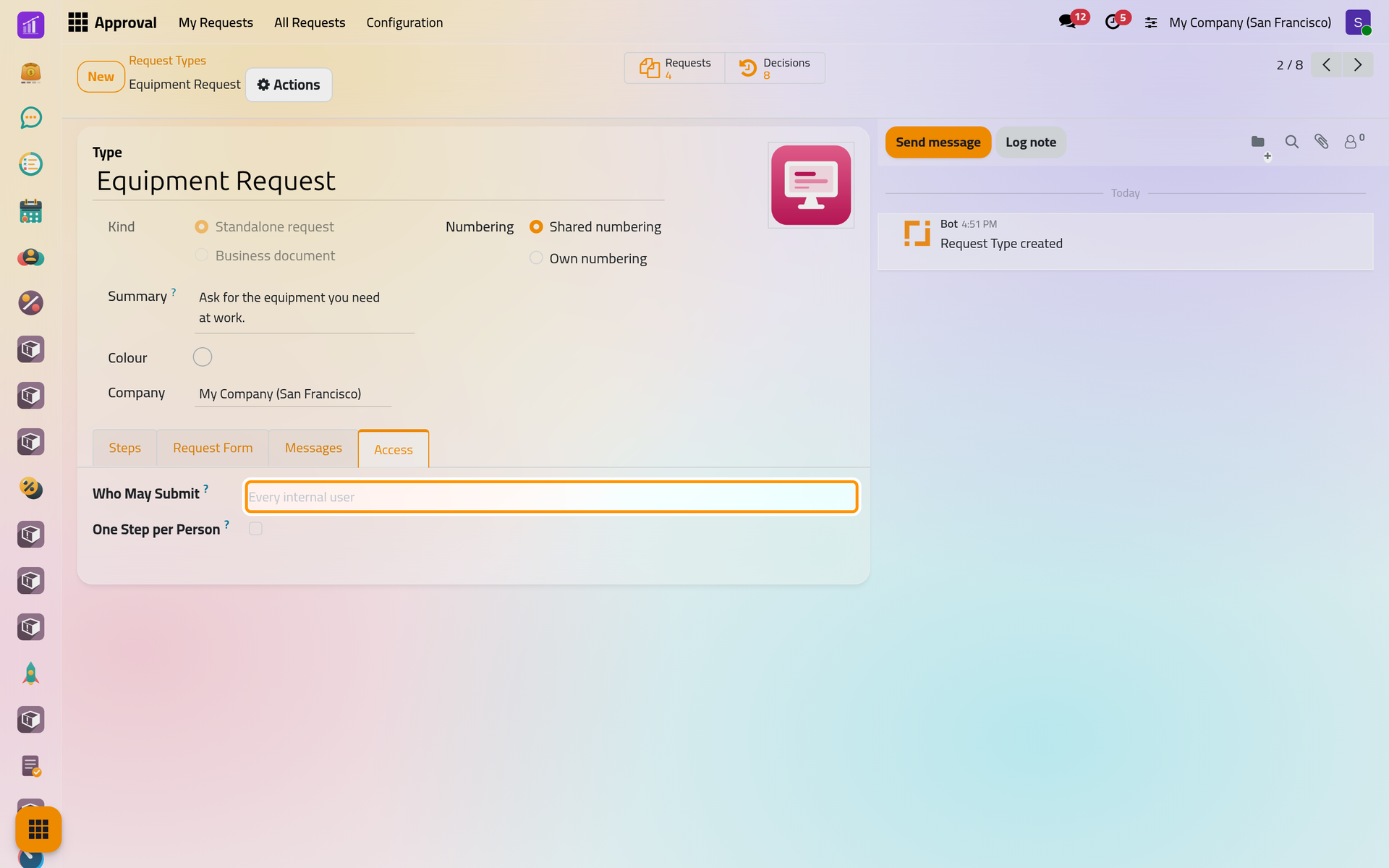
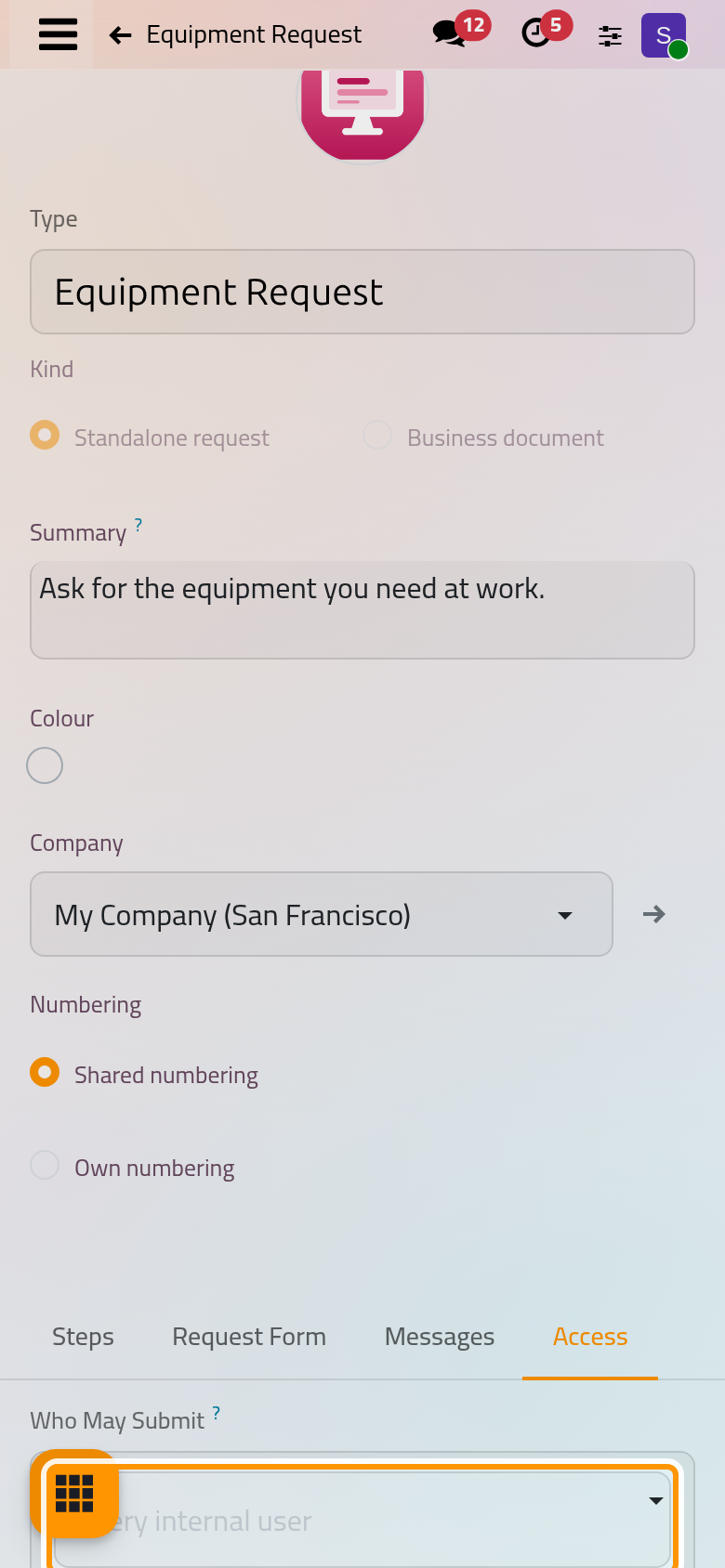
Who May Submit is empty, so every internal user may send equipment requests.
Requesters now pick the type when they start a request: Send a request for approval. A sent request keeps the steps it was sent with; each step finds its approvers when it opens, except a person named on the request or the record, who is taken when it is sent.
FAQ
How do I add a field that no row covers?
Open a draft request of the type, choose Actions › Edit Properties, then click Add Property. The field then appears on every request of the type.
A request cannot be sent: "Step ... has nobody to ask". Why?
The check before sending found no approver for that step, often a requester without a manager on their employee record. Set When Nobody Is Found to Ask the fallback user and choose the Fallback User, or pick another Who Decides.
Can I change the kind of a type later?
Not once it has requests; create a new type instead.
How do I stop using a type?
Choose Actions › Archive. Its requests stay with their history, and no new one can be sent.
Was this page helpful?
Thank you for your feedback.