Your first approval request
On this page
A request for approval asks for a yes before something happens: a purchase, a trip, a piece of equipment. Each request belongs to a type, which decides the fields the request shows and the steps it goes through; each step asks one or more people, the approvers. This walk-through sends an Equipment Request for a second screen as the demo administrator. The demo approvers are هدى الوهمي, سامي الخيالي and Nizar Al-Khayali.
Before you start
- Every internal user can send a request and decide the ones that wait on them. The Supervisor and Administrator access rights of Approval add supervision and configuration: Create a user and set access rights.
- A type can be kept for some groups; the Type field offers only the types you may send. How a type is built: Configure a request type.
Step 1: start a request
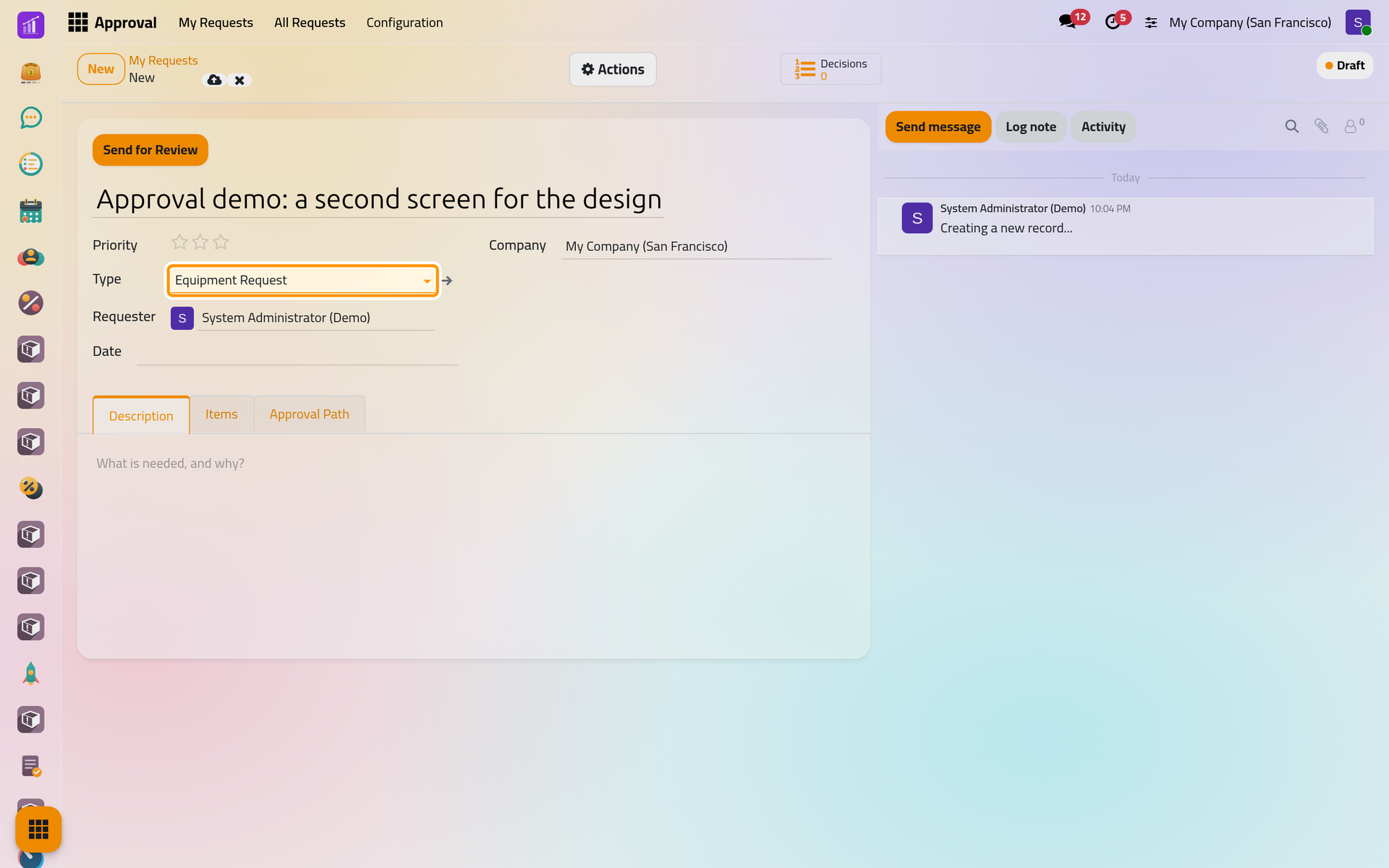
- Open and click New. The draft names you as Requester, with your current company.
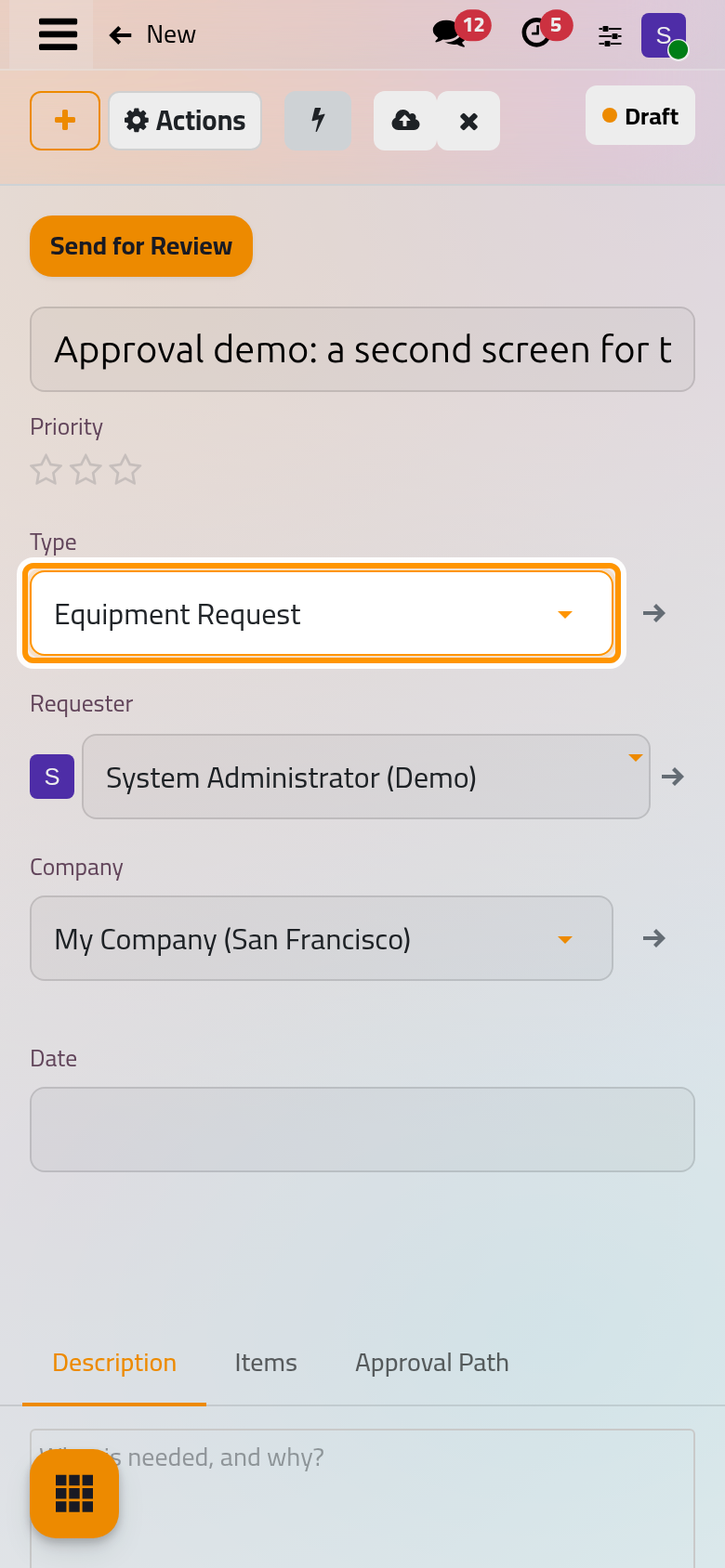
- In Type, choose Equipment Request. The form follows the type: this one adds a Date and an Items tab; others show a contact, a period, a place or an amount.
Step 2: say what you need
- Type the title on the first line: "Approval demo: a second screen for the design desk".
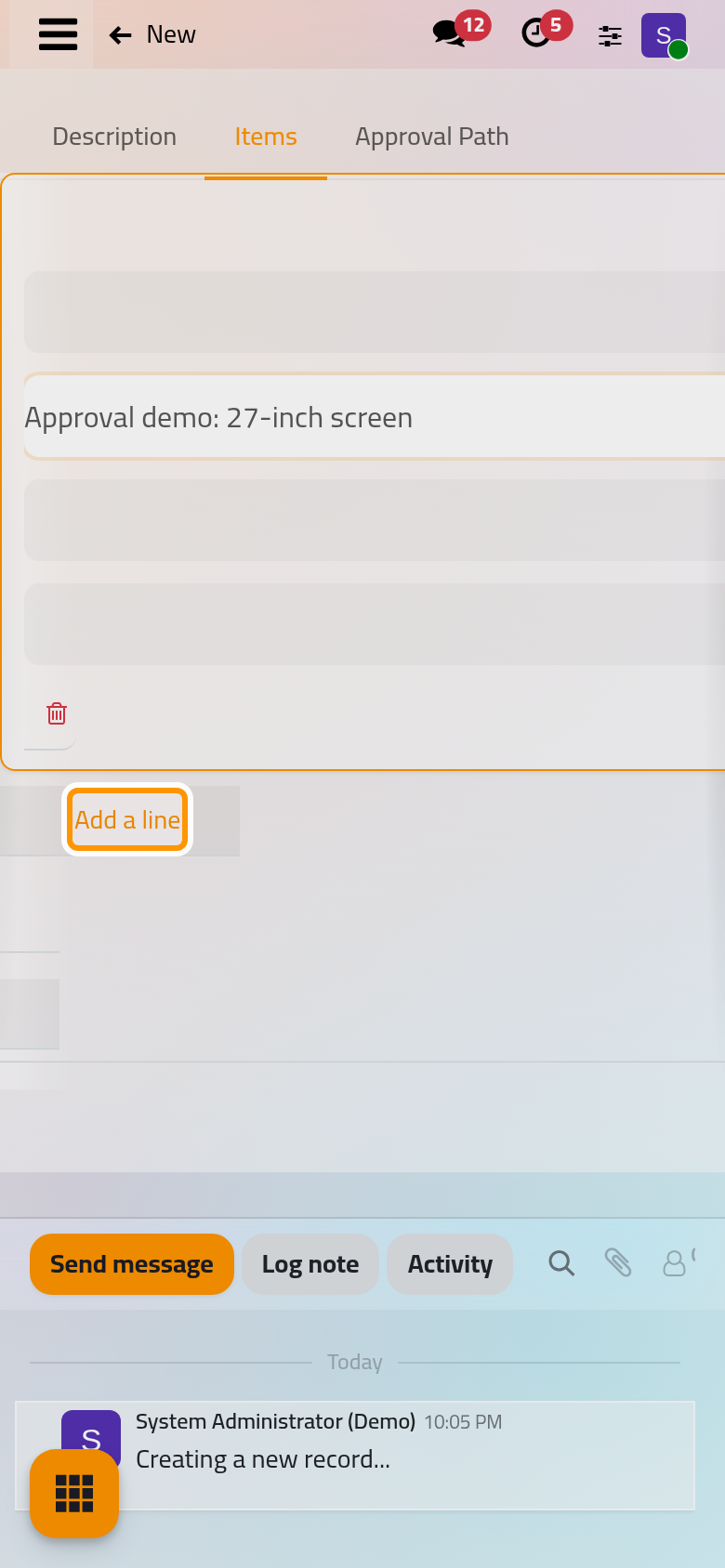
- Open Items and click Add a line. Leave Product empty when the thing is not in your catalog, and write it in Description: "Approval demo: 27-inch screen". Quantity starts at 1.
- The Description tab takes the reasons in your own words.
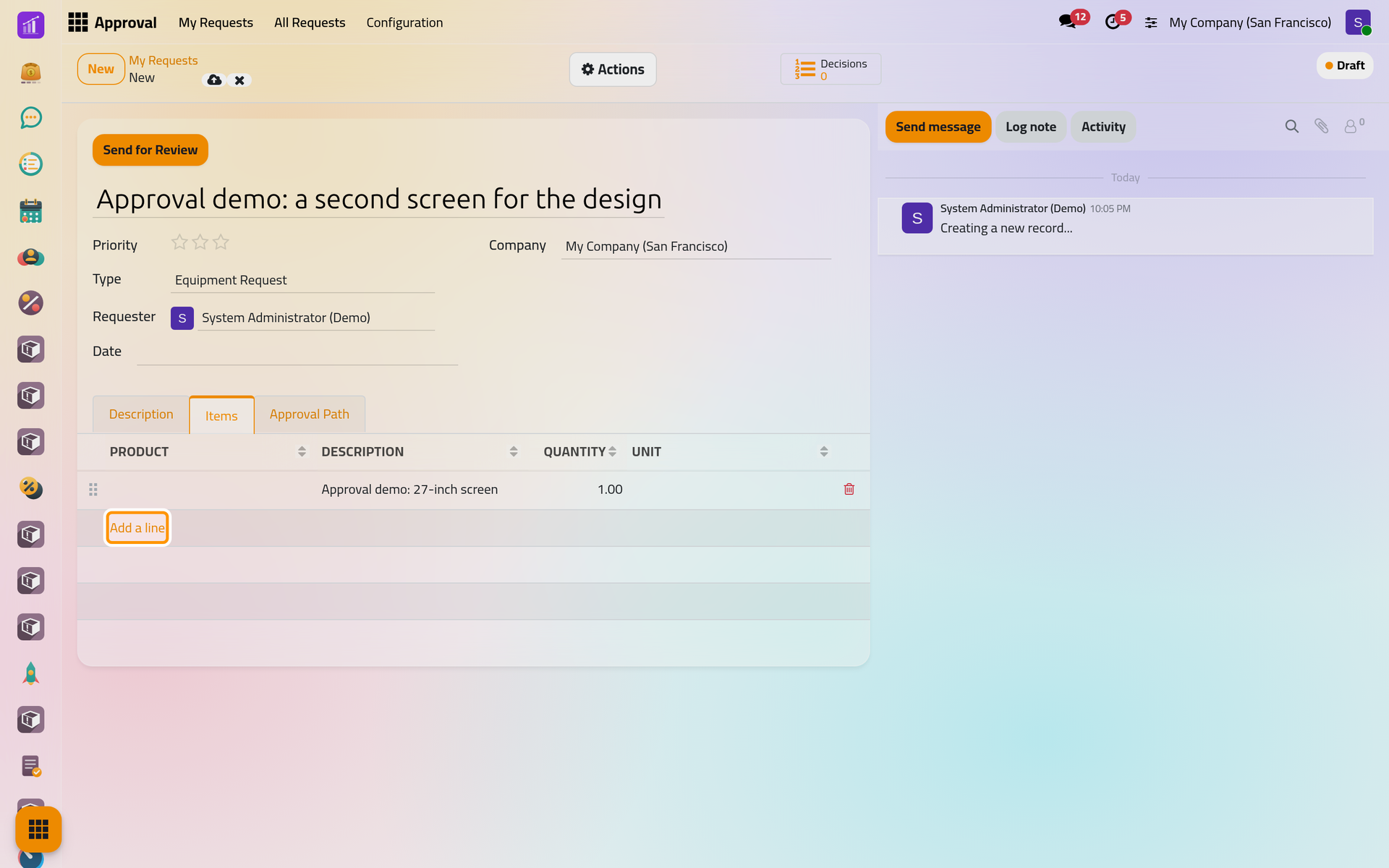
An Equipment Request needs at least one item: Send for Review refuses a draft that misses a required part, and names every missing part at once.
Step 3: see who will decide
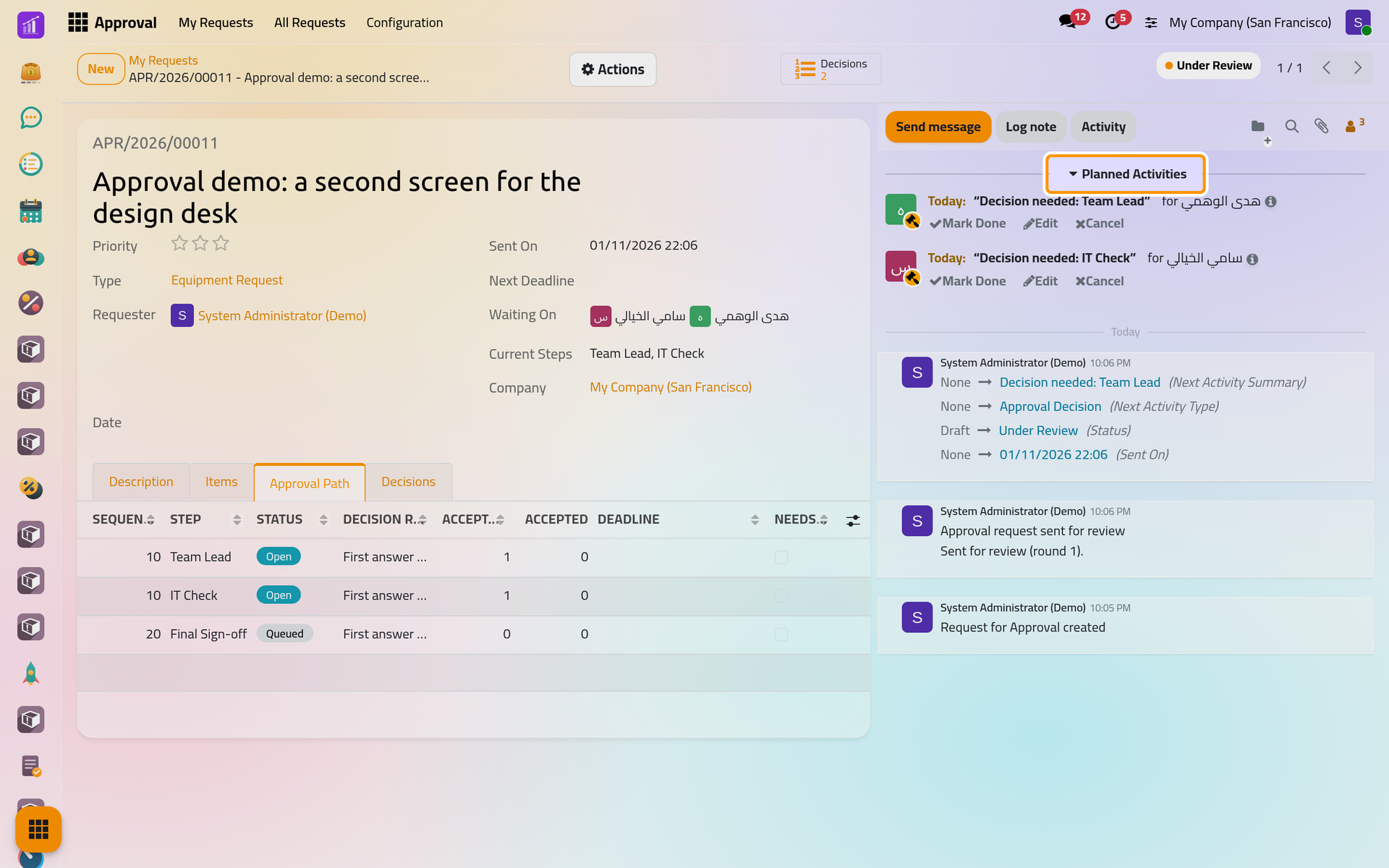
Open the Approval Path tab and click Save manually. The tab now lists each step with its Order, its Rule and Who Decides if the draft were sent now. Team Lead and IT Check share the order 10, so they open together; Final Sign-off waits until both are closed. You are not among the people of Final Sign-off, although you are a supervisor: by default nobody decides their own request.
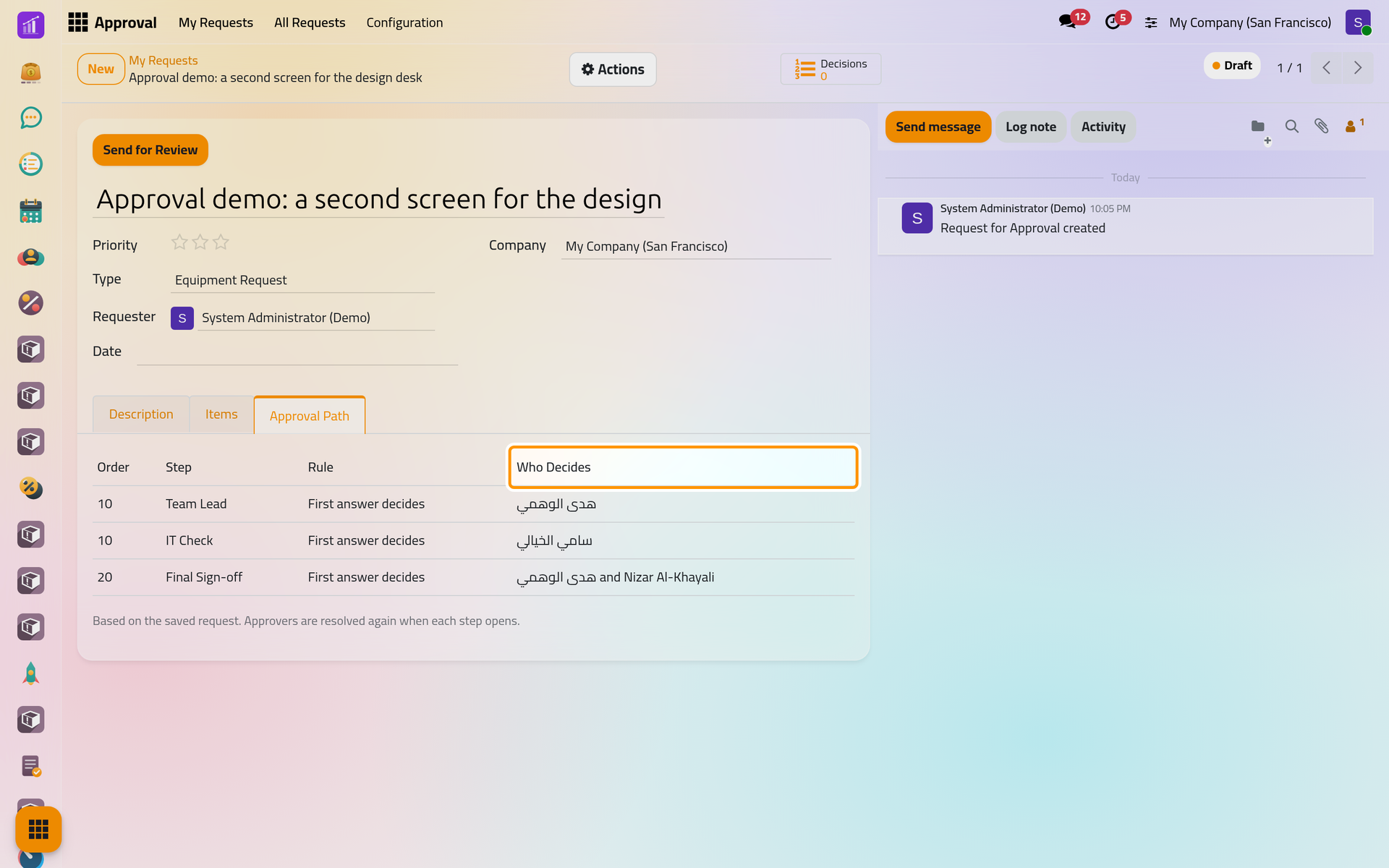
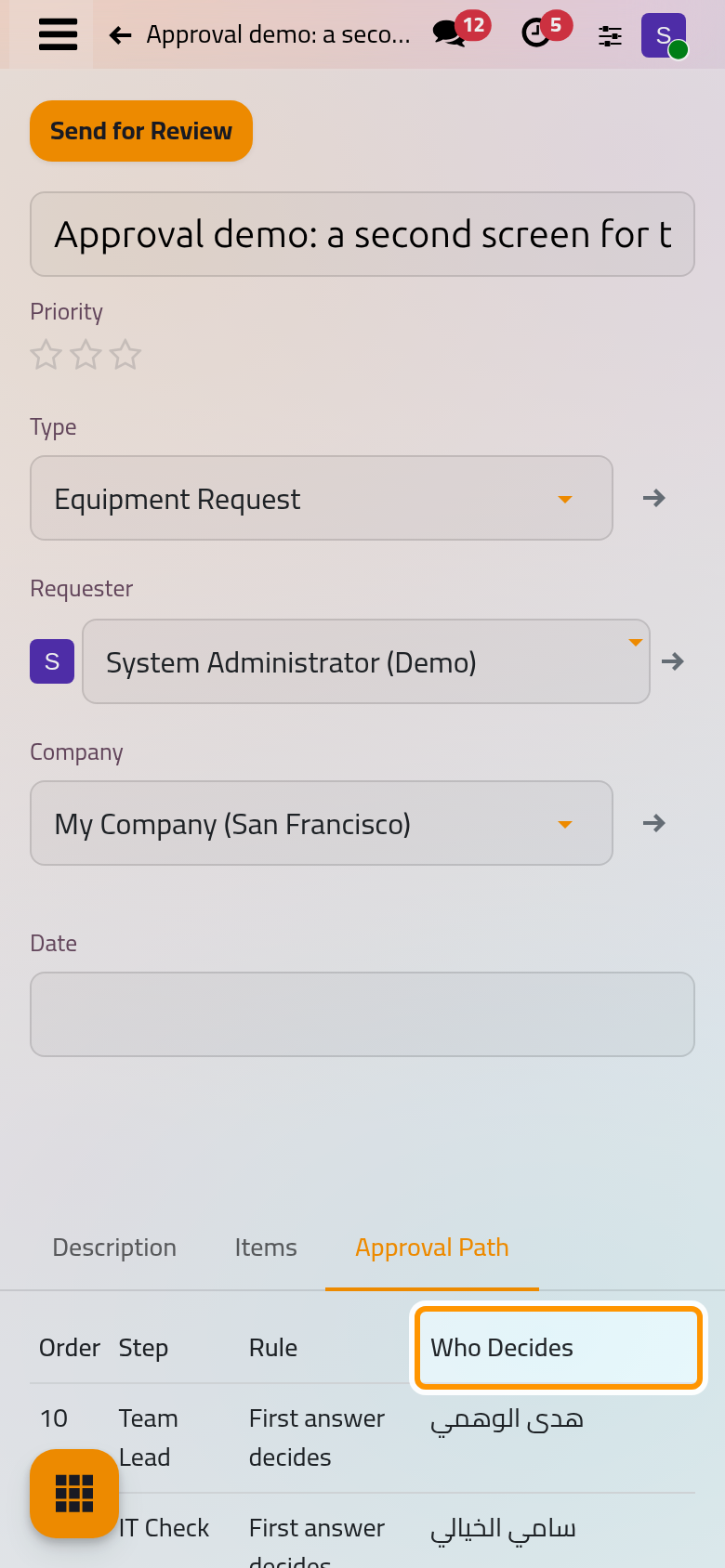
The list is a preview. The people of each step are worked out again when the step opens.
Step 4: send it
Click Send for Review at the top of the request.
- The request gets its number, such as APR/2026/00011, and the status moves to Under Review.
- Waiting On shows هدى الوهمي and سامي الخيالي, and Current Steps shows the two open steps.
- The Approval Path tab lists every step with its status: Open for the first two, Queued for Final Sign-off.
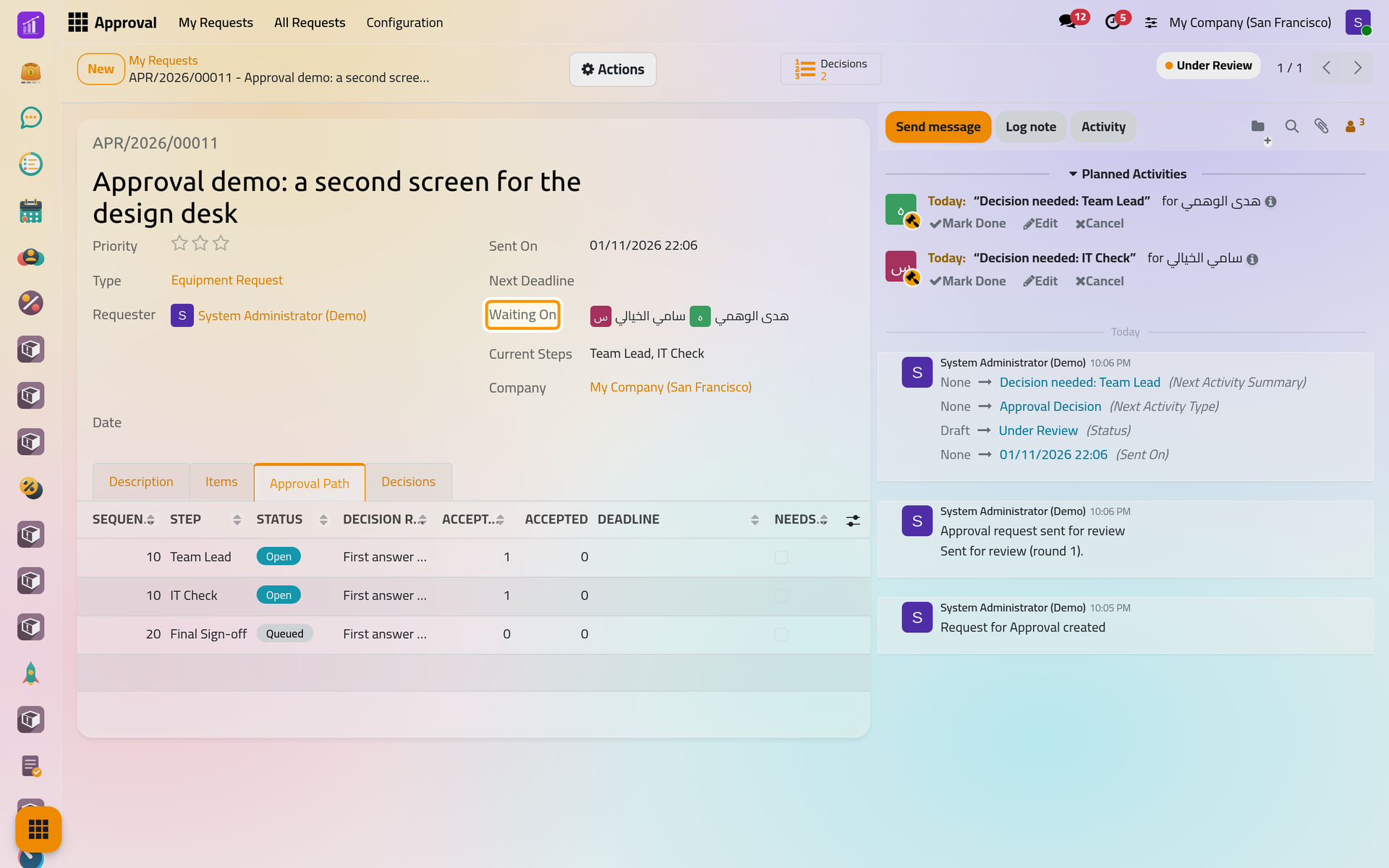
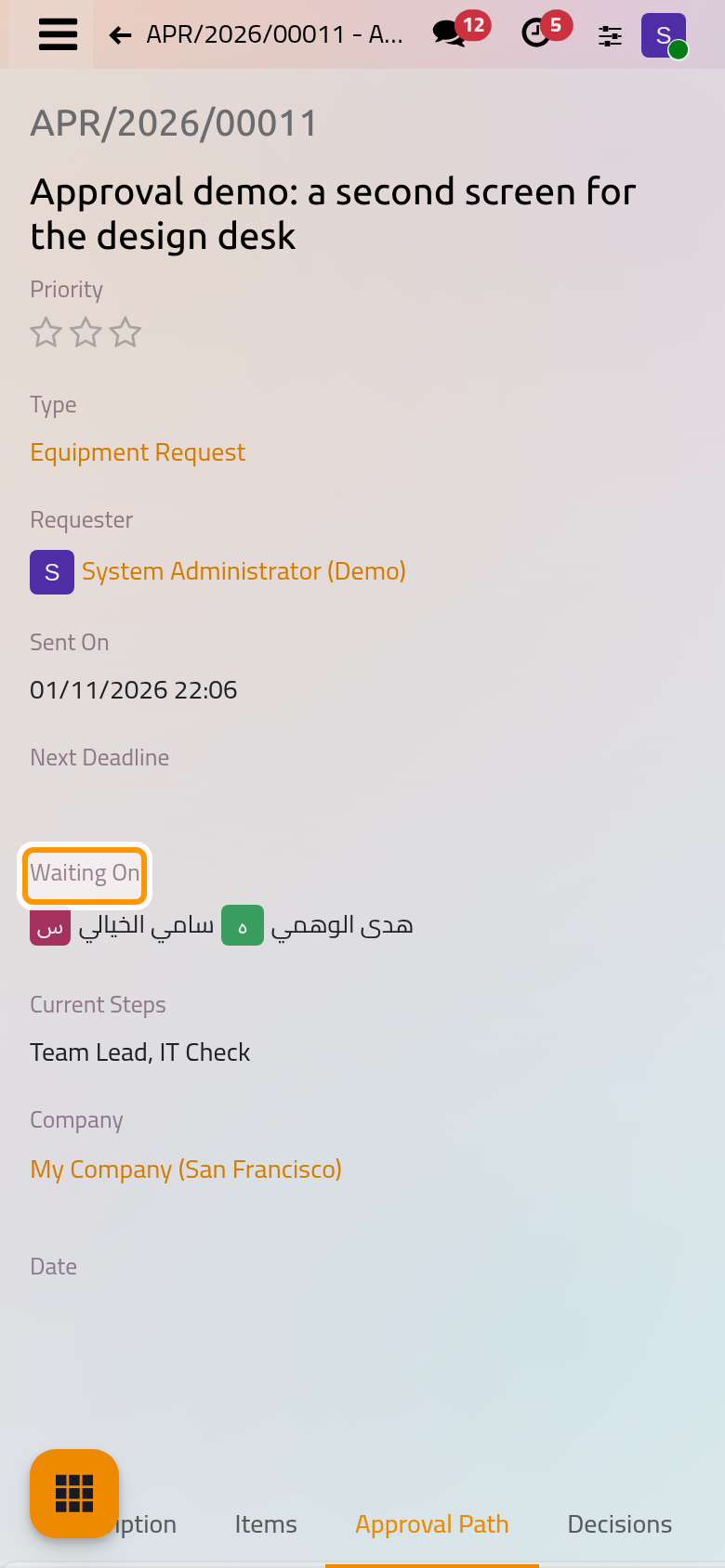
From now on the request cannot be edited. A file attached to it stays for the record and can no longer be removed or replaced.
Step 5: what the approvers receive
Each approver of an open step gets an activity Decision needed followed by the step's name, assigned to them on the request; it appears in their own activities and under Planned Activities in the request's chatter. By default they also receive an e-mail, when their user has an e-mail address. The activity closes by itself when they accept or decline; marking it done by hand is refused.
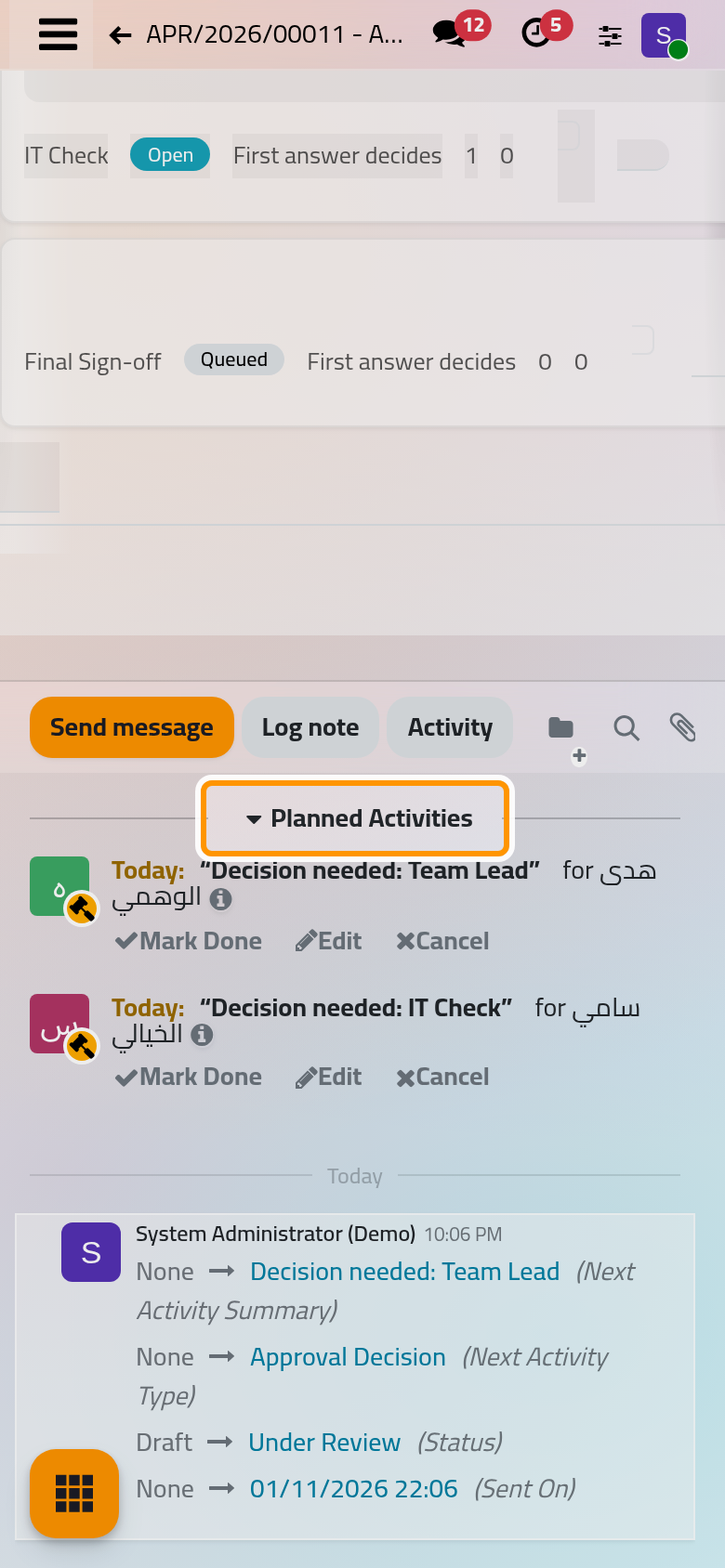
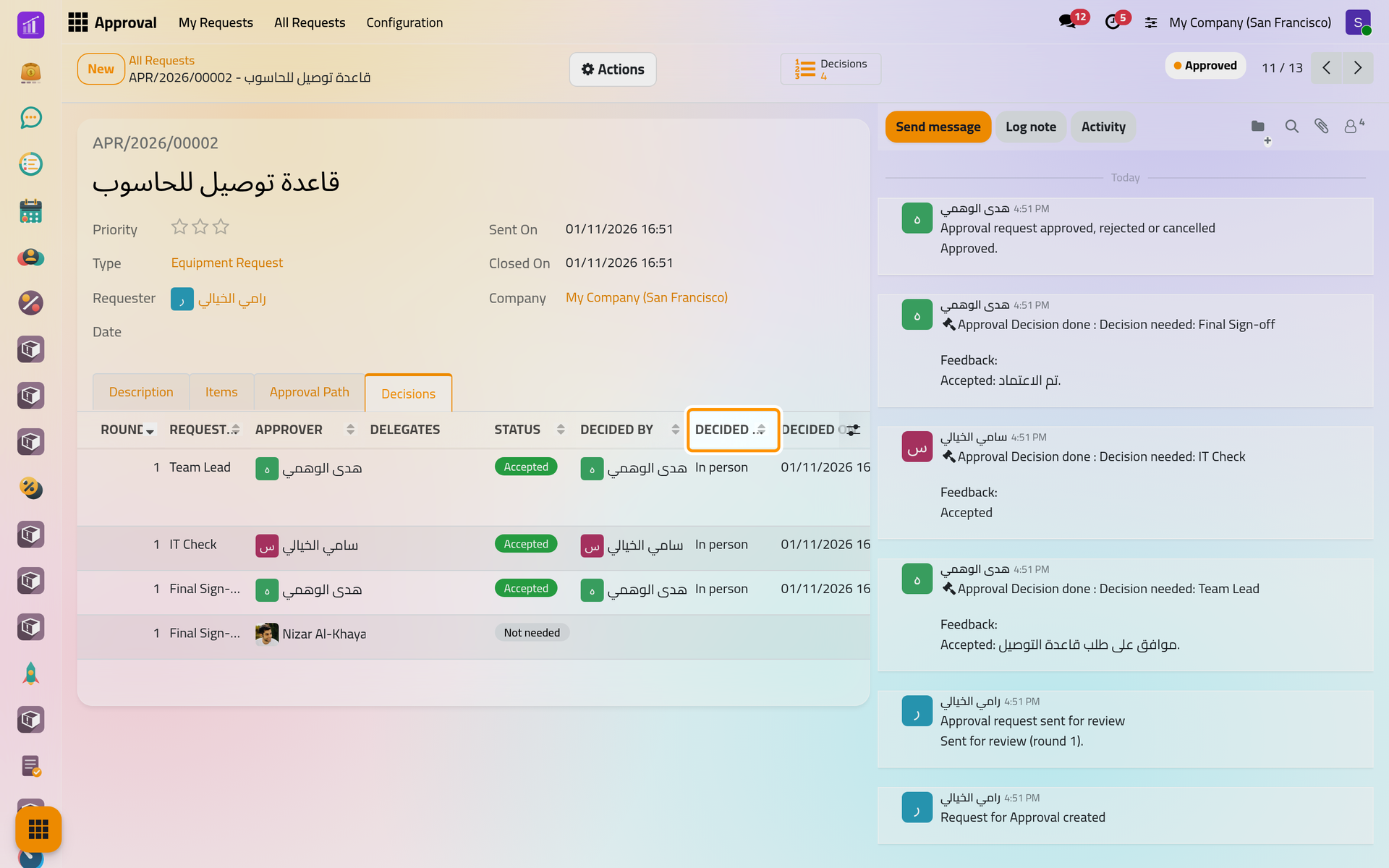
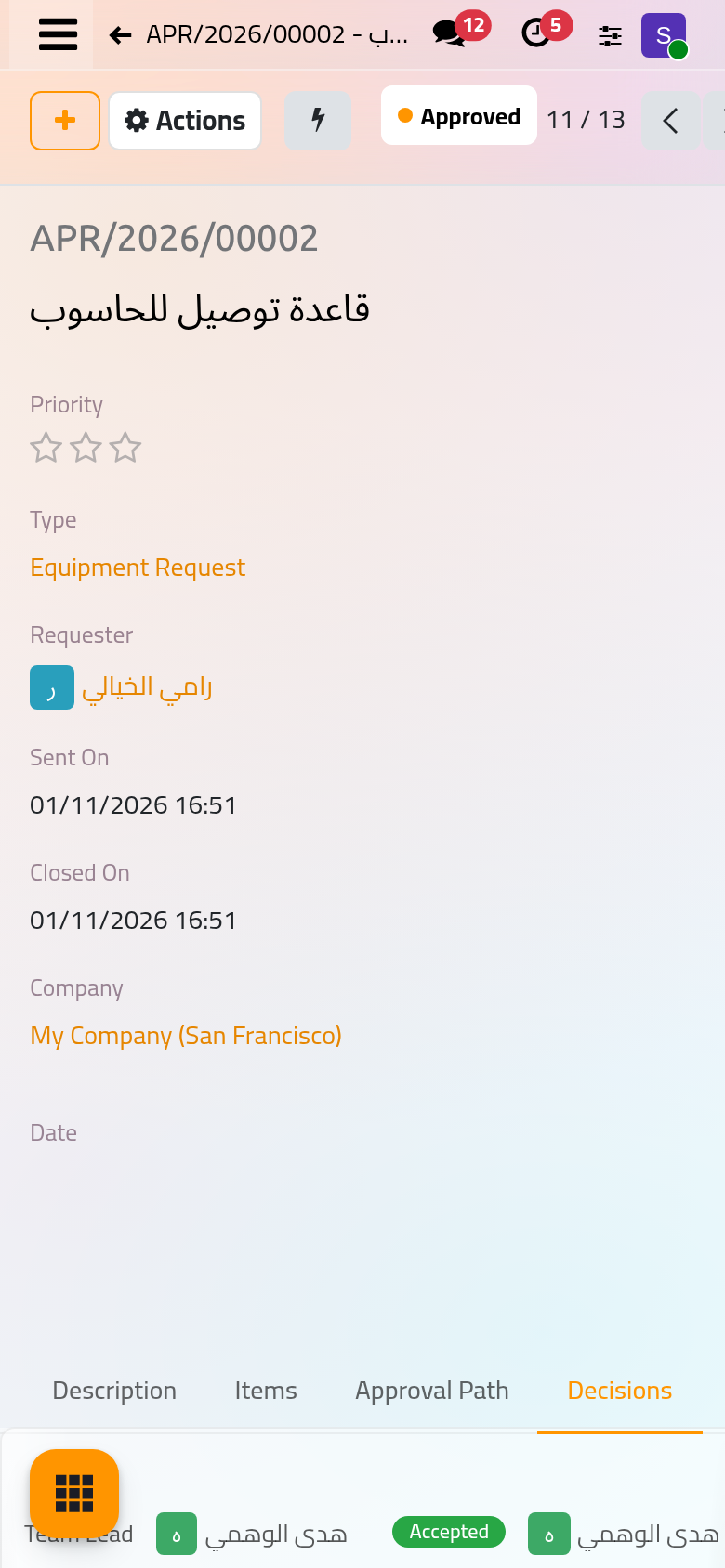
On a phone, the chatter sits below the form. How the approvers decide: Decide a request. Activities in general: Activities.
Step 6: follow it
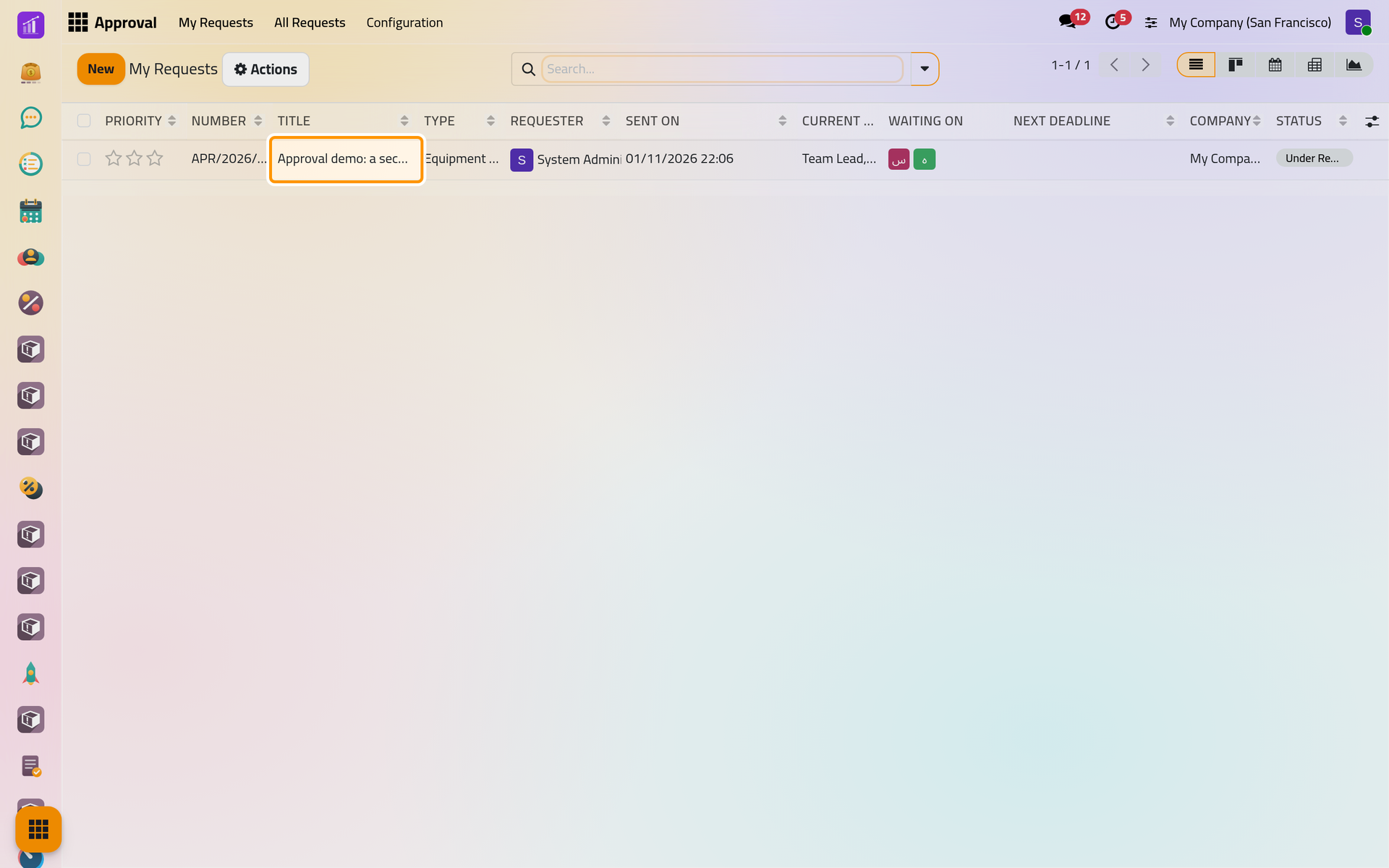
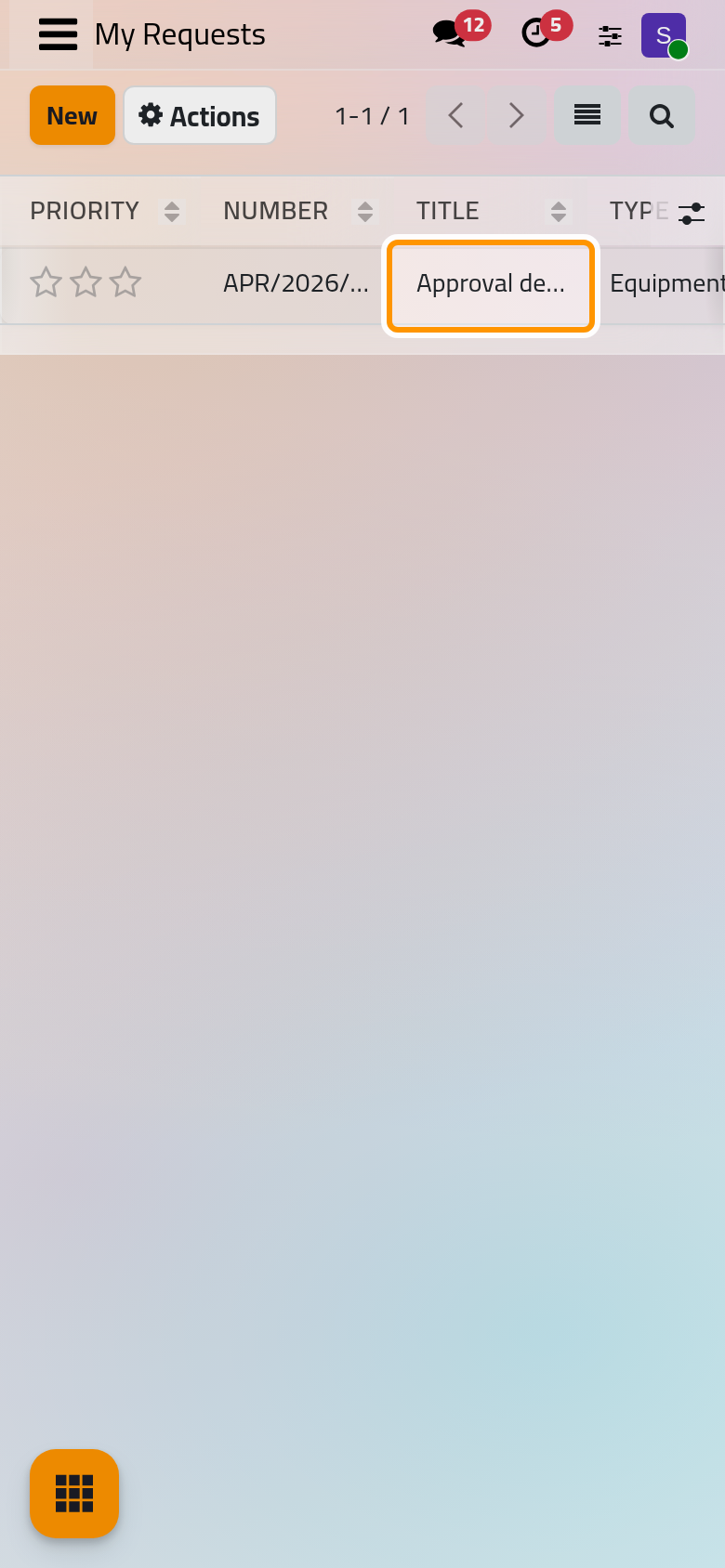
Open again. The list holds the requests you are the requester of, with Current Steps, Waiting On, Next Deadline and Status. The request's chatter keeps every event: the sending, each decision, the closing.
Step 7: the end of the path
When every step has passed, the request turns Approved, and by default you receive an e-mail. When a blocking step fails, for example because its approver declines, it turns Rejected: the reason is in the Outcome tab, and Edit and Resend takes it back to draft for a new round.
The demo request قاعدة توصيل للحاسوب shows a finished path. Open it from and click the Decisions tab. Each row says who decided, at which step, how (In person, As delegate or By a supervisor), when and with which note. The second person of Final Sign-off reads Not needed: the first answer decided the step.
What you have done
You started a request, filled what its type asks for, checked who would decide, sent it and followed it to its decisions. The user guide takes each part further: Send a request for approval covers the other fields, the attachments and cancelling, Decide a request is the approver's side, and Delegate your approvals for a period names who decides while you are away. How approvals work explains the states, the rules and who sees what.
Was this page helpful?
Thank you for your feedback.