Send a request for approval
On this page
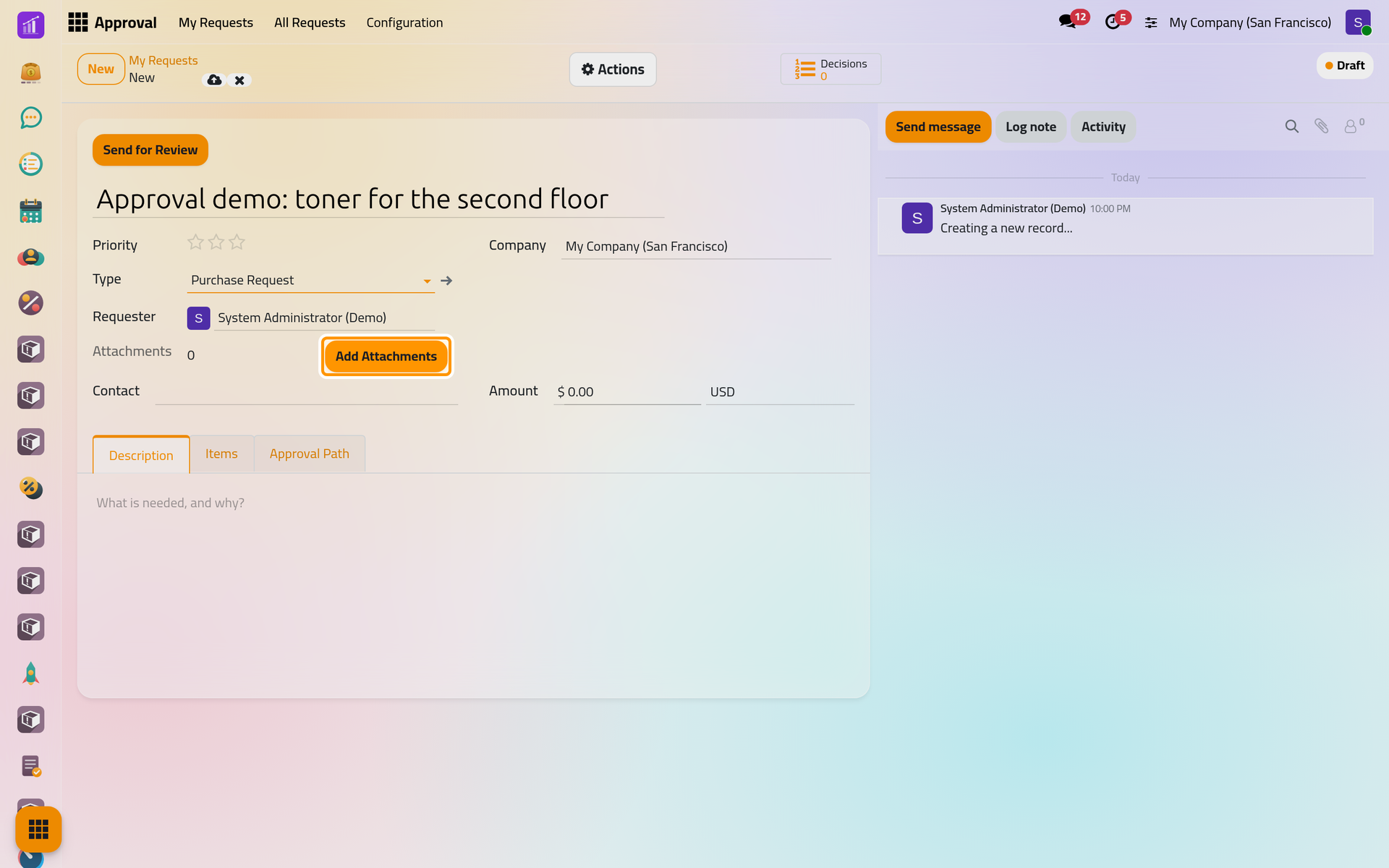
A request starts as a draft of a type: a purchase, an expense, a trip, an asset handover. The type decides which fields the request shows, which of them must be filled, and the steps it goes through. A draft has no number yet; it gets one when you send it. The example is a Purchase Request for printer toner.
Before you start
- Type offers only the types you may send. Who may send a type is set on the type: Configure a request type.
- Have your files at hand, such as a quotation: once the request is sent, its files stay for the record and can no longer be removed or replaced.
Fill the draft
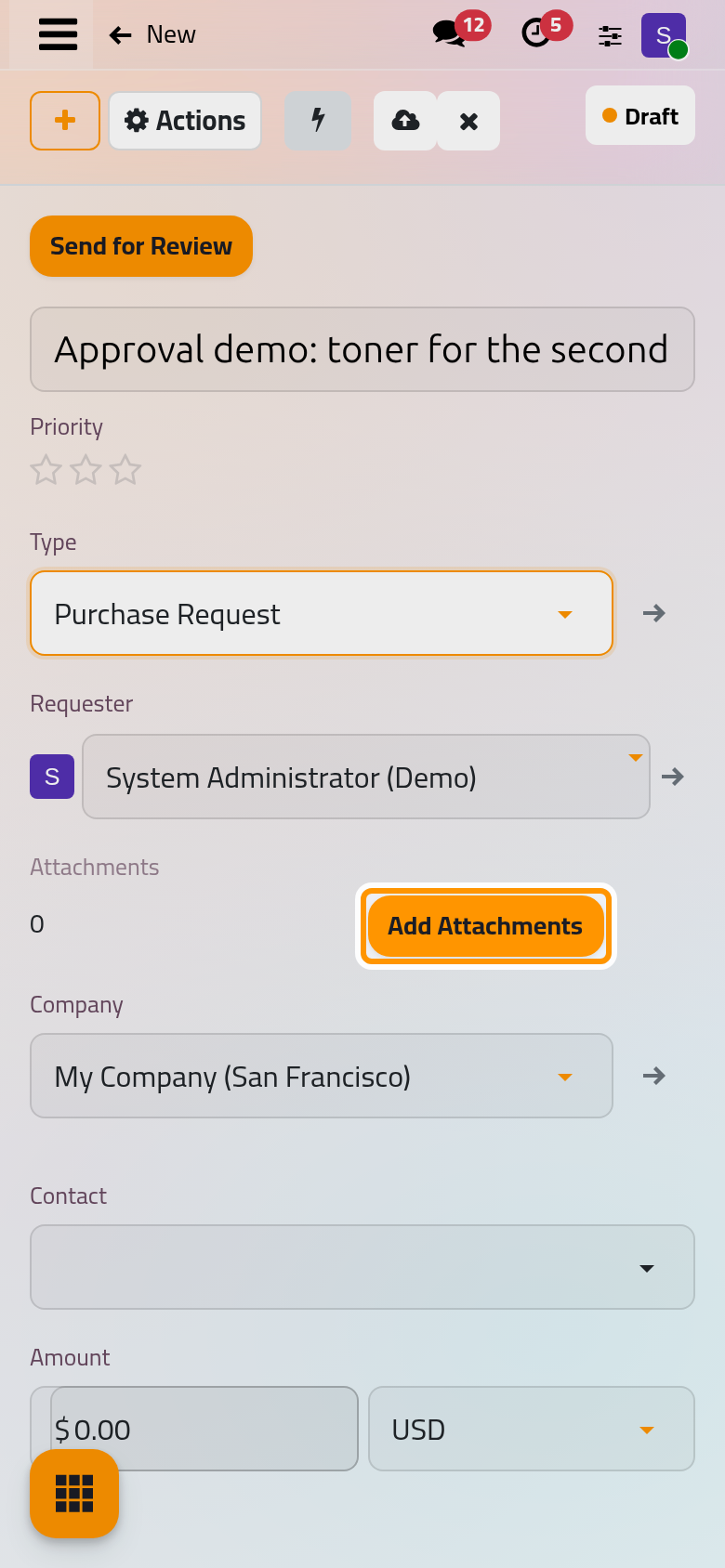
- Open , click New and choose the Type. The draft names you as Requester; only a supervisor can name someone else.
- Type a title that says what is needed, here "Approval demo: toner for the second floor".
- Fill the fields the type shows: Contact, Date, Period, Place, Reference, Quantity, Amount, an Items tab, Attachments, a Signature tab, and custom fields of its own. A Purchase Request shows Contact, Amount, Attachments and Items.
- In Items, click Add a line for each thing you ask for: a Product, or a Description when the thing is not in your catalog, and a Quantity.
- Click Add Attachments to upload your files; the paperclip of the chatter adds files too. On a wide screen, a PDF or an image of the request is shown beside the form.
- When the type has a Signature tab, sign there. The signature saved in My Preferences under Saved Approval Signature is filled in for you.
- Explain the need in the Description tab. Some types fill it with a short text of their own when the draft is created.
Check who will decide, then send
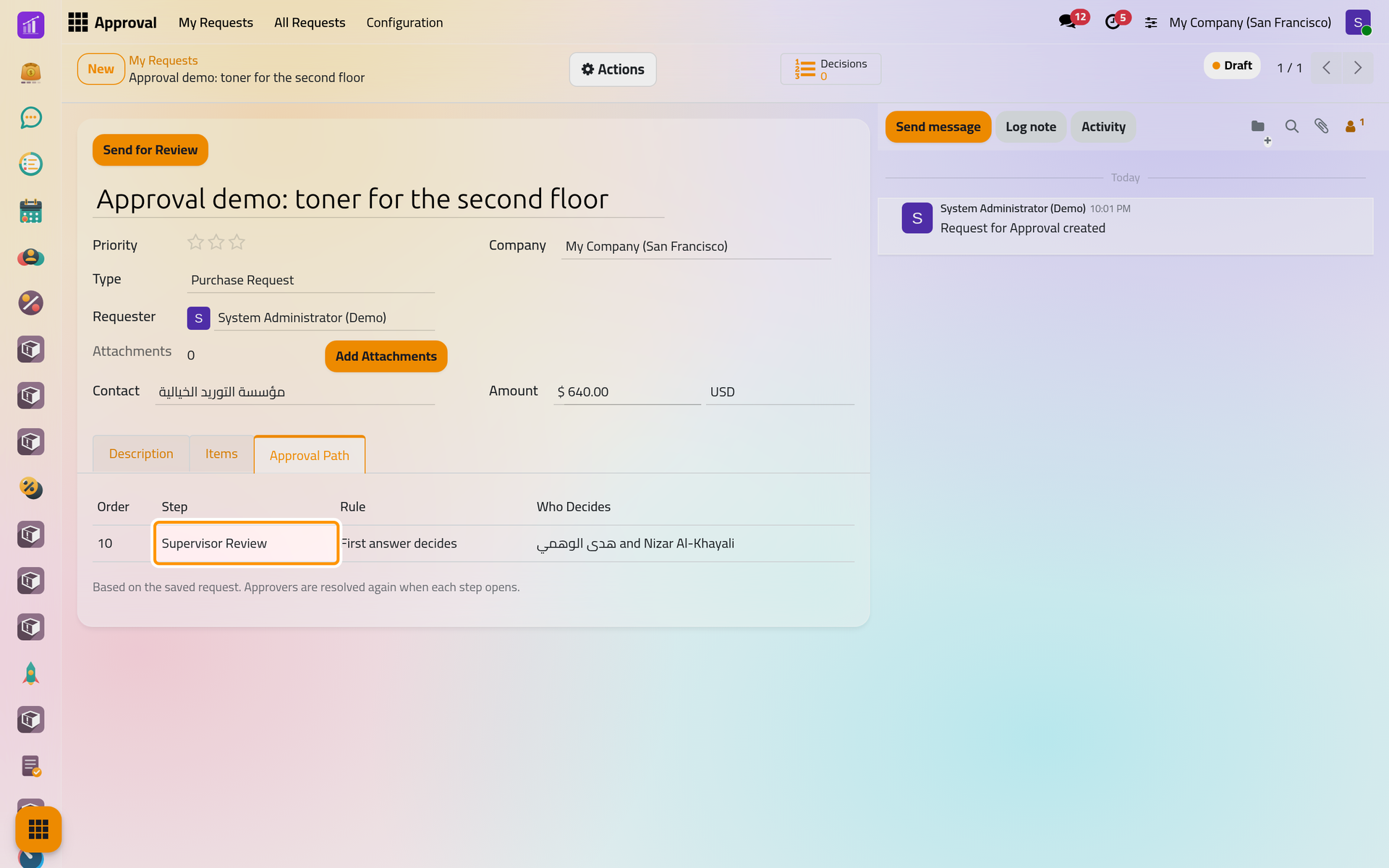
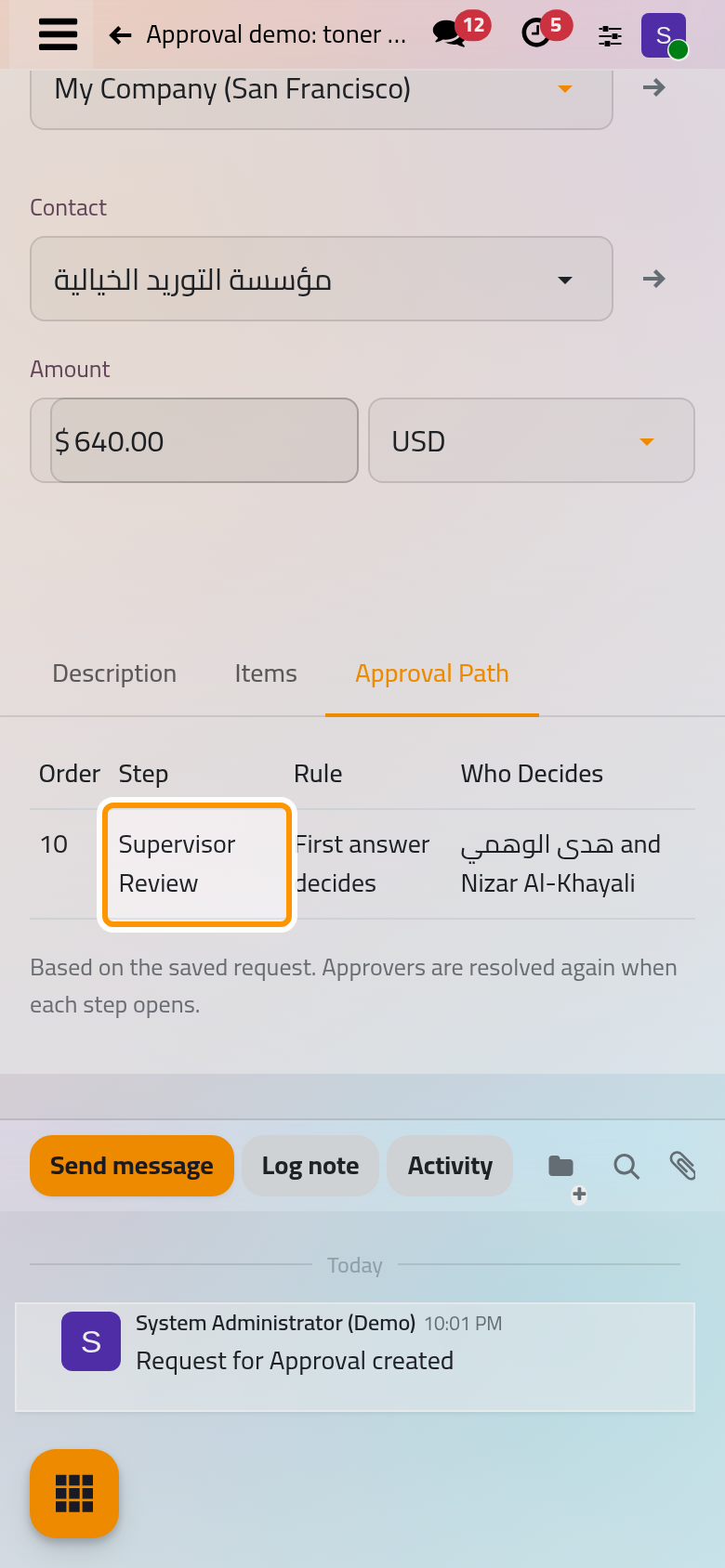
Open the Approval Path tab and click Save manually: the tab lists each step, its rule and the people it would ask if you sent now. Click Send for Review.
If something the type requires is missing, the Invalid Operation message names every missing part at once, such as Please fill in: Items, Amount. A field marked in red must be filled too.
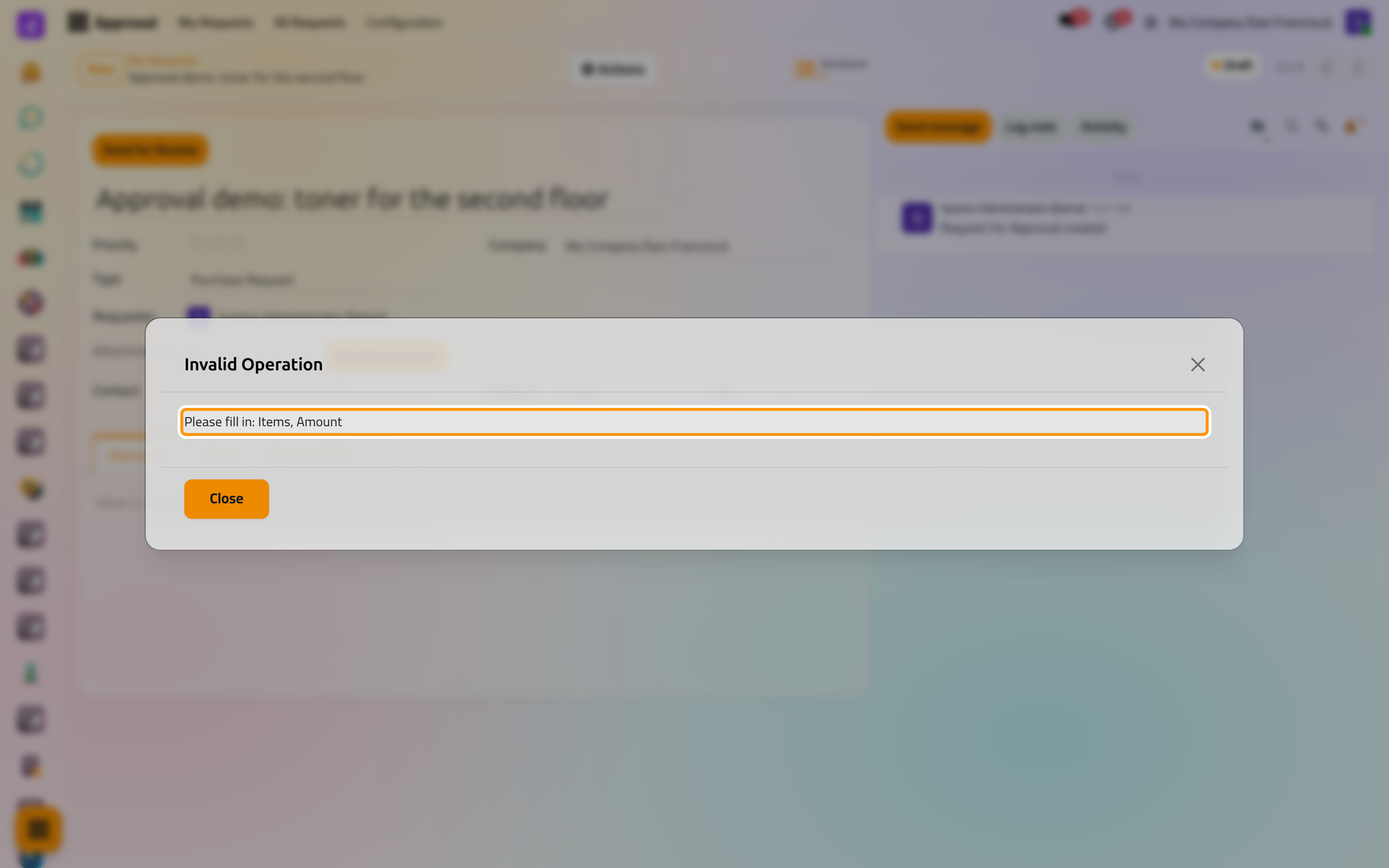
On a phone, the message fills the screen; Close leaves the draft as it was.
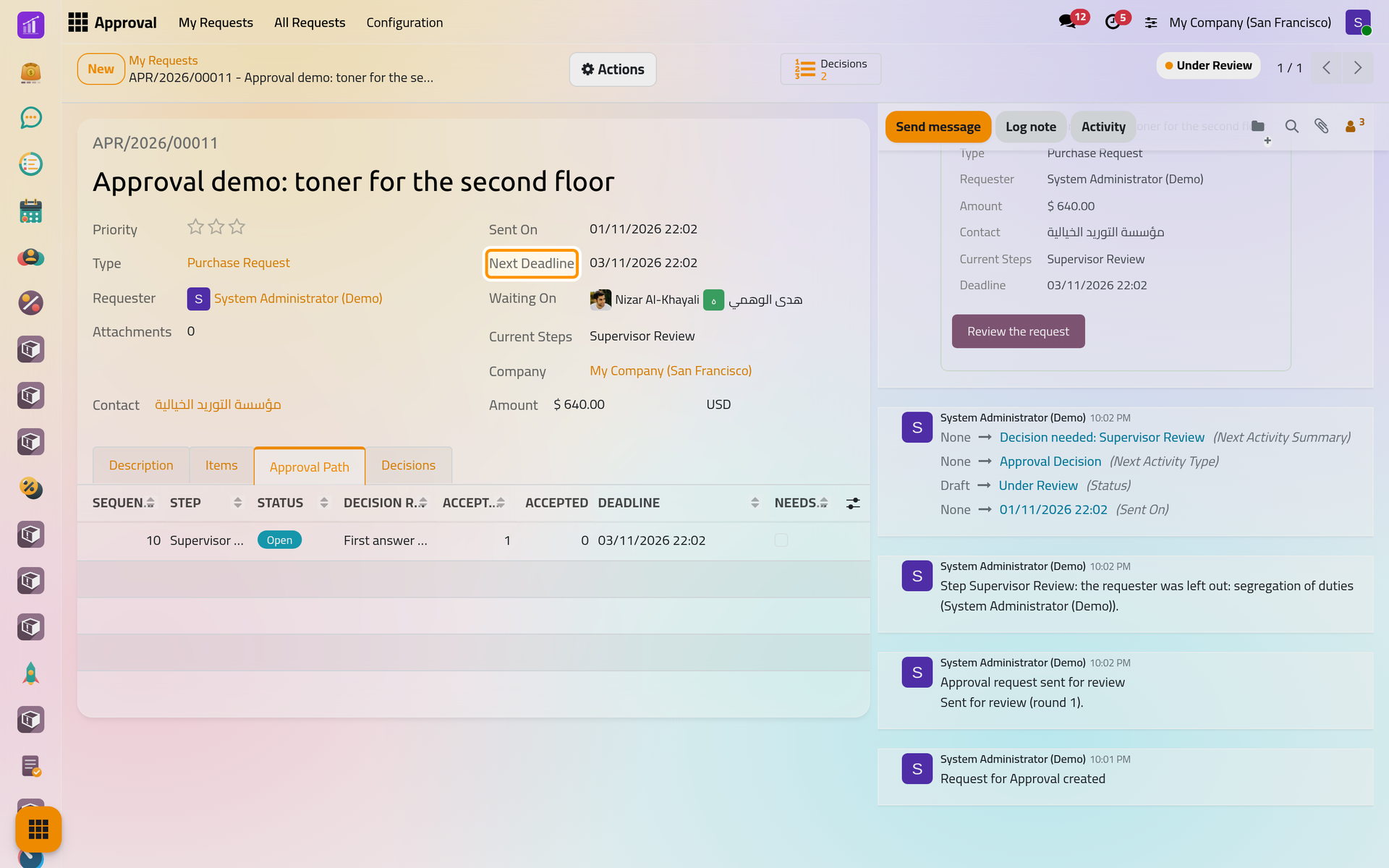
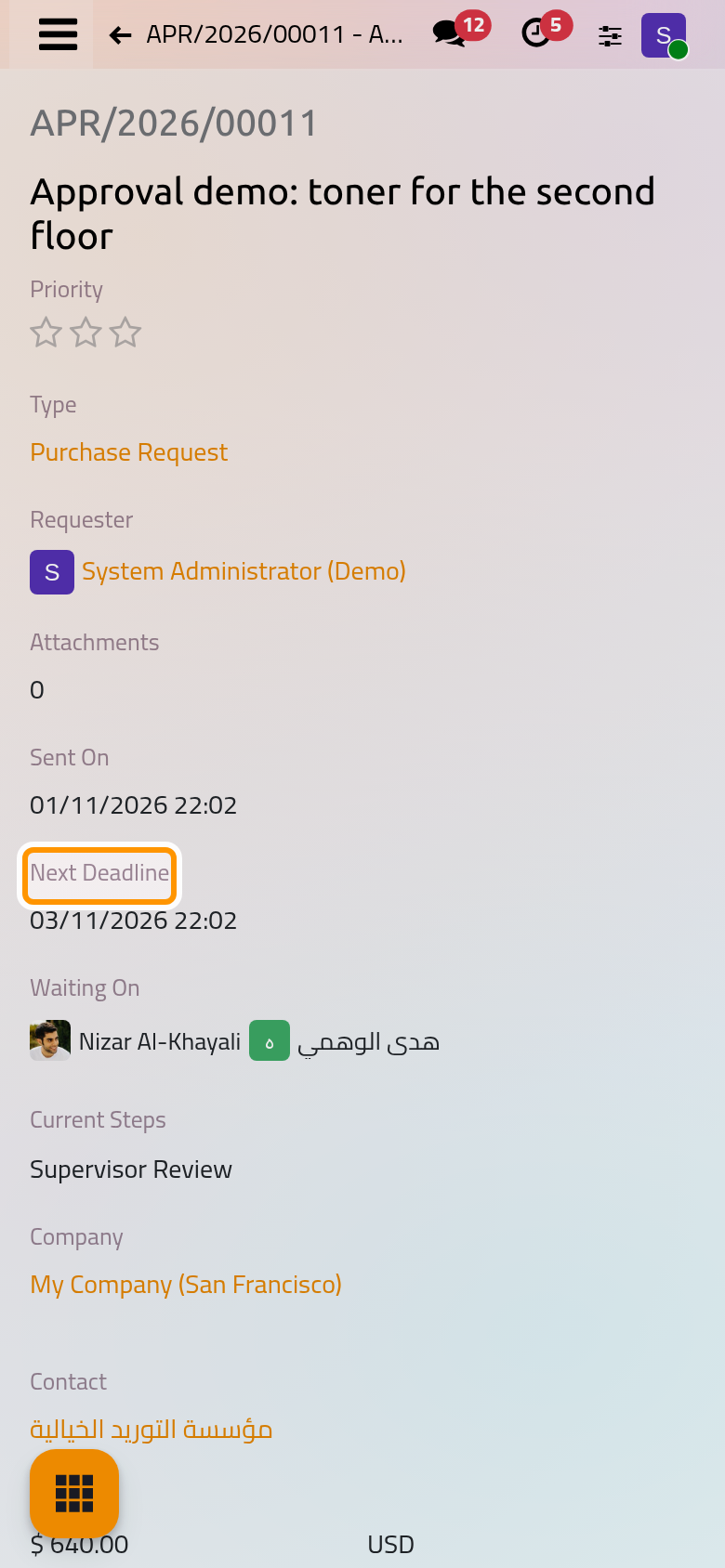
Once sent, the request has its number and reads Under Review. Waiting On names the people who decide now, and Next Deadline shows when the first of them is due when a step has a deadline, two days for a Purchase Request.
Cancel or resend
Choose Cancel Request in the Actions menu, give the reason in Why and click Cancel the Requests. A draft, a request under review and an approved request can be cancelled; the people still deciding lose their activity and the reason stays on the request. Only a supervisor can cancel an approval given on a business record.
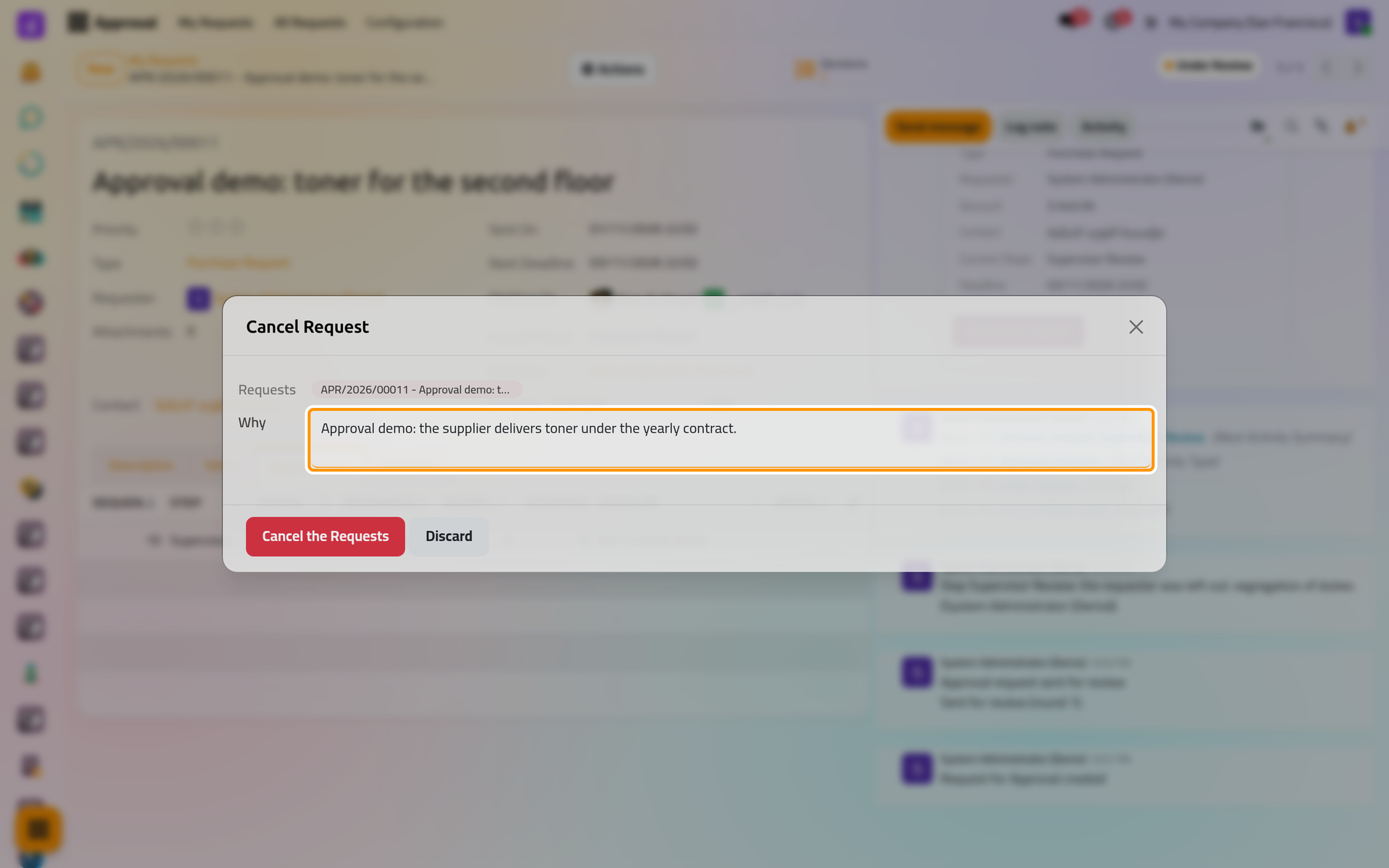
On a phone, the dialog fills the screen. A rejected or cancelled request comes back with Edit and Resend: it returns to draft, you change it and send it again for a new round, under the same number; the earlier decisions stay in the Decisions tab.
FAQ
Sending is refused because a step has nobody to ask.
The step found nobody who can decide, or fewer people than the acceptances it needs. Only the type can be fixed: ask your approval administrator.
Can I change a request after sending it?
No. Cancel it with a reason, then use Edit and Resend, change it and send it again.
Can I delete a request?
Only a draft that was never sent. A request that was sent once is kept: archive it instead, which is refused while it is under review.
How do I print a request?
Choose Request with Decisions in the Actions menu: the PDF holds the request and every decision of every round.
Was this page helpful?
Thank you for your feedback.