Choose who hears about each event
On this page
Each company has at most one notification rule per event. The rule ticks who receives an e-mail when the event happens; an event without a rule sends nothing. Each company starts with seven rules, and a new company receives them too. The e-mails go out in each recipient's language, while approvers also find their decisions as activities: Activities.
Before you start
- You need the Administrator access right on Approval.
- Only active internal users receive these e-mails, at the address of their contact. Whoever acts is not told of their own action, and each person receives one e-mail per event whatever the number of boxes that name them.
Open the rules
Open , or click Configure under Notification Rules in Approval settings. Each row is an event of a company, and its boxes say who receives the e-mail: Requester, Approvers, Informed People (the people a step keeps informed and, when a request is approved or rejected, the people a delegation asks to inform), Followers of the request, Supervisors. A box appears only where the event can reach that person.
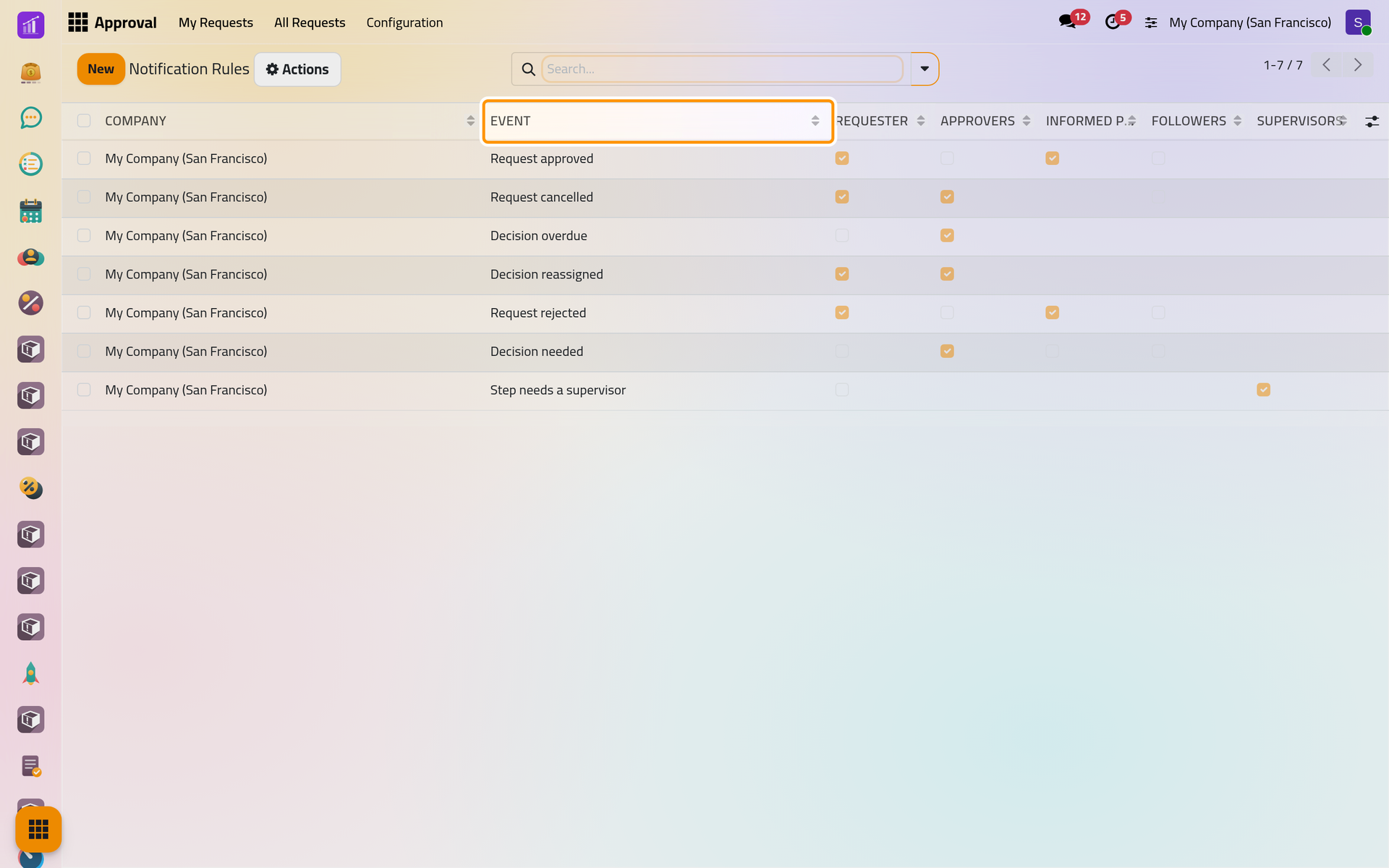
| Event | Can reach | Ticked in the shipped rule |
|---|---|---|
| Request sent | Requester, Followers | no rule |
| Decision needed | Requester, Approvers and their delegates, Informed People, Followers | Approvers |
| Request approved, Request rejected | Requester, the approvers who decided, Informed People, Followers | Requester, Informed People |
| Request cancelled | Requester, Approvers, Followers | Requester, Approvers |
| Decision overdue | Requester, the late approvers and their delegates | Approvers |
| Decision reassigned | Requester, the new approver | Requester, Approvers |
| Step needs a supervisor | Requester, Supervisors | Supervisors |
Add or change a rule
- Click New. A row opens for the current company.
- Choose its Event. The boxes that event usually needs are ticked for you; for Request sent, the Requester.
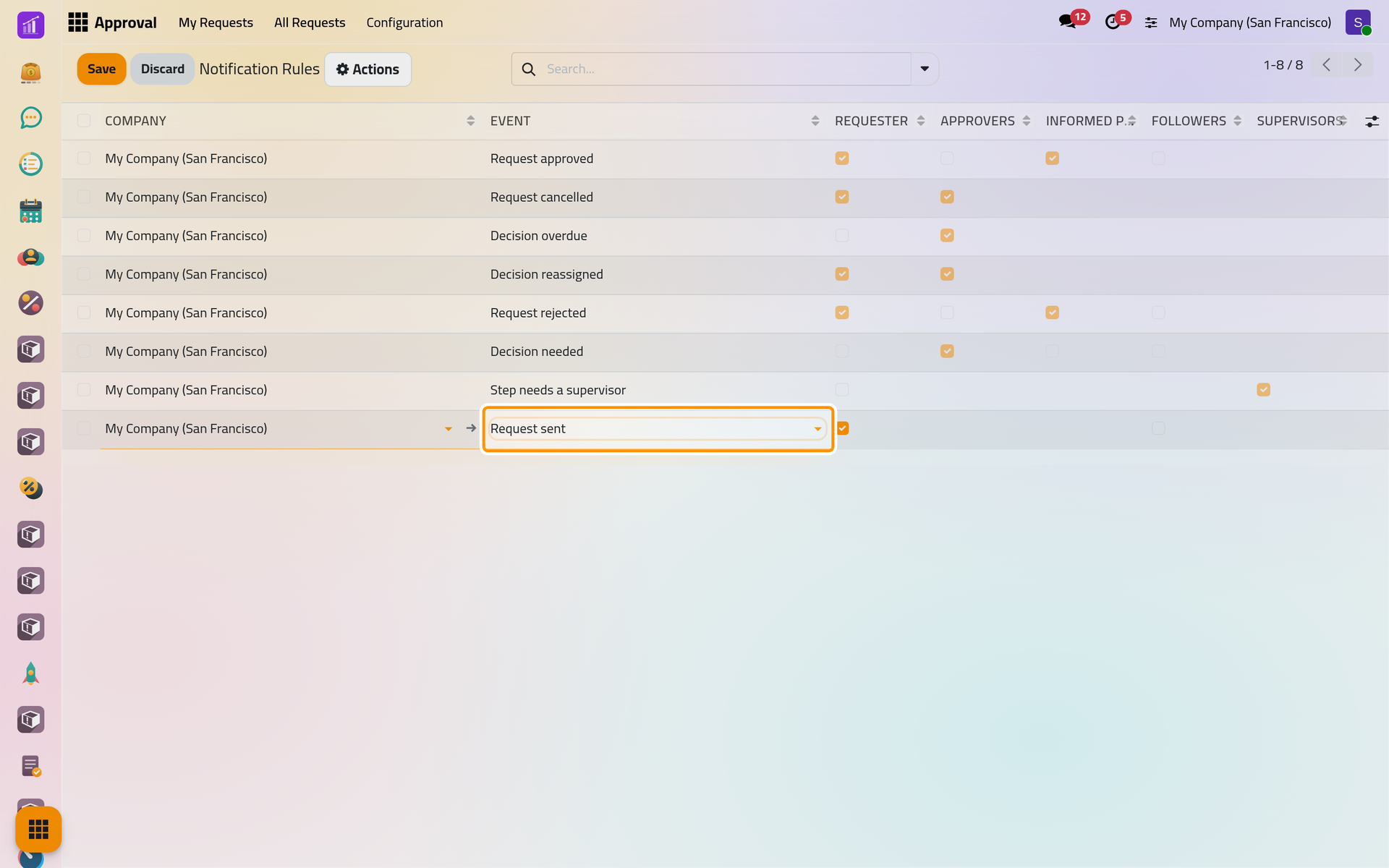
A new row for Request sent; the requester is ticked by default, and only the people this event can reach have a box.
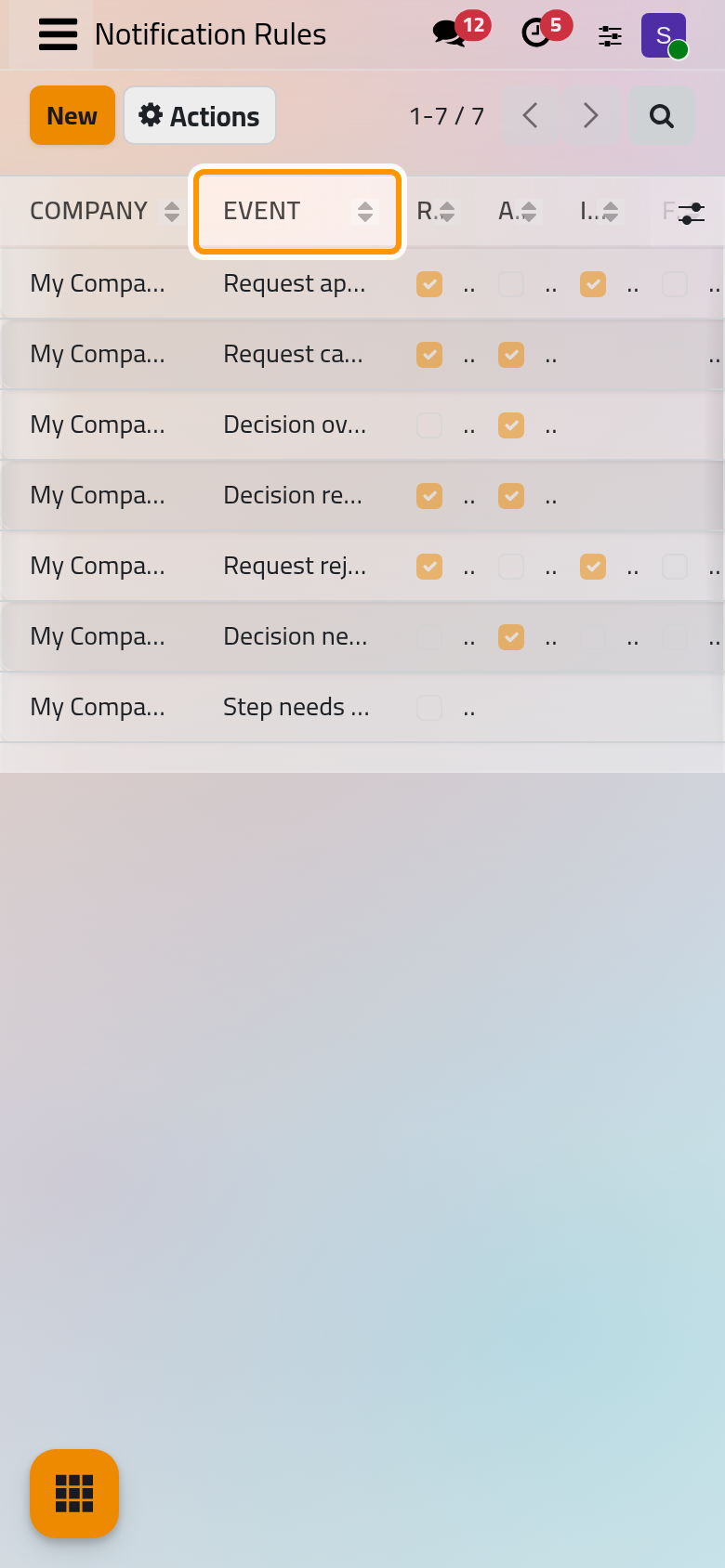
On a phone, the row is edited in the list the same way; the columns are narrow, so slide the list sideways to reach the last boxes.
3. Change the boxes if you wish, then click Save.
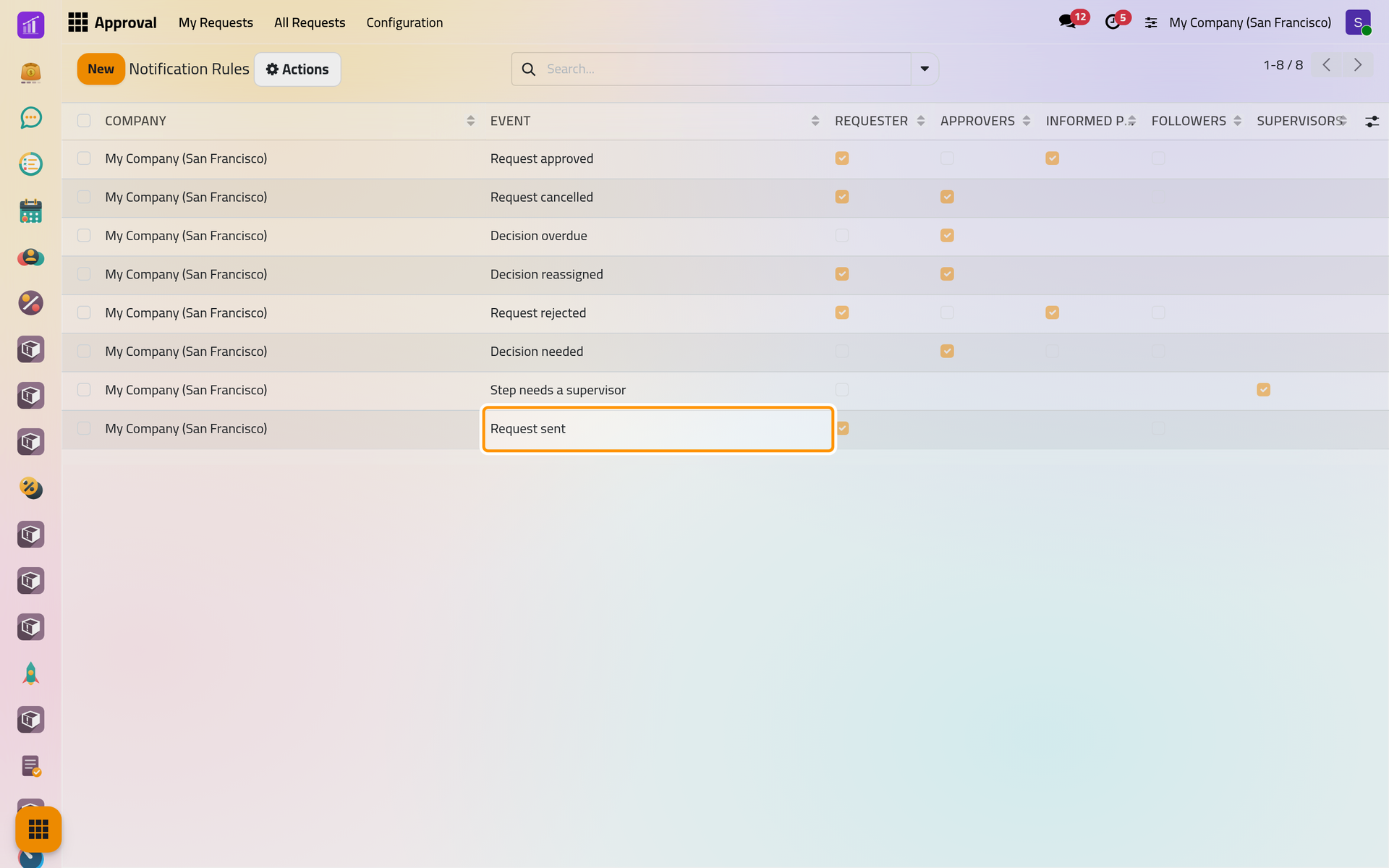
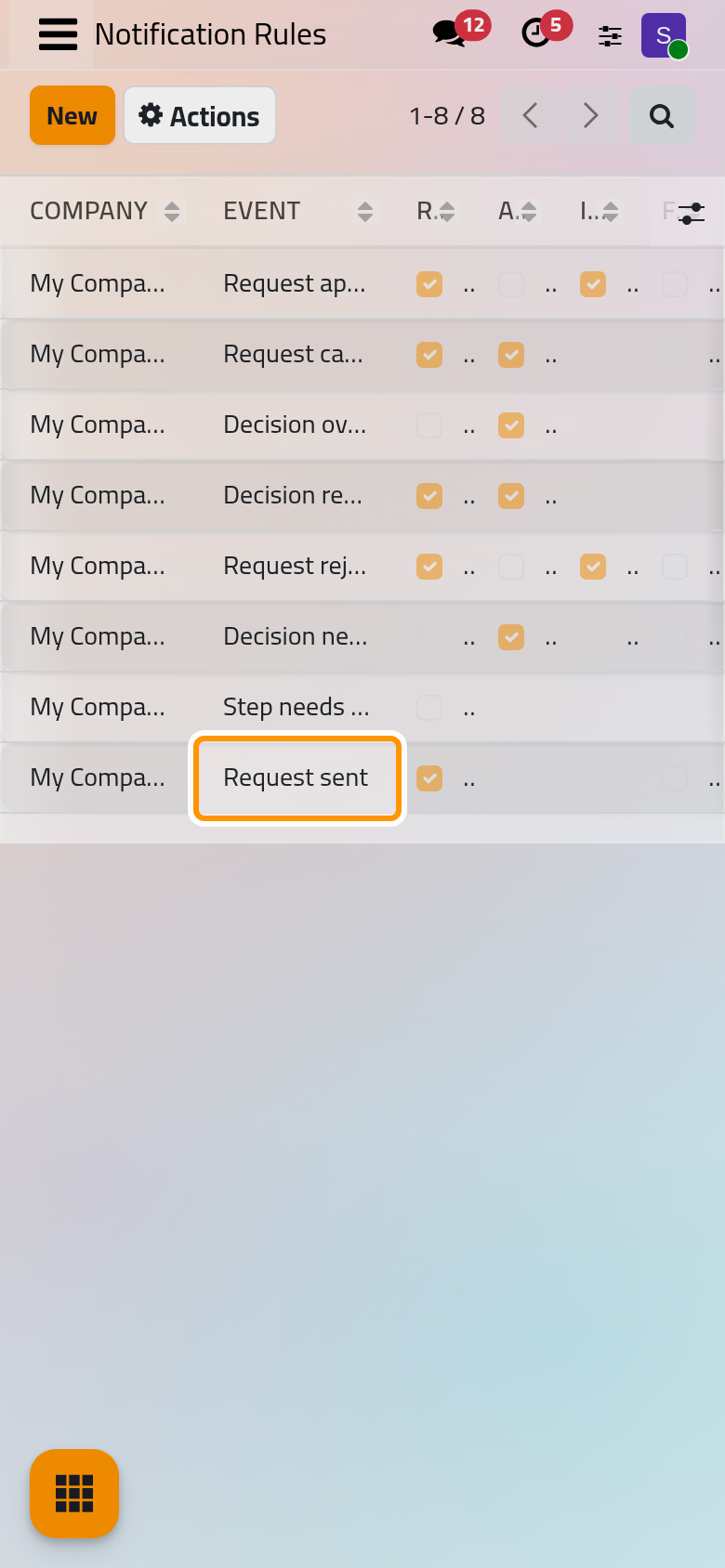
To change a rule, click its row and tick or untick the boxes. To stop an event entirely, tick its row, then choose Actions › Delete.
Result
From the next event on, the people ticked receive one e-mail each. Two e-mails do not follow these rules: the alert of a late step set to Alert someone, chosen in the step itself (Configure a request type), and the daily digest, switched in Approval settings. A type whose Send Emails is off sends none of them.
FAQ
The requester is not told when the request is sent. Why?
No rule ships for Request sent. Add one as above.
Someone did not receive an e-mail. Why?
Their contact may have no e-mail address, their box may not be ticked on that event's row, the rule may belong to another company, or the request's type may not send e-mails. If no e-mail leaves the database at all, see Email: outgoing and incoming servers.
Who are the supervisors of "Step needs a supervisor"?
The approval supervisors of the request's company, except the people on the requester side of that request. When none is left, the requester is told instead and the request's chatter says so.
Can an event have two rules?
No, one per event and company; saving a second one is refused.
Was this page helpful?
Thank you for your feedback.