How approvals work
On this page
Approval runs every request that needs a yes through one engine. A request is written by hand from My Requests, or asked for from a business record that a type guards: Guard a business record with an approval. Either way it holds a type, steps and the decisions of the people asked.
What a request is made of
- The type decides the fields of the form, which must be filled, who may send it, its numbering and its steps: Configure a request type.
- The steps are copied from the type when the request is sent. Each sending is a round: a request sent again gets new steps for round 2 and keeps those of round 1.
- The decisions: one per person asked at an open step. A decision is never deleted and never rewritten: taking one back voids it and opens a new one.
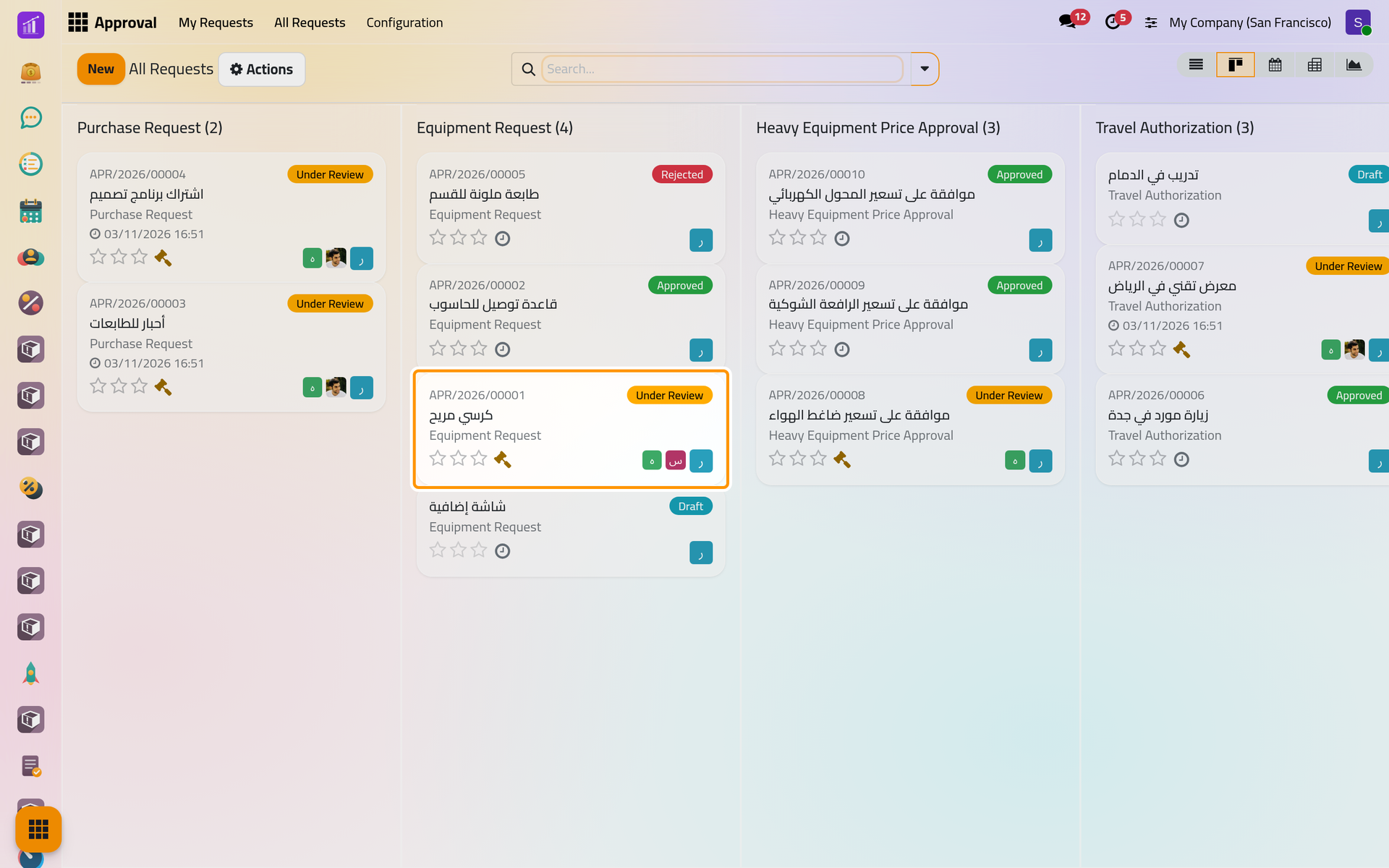
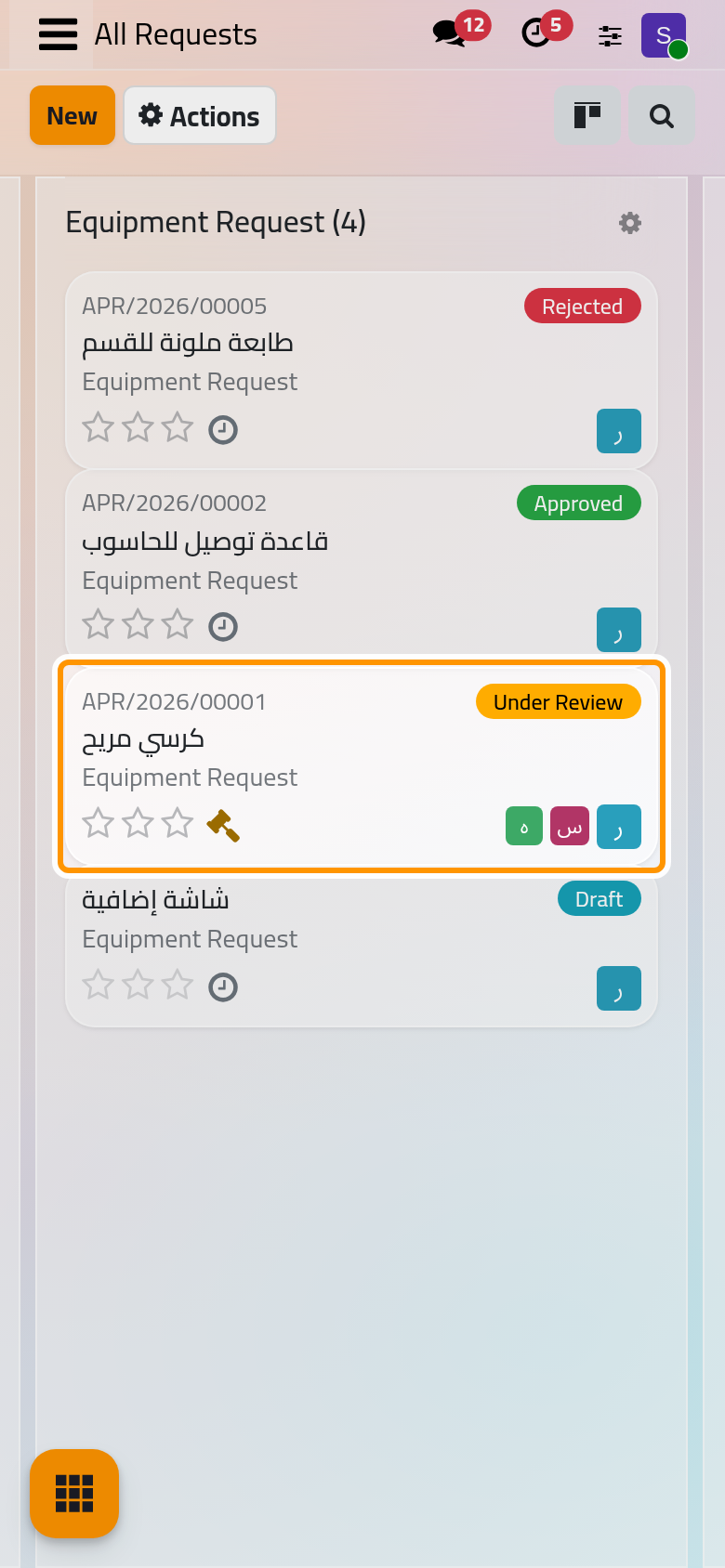
The board of groups the requests by type, each with its status and the people it waits on.
The states of a request
| Status | When |
|---|---|
| Draft | Being written; it has no number until it is first sent |
| Under Review | Sent: its steps open in order, and nothing in it can be edited |
| Approved | Every step is closed and no blocking step failed |
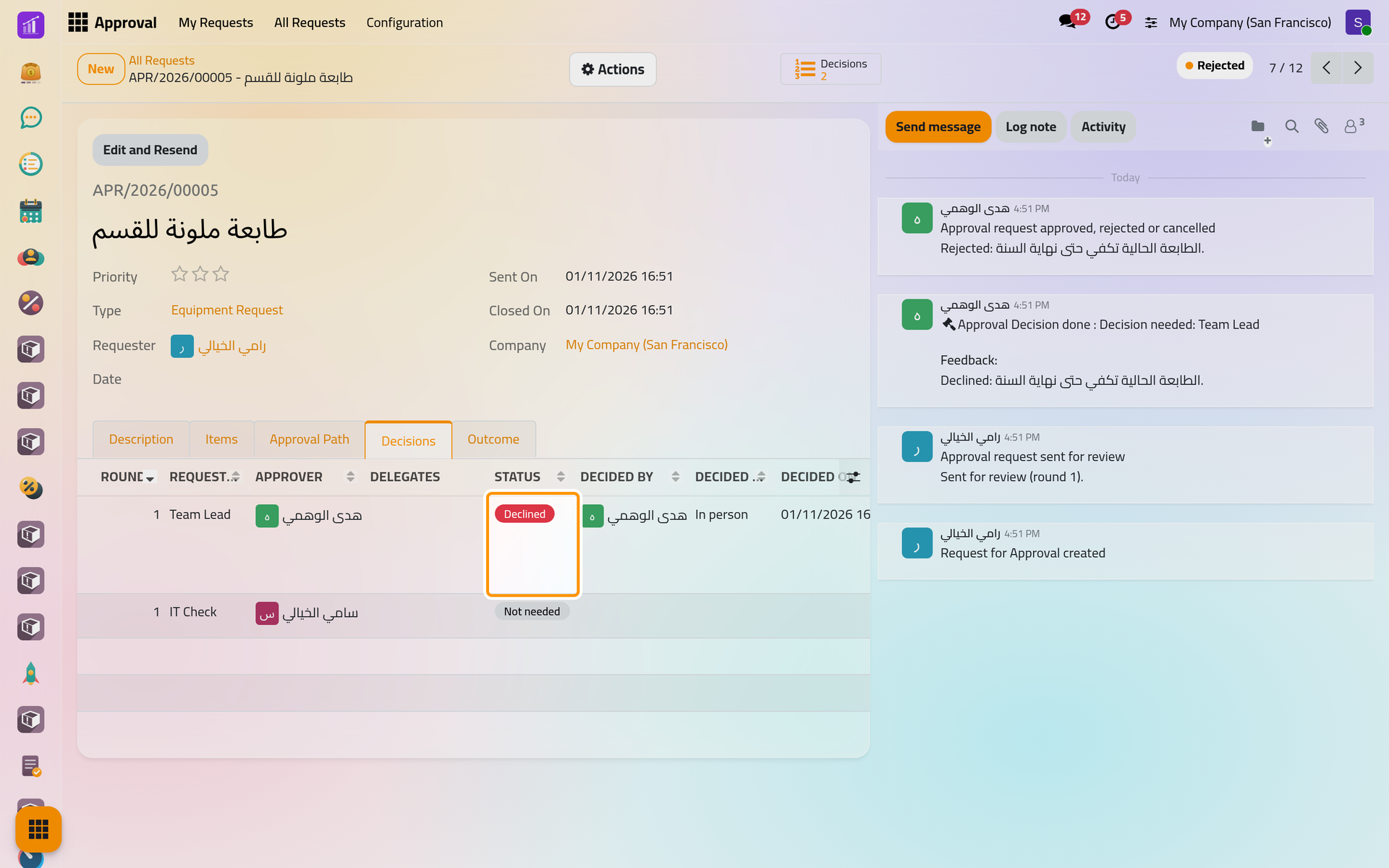
| Rejected | A blocking step failed |
| Cancelled | The requester or a supervisor cancelled it with a reason, from Draft, Under Review or Approved |
Edit and Resend takes a rejected or cancelled request back to Draft for a new round, under the same number. Only a draft never sent can be deleted; any other request can only be archived, never while under review.
How steps open and close
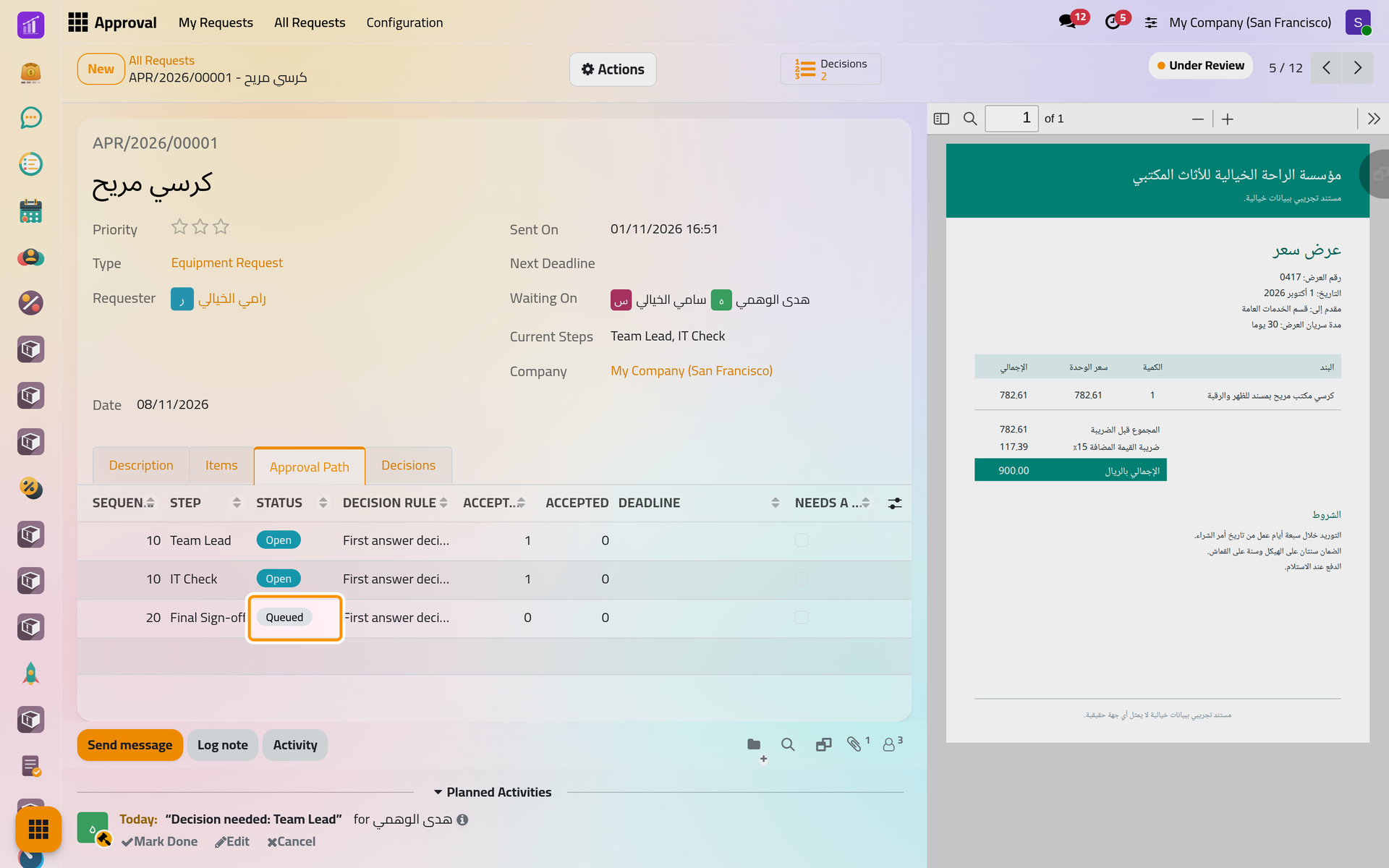
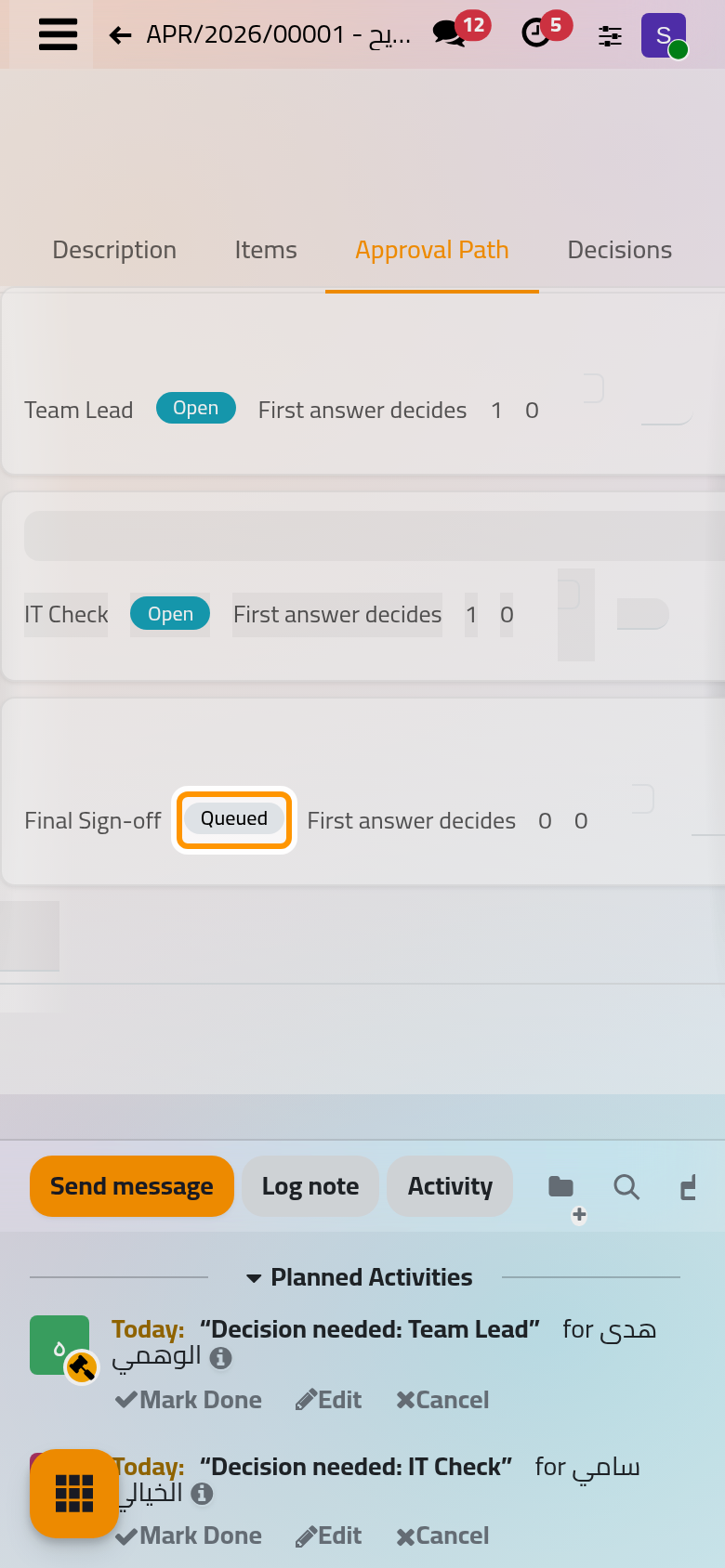
Steps open by their Order: all the steps that share the lowest order open together, and the next order waits until they are all closed. In the demo, Team Lead and IT Check open together and Final Sign-off stays Queued.
- The people of a step are worked out when it opens: named users, a group's members, the requester's manager and so on; a person named on the request or on the record is taken when the request is sent. The requester side is left out (whoever owns, created or sent the request, or created its business record) unless the company allows it.
- The Rule closes the step: First answer decides, Everyone must accept, or A minimum number of acceptances. A step never passes without at least one acceptance or a supervisor's confirmation.
- A blocking step that fails rejects the request: one refusal is enough under First answer decides or Everyone must accept; under a minimum, the step fails once too few people are left to reach it. At a step that does not block, a refusal is advice and the request goes on.
- When a step finds nobody to ask, its type skips it, asks a fallback user, or holds it for a supervisor. Sending is refused while a step would be held; a step held when it opens later puts the request under the Needs a Supervisor filter, and the supervisors are told.
- Step statuses: Queued, Open, Passed, Failed, Skipped and Voided (the request closed first).
What a decision records
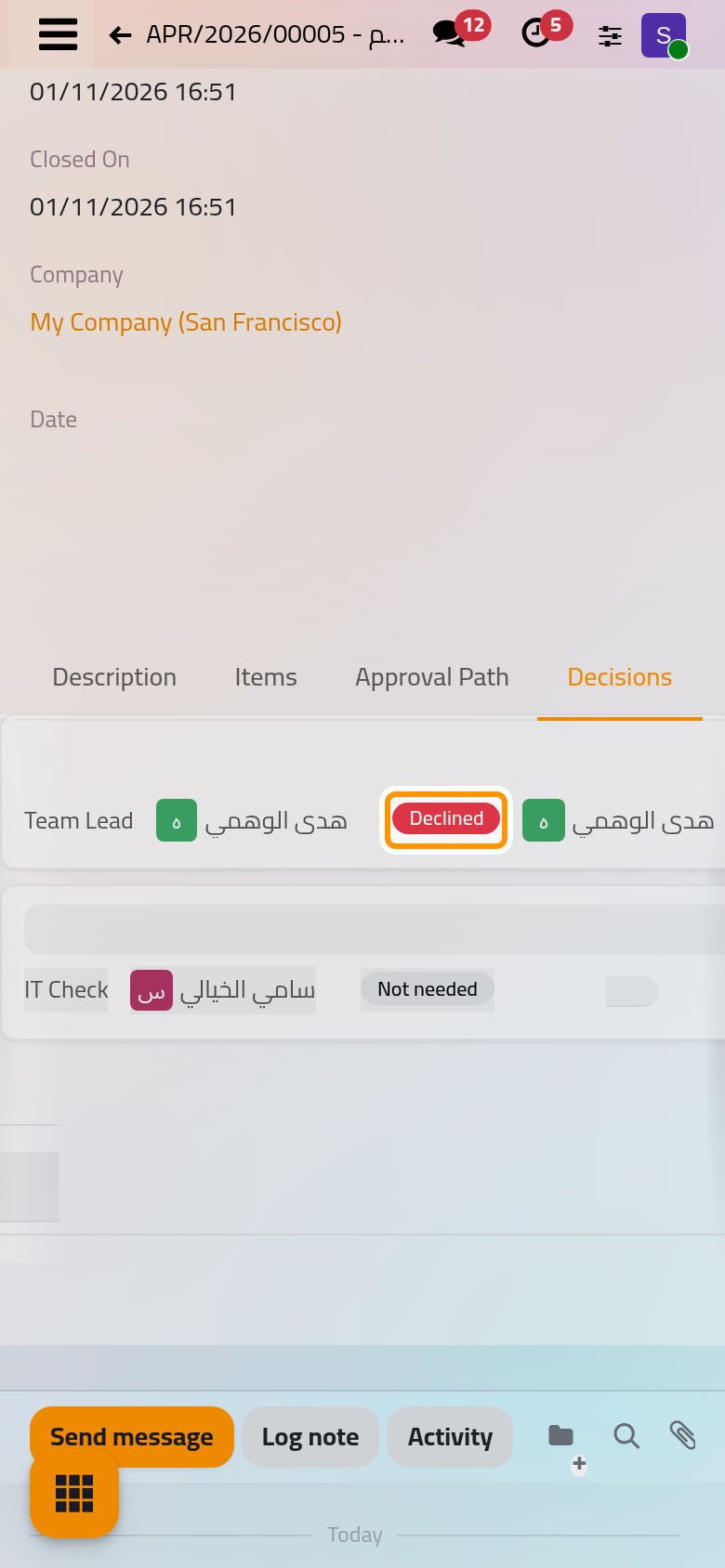
Each decision reads Awaiting, Accepted, Declined, Not needed (its step closed before) or Voided (taken back, handed over, or its request cancelled). It keeps who decided, when, the note, the signature, and how: In person, As delegate or By a supervisor. One person gives at most one decision per step. Declining always needs a note.
Who sees what
| Who | Sees | Can |
|---|---|---|
| Every internal user | In My Requests their own requests; in All Requests the requests they take part in: as requester, approver, delegate, the requester's manager, follower or informed person | Send requests, decide what waits on them, cancel their own requests |
| Supervisor | Every request of their companies | Reassign a decision, add an approver, decide on behalf, cancel any request |
| Administrator | Also Configuration | Manage types, everyone's delegations and the notification rules |
The Settings menu shows only to system administrators who are also approval administrators. Portal users see nothing of the app.
Notices, deadlines and the digest
- Every open decision has an activity Decision needed for its approver, which closes with the decision and cannot be marked done by hand.
- E-mails follow each company's notification rules. By default approvers hear when their step opens or their decision is overdue, the requester and informed people when the request is approved or rejected, both requester and approvers when it is cancelled or a decision is reassigned, and supervisors when a step needs one. A user without an e-mail address receives none: Choose who hears about each event.
- A step can give a time to answer. Next Deadline shows the nearest; an hourly job marks late decisions overdue and applies the step's escalation, and a daily digest lists to each person what waits on them: Approval automations and Approval settings.
What the app does not do
- An approver cannot send a request back for changes: they accept or decline, and the requester changes the request with Edit and Resend.
- Approvers never edit a request; only its requester, or a supervisor, changes a draft.
- A request on a business record never goes back to draft: approval is asked again from the record.
- The Approval Path of a draft is a preview, not a promise: the people are worked out again when each step opens.
Was this page helpful?
Thank you for your feedback.