Approval settings
On this page
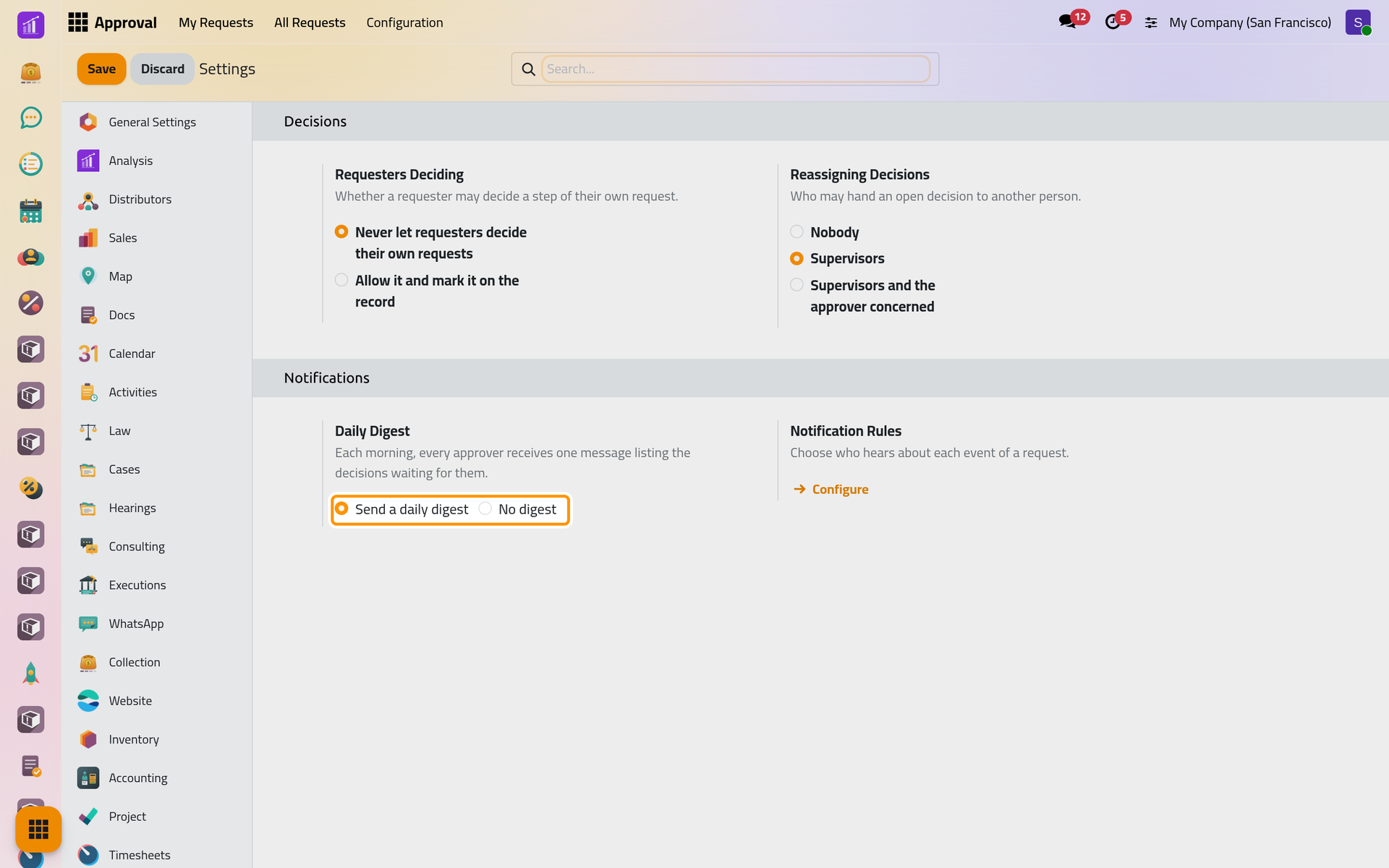
Open . The Approval section has two groups, Decisions and Notifications. The three choices belong to the current company: switch company to set another one's. Click Save to apply a change, or Discard to leave the settings as they were.
Before you start
- The Settings menu shows only to users who administer the database settings and also hold the Administrator access right on Approval: Create a user and set access rights.
- A change counts from the next action on: the next decision, the next hand-over, the next digest.
Decisions
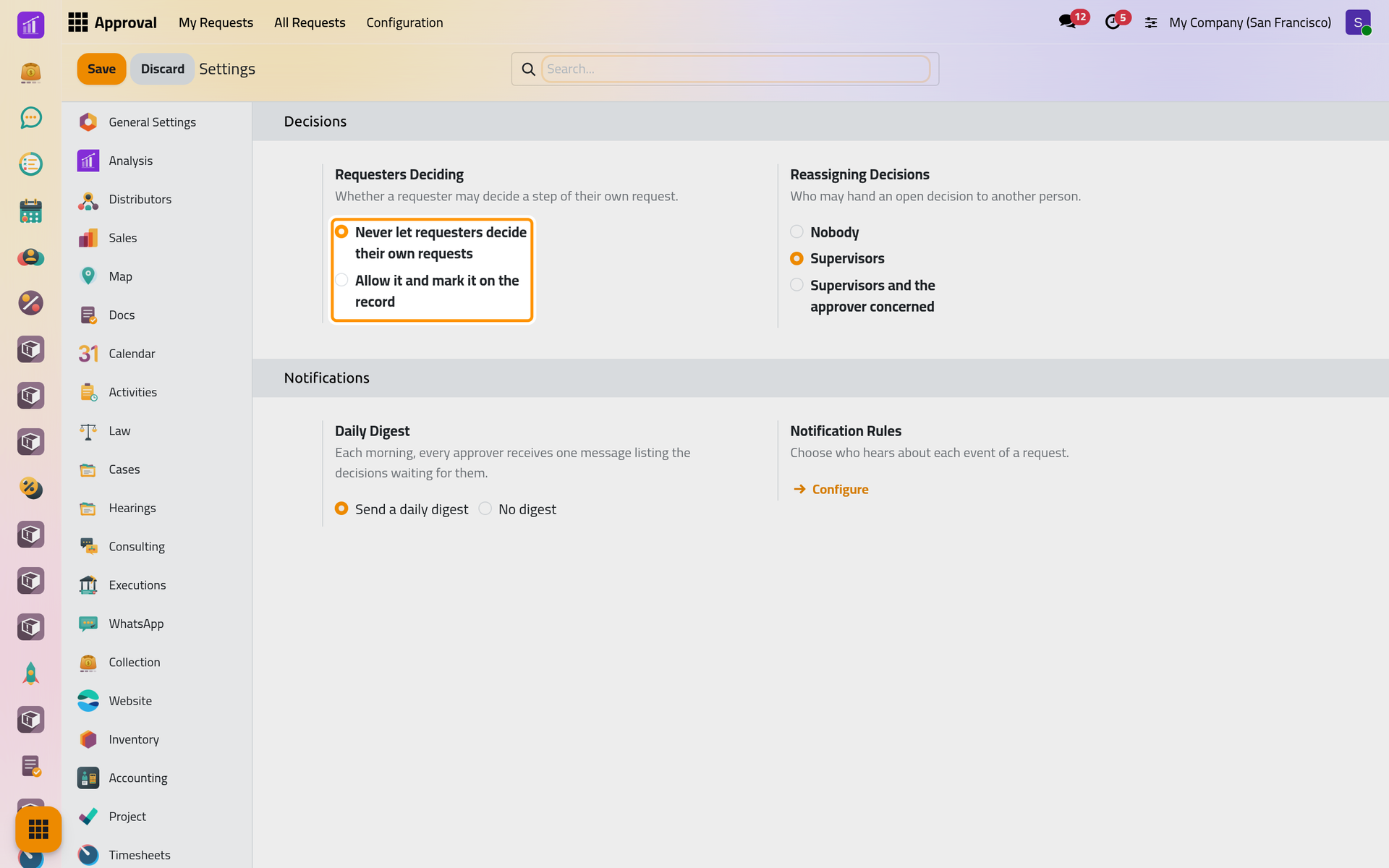
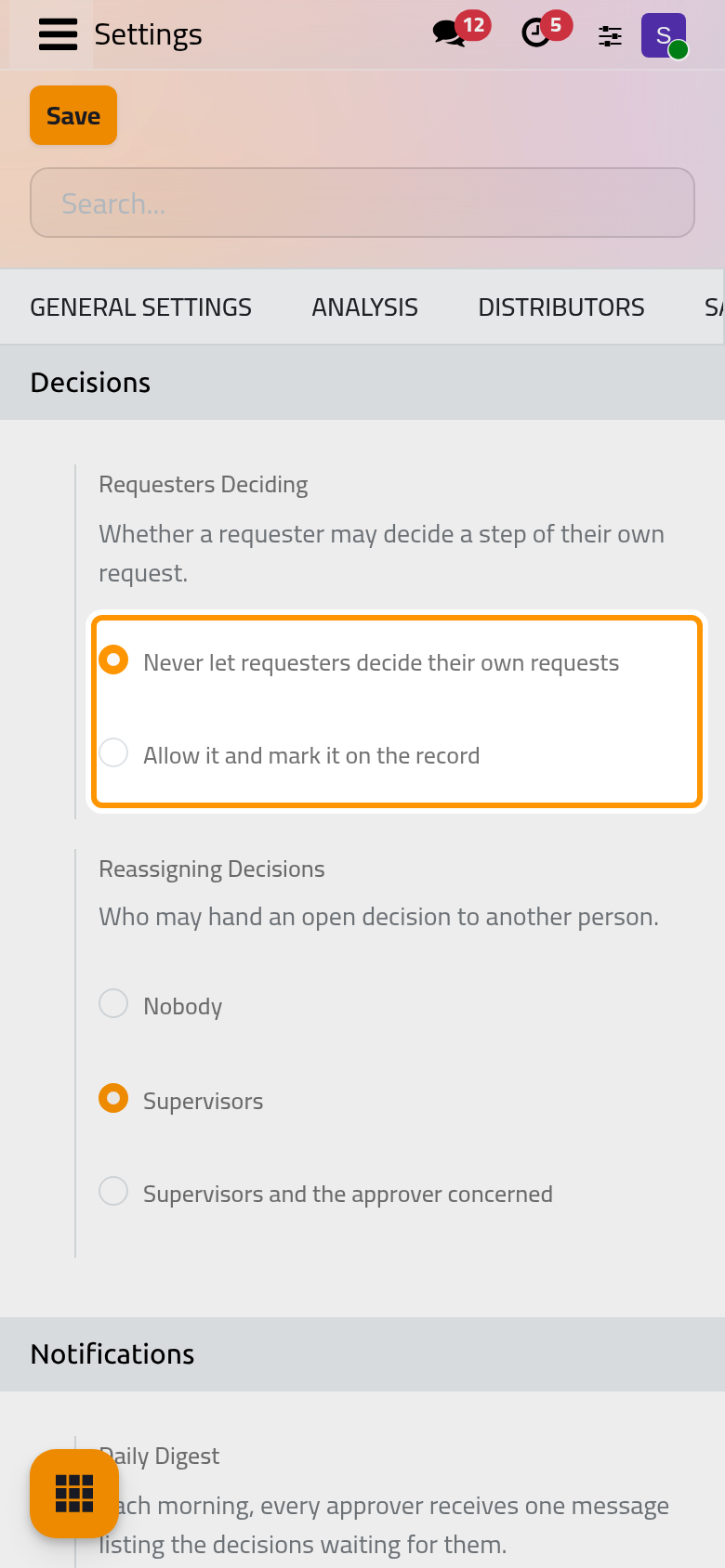
Requesters Deciding
Never let requesters decide their own requests, the default, keeps the requester side away from the decisions: the requester, whoever created or sent the request and, for a business record, whoever created that record. A step that names one of them leaves that person out. When nobody else is left, the step asks its Fallback User if it has one; otherwise the request cannot be sent and the message names the step to fix (Configure a request type).
Allow it and mark it on the record lets them decide like any approver. Each such decision is marked Self-Decision: on the decision itself, in an optional column of the decisions list and as a badge on the printed request.
Reassigning Decisions
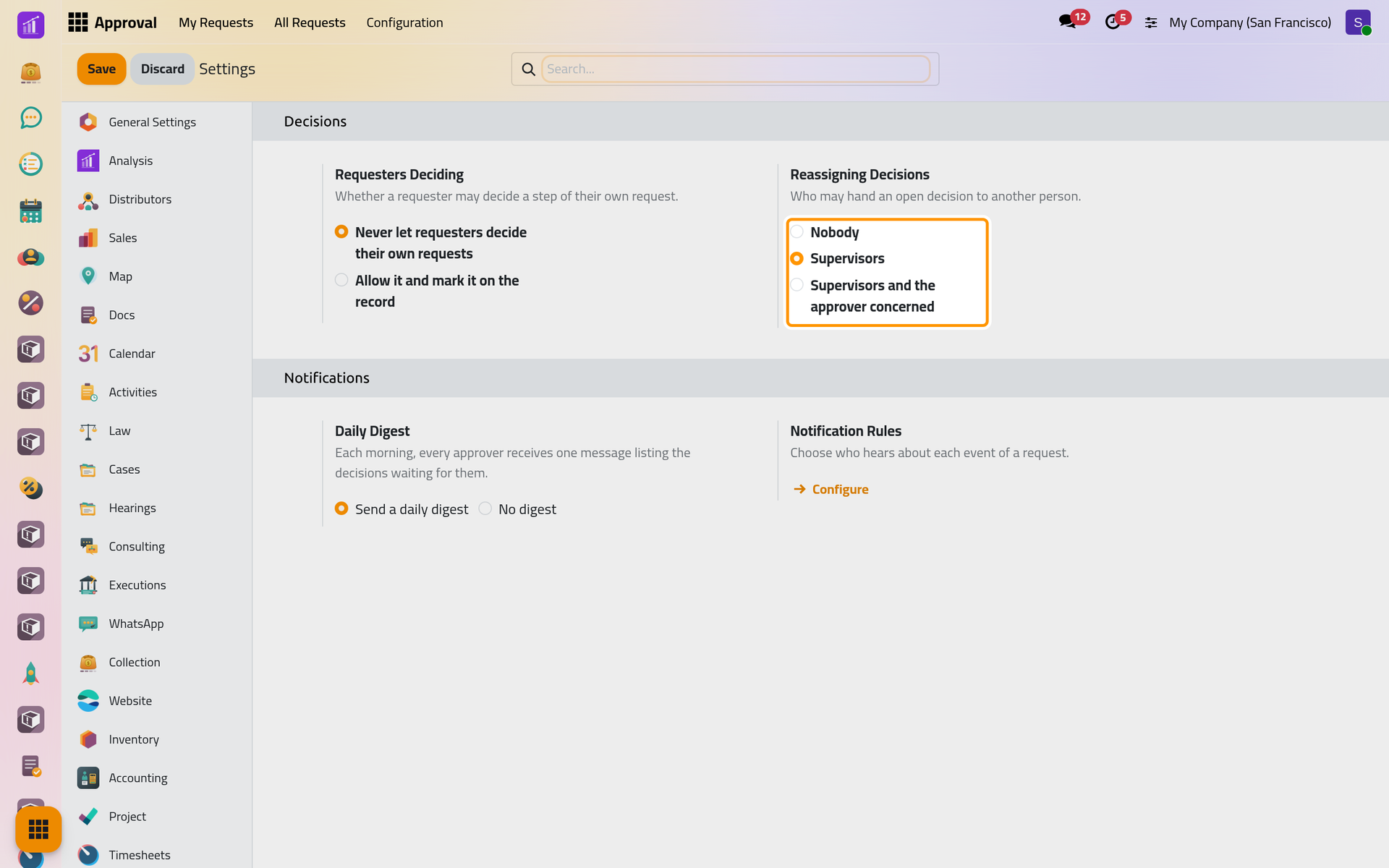
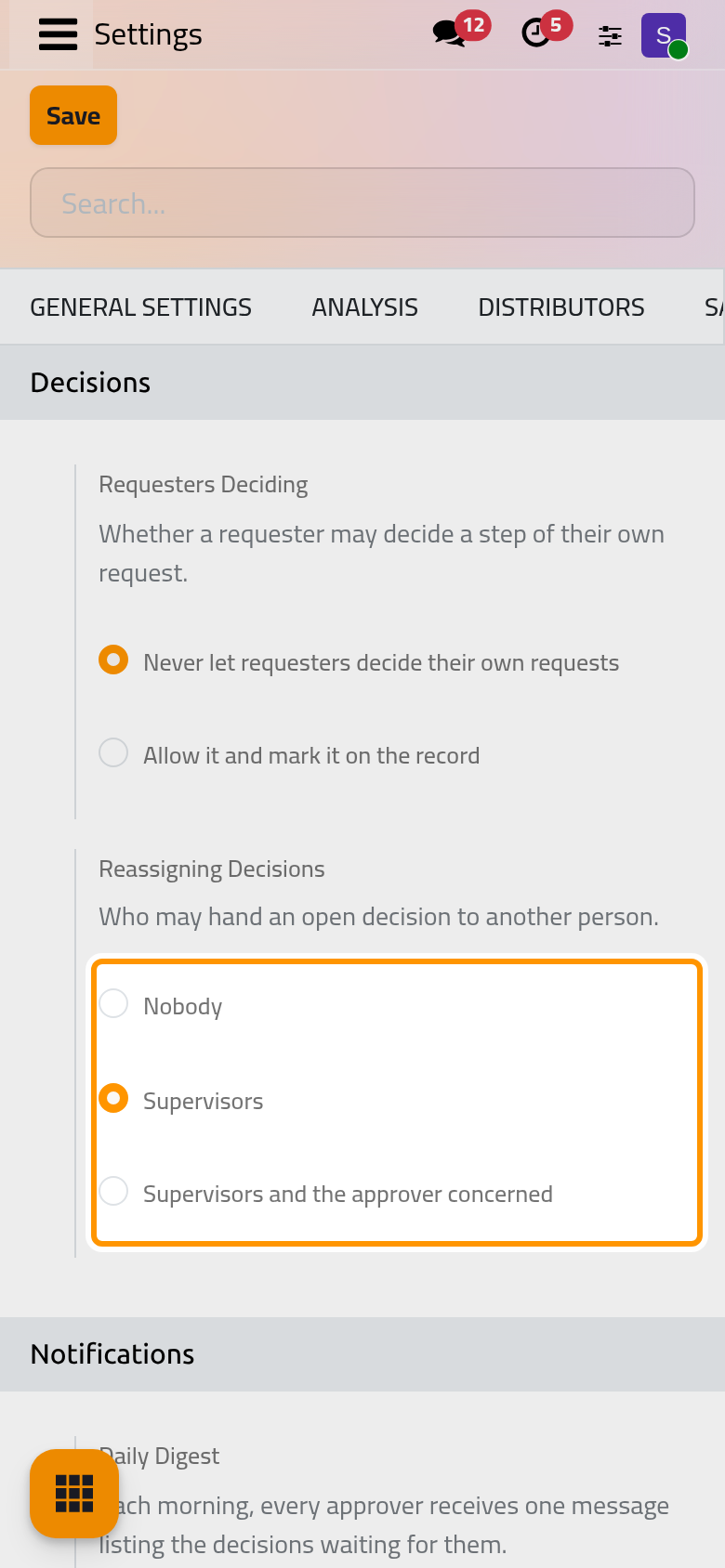
This setting decides who sees Reassign on a request under review, to hand an open decision to another person (Decide a request):
- Nobody: the button never shows. A step whose deadline is set to Hand the decision over still does so on its own.
- Supervisors, the default: the approval supervisors and administrators, except on a request they asked for, created or sent, or whose record they created.
- Supervisors and the approver concerned: the approver who holds the decision may also hand it over, and so may their delegate while a delegation is valid.
The new approver must be an active internal user of the request's company without a decision on that step yet; on a step decided by a group, a member of that group.
Notifications
Daily Digest
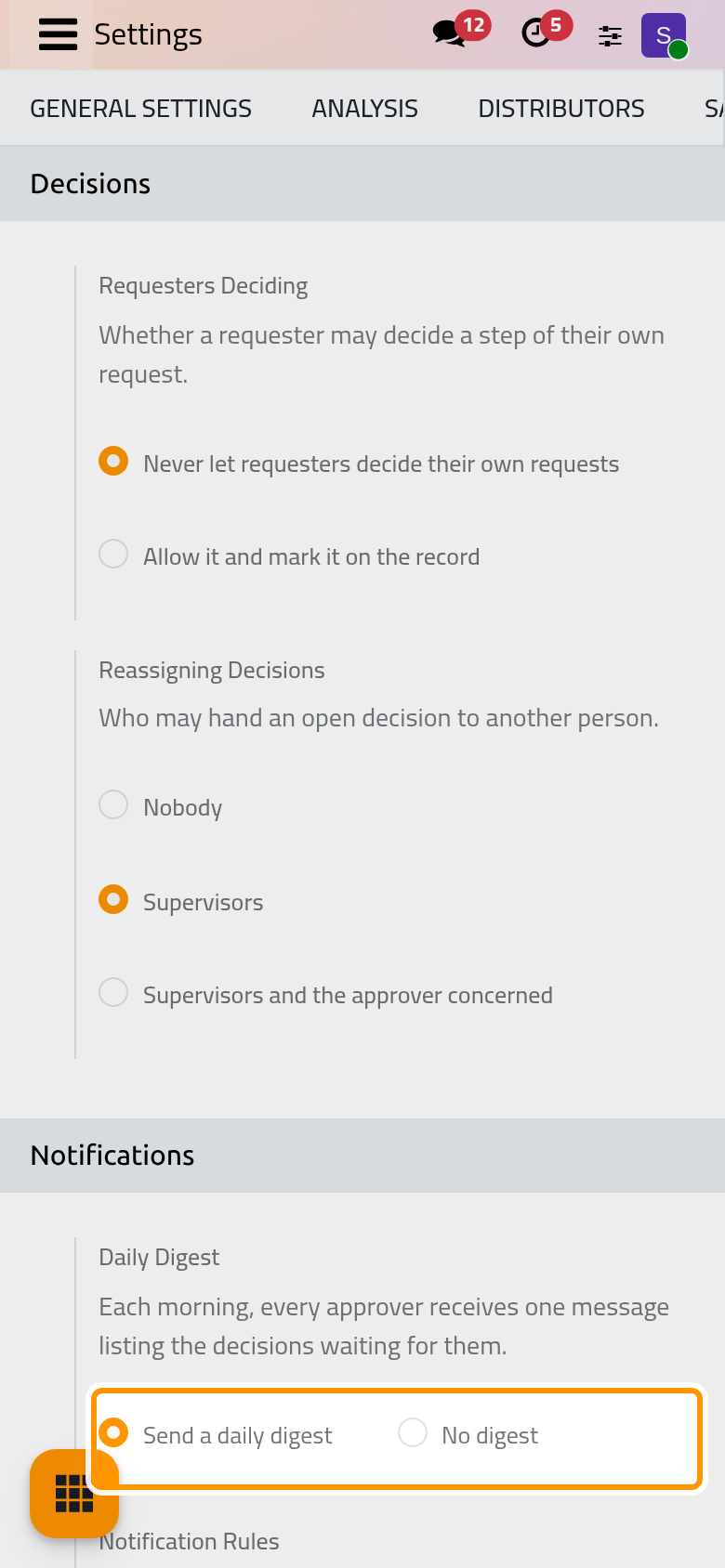
Send a daily digest, the default: early each morning, 07:00 Riyadh time unless an administrator moves the job, each person with something waiting receives one e-mail in their language, Approvals waiting for you. It lists their open decisions, those they can take as a delegate included, with the request, type, requester, step and deadline, and an overdue mark when late. Supervisors also find the requests whose step needs a supervisor. Requests of a type whose Send Emails is off stay out, and nobody without an e-mail address receives it. No digest stops it for the company.
Configure, under Notification Rules, opens the same list as : Choose who hears about each event.
FAQ
The requester is the only approver of a step. What happens?
With Never let requesters decide their own requests, the step is left with nobody. Give it a Fallback User or another approver, or allow requesters to decide.
Does this stop a supervisor from deciding on behalf?
No. Supervisors still decide on behalf of an approver, and an approval administrator may do so even on a request of their own. The decision is recorded as a supervisor's: Decide a request.
Why did no digest arrive?
Check that the company sends one, that the person has an e-mail address and that the type sends e-mails. The job runs once a day and sends nothing more on the same day: Approval automations. If no e-mail leaves the database at all, see Email: outgoing and incoming servers.
Was this page helpful?
Thank you for your feedback.