Add a page
On this page
A page is an address of your website with its own content, such as a page about your services or your office hours. You add it from the website itself, and it starts unpublished: you fill it in peace, and visitors see it only once you publish it.
Before you start
- You need the Editor and Designer access right on Website: How the website works.
- Work on a computer. On a phone, the bar of the website hides New and Edit.
- The page is added to the website named in the bar, here My Website. To add it to another website, switch first: First steps with your website.
Create the page
- Open and click New at the top right. Page comes first. The other entries add the content of other apps, such as a blog post (Write a blog post); an entry in grey belongs to an app that is not installed.
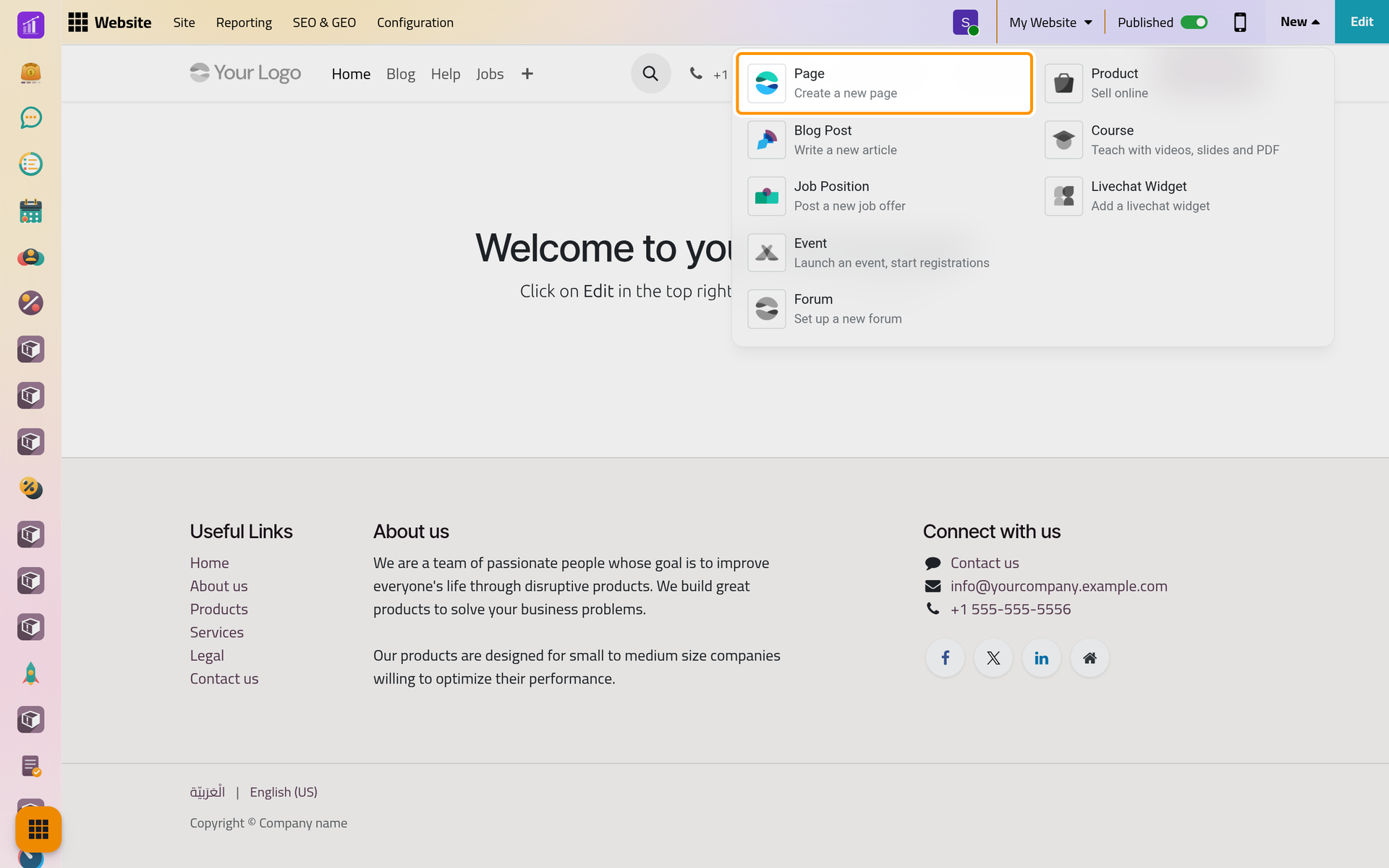
- Click Page. The New Page window shows page templates in categories: Basic, About, Landing Pages, Gallery, Services, Pricing Plans, Team and Custom. A template is a set of ready blocks with sample text and pictures that you replace afterwards. The first tile of Basic, Blank Page, starts from nothing.
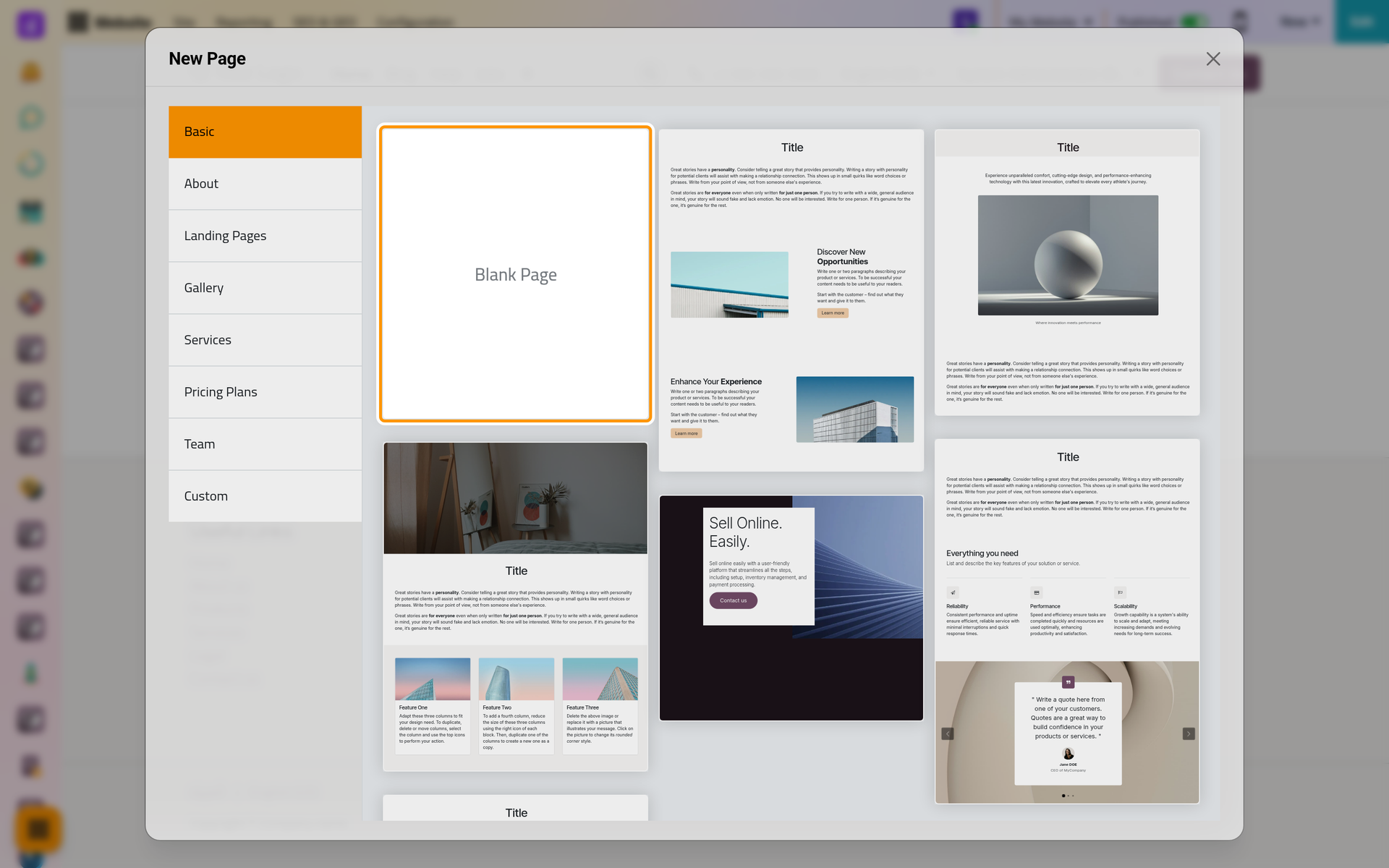
- Click a template, here Blank Page. A second window asks for the Page Title: type
Pages demo: Our services. - Keep Add to menu on to add the page at the end of the website's main menu, or turn it off when the page will be reached through a link only. You can change it later: Edit the menu.
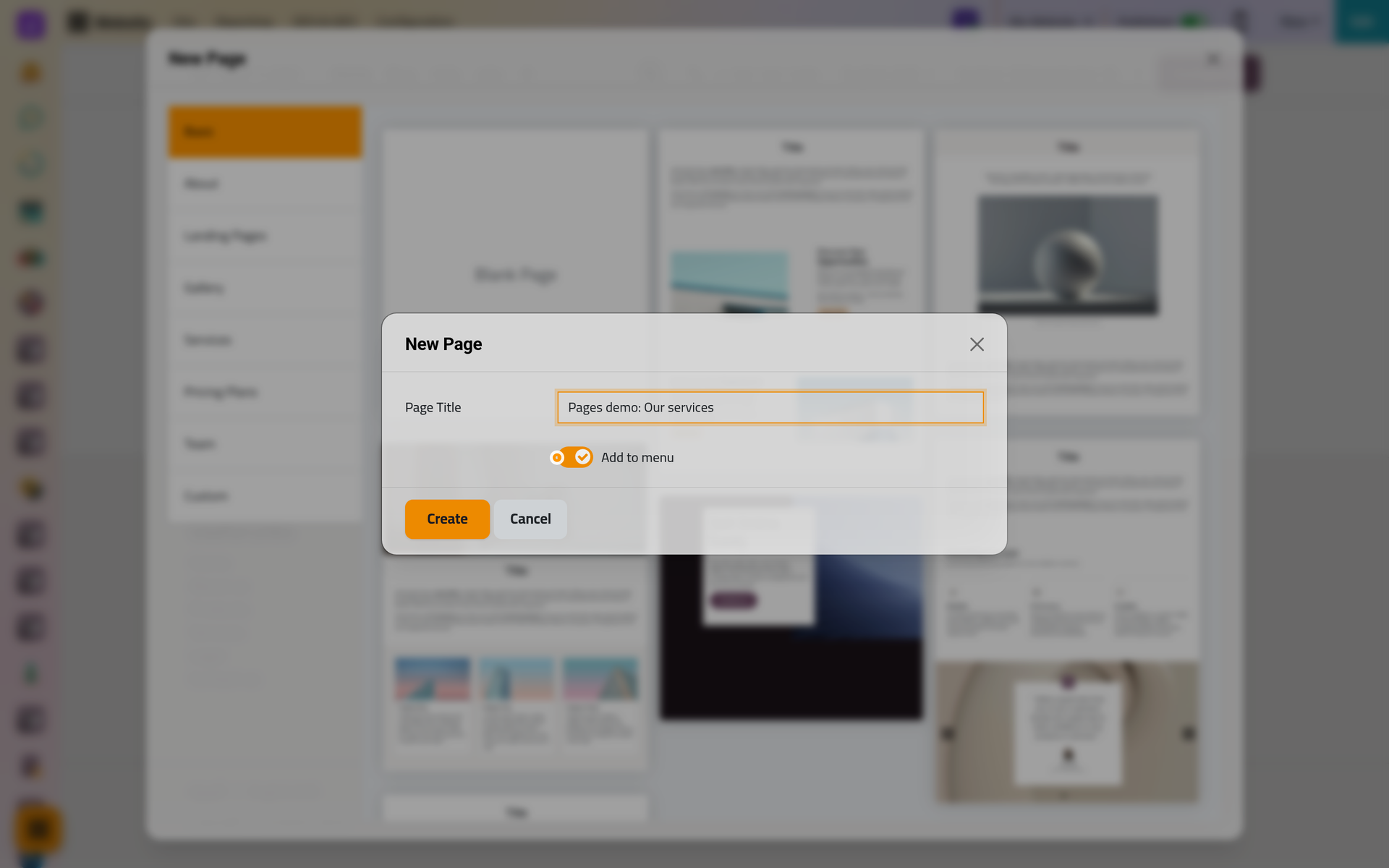
- Click Create.
The title also gives the page its address: Pages demo: Our services becomes /pages-demo-our-services. A title in Arabic gives an address in Latin letters, and an address already taken gets a number at its end. Manage pages changes the title and the address afterwards.
Fill it and save
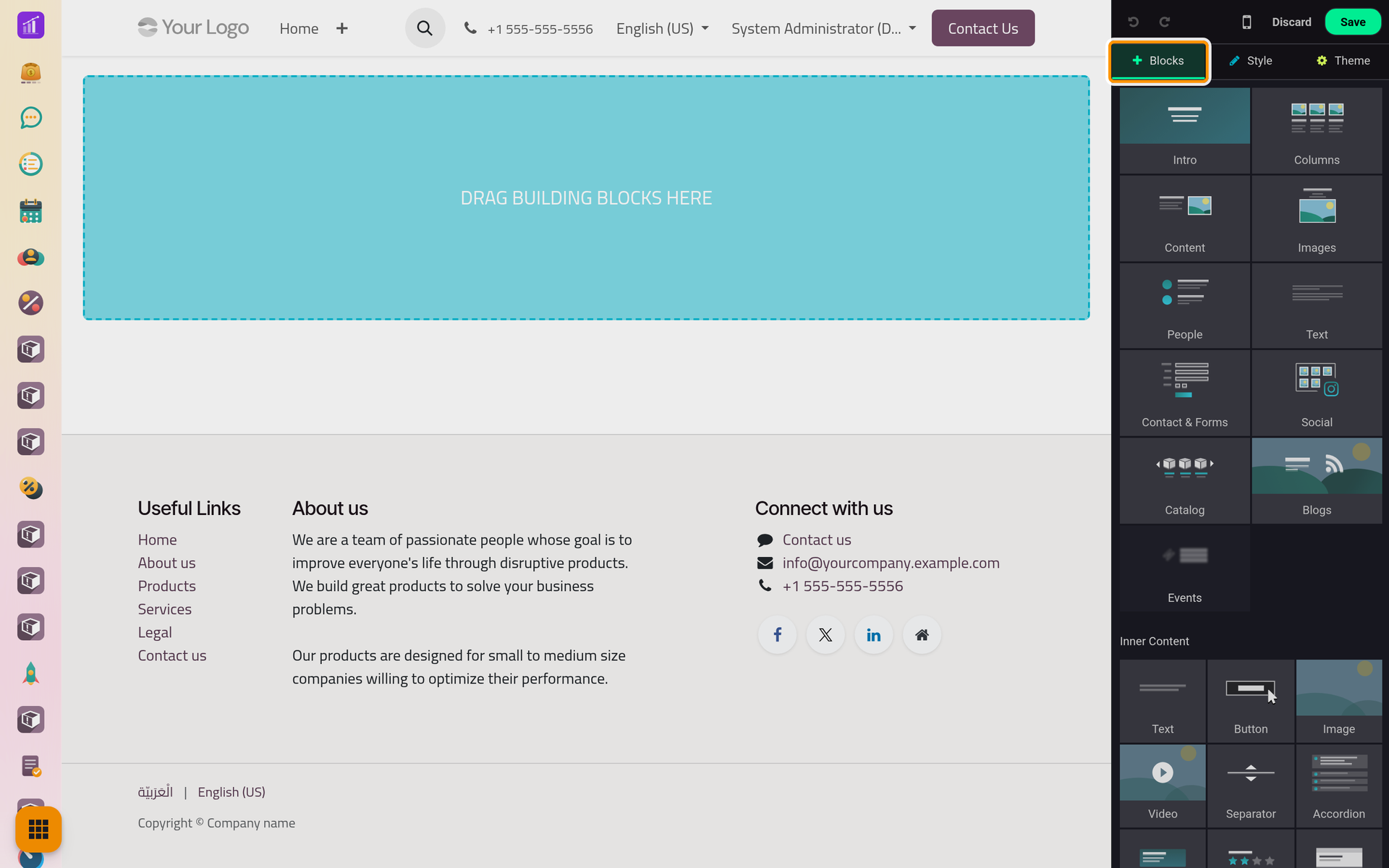
The new page opens straight in the editor: empty for a blank page, with sample blocks for a template. Add your blocks and texts as Edit a page explains, then click Save.
Publish it
A new page is unpublished. You and the other editors open it; visitors get the page-not-found answer, and its menu entry is hidden from them. The switch in the bar says Unpublished.
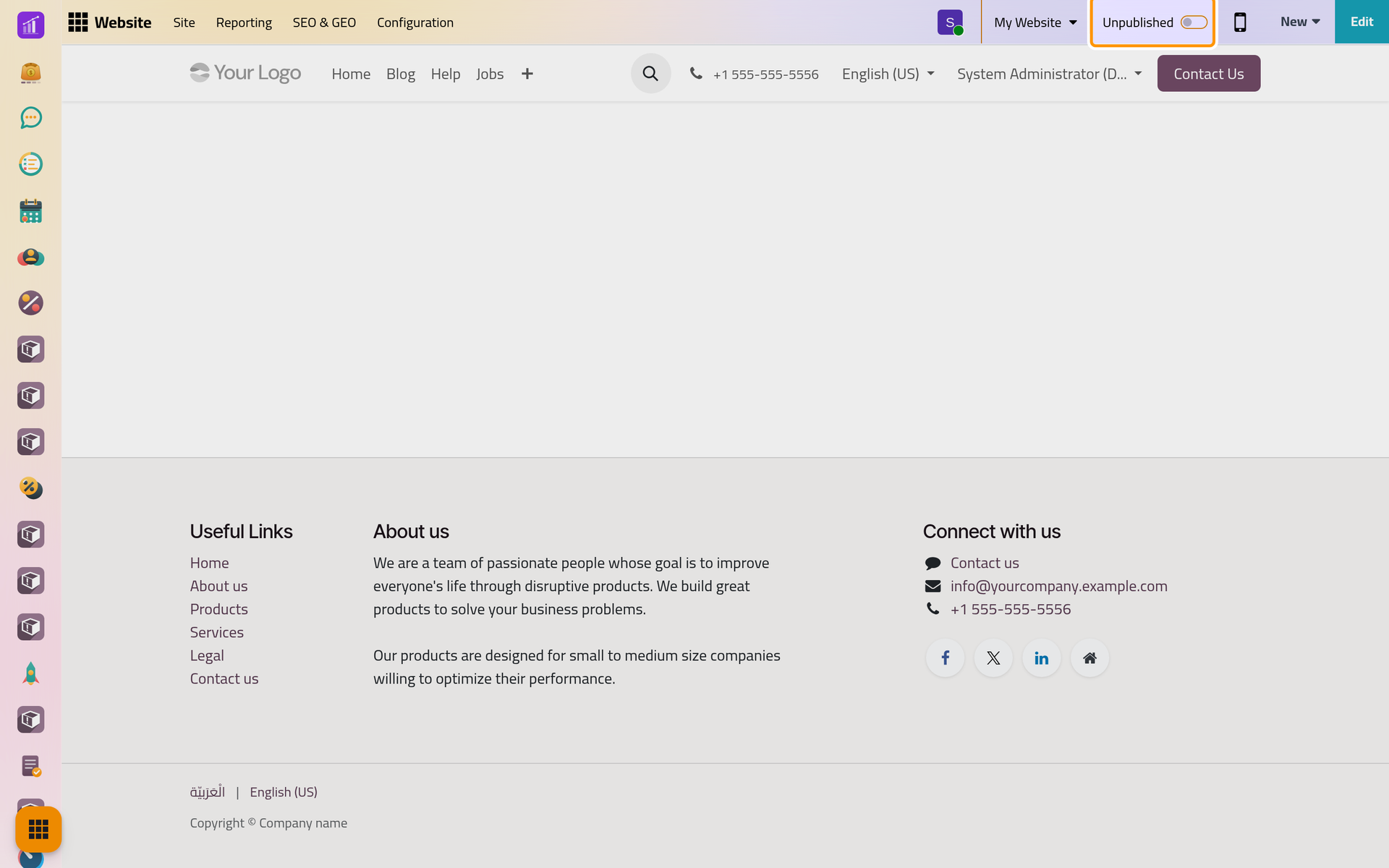
When the page is ready, click the switch. It turns to Published and the page is live at once.
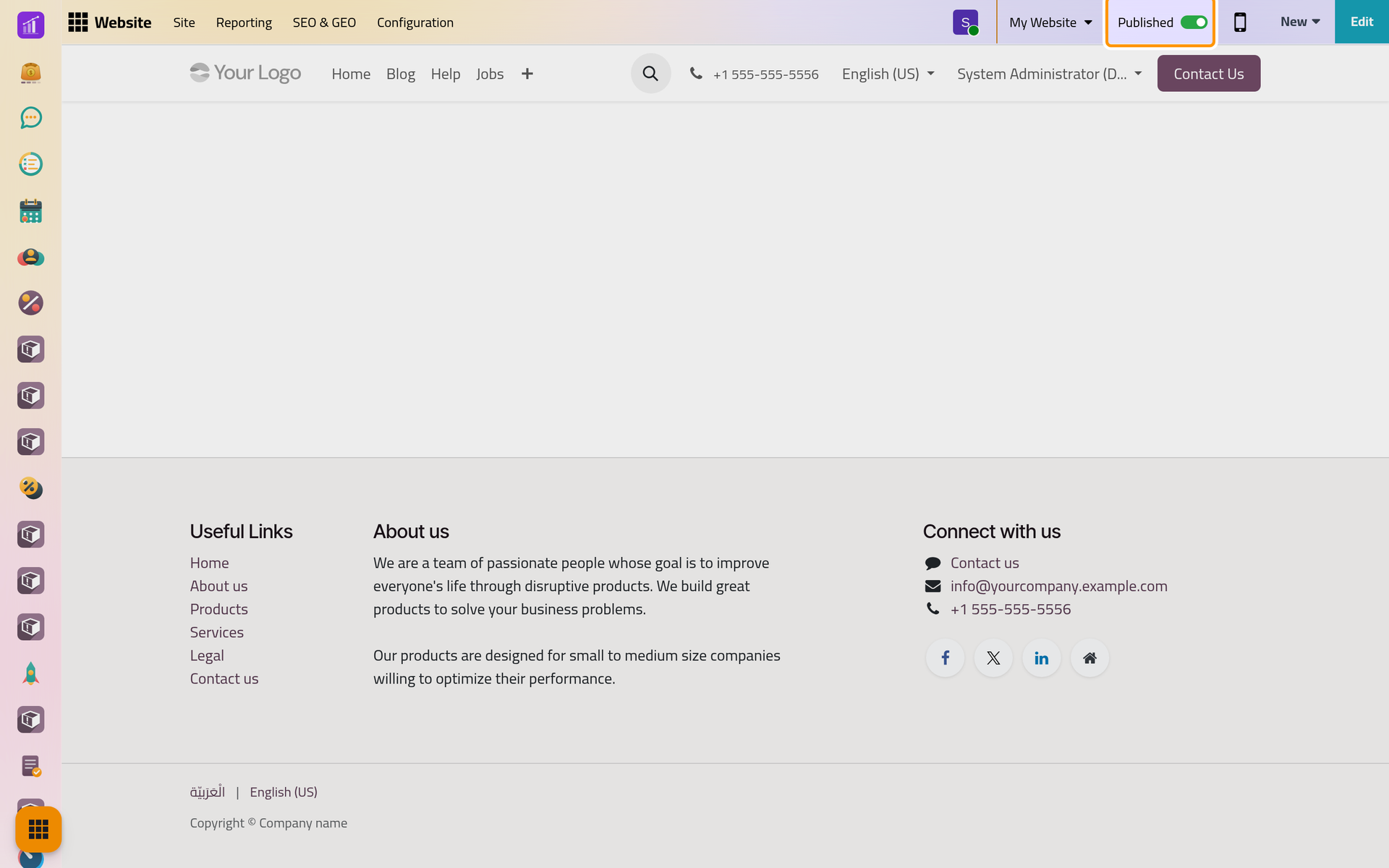
Click the switch again to take the page offline. The Pages list, , publishes several pages at once, and the page properties can hold a page back until a date: Manage pages.
Start from a page of your own
Any page can serve as a template. Turn on Is a Template in its properties (Manage pages) and it appears in the Custom category of the New Page window. A page made from it takes all its blocks, and the title proposed is Copy of followed by the name of the template.
FAQ
Why can't my colleague see the new page?
It is still unpublished, and an unpublished page opens only for users who hold Editor and Designer. Publish it with the switch in the bar.
The page is not in the menu bar.
With Add to menu on, the entry is added at the end of the main menu. When the bar is full, its last entries move under the + at its end. Edit the menu puts the entry where you want it.
Can I add a page from the Pages list?
Yes. New above the list opens the same New Page window, and the new page opens in the editor in the same way.
Was this page helpful?
Thank you for your feedback.