Manage pages
On this page
Each page has properties that decide its address, its place in the menu and who may see it, and the Pages list gathers the pages of a website. The example, Pages demo: Office hours, gets a new address in its properties, is published from the list, then deleted.
Before you start
- You need the Editor and Designer access right on Website: How the website works.
The properties of a page
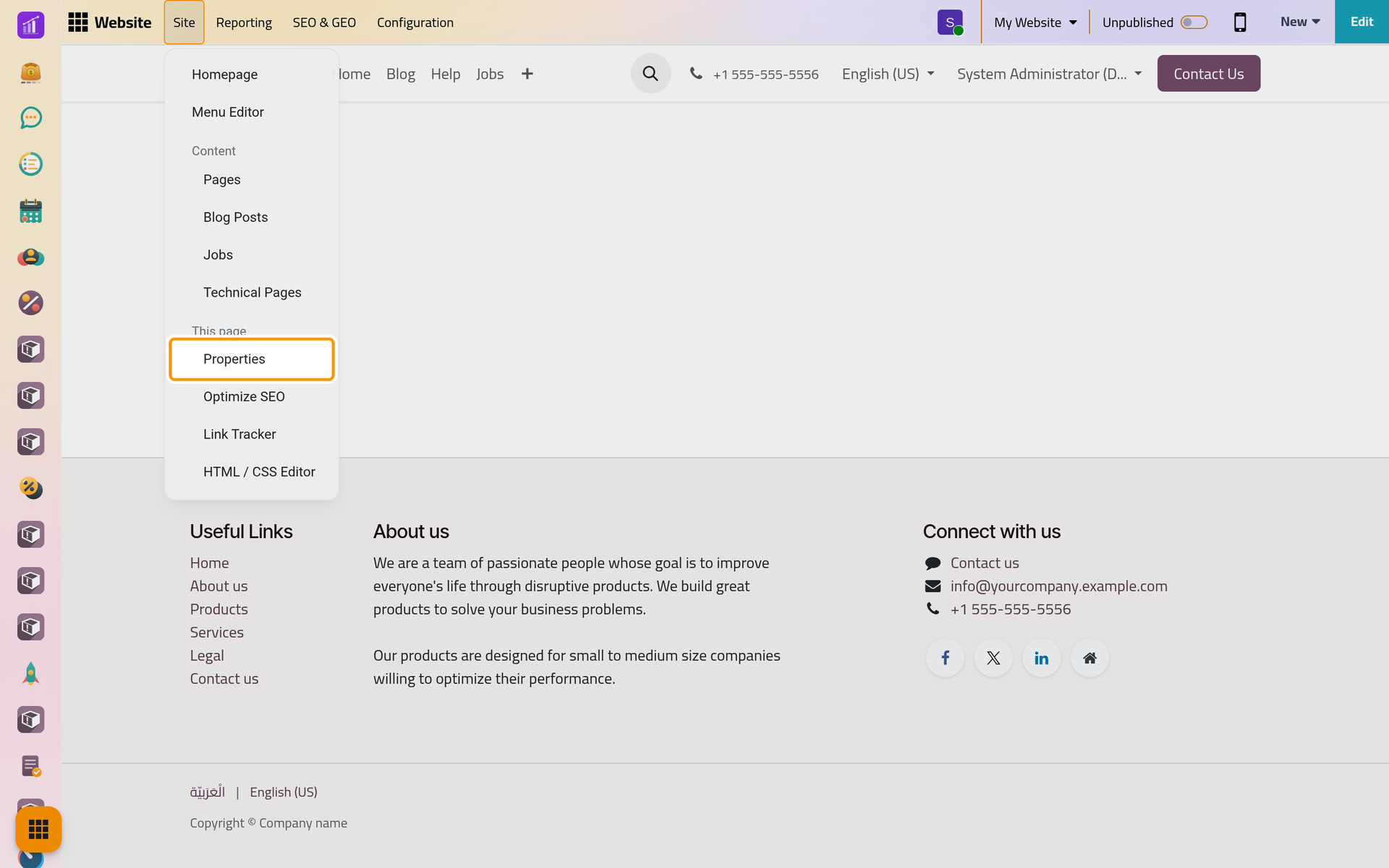
Open the page on the website, then Site › This page › Properties, that is . The This page group of the Site menu shows only while a page is on screen.
The Page Properties window holds:
- Page Title: the name of the page in the Pages list and in the browser tab.
- Page URL: the address after the domain.
- In Menu: adds or removes the page's entry in the main menu; Edit Menu next to it opens the menu editor (Edit the menu).
- Is Homepage: makes this page the home page of the website.
- Published, and Publishing Date: a published page with a date still to come stays hidden from visitors until that date.
- Indexed: on by default. Turned off, the page asks search engines not to list it and leaves the site map and the website's own search.
- Visibility: empty means public. Signed In keeps the page for visitors who signed in, clients of the portal included; Restricted Group for the members of the Authorized Groups you list; With Password asks for the Password you set.
- Is a Template: adds the page to the templates of the New Page window (Add a page).
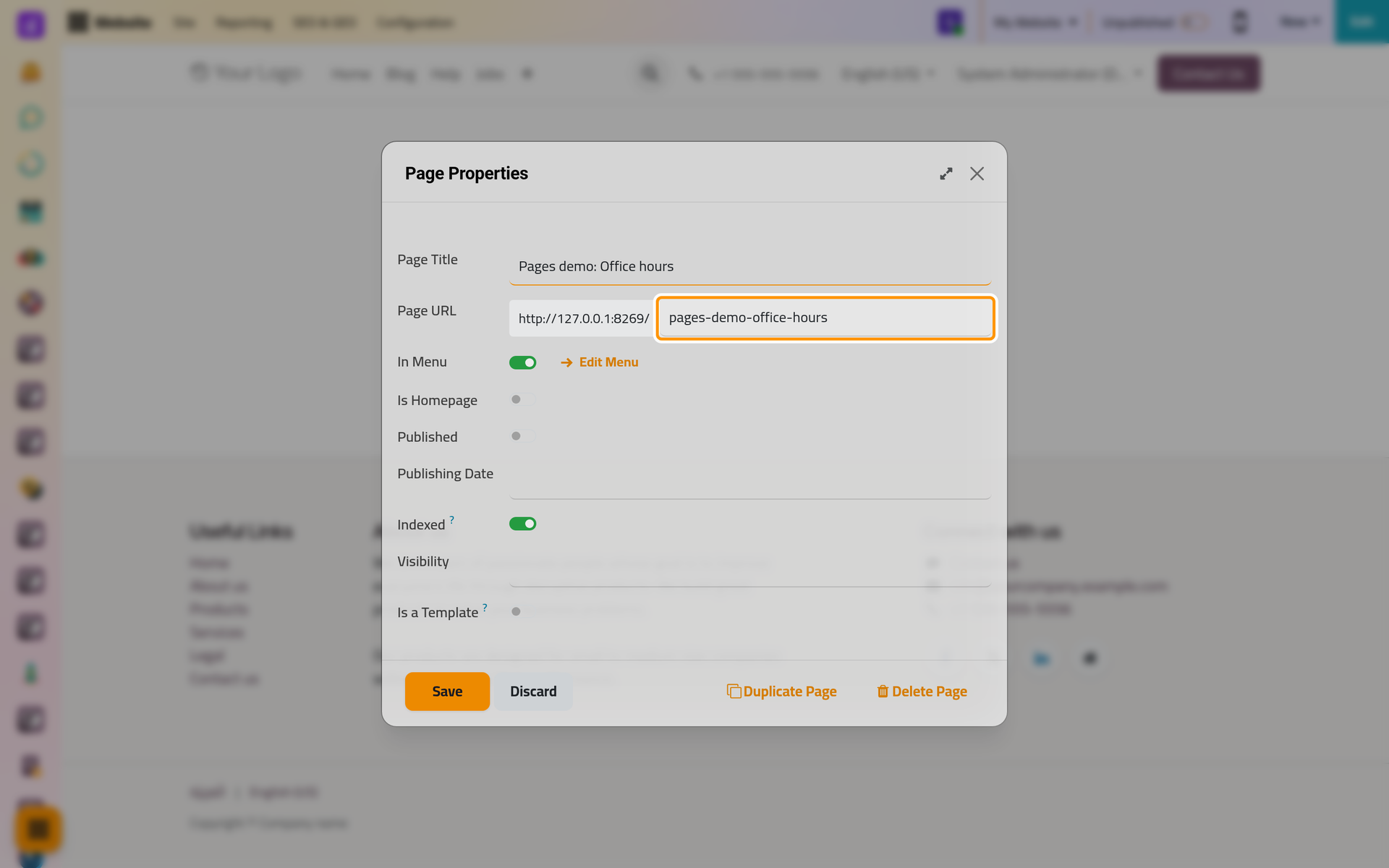
Save applies your changes; Discard drops them. Duplicate Page asks for a name and makes an unpublished copy, with a menu entry of its own when the page has one.
Change the address
Type the new address in Page URL, here pages-demo-hours. Redirect Old URL appears: turn it on and the old address keeps working by sending visitors and search engines to the new one. Type says how: 301 Moved permanently when the change is for good, 302 Moved temporarily when you will come back to the old address.
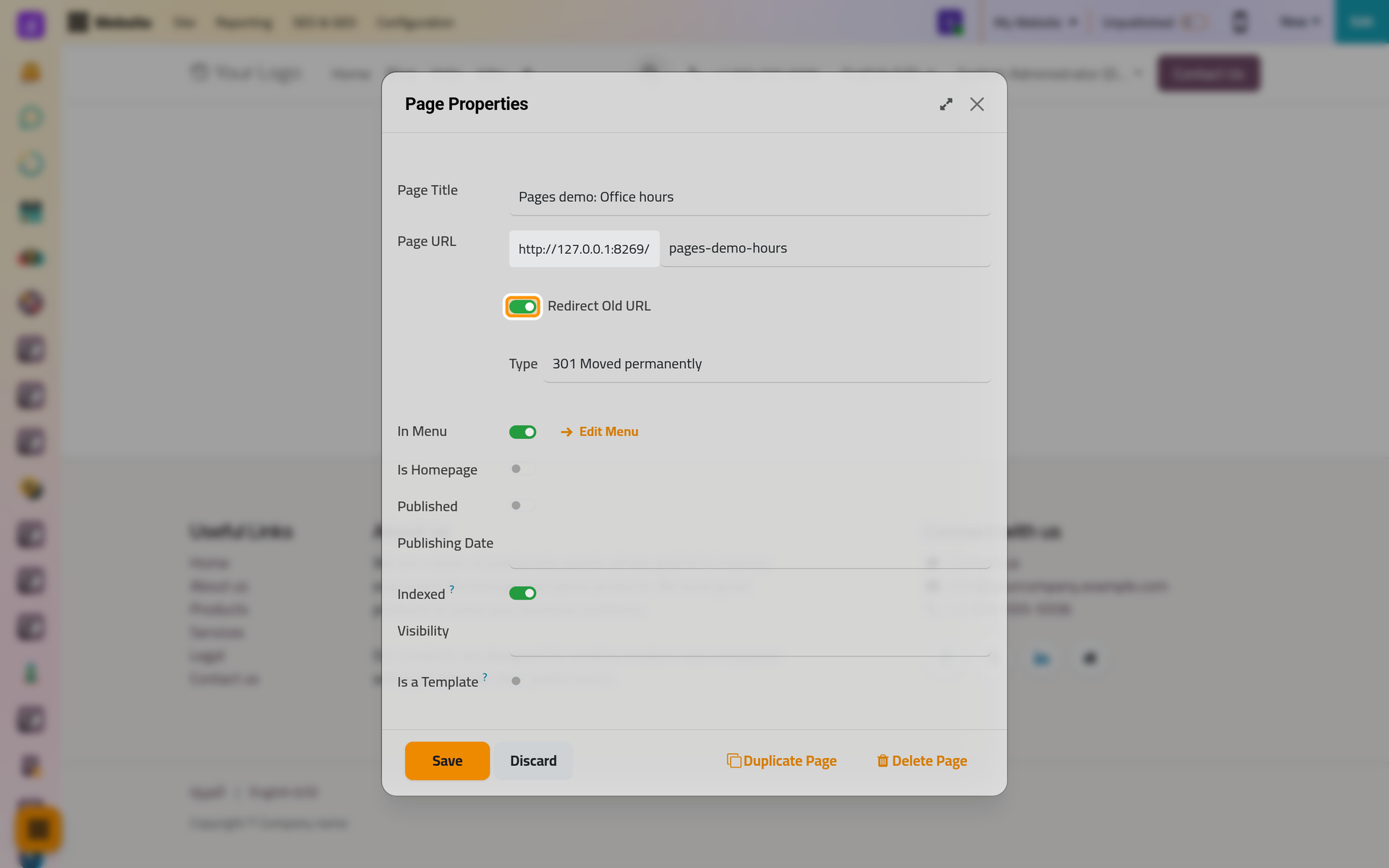
Without the redirect, links to the old address lead to the page-not-found page. The redirects are listed, with developer mode on, in .
The Pages list
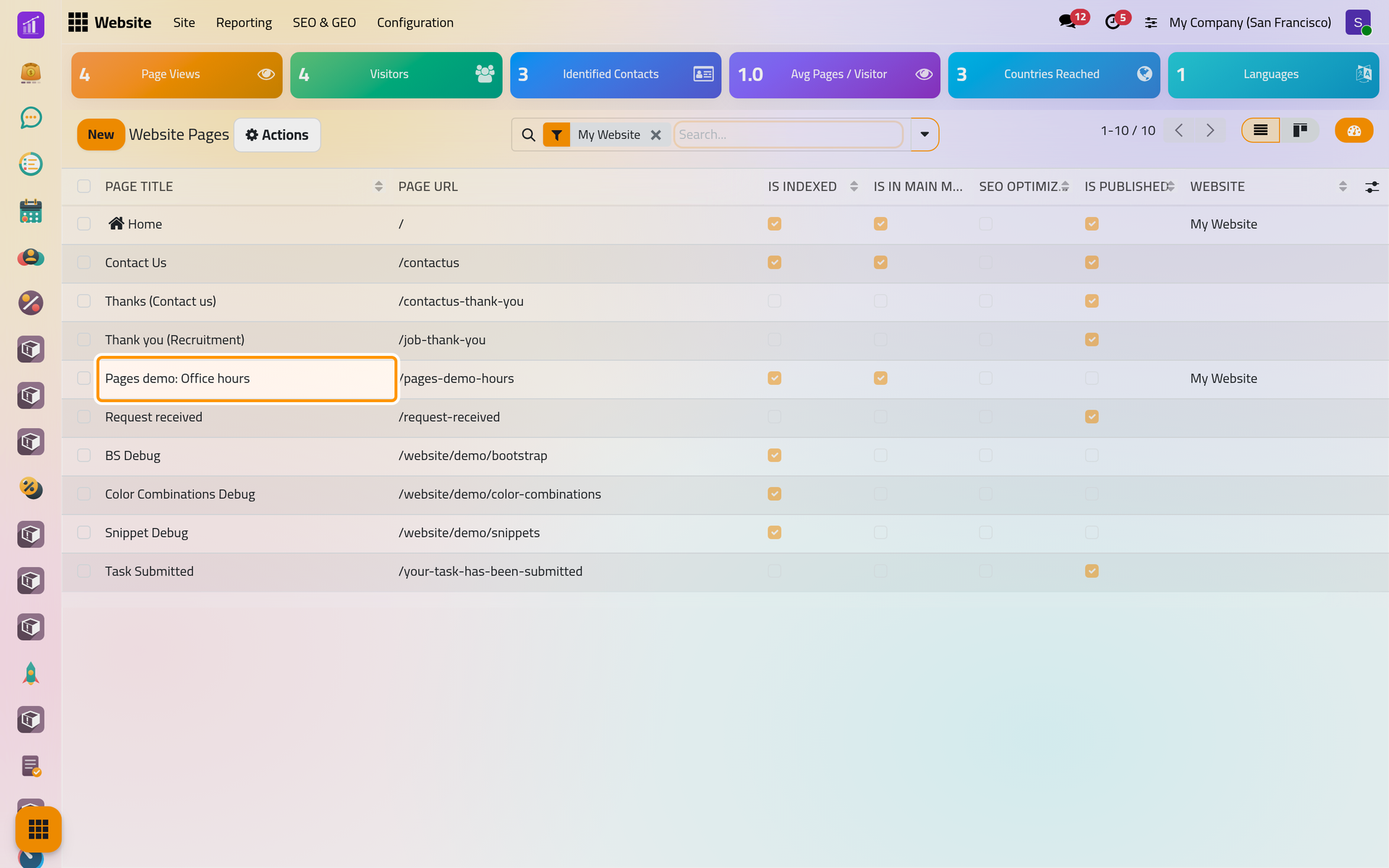
lists the pages of the current website with their Page Title, Page URL, Is Indexed, Is In Main Menu, SEO optimized and Is Published. The filters Published and Not published sort them out, and a click on a row opens that page on the website.
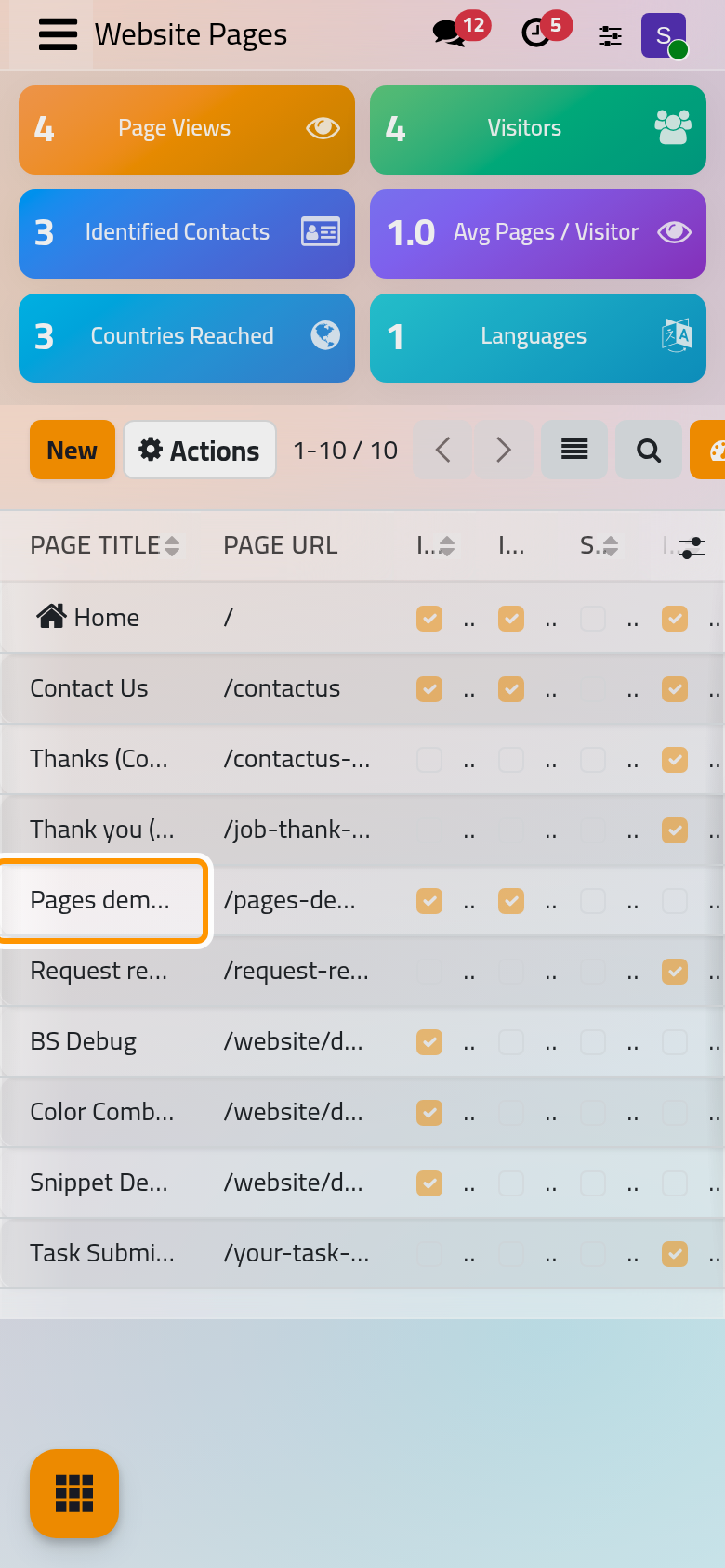
Publish, unpublish, duplicate or delete
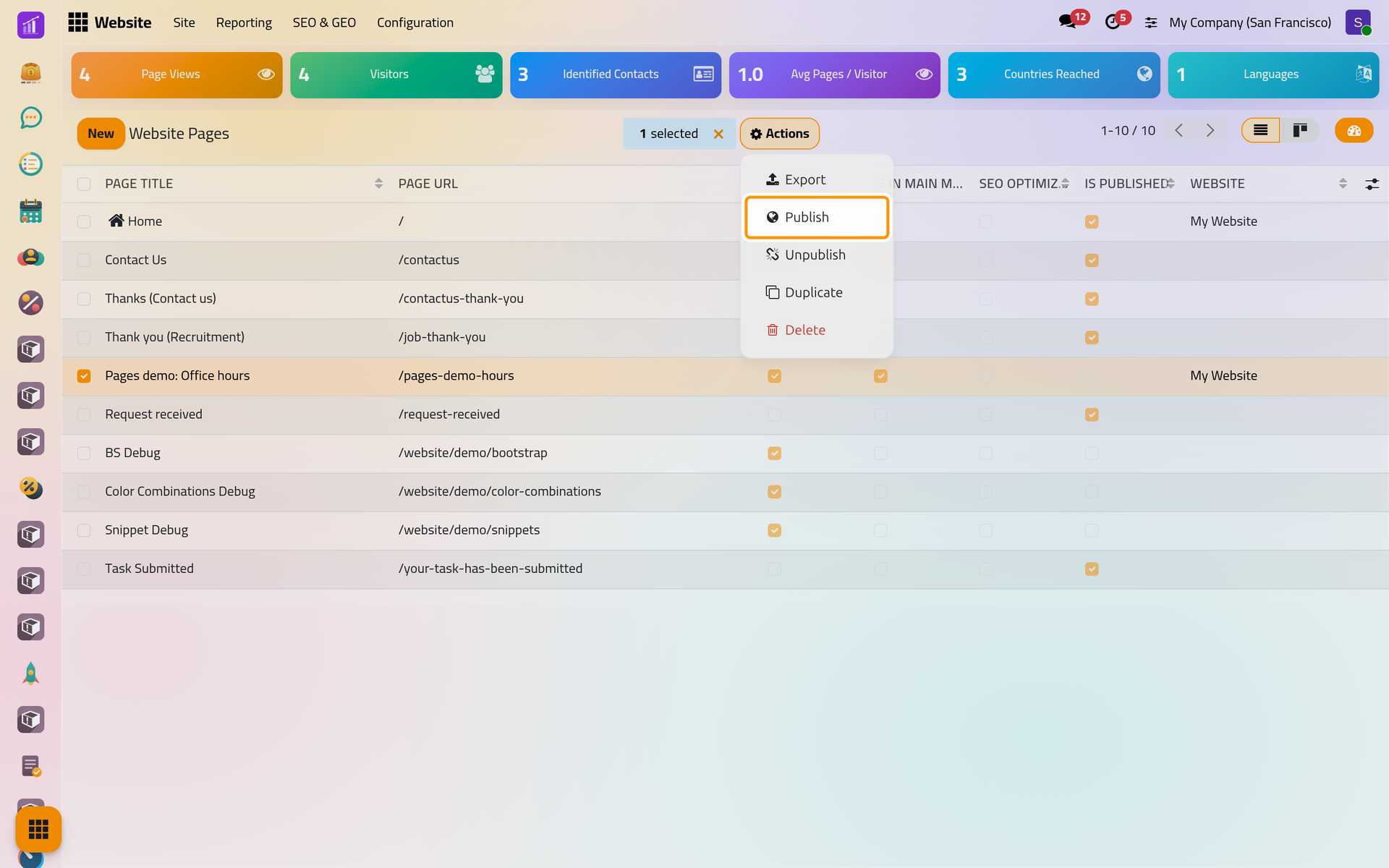
Tick one or more pages, then open Actions:
- Publish asks you to confirm with Ok;
- Unpublish takes the pages and their menu entries away from visitors at once, and changes nothing else;
- Duplicate makes copies, as Duplicate Page does;
- Delete opens Delete Page.
Delete Page reminds you that links to the page will lead to the page-not-found page, and lists the records that link to it when it finds any. Tick I am sure about this., then click Delete, or No, keep it.
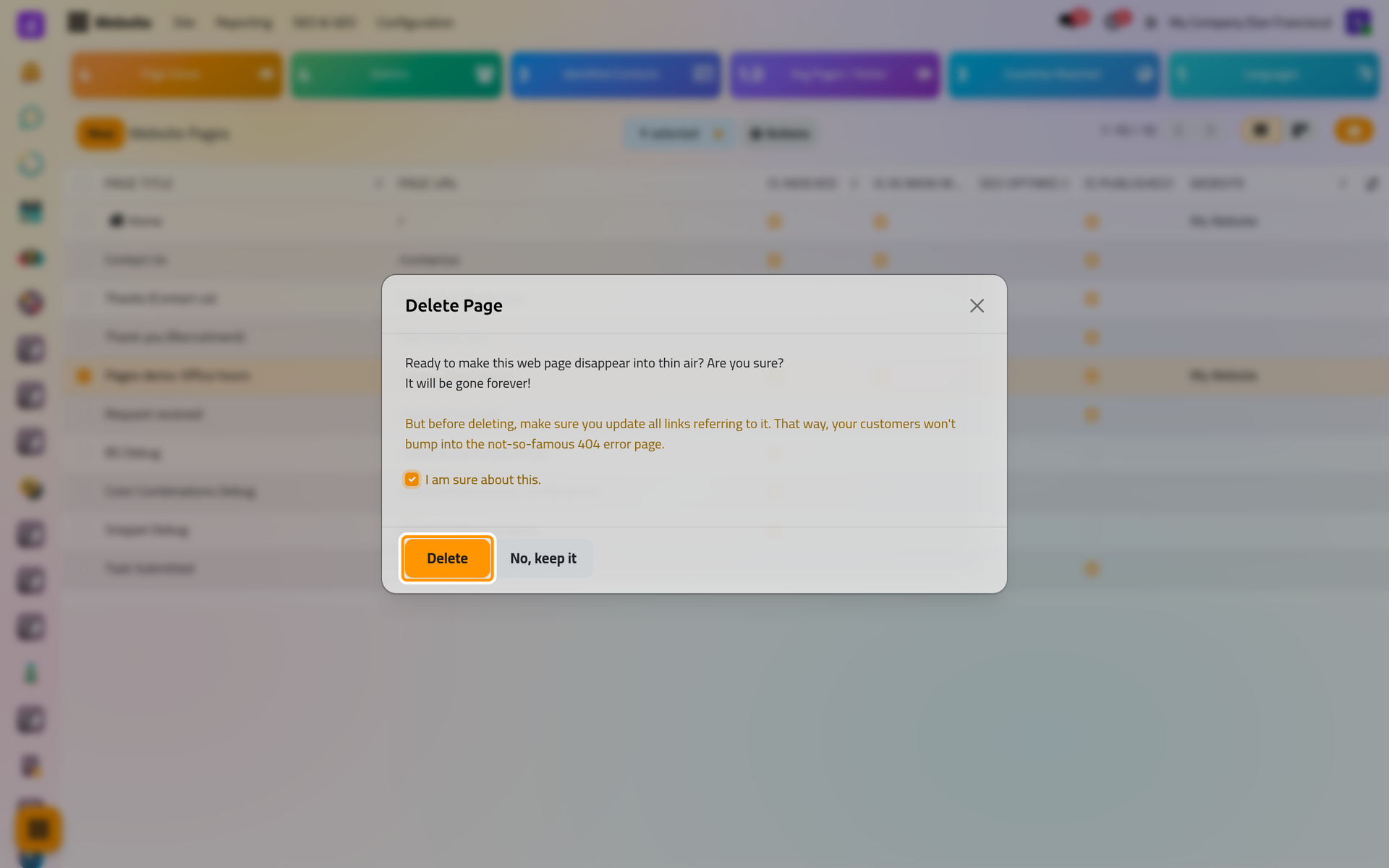
The page goes with its menu entries. A redirect that leads to it stays, and unlike most records, a deleted page does not go to the Recycle bin: when in doubt, unpublish it.
FAQ
Unpublish or delete?
Unpublish hides the page and keeps everything, ready to come back with one click. Delete removes it for good.
I published the page and visitors still do not see it.
Look at its properties: a Publishing Date still to come, or a Visibility other than public, keeps it from them.
I changed the address and old links broke.
Open the properties again, put the old address back in Page URL, save, then change it once more with Redirect Old URL on.
Was this page helpful?
Thank you for your feedback.