Write a blog post
On this page
A post, called Blog Post on the screen, is one article of a blog. You write it on the site itself, in the editor; its details (subtitle, tags, author, date) are also in a form. A new post stays unpublished, seen only by editors, until you publish it.
Before you start
- You need the Editor and Designer access right on Website. The Tags and Tag Categories menus of Configuration also need the Administrator role.
- The blog exists: the demo's is Legal insights, and new blogs are made in Create a blog.
Start the post
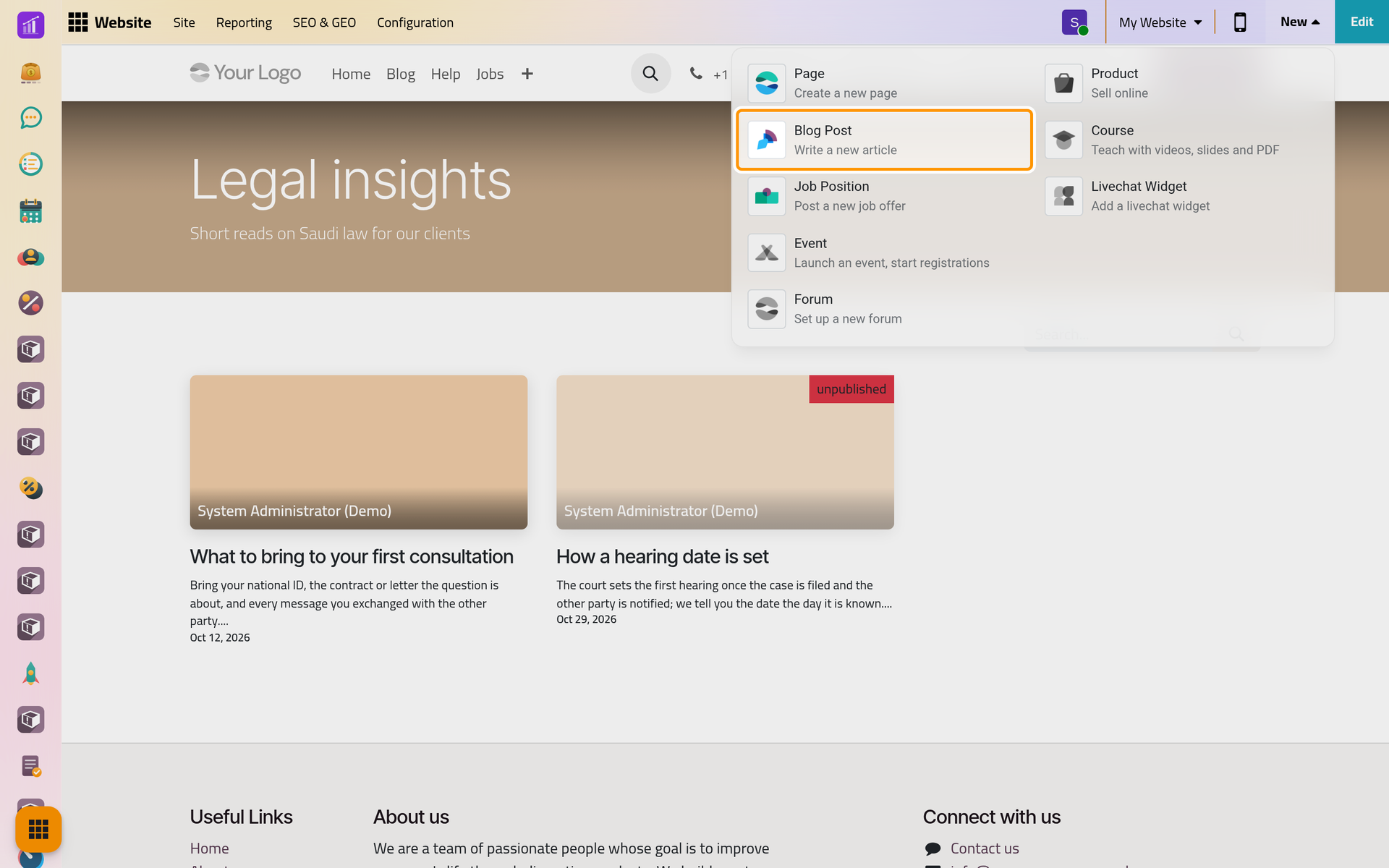
- Open and click New at the top right, then Blog Post.
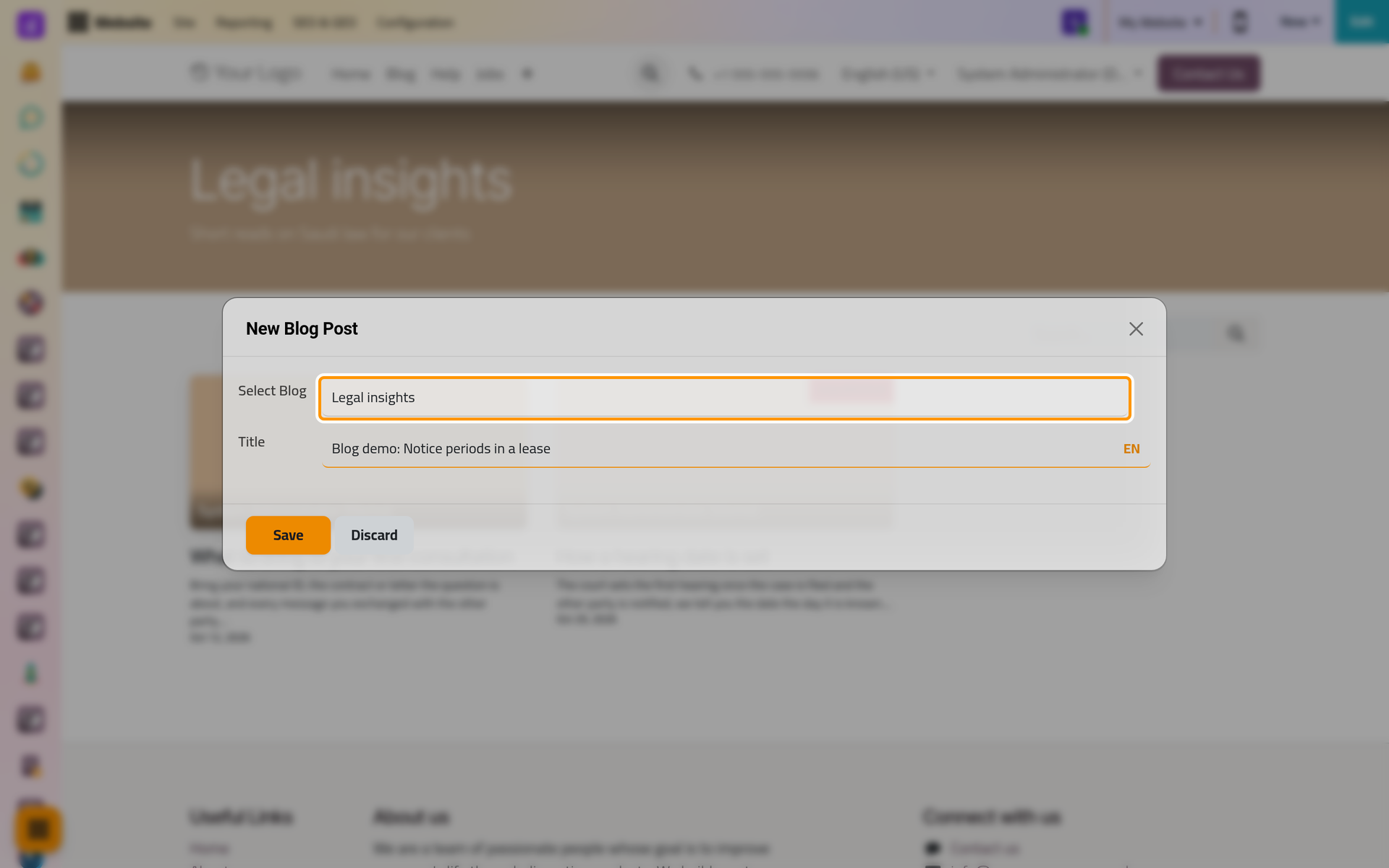
- In New Blog Post, check Select Blog: it proposes the first blog in alphabetical order, even when you start from the page of another blog. Type the Title, here
Blog demo: Notice periods in a lease, and click Save.
On a phone, New is not shown at the top of the site: open and click New, which opens the same window. The post then opens on the site without the editor; click Edit on a computer to write it.
Write the text
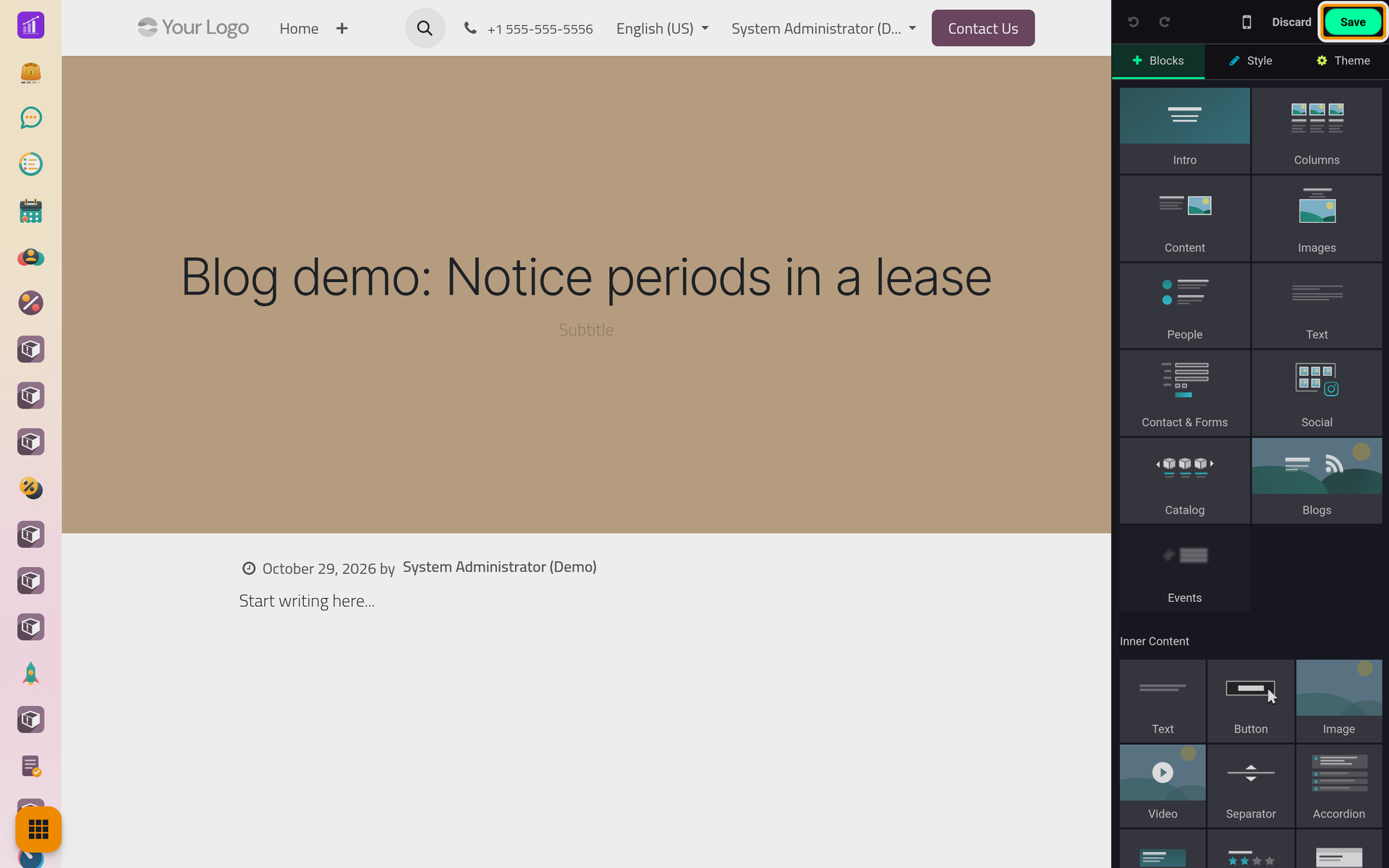
The post opens in the editor. Its title sits in the cover, with Subtitle below it, and the text starts with Start writing here...: click it and type over it. Select words to format them with the toolbar. To add sections, images or columns, use the editor's blocks as described in Edit a page.
Click the cover to change it: Blog Post Cover sets its Background (a color or an image), its Size and its Filter Intensity, and lets you pick the post's Tags. Click Save when the text is ready.
Set the look of post pages
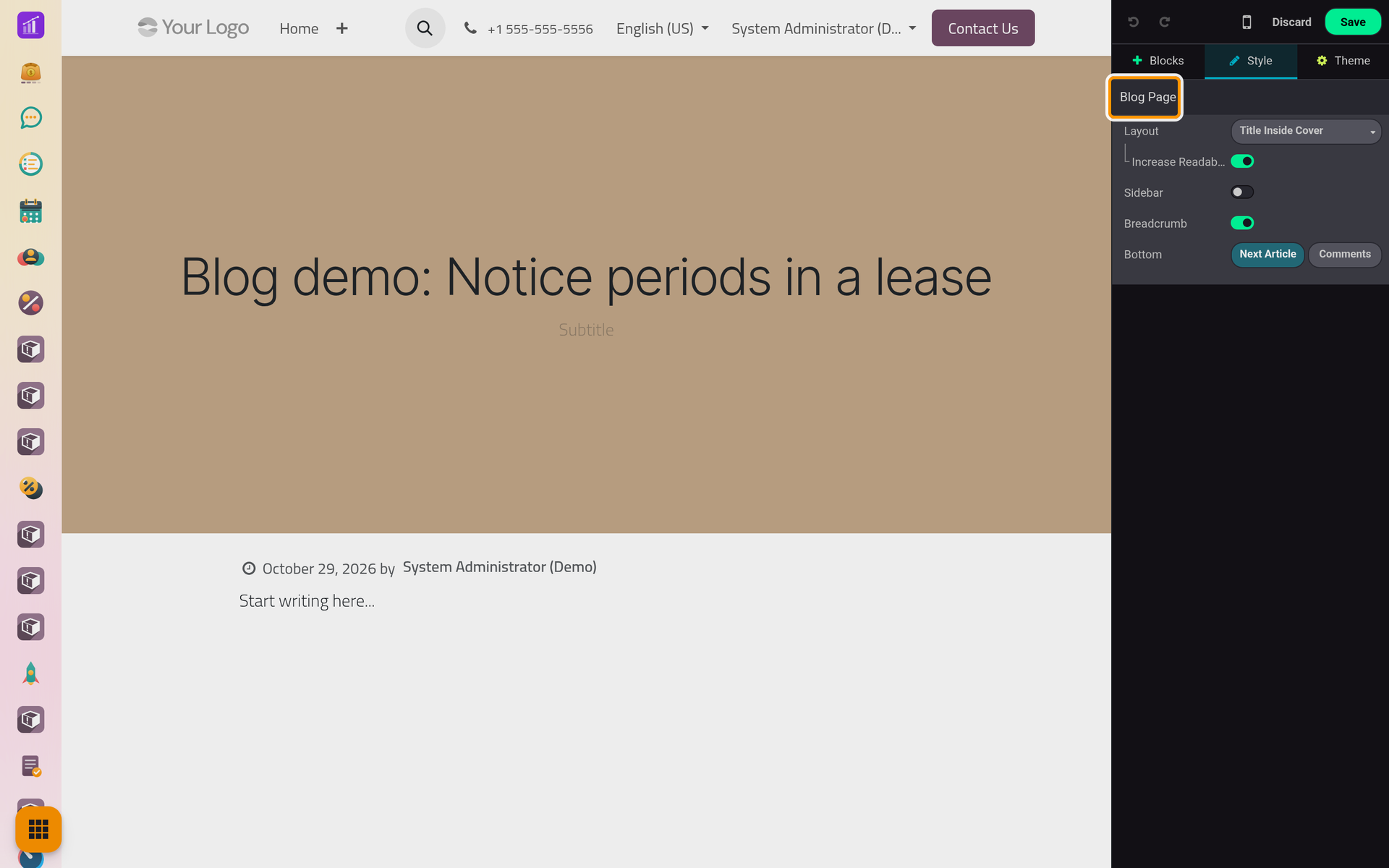
With nothing selected on the page, the Style tab shows Blog Page:
- Layout: Title Inside Cover or Title Above Cover, with Increase Readability;
- Sidebar: a column with Archive, Author, Blogs List, Share Links and Tags;
- Breadcrumb: the path to the blog above the text;
- Bottom: Next Article, a link to the next post, and Comments, a discussion under each post where visitors comment once signed in.
These options apply to every post of the current website. The options of the blog pages themselves are in Create a blog.
Add the subtitle, tags and author
Back on the site, the post is marked Unpublished at the top: only the website's editors see it, with an unpublished label on the blog's page.
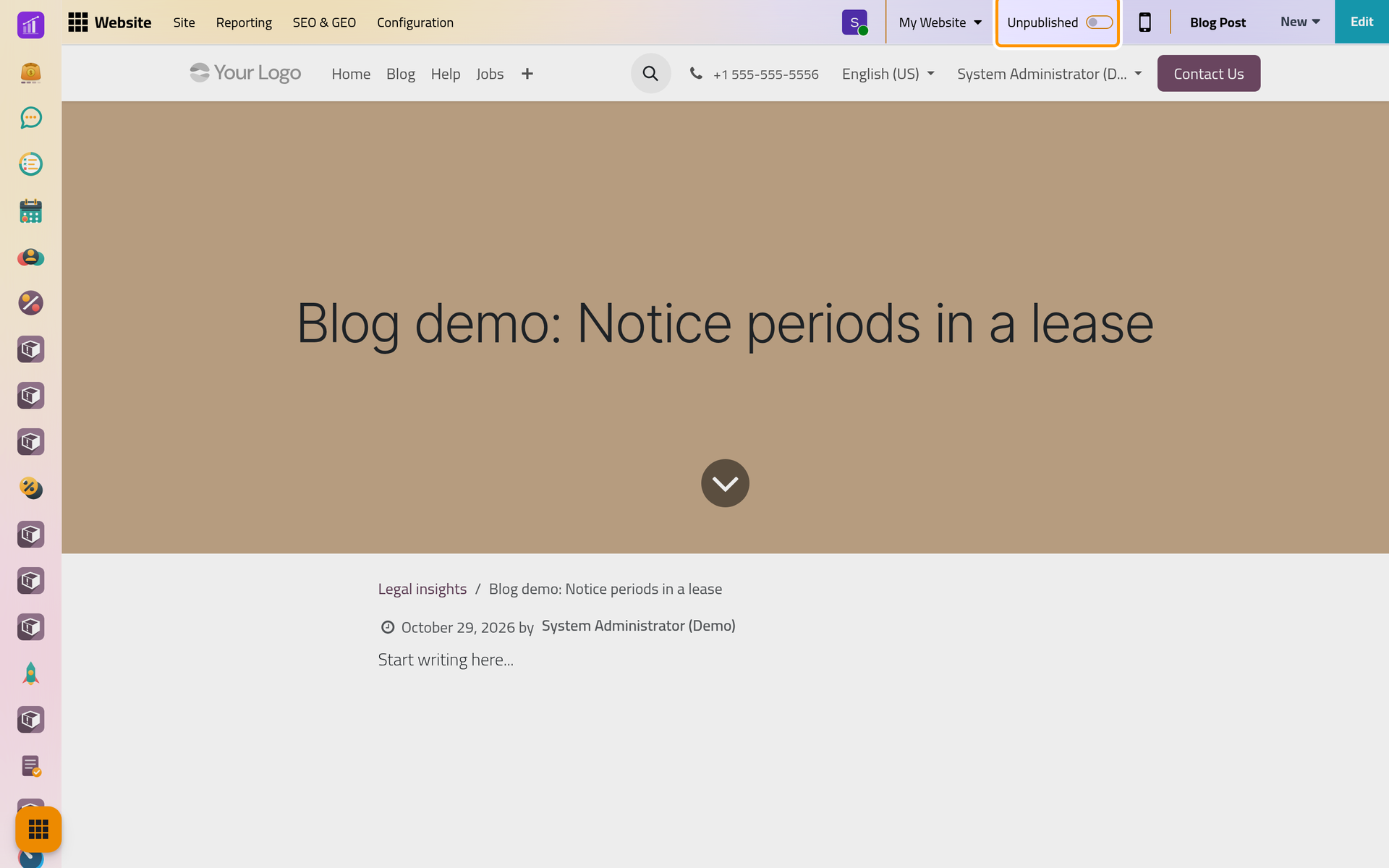
Click Blog Post at the top to open its form; on a phone, it is the cog at the top. There you set the Sub Title, the Tags (type a name to pick a tag or create it), the Author, who is you by default and whose name shows on the post, and the Publishing date. No of Views counts the visits. Click Save.
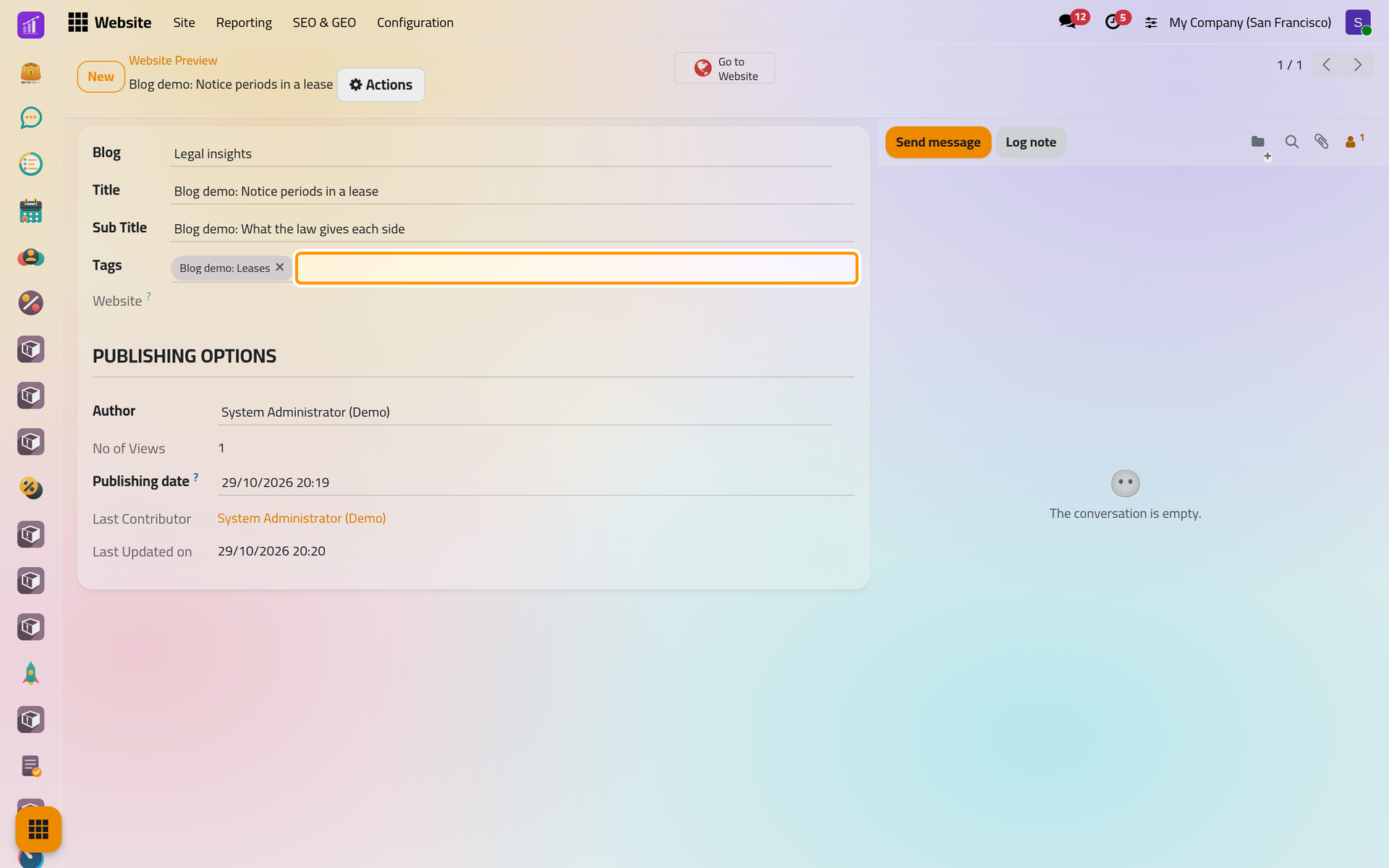
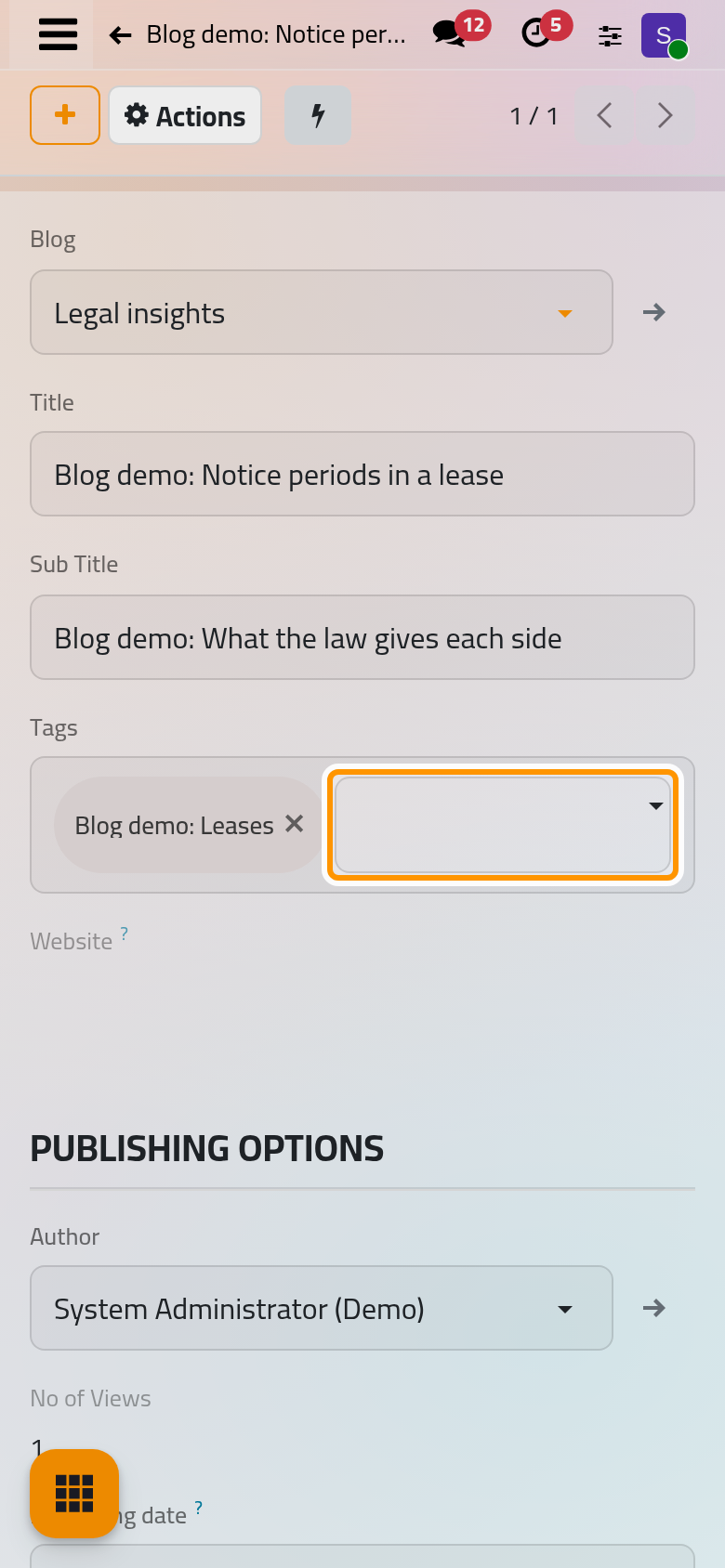
Tags appear under the post, and a visitor who clicks one sees the posts that carry it. lists every tag with its color and Category; groups tags in the sidebar's tags list. Two tags cannot share a name.
To write the post in the other language of the site, follow Translate a page. To put it online, see Edit, publish or delete a post.
FAQ
I cannot find my new post on the site.
It is unpublished, so only editors see it, on its blog's page with the unpublished label. Publish it to show it to visitors.
The post went into the wrong blog.
Open its form with Blog Post at the top and choose the right Blog. The post's address changes with it.
Can someone else be shown as the author?
Yes. Choose any contact in Author on the post's form; the post then shows that contact's name.
Can visitors comment on a post?
Only when Comments is on in the Bottom of the Blog Page options. Visitors must sign in to write a comment.
Was this page helpful?
Thank you for your feedback.