Translate a page
On this page
A page has one layout for every language of the website, and each language keeps its own texts. A text written in the main language shows as it is in the other language until someone translates it. The pictures translate the contact page of the demo website into Arabic; nothing is saved.
Before you start
- The website offers at least two languages: Languages in Website settings.
- You need the Editor and Designer access right on Website: How the website works.
Open the page in the other language
- Open the page on the website (), then choose the language in the language switcher of the page. The address then starts with the code of the language, as in
/ar/contactus. - Click Edit. On a page shown in a language other than the main one, Edit opens a menu: Translate followed by the language of the page, and Edit followed by the main language, which changes the layout on the main-language page.
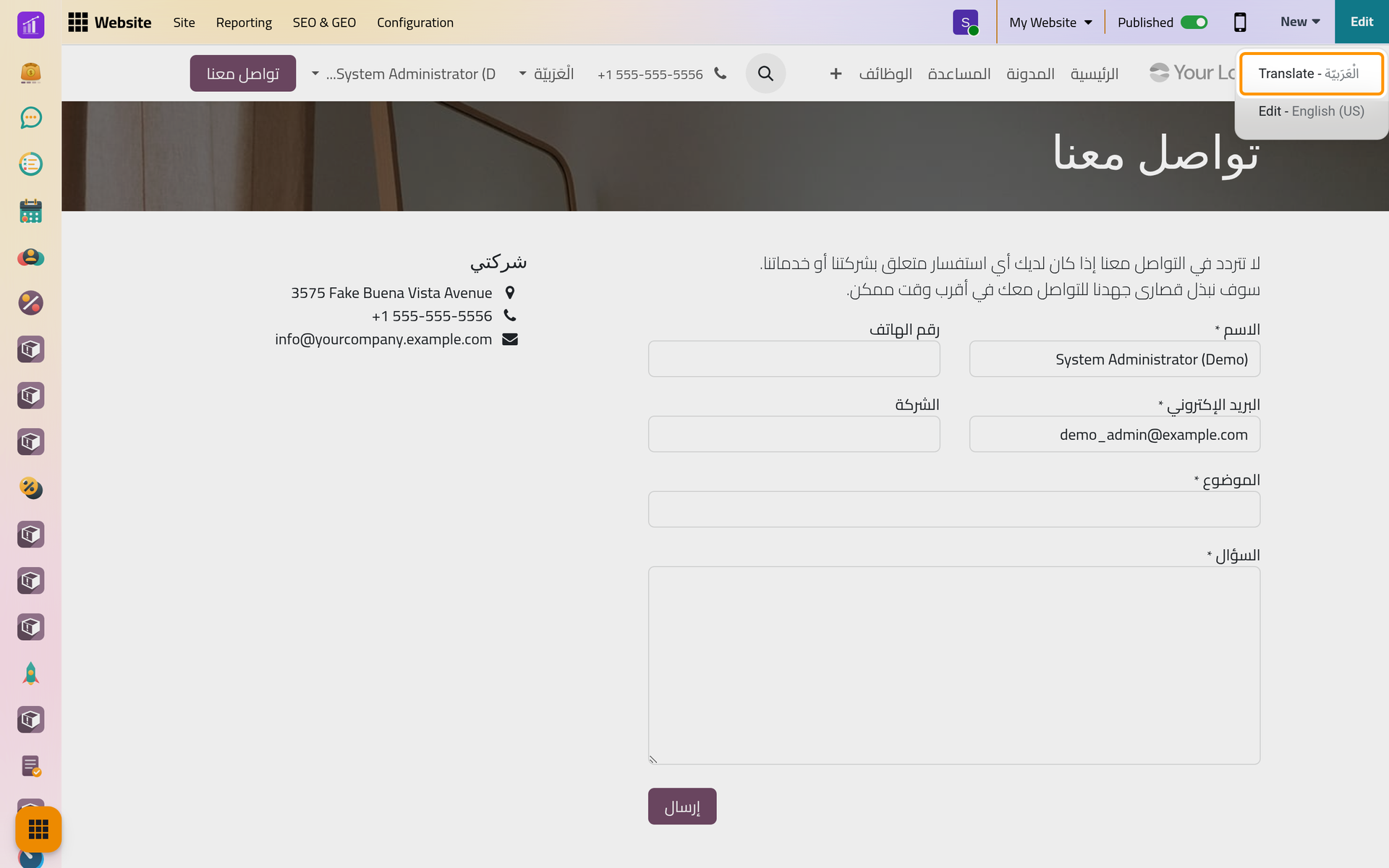
Translate
- Click Translate. The first time, a Confirmation window explains the two colors: yellow for Content to translate, green for Translated content. It also reminds you that only texts are translated here, and that the layout is changed on the main-language page, for every language at once. Click Ok, or Ok, never show me this again.
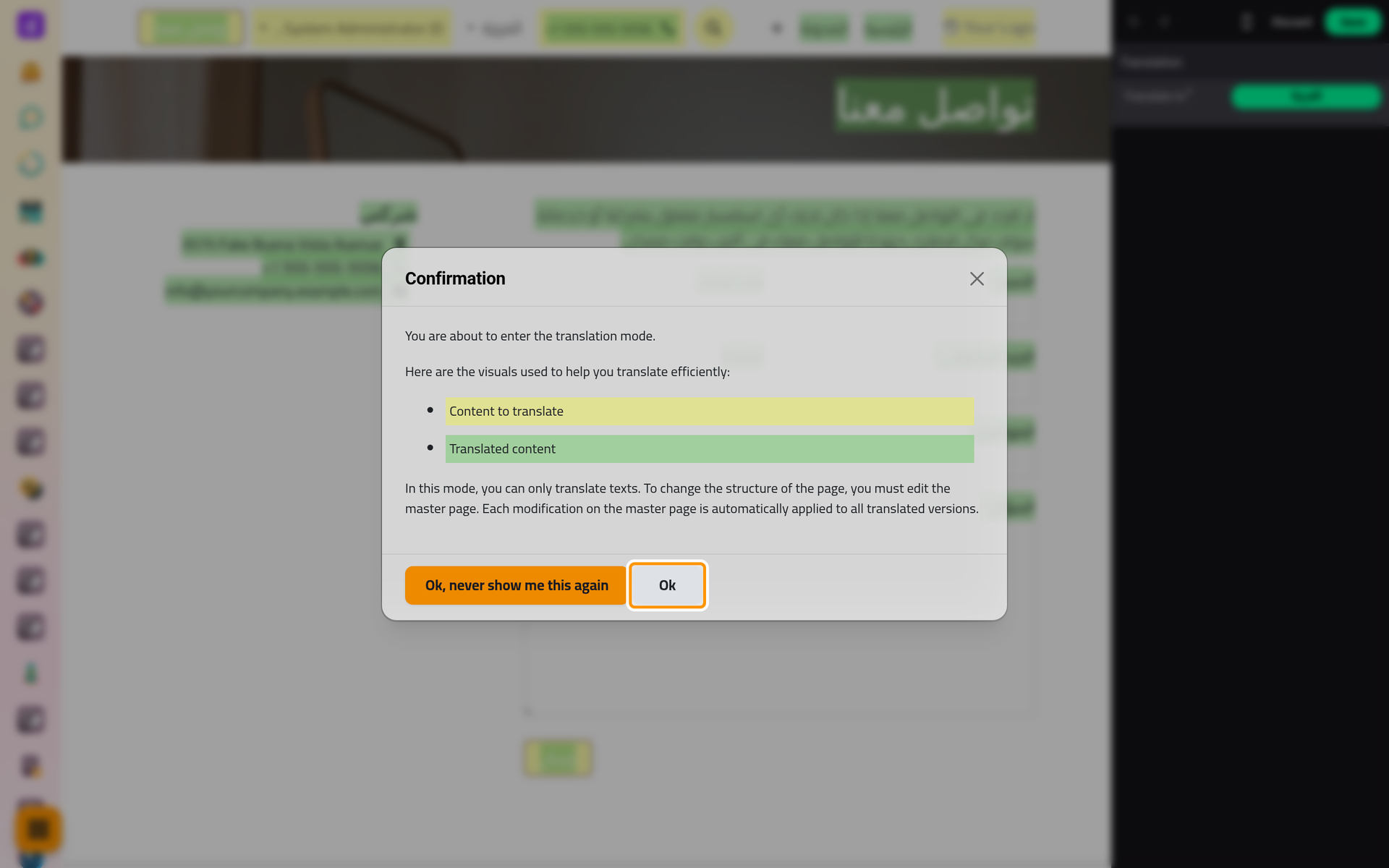
- The page shows in translation mode, with the panel Translation beside it.
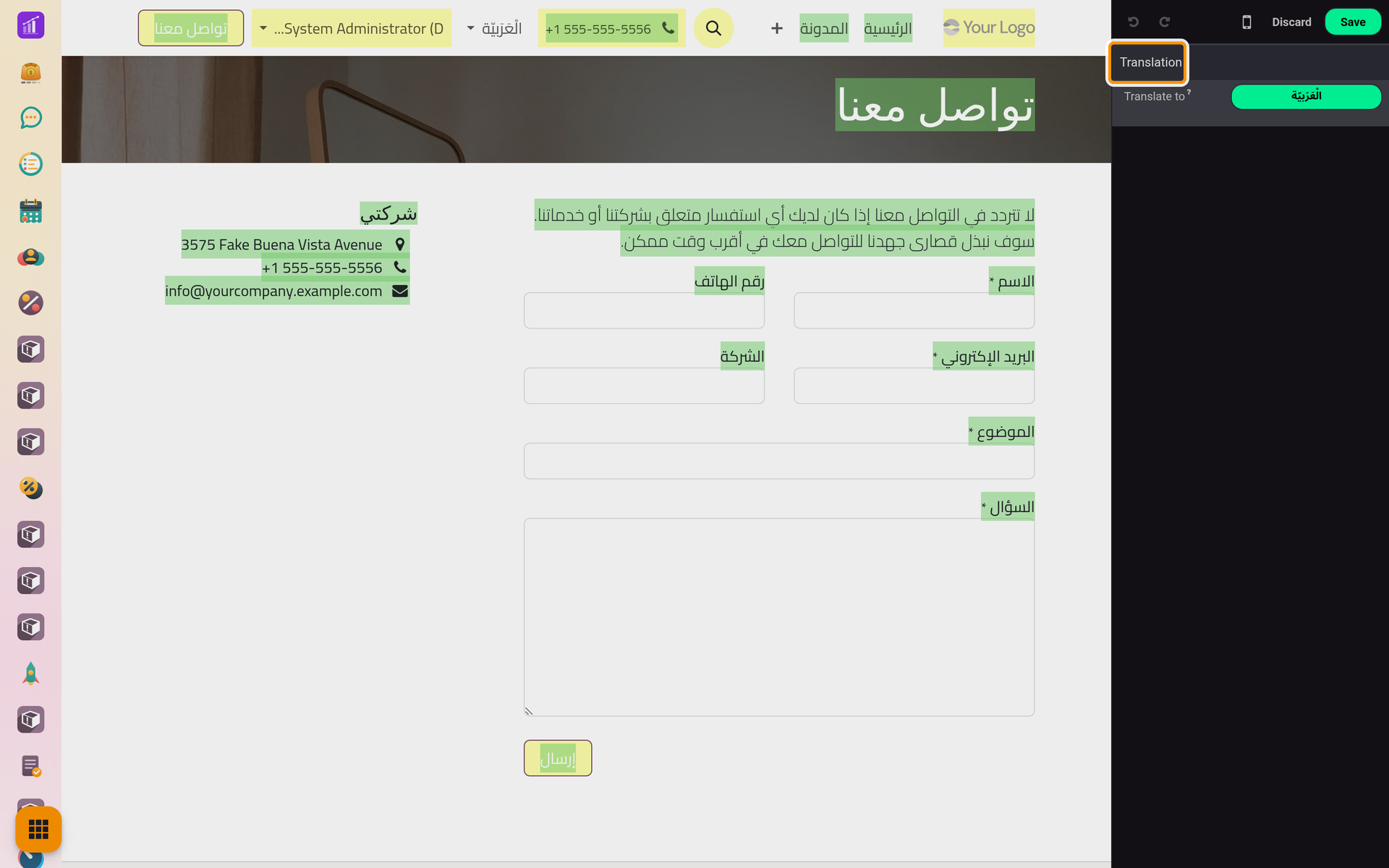
- Click a yellow text and type its translation over it. It turns green. Titles, paragraphs, buttons, form labels and the footer translate in the same way.
- Click Save. Visitors who browse in that language see your words at once. Discard drops the translations typed since you clicked Translate.
Next to Translate to, the panel shows a button named after the language. It would hand the yellow texts to an outside writing service; on the platform that service is closed, and the button ends on a message that text blocks were skipped. Type the translations yourself.
The menu
The titles of the menu items translate here too: click them in the menu of the page, in translation mode, and type. The Menu Editor is not offered while the page is shown in another language; it orders and links the items for every language at once: Edit the menu.
Pictures, videos and links
Some words do not show on the page, such as the alternative text of a picture: click the picture and the Translate Attribute window offers them. On the platform, the same window also translates the picture itself, a video or the address of a link, so the Arabic page can show a picture with Arabic words in it. Click the picture, the video or the link: the window names it Image, Video or Link. Click Select a Media to pick another picture or video for this language, or type another address, then Ok and Save. The other languages keep theirs.
FAQ
I do not see Translate.
The page is shown in the main language. Choose the other language in the switcher of the page first. If the switcher is missing, the website offers one language only: Website settings.
Can the Arabic page have its own layout?
No. Blocks are added, moved and removed on the main-language page, and the change applies to every language. Only the texts, and with the window above the pictures, videos and links, differ.
I added a block in English; why is it in English on the Arabic page?
Every new text starts in the main language in every language. Open the Arabic page in translation mode: the new texts are yellow, ready to translate.
Is the address of the page translated?
No. Each language uses the same address with its code in front, such as /ar/contactus.
Was this page helpful?
Thank you for your feedback.