Create a blog
On this page
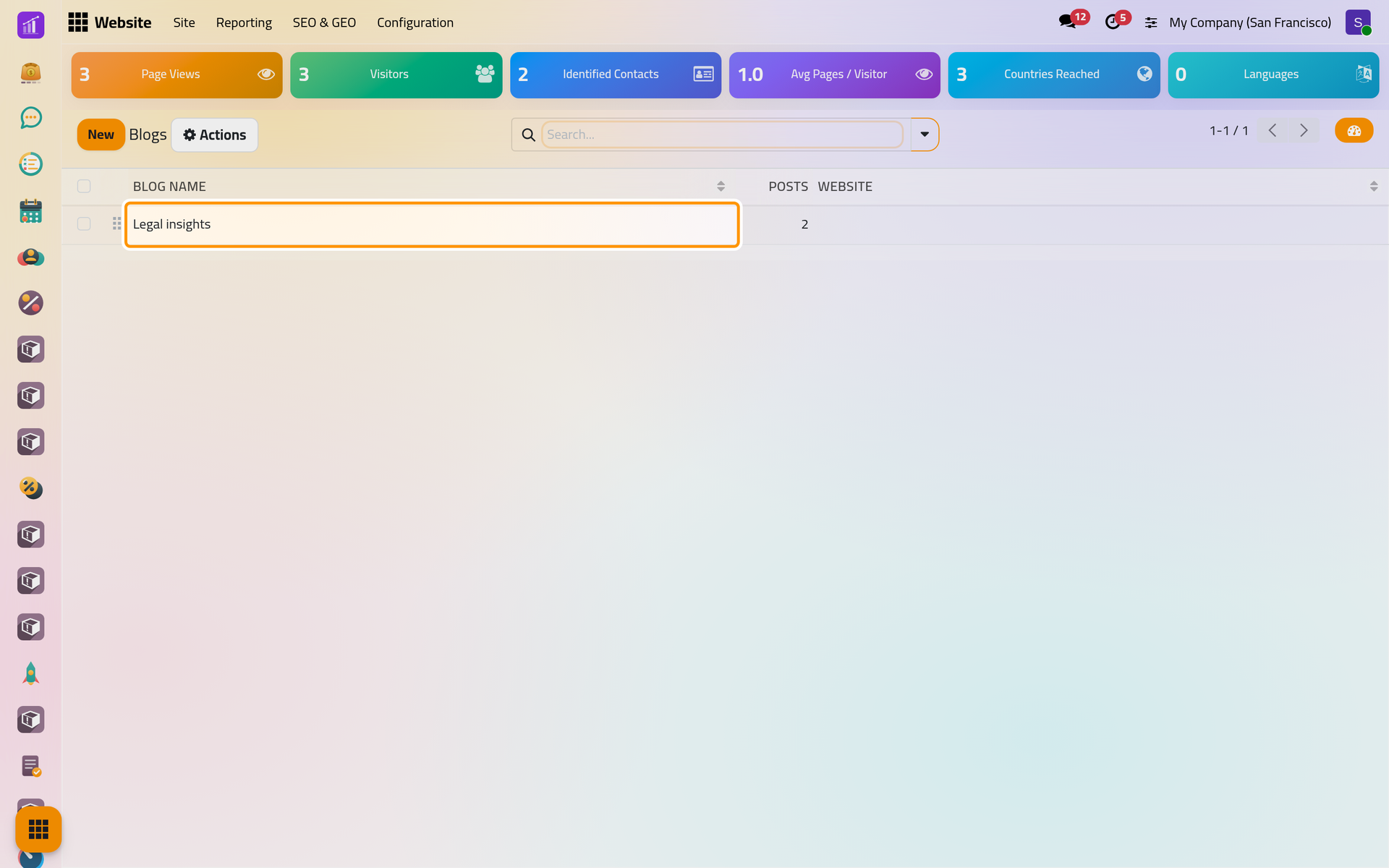
A blog is a series of articles on your website, such as legal news for your clients. A website can hold several blogs, and each post belongs to one of them. The demo holds one blog, Legal insights, with one published post and one that is not published yet.
Before you start
- You need the Administrator role, which shows Configuration, and the Editor and Designer access right on Website, which an administrator already holds (Create a user and set access rights).
- Writing the posts comes next, in Write a blog post.
Create the blog
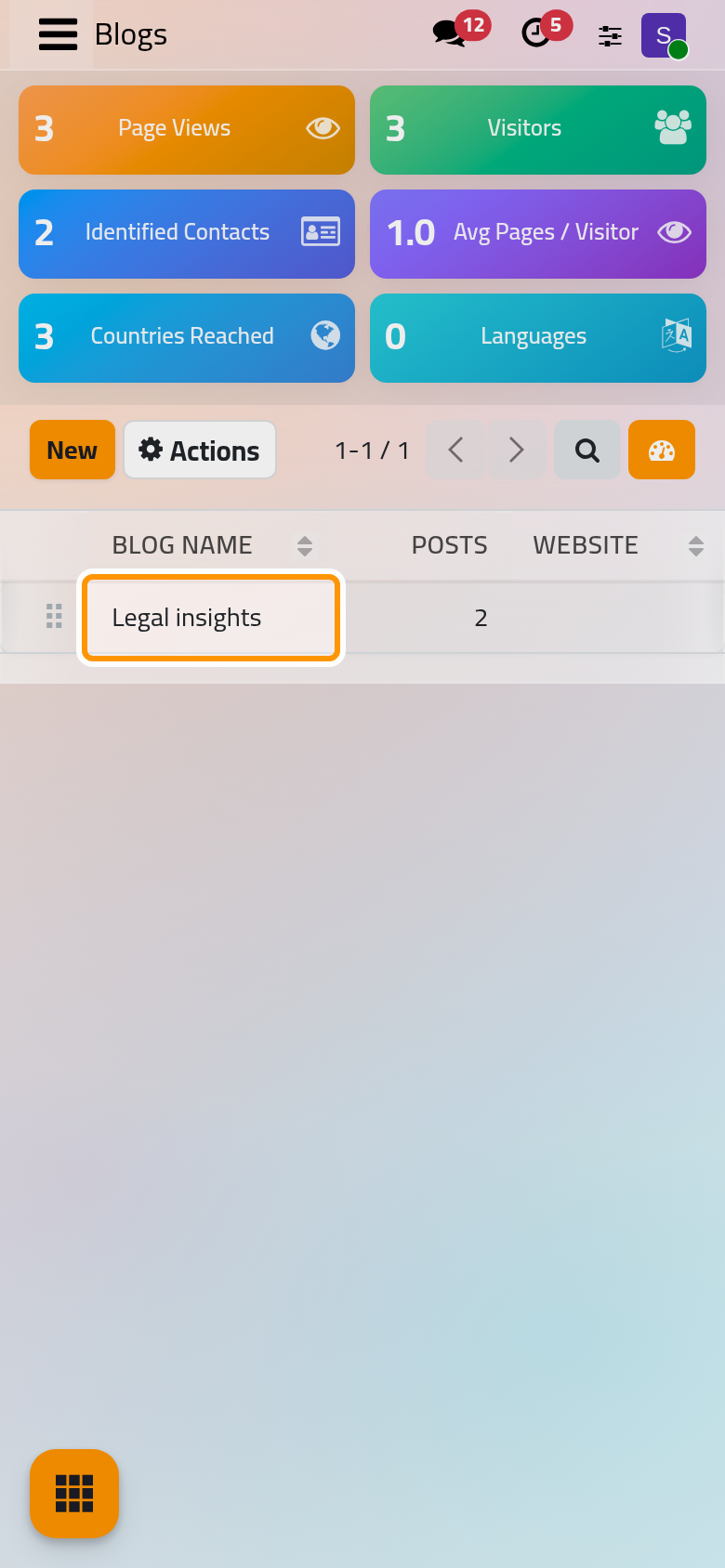
- Open . Each blog shows its number of Posts. The handle at the start of a row sets the order in which the blogs are listed on the site.
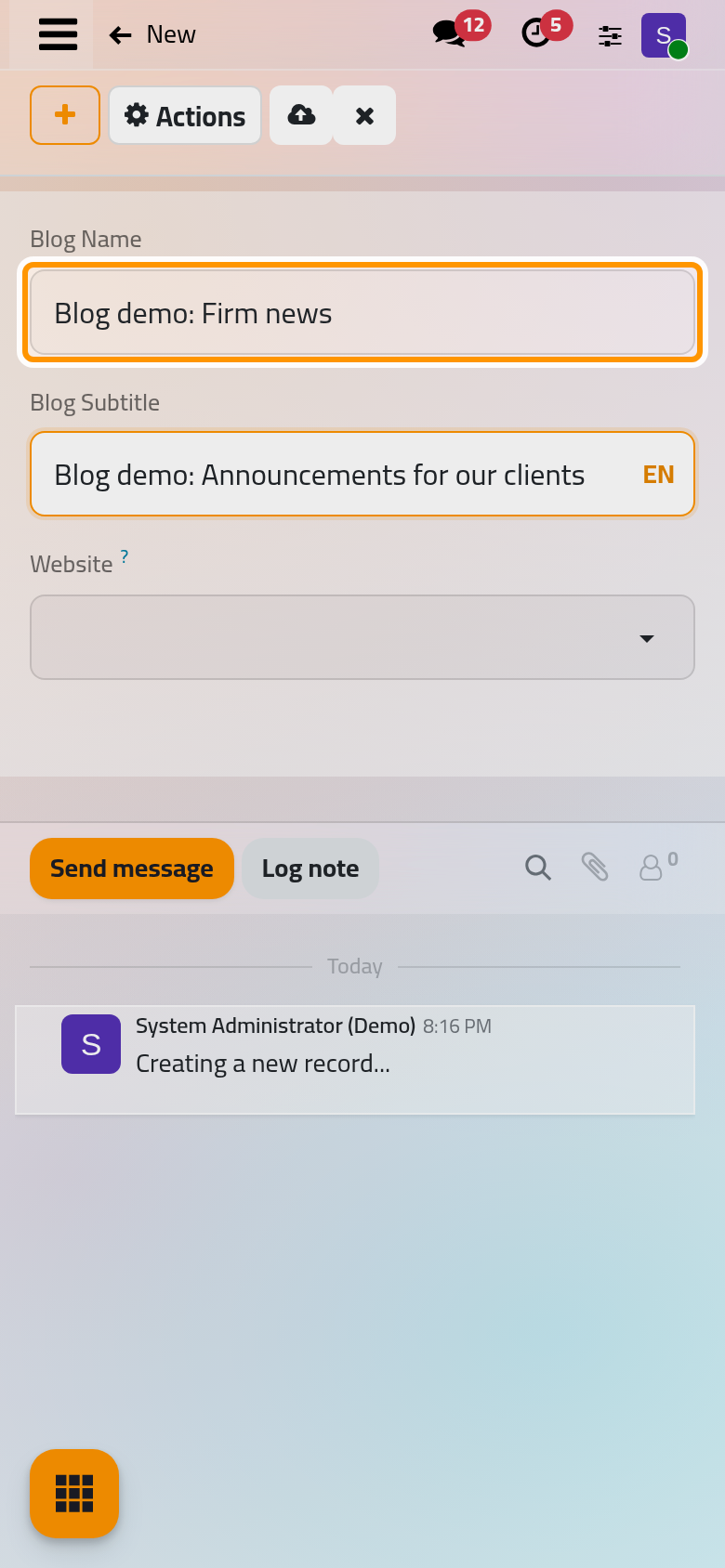
- Click New and type the Blog Name, here
Blog demo: Firm news, and a Blog Subtitle, shown under the name at the top of the blog's page. - Website keeps the blog on one website. Leave it empty to show the blog on every website of the database. The field appears once the database has more than one website.
- Click Save.
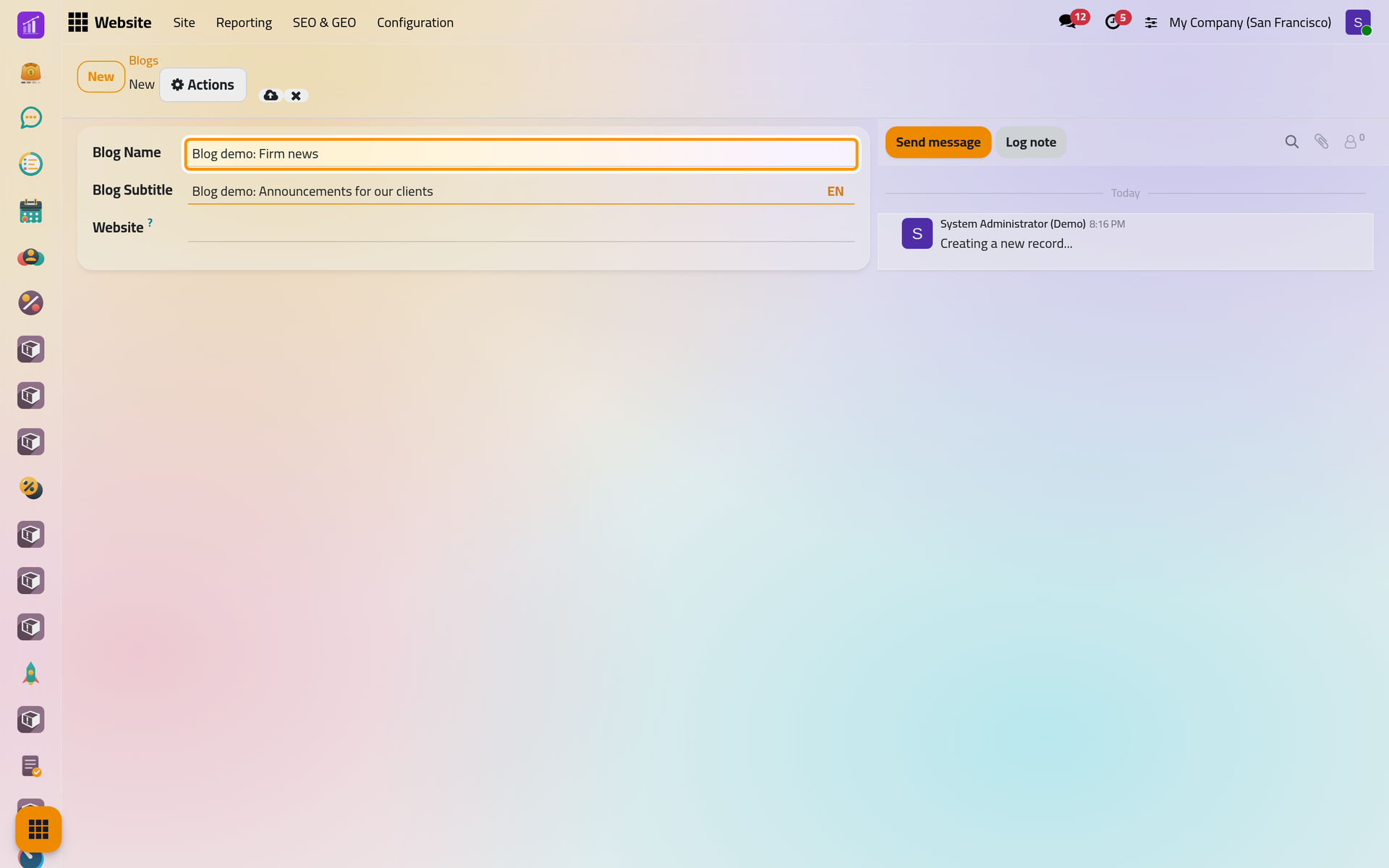
The blog starts empty. Its followers receive a message each time one of its posts is published.
Where visitors find it
Every website starts with a Blog entry in its menu, which opens /blog: the blog itself when there is one, otherwise Our Latest Posts of all blogs, with a bar to keep one blog (a list next to the search box on a phone).
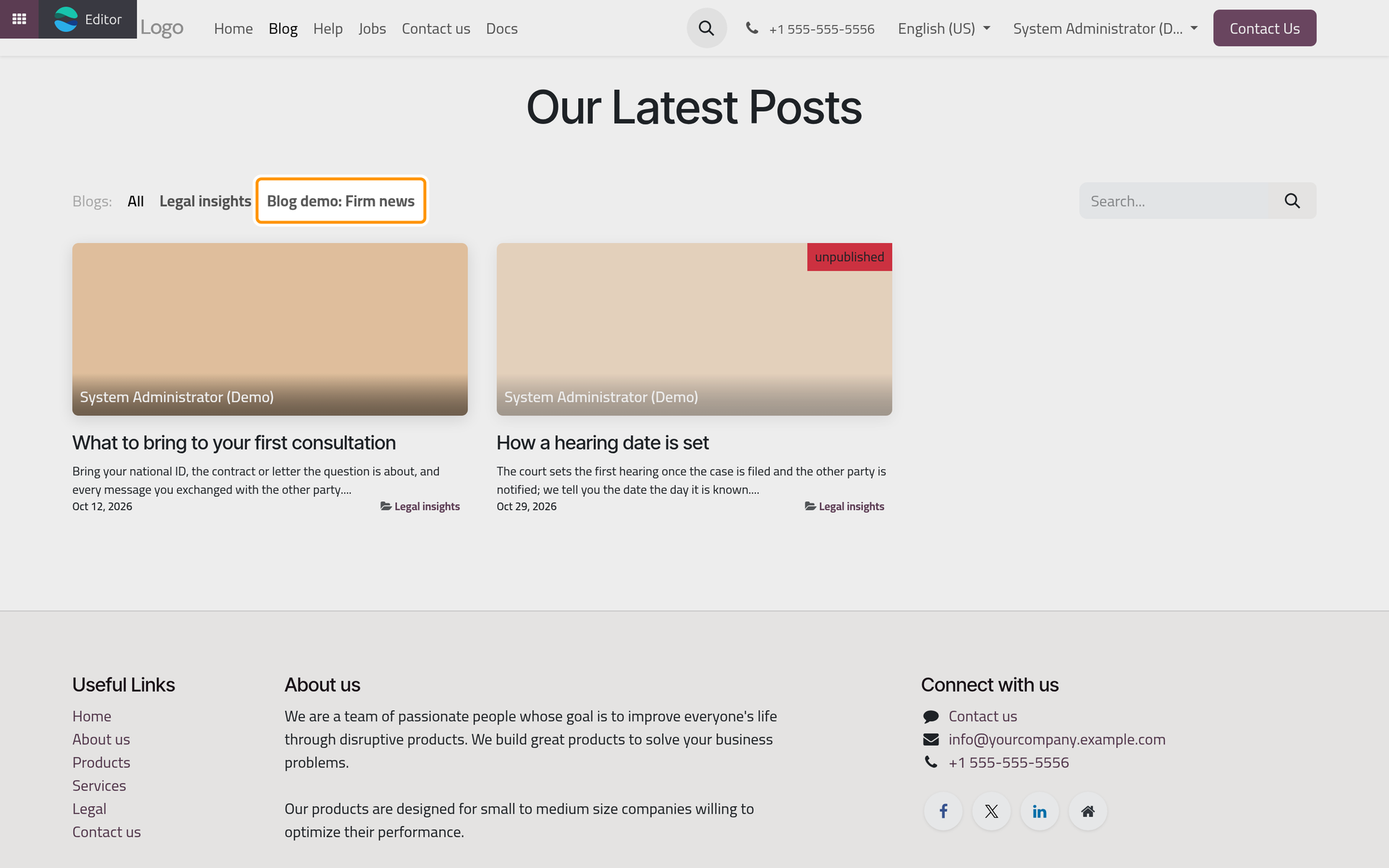
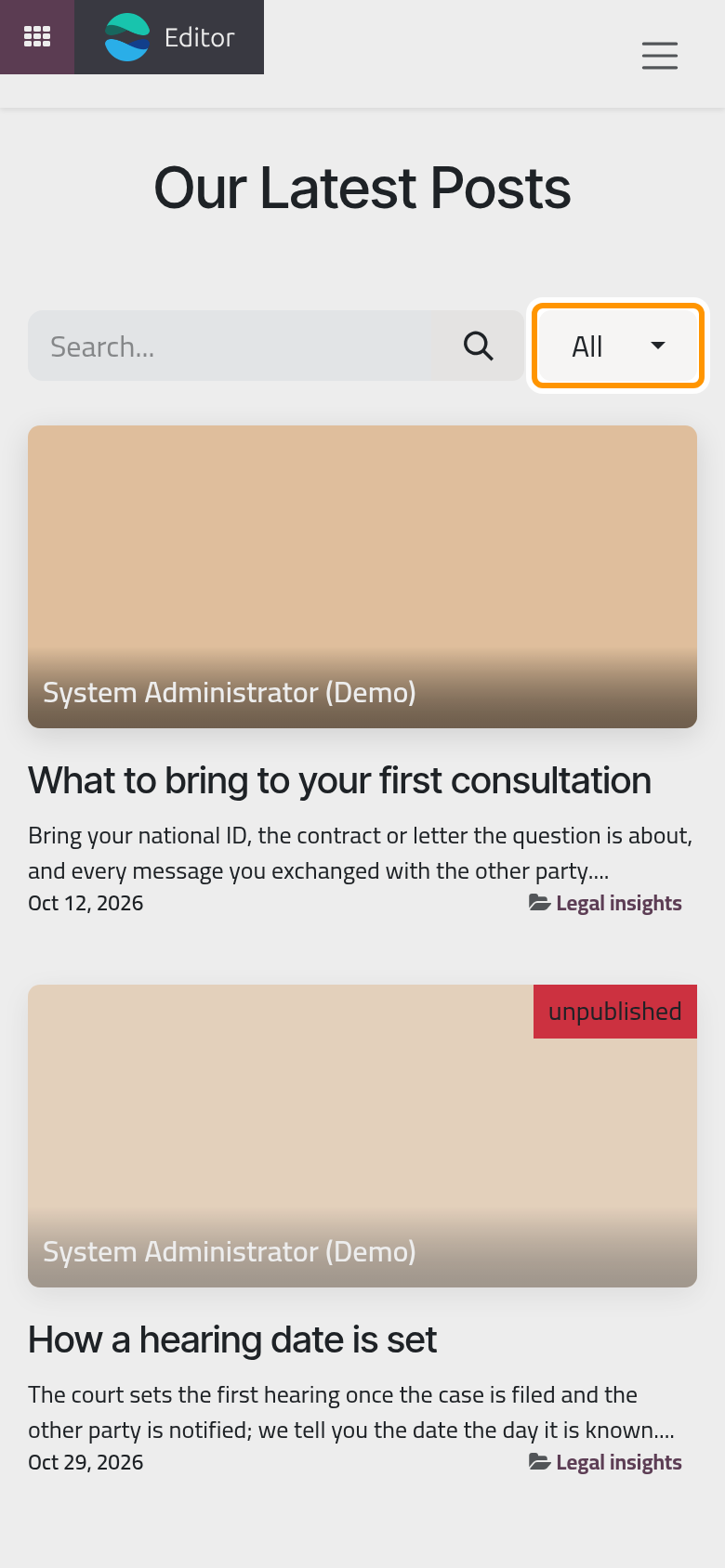
To give one blog its own entry, open its page on the site, choose , turn on In Menu and click Save. An entry named after the blog is added at the end of the menu of the current website; turning In Menu off removes it. To rename or move menu entries, see Edit the menu.
Set the look of the blog pages
On a blog's page, click Edit, then the Style tab. With nothing selected on the page, the tab shows Blogs Page:
- Top Banner, with Full-Width: the band with the blog's name and subtitle;
- Layout: Grid or List, with Cards and Increase Readability;
- Sidebar: a column with Archives by month, Follow Us (social links and a box to follow the blog by e-mail) and Tags List;
- Posts List: Cover or No Cover, with Author, Comments/Views Stats and Teaser & Tags.
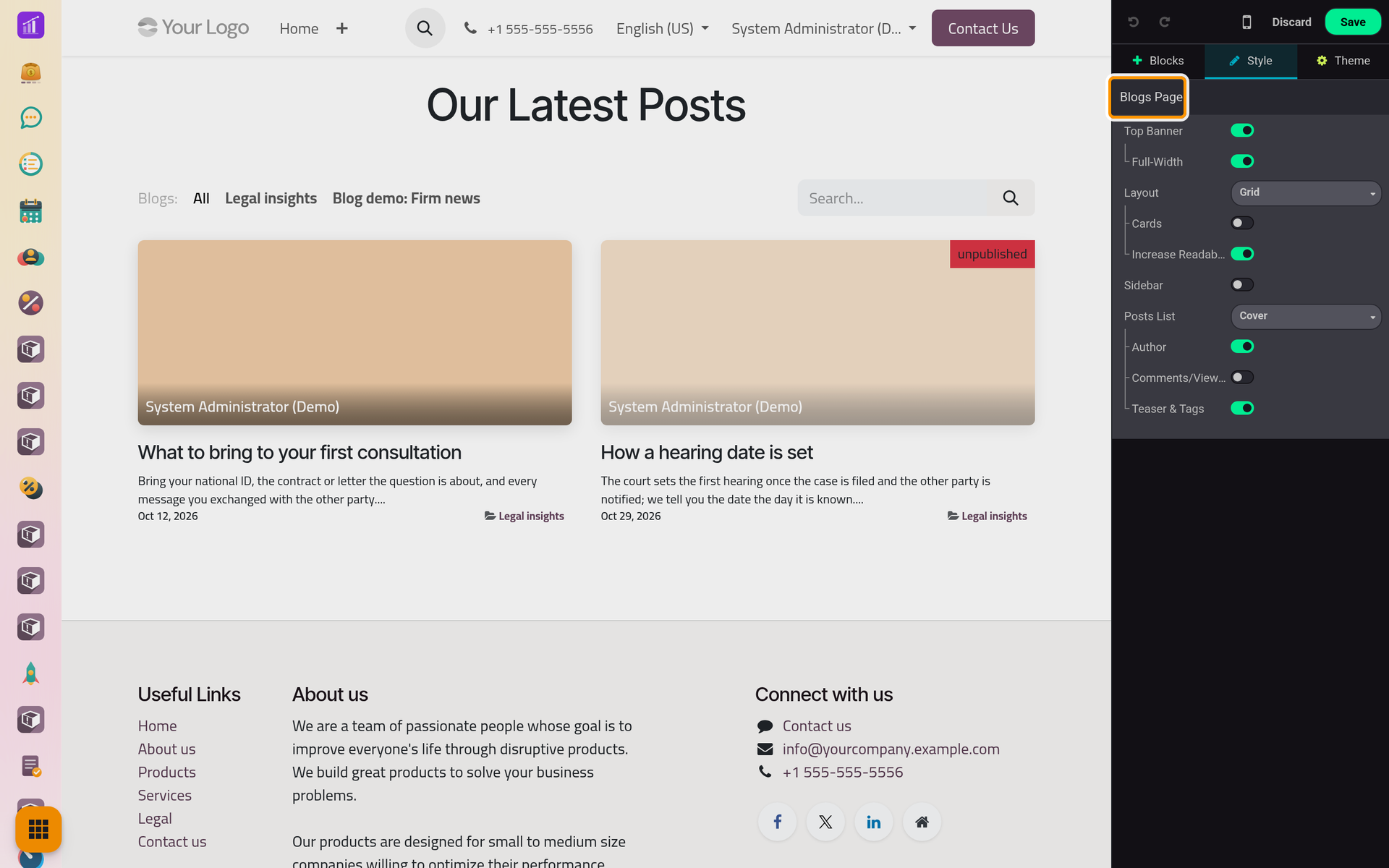
Click Save to keep them. They apply to every blog of the current website; the page of a post has its own options, in Write a blog post.
Archive or delete a blog
In the list, tick the blog and open Actions:
- Archive hides the blog and archives all its posts, which also unpublishes them. Unarchive brings the blog and all its posts back, still unpublished: publish again the posts you want online.
- Delete removes the blog after a confirmation, and all its posts with it. The recycle bin keeps an entry for the blog, not for its posts (Find a deleted record).
FAQ
My new blog is not in the menu.
The Blog entry opens the page of all blogs, where it appears in the bar at the top. For an entry of its own, turn on In Menu as shown above.
Can a blog appear on one website only?
Yes. Choose that website in Website; its posts then appear on that website only.
What happens to the address when I rename a blog?
The address is built from the blog's name and number, such as /blog/legal-insights-3. After a rename, the old address still works: it sends visitors to the new one.
Can visitors follow a blog?
Yes, when the Sidebar shows Follow Us: they type their e-mail on the blog's page and click Subscribe, then receive a message for each new post.
Was this page helpful?
Thank you for your feedback.