First steps with your website
On this page
Website builds the public site of your firm and keeps it in the same database as the rest of your work: its pages, its menu, the blog, the help desk form and the client portal are all served from there. The app opens on the site itself, as visitors see it, with the controls that change it around the page. This walk-through is a first visit: you look at the home page, choose the website you work on, add one line to the home page, check it at phone width and see who came.
Before you start
- Any internal user can open the app. Changing pages and menus needs the Editor and Designer access right on Website, and the settings need the Administrator role: Create a user and set access rights.
- The pictures come from a database with two websites, My Website and My Website 2, each in English and Arabic, still showing the sample logo, phone number and footer of a new site. Yours has at least one website.
Step 1: open the website
Open . The home page of the current website fills the screen. The bar above it holds:
- the menus Site, Reporting and Configuration, plus SEO & GEO when that app is installed;
- on the right, the name of the website you are on, the Published switch of the page you are looking at, the phone icon of the mobile preview, New and Edit.
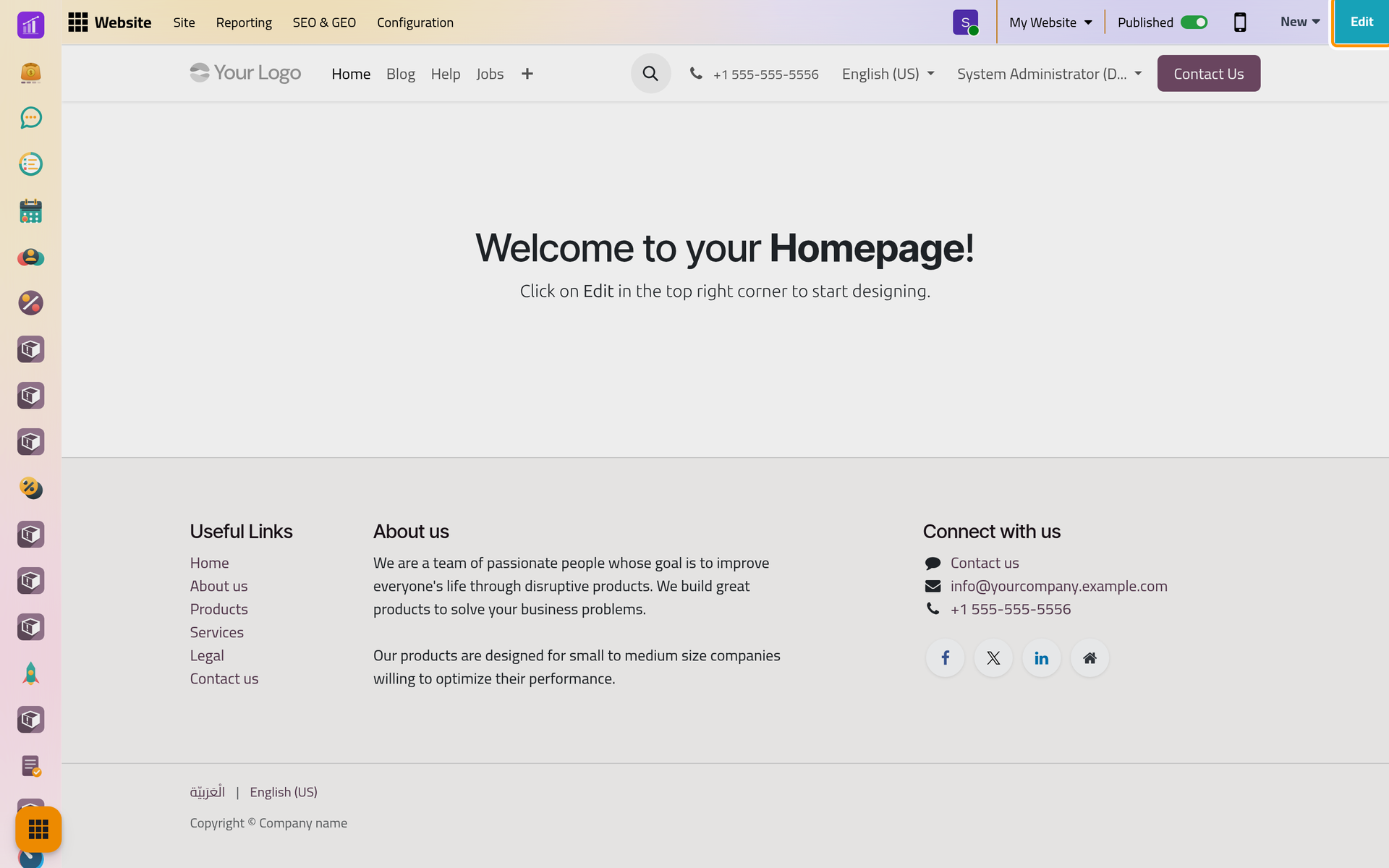
The home page of a new website is empty. The line "Welcome to your Homepage!" is a hint shown to editors in the app only; visitors see a blank space between the menu and the footer until you add something.
On a phone, the bar keeps only the menu button, the website switcher and the Published switch: pages are edited on a computer.
Step 2: choose the website you work on
Click the website name, My Website. The list holds every website of the database. A warning triangle next to a name means that website has no domain yet: choosing it here shows it to you alone, and visitors whose address matches no domain get the first website (How the website works). Choosing it also shows a reminder with a Settings button.
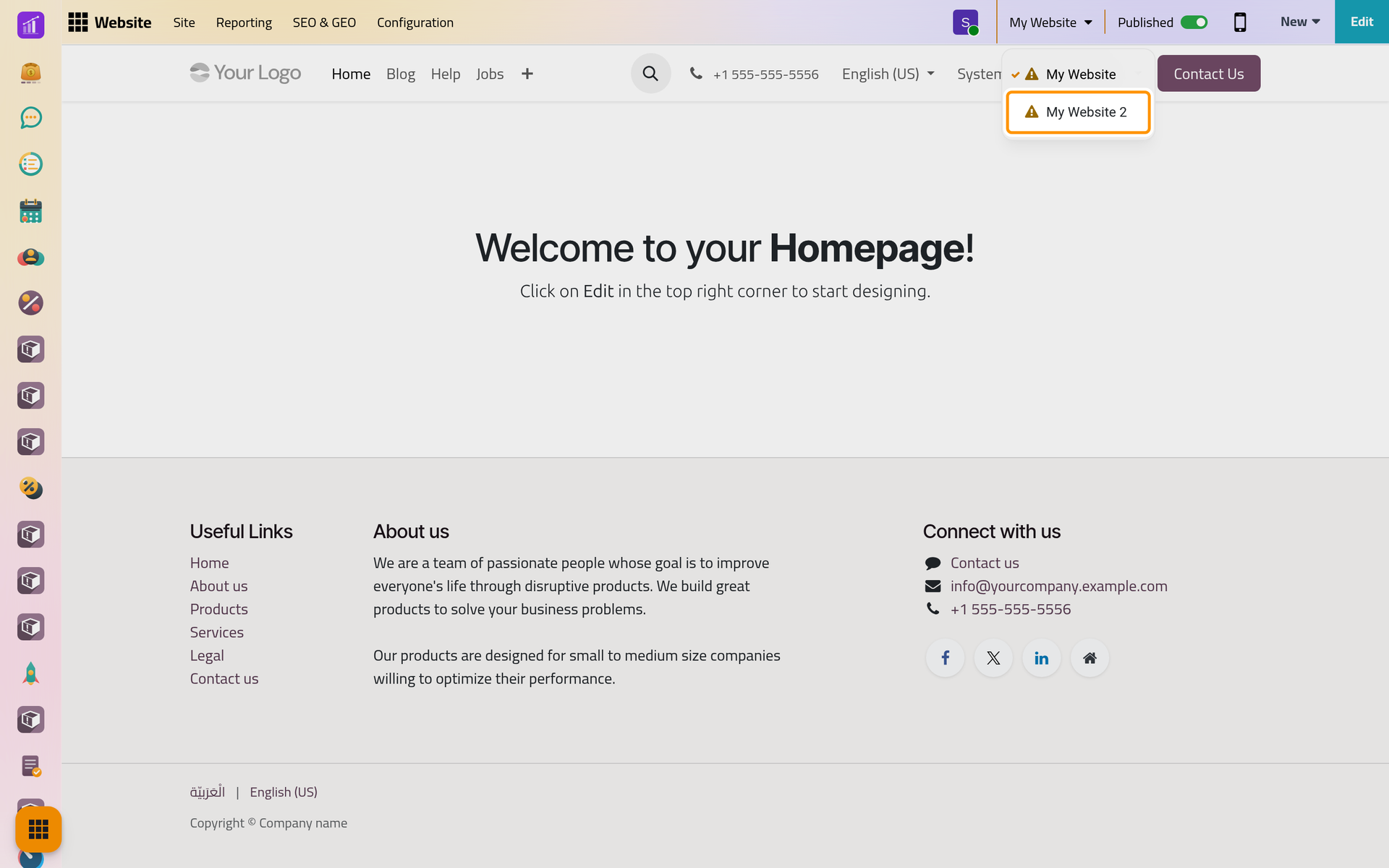
Choosing another website opens its home page, and the menus of the app then work on that website. Keep My Website for now. The name, domain and languages of each website are set in Website settings, and Create a website adds another one.
Step 3: add a line to the home page
- Click Edit. The editor opens: the page stays in the middle and the panel on the right lists the blocks you can add, in groups such as Intro, Columns, Content and Text. The empty home page says where they go.
- Click Text. The Insert a block window shows the text blocks: click the one that holds a single title. It takes its place on the page.
- Click the title inside the page, select its words and type your line, for example
Website demo: Welcome to our firm. - Click Save. The editor closes and the line is part of the home page of this website.
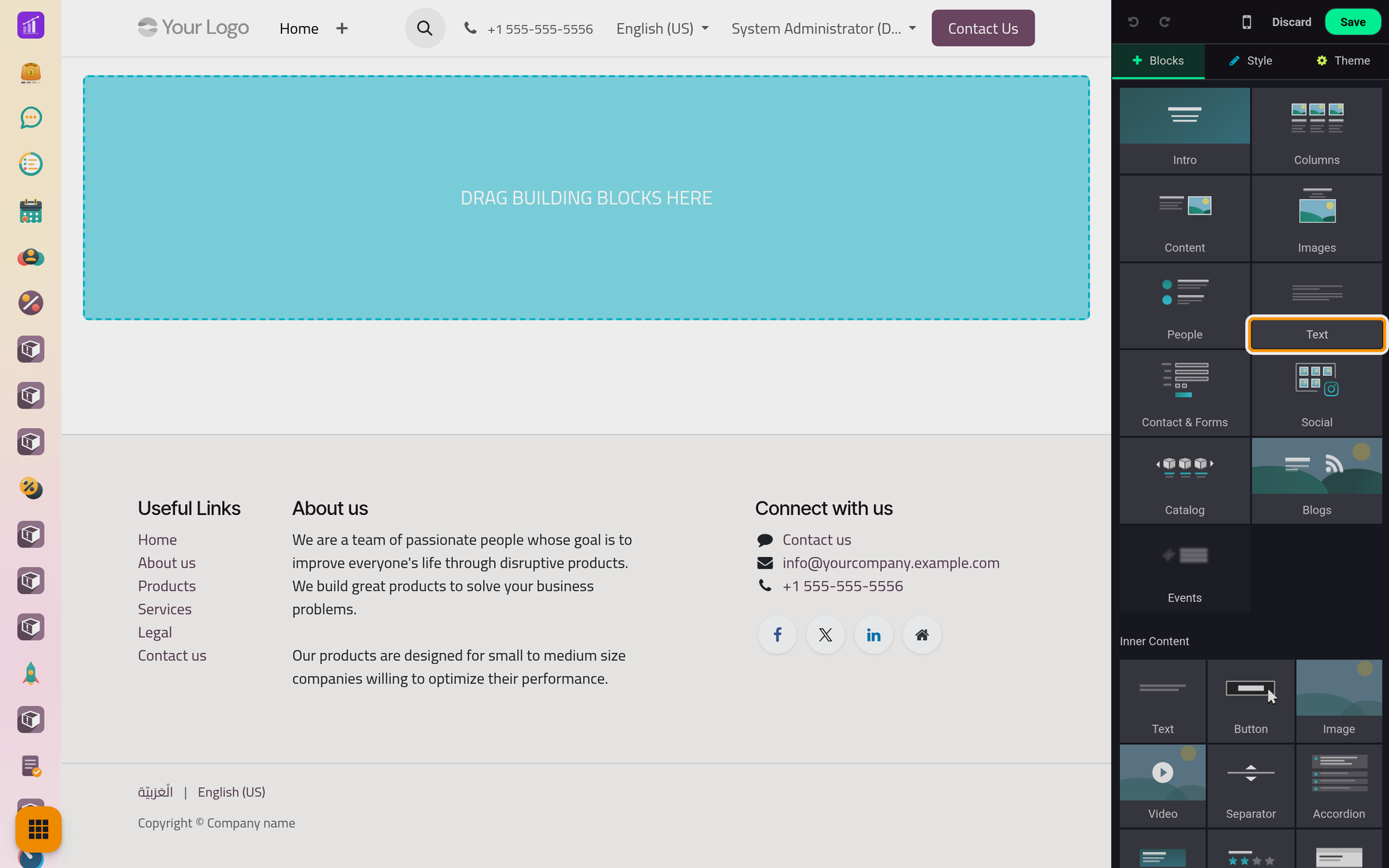
Discard, next to Save, leaves the editor without keeping anything and asks first when you have changed something. Your line shows as typed in the other language of the site until someone translates it: Translate a page. Everything else the editor offers, from pictures to colors, is in Edit a page.
Step 4: look at it on a phone
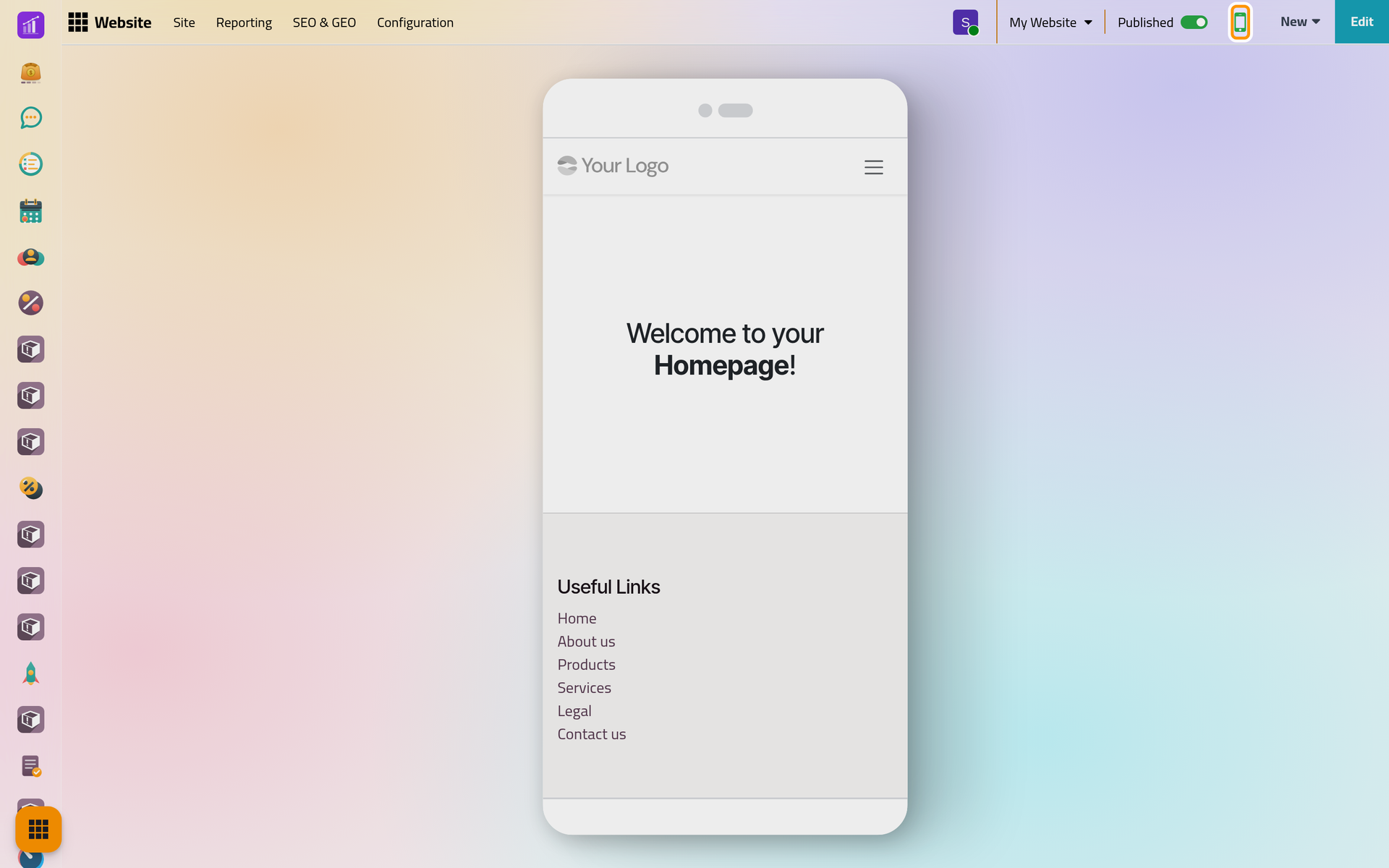
Click the phone icon in the bar. The page is drawn at the width of a phone, with its menu folded under the button at the top. Click the icon again to come back to the full width.
Step 5: see who visited
Open . Each card is one visitor: a browser that opened a page of the site, named after the contact when the person was signed in. Your own visit of the home page is already there, with the last page you opened and the number of pages viewed.
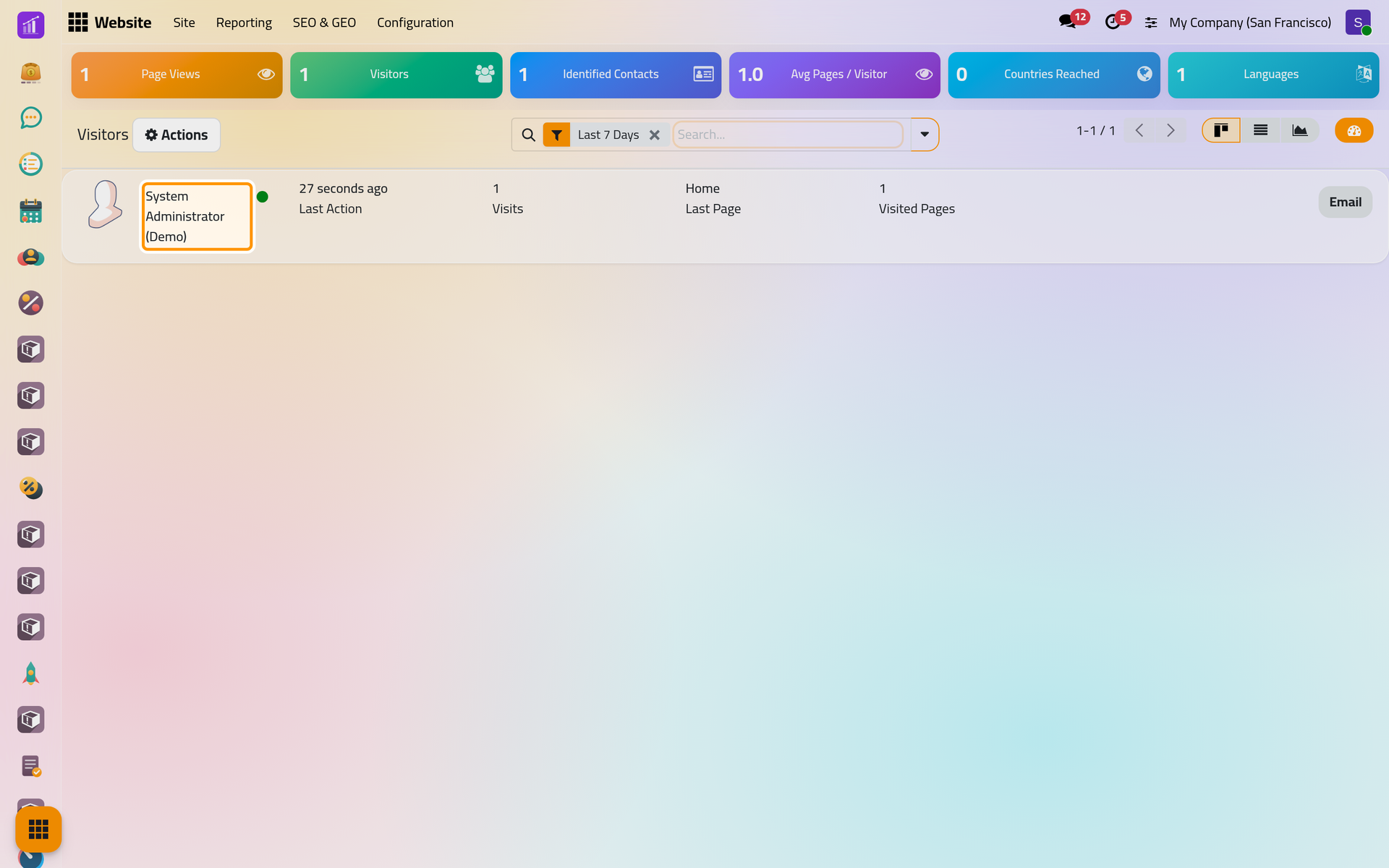
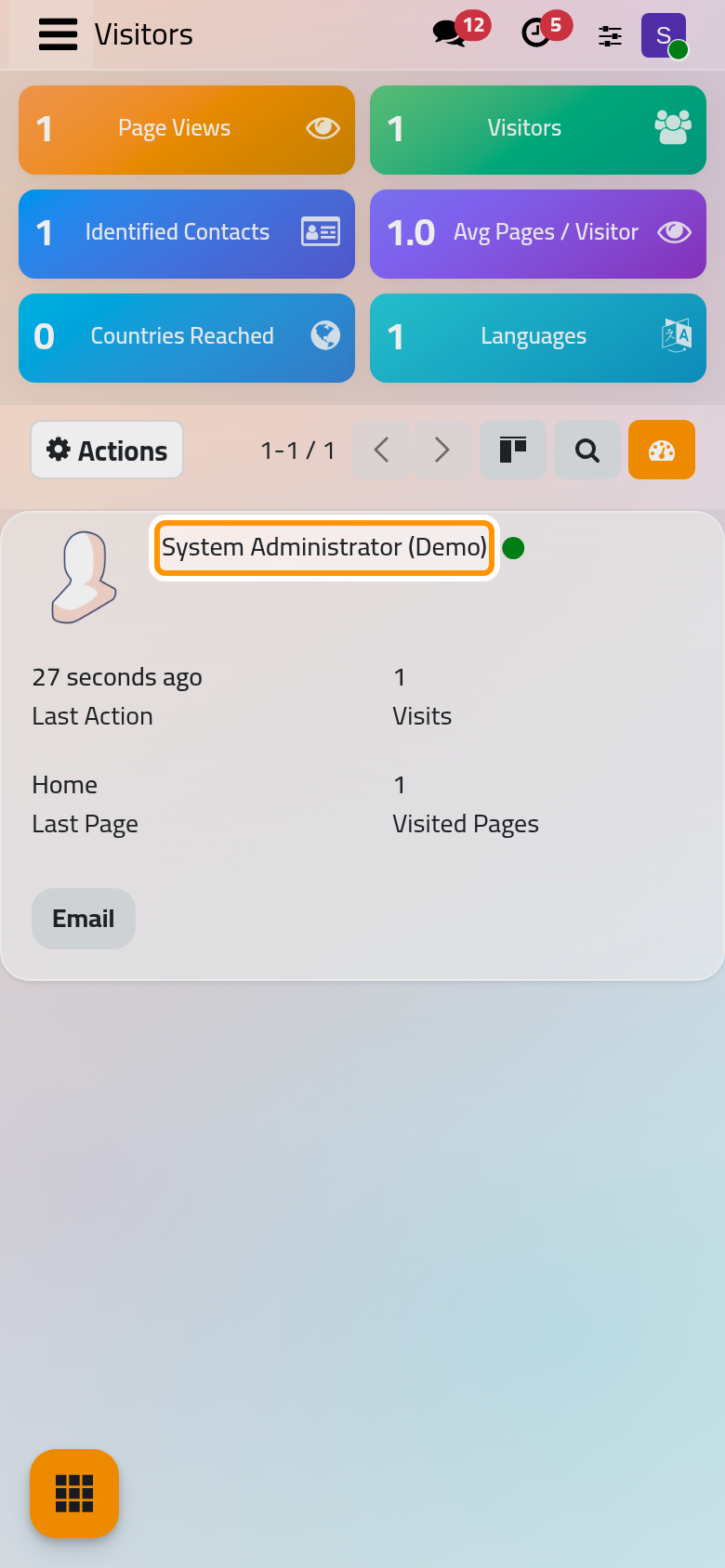
The list starts on the last 7 days. The tiles above it come from the ready-made Website Analysis dashboard of Analysis. How the website works explains which visits are counted and how long they are kept.
What you have done
You opened the site in the app, moved between websites, added a line to the home page, checked it at phone width and found your own visit. New, next to Edit, gathers what you can add next: a page, a blog post, a job position, and in grey the entries of apps that are not installed, which ask before installing anything.
- Add your own pages and put them in the menu: Add a page and Edit the menu.
- Write for the blog: Write a blog post.
- Give the Arabic version its own words: Translate a page.
- Name the website, give it a domain and choose its languages: Website settings.
Was this page helpful?
Thank you for your feedback.