Website settings
On this page
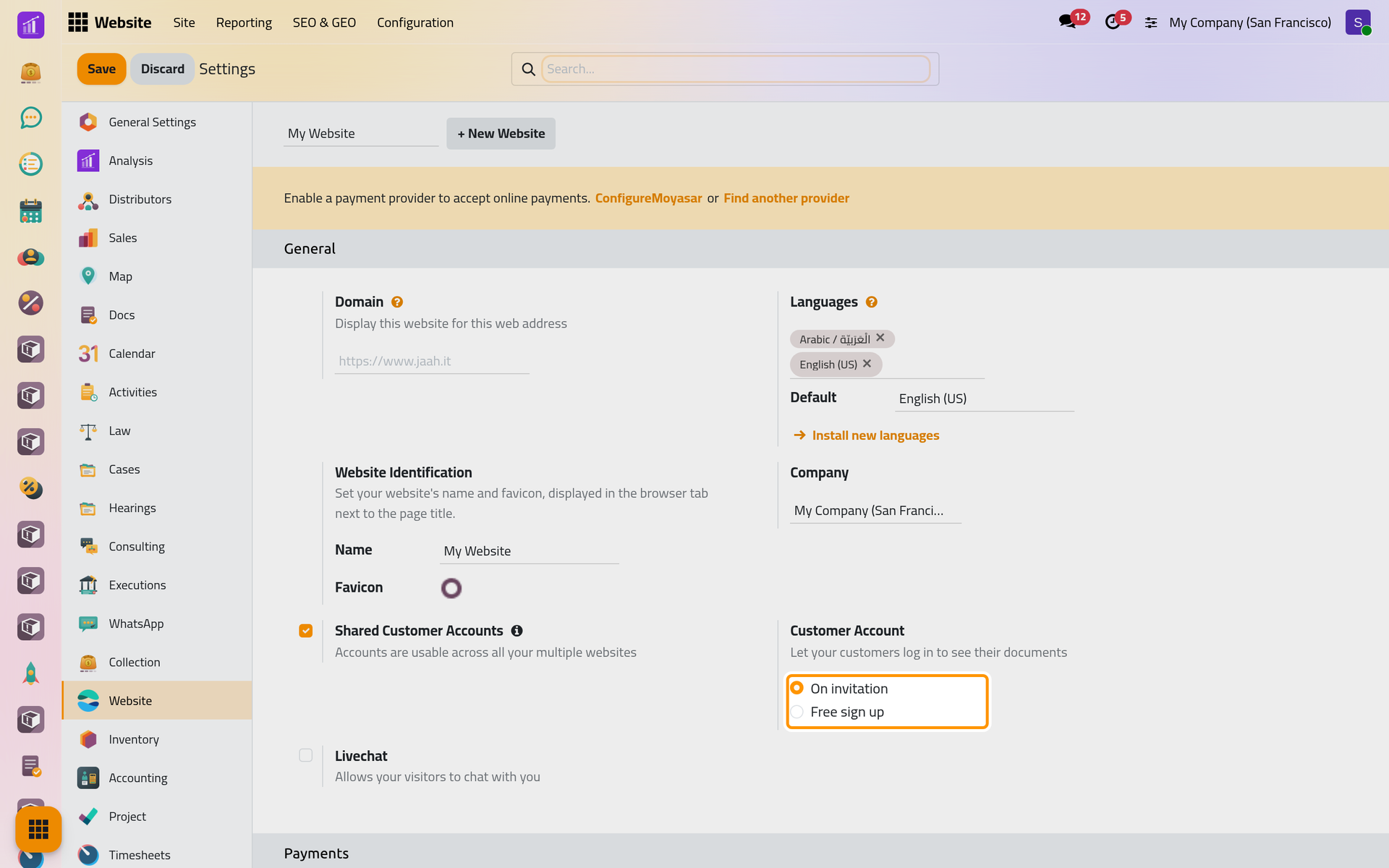
Open . The Website section applies to the website chosen in the list at its top, next to + New Website (Create a website). Choose the website, change its options, then click Save.
Before you start
- The settings need the Administrator role; the Website section needs the Editor and Designer access right on Website.
- Company shows with several companies, Shared Customer Accounts with several websites, and the CDN and robots options only in developer mode.
General
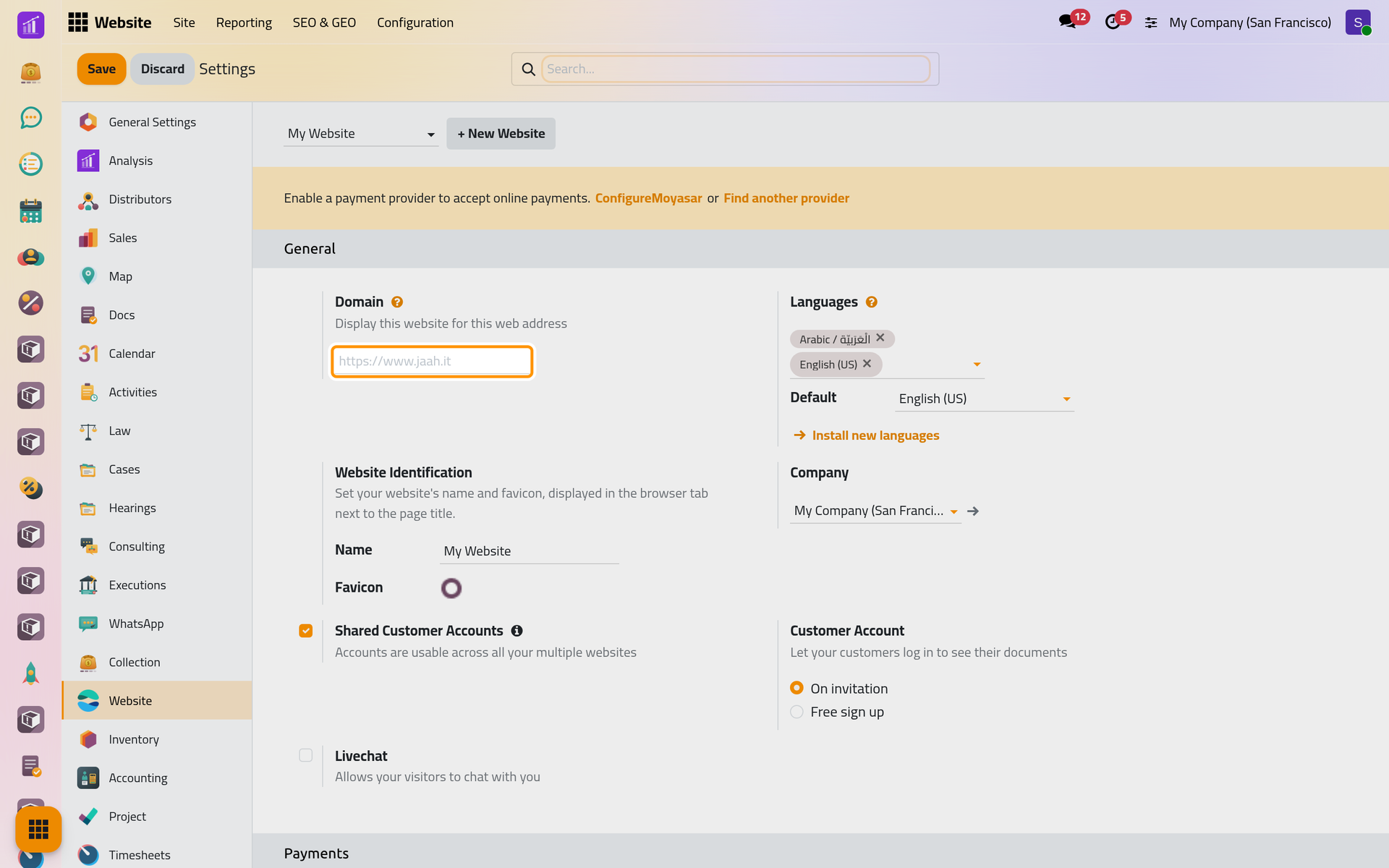
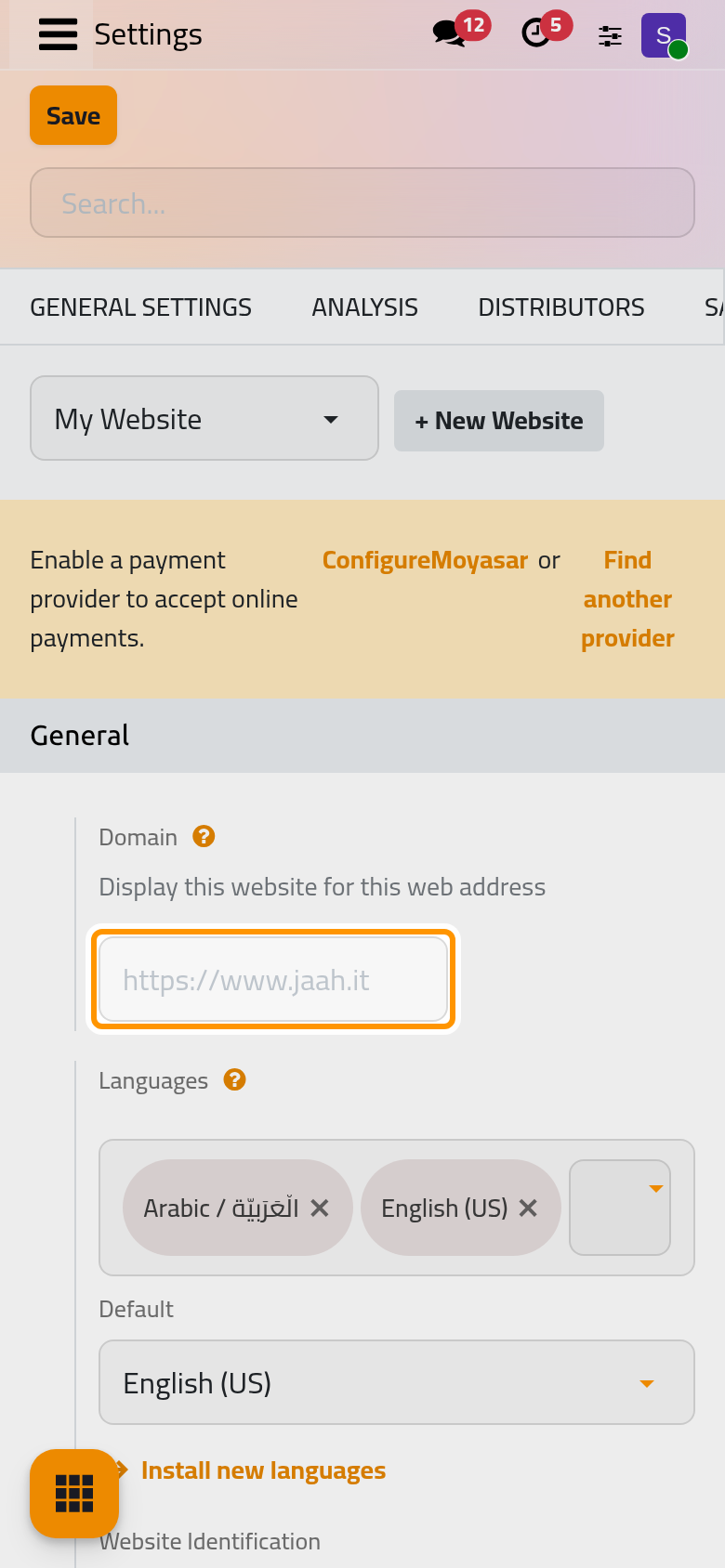
- Domain: the address this website answers at, such as
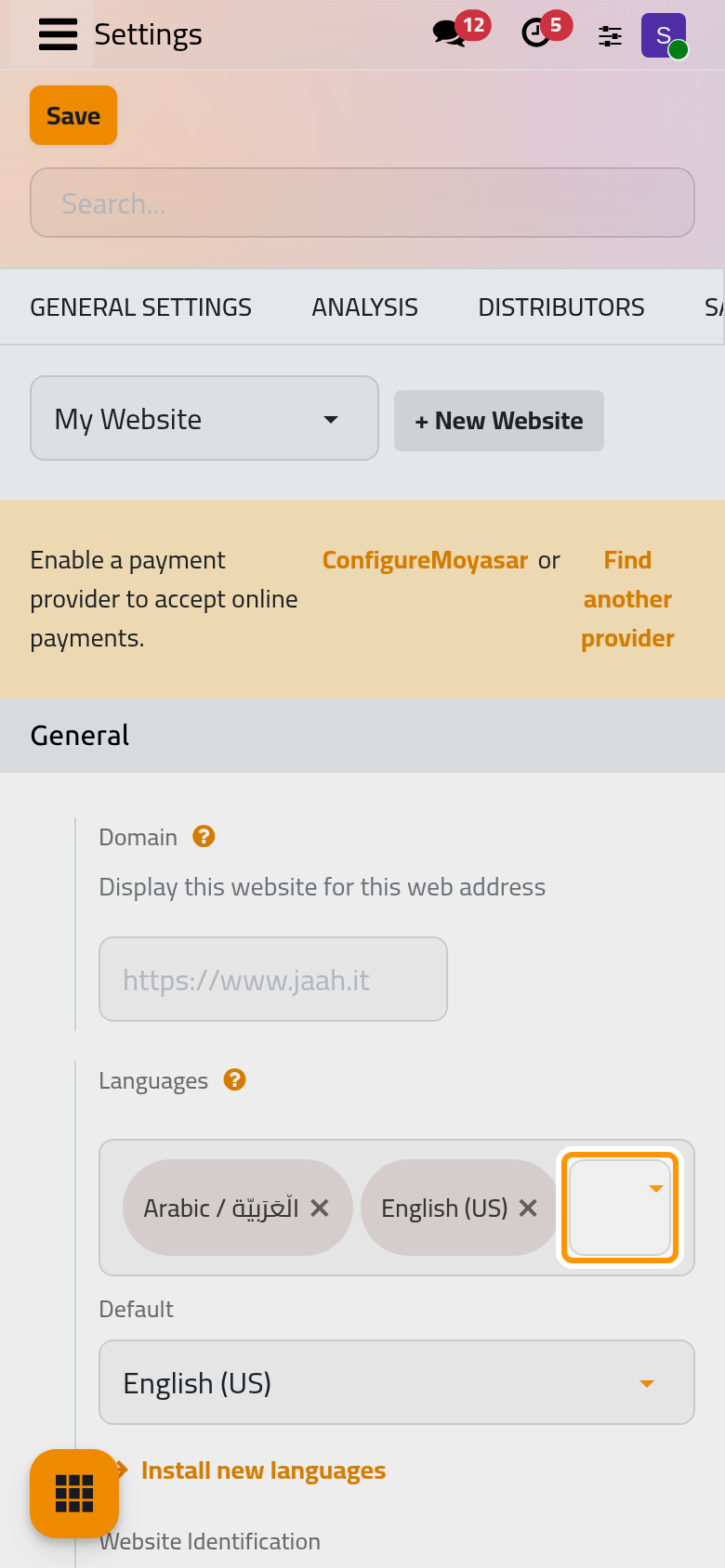
https://www.example.com. Each visit gets the website whose domain matches the address typed, or the first website when none does; pages reached under another address ask search engines not to index them. The option does not register a name or point it to your server. - Languages: the languages the site offers, among those active in the database; Install new languages adds one (Languages and translations). Default is used at the plain addresses; the others put their code in front of the path, such as
/ar/.
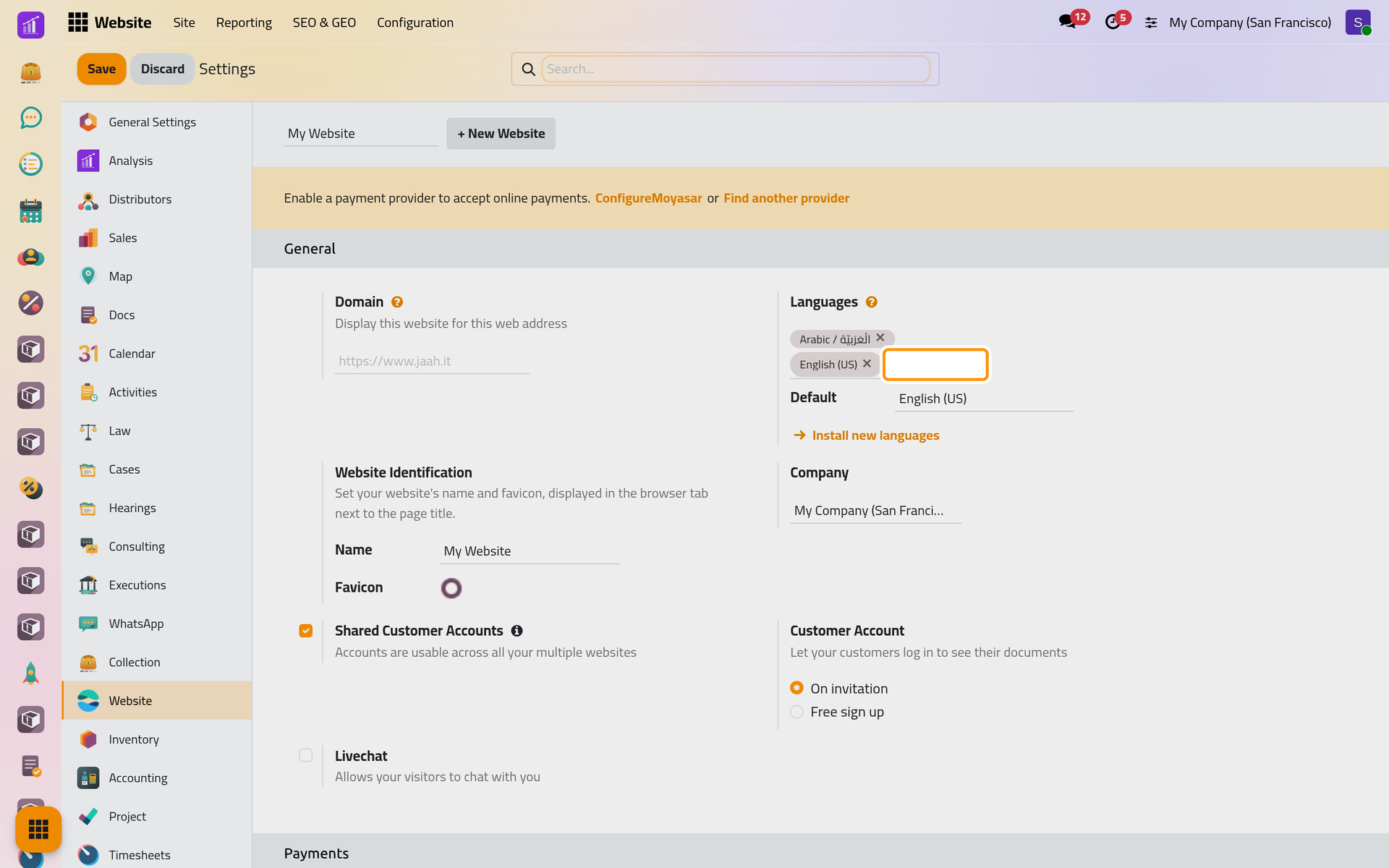
- Website Identification: Name shows in the browser tab and in the website switcher; Favicon is the small picture of the browser tab.
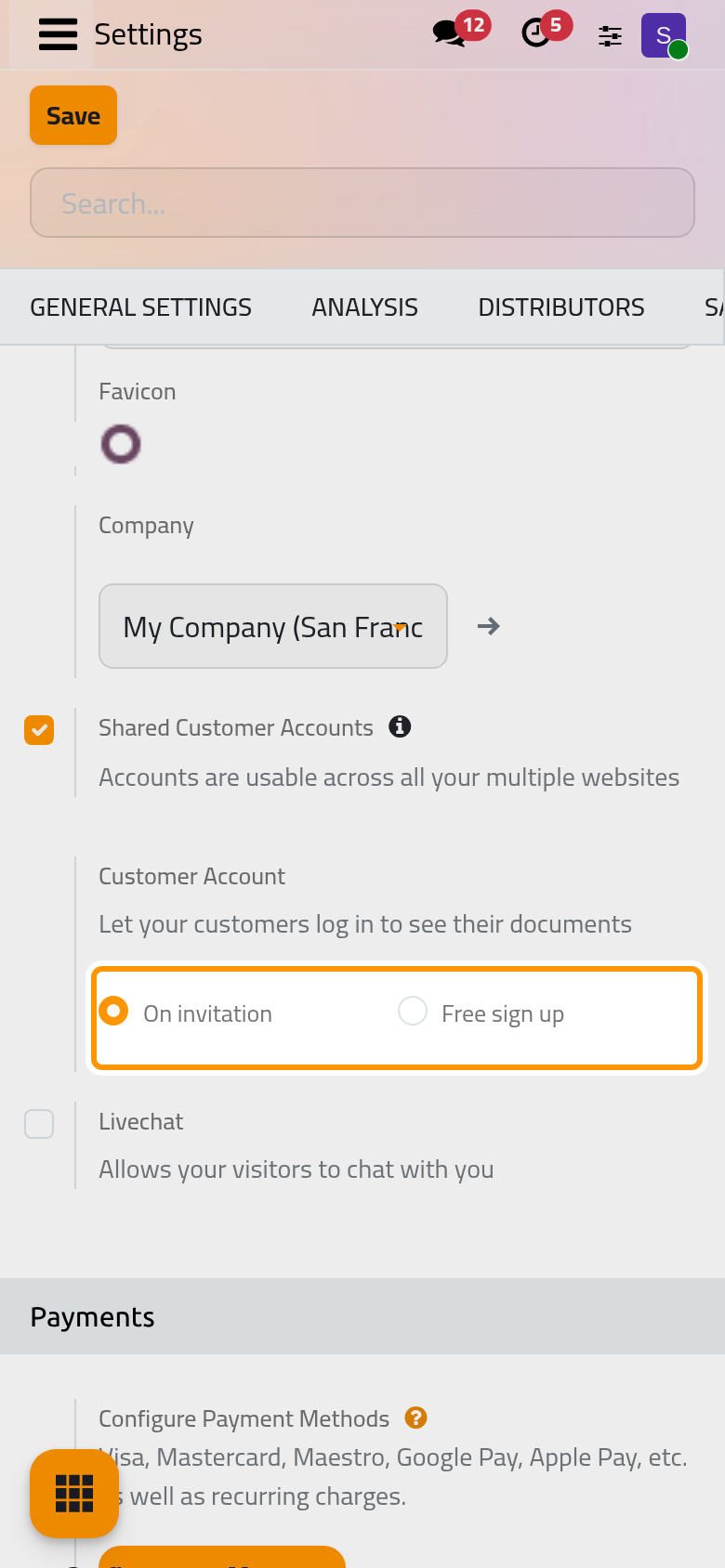
- Company: the company of the website and of the accounts visitors create on it.
- Shared Customer Accounts: ticked, one account signs in on every website; cleared, accounts created by signing up on this website belong to it alone. The screen calls the option common to all websites, but it is saved with the website chosen at the top.
- Customer Account: On invitation or Free sign up, whether visitors may open their own portal account: Client portal settings.
- Livechat: ticking it and saving installs the live chat app, the administrator's decision (Install, upgrade and uninstall apps).
Tracking & SEO
Each option shows its fields when ticked and empties them when cleared. The outside services are optional, used with your own account, and only once their fields are filled.
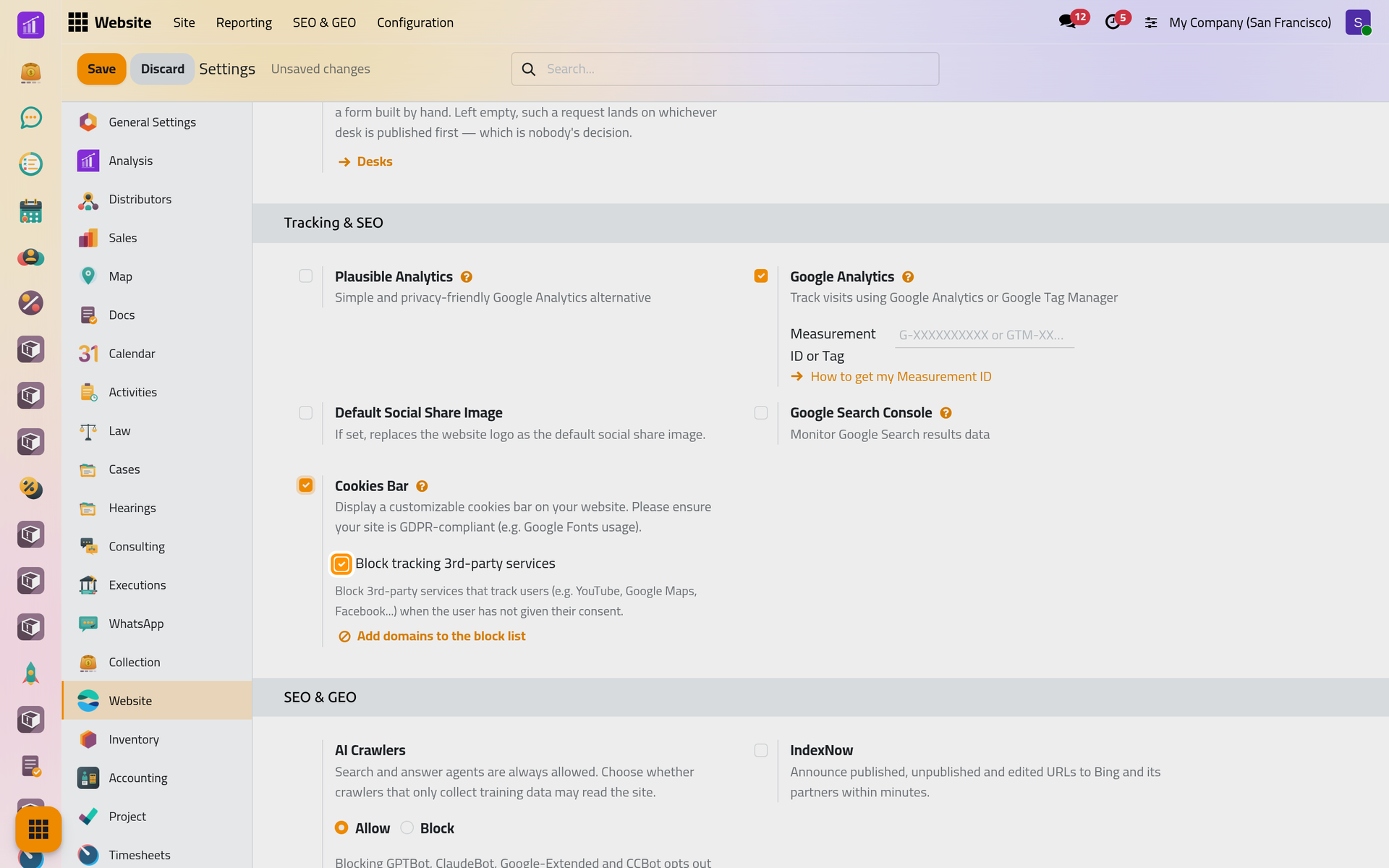
- Plausible Analytics: Shared Link Auth and Site connect an account of that analytics service (pasting its whole shared link in the first field fills both); its figures then show under .
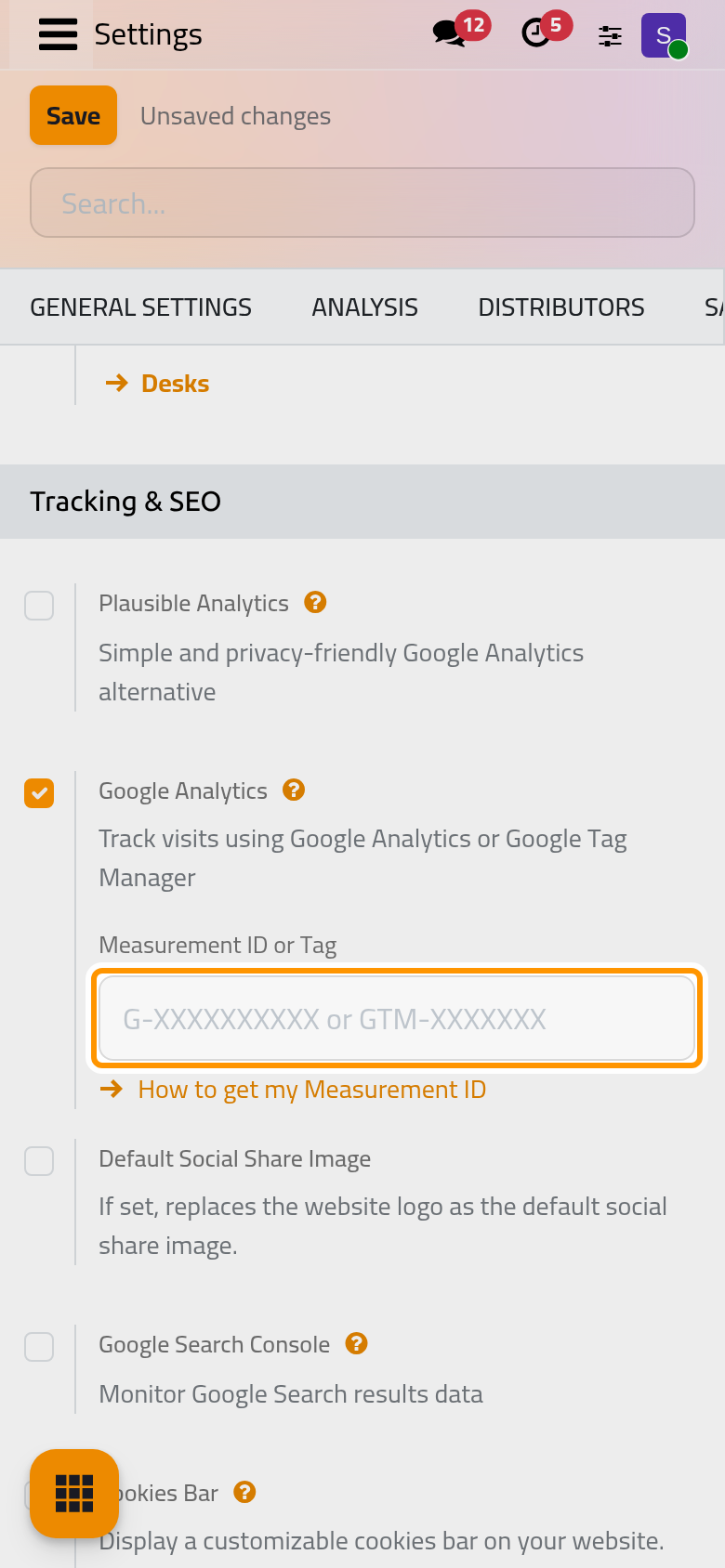
- Google Analytics: Measurement ID or Tag (
G-…orGTM-…) adds that service's tag to the pages.
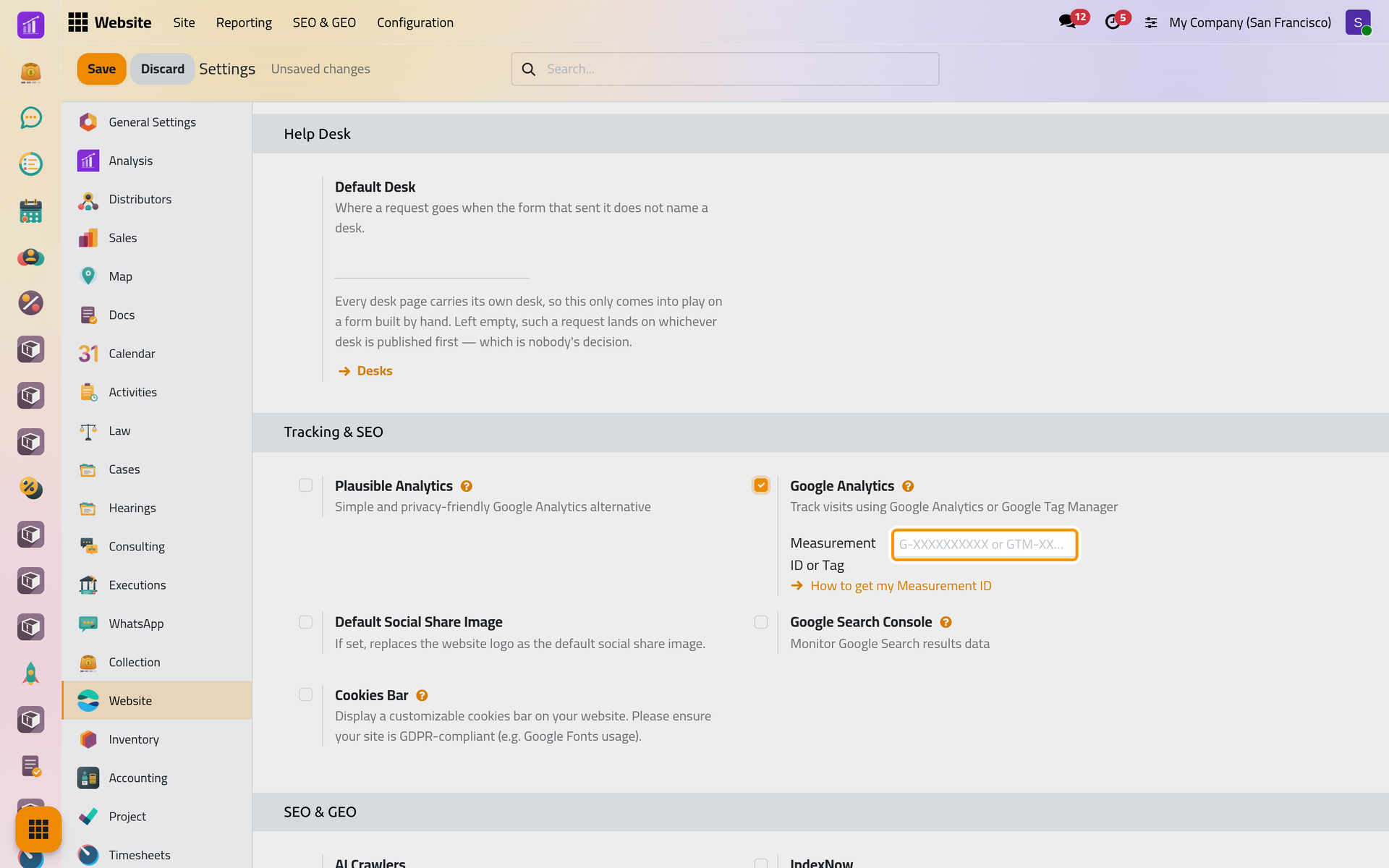
- Default Social Share Image: the picture used, instead of the logo, when a page without one is shared on social networks.
- Google Search Console: Code takes the name of the verification file the console gives you (
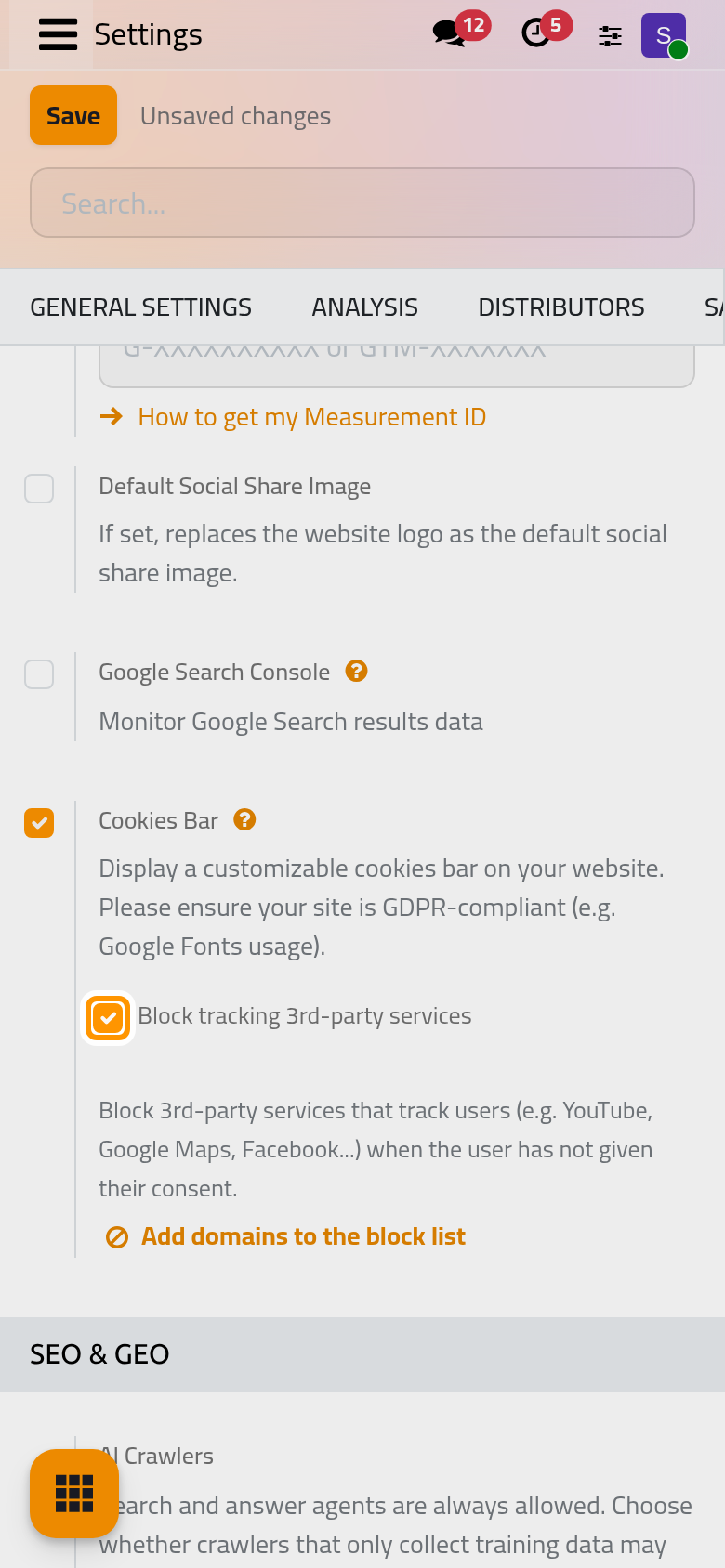
google….html); the site then answers that address, proving it is yours. - Cookies Bar: shows a consent bar and publishes a cookie policy page at
/cookie-policy, removed when you clear the option. Block tracking 3rd-party services, ticked by default, keeps embedded videos, maps and similar services blocked until the visitor accepts; Add domains to the block list adds addresses.
- Content Delivery Network (CDN), developer mode: files whose address matches CDN Filters are served from CDN Base URL.
- Robots.txt, developer mode: Edit robots.txt changes the file that tells crawlers what they may read.
Groups added by other apps
The section also holds Payments and a payment banner (Online payments), Help Desk (Help Desk settings) and SEO & GEO.
FAQ
I changed an option and the other website did not change.
Every option belongs to the website chosen at the top. Choose the other website there and set it again.
Why does a visitor land on the wrong website?
The address typed matches no Domain, so the first website answers. Fill Domain on each website.
Can I remove English from the site?
Yes: remove it from Languages and pick another Default. The language stays active elsewhere in the database.
Was this page helpful?
Thank you for your feedback.