Edit the menu
On this page
The main menu is the row of links at the top of every page; each website has its own. You change it in the Edit Menu window, and nothing reaches visitors before you save.
Before you start
- You need the Editor and Designer access right on Website: How the website works.
- The menu edited is the one of the website named in the bar of the app.
Open the Menu Editor
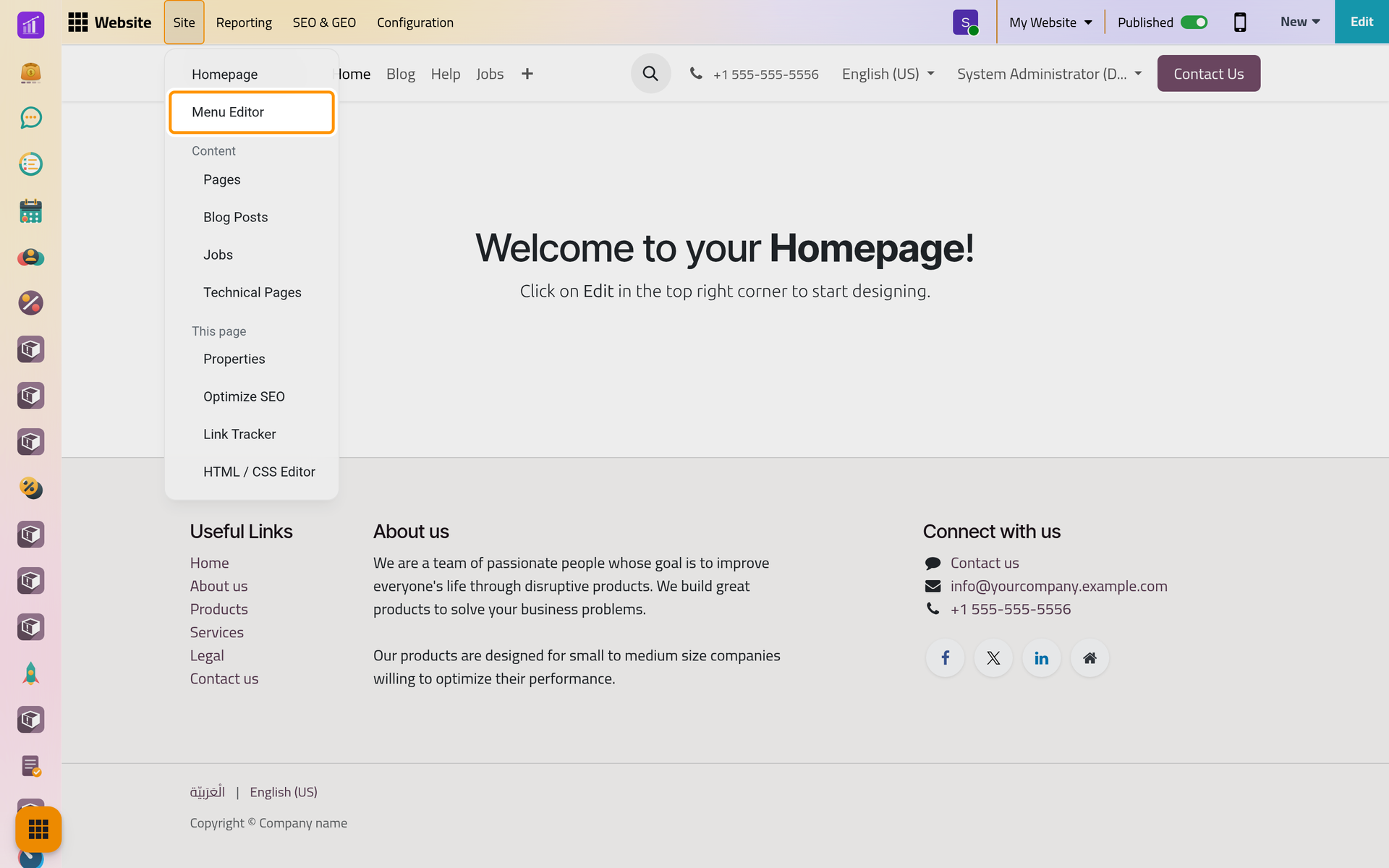
Open , then Site › Menu Editor, that is . The entry shows while the website is open in its main language: on a page shown in another language, switch back first.
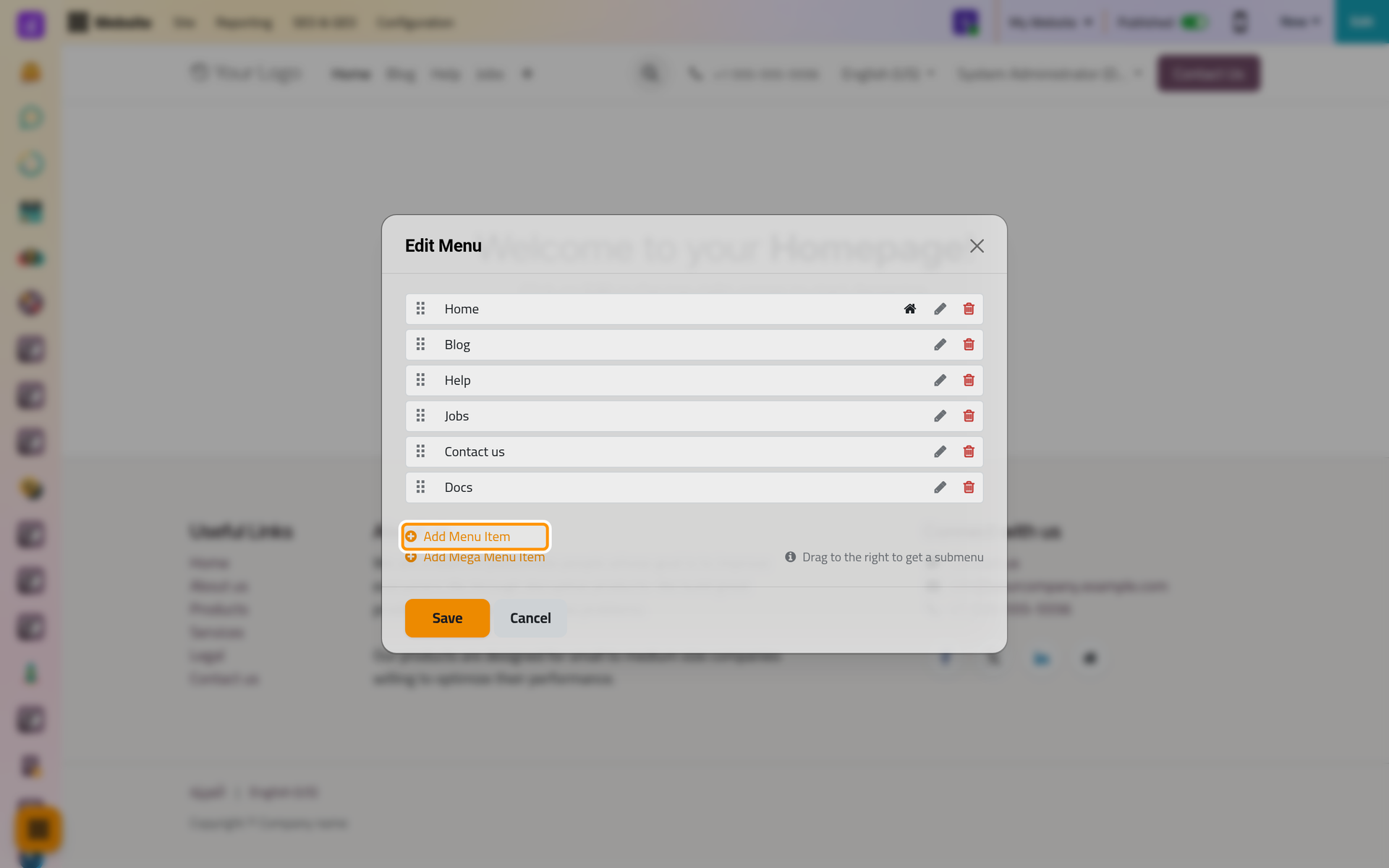
The Edit Menu window lists the items in their order. Each row has a handle on its left, the title, a house on the home page's item, and two buttons: Edit Menu Item, the pencil, and Delete Menu Item, the trash.
Add an item
- Click Add Menu Item. The Menu item window asks for a Title and a Url or Email.
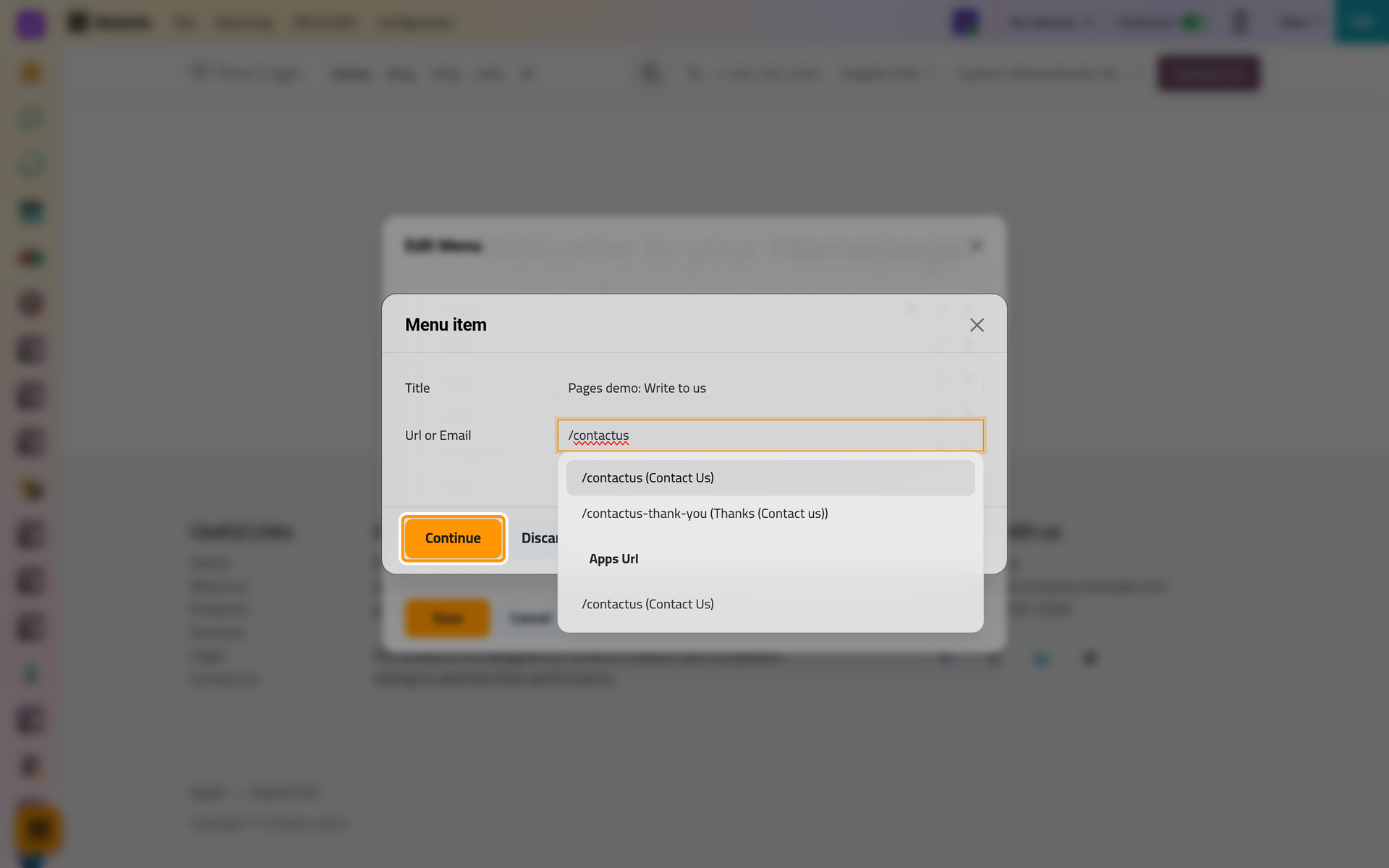
- Type the Title, here
Pages demo: Write to us. The address fills in from the title; replace it with the one you want, here/contactus, the contact page:- type
/and the start of a name to pick a page of the website from a list; - type
#and the name of an anchor to reach a place in a page; - type a full address, starting with
https://, for another website; - type an e-mail address to open the visitor's mail program.
- type
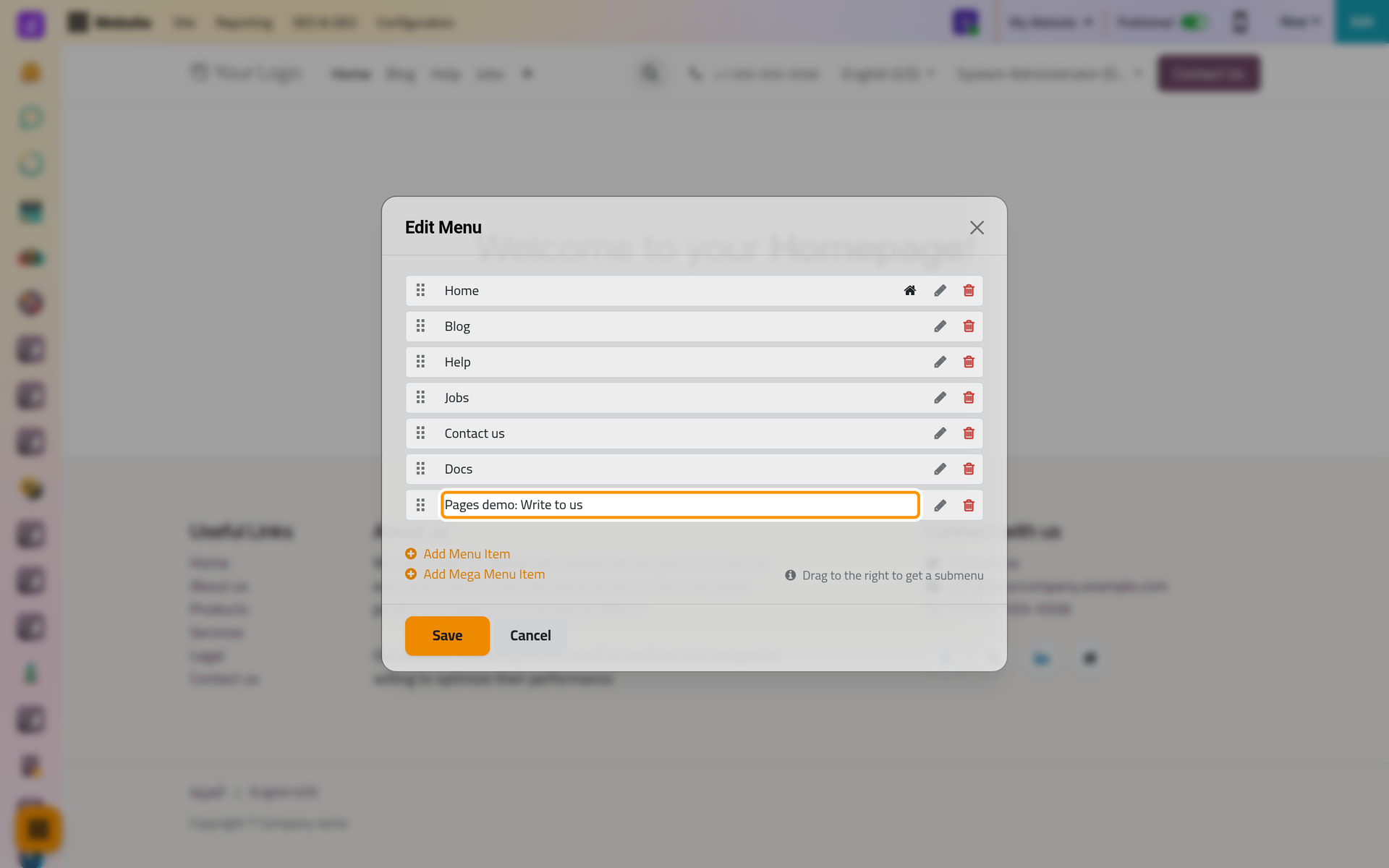
- Click Continue. The item is added at the end of the list.
An address that leads to no page shows a warning sign in the window, and its row then gets a Create Page button. That button opens the New Page window (Add a page) and makes the page at that address, under the title of the item.
Order and submenus
Drag a row by its handle to move it up or down. Drag it to the right, under another item, to make it a submenu of that item, as the hint at the bottom of the window says. A sub-item cannot hold items of its own.
Rename or remove an item
Edit Menu Item opens the Menu item window again, to change the title or the address; a double click on the title does the same. Delete Menu Item removes the item from the list.
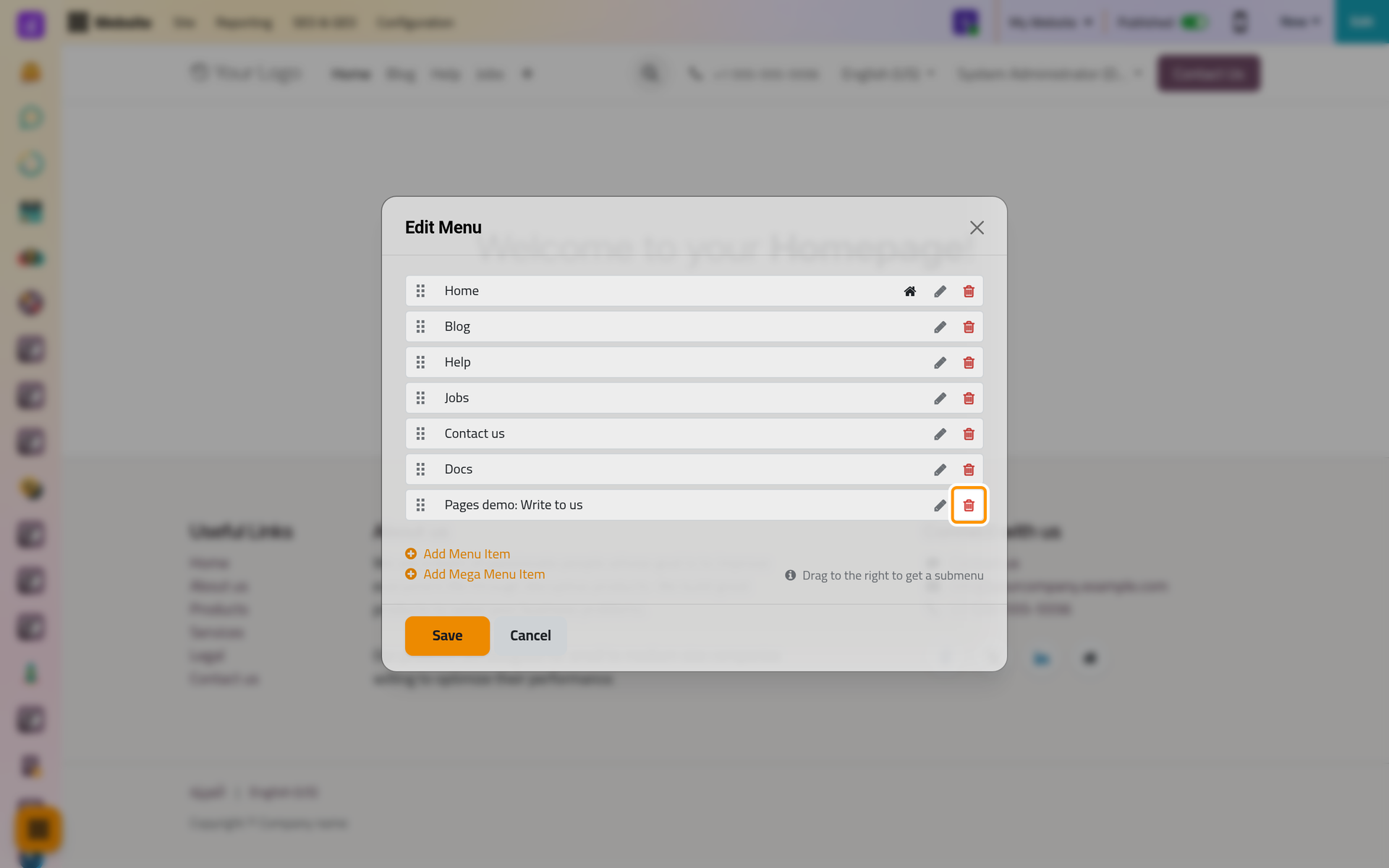
Removing an item never deletes the page it opens: the page stays at its address, and Manage pages deletes it if you wish.
Save
Click Save to apply every change at once. Cancel closes the window and drops them.
Mega menu
Add Mega Menu Item asks for a title only. Such an item opens a large panel instead of a page. After saving, click Edit and open the item in the menu of the page: its panel takes blocks as any page does (Edit a page). A mega menu stays in the first level of the menu and holds no submenu.
Other ways to change the menu
- Add to menu, when you create a page (Add a page), and In Menu, in the page properties (Manage pages), add or remove the page's item.
- The titles of the items in the second language are translated on the page itself: Translate a page.
FAQ
My new item is not in the bar.
When the bar is full, its last items move under the + at its end. If the item opens an unpublished page, visitors do not see it until the page is published.
Does deleting an item delete its page?
No. Only the link in the menu goes; the page stays.
How do I change the links at the bottom of the pages?
They belong to the footer, a part of the page: open Edit and change them there (Edit a page).
Was this page helpful?
Thank you for your feedback.