Edit a page
On this page
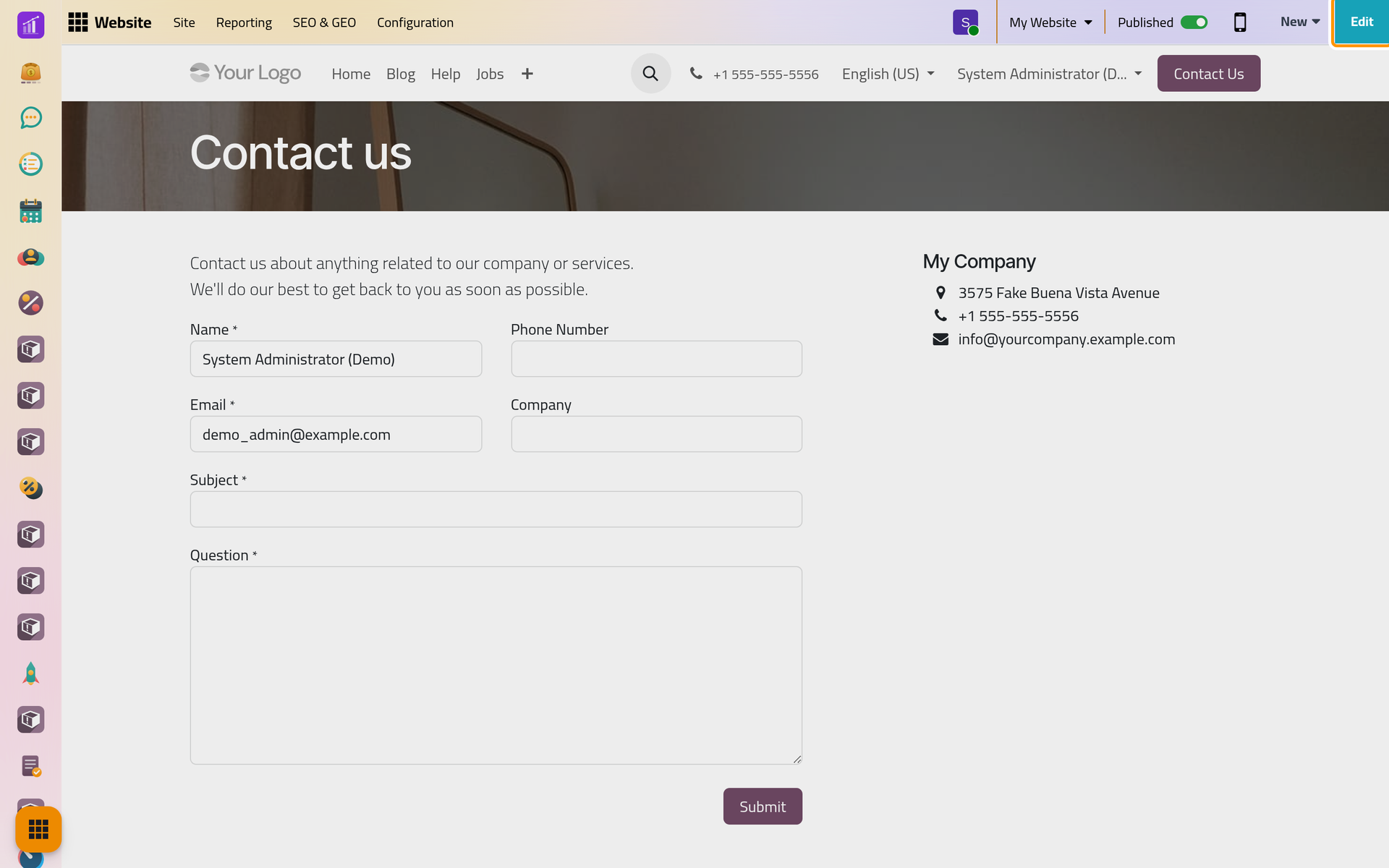
The editor changes a page where it stands: what you see while you edit is what visitors get once you save. Until then your changes stay in your screen only. The page in the pictures is the contact page of the demo website; nothing is saved.
Before you start
- You need the Editor and Designer access right on Website. A Restricted Editor opens the editor only on content they may already change in its own app; blog posts need Editor and Designer too: How the website works.
- Work on a computer: on a phone the website hides Edit.
Open the editor
Open the page on the website. shows the home page, and a click on a row of opens that page. Then click Edit at the top right.
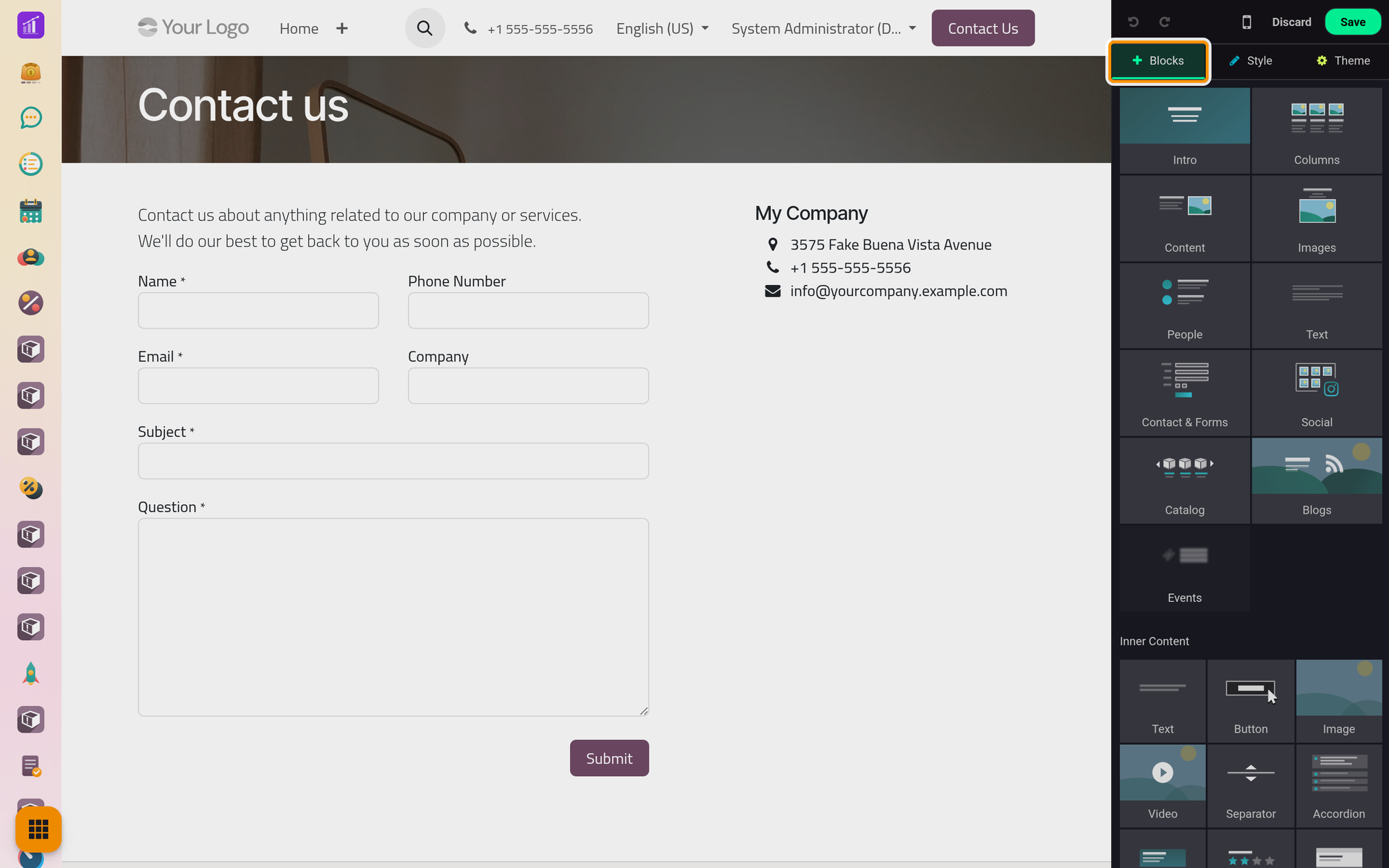
The page stays in place and a panel opens beside it, with three tabs, Blocks, Style and Theme, under the buttons Discard and Save.
Change a text
Click a text in the page and type. Selecting words shows a small toolbar to make them a heading or a paragraph, bold or italic, change their color, turn lines into a list or the words into a link.
Add a block
A block is a band of the page: a title with a picture, three columns, a form. Blocks lists them in categories such as Intro, Columns, Content, Images and Text.
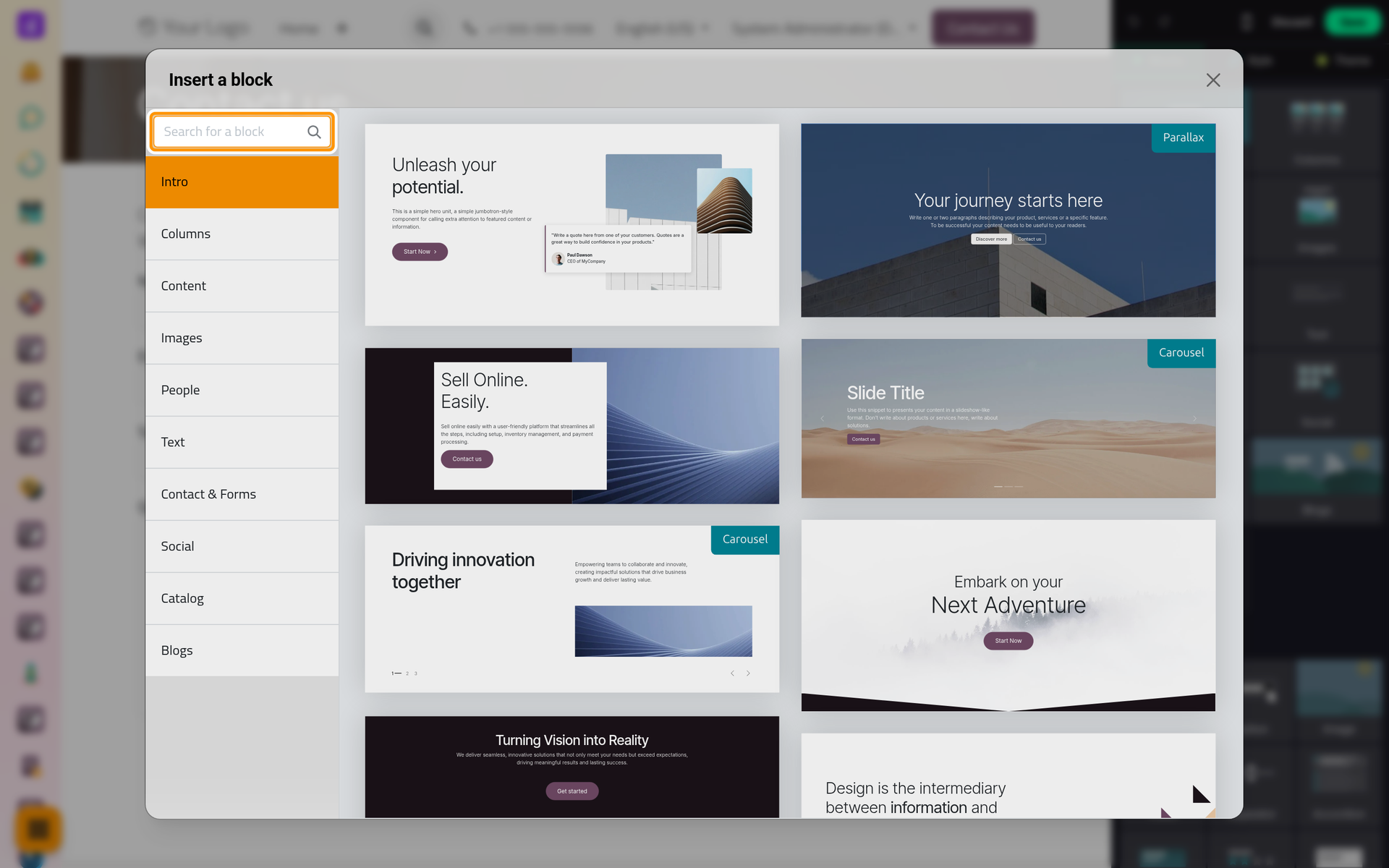
- Click a category. The window shows its designs, and its search box finds a block in every category. Click a design: it is added near the middle of the part of the page on screen.
- Or drag the category onto the page, drop it where the marks show, then click a design.
Inner Content, at the bottom of Blocks, holds the small pieces that go inside a block: a text, a button, a picture, a video, a separator and more. Drag them into place; a click only reminds you to drag.
Change, move or remove a block
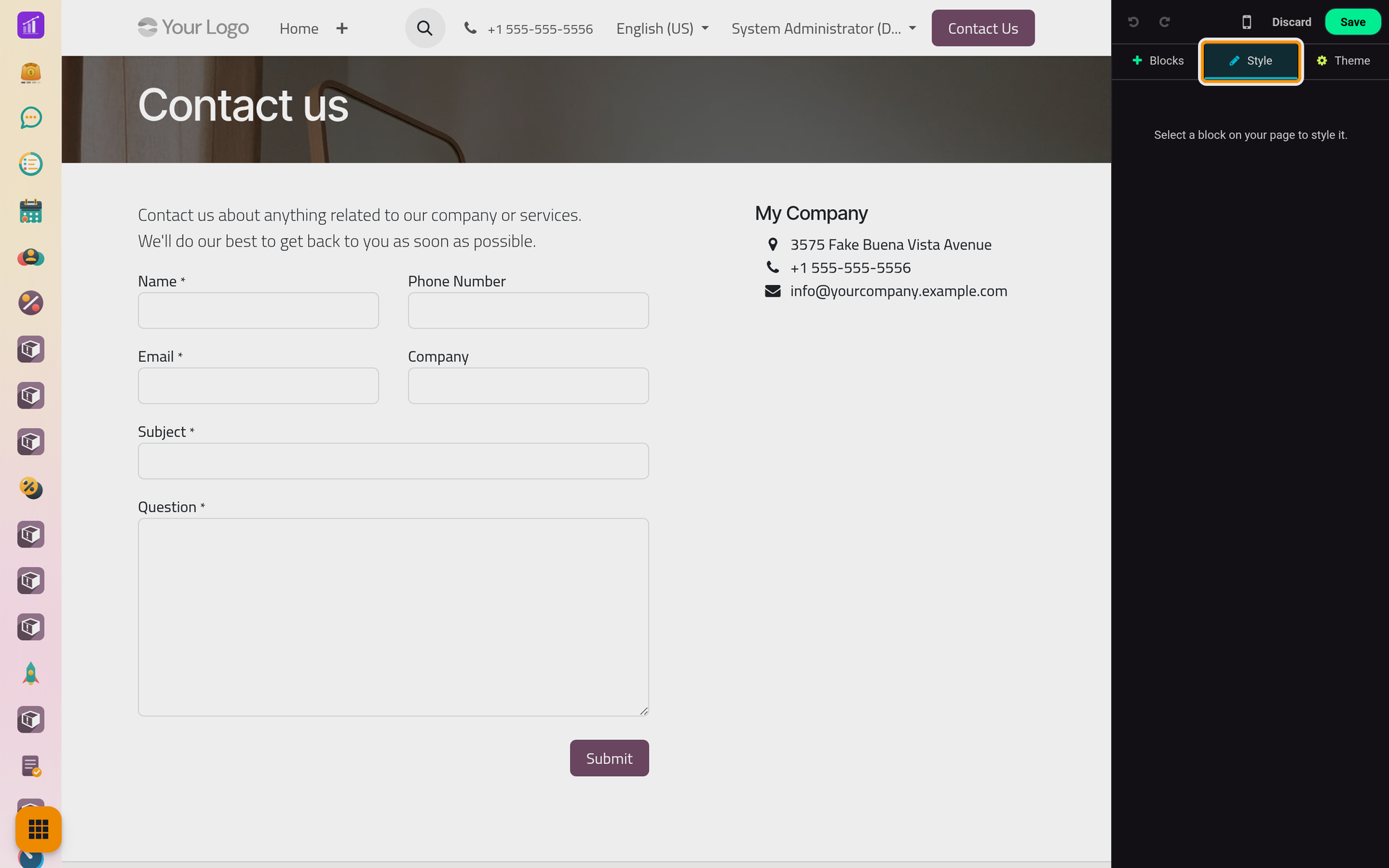
Click a block in the page. It gets a frame, and Style shows its options, such as the layout, the background or the height, then those of the column you clicked in. Next to its name, Duplicate this block copies it and Remove this block deletes it; the small buttons on the frame also move it. With nothing selected, Style asks you to select a block.
To change a picture, click it, then Replace in Style, or double-click the picture. The media window offers the pictures already stored and Upload an image for one from your computer.
The colors of the whole site
Theme holds the colors, the fonts and the button styles of the whole website, not of this page only: a change there shows on every page once saved.
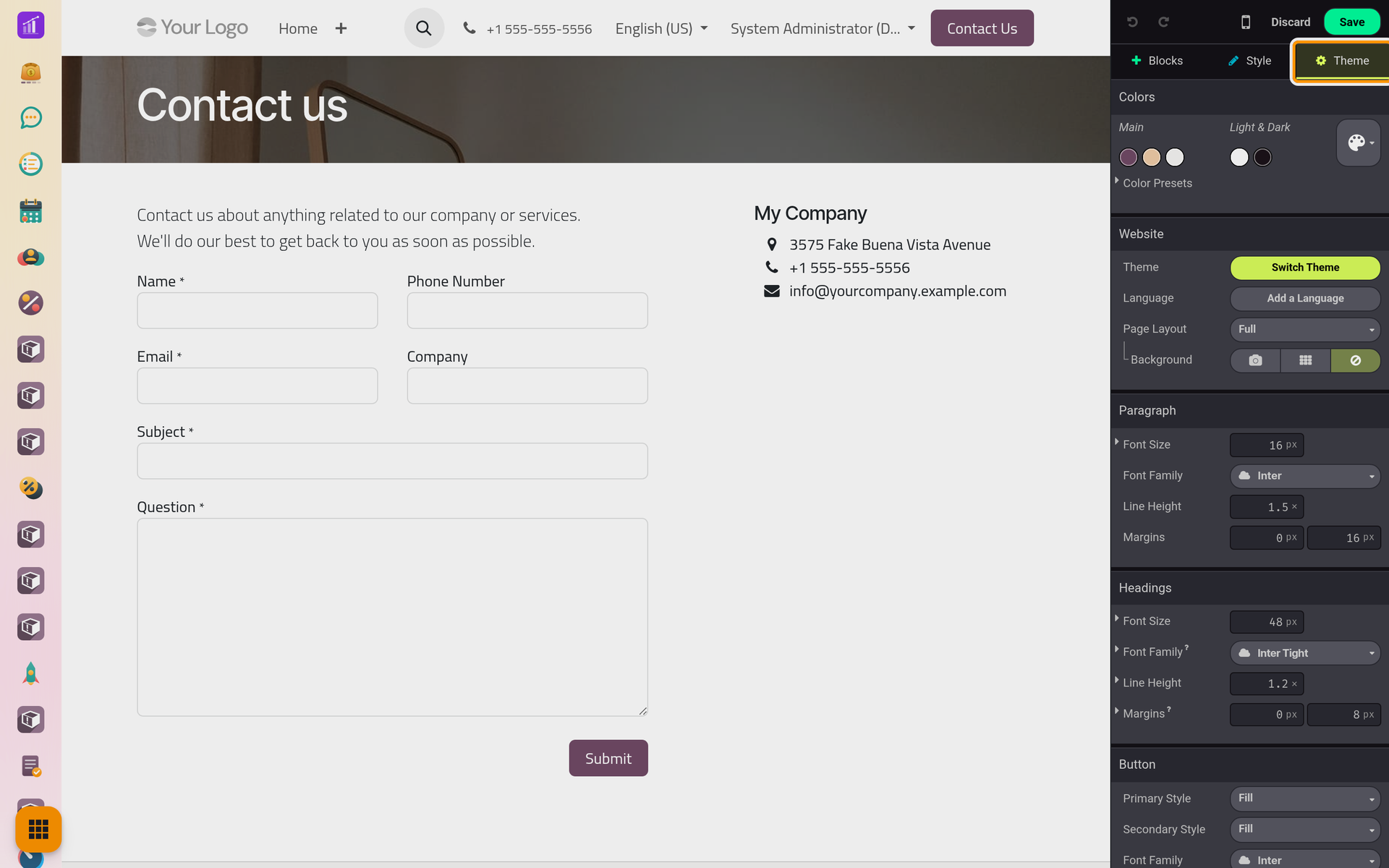
Check, then save
- The phone icon at the top of the panel, Mobile Preview, draws the page at the width of a phone without leaving the editor. Click it again for the full width.
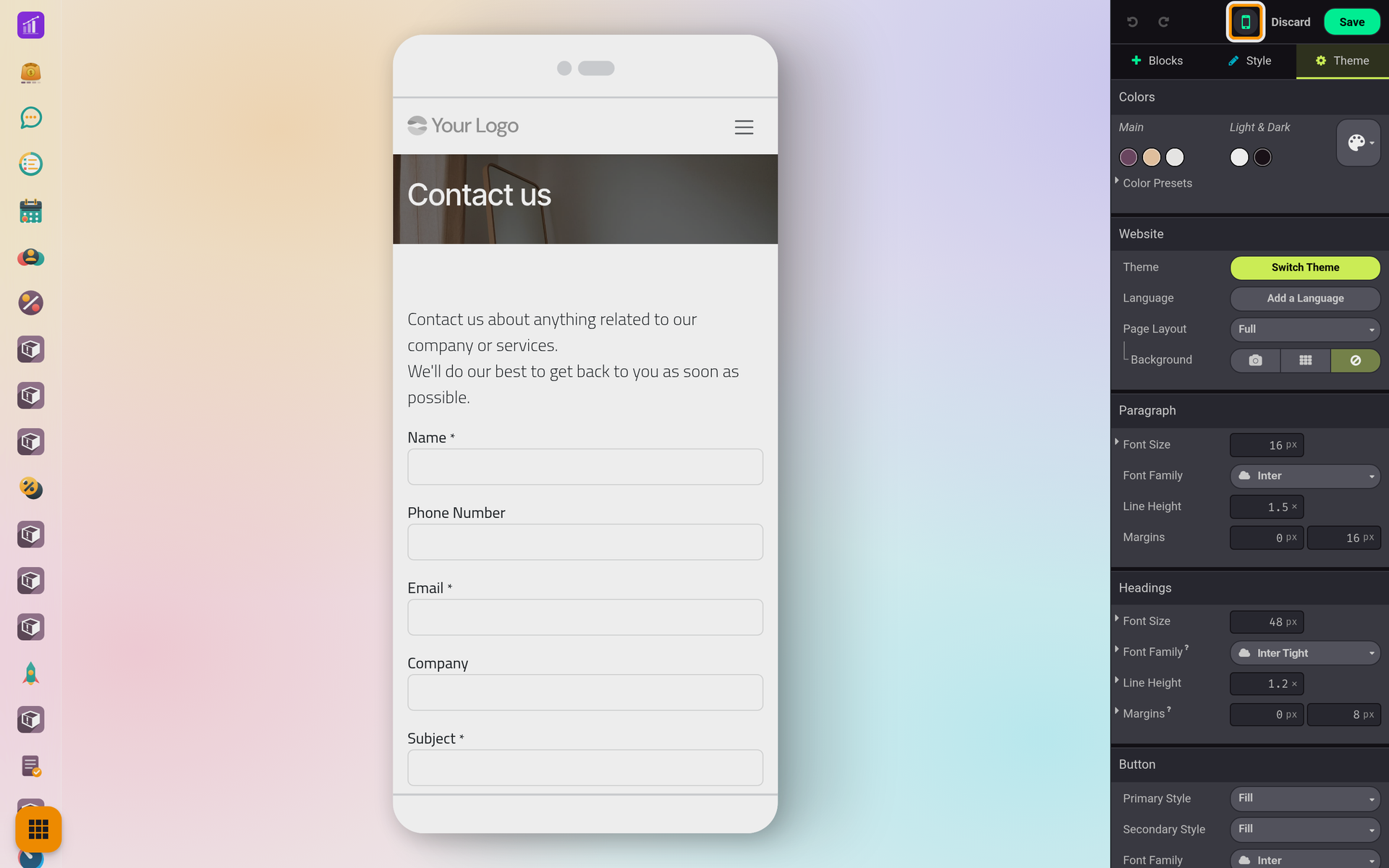
- The two arrows at the top left of the panel undo and redo your last changes.
- Save keeps your changes and closes the editor. On a published page, visitors see them at once.
- Discard closes the editor without keeping anything. When you changed something, it asks first: Discard all changes?
FAQ
Do visitors see my changes while I edit?
No. Nothing changes for them until you click Save. On an unpublished page they see nothing even then: Add a page.
I removed a block by mistake.
Click the undo arrow at the top left of the panel, or Discard to drop every change since you clicked Edit.
The Arabic page still shows my old text.
Each language keeps its own texts. After a change in the main language, open the page in the other language and translate what changed: Translate a page.
Was this page helpful?
Thank you for your feedback.