Follow your cases and hearings
On this page
The portal shows the cases in which you are the client and their hearings. You read them here; the firm keeps them up to date.
Before you start
- You need a portal account, sent by the firm as Give a client portal access shows.
- A case reaches your list when the firm opens it to portal users, you follow it and you are its client. Choose what a client sees explains the rule.
Open your cases
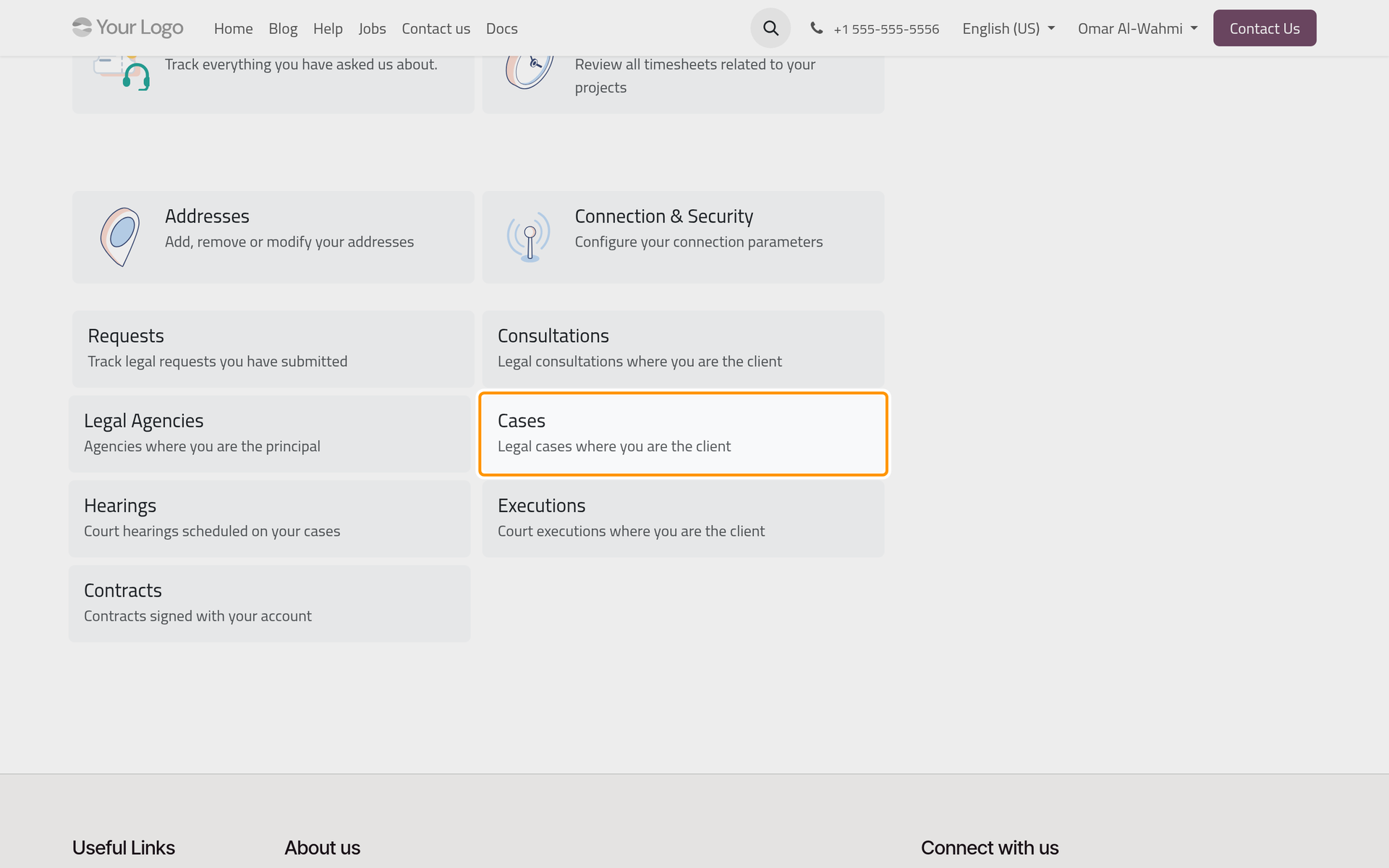
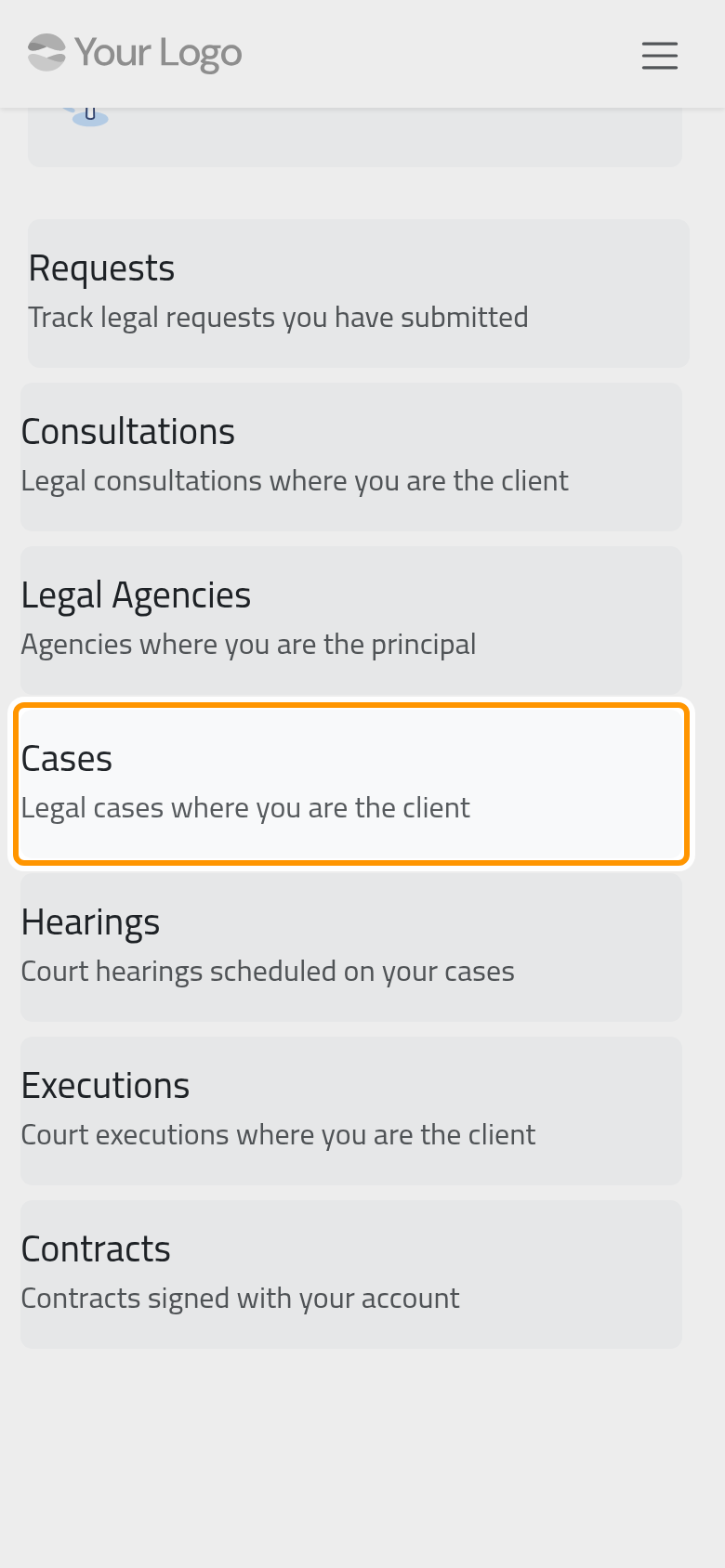
- On the portal home, My account, click the Cases tile. It appears once you have at least one case.
- The list shows each case's Sequence (the firm's number), Subject, Open Date, Court Number, Lawyers and Status: Draft, In Progress, Appeals, Won or Lost.
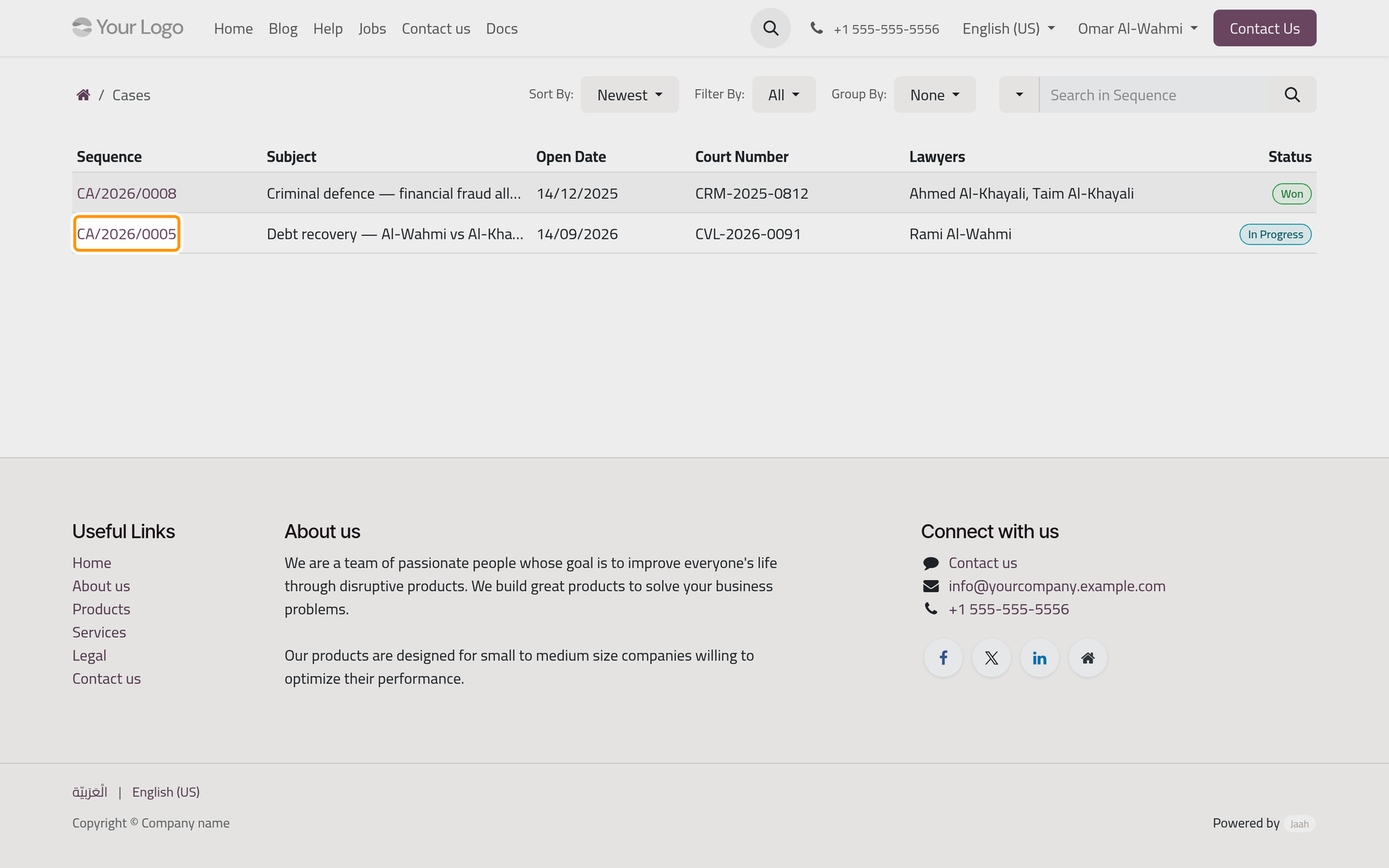
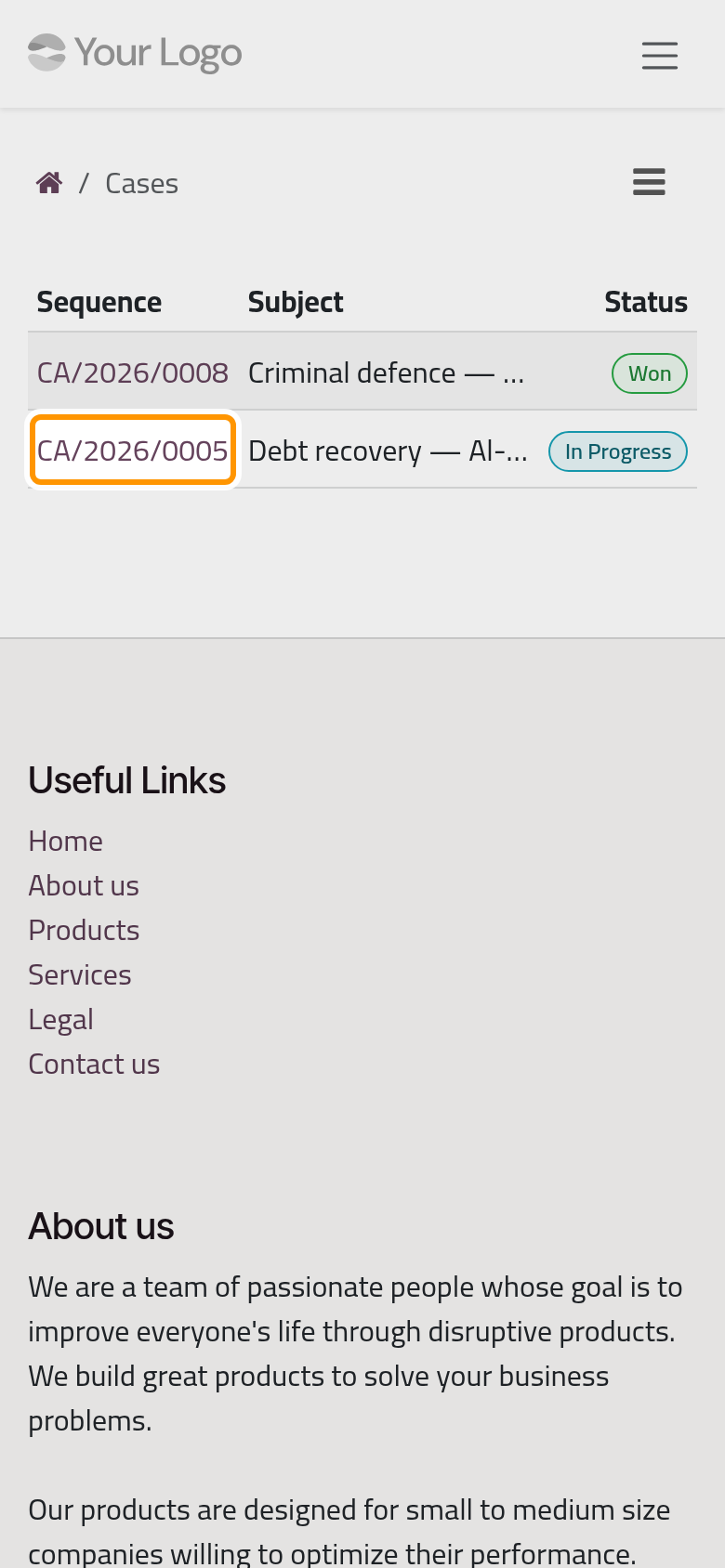
Sort By orders the cases by Newest, Opening Date or Sequence, Filter By keeps one status, and Group By groups them by State, Type or Court. The search box looks in the sequence; the arrow beside it switches to the subject, the court number, the lawyers or all of them. On a phone, these controls sit behind the ☰ button above the list.
Read a case
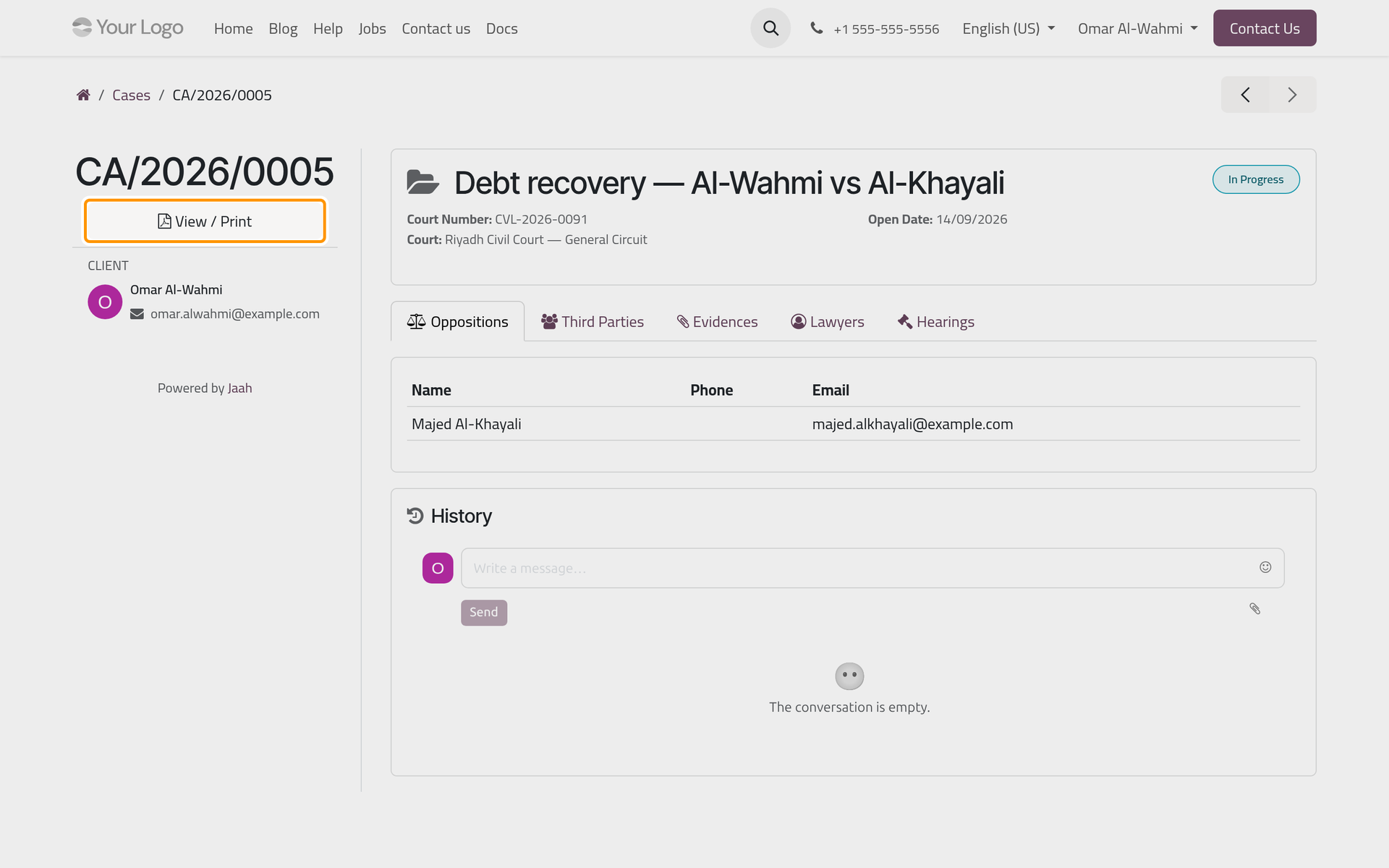
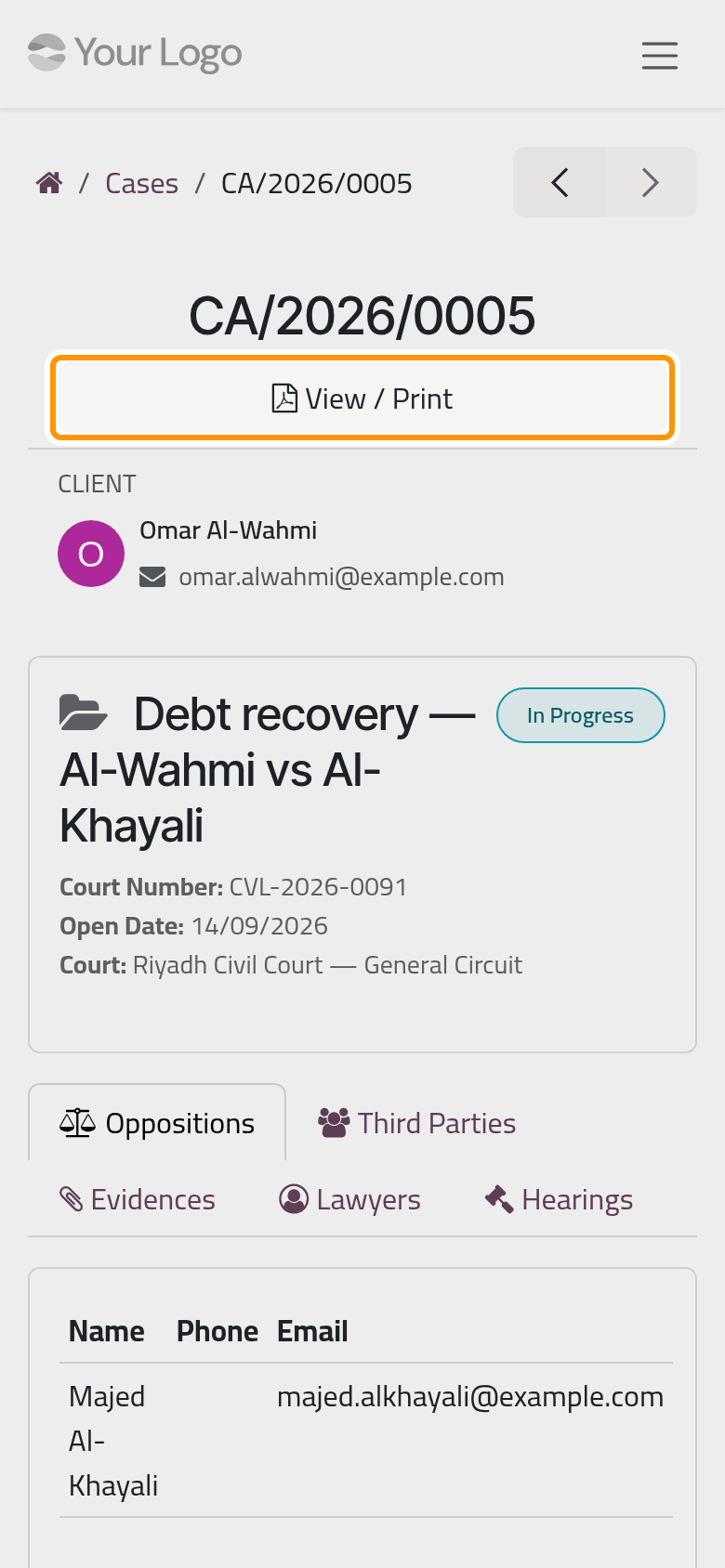
Click a case's number. The page shows:
- in the side column (at the top on a phone): View / Print and your contact card under Client;
- the subject and status, then Court Number, Open Date, Court, Type and Close Date once the firm has filled them;
- the tabs Oppositions and Third Parties (name, phone, e-mail), Evidences (summary, concerned party, description), Lawyers, and Hearings, which opens the case's hearings;
- History: the messages the firm shares on the case, with a box to write back.
The arrows above the page move to the previous or next case of your list.
Follow the hearings
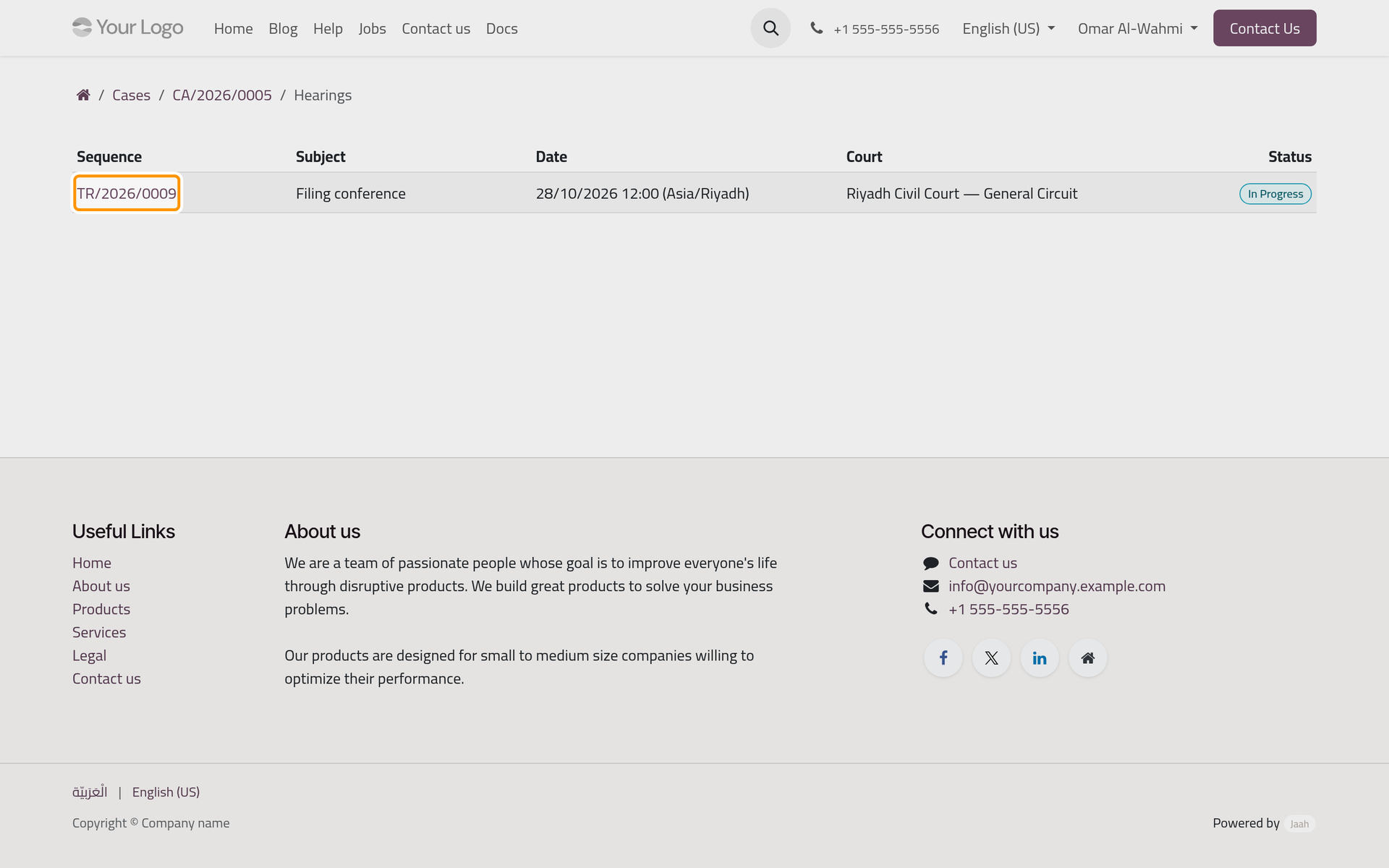
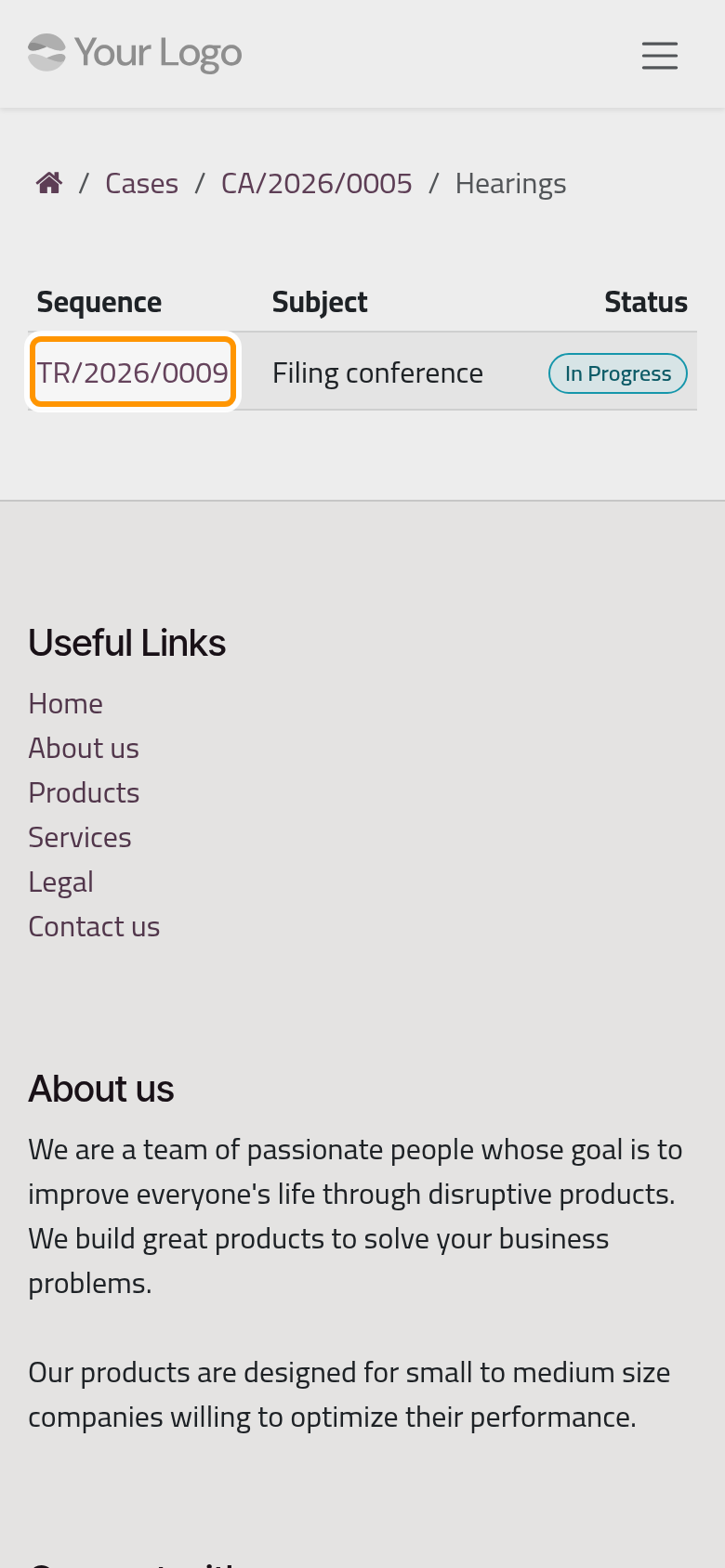
Hearings on a case lists its hearings with their number, subject, date, court and status, In Progress or Closed. Times are shown in the time zone of your contact, named in brackets, such as (Asia/Riyadh).
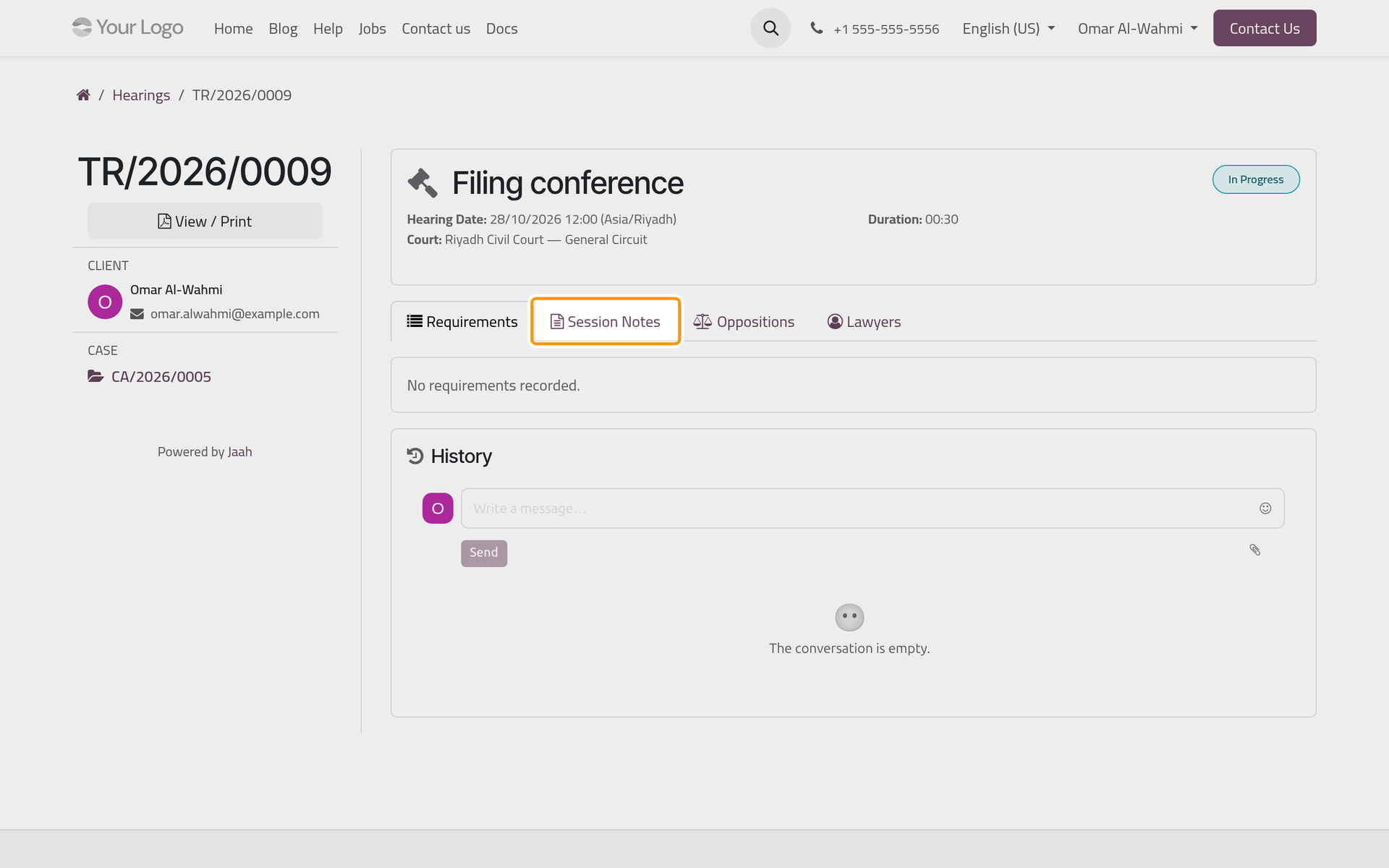
Click a hearing's number. Its page gives the Hearing Date, Duration, Court, and the Judge when the firm names one. Requirements holds what to prepare or bring, Session Notes the minutes once the firm records them, then come Oppositions and Lawyers. The side column links back to the case.
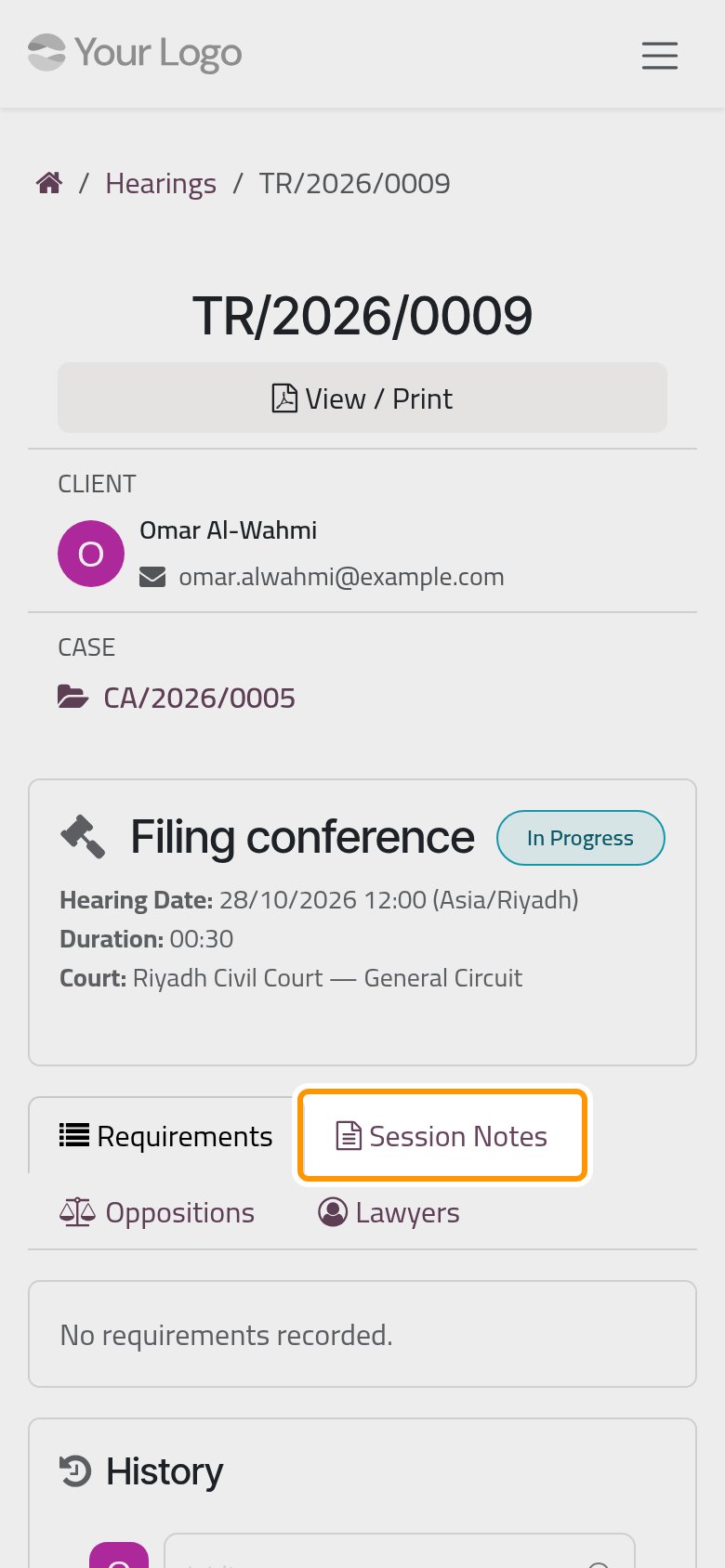
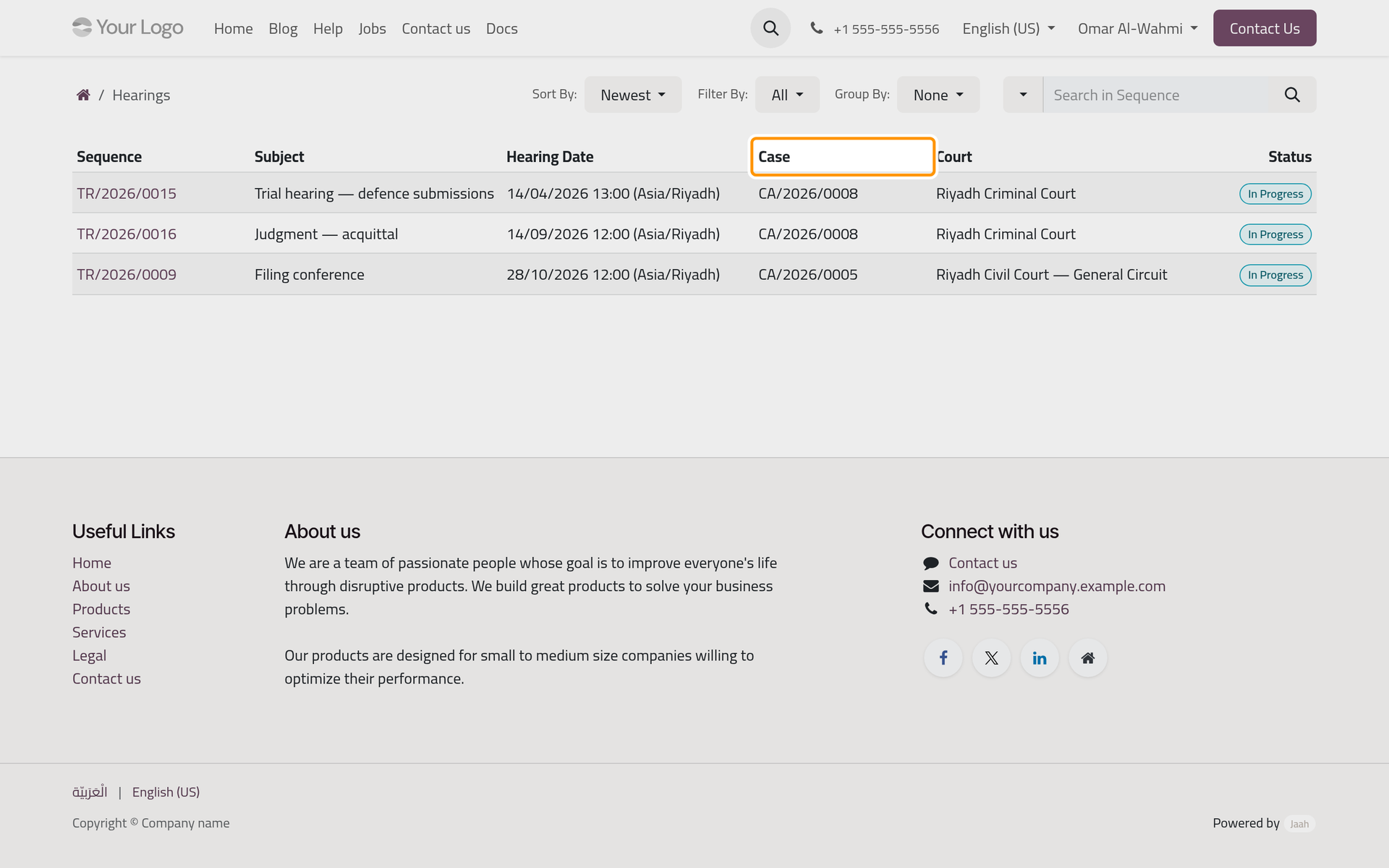
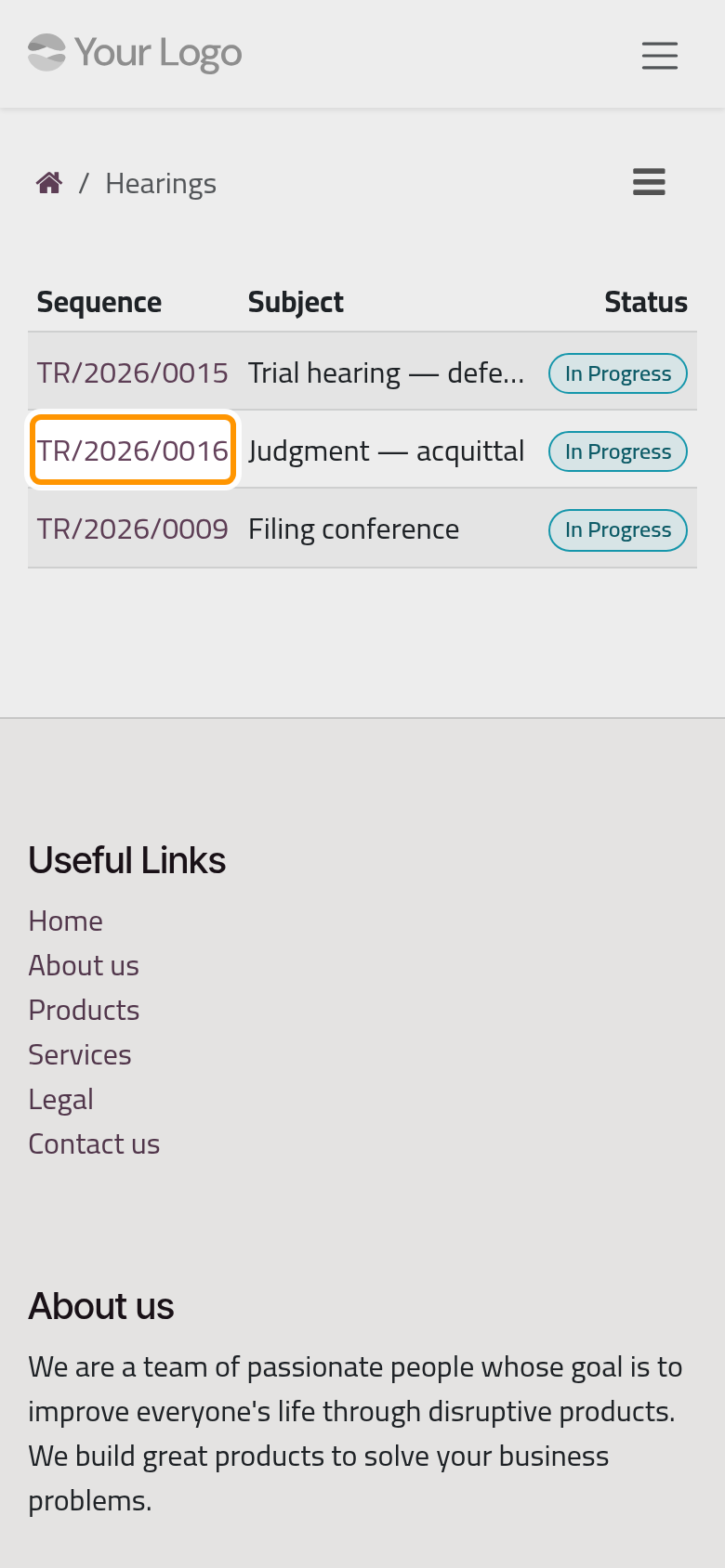
The Hearings tile of the home gathers the hearings of all your cases, with a Case column. Filter By keeps those In Progress, Closed or Sent (e-mailed to you by the firm), and Group By groups them by State, Case, Court or Judge. On a phone, open a hearing to see its date, case and court.
Print the case
View / Print opens the case report as a PDF in a new tab, to read, save or print: the parties, the lawyers, the summary and the hearings, as far as the firm's report settings show them. A hearing has its own View / Print.
The reports of the portal come in the language recorded on your contact, whatever language the portal shows; ask the firm to change it if needed. The firm's side: Print case and hearing reports.
FAQ
A case I know of is missing. Why?
The firm has not opened it to portal users, you do not follow it, or its client is another contact, your company for example. Ask the firm; Choose what a client sees lists what it checks.
Can I change anything in a case?
No. The firm keeps the case, its hearings and their dates. Write to it under History when something needs correcting; its reply appears there too.
Why does a hearing show a time zone?
Times follow the time zone of your contact, so that a hearing reads the same on the portal, in the firm's e-mails and in the PDF. If the zone is wrong, ask the firm to correct it on your contact.
Was this page helpful?
Thank you for your feedback.