Send a new request
On this page
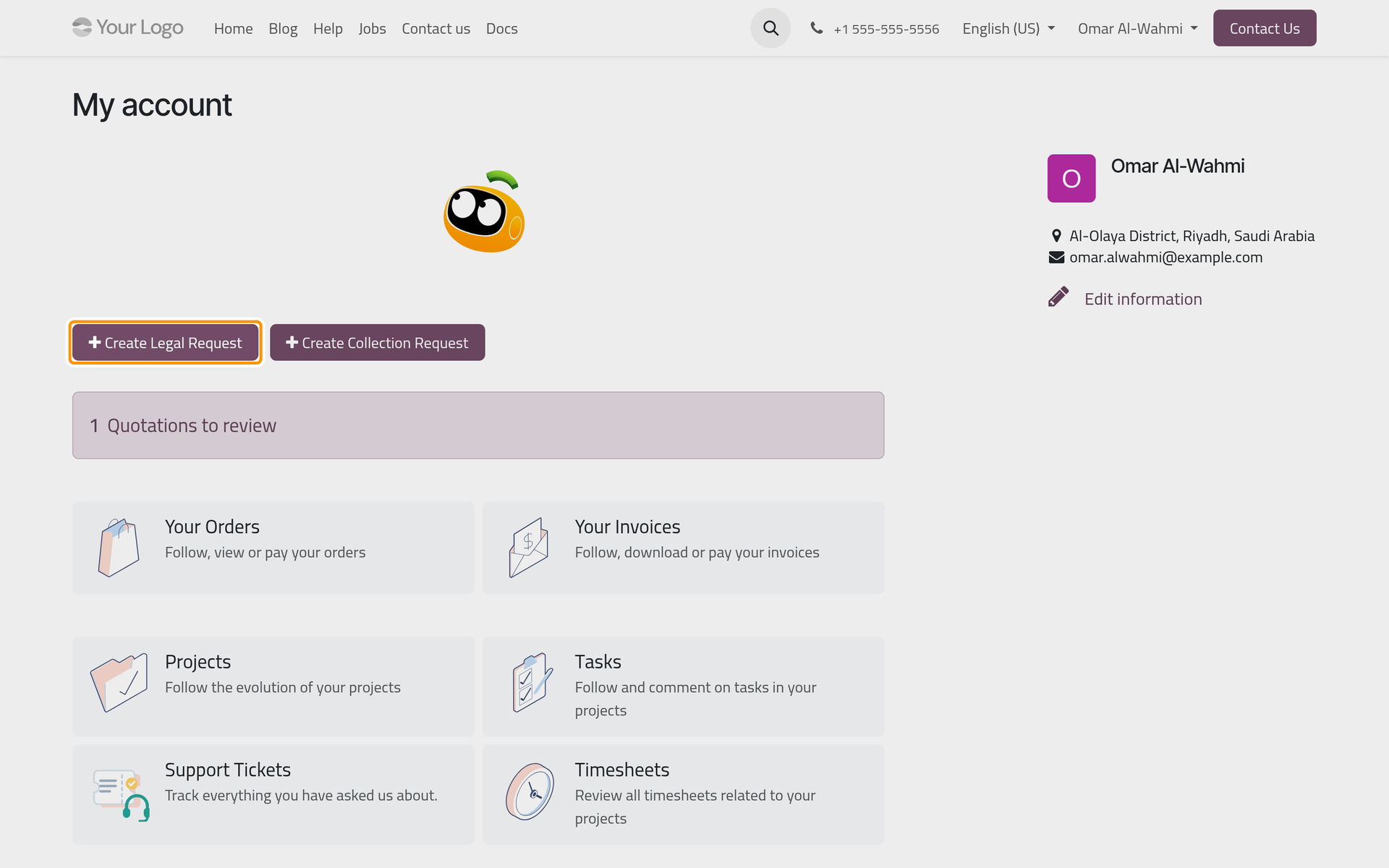
A client asks the firm for new work from the portal: a legal request opens a case, a consultation or an execution; a collection request asks the firm to collect a debt owed to the client. Support requests to the firm's desks are listed there too. The demo client is Omar Al-Wahmi.
Before you start
- The client needs a portal account: Give a client portal access.
- Create Legal Request appears once the firm uses at least one app that handles requests: consultations, cases or executions. The firm prepares who receives them in Prepare the intake of client requests.
Send a legal request
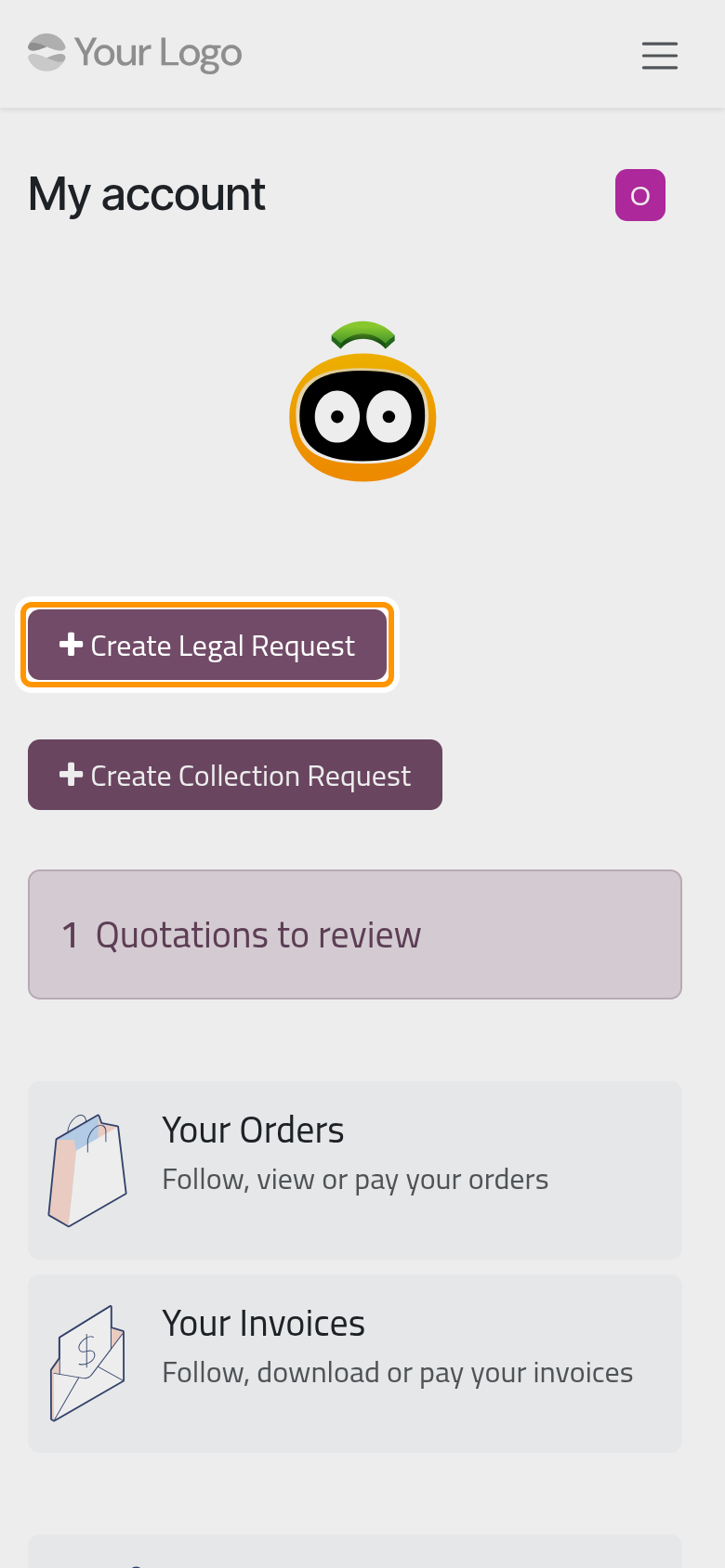
- On the home page of the portal, click Create Legal Request.
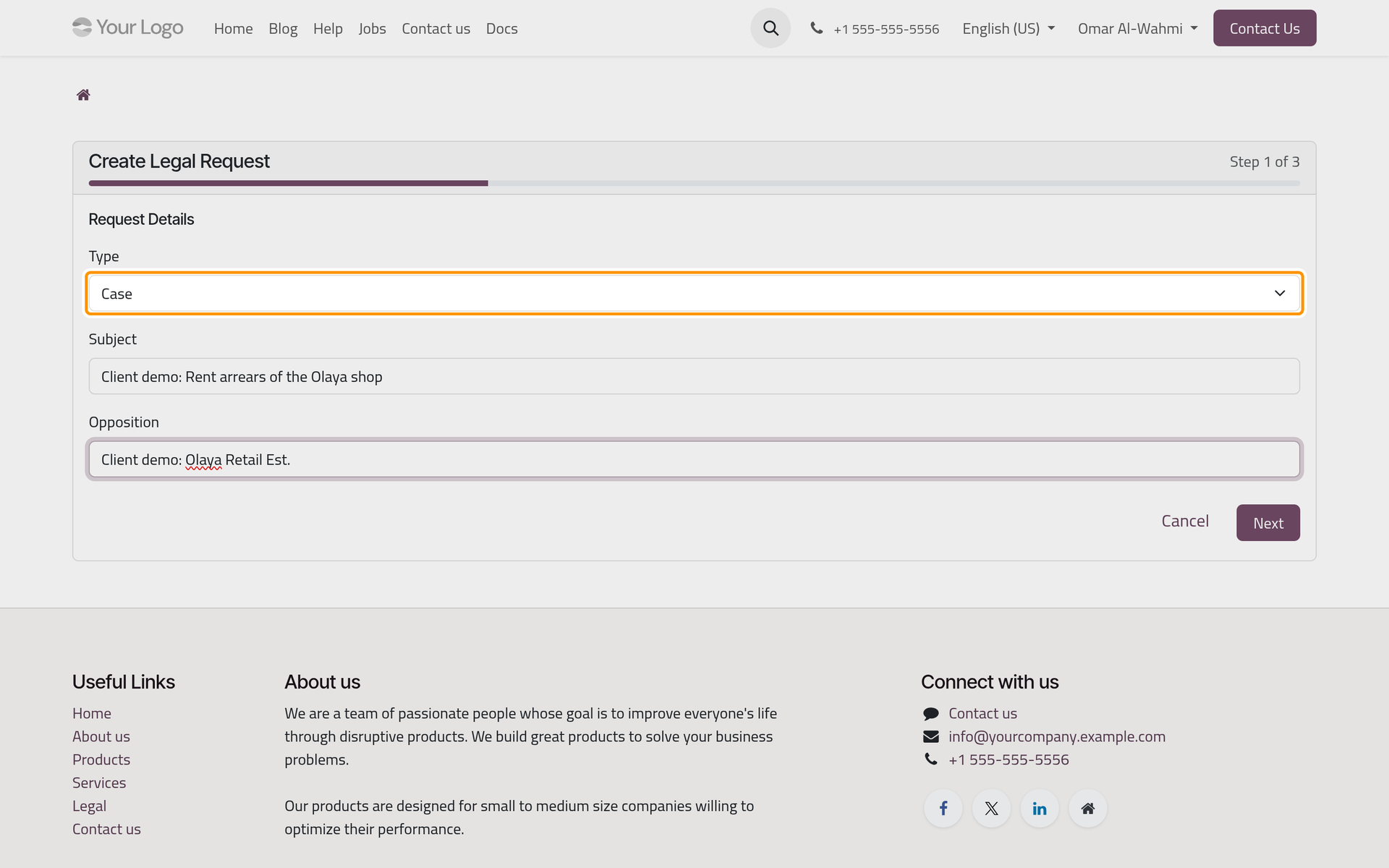
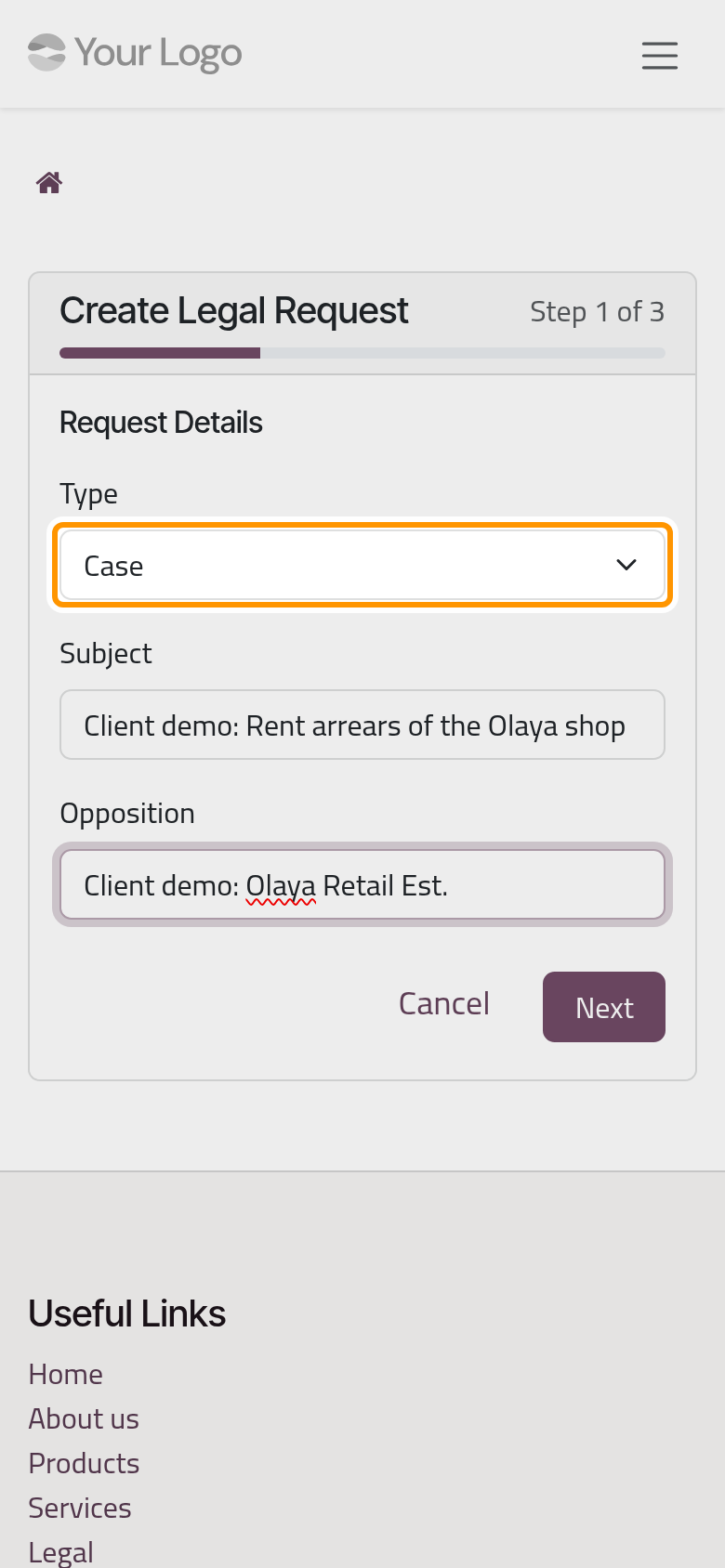
- The form has three steps. In Request Details, choose the Type, the kind of work you ask for (the types the firm handles, such as Consulting, Case or Execution), and write the Subject. Opposition, the other party, is optional. Click Next.
- In Description & Attachments, describe the matter and add your files under Attachments. Click Next.
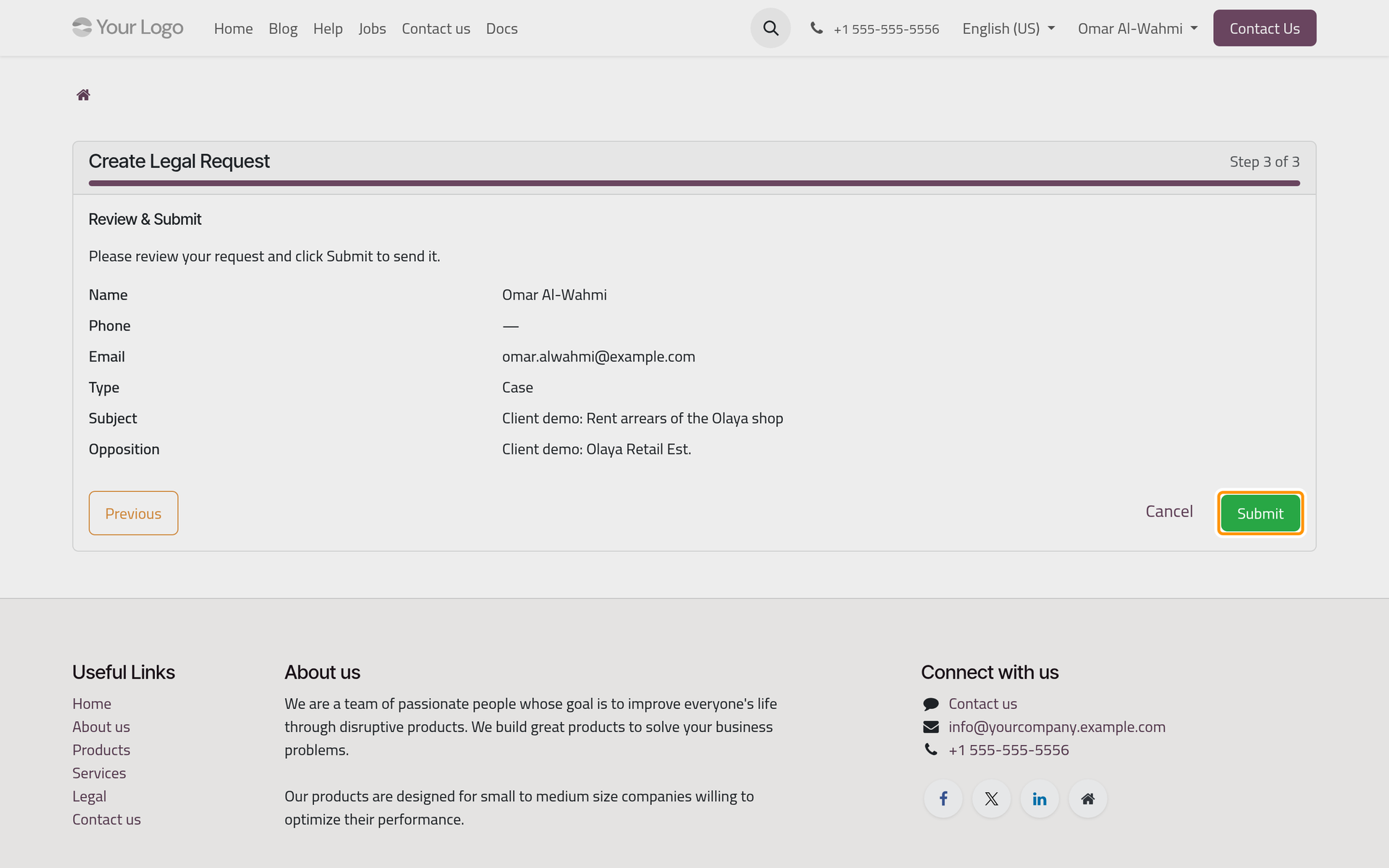
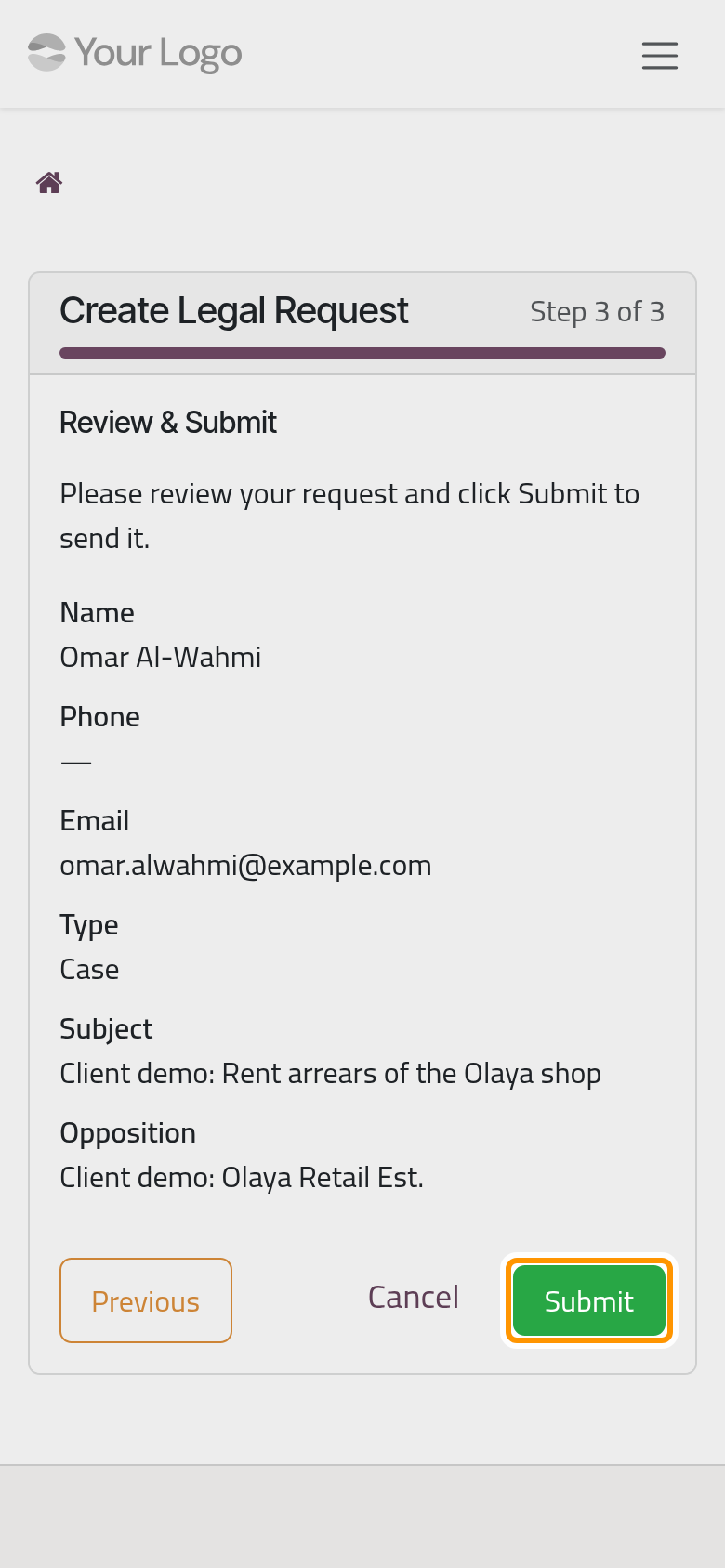
- Review & Submit repeats what you typed, with your name, phone and e-mail from your account. Click Submit.
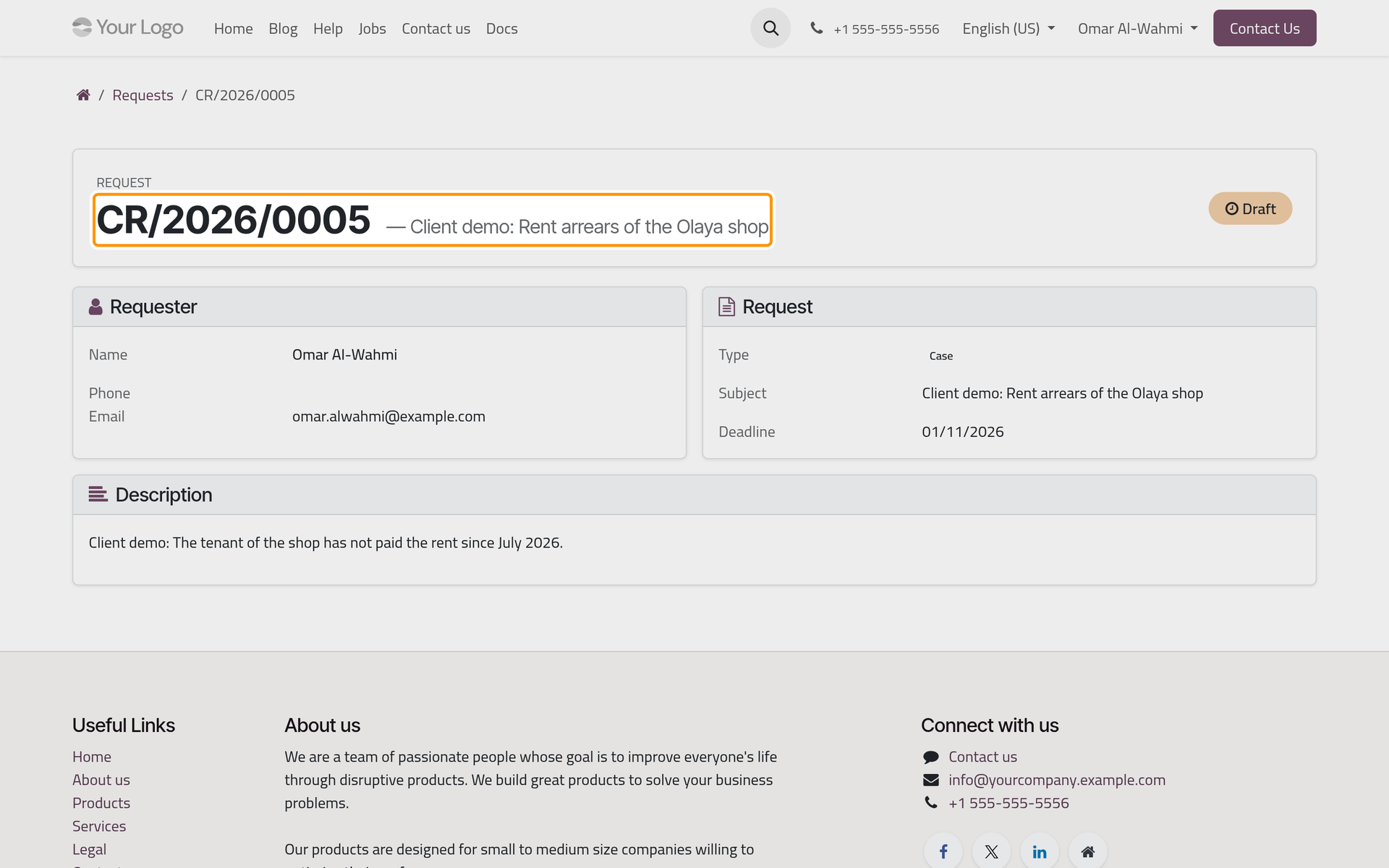
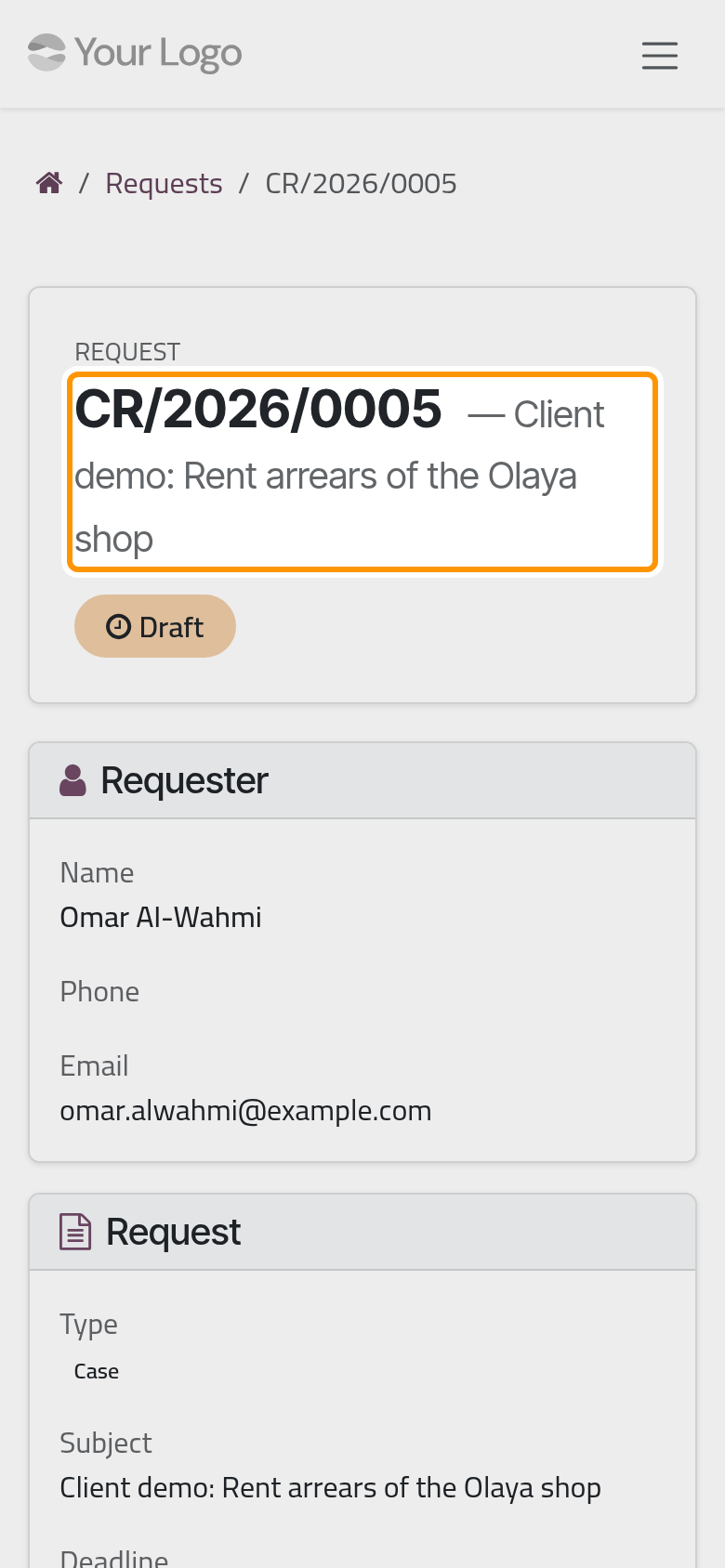
The request opens with its number and the status Draft; its Deadline comes from the firm's own rules.
Follow your legal requests
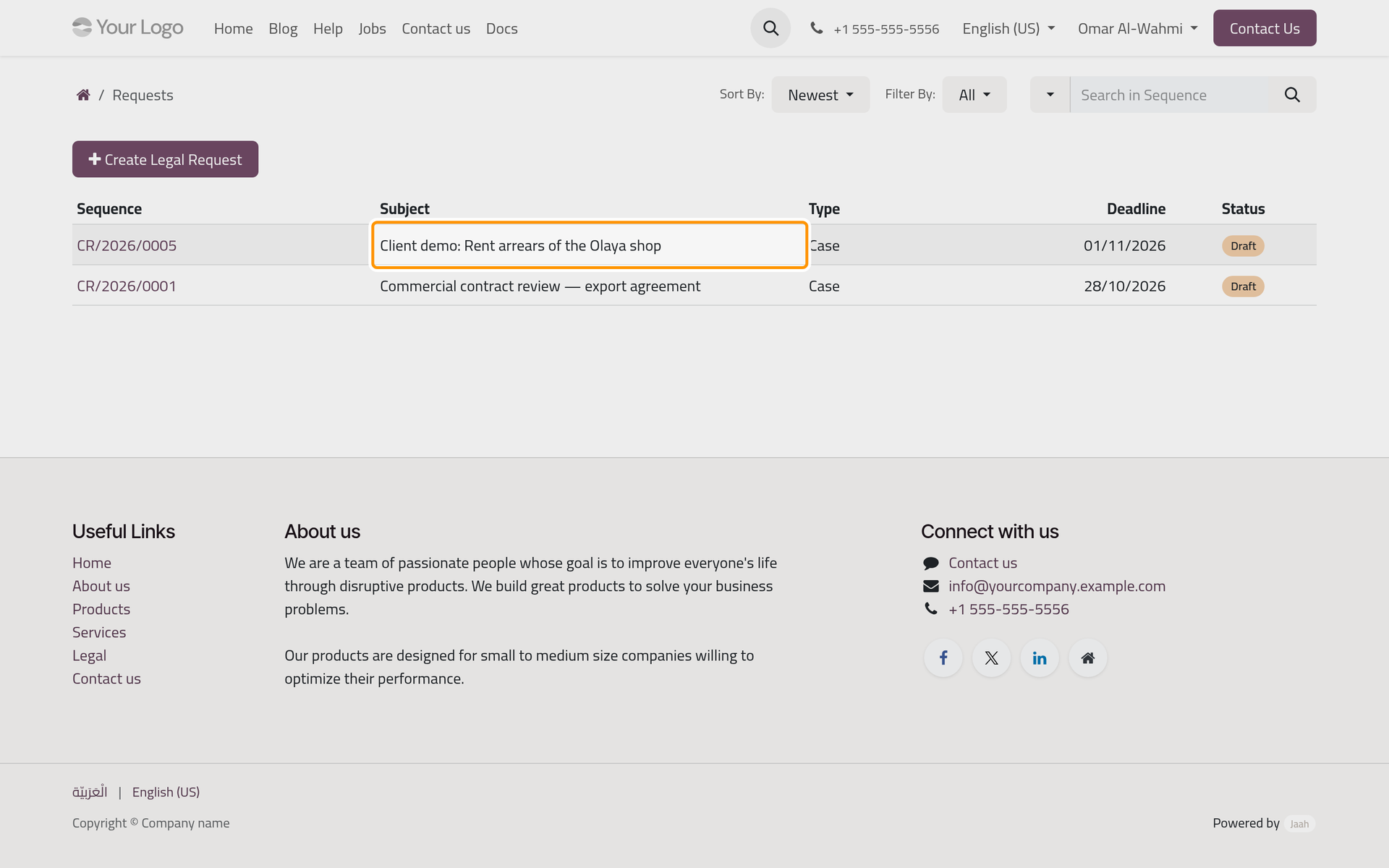
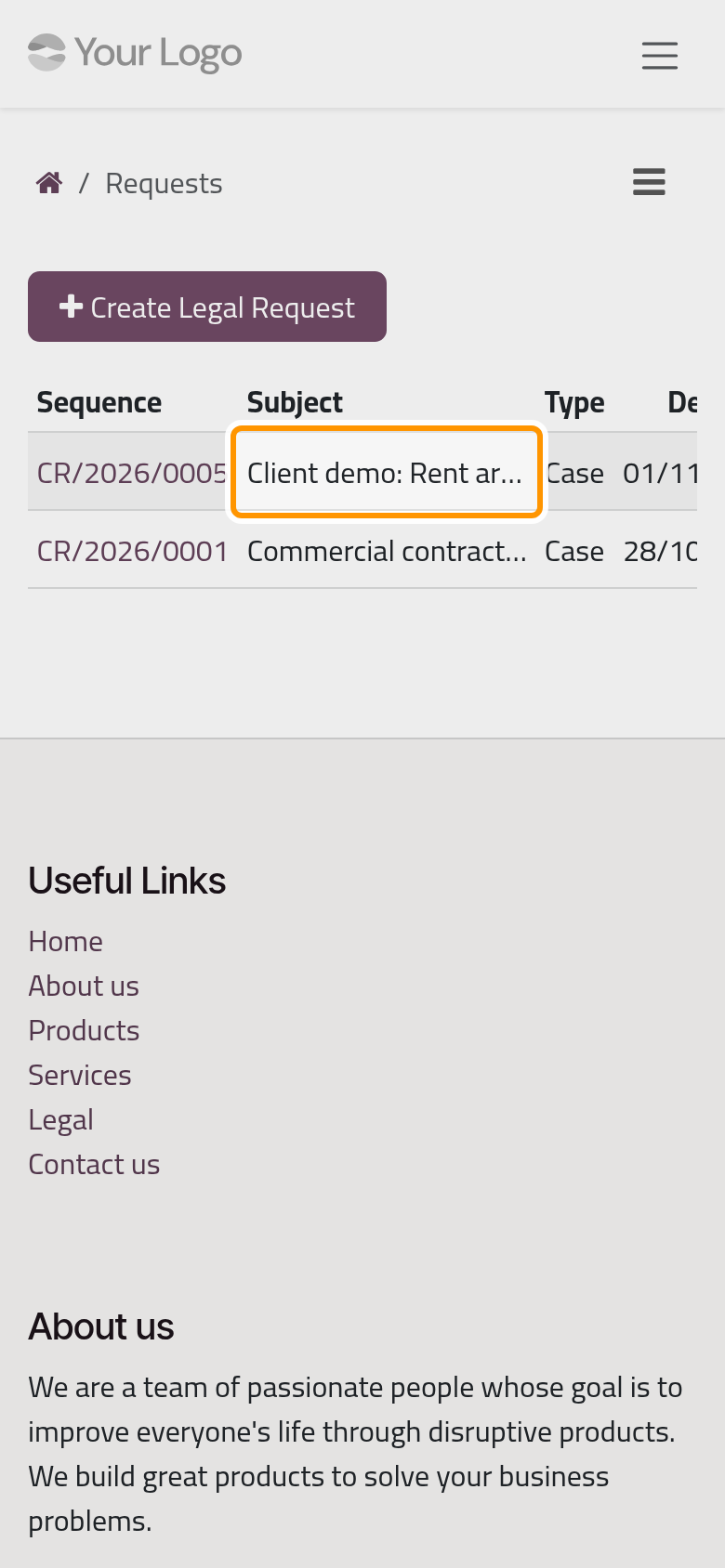
Requests on the home page lists your legal requests: Sequence, Subject, Type, Deadline and Status. A request stays Draft until a lawyer handles it; it then reads Approved, once registered as a case, a consultation or an execution, or Rejected. A rejected request shows the reason on its page.
Send a collection request
- Click Create Collection Request on the home page.
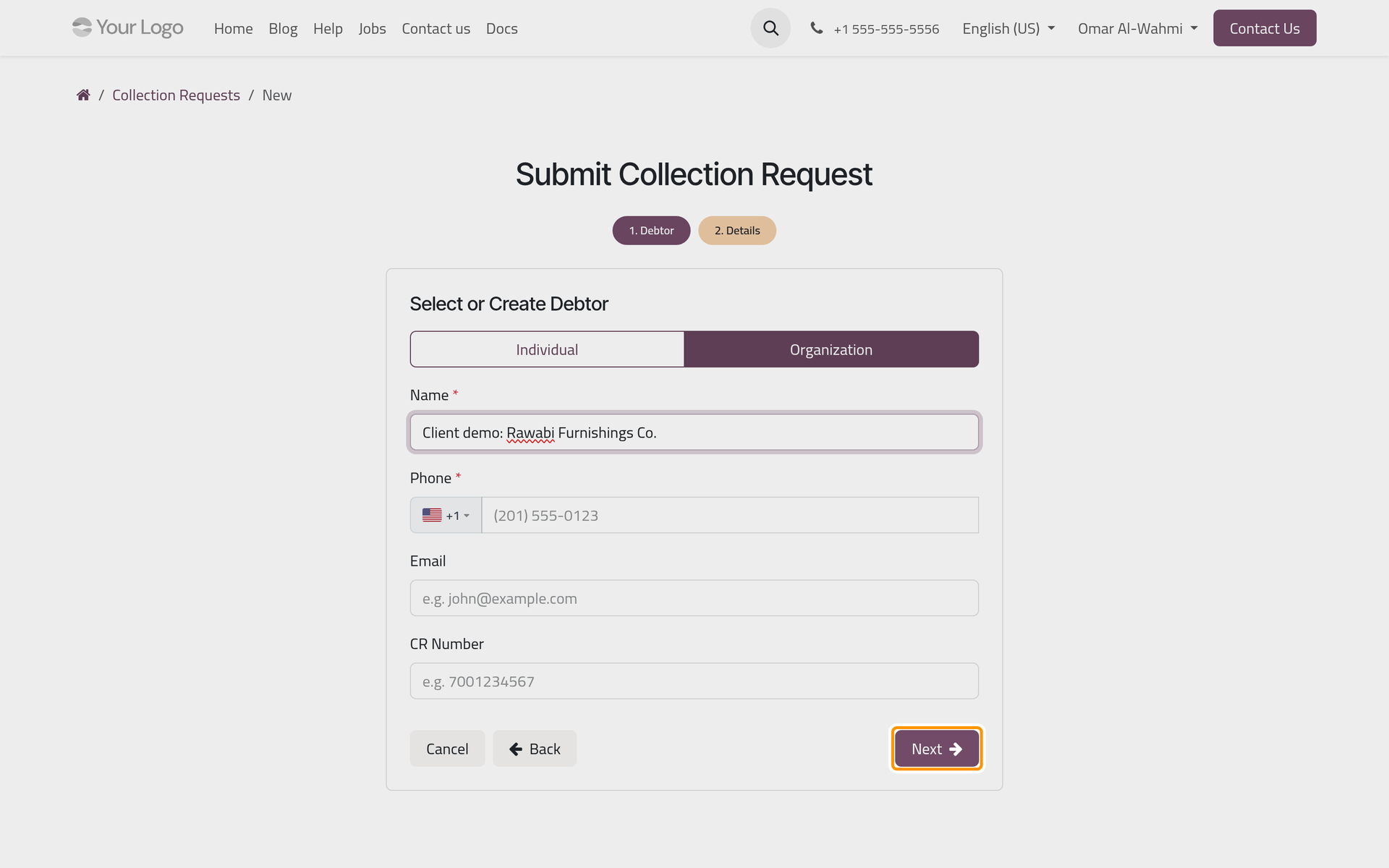
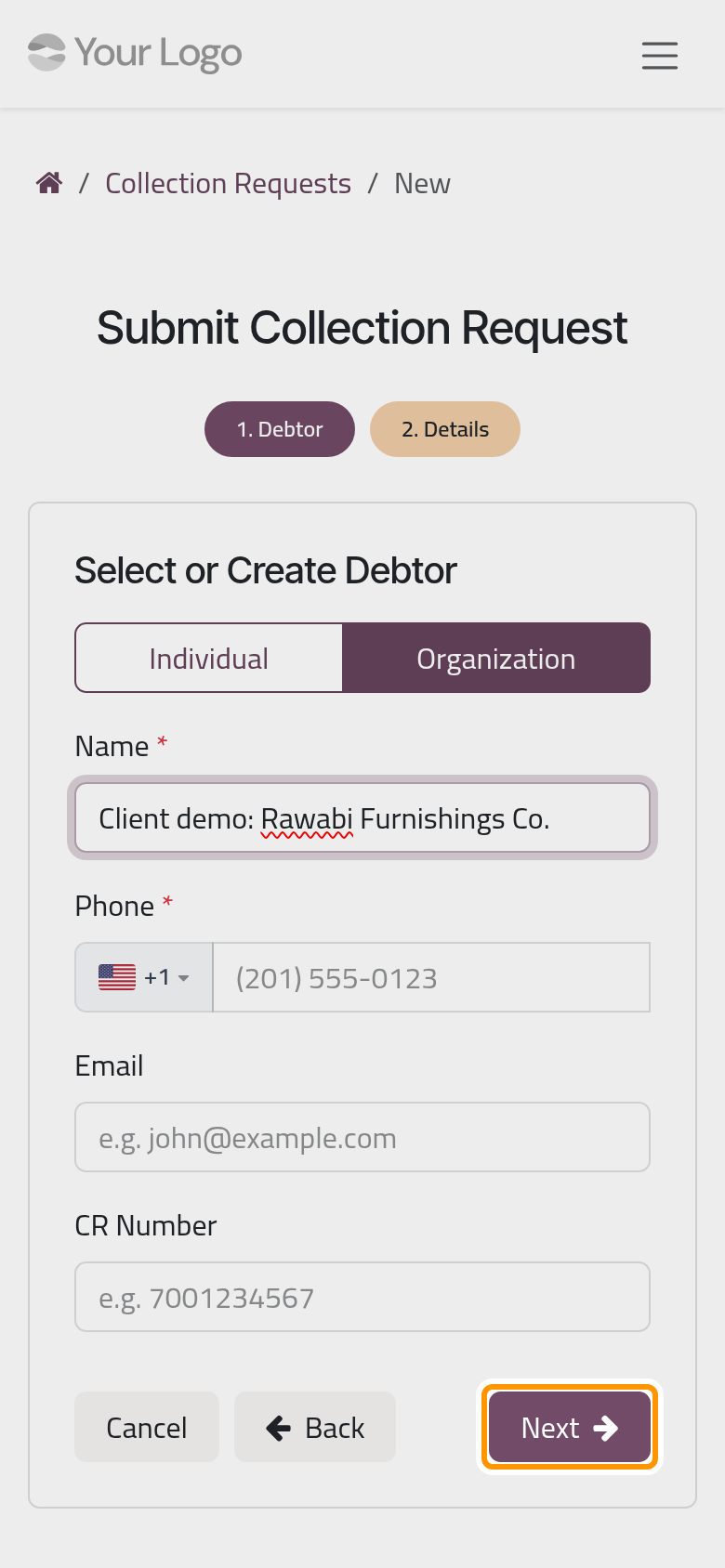
- Select or Create Debtor: pick the debtor in Existing Debtor, which lists the debtors of the collection contracts where you are the owner, or click + Create New Debtor. For a new debtor, choose Individual or Organization and fill in the Name, the Phone, the Email if you have it, and the ID Number, which becomes the CR Number for an organization. Click Next.
- In Financial Information, enter the Amount owed and any Notes, and add the Debt Proofs, PDF files or images; they are required. Click Submit.
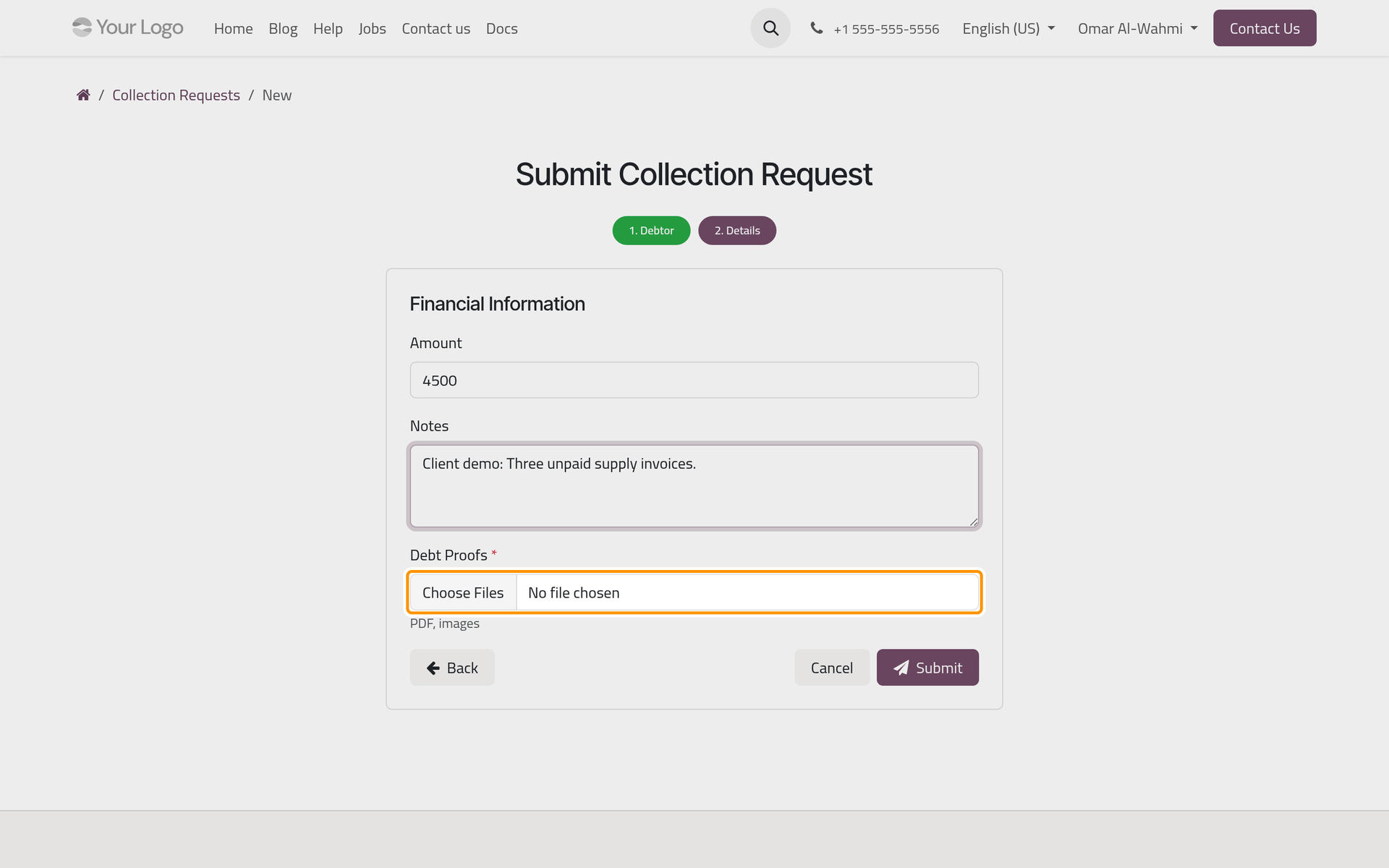
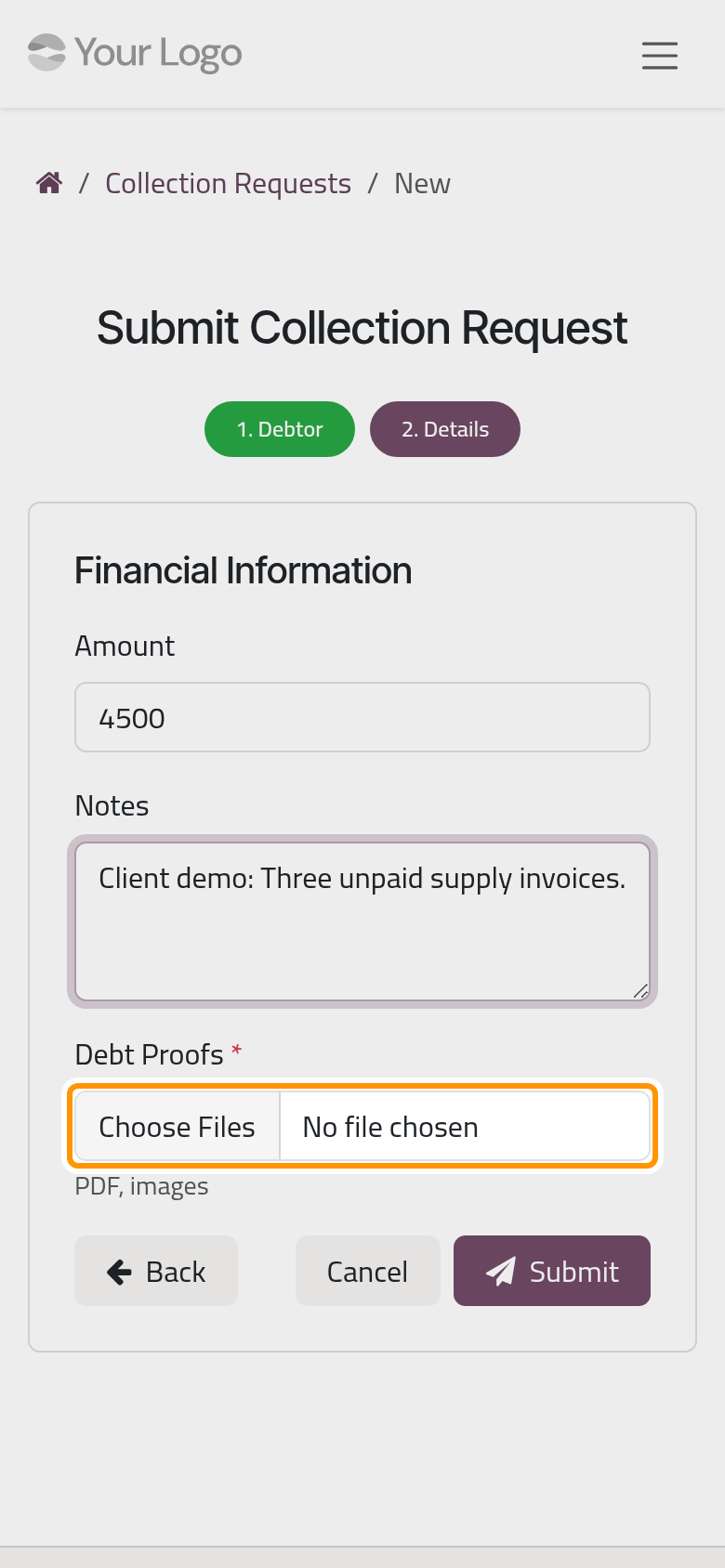
The portal confirms with Request Submitted Successfully!, and My Requests lists your collection requests. In the firm, the request waits in until someone approves it and creates a contract from it: Create a collection contract. The home page shows its debtor and owner sections only to a debtor or an owner of a contract, which the demo client is not: Get the contract signed.
Your support requests
Support Tickets on the home page lists your requests on the firm's desks that are open to clients: Ref, Request, Opened, Who's on it, Desk and Stage.
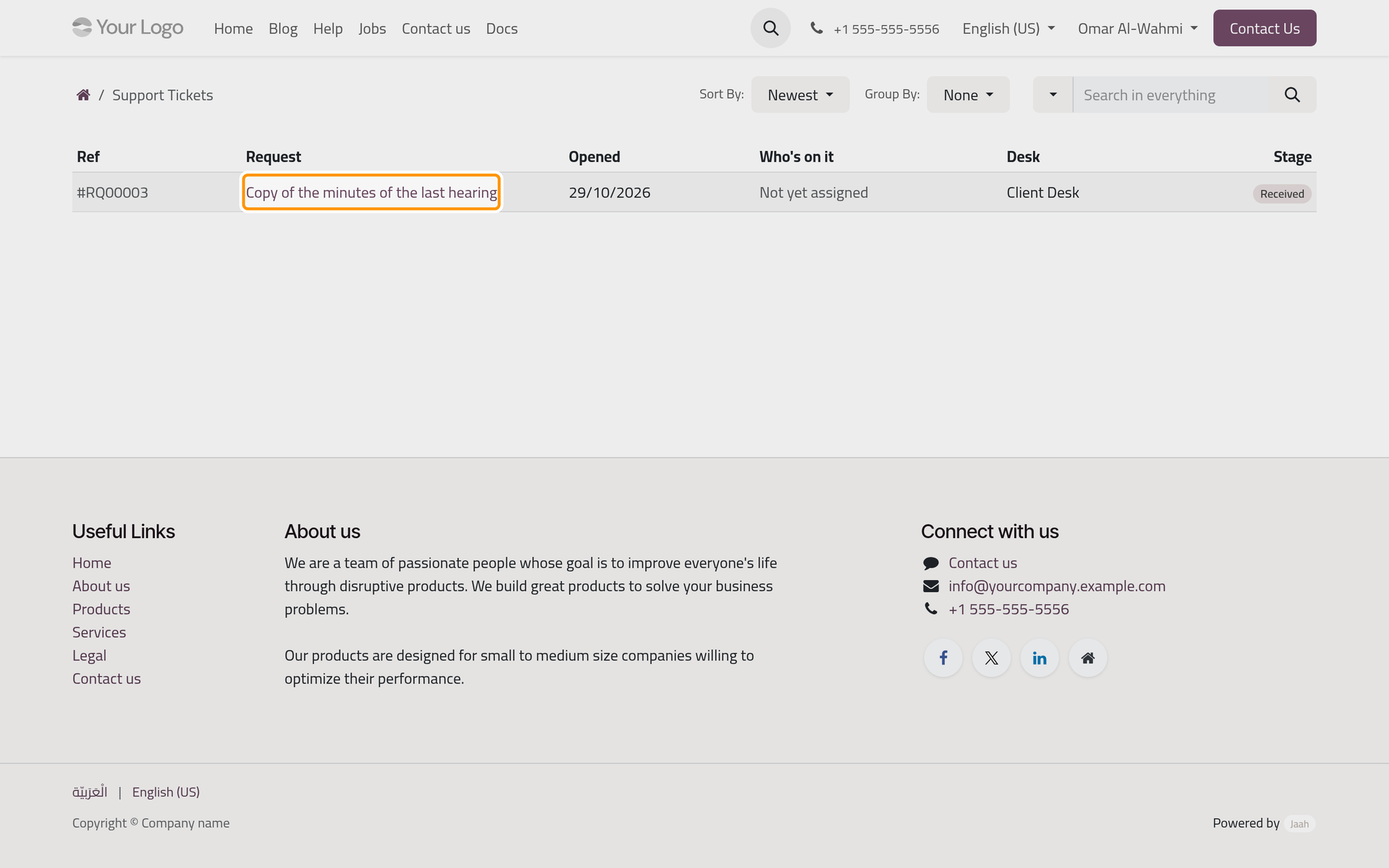
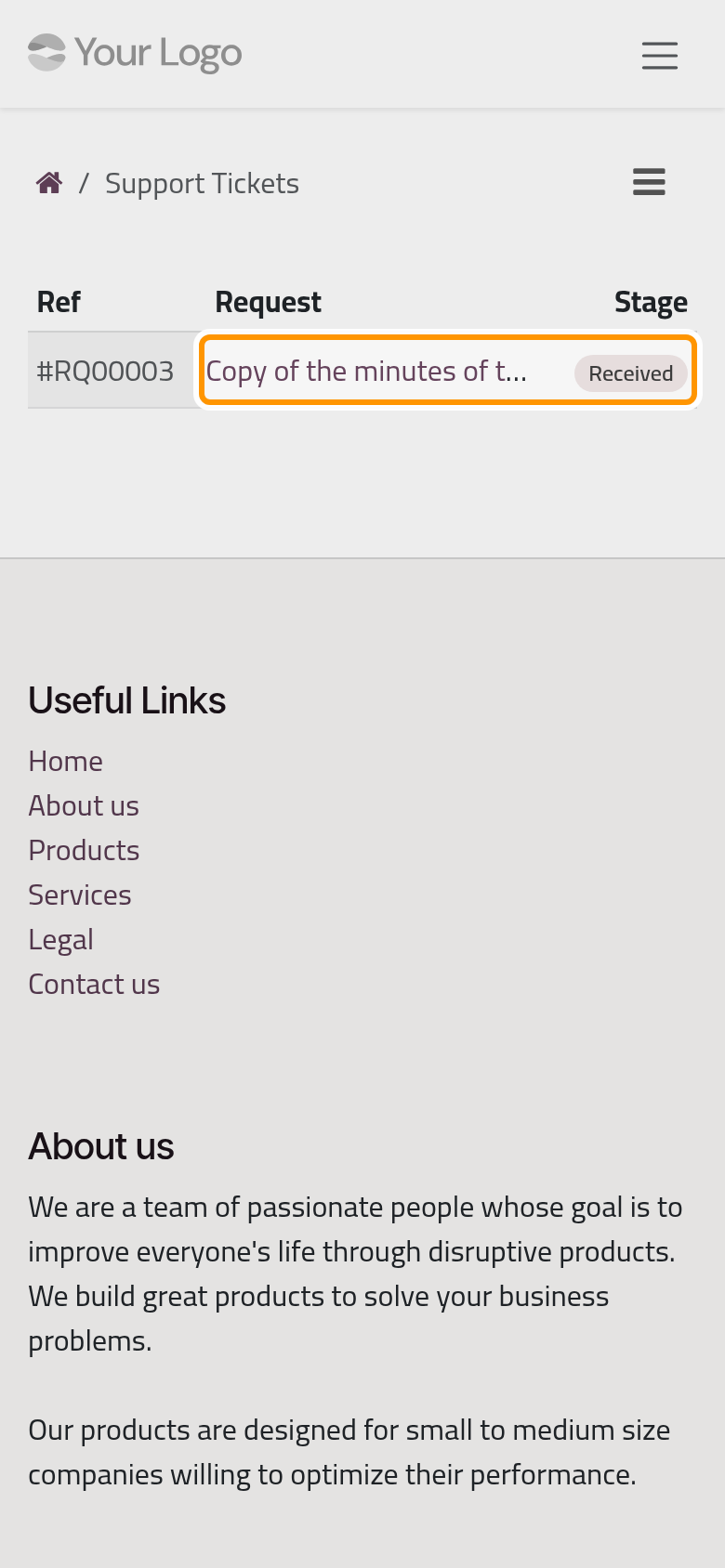
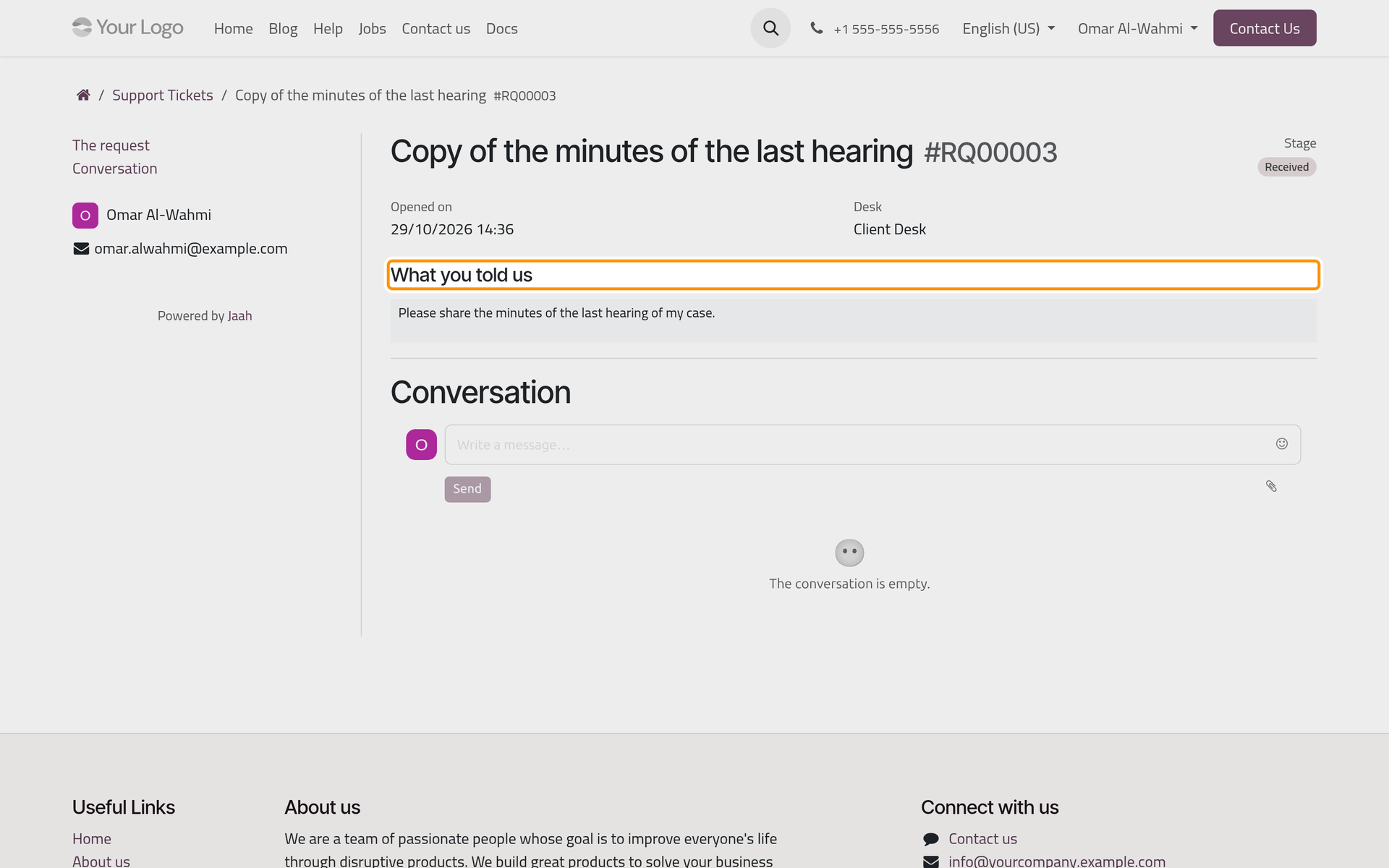
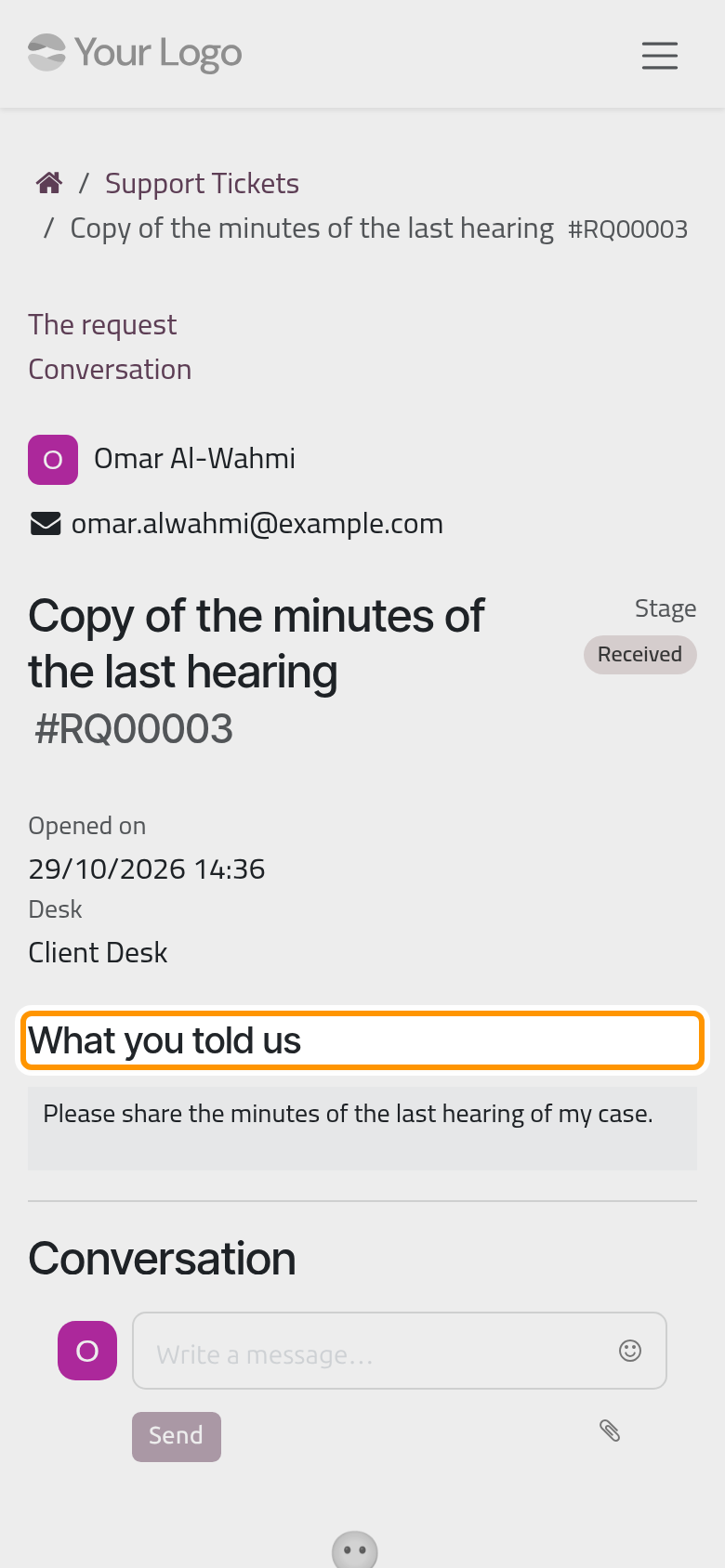
A request's page shows its stage, when it was opened, its desk and What you told us, then the Conversation with the desk, where you answer. Mark as finished appears when the desk lets clients close their own requests. The list has no button for a new one: a new request reaches the firm by e-mail or through the help form of the website, when the firm offers them: Take requests from the website.
FAQ
Can I change a request after sending it?
Not from the portal. Write to the firm, or send a new request.
The collection request does not go through.
Debt Proofs is required: add at least one PDF file or image before Submit.
Who handles my legal request?
The lawyers the firm chose to receive new requests; they register it as a case, a consultation or an execution, or reject it with a reason.
Was this page helpful?
Thank you for your feedback.