Client portal settings
On this page
Two settings shape the portal itself: Customer Account, in the website settings, decides who may open an account, and Customers can generate API Keys, in the general settings, decides whether clients may connect outside programs to their account. The password and two-factor options of the general settings apply to clients too; they are explained with the other users.
Before you start
- Settings need the Administrator role on your user.
- Customer Account belongs to each website; Customers can generate API Keys applies to the whole database.
Customer Account
Open . In the General group, Customer Account, with the help line Let your customers log in to see their documents, offers two choices.
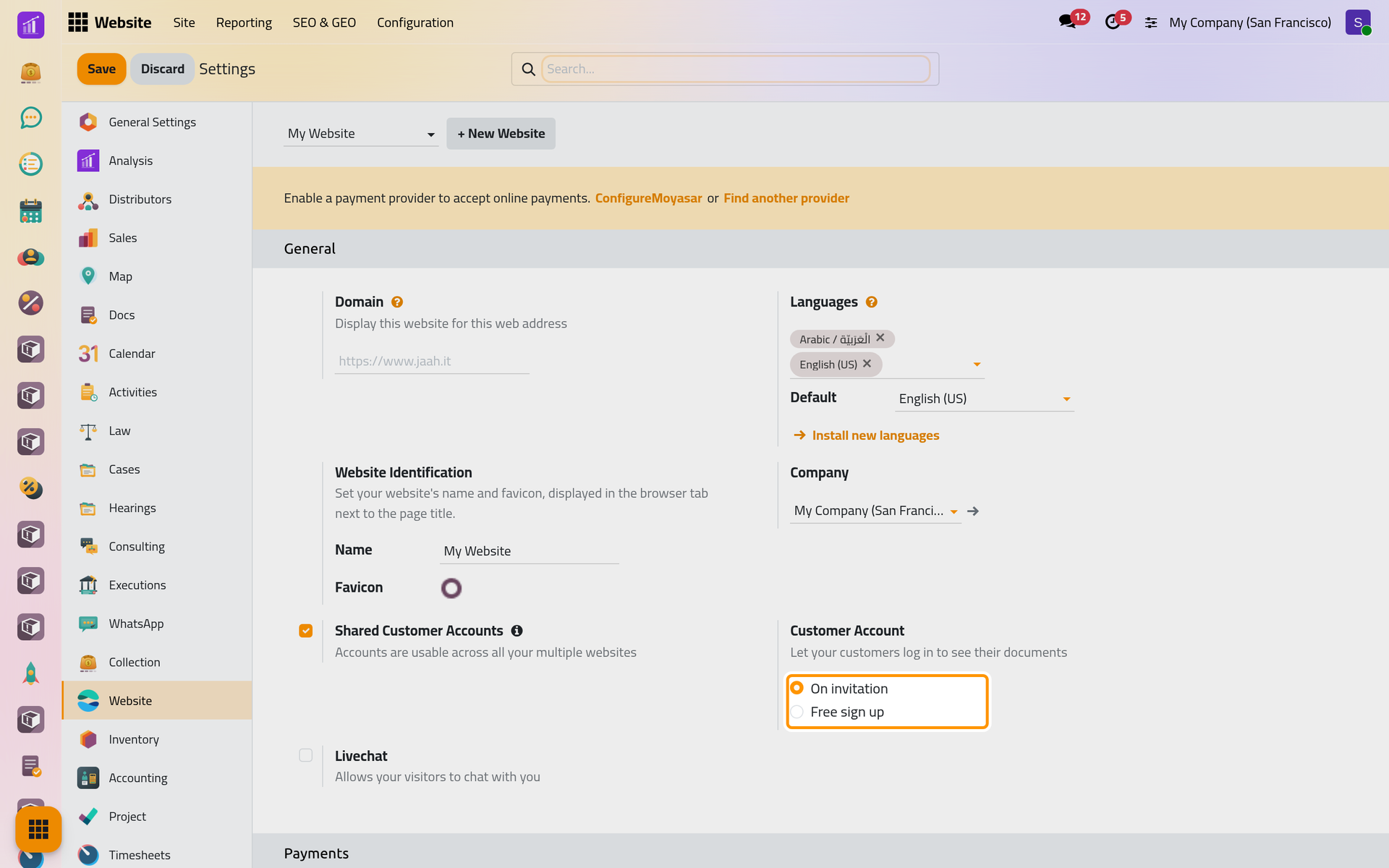
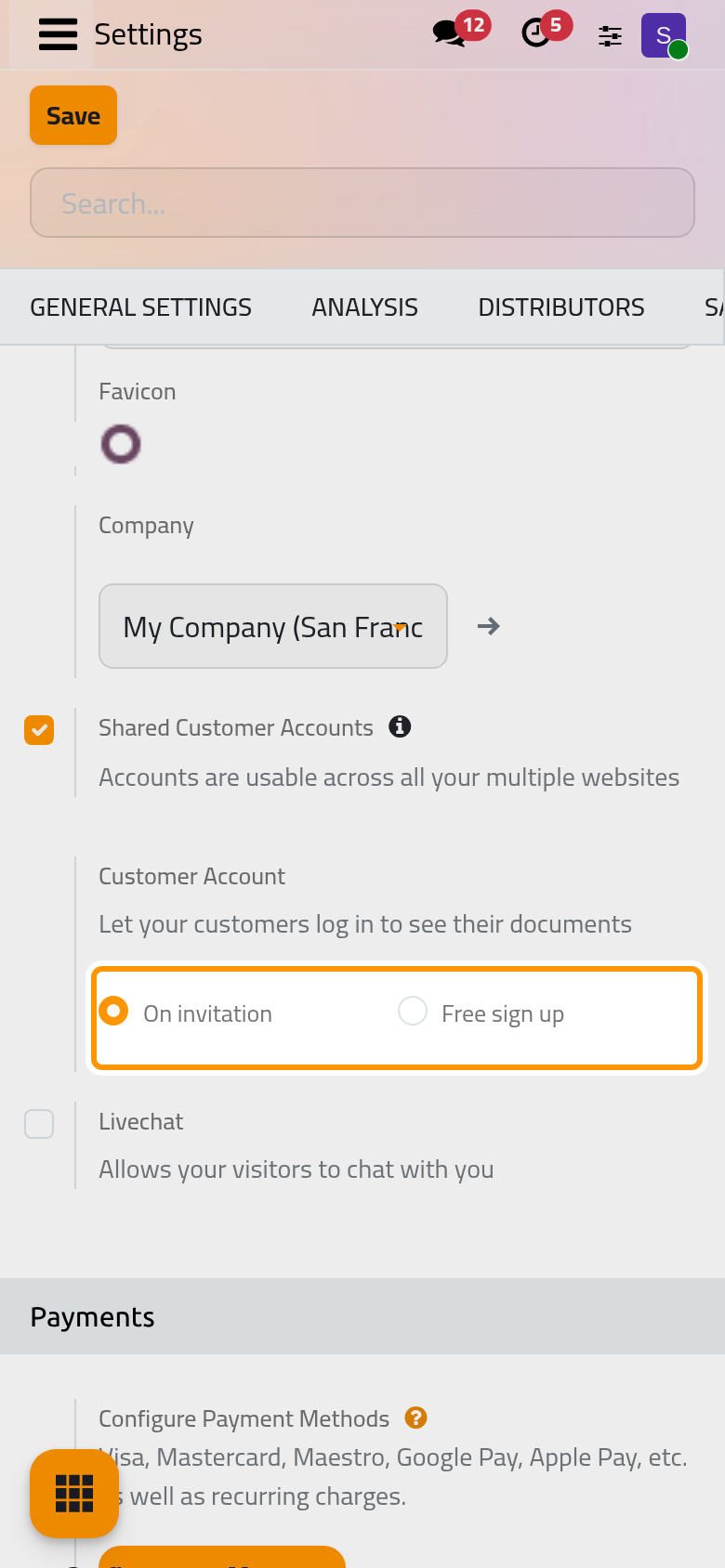
- On invitation, the choice of the demo website: a client gets an account only when the firm grants it from the contact, as Give a client portal access shows. The sign-in page offers no way to sign up.
- Free sign up: the sign-in page also offers a Sign up button, and any visitor can create an account with a name, an e-mail address or a mobile number, and a password. Every new portal account, invited or signed up, copies the access rights of a default portal account, which the Default Access Rights link opens; the link appears only with this choice.


An account created by sign-up belongs to a new contact that nothing is attached to yet: it sees no case, invoice or contract until the firm names that contact on its records, following Choose what a client sees. Click Save to apply a change, or Discard to leave the setting as it was.
With several websites, each one keeps its own choice. Whether one account works on all of them is the Shared Customer Accounts setting of Website settings.
Customers can generate API Keys
An API key lets an outside program sign in to the account in the client's place. The option shows only in developer mode: open , click Activate the developer mode (Developer mode and the technical menus), then find Customers can generate API Keys under API Keys in the Permissions group.
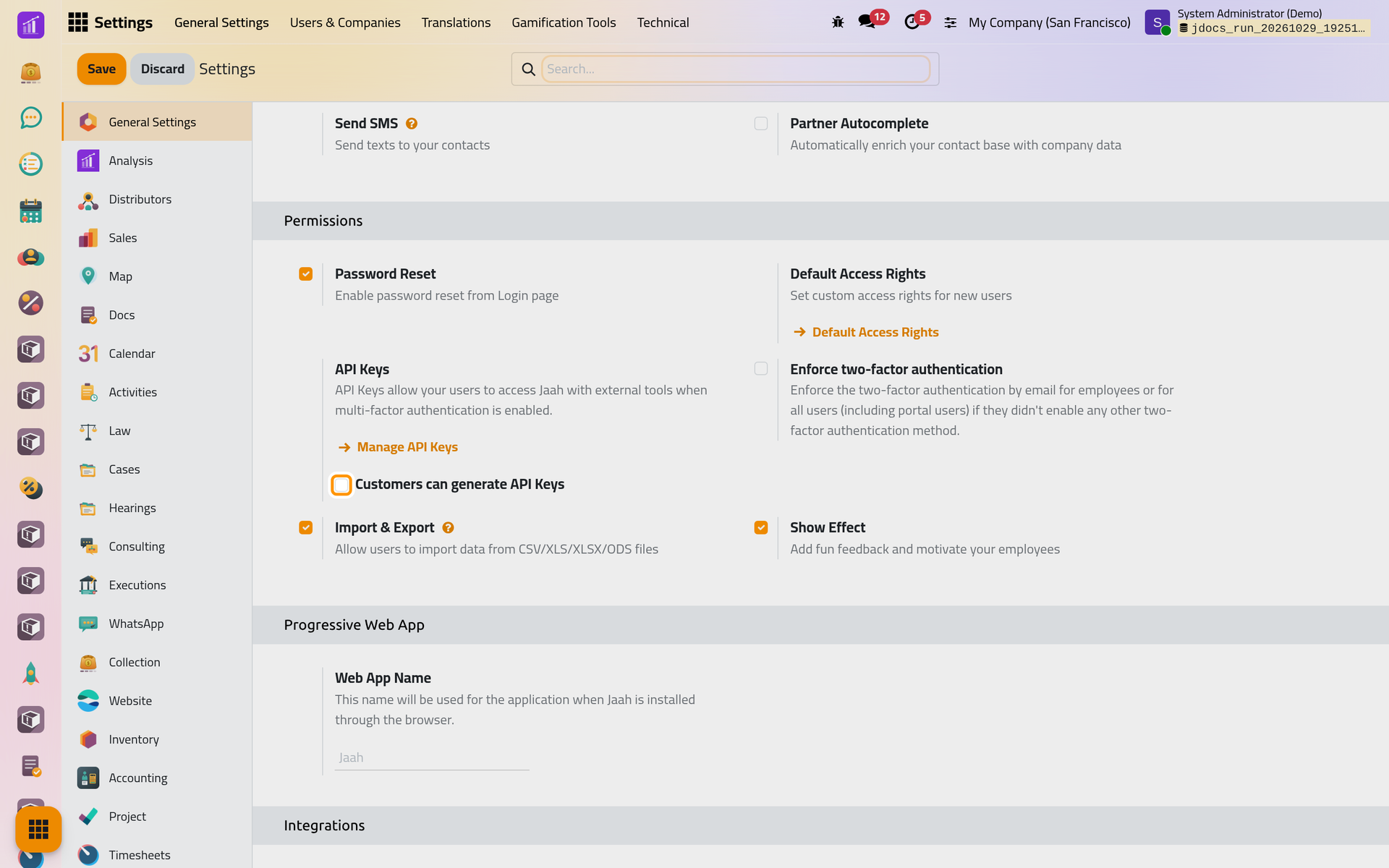
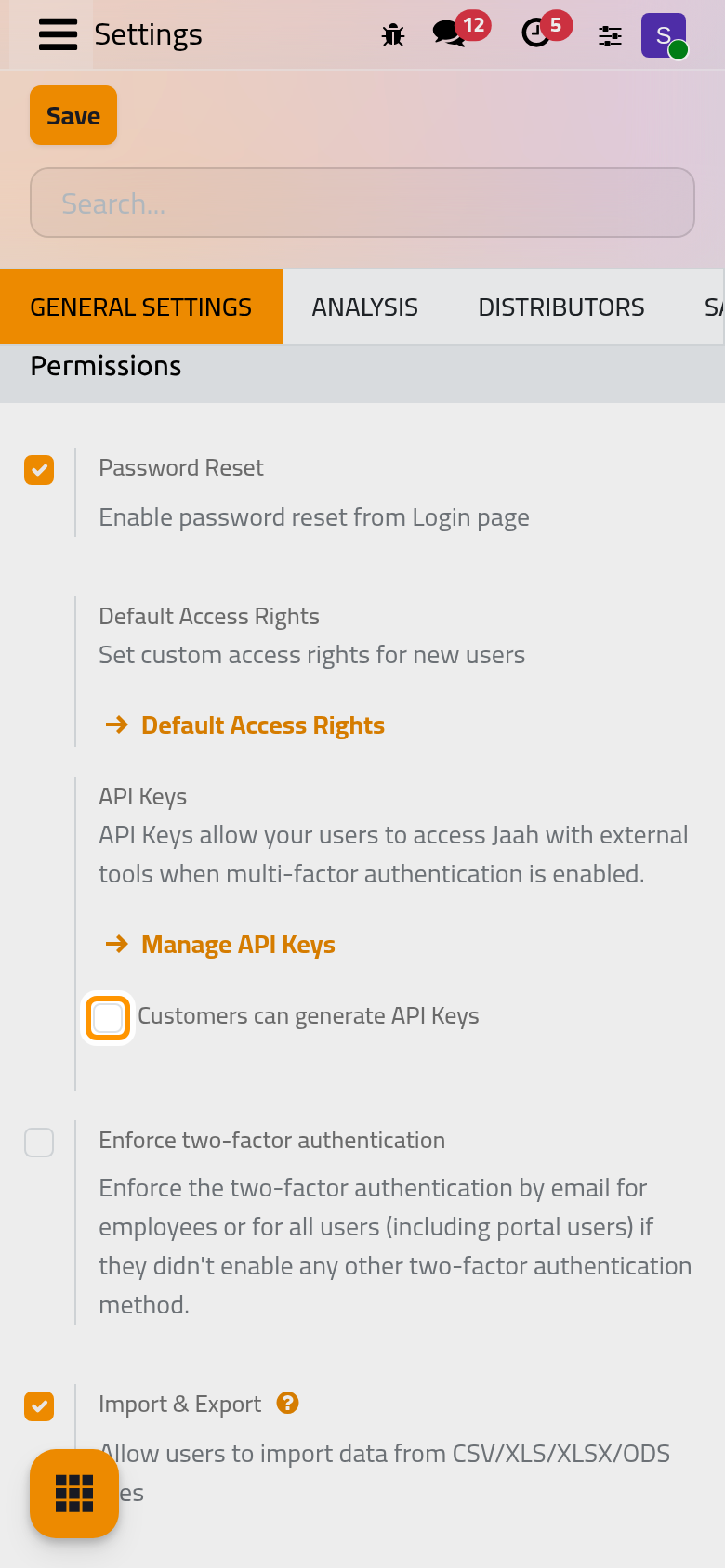
It is off by default. On, a client who opens Connection & Security in developer mode finds a Developer API Keys section to create and delete keys. Leave it off unless a client asks for such a connection, and turn it off again when it ends. Click Save to apply.
Passwords and two-factor authentication
Password Reset puts the Reset Password link on the sign-in page, and Enforce two-factor authentication set to All users asks portal users for a code too. Both are explained in General settings: users and security. The client manages their own password, two-factor authentication and passkeys from Connection & Security: Your account and security.
FAQ
With Free sign up, can a stranger see our records?
No. A new account sees only what the rules let in, and a new contact has no record attached. It can still send the firm a legal request from its home page, like any client.
I do not see Customers can generate API Keys.
Activate the developer mode first; the option is hidden outside it.
Where do I change the text of the invitation?
The message typed in the access window ends each invitation. The e-mail itself is described in Client portal automations.
Was this page helpful?
Thank you for your feedback.