Projects, tasks and timesheets
On this page
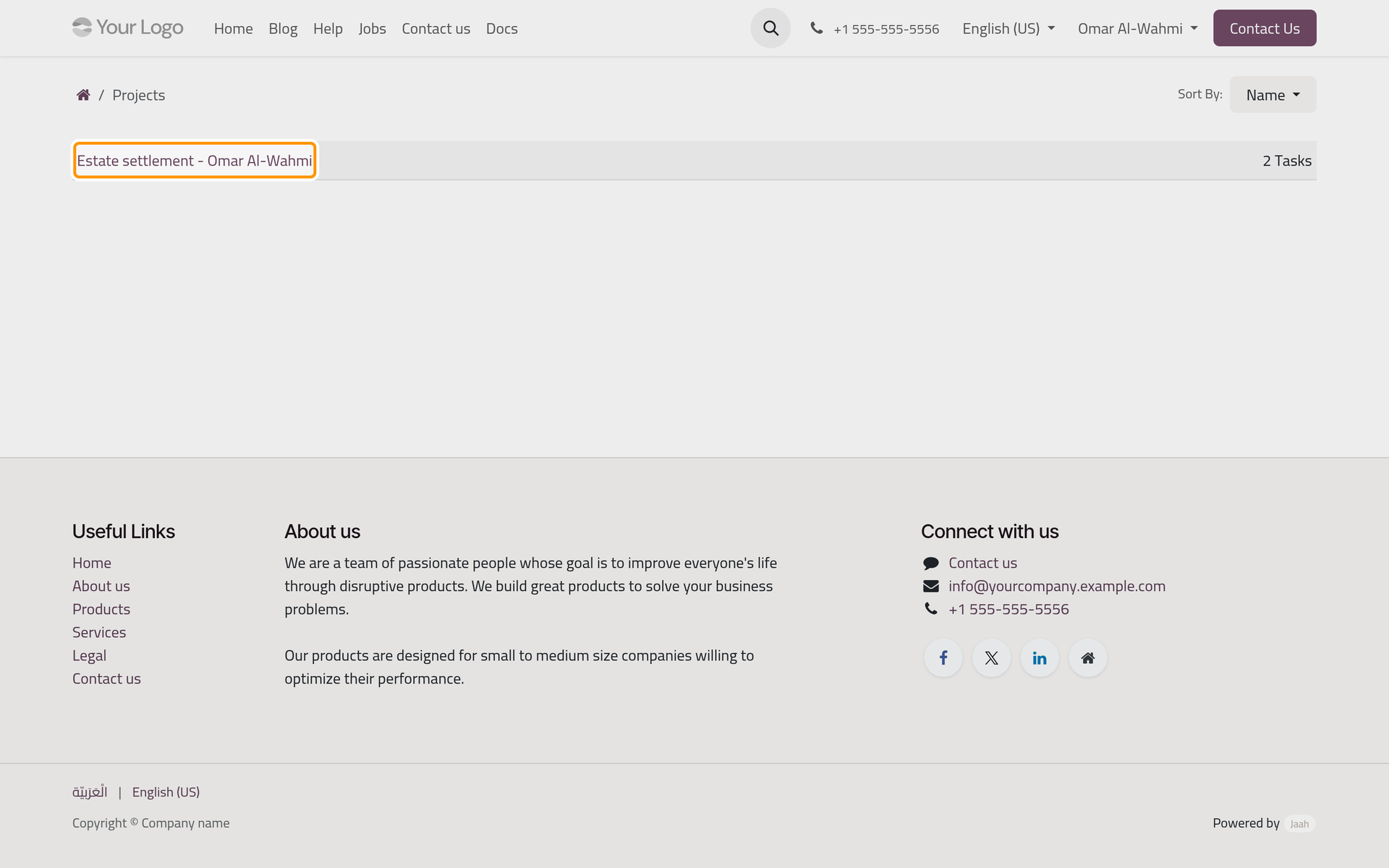
When the firm runs a piece of work for a client as a project, the client can follow it from the portal: its tasks, who works on them, how far they are, and the hours spent. The demo client Omar Al-Wahmi follows the project Estate settlement - Omar Al-Wahmi, with two tasks and one time line of two hours.
Before you start
- The firm shares the project with the client: its visibility lets portal users in, and the client or their company follows it. The firm's side is explained in Share a project with a customer, the rules in Choose what a client sees.
- Time appears only on a project that records timesheets: Projects and timesheets.
Your projects
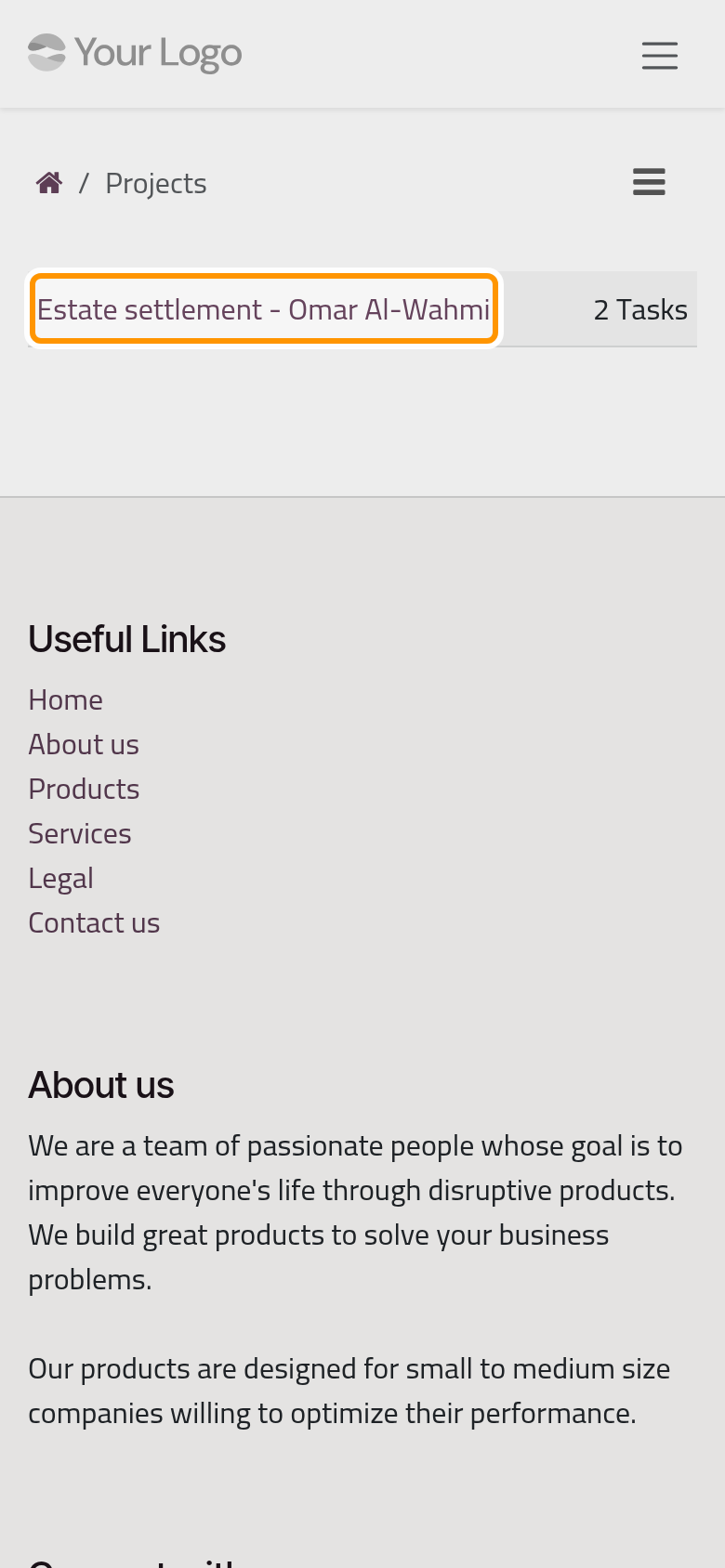
On the home page of the portal, open Projects. Each project is listed with the number of its tasks; Sort By orders them.
The tasks of a project
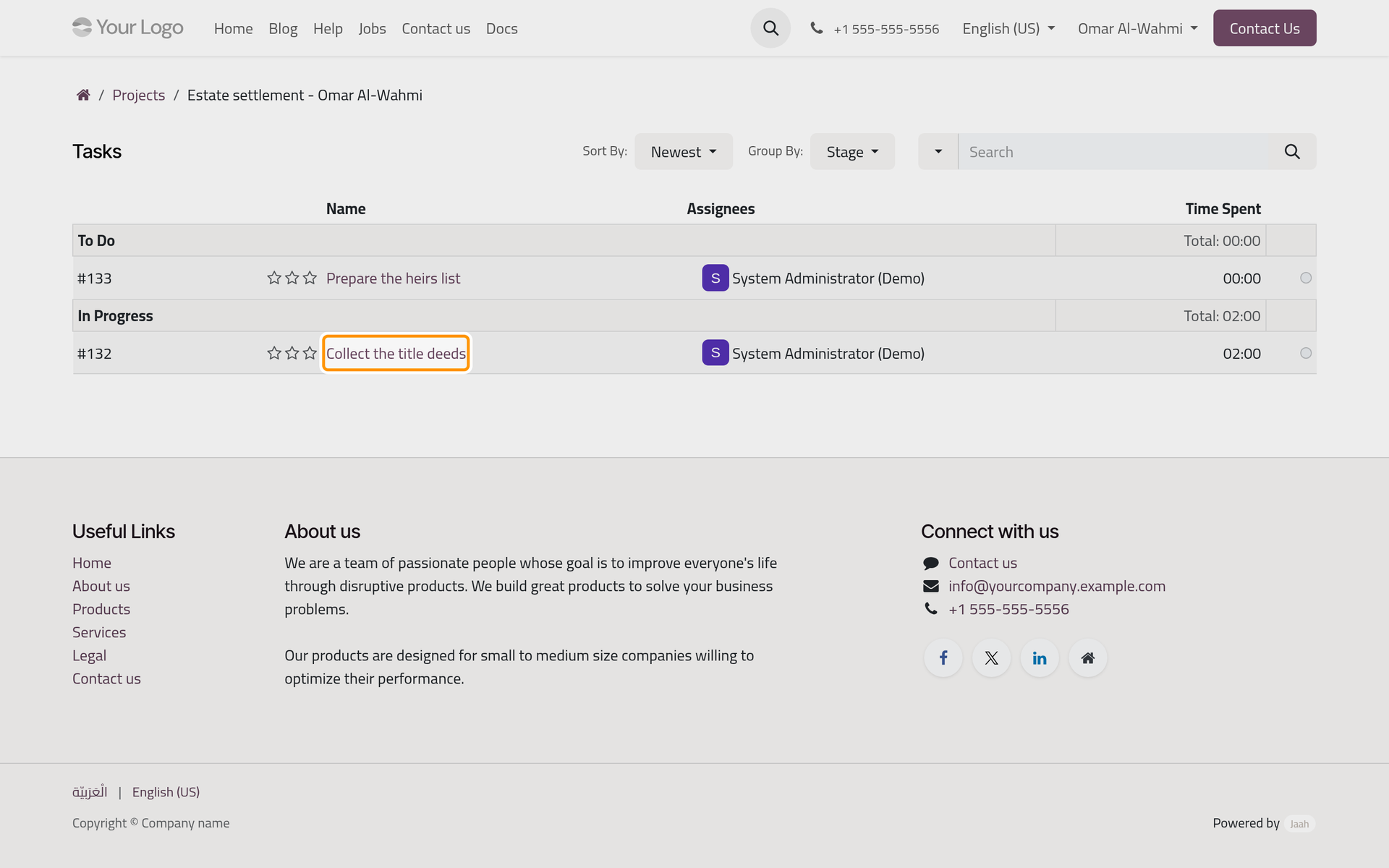
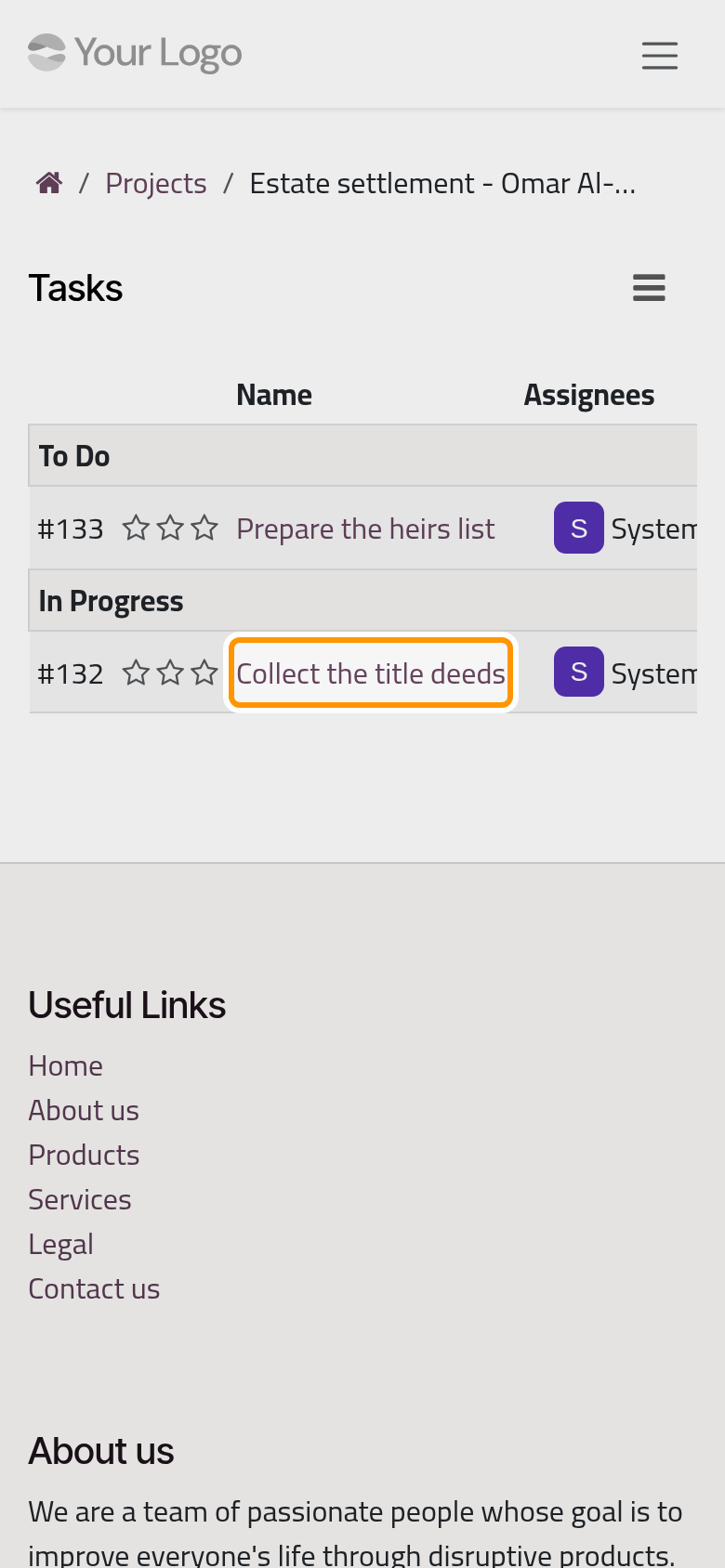
Click a project. Its tasks are listed with their number, their priority stars, their Name, their Assignees, the Time Spent on each and a dot that shows their status, such as In Progress, when you point at it. A total of the time sits above the rows. Group By gathers the tasks by Stage by default, or by status, priority or customer; Sort By orders them, and the search box finds a task by its name, assignee, stage, status or priority.
A task
Click a task. Its page shows its name and number, its Stage, its Project and its Priority, then a Timesheets table: the Date, the Employee, the Description and the Time Spent of each line, with the Total Time Spent.
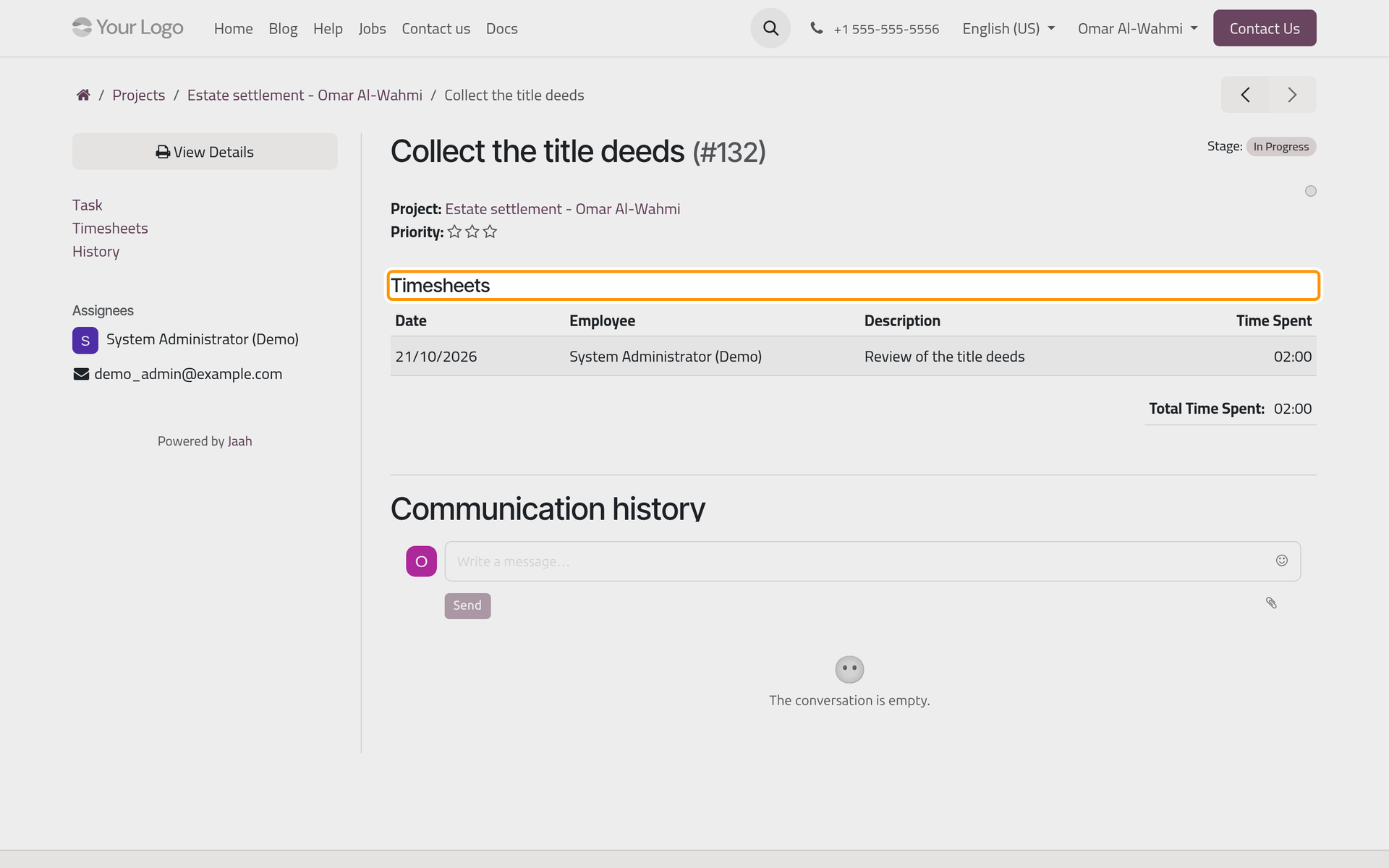
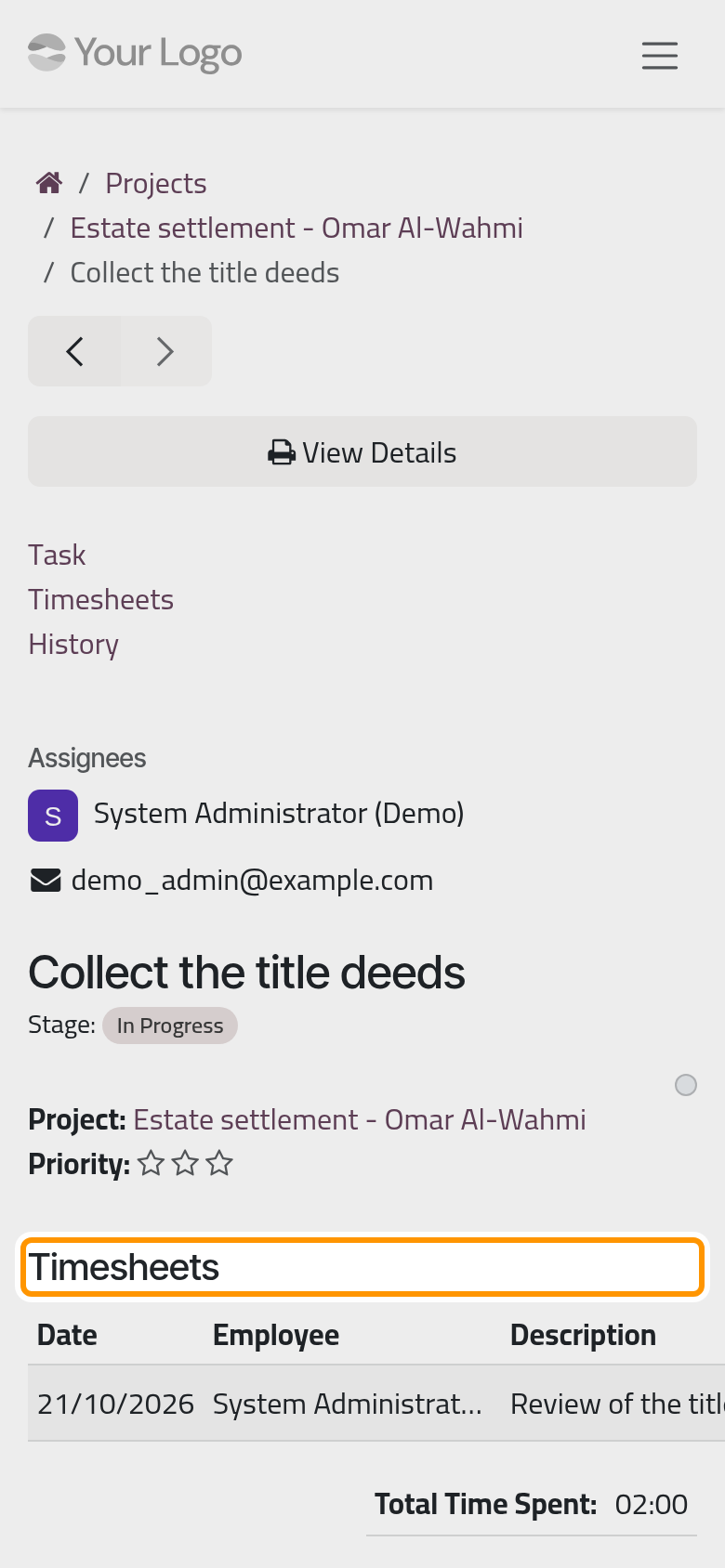
The column on the side names the Assignees with their e-mail address, and links to the parts of the page. View Details opens the task with its time lines as a PDF. At the bottom, Communication history lets the client write to the team; the message lands on the task in the firm.
Tasks on the home page lists the tasks of every shared project together, grouped by project, with the same columns.
Your timesheets
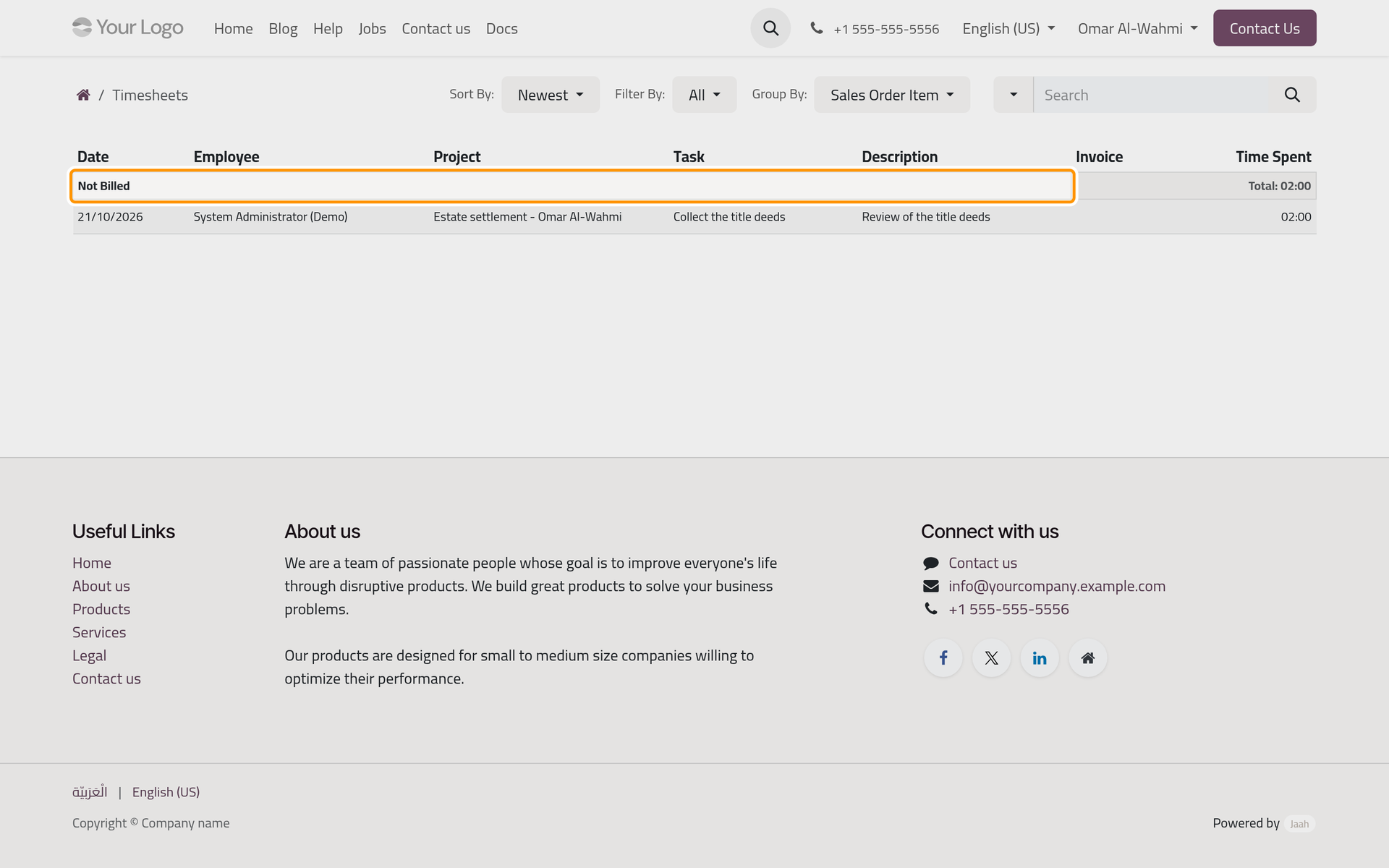
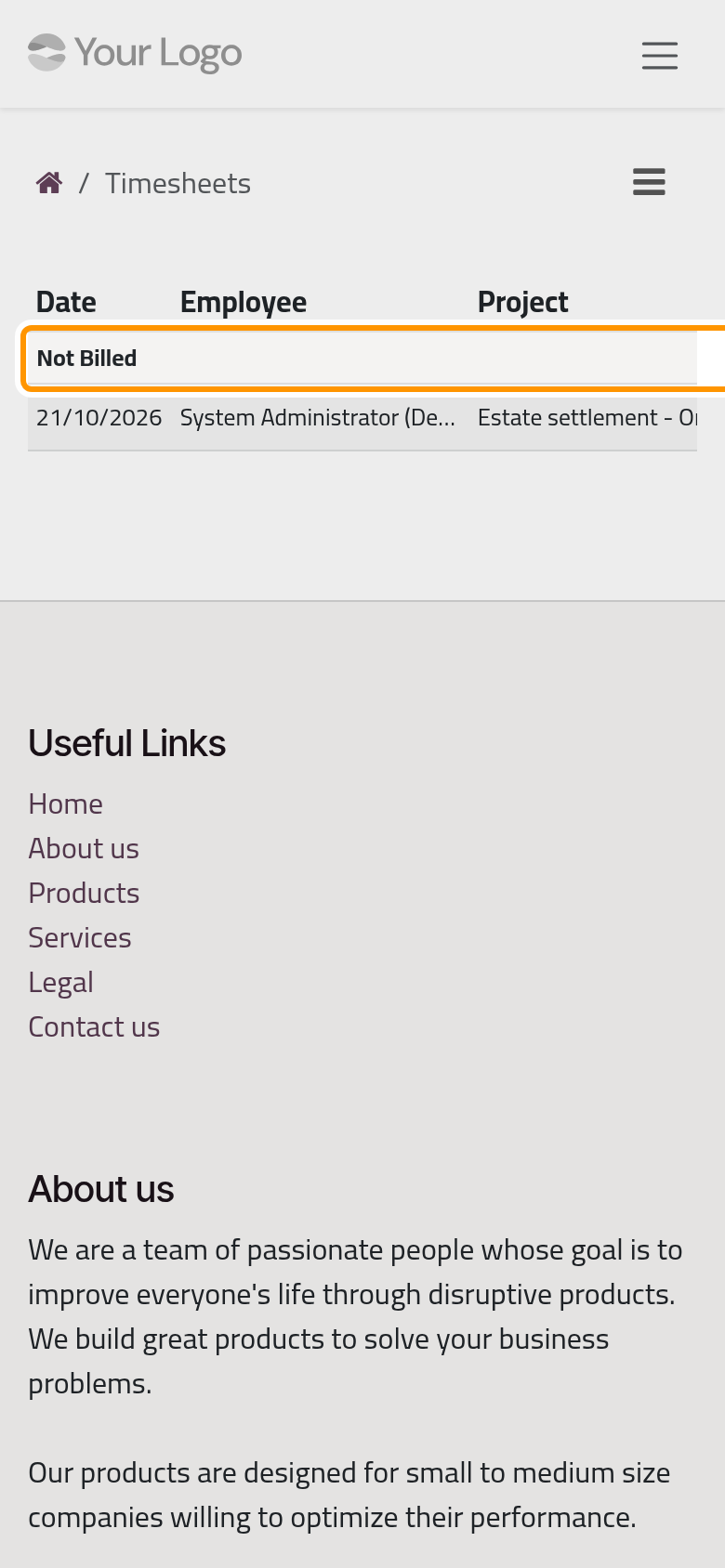
Timesheets on the home page lists every time line of your projects: Date, Employee, Project, Task, Description, Invoice and Time Spent. The lines are grouped by Sales Order Item, the line of the order the time is billed on; Not Billed gathers the time that no order line covers. Filter By narrows the list to a period, such as This Month or Last Year, and Group By gathers the lines by date, project, task, employee or invoice instead.
FAQ
Why do I not see a project of mine?
The project is not shared with you yet: its visibility keeps portal users out, or neither you nor your company follows it. Ask the firm to share it.
Can I change a task?
Only if the firm gives you edit access to the project. The project then opens as a board where you change the tasks you are allowed to; otherwise the pages are read only and you write to the team instead.
What does Not Billed mean?
That the time is not tied to a line of a sales order. It can still be part of the work agreed with the firm; ask the firm how it is billed.
Why is a task's time 00:00?
Nobody has recorded time on it yet. The total of the project adds the time of all its tasks.
Was this page helpful?
Thank you for your feedback.