Your client's first visit
On this page
The client portal is the part of the website where a client signs in to follow their own files: cases and hearings, consultations, contracts, invoices, quotations, projects and requests. It shows the records the firm already keeps, and only those that concern the client. This walk-through follows one client, Hind Al-Wahmi, from the moment the firm opens her account to her first page. On the demo database she already has a case, CA/2026/0003, and no account yet.
Before you start
- You need the Contact access right at Creation: the access window belongs to contacts.
- The client's contact needs a valid e-mail address that no other user already uses to sign in.
- On the demo website, Customer Account is set to On invitation: clients get an account only when the firm grants it. Client portal settings explains the other choice.
Step 1: check the contact
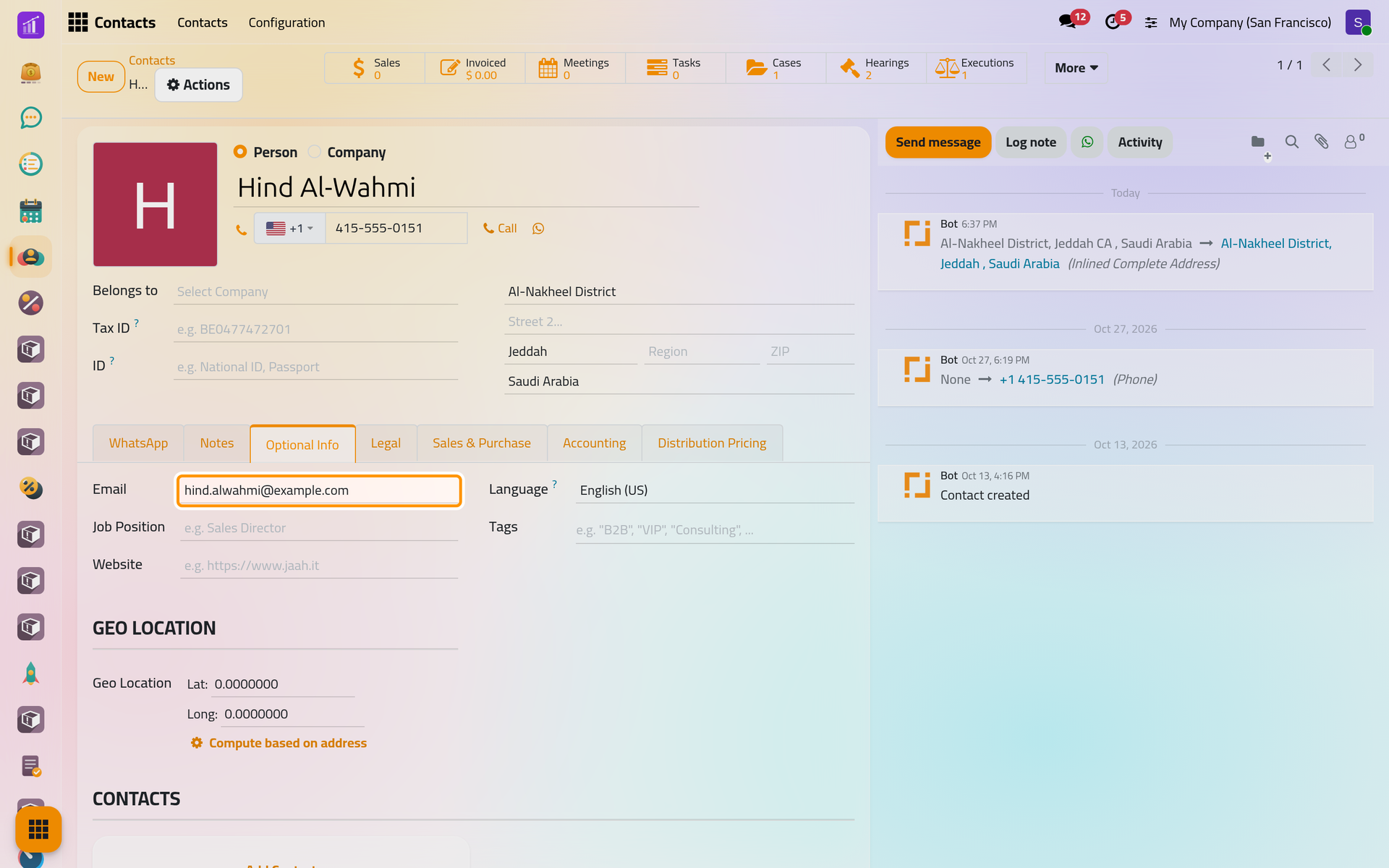
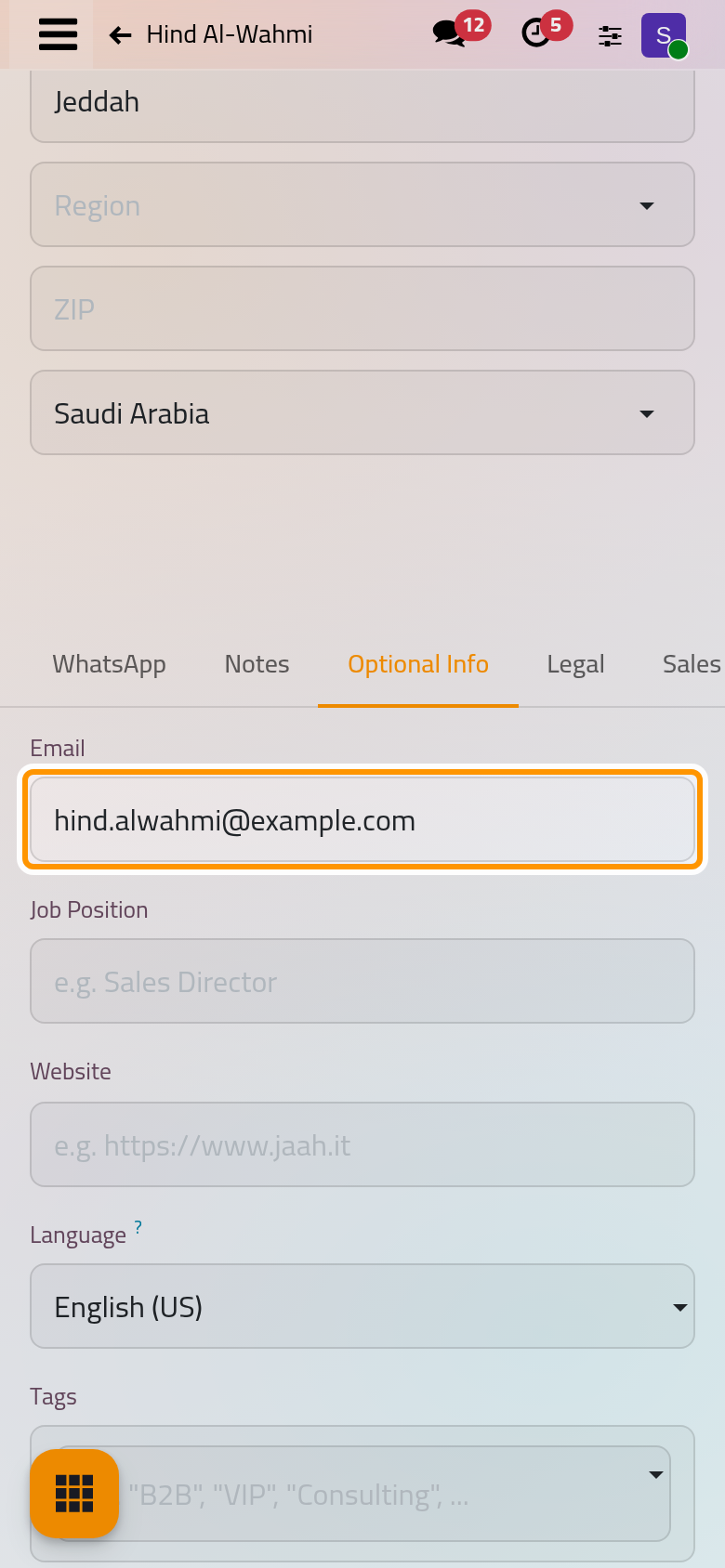
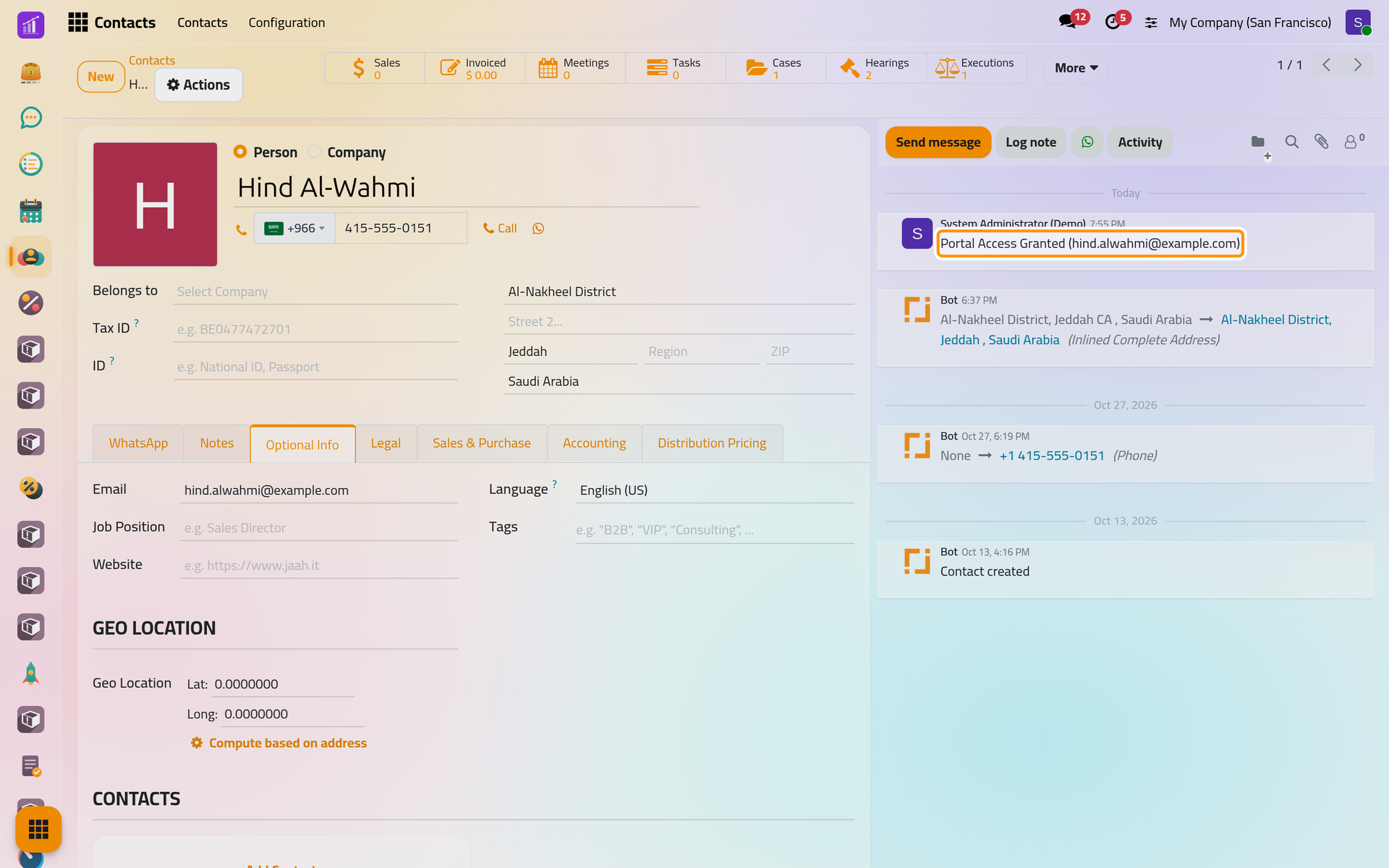
Open , search for Hind Al-Wahmi and open her contact. On the Optional Info tab, the Email is the address the invitation goes to, and it becomes her login. The Language beside it decides the language of the invitation and the language her pages first open in: set it to Arabic for a client who reads Arabic before you go on.
Step 2: open the access window
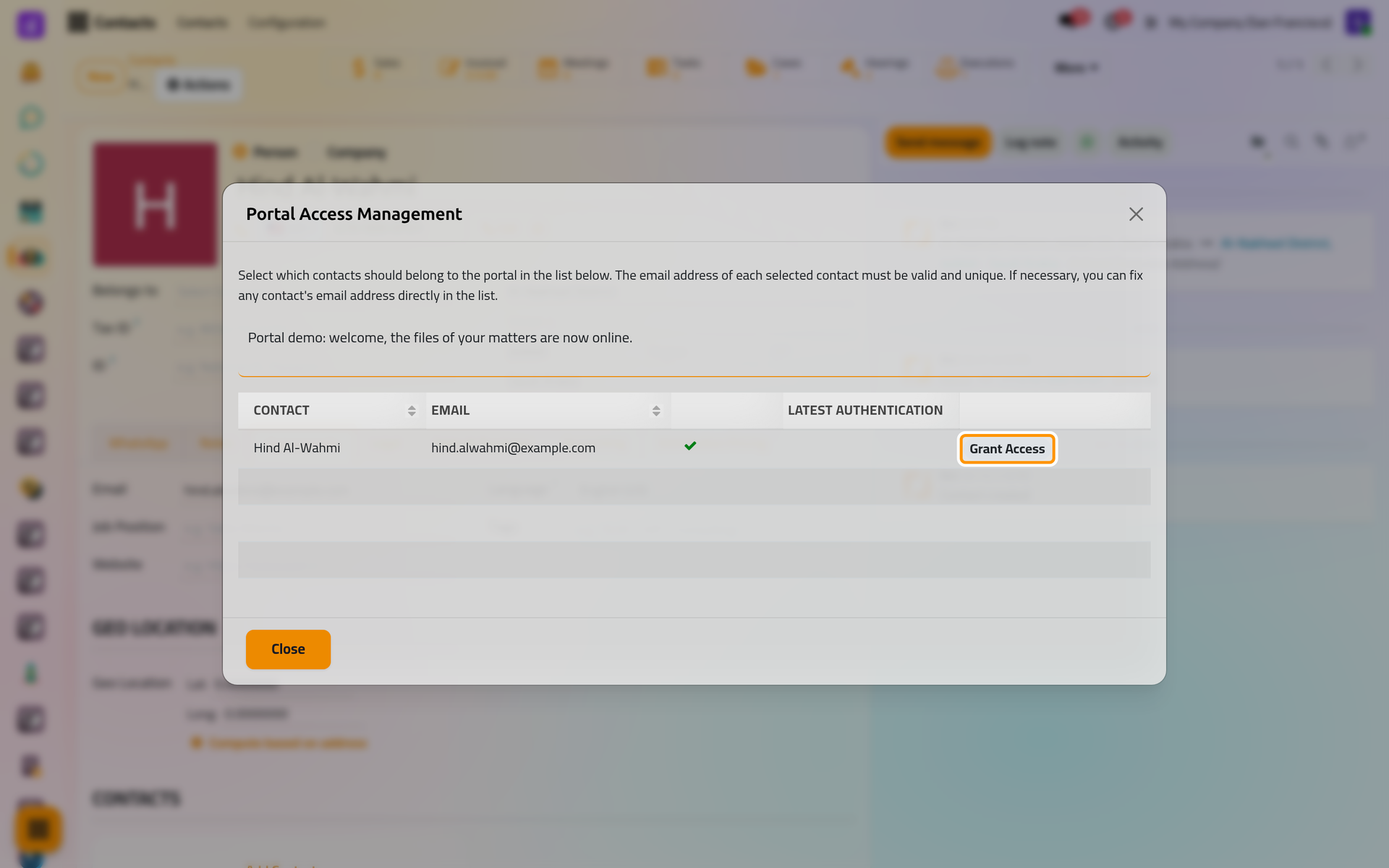
Click Actions, then Grant portal access. The window lists the contact with her e-mail; a green tick says the address can be used. Opened on a company, it lists the company and each of its people, every one on its own row: Give a client portal access shows that case.
In the box above the list, type a short message, here Portal demo: welcome, the files of your matters are now online. It is added at the end of the invitation e-mail. On a phone the window fills the screen and the list scrolls sideways to reach the buttons.
Step 3: grant the access
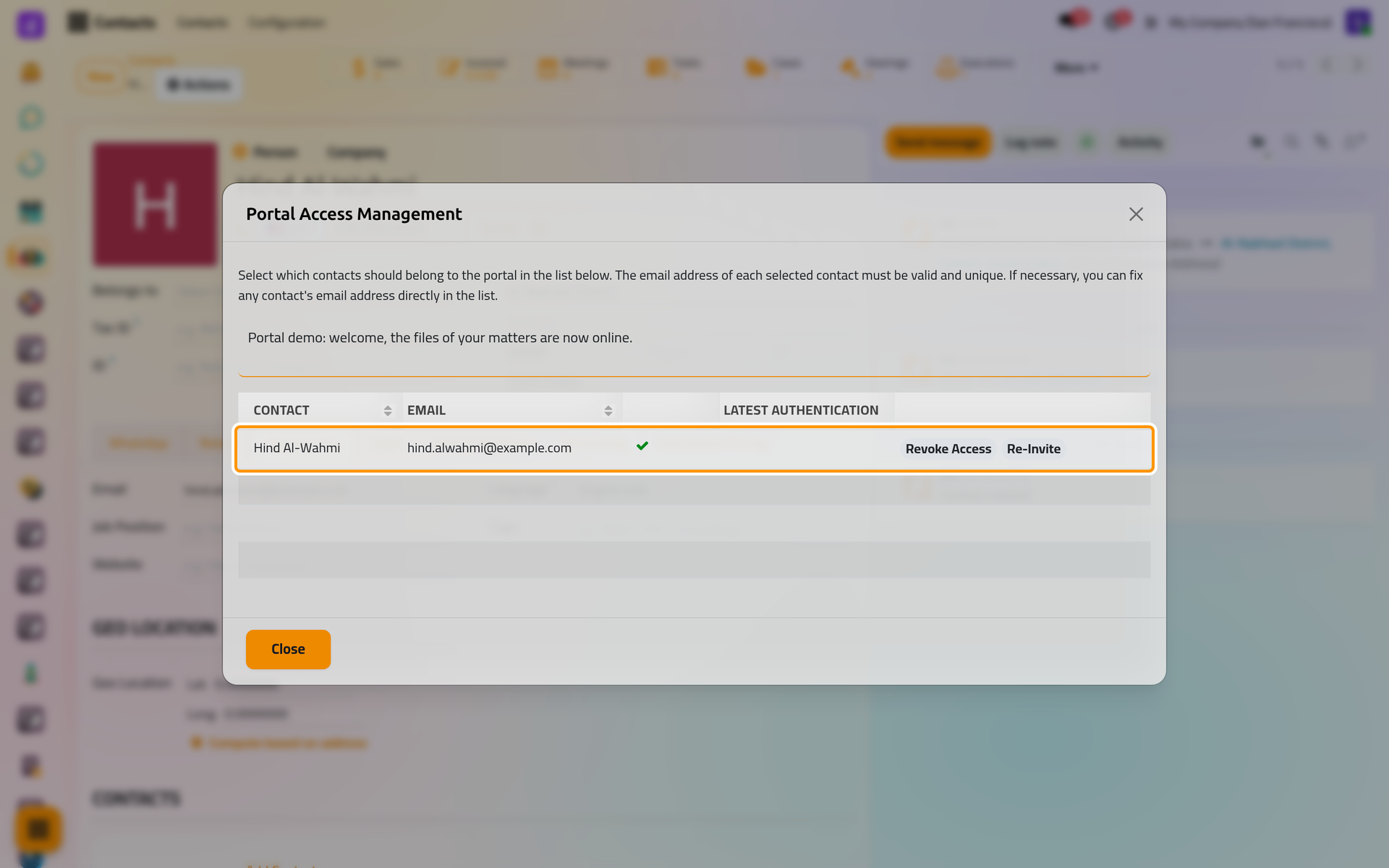
Click Grant Access on her row. Two things happen at once: a portal account is created for the contact, and the invitation e-mail leaves. The row now offers Revoke Access and Re-Invite; Latest Authentication stays empty until she signs in.
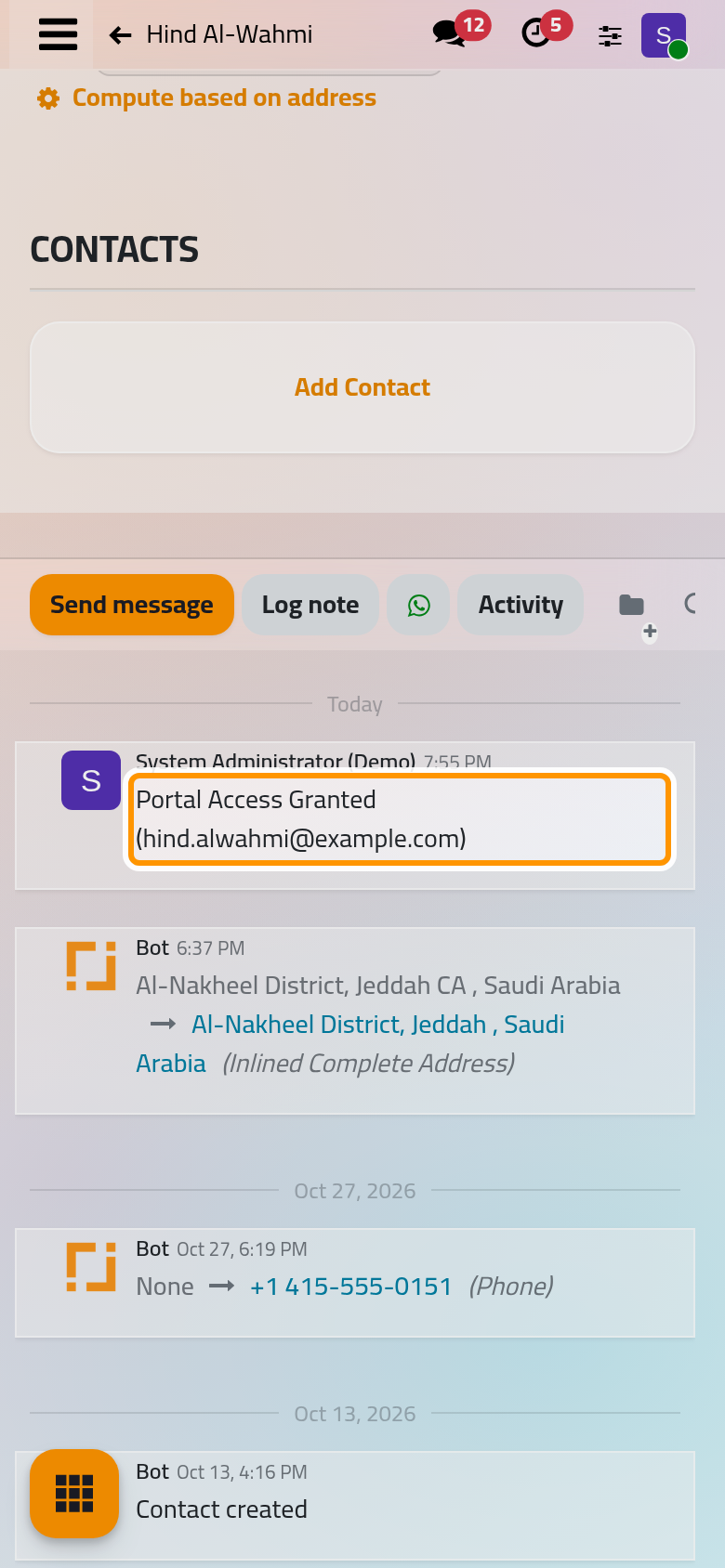
Click Close. The chatter of the contact records the step, Portal Access Granted, with the e-mail address it was granted to.
A portal account is not an internal user: it opens no app of the back office, only the client's own pages on the website. Create a user and set access rights explains the kinds of users.
Step 4: the invitation
The e-mail is titled Your account at followed by the company's name. It greets the client, gives her login, and carries an Activate Account button, followed by your message.
The button opens a page of the website where she confirms her name, may add a mobile number, and chooses a password that meets the rules listed under the box, then signs up. She is signed in at once and lands on her portal home page, and a second e-mail welcomes her to the company. The link of the invitation is valid for six days, and it stops working as soon as she has signed in once, or when the firm revokes her access. If it has expired, open the access window again and click Re-Invite: a new e-mail with a new link leaves.
From then on she signs in from the website's sign-in page with her e-mail and password; a forgotten password is renewed from Reset Password on the same page (General settings: users and security).
Step 5: her first page
The home page of the portal is titled My account. At the top, two buttons send the firm a new legal request or a collection request. Below them, a band lists what waits for her, such as a quotation to review. Then come the cards of her records, one card for each kind: Cases, Hearings, Consultations, Contracts, Your Invoices and so on. A card appears only when she has at least one record of its kind, so Hind finds a Cases card that leads to CA/2026/0003, and no card for kinds she has nothing in. The Addresses and Connection & Security cards are always there, and her contact card on the side carries Edit information.
How the client portal works pictures this page as a client sees it.
What happens next
Which records reach her depends on rules of each kind: the visibility of a case, the client named on a contract, the company on an invoice. Choose what a client sees sets them out. To stop or renew an access, see Give a client portal access.
The client's own screens have their pages: Follow your cases and hearings, Invoices, quotations and payments, Send a new request and Your account and security.
Was this page helpful?
Thank you for your feedback.