Your account and security
On this page
A client keeps their own details, addresses and sign-in security up to date from the portal. The details are those of the client's contact in the firm, so the firm sees each change. Nothing is saved on the screens below.
Before you start
- You are signed in to the portal: Give a client portal access.
- The firm's own users manage their security in the back office: Set your preferences.
Your details
On the home page of the portal, the card with your name shows your address and e-mail; click Edit information under it. Your name at the top of every page opens a menu with My Account, the home page, and Logout.
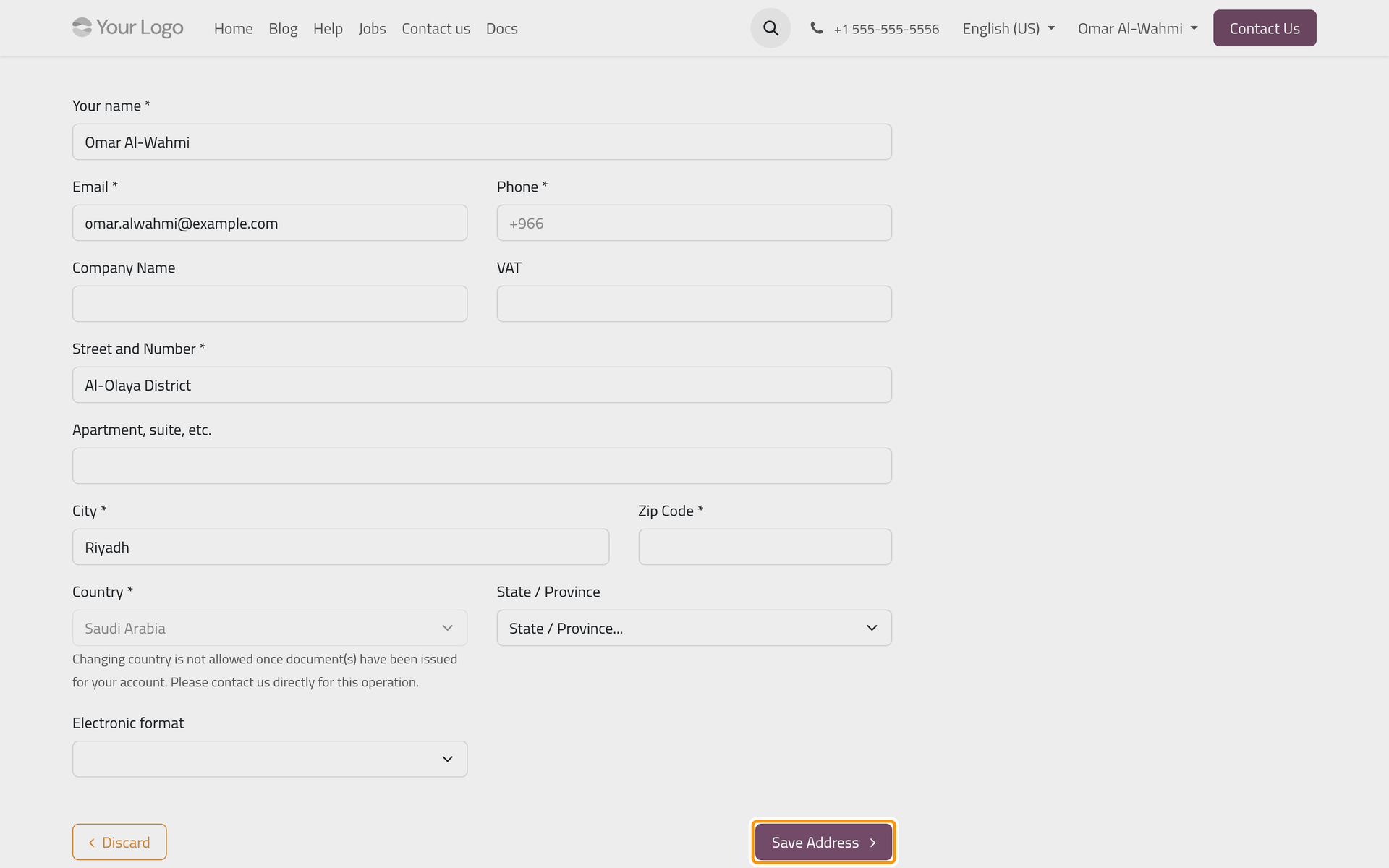
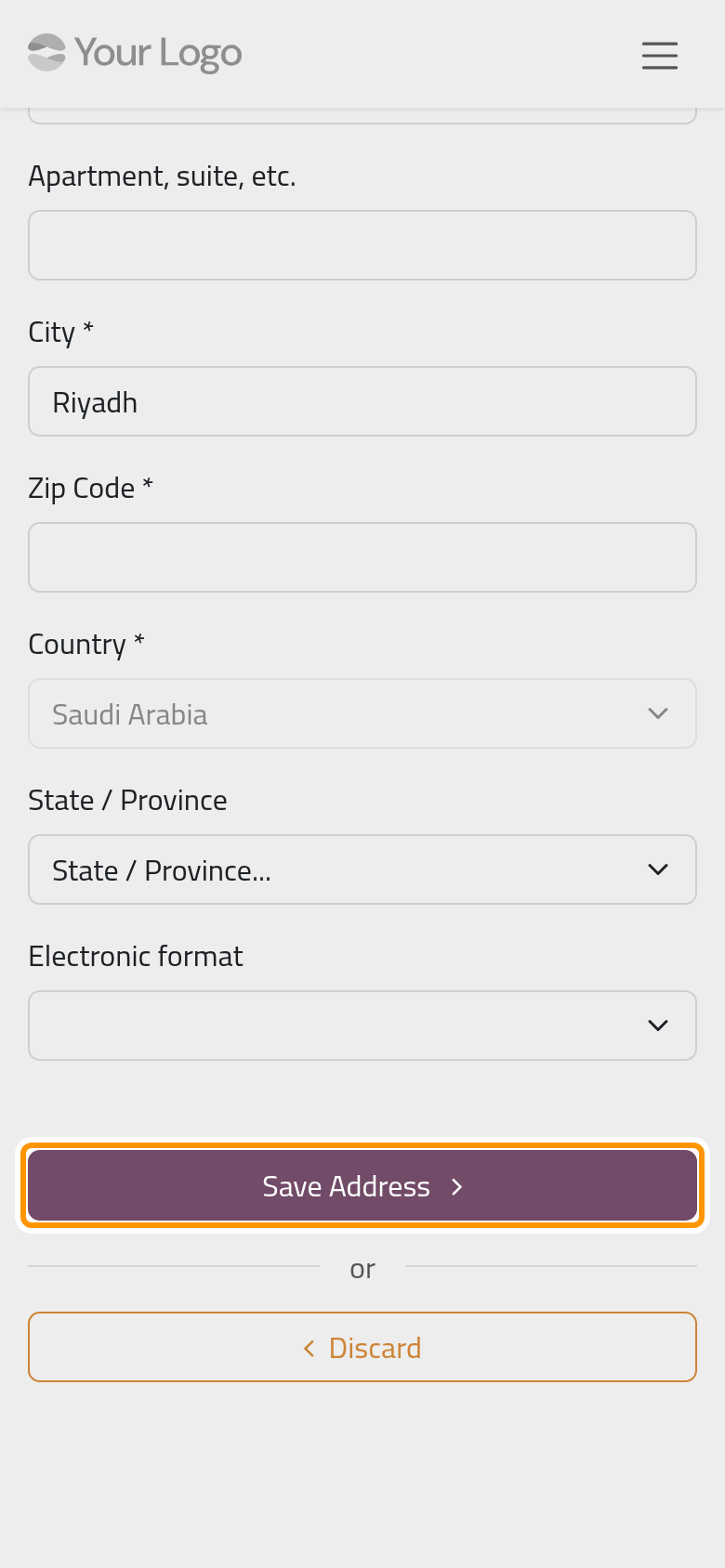
The form holds Your name, Email, Phone, Company Name and VAT for a client who buys as a company, Street and Number, Apartment, suite, etc., City, Zip Code, Country and State / Province. Leave Electronic format empty unless your software reads structured e-invoices. The fields marked with a star are required. Once the firm has issued documents to you, the Country is locked: ask the firm to change it. Save Address keeps the changes; Discard leaves without saving.
Your addresses
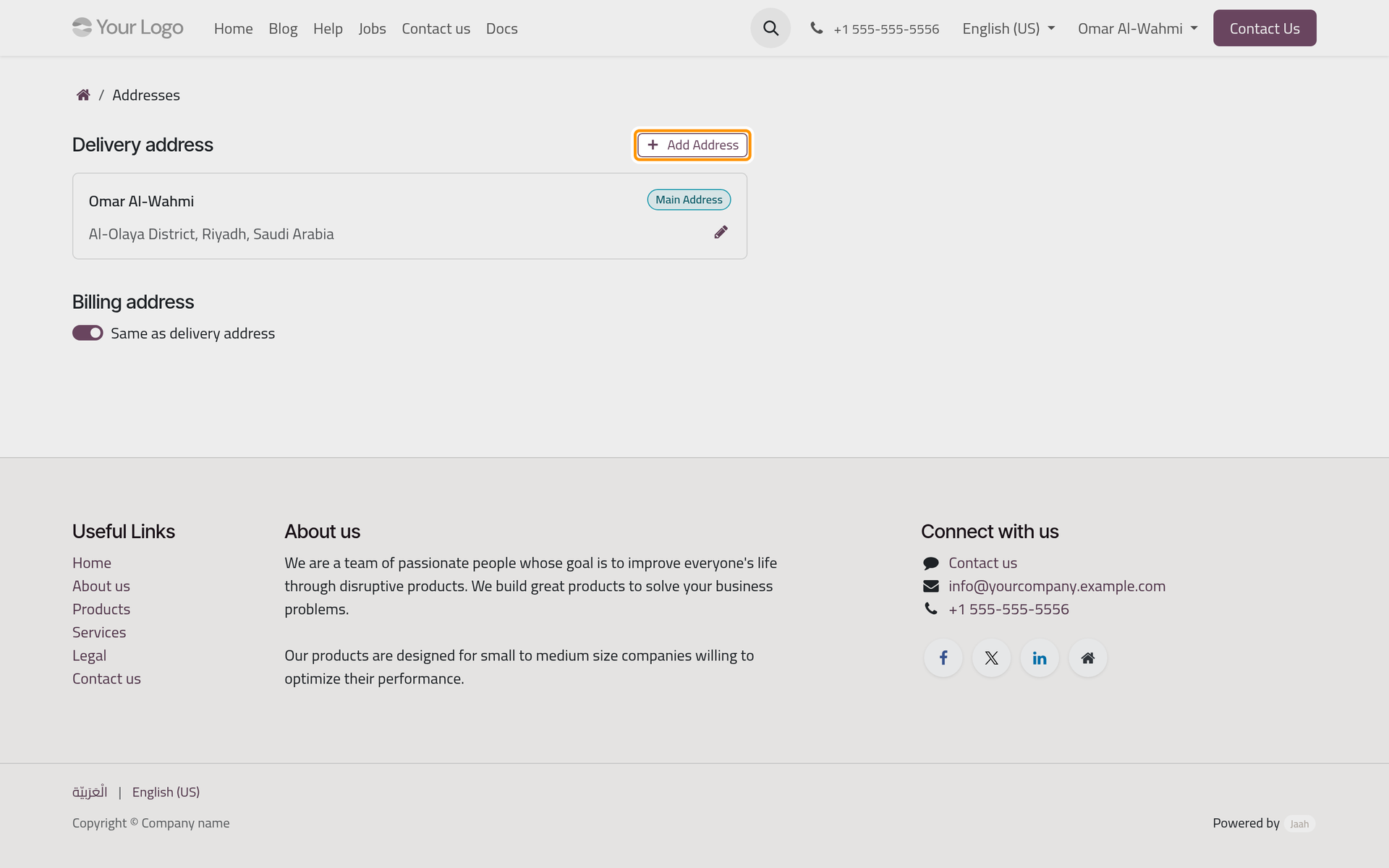
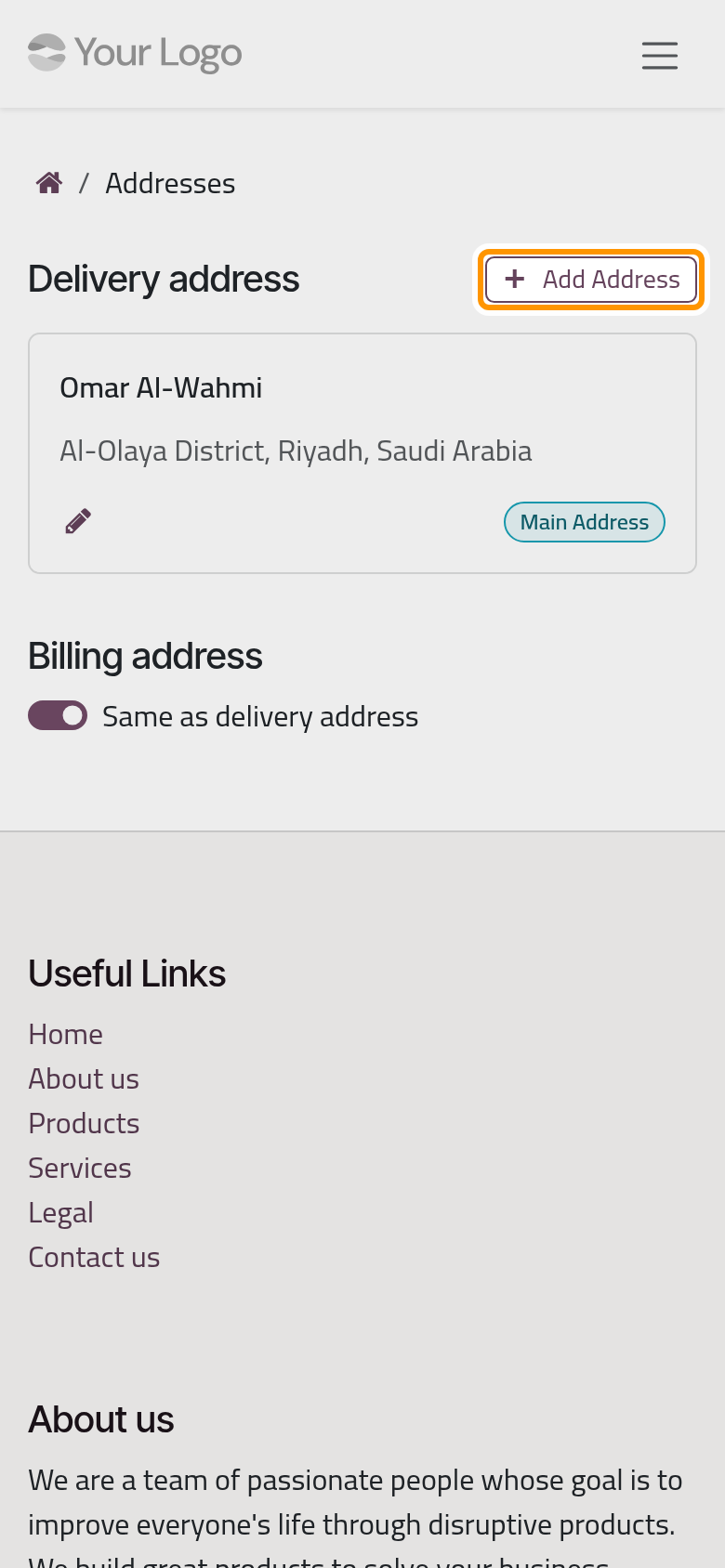
Addresses on the home page lists your Delivery address cards. The main one carries Main Address; the pencil of a card opens the same form to change it, and the bin removes a card other than the main one. Add Address adds another address.
Under Billing address, Same as delivery address is on: invoices go to the main address. Turn it off to show the billing addresses and add one for the invoices.
Connection and security
Connection & Security on the home page gathers the sign-in settings.
- Change Password: type the current Password, then the New Password twice, and click Change Password. The eye button next to each box shows what you typed.
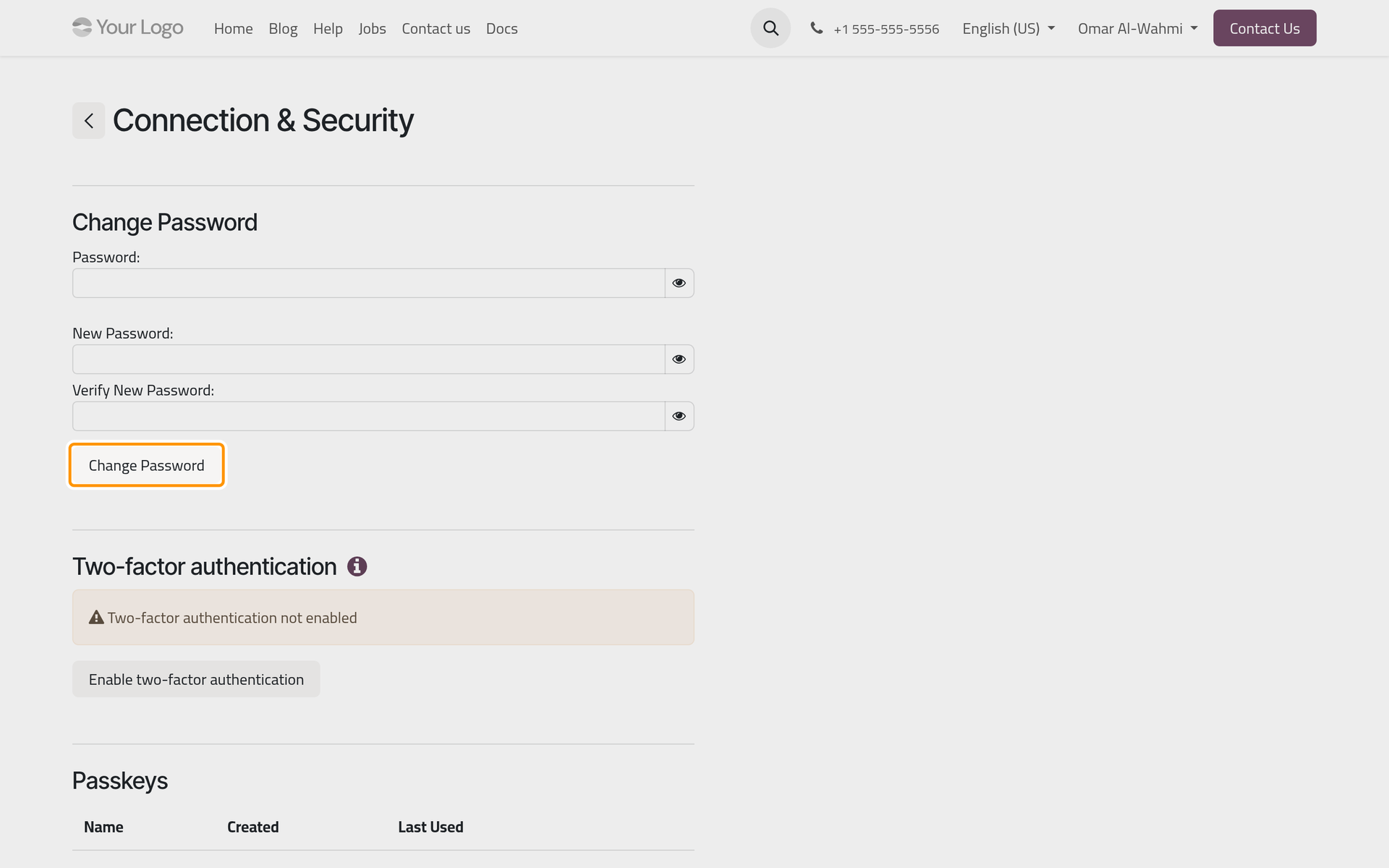
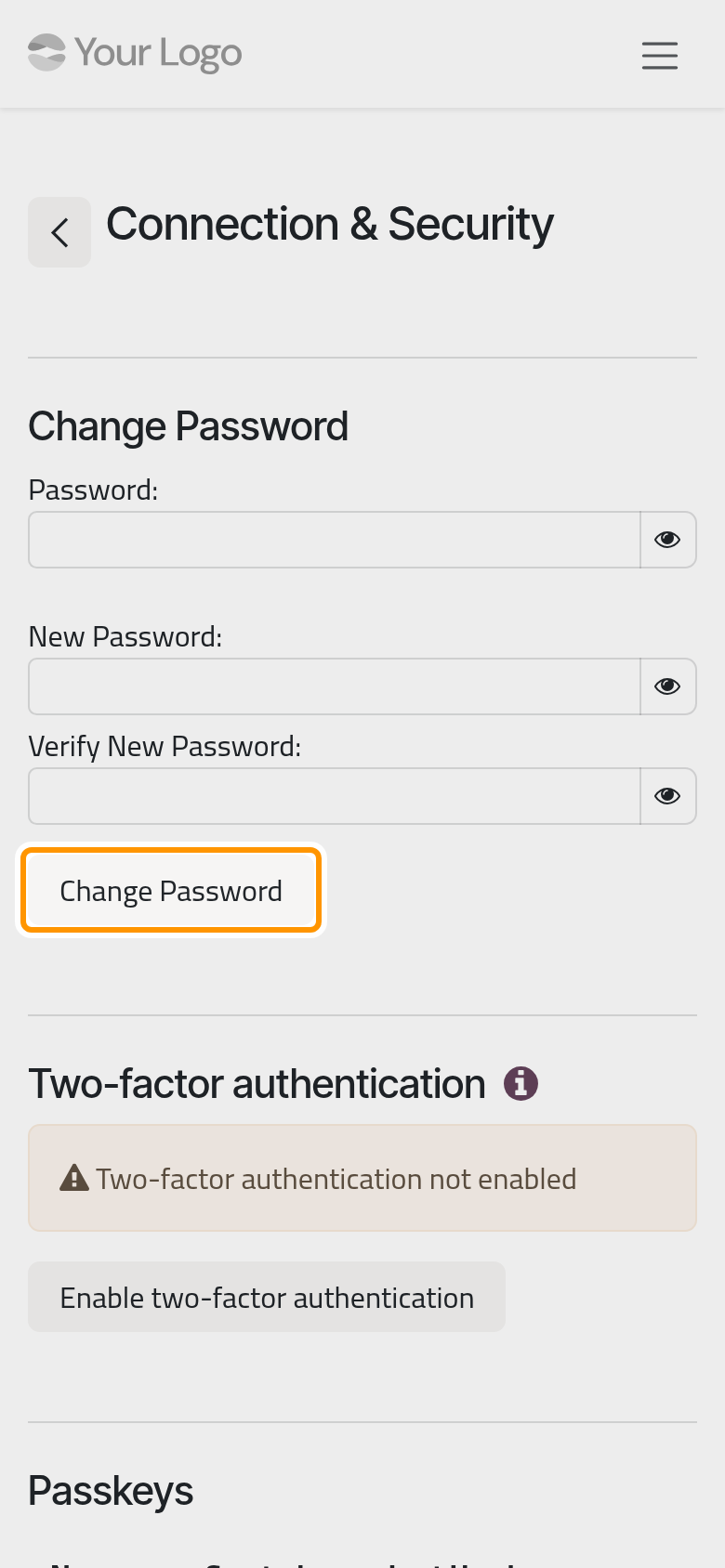
- Two-factor authentication: after the password, each sign-in asks for a six-digit code from an authenticator app on your phone. Click Enable two-factor authentication. A Security Control window first asks for your current password, then shows a code to scan with the app; Cannot scan it? shows a key to type into the app instead. Type the code the app gives and click Activate. The section then says that two-factor authentication is enabled and offers to disable it. At sign-in, Don't ask again on this device skips the code on a device you trust.
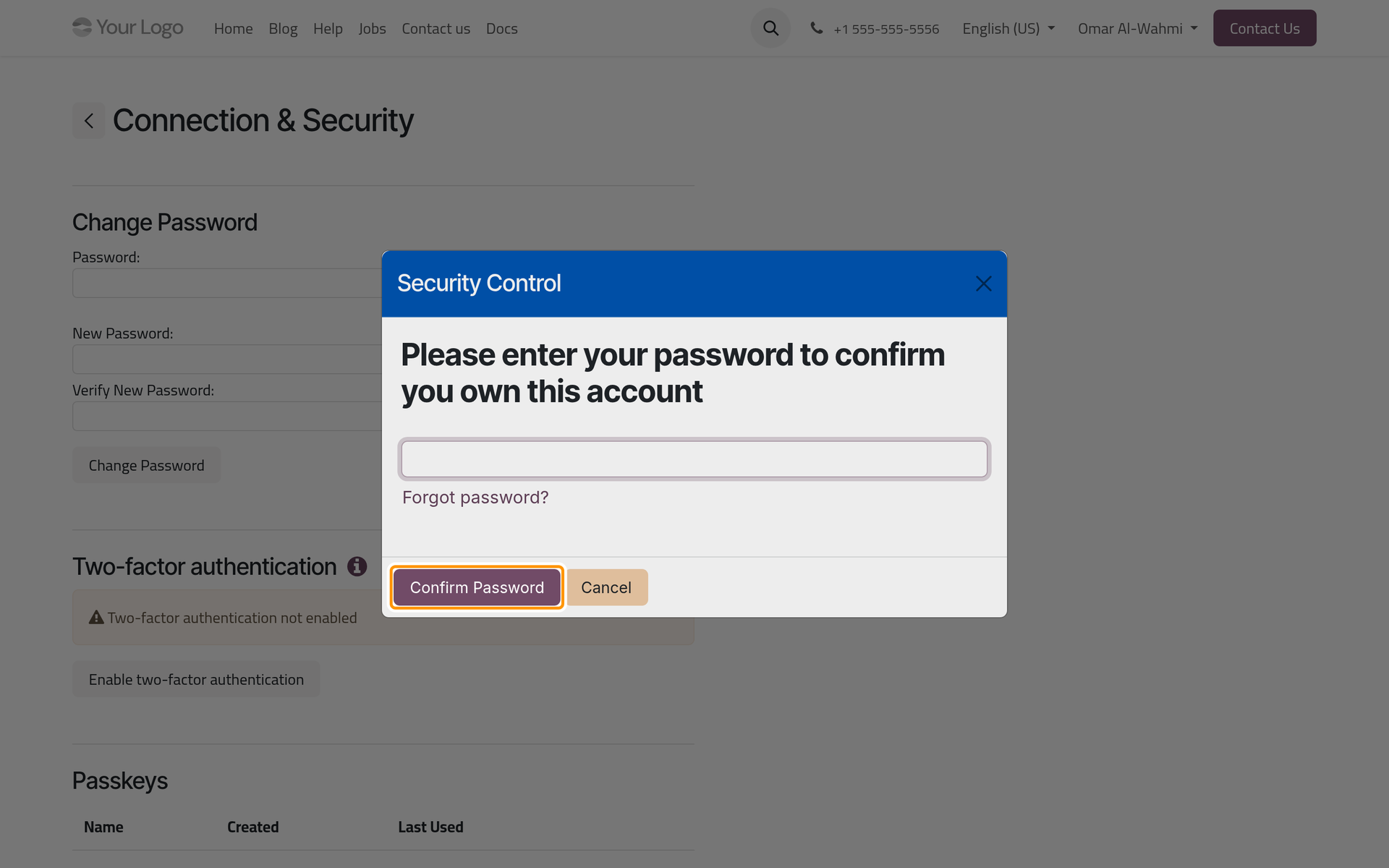
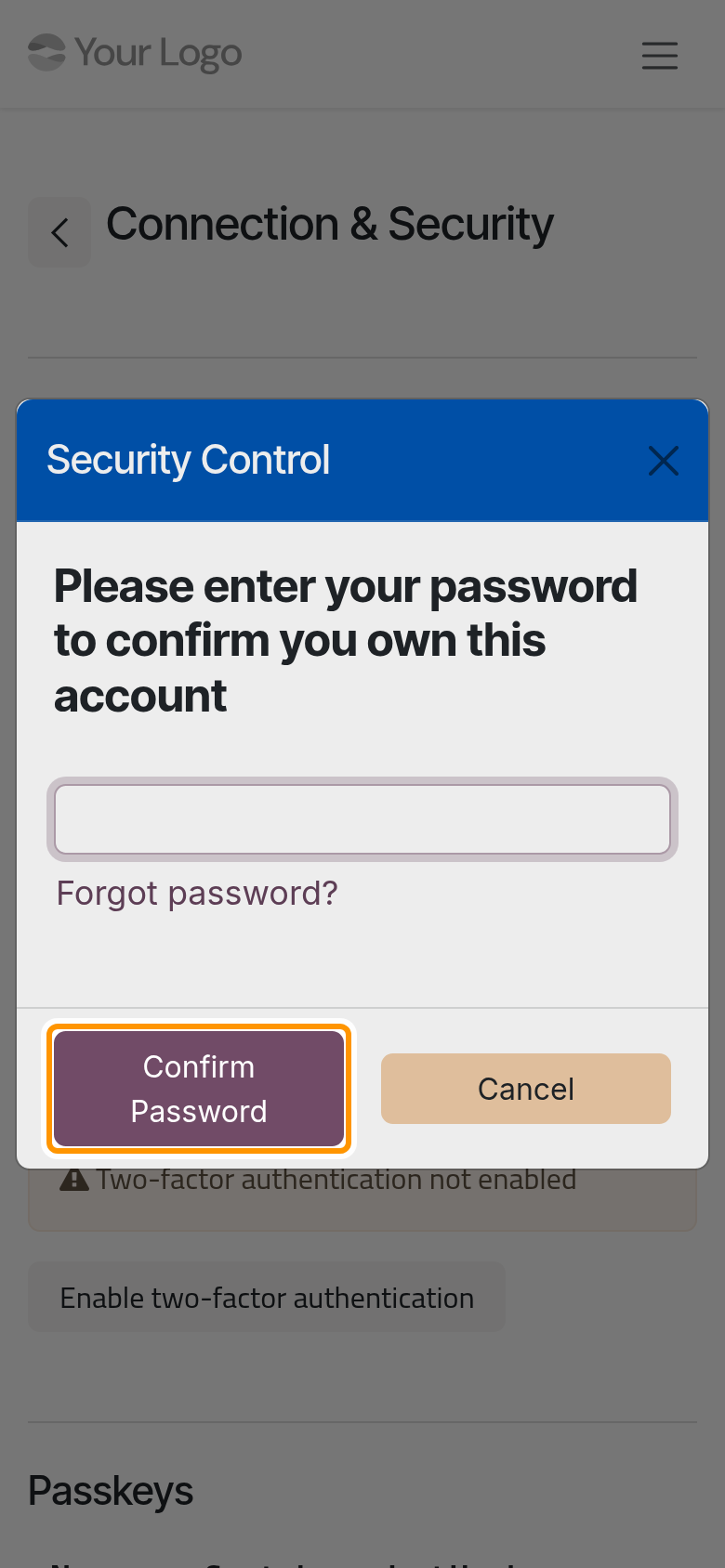
- Passkeys: a passkey signs you in with your device's own lock, a fingerprint, a face or a PIN, or with a security key; the sign-in page offers Use a Passkey. Click Add Passkey, confirm your password, name the key, click Create and confirm on your device. The table shows when each key was Created and Last Used; the pencil renames a key and the bin deletes it.
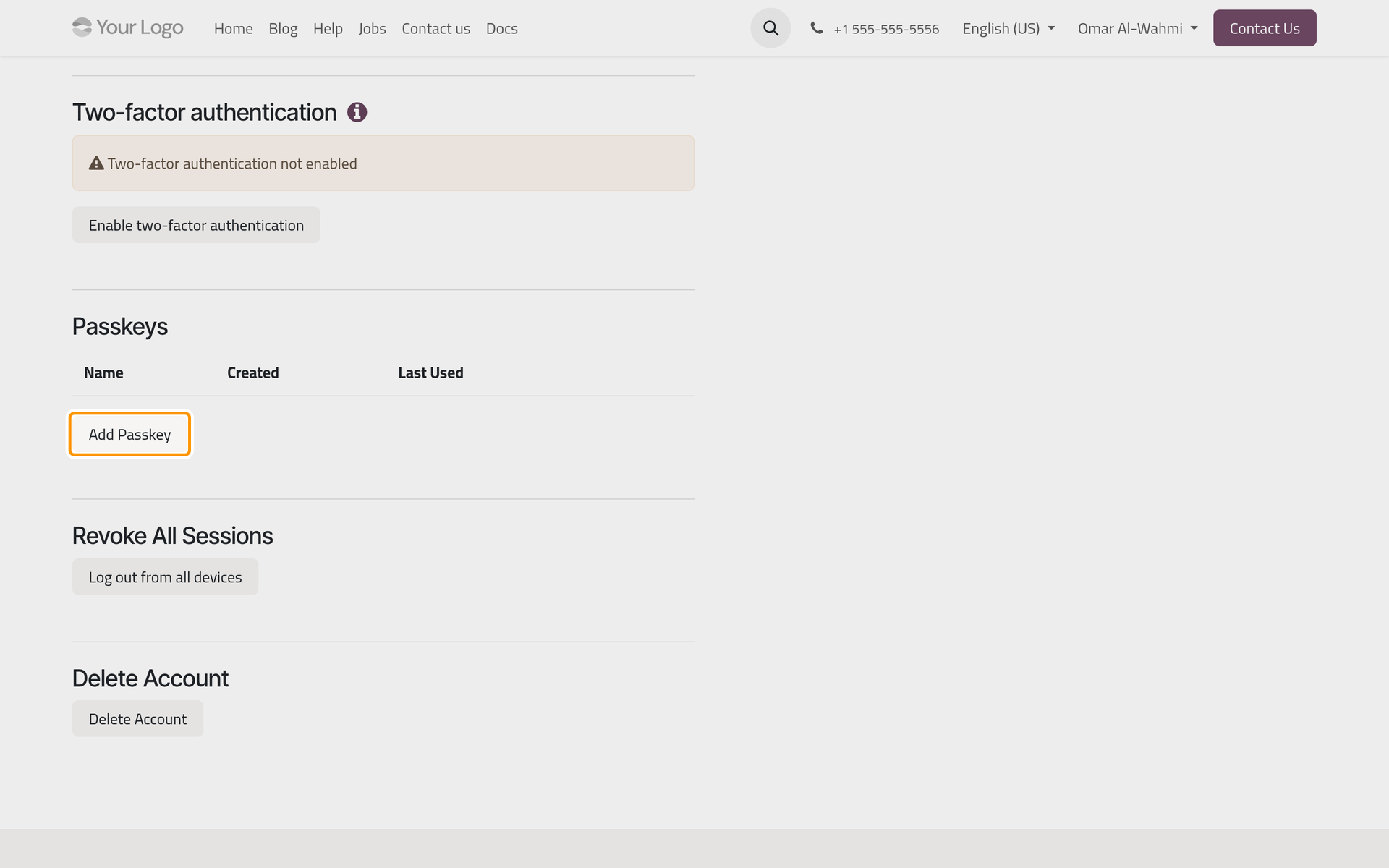
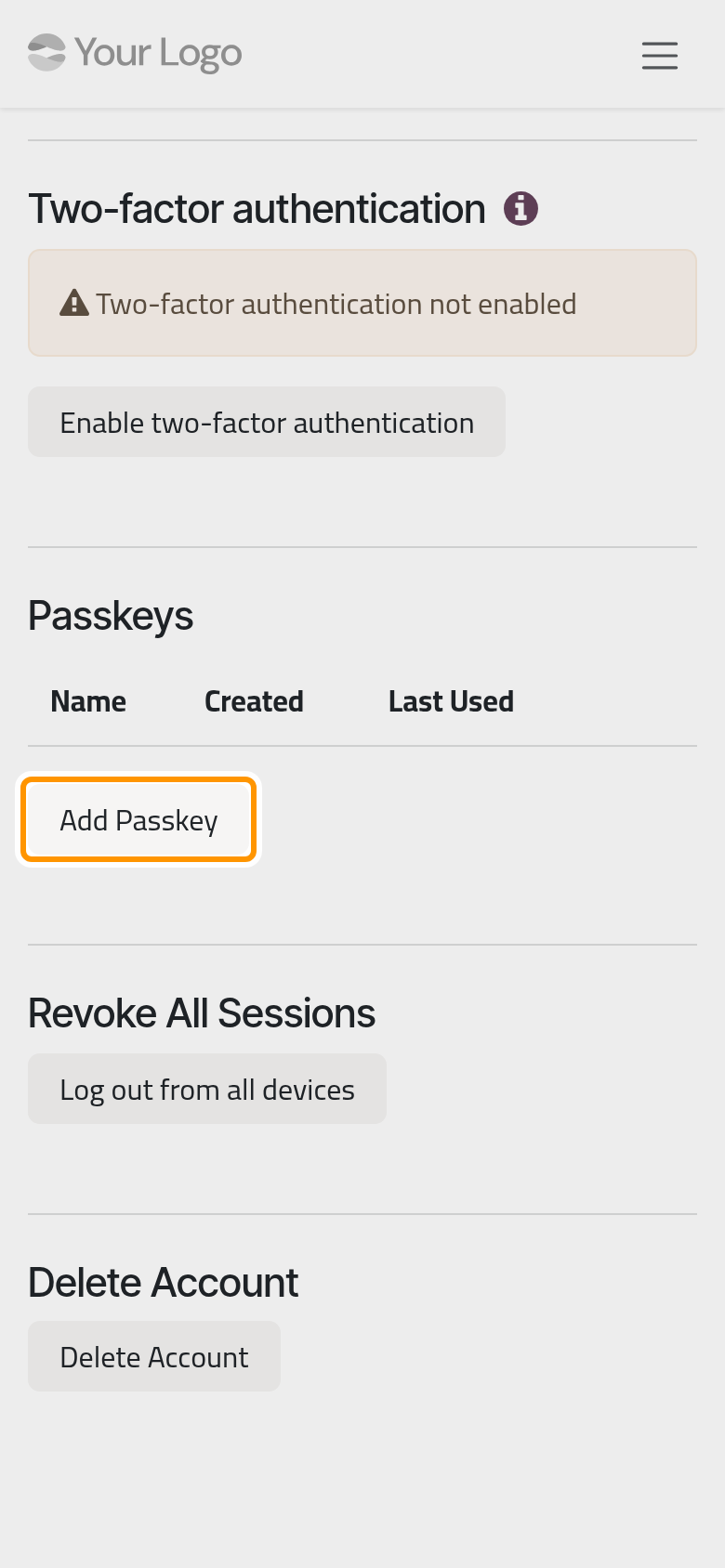
- Revoke All Sessions: Log out from all devices, after your password, signs out every other device where your account is open; this one stays signed in.
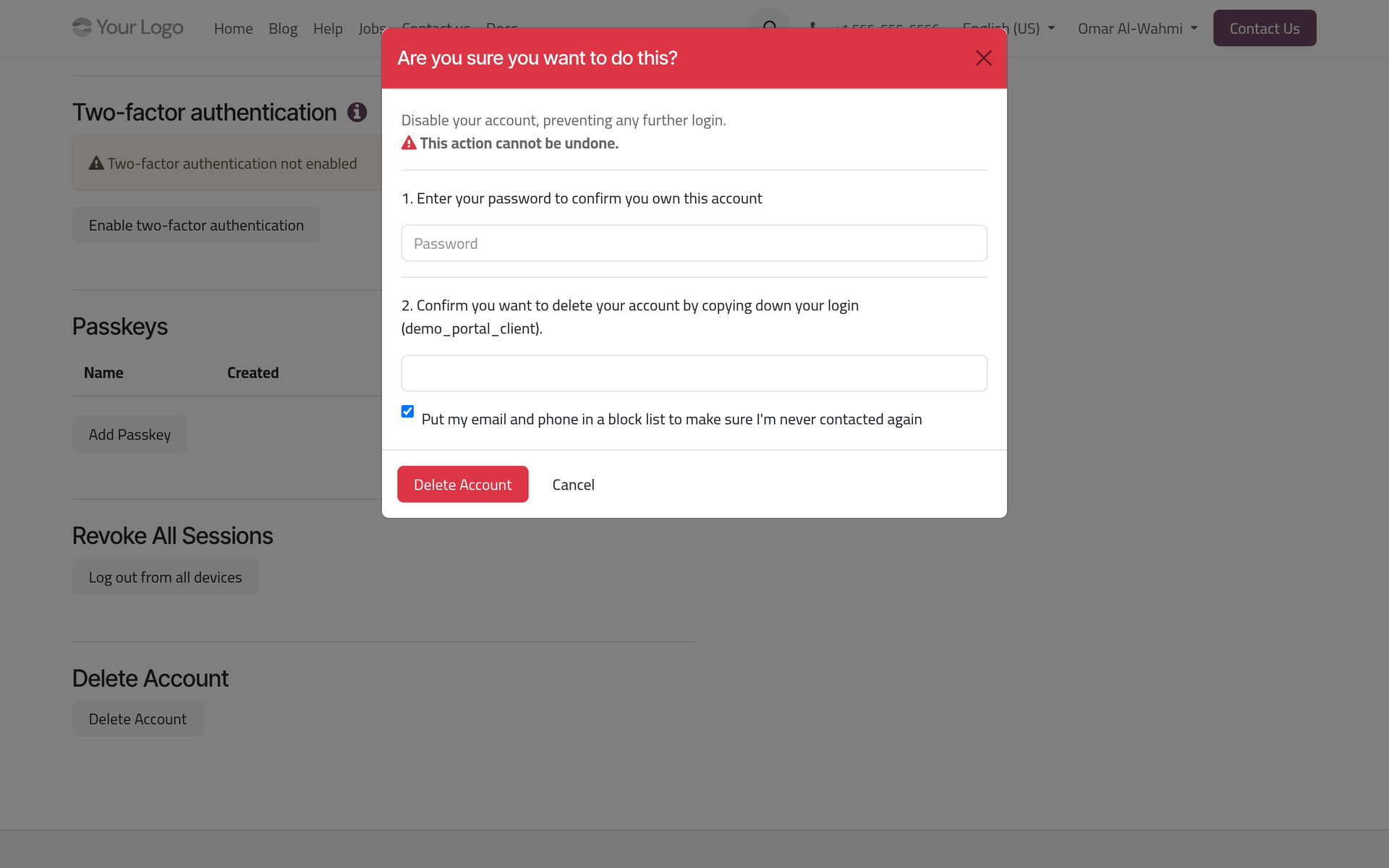
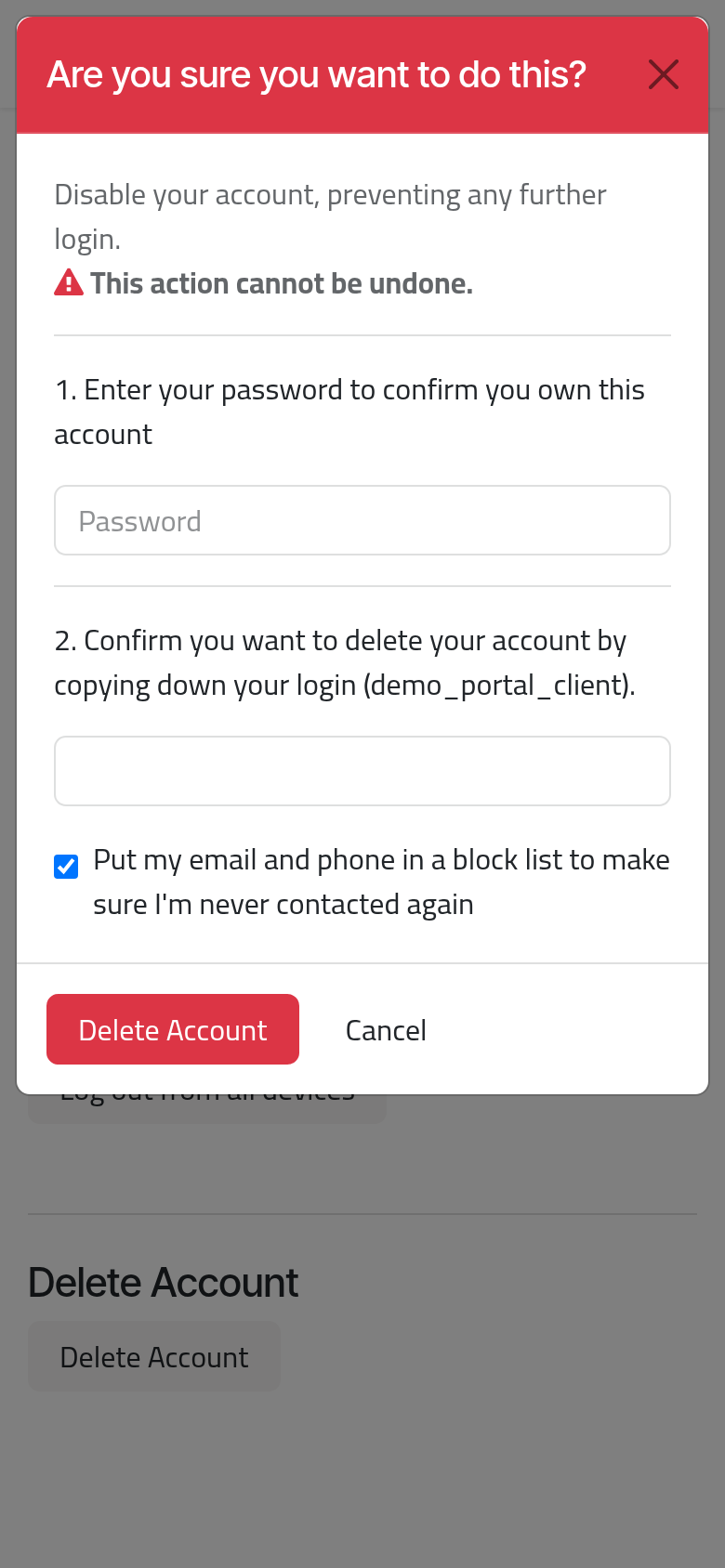
- Delete Account: the window asks for your password and for your login typed again, and its box, ticked by default, puts your e-mail and phone in a block list against further mailings. The red Delete Account disables the account for good; Cancel leaves it untouched.
FAQ
I forgot my password.
Click Reset Password on the sign-in page: a link to choose a new one reaches your e-mail.
I lost the phone with my authenticator app.
Ask the firm: an administrator turns two-factor authentication off on your user. Sign in with your password, then enable it again with the new phone.
What does the firm keep when I delete my account?
Your sign-in is removed and your contact is archived; the documents the firm issued to you stay in its records. To come back, ask the firm for a new access.
Was this page helpful?
Thank you for your feedback.