Give a client portal access
On this page
A client reaches the portal with an account tied to their contact. The firm opens it, stops it and renews it from one window opened on the contact. Your client's first visit follows a first grant from start to finish.
Before you start
- You need the Contact access right at Creation.
- Each person who signs in needs a contact of their own with an e-mail address. One address serves one account only.
- When the website's Customer Account is Free sign up, visitors can also create an account themselves: Client portal settings.
Open the access window
Open a contact from , click Actions, then Grant portal access. Opened on a person, the window lists that person; on a company, the company and each person filed under it; on several contacts selected in the list, all of them. On a phone the window fills the screen and the list scrolls sideways to its buttons.
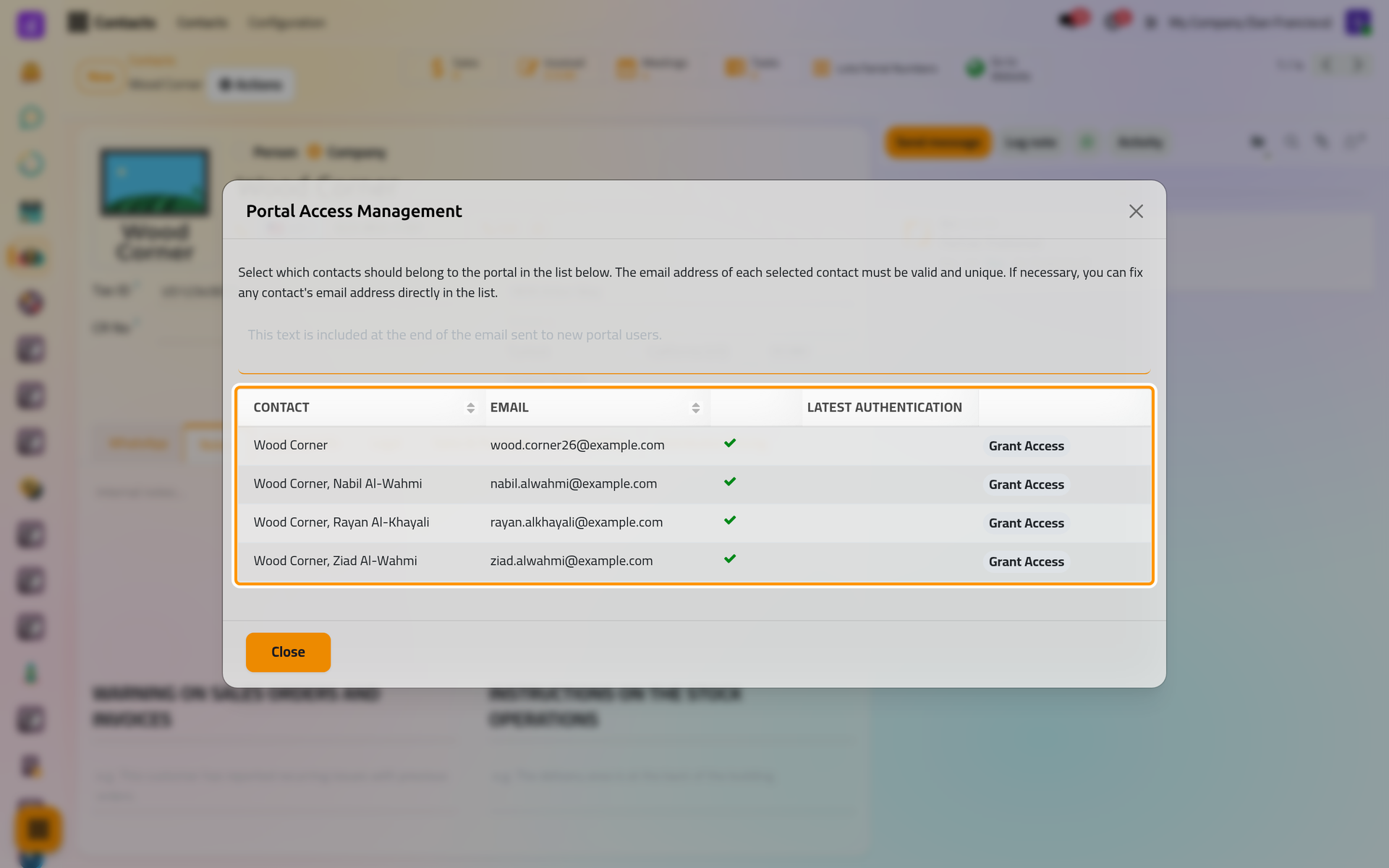
Each row shows:
- Contact and Email. Click the address to correct it; the contact takes the new address when you click a button of the row.
- An icon: a green tick when the address can be used, a red cross when it is not a valid address, a crossed-out person when another user already signs in with it. The last two hide the buttons.
- Latest Authentication, the last time the person signed in.
Choose the rows by what each one must see. The invoices and quotations of a company reach every person of it who has access. Cases, contracts, executions and the other legal records reach only the contact named on them: when the company itself is the client of a case, the company's row needs the access, with an address someone there reads. Choose what a client sees sets out the rules.
Grant access
Type a message in the box above the list if you wish; it ends the invitation e-mail. Click Grant Access on each row concerned: the account is created with the e-mail address as login, the invitation leaves at once, and the chatter of the contact notes Portal Access Granted.
Revoke access
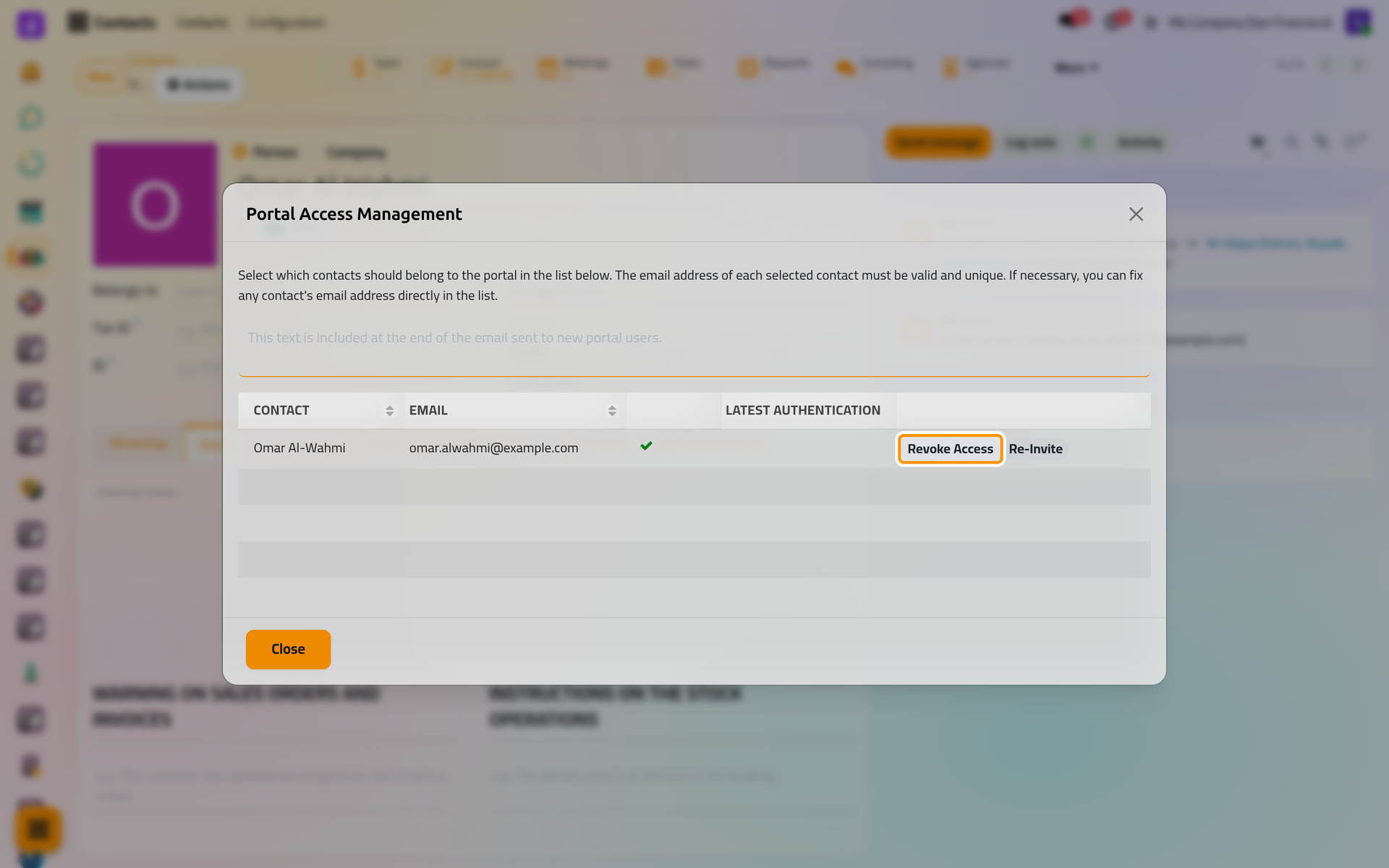
On a row that has access, click Revoke Access. The account is archived: the client can no longer sign in, and an invitation link still unused stops working. Nothing is deleted, and the chatter adds no note for the revocation. Granting access again later re-activates the same account and sends a new invitation.
Send the invitation again
Re-Invite sends the invitation again, with a new link. Use it when the first e-mail was lost or its link has expired: a link is valid for six days and works until the first sign-in. A client who has already signed in and forgot the password does not need it: the sign-in page offers Reset Password.
A contact that belongs to an employee shows a greyed Internal User instead of buttons: employees already sign in with their own account.
FAQ
A row has no Grant Access button.
Its address is either not valid or already used by another user to sign in; the icon says which. Correct the address in the row, or give this person a different one.
The client did not receive the invitation.
Check the address in the row, then click Re-Invite. If no e-mail leaves the database at all, the outgoing mail server is the cause: Email: outgoing and incoming servers.
Does a portal account count as a user of the plan?
No. Portal accounts are not internal users: they open no app of the back office. Create a user and set access rights explains the kinds of users.
Where do I find every portal account?
In the list of users, with the Portal Users filter: Create a user and set access rights.
Was this page helpful?
Thank you for your feedback.